


 Menu
MenuMenu


Get Sales Advice from Mon - Fri 9am - 5:00pm:
020 3337 8950LAST UPDATED: January 27, 2026
Getting Started with Your 10-Inch Tablet: Setup, Settings and Must-Do Tweaks
A proper 10 inch tablet setup makes a bigger difference than most people expect. Getting the basics right on day one improves performance, security, battery life, and long-term usability. Whether you are setting up a brand-new device or reconfiguring one you already own, a few smart choices early on can save time and frustration later.
This tablet setup guide walks through essential settings, platform-specific differences, and must-do tweaks to help you get the best experience from your device. If you are new to tablets or upgrading from an older model, this guide will help you set up your 10-inch tablets the right way from the start.
First-Time Setup Essentials

The initial setup stage lays the foundation for how secure, smooth, and personal your tablet feels. Skipping or rushing these steps can lead to issues later, especially around security and data syncing.
Accounts and Sign-In Basics
During your 10 inch tablet setup, you will be asked to sign in with a primary account. This account controls app downloads, backups, and cloud storage.
At this stage, it is worth:
- Using a secure email account you check regularly
- Enabling two-factor authentication where available
- Making sure recovery options are up to date
This account sign-in becomes the backbone of your tablet experience.
Software Updates and Security Settings
Before installing apps, always check for system updates. Software updates often include important security patches and performance improvements.
Key tablet security settings to confirm early:
- Automatic system updates enabled
- App updates set to install automatically
- Built-in security scanning switched on
Keeping software up to date is one of the simplest ways to protect your device.
Screen Lock, Biometrics, and Privacy Controls
A screen lock is essential, even for home use. During your 10 inch tablet setup, choose a secure unlock method that balances convenience and protection.
Recommended options include:
- PIN or password as a fallback
- Fingerprint or facial biometric login
- Auto-lock set to a short idle time
Privacy controls should also be reviewed to limit unnecessary app permissions from day one.
Setting Up a 10-Inch iPad vs Android vs Windows Tablet
While the basics are similar, each platform handles setup slightly differently. Understanding these differences helps you avoid missing important settings.
iPadOS Setup Priorities
For iPads, focus on:
- Apple ID security and two-factor authentication
- iCloud backup and device finder
- Privacy tracking controls
iPadOS offers excellent long-term updates, making early setup choices especially important.
Android Setup Priorities
Android tablets offer more customisation during setup. Priorities include:
- Google account security settings
- Google Drive cloud backup setup
- App permission controls
Android users should pay close attention to notification controls early on.
Windows Tablet Setup Priorities
Windows tablets behave more like laptops. During setup:
- Link a Microsoft account for cloud sync
- Enable OneDrive backups
- Adjust power and sleep settings
Windows tablets benefit from early optimisation to balance performance and battery life.
Display and Home Screen Tweaks for Comfort and Productivity
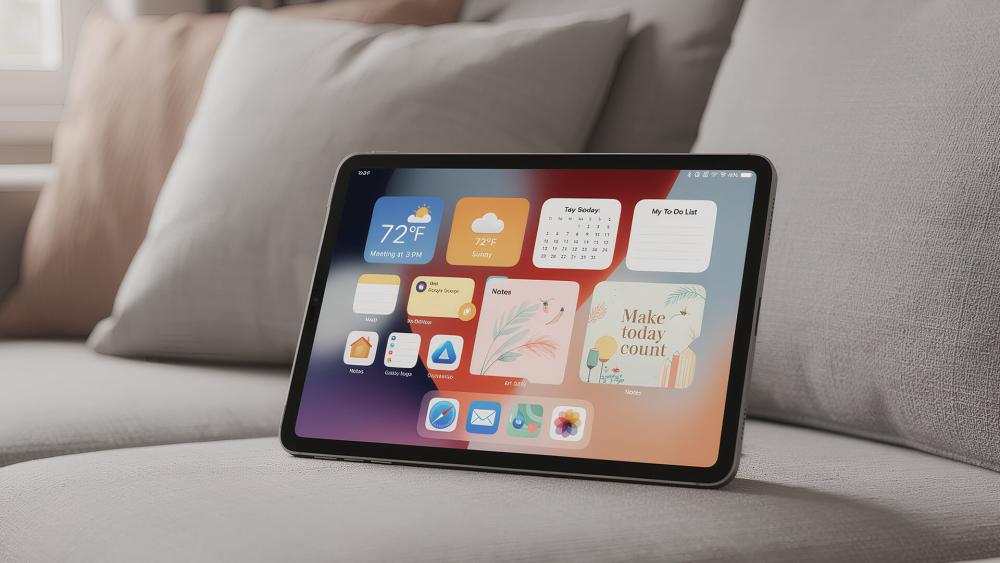
A few visual adjustments can significantly improve comfort, especially on a 10-inch screen.
Text Size, Brightness, and Eye-Comfort Settings
During your 10 inch tablet setup, adjust:
- Text scaling for readability
- Auto-brightness for changing lighting
- Eye comfort or blue light filters
These tablet display settings reduce eye strain during long sessions.
Home Screen Layout and Shortcuts
A clean tablet home screen layout improves daily usability. Group frequently used apps, remove clutter, and place widgets where they are easy to reach.
This makes multitasking faster and keeps the interface organised.
Notifications and Focus Settings
Uncontrolled notifications are a common frustration. Early setup should include:
- Disabling non-essential app notifications
- Using focus or do-not-disturb modes
- Allowing alerts only from priority apps
This keeps your tablet useful without becoming distracting.
Backups and Cloud Sync Setup
Backing up your data is one of the most important steps in any 10 inch tablet setup.
Cloud Backup Options and What to Enable
Enable automatic cloud backup setup so your data is protected if the device is lost or damaged.
Focus on backing up:
- App data and settings
- Photos and videos
- Device preferences
Photos, Files, and Notes Syncing
Syncing ensures access across devices. Enable cloud storage for:
- Photos and videos
- Documents and PDFs
- Notes and reminders
This also makes upgrading or replacing your tablet much easier.
Storage Management Basics During Setup
Early storage management prevents future issues. Review:
- How much internal storage is available
- Which apps use the most space
- Whether cloud storage can reduce local usage
Good habits here improve long-term performance.
Essential Apps to Install on Day One
Installing the right apps early helps your tablet feel useful straight away.
Productivity and Note-Taking Essentials
For most users, productivity apps are essential. Consider tools for:
- Note-taking and planning
- Document viewing and editing
- Calendar and task management
If productivity is a priority, it is worth learning how to make your tablet more productive.
Media and Everyday Apps
Media apps transform how you use your 10-inch tablet at home. Install:
- Streaming apps
- Music and podcast players
- Reading and news apps
Security and Device-Finder Tools
Every tablet should have:
- Built-in device finder enabled
- Remote lock and wipe options active
- Basic security or anti-malware tools
These tools are essential if your tablet is ever lost or stolen.
Parental Control and Child Profile Setup During Initial Configuration
If a 10-inch tablet will be shared with children, setting up parental controls during the initial 10 inch tablet setup is strongly recommended. Doing this early avoids the need to undo app installs, permissions, or account settings later.
Most modern tablets support dedicated child profiles or family modes, allowing parents to separate adult and child usage clearly. These profiles help keep personal data secure while giving children access to age-appropriate content.
During setup, it is worth configuring:
- Separate child or family profiles where available
- App download restrictions and content ratings
- Screen time limits and bedtime schedules
Parental controls also allow you to manage in-app purchases and prevent accidental spending. This is particularly important if payment methods are linked to the main account.
Once enabled, these settings are easy to adjust as children grow or usage needs change. For households sharing a single device, learning how parental controls on 10-inch tablets work ensures the tablet remains safe, organised, and stress-free for everyone using it.
Tablet Accessories Worth Setting Up Early
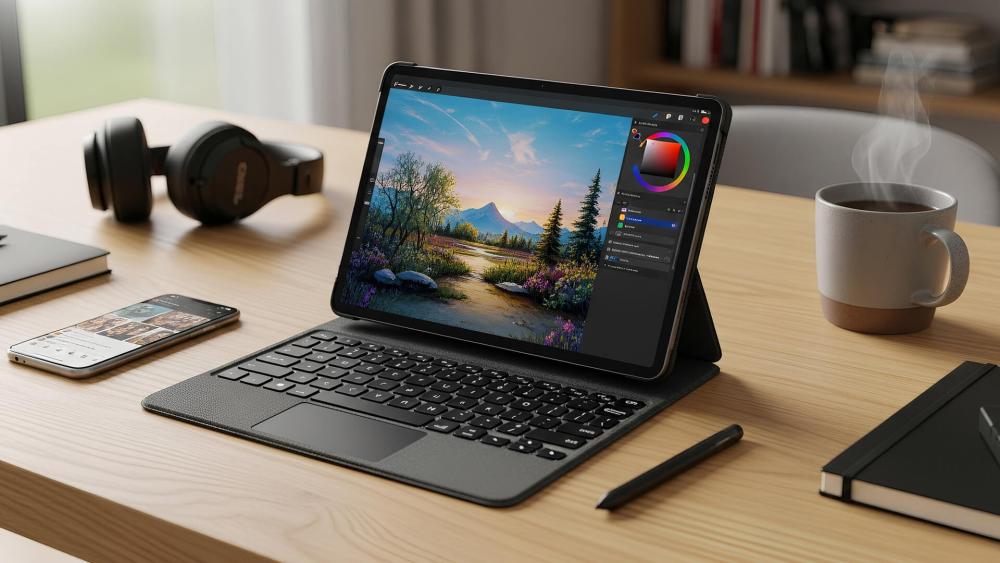
While accessories are not essential on day one, setting them up early can dramatically improve how your tablet feels to use. A 10 inch tablet setup is often smoother when key accessories are ready from the start, especially if you plan to use your device for work, study, or long sessions.
A keyboard case can make typing easier during setup and app installation, while also improving comfort for everyday tasks. A stylus is useful for note-taking, navigation, and creative apps, even if you only use it occasionally. Just as importantly, fitting a protective case early helps avoid accidental damage while you are still getting used to handling a new device.
If you are unsure which add-ons are worth it, our guide to tablet accessories explains what actually makes a difference and what you can safely skip. Learning how to protect your 10-inch tablet early on also helps keep it in good condition long term.
Battery and Power Settings to Check During Setup
Battery life is one of the biggest strengths of a 10-inch tablet, but it only stays that way if power settings are configured properly during setup. Spending a few minutes here can noticeably improve daily battery performance.
During your 10 inch tablet setup, review:
- Screen timeout and auto-lock timing
- Background app activity and refresh limits
- Battery optimisation or power-saving modes
Enabling optimised charging helps protect battery health over time, especially if your tablet is often charged overnight. Reducing unnecessary background activity also prevents hidden battery drain and keeps performance consistent.
These tweaks are simple, but they make a long-term difference to how reliable your tablet feels day to day.
Wi-Fi, Bluetooth and Connectivity Checks During Setup
Connectivity is something most users rush through during a 10 inch tablet setup, but taking a moment to check network settings early helps avoid performance issues later. A stable connection is essential for software updates, cloud backups, and app syncing, so it is worth confirming everything works as expected.
Start by connecting to a reliable Wi-Fi network and checking signal strength in the rooms where you plan to use your tablet most. If the signal is weak, moving closer to the router during setup can prevent interrupted downloads and failed updates.
Bluetooth should also be enabled early if you plan to use accessories. Pairing keyboards, speakers, or headphones during setup ensures they are ready to use straight away and avoids connection issues later. If your tablet supports mobile data, this is also a good time to confirm that mobile connectivity is working correctly before relying on it away from home.
Accessibility Features Worth Enabling During Setup
Accessibility settings are not just for specialist needs. Many of these tools improve comfort, usability, and efficiency for everyday users and are best explored during initial setup.
Features such as text scaling, colour adjustments, and voice controls can make a tablet easier to use for long periods. Gesture assistance and audio feedback also help users who prefer touch-based navigation over typing.
Taking a moment to review the accessibility features on tablets during setup ensures your device is tailored to how you actually use it, rather than relying on default settings.
Common Setup Steps You Can Skip (For Now)
Not every option shown during setup needs to be completed immediately. Skipping a few non-essential steps can make your 10 inch tablet setup feel quicker, cleaner, and less overwhelming, especially if you want to start using the device straight away.
During initial setup, it is usually fine to delay the following:
Installing every suggested app
Stick to essential apps first so you can monitor performance and storage before adding more. Extra apps can always be installed later once everything is running smoothly.
Granting full permissions to all apps
Many apps request access to location, contacts, or notifications during installation. These permissions can be reviewed and adjusted later, helping you maintain privacy without affecting core functionality.
Over-customising the home screen
Widgets, folders, and advanced layouts can wait. A simple home screen makes it easier to learn how your tablet behaves before adding more complexity.
Syncing non-essential content immediately
Large photo libraries or older files do not need to sync on day one. Prioritise core backups first, then expand syncing once setup is complete.
Once your tablet is fully set up and you are comfortable using it, you can return to these options and customise everything to suit your routine.
Conclusion
A well-planned 10 inch tablet setup ensures better performance, stronger security, and a smoother everyday experience. From account sign-in and security settings to display tweaks and essential apps, each step plays a role in how enjoyable your tablet feels long term.
By taking time to adjust settings properly, enable backups, and install the right tools, you turn a new device into something genuinely useful. Whether your tablet is for productivity, entertainment, or shared home use, a thoughtful setup makes all the difference.
FAQs
What are the first settings to change on a new 10-inch tablet?
Screen lock, automatic updates, cloud backups, and display settings should be adjusted first.
Which security settings should be enabled during setup?
Screen lock, biometric login, two-factor authentication, and device finder tools should all be enabled.
How should backups be set up on a 10-inch tablet?
Enable automatic cloud backups for apps, photos, and settings to protect your data.
Which day-one apps are most useful on a 10-inch tablet?
Productivity tools, streaming apps, note-taking apps, and security utilities are the most useful.
Should I install all apps during setup or wait?
It is best to install only essential apps during initial setup. This keeps your tablet running smoothly while you adjust settings and backups. Once your 10 inch tablet setup is complete, you can add extra apps gradually and monitor how they affect performance and storage.
Do setup steps differ between iPadOS, Android, and Windows tablets?
Yes, each platform has unique account, backup, and privacy settings that should be reviewed during setup.
You can pay with:
*PayPal Credit Representative Example: Assumed credit limit £1,200, Representative 23.9% APR (variable). Purchase rate 23.9% p.a (variable).Terms & Conditions apply.


PayPal Credit and PayPal Pay in 3 are trading names of PayPal UK Ltd, 5 Fleet Place, London, United Kingdom, EC4M 7RD. Terms and conditions apply. Credit subject to status, UK residents only, Five Tech LTD acts as a broker and offers finance from a restricted range of finance providers. PayPal Pay in 3 is not regulated by the Financial Conduct Authority. Pay in 3 eligibility is subject to status and approval. 18+. UK residents only. Pay in 3 is a form of credit. Check if affordable and how you will repay. May make other borrowing more difficult or expensive. See product terms for more details.
Copyright © 1996-2026 Fivetech LTD | Terms and Conditions
box.co.uk & Box are trading names of Five Tech Limited. Registered office: Box LTD, Unit 10 Woodford Trading Estate, Woodford Green IG8 8HF