


 Menu
MenuMenu


Get Sales Advice from Mon - Fri 9am - 5:00pm:
020 3337 8950LAST UPDATED: January 27, 2026
Parental Controls and Kids’ Profiles on 10-Inch Tablets
A 10-inch tablet can be a fantastic family device, but only if it's set up properly. Without clear boundaries, children can quickly access unsuitable content, spend too much time on screens, or accidentally make purchases. The good news is that modern parental controls on 10 inch tablets make it easier than ever to manage screen time, content, and app access without turning the tablet into a constant source of conflict.
This guide explains how child profiles work, how to set sensible screen time limits, and how to protect both your child and the tablet itself. Whether the device is used by one child or shared across the household, these tips help you stay in control while keeping things simple.
Child Profiles and Screen Time Limits

Creating a dedicated child profile is the foundation of safe tablet use. It allows parents to control what children can see and do without affecting adult accounts. If you are planning to set up profiles and controls, here are some things you look for:
Separate Profiles and Age-Appropriate Access
Most 10-inch tablets support individual child profiles or child accounts. These profiles operate independently from adult users and apply restrictions automatically based on age.
With a child profile, parents can:
- Limit access to apps, games, and websites
- Block settings and system changes
- Apply age ratings to content automatically
This separation ensures children cannot access emails, photos, or personal apps stored on adult accounts.
Screen Time Schedules and Downtime
Screen time limits help prevent overuse without needing constant supervision. Instead of manually enforcing rules, parents can schedule when the tablet is available.
Common approaches include:
- Daily screen time limits (for example, 1–2 hours per day)
- Downtime schedules for evenings or school nights
- Weekend exceptions with longer access windows
Using schedules makes limits predictable, which reduces arguments and helps children build healthier habits.
App Permissions and Purchase Controls
Accidental purchases are one of the biggest concerns for parents. App permissions and purchase approvals prevent children from downloading apps or making in-app purchases without consent.
Key controls to enable include:
- Requiring approval for app downloads
- Blocking in-app purchases entirely
- Restricting access to app stores
These settings protect against unexpected charges and keep app access age-appropriate.
Content Filters and App Restrictions
Beyond screen time, content filtering ensures children only see what is suitable for their age and maturity level.
Web and Search Filtering
Web filters block inappropriate websites and limit search results to child-safe content. Many systems use built-in safe search modes that automatically remove explicit results.
Parents can:
- Enable restricted search across browsers
- Block specific websites manually
- Prevent access to unknown or unsafe domains
This creates a safer browsing environment, especially for younger children.
App Installs, Ratings and Restrictions
Apps and games are rated by age, and parental controls allow parents to enforce these ratings automatically.
This means:
- Only age-appropriate apps can be installed
- Mature-rated games are hidden from children
- Apps already installed can be restricted or removed
These controls are particularly useful as children grow and their interests change.
Safe Settings for Streaming and Browsing
Streaming platforms often have their own parental settings. These should be configured alongside system-level controls for best results.
Safe setup usually includes:
- Enabling kids' modes on streaming apps
- Disabling autoplay and recommendations
- Blocking access to unrestricted profiles
Together, these settings prevent children from stumbling into unsuitable content.
Using a 10-Inch Tablet as a Shared Family Device

Many households use one tablet across multiple users. If you too use your tablet as a family device, with the right setup, this can work smoothly without compromising privacy or safety.
Switching Users and Keeping Data Separate
User switching allows each family member to log into their own profile. Children only see their apps and content, while adults retain full access elsewhere.
This separation ensures:
- Personal data stays private
- Settings don't get changed accidentally
- Children can't access adult files or accounts
It also makes sharing the tablet more practical long term.
Shared Apps vs Private Accounts
Some apps, such as streaming services, may be shared across profiles. Others, like email or cloud storage, should remain private.
A sensible balance includes:
- Shared entertainment apps
- Separate logins for personal services
- Individual app permissions per profile
This approach keeps things simple without sacrificing security.
Household Rules for Tablet Use
Technology works best when paired with clear rules. Agreeing on household guidelines avoids confusion and conflict.
Helpful rules include:
- No tablets during meals
- Tablets charged overnight outside bedrooms
- Screen-free time before bed
Consistency matters more than strictness, especially with younger children.
Protecting a Tablet When Kids Use It
Children use tablets differently from adults. Physical protection is just as important as digital controls. Here are some tips to help protect your tablet from damage when kids use them:
Case and Screen Protection Basics
A protective case is essential for family tablets. Look for cases with reinforced corners and raised screen edges.
Screen protectors add another layer of defence by:
- Preventing scratches
- Reducing crack risk from drops
- Making cleaning easier
This setup significantly reduces repair costs over time.
Drop and Spill Prevention Habits
While accidents happen, good habits lower the risk.
Encourage children to:
- Use the tablet at a table or desk
- Avoid using it near food and drinks
- Carry it with both hands
Simple routines can make a big difference.
Cleaning and Care Routines
Shared tablets pick up fingerprints, crumbs, and germs quickly. Regular cleaning keeps the device hygienic and working properly.
Best practices include:
- Using microfiber cloths for screens
- Avoiding harsh cleaning sprays
- Cleaning cases regularly
Good care extends the tablet's lifespan and keeps it pleasant to use.
Age-Based Control Adjustments as Children Grow
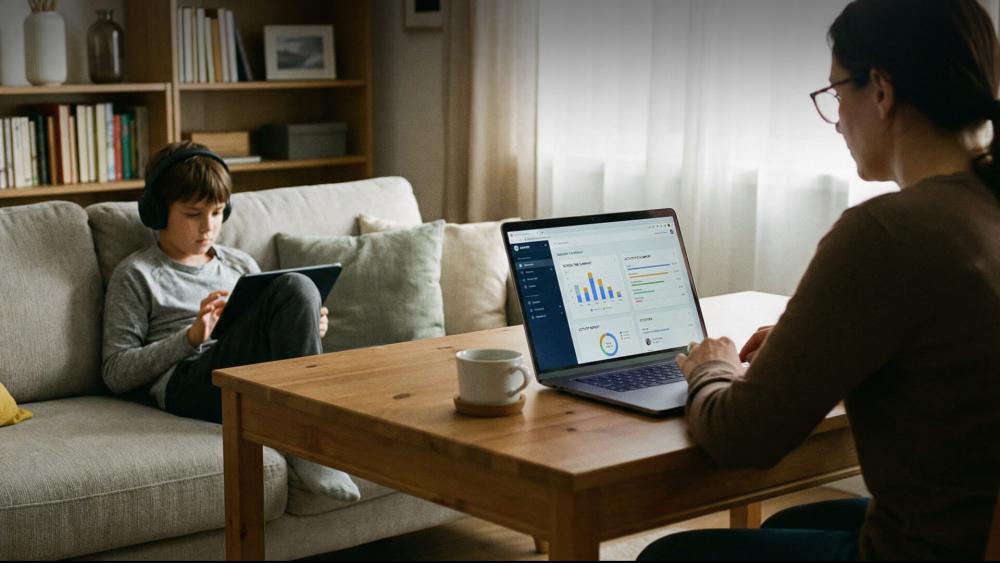
One of the biggest challenges with parental controls is that children outgrow settings faster than parents expect. Controls that work well at age five can feel restrictive or impractical by age ten.
Adjusting Controls for Younger Children vs Older Kids
For younger children, tighter restrictions help establish healthy habits early. As children grow, controls should gradually shift from blocking access to guiding behaviour.
A sensible progression looks like:
- Younger children: Strict app approval, short screen time limits, heavily filtered web access
- Primary school age: Longer screen time windows, limited browsing, supervised app installs
- Older children: Increased autonomy with activity monitoring rather than hard limits
Gradual adjustments reduce frustration and help children learn responsible device use instead of seeing controls as punishment.
Teaching Digital Responsibility Alongside Controls
Parental controls work best when paired with conversations. Explaining why limits exist builds trust and reduces attempts to bypass restrictions.
Helpful habits include:
- Reviewing app requests together
- Discussing online safety and privacy
- Setting shared expectations for screen use
This approach prepares children for fewer restrictions later, rather than sudden freedom.
Monitoring Activity Without Invading Privacy
Many parents worry about balancing safety with trust. Modern parental controls allow oversight without constant surveillance.
Usage Reports and Screen Time Insights
Most tablets provide activity summaries showing:
- Time spent on apps
- Most-used categories
- Daily or weekly screen patterns
These reports help parents spot issues early, such as excessive gaming or late-night use, without checking devices constantly.
When to Step In and When to Step Back
Monitoring is most effective when used as a guide rather than a punishment tool. Occasional reviews paired with calm discussions are more productive than constant intervention.
This balance helps children feel trusted while still protected.
Preventing Workarounds and Bypass Attempts
As children get older, some will try to bypass controls. Understanding common methods helps parents stay ahead without becoming overly restrictive.
Common Ways Kids Try to Bypass Controls
Typical attempts include:
- Switching profiles
- Using guest modes
- Resetting apps or browsers
- Asking friends to install apps elsewhere
Most of these can be prevented by locking system settings behind adult credentials and disabling guest access.
Keeping Controls Effective Without Over-Restricting
Regularly reviewing settings (monthly is usually enough) ensures controls remain effective as apps and operating systems update.
This avoids the need for extreme restrictions while keeping safeguards intact.
Platform Differences: iPadOS, Android, and Windows Tablets
Not all parental control systems work the same way. Understanding platform differences helps set realistic expectations.
iPad and iPadOS Family Controls
iPads offer some of the most mature family management tools, including:
- Deep app-level restrictions
- Strong screen time scheduling
- Easy profile switching
They work especially well for younger children and shared family tablets.
Android Tablet Family Profiles
Android tablets offer flexible controls and good integration with child accounts. Customisation options are broader, but setup can take slightly longer.
They suit families who want granular control without being locked into one ecosystem.
Windows Tablets in Family Settings
Windows tablets behave more like shared laptops. Controls exist, but they are less streamlined for younger children.
They are better suited for:
- Older children
- Schoolwork-focused use
- Occasional supervised access
When Parental Controls Should Be Revisited or Relaxed
Parental controls are not a one-time setup. Revisiting them prevents frustration and ensures the tablet remains useful rather than restrictive.
Signs Controls Are Too Strict
You may need to adjust settings if:
- Children constantly ask for overrides
- Schoolwork apps are blocked unintentionally
- Screen time feels insufficient for homework
These signs suggest controls need refinement, not removal.
Preparing for Reduced Restrictions Over Time
Gradually relaxing controls helps children transition responsibly. Moving from strict blocking to monitoring teaches independence while maintaining safety.
This approach also reduces conflict as children mature.
Conclusion
Setting up parental controls on 10 inch tablets is not about restricting children unnecessarily. It's about creating a safe, balanced environment where kids can learn, play, and explore without constant supervision.
By using child profiles, screen time limits, and content filters, parents can stay in control without turning the tablet into a source of stress. Combined with physical protection and clear household rules, a 10-inch tablet becomes a reliable and family-friendly device.
With the right setup, tablets support healthy digital habits while giving parents peace of mind.
FAQs
How do child profiles work on a 10-inch tablet?
Child profiles create a separate user space with restricted apps, content, and settings that do not affect adult accounts.
What parental control settings are most useful for younger children?
Screen time limits, app approval requirements, content filters, and purchase controls are the most effective for younger users.
How can screen time limits be set without constant conflicts?
Using predictable schedules and downtime windows helps children understand expectations and reduces arguments.
Can one 10-inch tablet be shared safely by multiple family members?
Yes. User profiles keep data separate and allow different restrictions for adults and children on the same device.
What's the best way to protect a tablet from drops and spills?
A durable case, screen protector, and clear usage rules provide the best protection for family tablets.
You can pay with:
*PayPal Credit Representative Example: Assumed credit limit £1,200, Representative 23.9% APR (variable). Purchase rate 23.9% p.a (variable).Terms & Conditions apply.


PayPal Credit and PayPal Pay in 3 are trading names of PayPal UK Ltd, 5 Fleet Place, London, United Kingdom, EC4M 7RD. Terms and conditions apply. Credit subject to status, UK residents only, Five Tech LTD acts as a broker and offers finance from a restricted range of finance providers. PayPal Pay in 3 is not regulated by the Financial Conduct Authority. Pay in 3 eligibility is subject to status and approval. 18+. UK residents only. Pay in 3 is a form of credit. Check if affordable and how you will repay. May make other borrowing more difficult or expensive. See product terms for more details.
Copyright © 1996-2026 Fivetech LTD | Terms and Conditions
box.co.uk & Box are trading names of Five Tech Limited. Registered office: Box LTD, Unit 10 Woodford Trading Estate, Woodford Green IG8 8HF