


 Menu
MenuMenu


Get Sales Advice from Mon - Fri 9am - 5:00pm:
020 3337 8950LAST UPDATED: January 27, 2026
Accessibility Features on 10-Inch Tablets You Should Be Using
Accessibility features are no longer niche extras. On modern devices, they are powerful tools that make tablets easier, more comfortable, and more flexible for everyone. A larger screen already offers advantages, but when combined with the right settings, 10 inch tablet accessibility features can significantly improve readability, control, and day-to-day usability.
This guide explains the most useful accessibility options available on 10-inch tablets, how they work in practice, and why they are worth enabling whether you have specific accessibility needs or simply want a more comfortable experience.
Top Accessibility Features You Should be Using
Modern 10-inch tablets, including Android (Samsung Tablets) and iPad models, come equipped with robust, built-in accessibility features designed to assist users with visual, hearing, and motor impairments. These features can be found in Settings > Accessibility.
1- Text Size, Magnification and Contrast Options
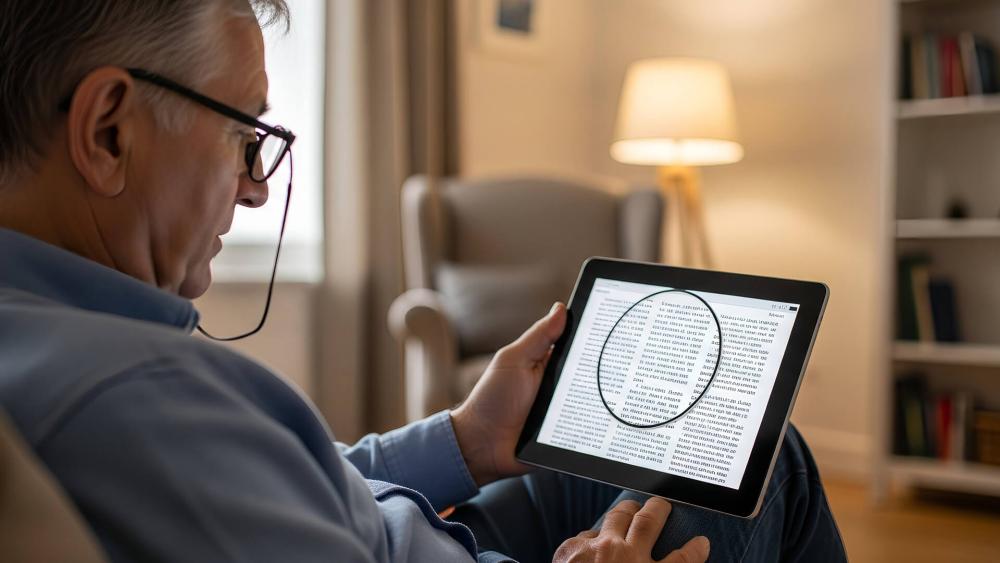
Visual clarity is one of the most important aspects of accessibility on any tablet. A larger screen already helps, but 10 inch tablet accessibility features really come into their own when you fine-tune how text, layout, and colour are rendered. Modern tablets allow deep control over scaling, magnification, and contrast at a system level, not just within individual apps.
Text size and display scaling
Text size settings increase the font size used across the operating system, including menus, notifications, system apps, and supported third-party apps. This directly improves readability by reducing the need to focus on small text or hold the tablet closer.
Display scaling goes further by resizing the entire user interface. This includes buttons, icons, touch targets, menus, and spacing between elements. Technically, display scaling adjusts the device's effective DPI (dots per inch), allowing UI elements to appear larger without reducing screen resolution.
Using tablet text size settings alongside display scaling is especially helpful for users with reduced vision, hand tremors, or limited dexterity. Larger UI elements reduce missed taps, improve accuracy, and lower eye strain during long reading or browsing sessions.
Magnification tools for reading and navigation
Tablet magnification features provide temporary or persistent zoom at the system level. Unlike app-based pinch-to-zoom, system magnification works everywhere including settings menus, login screens, and system notifications.
Most tablets offer multiple magnification methods:
- Gesture-based zoom (such as triple-tap to magnify)
- Floating magnifier windows
- Full-screen magnification with adjustable zoom levels
Technically, magnification works by rendering a scaled view of the screen content in real time. This allows users to inspect fine details, small text, or complex layouts without permanently increasing text size across the device.
Magnification is particularly useful for tasks such as reading small print, navigating dense settings menus, or reviewing detailed content where clarity matters more than layout consistency.
Contrast, colour filters and clarity settings
Contrast and colour adjustments change how visual elements are separated and displayed. Tablet contrast settings increase the difference between text and background colours, making content easier to distinguish, especially for users with low vision or reduced contrast sensitivity.
Colour filters adjust how colours are rendered on screen. These filters help users with colour vision deficiencies by remapping certain colour ranges to more distinguishable tones. For example, red-green or blue-yellow filters can significantly improve readability and icon recognition.
High contrast modes often simplify colour palettes, reduce background noise, and emphasise text outlines. From a technical standpoint, these modes adjust system colour profiles rather than individual app themes, ensuring consistent clarity across the entire interface.
Beyond accessibility needs, high contrast and clarity settings also improve visibility in bright environments or outdoor use, where glare and reflections can otherwise reduce readability.
2- Voice Control and Screen Readers

Audio-based accessibility features reduce reliance on sight and touch, allowing tablets to be controlled using sound, speech, and spoken feedback.
Voice input and hands-free controls
Voice control tablet features allow users to operate the entire system using spoken commands. You can open apps, scroll pages, tap buttons, and navigate menus without touching the screen.
Technically, voice control uses accessibility labels built into apps to map spoken commands to interface elements. This makes it reliable across both system apps and many third-party applications. It is especially helpful for users with limited mobility, arthritis, or temporary injuries.
Screen reader basics and navigation habits
Screen readers such as TalkBack (Android) and VoiceOver (iPad) read out on-screen content and provide spoken feedback for every interaction. As users swipe or tap, the screen reader announces buttons, text, and actions.
Screen readers rely on structured accessibility metadata embedded within apps. Once users learn the gesture patterns, they can navigate efficiently without needing visual confirmation, making tablets usable even with severe visual impairment.
Dictation and accessibility shortcuts
Dictation converts speech into text across emails, messages, notes, and documents. This reduces the need for typing and improves writing speed for users with motor or visual challenges.
Accessibility shortcuts allow features like magnification, screen readers, or voice control to be toggled instantly using button presses or gestures. This makes accessibility tools practical for everyday use rather than buried in settings menus.
3- Assistive Touch and Gesture Controls
Touch-based accessibility features help users who find complex gestures difficult or physically demanding.
Touch alternatives and assistive menus
Assistive touch tablet features provide a floating on-screen menu with large, clearly labelled buttons. These buttons replace complex gestures with simple taps for actions like going home, locking the screen, adjusting volume, or taking screenshots.
This reduces the need for precise movements and makes common actions more predictable and accessible.
Gesture customisation and shortcuts
Gesture controls can be customised to reduce sensitivity or simplify movement requirements. Users can assign shortcuts to single swipes or taps instead of multi-finger gestures.
This flexibility helps users tailor interaction to their physical comfort, reducing fatigue and frustration during longer sessions.
Reducing strain with simplified controls
Simplified control modes reduce animations, visual clutter, and unnecessary transitions. From a technical perspective, this also lowers GPU workload slightly, which can improve responsiveness on mid-range tablets.
Combined with assistive menus and gesture shortcuts, simplified controls make tablets easier to use consistently throughout the day.
Why a 10-inch Screen Can Help with Accessibility
Screen size isn't just about comfort; it directly affects how well accessibility features function in real-world use. On a 10 inch tab device, the operating system has more physical space to work with, which allows accessibility tools to scale up content without breaking layouts, overlapping elements, or hiding important controls.
Larger UI Elements and Easier Touch Targets
A 10-inch display allows the system to increase UI scale while maintaining proper spacing between interactive elements. Technically, this means buttons, icons, and menus can meet or exceed recommended accessibility touch target sizes (typically around 7–9mm) without crowding the screen.
On smaller tablets or phones, increasing text size or display scaling often causes buttons to overlap, menus to truncate, or content to spill off-screen. A 10-inch panel avoids this by providing enough pixel density and physical space to enlarge UI elements cleanly.
As a result, touch targets are easier to hit accurately, which significantly reduces mis-taps and repeated actions. This is especially important for users with limited dexterity, tremors, or reduced fine motor control. It's one of the reasons 10 inch tablet accessibility features feel more reliable and less frustrating than on compact devices.
Better Readability for Long Sessions
From a technical perspective, larger screens allow text to be rendered at higher point sizes while preserving optimal line length and spacing. This improves readability by reducing excessive line breaks, awkward word wrapping, and constant scrolling.
When combined with features like display scaling, bold text, and high-contrast modes, a 10-inch tablet can maintain consistent typography across apps without sacrificing layout integrity. This reduces cognitive load during long reading sessions, making it easier to follow text in emails, documents, educational material, or web pages.
For users with visual fatigue, dyslexia, or light sensitivity, this improved readability helps sustain focus for longer periods without eye strain.
Practical Setups for Home, Study and Work
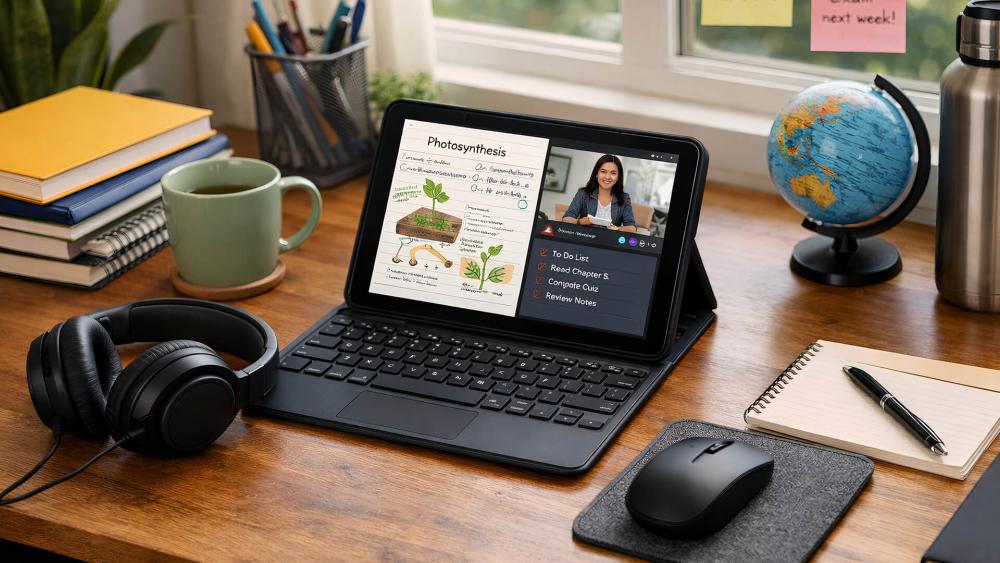
A 10-inch tablet also works better with external accessories that enhance accessibility. The larger form factor supports stable use with stands, external keyboards, and mouse or trackpad input, allowing users to choose interaction methods that suit their needs.
Voice control, dictation, and screen readers are more effective on a larger display because visual and audio feedback can coexist without clutter. For example, magnification windows, accessibility menus, and on-screen captions can remain visible while still leaving usable workspace.
In practical terms, this makes a 10-inch tablet easier to adapt for different environments, whether that's reading at home, studying for extended periods, or working with accessibility tools enabled throughout the day.
If you're configuring a device for the first time, our guide to set up accessibility features can help you get everything enabled correctly. You can also explore how a larger screen helps accessibility in more detail or learn how to build accessible productivity workflows that fit your daily routine.
Conclusion: Small Settings that Make a Big Difference
Accessibility features on modern 10-inch tablets are no longer niche tools; they're built-in system-level options designed to make everyday use clearer, easier, and more comfortable for a wide range of users. From adjustable text size and display scaling to voice control, screen readers, and assistive touch menus, these features allow the tablet interface to adapt to the user, rather than forcing the user to adapt to the device.
The larger screen of a 10-inch tablet gives these accessibility tools room to work properly. Text remains readable at larger sizes, touch targets stay usable when scaled up, and features like magnification, captions, and accessibility menus can run simultaneously without cluttering the screen. Whether you're supporting visual needs, reducing physical strain, or simplifying interaction, these tools can dramatically improve day-to-day usability.
If you're setting up a new device or revisiting an existing one, taking a few minutes to explore 10 inch tablet accessibility features can transform how your tablet feels to use. You can also browse and compare accessible 10-inch tablets at Box.co.uk, where it's easier to find models that support the features you rely on, along with guides to help you configure them properly from day one.
Frequently Asked Questions
Which accessibility settings make a 10-inch tablet easier to use?
Text size adjustments, display scaling, magnification, high-contrast modes, and assistive touch menus are the most impactful settings for improving everyday usability on a 10-inch tablet.
How do magnification and contrast settings improve readability?
Magnification enlarges content without changing system layout, while contrast and colour filters improve text clarity and edge definition, reducing eye strain and improving focus.
What's the difference between voice control and a screen reader?
Voice control lets you operate the tablet using spoken commands, while a screen reader reads on-screen content aloud and uses gestures or keyboard input for navigation.
Which assistive touch settings help with gestures and navigation?
Assistive touch menus, gesture customisation, and on-screen shortcuts reduce the need for complex swipes or precise taps, making navigation easier for users with limited dexterity.
Why is a 10-inch screen helpful for accessibility needs?
A larger screen allows accessibility features to scale up content without breaking layouts, keeps touch targets usable, and supports long sessions with better readability and reduced strain.
You can pay with:
*PayPal Credit Representative Example: Assumed credit limit £1,200, Representative 23.9% APR (variable). Purchase rate 23.9% p.a (variable).Terms & Conditions apply.


PayPal Credit and PayPal Pay in 3 are trading names of PayPal UK Ltd, 5 Fleet Place, London, United Kingdom, EC4M 7RD. Terms and conditions apply. Credit subject to status, UK residents only, Five Tech LTD acts as a broker and offers finance from a restricted range of finance providers. PayPal Pay in 3 is not regulated by the Financial Conduct Authority. Pay in 3 eligibility is subject to status and approval. 18+. UK residents only. Pay in 3 is a form of credit. Check if affordable and how you will repay. May make other borrowing more difficult or expensive. See product terms for more details.
Copyright © 1996-2026 Fivetech LTD | Terms and Conditions
box.co.uk & Box are trading names of Five Tech Limited. Registered office: Box LTD, Unit 10 Woodford Trading Estate, Woodford Green IG8 8HF