


 Menu
MenuMenu


Get Sales Advice from Mon - Fri 9am - 5:00pm:
020 3337 8950LAST UPDATED: January 27, 2026
Protecting Your 10-Inch Tablet: Cases, Care and Repair Tips
A 10-inch tablet is built to be portable, but that also makes it vulnerable. From daily commuting and travel to coffee spills and accidental drops, most tablet damage happens during everyday use rather than extreme accidents.
Good 10 inch tablet protection isn't about being overly cautious; it's about building simple habits that prevent expensive repairs and unnecessary replacements.
This guide covers how to protect your tablet on the move, clean the screen safely, handle drops or water spills correctly, and decide when repair makes sense versus upgrading.
Protect Your 10-inch Tablet with the Right Case and Smart Daily Habits
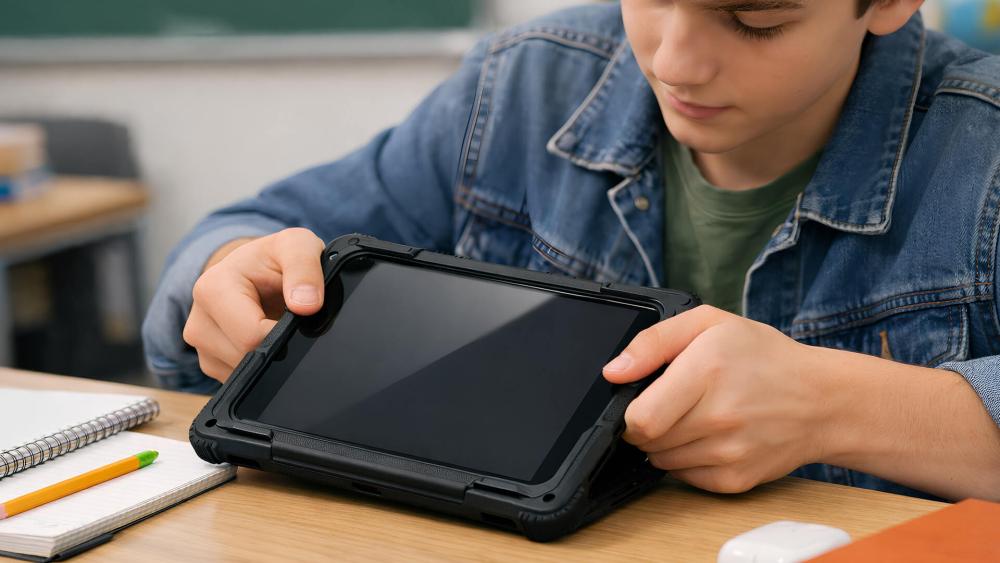
The most effective way to protect a 10-inch tablet starts before accidents ever happen. A good case absorbs impact, prevents scratches, and reduces long-term wear, but it works best when paired with sensible carry and storage habits.
Choosing the right case for everyday protection
Not all tablet cases protect in the same way, so the "best" option depends on how and where you use your tablet.
A rugged protective case with reinforced corners is ideal if your tablet travels daily in a backpack or is used in busy environments. These cases are designed to absorb shock from drops and reduce pressure on the screen when the tablet is packed tightly.
A folio-style case offers a good balance between protection and portability. It covers the screen when closed, reduces scratch risk, and often doubles as a stand for watching or typing. This type works well for commuting, home use, and casual travel.
For lighter protection, a padded sleeve is a smart option when your tablet already has a slim case. Sleeves prevent bending, scuffs, and contact with keys or chargers inside a bag, which are common causes of slow-developing screen damage.
Whichever option you choose, a proper tablet protective case forms the foundation of good 10 inch tablet device protection, especially when combined with the habits below.
Keeping a 10-inch Tablet Safe On the Move
Bag protection and carry habits
One of the most common causes of tablet damage is poor bag placement rather than dramatic drops. A tablet placed loosely in a backpack or handbag is exposed to constant pressure from books, chargers, and other items. Over time, this uneven force can lead to internal stress or screen cracks.
Keeping your tablet in a padded sleeve or a dedicated compartment helps prevent flexing. Cases with reinforced edges provide added shock protection if the bag is dropped or knocked, which is particularly important for commuters, students, and frequent travellers.
Safe storage at home and work
Tablets are often damaged at home or in the workplace simply because they're placed in unstable spots. Sofa arms, bed edges, and cluttered desks make it easy for a tablet to slide or be knocked to the floor.
When not in use, store your tablet flat on a clear surface or upright in a stand. Avoid stacking items on top of it, as prolonged pressure can weaken the screen and frame. These small changes significantly reduce everyday tablet travel protection risks and accidental falls.
Travel routines that prevent damage
Travel adds extra stress through temperature changes, pressure, and repeated handling. Before packing your tablet, power it off to reduce internal heat, as warm components are more vulnerable to damage. Avoid leaving tablets in hot cars or unpressurised luggage areas, where heat and pressure can warp internal components.
Using a rigid or semi-rigid case with internal padding offers the best protection during flights or long journeys, helping shield the tablet from bending and impact inside tightly packed bags.
How to Clean Your Tablet Screen Safely
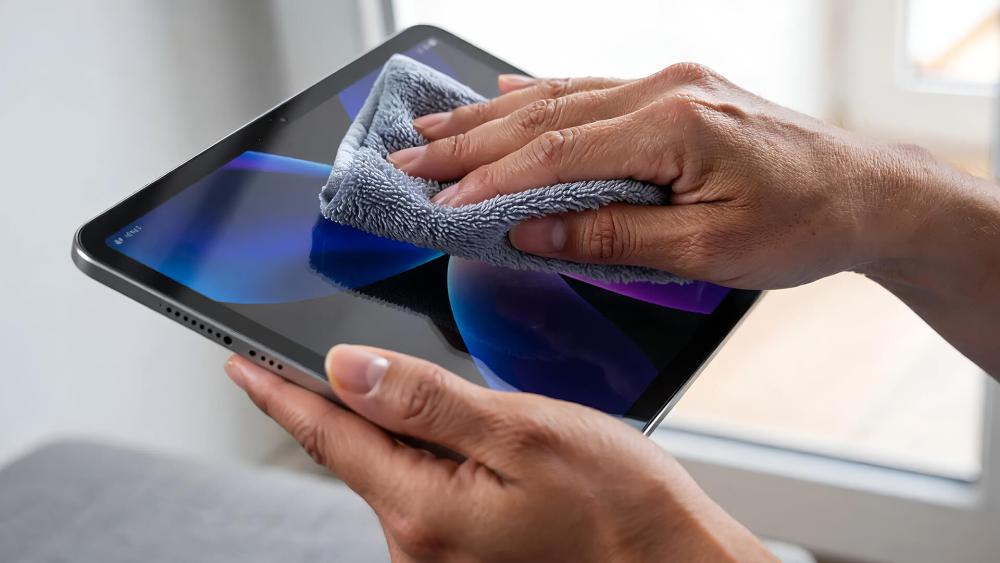
Cleaning a tablet screen sounds simple, but it's one of the easiest ways to cause long-term damage if done incorrectly. Modern tablet displays use thin protective coatings to reduce glare, resist fingerprints, and improve touch accuracy. Using the wrong materials can wear these layers away faster than you might expect.
The safest way to clean a tablet screen
The safest option is always a soft microfibre cleaning cloth, similar to the type used for glasses or camera lenses. This material is designed to lift dust and oils without scratching the surface.
If the screen needs more than a dry wipe, lightly dampen the cloth with distilled water or a screen-safe cleaning solution. The key rule is never to spray liquid directly onto the screen. Moisture can seep into the edges of the display and cause internal damage, which is why controlled, minimal dampness is essential for proper tablet screen care.
What to avoid when cleaning your screen
Household items like paper towels, tissues, or kitchen roll may feel soft, but they're abrasive at a microscopic level. Over time, they can create fine scratches and gradually wear away protective coatings.
Household cleaners, alcohol sprays, and glass cleaners should also be avoided. These chemicals are too harsh for tablet displays and can strip coatings permanently. If scratch protection is a concern, applying a tempered glass screen protector adds a durable layer that takes the wear instead of the screen itself.
Keeping the screen covered when the tablet is in a bag also helps prevent grit and dust from rubbing against the surface during travel.
How often should you clean a tablet screen?
For most users, cleaning the screen once or twice a week is enough. If the tablet is shared, used in public places, or handled frequently, more regular cleaning improves hygiene and visibility.
Consistent cleaning helps maintain touch responsiveness and display clarity, making it an important part of everyday tablet cleaning tips, not just cosmetic upkeep.
What to Do If Your Tablet is Dropped, Cracked, or Exposed to Water
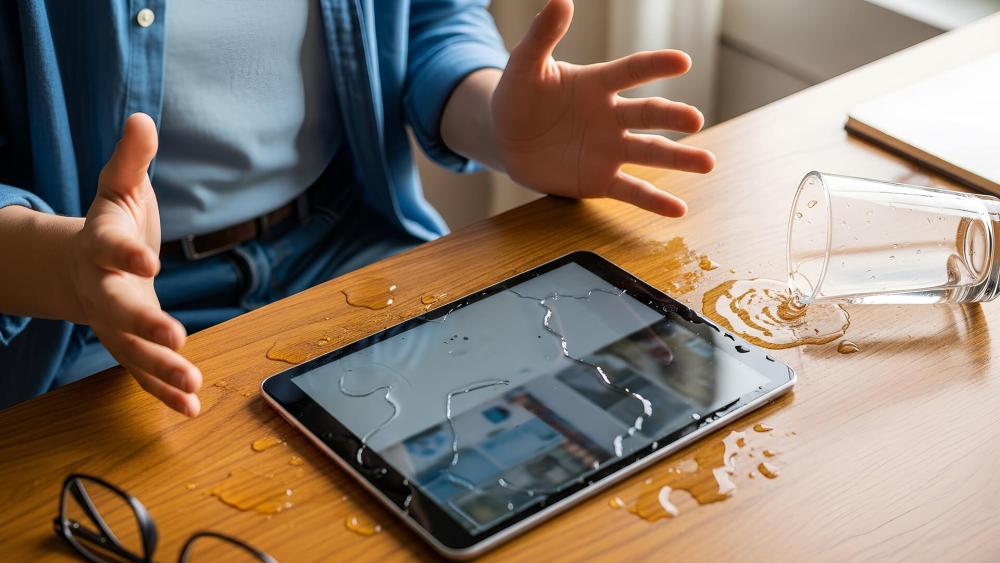
Accidents happen and knowing what to do immediately can make the difference between minor repair and permanent damage.
What to do straight after dropping a tablet
If your tablet is dropped, the first step is to power it off. Even if the screen looks fine, internal components can shift or loosen. Continuing to use the device may worsen hidden damage.
Check for visible signs such as screen cracks, frame bending, or unusual screen behaviour. Internal issues linked to tablet drop damage don't always appear immediately, which is why stopping use early is important.
How to handle a cracked tablet screen safely
Cracked screens should be treated with care. Avoid pressing on damaged areas, as this can spread cracks or dislodge glass fragments. Applying a temporary screen protector can help hold loose glass in place and reduce the risk of cuts.
Be aware that cracked screens allow moisture and dust to enter more easily, increasing the chance of further internal damage. Touch accuracy may also degrade, making normal use frustrating or unreliable.
What to do after a water spill or liquid exposure
Liquid exposure requires fast action. Turn the tablet off immediately, unplug any cables, and remove the case to allow airflow. Gently dry the exterior using a soft cloth.
Do not charge the tablet and avoid using heat sources like hairdryers or radiators. Despite popular myths, placing the device in rice is unreliable. Instead, leave it in a well-ventilated area and allow time for moisture to evaporate naturally. Even short exposure can cause internal corrosion, which is why tablet water damage often worsens if power is restored too quickly.
Deciding Whether to Repair or Upgrade Your 10-inch Tablet
Not every fault means your tablet has reached the end of its life. Some issues are quick and affordable to fix, while others can become expensive very quickly. Understanding the difference helps you avoid spending money where it won't deliver long-term value.
Repairs that are usually worth doing
Certain problems are considered routine and are often cost-effective to fix. Battery replacements are a good example. Over time, batteries naturally degrade, leading to shorter usage times or unexpected shutdowns. Replacing a worn battery can restore your tablet's day-to-day usability and extend its lifespan by several years.
Charging port repairs are another common and sensible fix. If your tablet struggles to charge unless the cable is held at a certain angle, the port may be worn rather than the tablet itself being faulty. Addressing this early can prevent further damage.
Minor screen replacements, such as small cracks that don't affect the frame or internal components, can also make sense, particularly if the tablet is still under warranty cover or relatively new. These tablet repair options usually cost far less than replacing the entire device and can return the tablet to near-normal use.
Damage that often costs more than it's worth
Some types of damage are far harder to fix economically. Severe tablet water damage, especially if liquid has reached the motherboard, can cause corrosion that worsens over time. Even if the tablet powers on after drying, hidden damage may lead to future failures.
Motherboard faults are another red flag. Because the motherboard connects nearly every internal component, repairs are complex and often approach the cost of a replacement device. Repeated screen breaks can also become uneconomical, particularly if the frame is bent or weakened, increasing the chance of future cracks.
In these cases, repair costs can quickly exceed the tablet's remaining value. This is where a repair vs upgrade tablet decision becomes important. Spending heavily on repairs may only delay an inevitable replacement.
Backing up your data before repair or upgrade
Before sending a tablet for repair or deciding to replace it, securing your data should always come first. Create a full data backup using cloud storage, an external drive, or a local computer. This ensures photos, documents, app data, and account settings are protected.
Backing up is especially important if the tablet is unstable or shows signs of internal damage. If repairs fail or the device cannot be recovered, having a backup prevents permanent data loss and makes setting up a replacement device much easier.
If repairs no longer make sense, it may be the right moment to upgrade to a new tablet that offers better durability, longer software support, and improved performance, often making everyday use smoother and more reliable.
Final Thoughts: Protect Now, Avoid Problems Later
Protecting a 10-inch tablet isn't just about avoiding accidents; effective 10 inch tablet protection is about extending the life of a device you rely on every day.. A good case, careful cleaning, and knowing how to respond after drops or spills can prevent small issues from turning into expensive repairs. Just as important is recognising when a repair makes sense and when upgrading is the more practical option.
By building simple habits around care, storage, and travel, you reduce the risk of screen cracks, internal damage, and data loss. If you're reviewing your setup or considering extra protection, you can explore cases and covers for 10-inch tablets, get help with troubleshooting physical damage, or decide when it's time to upgrade to a new tablet at Box.co.uk, where accessories, advice, and replacement options are all in one place.
Frequently Asked Questions
What's the best way to protect a 10-inch tablet in a bag?
Use a padded sleeve or protective case and keep the tablet in a dedicated compartment away from loose items.
Which cleaning methods are safest for a tablet screen?
A microfibre cloth with minimal moisture is safest; avoid household cleaners, paper towels, or spraying liquid directly onto the screen.
What should be done immediately after a tablet is dropped?
Power it off, inspect for visible damage, and avoid further use until any issues are properly checked.
How should a tablet be handled after a water spill?
Turn it off straight away, unplug accessories, dry the exterior, and allow full air drying before powering it back on.
When does repairing a tablet make less sense than upgrading?
When repair costs approach the value of a replacement device or core components like the motherboard are damaged.
You can pay with:
*PayPal Credit Representative Example: Assumed credit limit £1,200, Representative 23.9% APR (variable). Purchase rate 23.9% p.a (variable).Terms & Conditions apply.


PayPal Credit and PayPal Pay in 3 are trading names of PayPal UK Ltd, 5 Fleet Place, London, United Kingdom, EC4M 7RD. Terms and conditions apply. Credit subject to status, UK residents only, Five Tech LTD acts as a broker and offers finance from a restricted range of finance providers. PayPal Pay in 3 is not regulated by the Financial Conduct Authority. Pay in 3 eligibility is subject to status and approval. 18+. UK residents only. Pay in 3 is a form of credit. Check if affordable and how you will repay. May make other borrowing more difficult or expensive. See product terms for more details.
Copyright © 1996-2026 Fivetech LTD | Terms and Conditions
box.co.uk & Box are trading names of Five Tech Limited. Registered office: Box LTD, Unit 10 Woodford Trading Estate, Woodford Green IG8 8HF