


 Menu
MenuMenu


Get Sales Advice from Mon - Fri 9am - 5:00pm:
020 3337 8950LAST UPDATED: January 27, 2026
Turn Your 10-Inch Tablet into a Productivity Powerhouse
A modern tablet is no longer just a device for browsing and streaming. With the right setup, 10 inch tablet productivity can rival a lightweight laptop for many work and study tasks. The key is understanding how to build efficient workflows around a smaller screen while taking advantage of touch controls, portability, and long battery life.
This guide breaks down desk setups, multitasking layouts, note-taking systems, cloud storage workflows, and practical habits that help you get real work done on a 10-inch tablet. Whether you use your tablet for remote work, uni, or everyday admin, these tips will help you unlock its full potential.
Desk Setup Essentials for a 10-Inch Tablet

A good tablet desk setup turns a portable device into something you can comfortably work on for hours. The goal is stability, comfort, and precision without overcomplicating the setup.
Keyboard Setups for Typing-Heavy Work
Typing is often the biggest barrier to tablet productivity. A keyboard case is the most compact solution, keeping everything in one package while offering decent key travel. For longer writing sessions, a Bluetooth keyboard provides better spacing and comfort.
When choosing a keyboard, focus on:
- Comfortable key spacing for long documents
- Reliable Bluetooth connection
- A layout that fits your usual typing habits
If you’re unsure what type of keyboard works best, it’s worth reviewing whether a keyboard and stylus for 10-inch tablets actually fits your workflow or if a simpler setup is enough.
Mouse and Trackpad Options for Precision
Touch input is great for navigation, but precise tasks benefit from a mouse or trackpad. Bluetooth mice and trackpads make text selection, spreadsheet work, and document editing much faster.
For productivity-focused users, pairing a mouse alongside a keyboard often feels closer to a laptop replacement than relying on touch alone.
Stands and Positioning for Comfort
A tablet stand improves posture by raising the screen to eye level. Adjustable stands allow you to switch between typing, reading, and video calls without strain.
Good positioning reduces neck and wrist fatigue, especially during longer work sessions.
Split-Screen and Multitasking Layouts for Work and Study
Multitasking is essential for productivity, and modern tablets handle it better than many people expect. A good split screen workflow is often the difference between frustration and efficiency.
Split-Screen Basics and Common Layouts
Most 10-inch tablets support split-screen views, allowing two apps to run side by side. Common layouts include:
- Email alongside a document
- Notes next to a browser
- Messaging apps paired with calendars
While screen size limits how much you can see at once, careful app pairing keeps things readable and usable.
App Pairing for Email, Docs, and Research
Smart app combinations reduce switching time. Pairing email with document editors or browsers with note-taking apps creates a smooth tablet multitasking experience.
This approach works particularly well for users who have already chosen the right 10-inch tablet for their needs and want to get more from it day to day.
Notification and Focus Controls for Deep Work
Notifications break concentration quickly on a tablet. Enabling focus modes, silencing non-essential alerts, and scheduling quiet periods helps maintain flow.
This is especially useful for students and remote workers trying to maintain structure on a portable device.
Note-Taking and Document Workflows

Note-taking is one of the strongest use cases for tablet productivity. A good tablet document workflow keeps information organised, searchable, and accessible across devices.
Note-Taking Formats for Classes and Meetings
Tablets support multiple note-taking styles, including typed notes, handwritten input, and mixed media. Many users prefer handwritten notes for meetings or lectures, especially when paired with a stylus.
For creatives, a 10-inch tablet for digital art can also double as a visual note-taking tool for diagrams and sketches.
PDF Viewing, Highlighting, and Markup
PDF annotation is an area where tablets excel. Highlighting text, adding comments, and signing documents feels more natural with touch or stylus input than on many laptops.
This makes tablets particularly useful for reviewing reports, contracts, or study materials.
Document Scanning and Quick File Capture
Using the tablet camera to scan documents saves time. Receipts, handwritten notes, and forms can be digitised instantly and added to your workflow without needing extra hardware.
Productivity Apps and Practical Habits
Apps matter, but habits matter more. The right routines keep your tablet fast, organised, and ready for work.
Task, Calendar, and Reminder Systems
Simple task management apps help structure your day. Combining calendars with reminders ensures deadlines are visible without becoming overwhelming.
This setup works well for both professionals and 10-inch tablets for students managing coursework and schedules.
Communication Tools for Remote Work
Video calls, messaging platforms, and email apps are central to modern work. Tablets handle these tasks well, especially when paired with a stand and external keyboard.
For remote teams, this is why many guides recommend 10-inch tablets for work as flexible productivity tools.
Simple Routines That Keep the Tablet Fast and Organised
Regularly clearing unused apps, managing storage, and updating software keeps performance smooth. These habits help keep your tablet fast over time without needing technical expertise.
Small maintenance steps prevent slowdowns and extend the tablet’s usable lifespan.
Battery, Performance and Power Management for Productivity
Productivity breaks down quickly if battery life or performance becomes unpredictable. A 10-inch tablet can handle long work sessions, but only if power and performance settings are tuned for sustained use rather than casual browsing.
Power Modes and Performance Profiles
Most tablets include power or performance modes that prioritise either speed or battery life. For productivity, a balanced or performance-focused profile usually delivers the best experience without excessive battery drain.
Switching to power-saving modes during lighter tasks, such as reading or note review, can extend battery life without affecting responsiveness when it matters.
Charging Habits That Support Long Workdays
Good charging habits make a noticeable difference over time. Keeping the battery between moderate charge levels during the day and avoiding constant top-ups helps maintain long-term battery health.
For desk-based work, charging during breaks rather than continuously can reduce heat build-up and improve reliability during longer sessions.
Managing Background Activity and App Load
Background apps quietly drain resources. Reviewing which apps are allowed to refresh in the background keeps performance consistent during multitasking.
Limiting unnecessary background activity is one of the simplest ways to support stable 10 inch tablet productivity, especially when using split-screen layouts.
Cloud Storage and Remote File Access
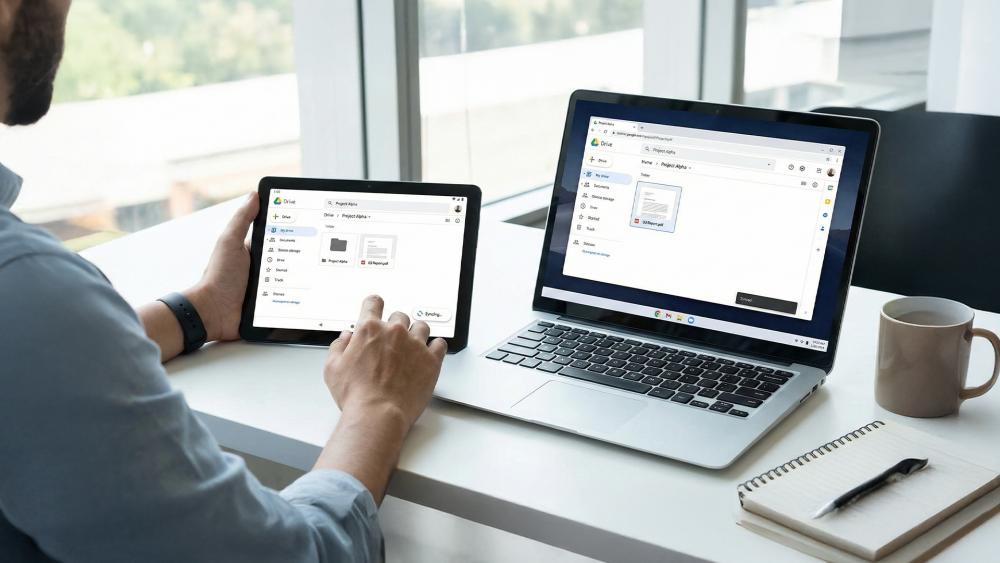
Cloud tools are central to 10 inch tablet productivity, especially when working across multiple devices.
Cloud Storage for Cross-Device Workflows
Cloud services allow documents to stay in sync between your tablet, phone, and computer. This makes tablets practical for both home and mobile work.
Choosing the right cloud storage workflow ensures files are always accessible and up to date.
Offline Files and Sync Reliability
Offline access is essential when Wi-Fi is unreliable. Marking key files for offline use prevents disruption and ensures you can keep working anywhere.
This is particularly important when comparing Wi-Fi vs cellular tablets, as connectivity options affect how often offline access is needed.
Remote Access to Desktop Files and Shared Folders
Remote access apps allow tablets to connect to desktop computers or shared folders. This extends tablet functionality without needing full desktop software locally.
It’s a powerful way to bridge the gap between tablet and traditional PC workflows.
Choosing the Right 10-Inch Tablet for Productivity Use
Not all 10-inch tablets deliver the same productivity experience. Hardware choices directly affect multitasking, note-taking, and long-term usability, so it helps to understand what actually matters before committing to a workflow. The right combination of performance, display, and connectivity makes a noticeable difference once you start using your tablet for real work. Here are some points you should consider to choose the right 10-inch tablet for your needs:
Performance and RAM for Multitasking
RAM plays a major role in productivity. Tablets with higher memory handle split-screen multitasking, app switching, and background syncing far more smoothly. If you regularly work with documents, email, and browsers at the same time, extra RAM prevents slowdowns and app reloads.
This is especially important for users relying on 10 inch tablet productivity for work or uni rather than occasional admin.
Processor Efficiency and Long-Term Performance
Beyond RAM, the processor determines how responsive the tablet feels during sustained use. Efficient processors maintain smooth performance during long sessions without overheating or draining the battery too quickly.
For productivity, consistency matters more than raw power. A tablet that stays responsive throughout the day is more useful than one that peaks briefly and slows down later.
Display Quality for Reading and Focus
A sharp, well-calibrated display improves reading comfort and reduces eye strain during long work sessions. Higher resolution, good brightness levels, and accurate colours make text easier to read and documents clearer.
This is particularly valuable for students, remote workers, and anyone spending hours reviewing PDFs or writing notes.
Stylus and Input Support
Stylus compatibility adds flexibility to productivity workflows. Handwritten notes, quick sketches, and document annotations feel more natural with pen input than with touch alone.
Users interested in visual planning or creative workflows may also benefit from setups similar to those used for a 10-inch tablet for digital art, even if their main focus is productivity.
Storage Capacity and Expansion Options
Local storage affects how comfortably you can work offline. Larger internal storage allows you to keep documents, PDFs, and media files available without constantly managing space.
Some users rely heavily on cloud storage, but having enough local storage prevents interruptions when internet access is limited.
Connectivity: Wi-Fi vs Cellular for Workflows
Connectivity determines where you can work reliably. Wi-Fi-only tablets suit home and office environments, while cellular models offer flexibility when travelling or working remotely.
Understanding the difference between Wi-Fi vs cellular tablets helps ensure your productivity setup works wherever you need it, without depending on hotspots.
Battery Life and Charging Support
Strong battery life supports longer work sessions without searching for a charger. Fast charging and smart battery management also make it easier to top up quickly between meetings or classes.
For productivity-focused users, reliable all-day battery life is just as important as performance.
Conclusion
With the right setup, 10 inch tablet productivity can comfortably support work, study, and everyday admin without the bulk of a traditional laptop. By combining a practical desk setup, smart multitasking layouts, efficient note-taking systems, and reliable cloud workflows, a 10-inch tablet becomes a genuinely capable productivity tool.
The key is building habits that suit the platform. Thoughtful app choices, sensible power management, and regular maintenance keep performance smooth over time. Whether you’re working remotely, studying at uni, or managing projects on the move, a well-optimised 10-inch tablet offers a flexible and surprisingly powerful way to get things done.
FAQs
Can a 10-inch tablet handle productivity tasks for work or uni?
Yes. With the right setup, a 10-inch tablet handles note-taking, document editing, communication, and research comfortably.
Which accessories improve productivity most on a 10-inch tablet?
A keyboard, mouse or trackpad, and adjustable stand provide the biggest productivity gains.
How does split-screen multitasking work on a 10-inch tablet?
Most tablets allow two apps to run side by side, making it easier to work with email, documents, and research simultaneously.
What’s the simplest note-taking workflow on a 10-inch tablet?
Using a single note-taking app with cloud sync keeps notes organised and accessible across devices.
Which cloud storage setup works best for tablet productivity?
A cloud service with offline access and reliable file syncing works best for consistent tablet productivity.
You can pay with:
*PayPal Credit Representative Example: Assumed credit limit £1,200, Representative 23.9% APR (variable). Purchase rate 23.9% p.a (variable).Terms & Conditions apply.


PayPal Credit and PayPal Pay in 3 are trading names of PayPal UK Ltd, 5 Fleet Place, London, United Kingdom, EC4M 7RD. Terms and conditions apply. Credit subject to status, UK residents only, Five Tech LTD acts as a broker and offers finance from a restricted range of finance providers. PayPal Pay in 3 is not regulated by the Financial Conduct Authority. Pay in 3 eligibility is subject to status and approval. 18+. UK residents only. Pay in 3 is a form of credit. Check if affordable and how you will repay. May make other borrowing more difficult or expensive. See product terms for more details.
Copyright © 1996-2026 Fivetech LTD | Terms and Conditions
box.co.uk & Box are trading names of Five Tech Limited. Registered office: Box LTD, Unit 10 Woodford Trading Estate, Woodford Green IG8 8HF