


 Menu
MenuMenu


Get Sales Advice from Mon - Fri 9am - 5:00pm:
020 3337 8950LAST UPDATED: July 17, 2026
15 Motherboard Facts Every First-Time PC Builder Should Know
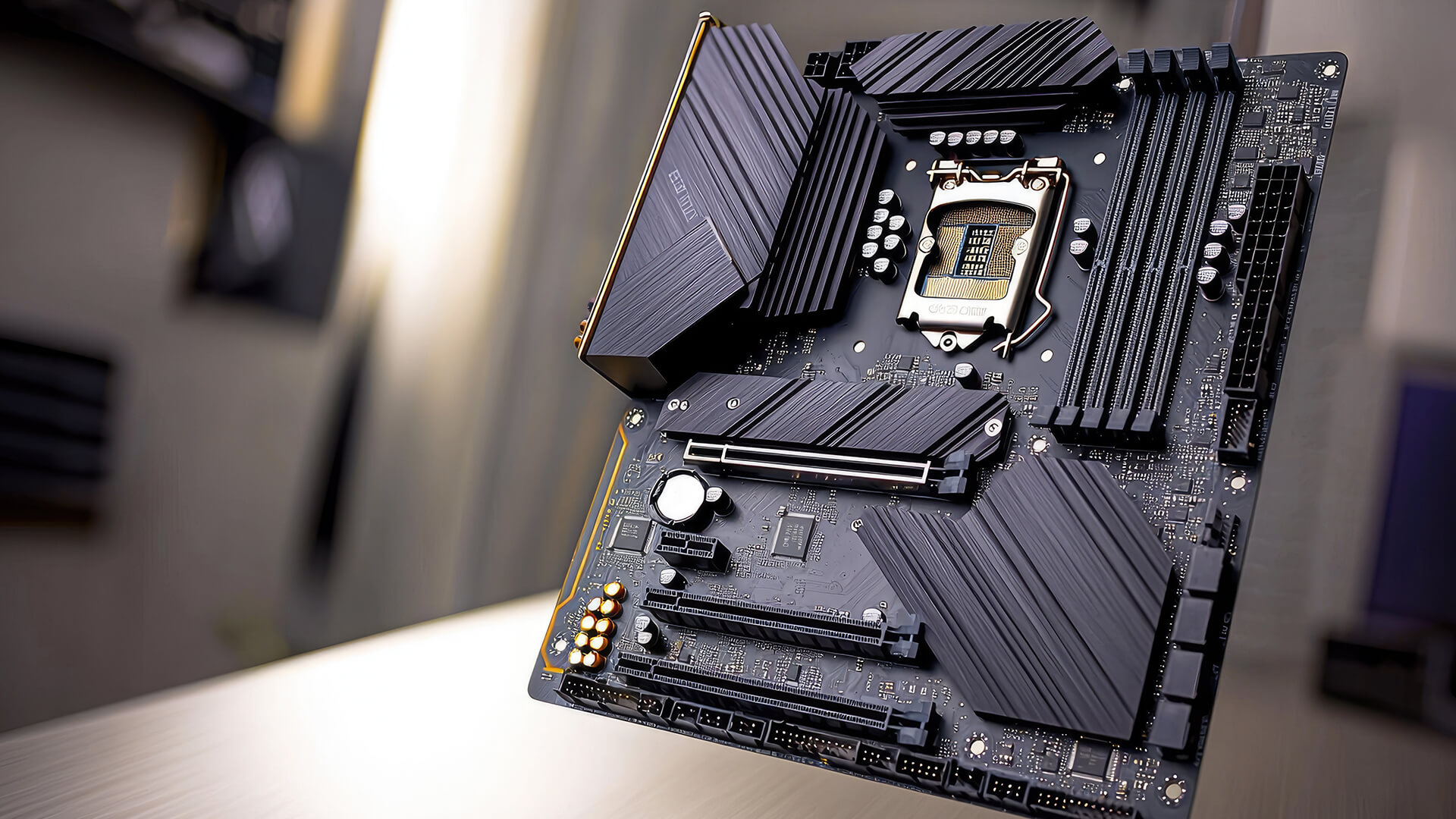
The motherboard is one of the most important parts of any desktop PC. It is the main circuit board that connects the processor, memory, storage, graphics card, power supply, cooling fans and case ports together. If you are building your first computer, understanding a few key motherboard facts can help you avoid buying the wrong parts or making common installation mistakes.
A motherboard does not usually make your PC faster by itself, but it decides what your PC can support. The CPU socket, chipset, RAM slots, PCIe expansion slots, M.2 NVMe slots, rear ports, internal motherboard headers and power delivery all affect your upgrade path.
This guide explains 15 important facts about a motherboard in simple language. It covers motherboard function, features of motherboard designs, types of motherboard sizes, compatibility checks and practical buying tips for first-time builders.
Explore boards built for gaming, compare AMD board options, or shop full-size board choices at Box.co.uk.
What Is a Motherboard in a Computer?
A motherboard is the main printed circuit board inside a computer. It connects the major hardware parts and allows them to communicate. The CPU plugs into the CPU socket, RAM fits into DIMM slots, graphics cards use PCIe expansion slots, and storage devices connect through M.2 or SATA connections.
In simple terms, the motherboard is like the main road system of the PC. It does not do every job by itself, but it lets every major part send power, data and instructions where they need to go.
Motherboard Function in Simple Terms
The main motherboard function is to connect and coordinate the computer’s internal parts. It allows the processor, RAM, graphics card, storage drives, USB ports, audio, networking and power supply to work together.
A motherboard also includes BIOS or UEFI firmware, which helps the PC start up, detect connected hardware and load the operating system.
Motherboard Example for Beginners
A common motherboard example would be an ATX gaming motherboard with an AM5 CPU socket, DDR5 RAM slots, PCIe x16 slot for a graphics card, M.2 NVMe slots for SSDs, USB headers, fan headers and rear ports for keyboard, mouse, audio and networking.
That single board decides which CPU you can install, what memory type you can use, how many storage drives you can connect and what upgrade options you have later.
Quick Overview: Important Motherboard Details
Before going into the 15 facts, here is a simple overview of the most important computer motherboard details.
| Motherboard Feature | What It Does | Why It Matters |
|---|---|---|
| CPU socket | Holds the processor | Must match your CPU |
| Motherboard chipset | Controls features and connectivity | Affects CPU support, PCIe lanes, USB and storage options |
| DIMM slots | Hold RAM modules | Decide RAM type, capacity and upgrade options |
| PCIe slots | Connect graphics cards and expansion cards | Important for GPU, Wi-Fi, capture and sound cards |
| M.2 slots | Connect NVMe SSDs | Useful for fast storage |
| SATA ports | Connect older SSDs and hard drives | Useful for extra storage drives |
| VRM power delivery | Supplies stable power to the CPU | Important for higher-end CPUs and stability |
| BIOS or UEFI | Starts the system and detects hardware | Needed for booting and compatibility |
| Internal headers | Connect case ports, fans, RGB and front-panel buttons | Important for case features and cooling |
15 Motherboard Facts Every First-Time PC Builder Should Know
Now let’s look at the most useful important motherboard facts every new PC builder should know.
1. A Higher-Priced Motherboard Is Not Always the Best Choice
One of the most useful motherboard facts is that the most expensive board is not always the best board for your build. A premium motherboard may include stronger VRMs, more M.2 slots, extra PCIe expansion, Wi-Fi, more USB ports and better audio, but you may not need all of those features.
If you are building a simple home, work or mid-range gaming PC, a sensible mid-range motherboard can be the better value. The goal is to match the board to your CPU, RAM, storage, case and future upgrade plans.
A higher-priced board makes sense if you need advanced connectivity, stronger power delivery, more storage support or enthusiast features. It is not necessary if you only need a stable board for everyday use.
2. A Motherboard Usually Has Little Direct Effect on Gaming Frame Rates
A common misconception is that a gaming motherboard will automatically deliver much higher frame rates. In most cases, your gaming performance depends more on the CPU, graphics card, RAM and storage than the motherboard itself.
The motherboard matters because it supports those parts. It can affect stability, upgrade options, power delivery and connectivity, but it does not usually add a large FPS boost by itself.
For gaming, focus on choosing a motherboard that supports your processor properly, has the right PCIe slot for your graphics card, supports your memory type and fits your case. If you need a gaming-focused board, compare boards built for gaming.
3. Installing an M.2 Drive Can Disable Certain SATA Ports or PCIe Lanes
One of the less obvious computer motherboard facts is that not every connector can always work at full capacity at the same time. On some motherboards, installing an M.2 NVMe SSD may disable certain SATA ports or share bandwidth with another slot.
This happens because the motherboard has a limited number of data pathways. These pathways are often connected to the CPU or chipset. If one component uses them, another port may be reduced or disabled.
Before installing multiple SSDs, hard drives or expansion cards, check the motherboard manual. It will explain which M.2 slots share lanes with SATA ports or PCIe slots.
4. PCIe Slot Size Does Not Always Mean Full Lane Speed
A long PCIe slot may look like a full x16 slot, but it may not always run with sixteen lanes. Some physical x16 slots run electrically at x8 or x4, depending on the motherboard and chipset.
This matters if you install multiple graphics cards, capture cards, high-speed storage cards or other expansion devices. A graphics card should usually go into the main PCIe x16 slot closest to the CPU because that slot normally offers the best connection.
For most first-time builders, this is simple: install the graphics card in the top full-length PCIe slot unless the manual says otherwise.
5. The CPU Socket and Chipset Both Decide Processor Compatibility
CPU compatibility is not based on socket alone. The CPU socket must match the processor physically, but the motherboard chipset also affects which CPUs are supported.
For example, an AMD processor needs an AMD-compatible socket, while an Intel processor needs an Intel-compatible socket. But even when the CPU fits, the chipset and BIOS version must support that exact processor.
This is why first-time builders should always check CPU compatibility before buying. You can read our component compatibility checklist for a deeper guide.
6. A BIOS Update May Be Required Even When the Processor Fits
A processor can fit the socket but still fail to work if the motherboard BIOS is too old. This is common when a newer CPU is released after the motherboard first launched.
The BIOS or UEFI contains the firmware that helps the board recognise hardware. If the firmware does not support your processor, the PC may not boot until the BIOS is updated.
Some motherboards support BIOS flashback, which lets you update the BIOS without a working CPU installed. Others may need an older compatible CPU first. Always check before buying a board for a newer processor.
For more background, read our guide to motherboard chipset working.
7. DDR4 and DDR5 Memory Cannot Be Used Interchangeably
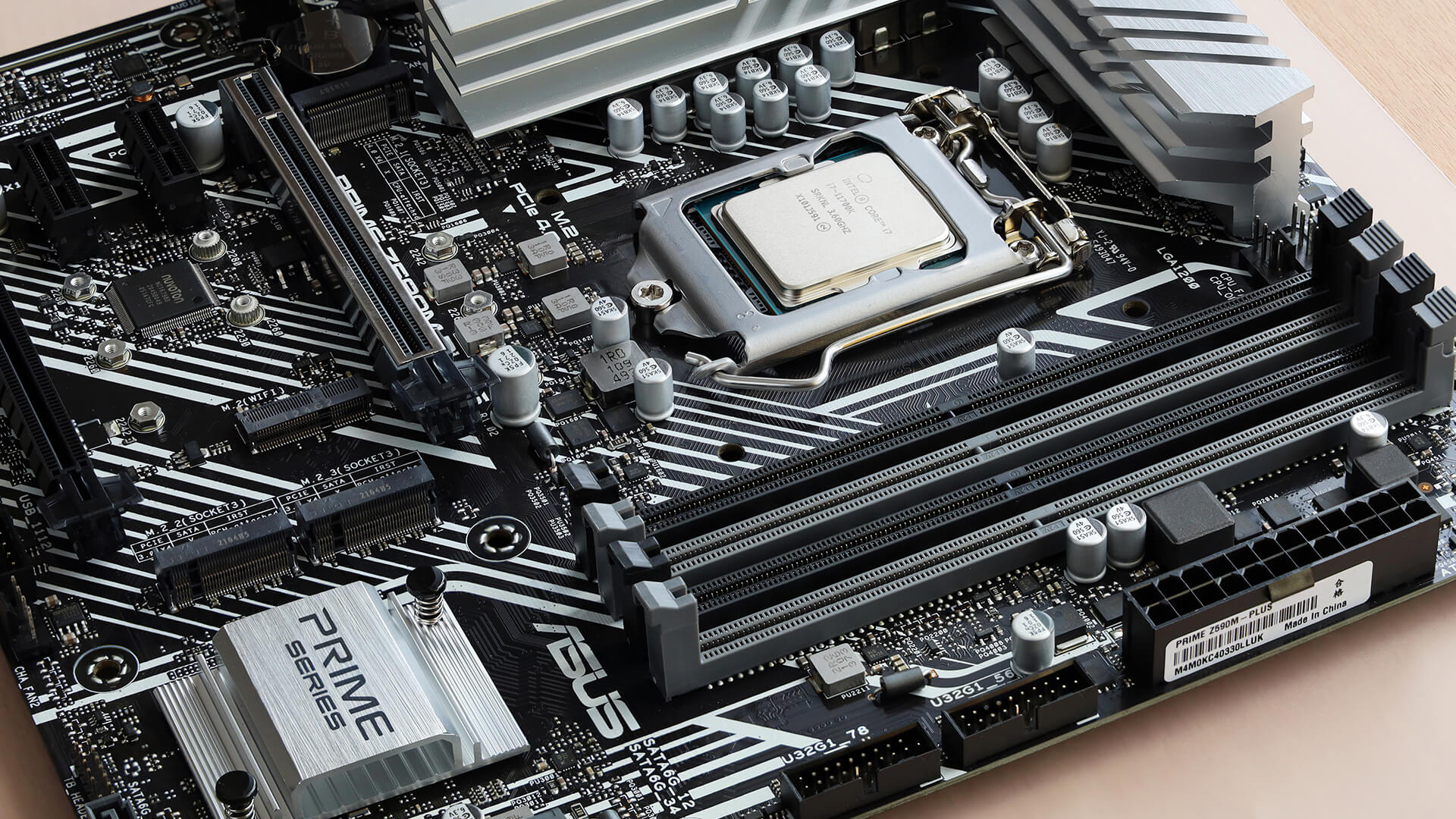
DDR4 and DDR5 RAM are not interchangeable. A motherboard supports one memory generation, and the slots are keyed differently to prevent incorrect installation.
If you buy a DDR5 motherboard, you need DDR5 RAM. If you buy a DDR4 motherboard, you need DDR4 RAM. You cannot install DDR4 RAM in DDR5 slots or DDR5 RAM in DDR4 slots.
This is one of the most important first-time builder checks. The motherboard decides the supported RAM type, maximum capacity, speed support and number of available slots.
8. VRM Quality Affects Power Delivery, Temperatures and CPU Stability
The VRM, or voltage regulator module, controls power delivery to the CPU. This is especially important with higher-end processors that draw more power.
A motherboard with stronger VRM power delivery can help maintain stable CPU performance and better temperatures under load. This matters for gaming, content creation, rendering, and heavy multitasking.
Budget boards can still be perfectly fine for lower-power CPUs, but pairing a high-end processor with a weak motherboard can lead to heat, throttling or stability issues. If you plan to use a powerful CPU, choose a board with suitable VRM cooling and power delivery.
9. M.2 Slots Can Differ in Interface, Size and PCIe Generation
Not all M.2 slots are the same. Some support PCIe NVMe SSDs, some support SATA-based M.2 drives, and some support both. M.2 slots can also support different drive lengths, such as 2242, 2260, 2280 or 22110.
PCIe generation also matters. A PCIe Gen 4 or Gen 5 SSD may work in a compatible slot, but speed depends on what the motherboard and CPU support.
Before buying an M.2 SSD, check the motherboard’s storage specifications. This avoids buying a drive that does not run at full speed or does not fit the supported slot length.
10. Built-In Wi-Fi,Bluetooth and Audio Can Reduce the Need for Expansion Cards
Modern motherboards often include built-in features that used to require separate expansion cards. These may include Wi-Fi, Bluetooth, improved audio, 2.5Gb Ethernet, extra USB ports and RGB controls.
This can simplify your build because you do not need to buy as many extra cards. For example, a motherboard with built-in Wi-Fi is useful if your desk is not near your router. A board with good onboard audio may be enough for most users without a separate sound card.
However, not every motherboard includes these features. Always check the specifications instead of assuming they are included.
11. The Motherboard Form Factor Must Match the PC Case
Motherboards come in different sizes, also called form factors. Common types of motherboard include ATX, Micro-ATX, and Mini-ITX.
ATX is the common full-size option for standard desktop builds. Micro-ATX is smaller and often more affordable. Mini-ITX is compact and useful for small-form-factor PCs, but it usually has fewer slots and upgrade options.
Your PC case must support the motherboard form factor. An ATX board will not fit in many compact cases, while a smaller board can often fit in larger cases if the standoff positions are supported.
For more detail, read our motherboard size guide or compare full-size board choices.
12. Motherboards Decide RAM Capacity, Speed Support and Available Slots
A motherboard controls how much RAM you can install, what memory type is supported and how many memory slots are available.
A compact Mini-ITX board usually has two RAM slots, while many ATX and Micro-ATX boards have four. This affects your upgrade path. If you start with two RAM sticks on a two-slot board, upgrading may mean replacing both modules later.
Memory speed support also depends on the CPU and motherboard. Faster RAM can help some systems, but stability and compatibility matter more than choosing the highest advertised speed.
13. Rear I/O and Internal Headers Decide Device Connectivity
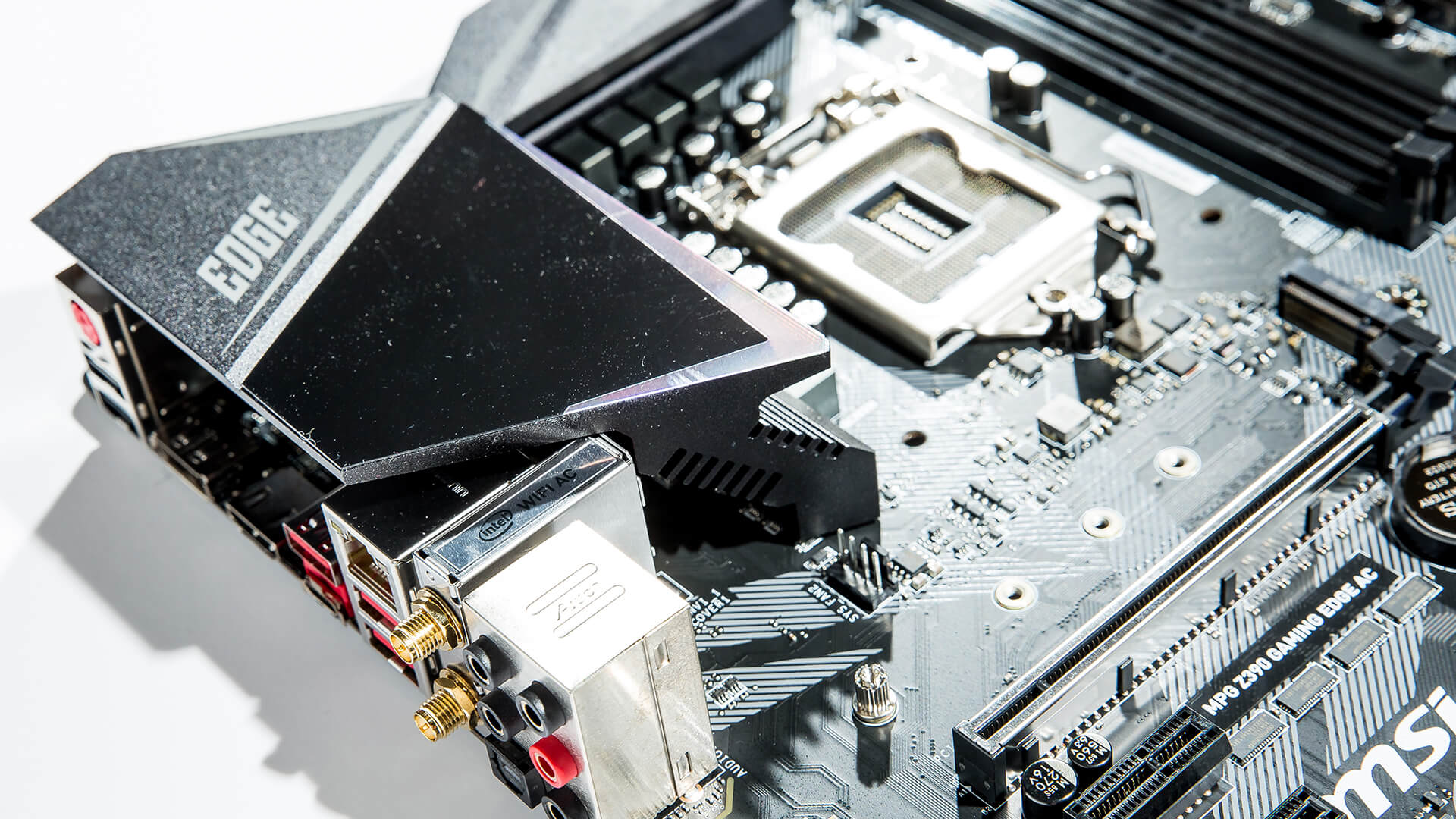
The rear I/O panel is the set of ports on the back of the motherboard. It may include USB-A, USB-C, Ethernet, audio, HDMI, DisplayPort, Wi-Fi antenna connectors and BIOS buttons.
Internal headers are just as important. They connect the case power button, reset button, USB ports, front audio, fans, pumps and RGB lighting.
Before buying a motherboard, check whether it has the ports and headers your case and accessories need. For example, if your case has a front USB-C port, your motherboard needs a compatible internal USB-C header for that port to work.
14. Debug LEDs, POST Codes and Correct Standoff Placement Make Building Safer
Some motherboards include debug LEDs or POST code displays. These help identify startup problems, such as CPU, RAM, GPU or boot device issues. This is very useful for first-time builders because it gives clues when a PC does not start.
Correct standoff placement is also important. Motherboard standoffs lift the board away from the case so it does not short against the metal tray. If standoffs are missing or placed incorrectly, the board can be damaged.
This is one of the most practical motherboard facts and information points for beginners: always match the standoffs to the motherboard holes before screwing the board into the case.
15. The Motherboard Connects and Coordinates Every Major PC Component
The importance of motherboard design comes from its role as the connection point for the whole PC. It links the CPU, RAM, storage, graphics card, power supply, cooling, case ports and expansion cards.
It also helps the system start through BIOS or UEFI, manages communication through the chipset and PCIe lanes, and decides what upgrades are possible later.
If you want a deeper look at how everything physically connects, read Internal PC Components: How Every Part Connects to the Motherboard.
Motherboard Buying Tips for First-Time Builders
If you are choosing your first motherboard, do not start with the most expensive model. Start with your CPU, case size, RAM type and storage needs.
A good first-time motherboard should support your processor, fit your case, match your RAM, offer enough M.2 and SATA connections, include the rear ports you need and provide stable power delivery for your CPU.
For AMD builds, compare AMD board options. For Intel builds, view Intel-ready board options.
Common Motherboard Mistakes to Avoid
Many first build problems are caused by small mistakes rather than faulty parts. The most common issues include buying the wrong socket, choosing DDR4 RAM for a DDR5 board, missing the CPU power cable, installing RAM in the wrong slots or forgetting case standoffs.
Another common mistake is assuming that every motherboard has Wi-Fi, enough fan headers, enough M.2 slots or front USB-C support. These features vary by model.
Before buying, check your motherboard specification, read the manual and confirm compatibility with the rest of your build.
If you already own a PC and need to identify your board, read How to Check Motherboard Model in Windows 10 or 11.
Final Thoughts!
The motherboard may not be the most exciting part of a PC build, but it is one of the most important. It decides which CPU you can use, what RAM fits, how many storage drives you can install, what expansion cards are supported and what features are available on your system.
The most important lesson is simple: choose the motherboard around your build, not the other way around. Match the socket, chipset, RAM type, case size, storage needs, graphics card and power requirements before buying.
To start planning your build, browse the complete motherboard range or explore Intel-ready board options at Box.co.uk.
FAQs
What are the four main types of motherboards?
The common motherboard types by size are ATX, Micro-ATX, Mini-ITX and Extended ATX. ATX is the most common full-size option, Micro-ATX is smaller and often more affordable, Mini-ITX is used for compact builds, and Extended ATX is usually used for larger high-end systems.
How do motherboards work?
A motherboard works by connecting the main parts of the computer and allowing them to communicate. The CPU, RAM, storage, graphics card, power supply, fans, USB ports and expansion cards all connect to the motherboard through sockets, slots, ports or headers.
Why is it called a motherboard?
It is called a motherboard because it is the main board that other components connect to. Smaller boards, expansion cards and connected devices rely on it, so it acts like the central board of the computer system.
Who made the first motherboard?
The answer depends on how you define “motherboard”, because early computers used different circuit board and backplane designs. The recognisable PC-style motherboard is commonly associated with the original IBM PC era in 1981, when the main system board carried the processor, memory and expansion slots in a layout that influenced later desktop PCs.
How can you explain a motherboard to a child?
A motherboard is like the main road map inside a computer. The processor, memory, storage and graphics card all connect to it, and it helps them send messages to each other so the computer can work.
What is the biggest common motherboard size?
The biggest common consumer motherboard size is usually Extended ATX, also called E-ATX. It is larger than standard ATX and is often used for high-end desktop builds that need more expansion slots, stronger power delivery or extra features.
What other names are used for a motherboard?
A motherboard may also be called a mainboard, system board, logic board or main circuit board. In desktop PCs, “motherboard” is the most common name, while “logic board” is often used for some Apple devices.
You can pay with:
*PayPal Credit Representative Example: Assumed credit limit £1,200, Representative 23.9% APR (variable). Purchase rate 23.9% p.a (variable).Terms & Conditions apply.


PayPal Credit and PayPal Pay in 3 are trading names of PayPal UK Ltd, 5 Fleet Place, London, United Kingdom, EC4M 7RD. Terms and conditions apply. Credit subject to status, UK residents only, Five Tech LTD acts as a broker and offers finance from a restricted range of finance providers. PayPal Pay in 3 is not regulated by the Financial Conduct Authority. Pay in 3 eligibility is subject to status and approval. 18+. UK residents only. Pay in 3 is a form of credit. Check if affordable and how you will repay. May make other borrowing more difficult or expensive. See product terms for more details.
Copyright © 1996-2026 Fivetech LTD | Terms and Conditions
box.co.uk & Box are trading names of Five Tech Limited. Registered office: Box LTD, Unit 10 Woodford Trading Estate, Woodford Green IG8 8HF