


 Menu
MenuMenu


Get Sales Advice from Mon - Fri 9am - 5:00pm:
020 3337 8950LAST UPDATED: July 06, 2026
How to Check Motherboard Compatibility with CPU, RAM, and GPU
Motherboard compatibility means checking whether your CPU, RAM, GPU, storage, case and power supply will all work with the same board before you build or upgrade a PC. The motherboard connects every key component, so picking the wrong one can lead to wasted money, boot failures, performance limits or parts that physically do not fit.
The quick rule is simple: match the CPU socket first, then check RAM type, PCIe slots, motherboard size, BIOS support and power connections. Once those are correct, the rest of the build becomes much easier to plan.
Quick Answer: How Do You Check Motherboard Compatibility?
To check motherboard compatibility, confirm these five things before buying:
| Component | What to Check |
| CPU | Socket, chipset, BIOS support and power delivery |
| RAM | DDR generation, speed, capacity and QVL support |
| GPU | PCIe x16 slot, case clearance and power supply |
| Case | ATX, Micro-ATX or Mini-ITX motherboard size |
| Storage | M.2 slots, SATA ports and PCIe generation |
If you are starting from scratch, you can check out the latest motherboards range at Box first, then narrow your choice by CPU socket, RAM type and build size.
What Does Motherboard Compatibility Mean?
Motherboard compatibility is about more than whether parts can plug in. A PC motherboard must support the correct CPU generation, RAM type, expansion slots, storage devices and physical form factor. It also needs the right BIOS version for the processor and enough connectors for your build.
A motherboard that fits your CPU may still be wrong if it uses the wrong RAM generation, lacks enough M.2 slots, has weak power delivery, or does not fit your case. That is why it is best to check compatibility in layers rather than relying on one spec.
The Main Compatibility Checks
Before buying, check:
- CPU socket and chipset
- BIOS support for the CPU
- DDR4 or DDR5 RAM support
- Maximum RAM capacity and speed
- PCIe x16 slot for the graphics card
- M.2 and SATA storage support
- ATX, Micro-ATX or Mini-ITX size
- Case clearance
- PSU wattage and power connectors
- Rear I/O and internal headers
How to Check Motherboard Compatibility with a CPU
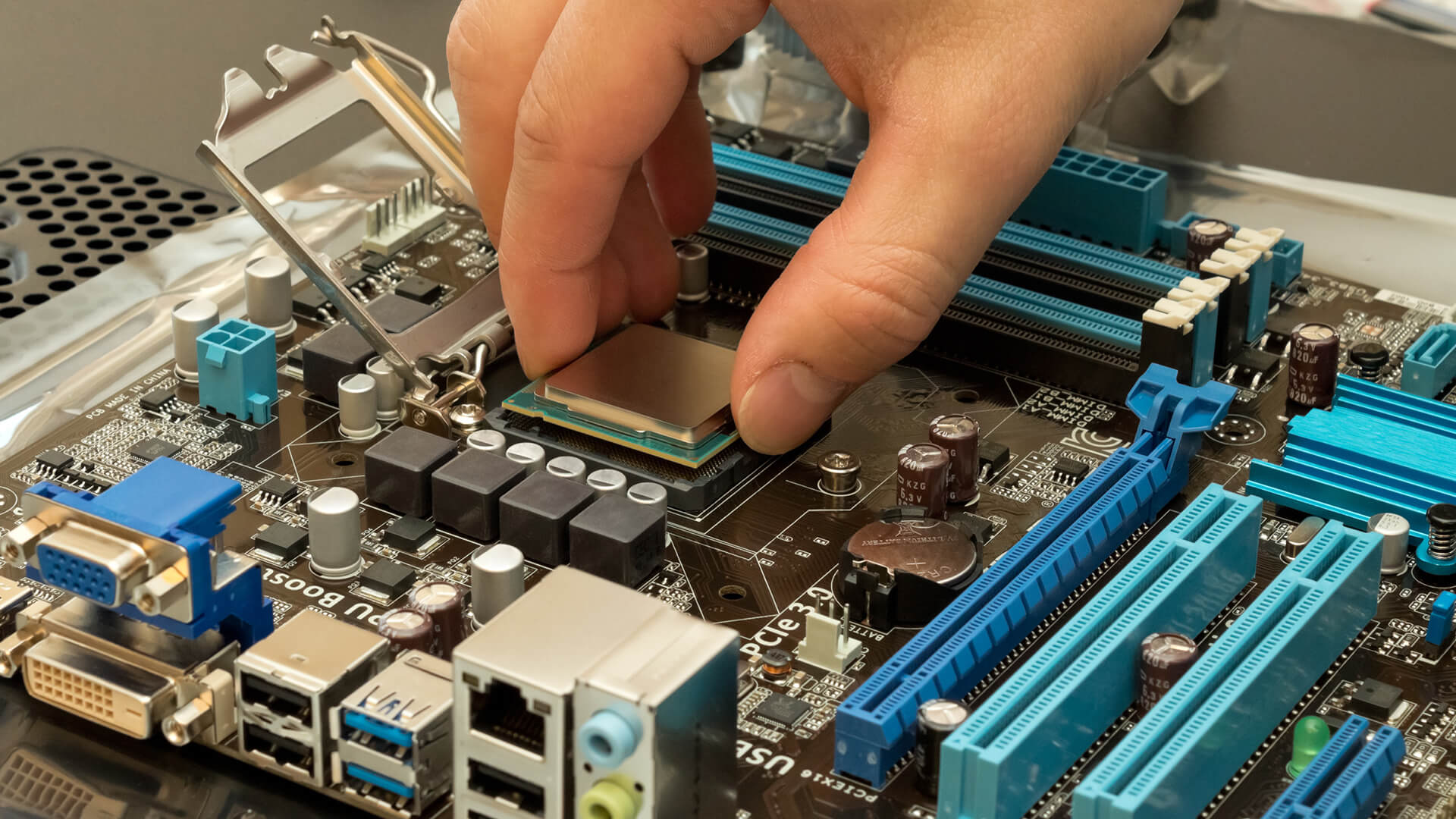
The CPU is the first part to check because it decides the socket and chipset you need. You cannot fit an AMD Ryzen AM5 processor into an Intel socket, and you cannot fit an Intel LGA 1700 processor into an AMD board.
When choosing a CPU, check the processor socket and the motherboard’s CPU support list before buying.
Check the CPU Socket
The socket is the physical CPU mount on the motherboard. The motherboard and processor must use the same socket.
Common examples include:
- AMD AM4 for many older Ryzen processors
- AMD AM5 for newer Ryzen processors
- Intel LGA 1700 for many 12th, 13th and 14th Gen Intel Core processors
- Intel LGA 1851 for newer Intel Core Ultra desktop platforms
AMD’s AM5 platform supports DDR5 and PCIe 5.0 features, showing how a socket change can also affect memory and storage support.
Check the Chipset
A socket tells you whether the CPU can physically fit. The chipset tells you what features the board offers. For example, two boards may support the same CPU, but one may have more USB ports, stronger VRMs, better networking, more M.2 slots or better overclocking support.
For gaming, content creation and long-term upgrades, do not only buy the cheapest compatible board. Check whether the chipset gives you the features you actually need.
Check BIOS Support
Some motherboards need a BIOS update before they can support newer processors. This is common when a newer CPU is released after the motherboard first launched.
Check the motherboard manufacturer’s CPU support page. ASUS advises checking CPU and memory QVL lists for motherboard support, and notes that if compatibility issues remain, updating to the latest BIOS may help.
How to Check Motherboard Compatibility with RAM
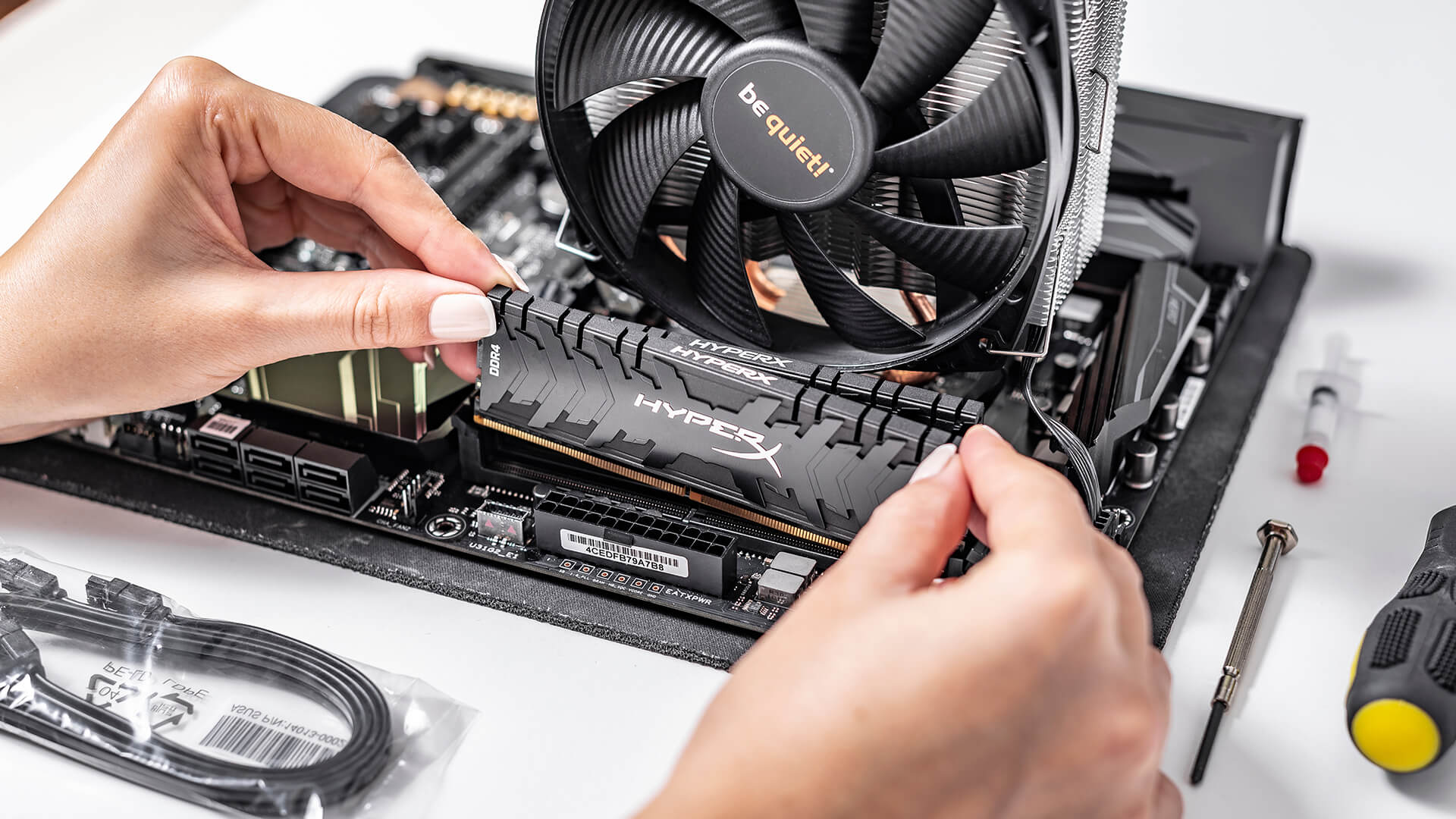
RAM compatibility depends on memory type, speed, capacity, slots and motherboard support. The biggest mistake is buying DDR5 RAM for a DDR4 motherboard, or DDR4 RAM for a DDR5 motherboard. They are not interchangeable.
If you are choosing the best RAM for a new build, start with the motherboard specifications rather than the RAM price.
Check DDR4 vs DDR5
A motherboard supports either DDR4 or DDR5, not both in most modern consumer boards. Check the board’s memory specification before buying.
For example:
- DDR4 motherboards need DDR4 RAM.
- DDR5 motherboards need DDR5 RAM.
- AM5 motherboards use DDR5.
- Some Intel platforms have separate DDR4 and DDR5 motherboard models.
Do not assume a CPU generation tells the full story. Some Intel CPUs work with different motherboard models that may support different memory generations.
Check RAM Speed and Capacity
Motherboards list supported RAM speeds and maximum capacity. You may see speeds such as 3200MHz, 3600MHz, 5600MHz or higher. Higher speeds may depend on XMP, EXPO, CPU memory controller quality and the number of RAM sticks installed.
Check:
- Maximum RAM capacity
- Number of DIMM slots
- Supported RAM speed
- DDR generation
- Dual-channel support
- XMP or EXPO support
Check the QVL List
A QVL, or Qualified Vendor List, shows memory kits tested by the motherboard manufacturer. MSI explains that if memory is not found on the compatibility list, it does not always mean it will not work, but compatibility cannot be guaranteed.
A QVL is especially useful for high-speed DDR5 kits, compact builds and systems where stability matters.
How to Check Motherboard Compatibility with a GPU
Most modern graphics cards use a PCIe x16 slot, so GPU compatibility is usually easier than CPU or RAM compatibility. Still, you need to check more than just the slot.
Before buying a GPU, confirm the motherboard slot, case clearance and PSU requirements.
Check for a PCIe x16 Slot
A gaming GPU normally needs a PCIe x16 slot. Most ATX and Micro-ATX motherboards include one full-length slot, but small boards may have fewer expansion options.
PCIe generations are generally backwards compatible. PCI Express maintains full backwards compatibility while improving bandwidth across generations.
That means a PCIe 4.0 GPU can often work in a PCIe 3.0 slot, but it will run at the slower supported speed. For most mid-range gaming builds, this is usually fine. For high-end GPUs or heavy creator workloads, newer PCIe support may be worth having.
Check Case Clearance
A graphics card may be compatible with the motherboard but still too large for the case. Check:
- GPU length
- GPU height
- GPU thickness
- Number of slots it occupies
- Front radiator clearance
- Cable space
This matters a lot for compact gaming PCs, where large triple-fan cards may not fit.
Check Power Supply Requirements
Many GPUs need dedicated PCIe power connectors or 12VHPWR/12V-2x6 style connectors. Check your PSU wattage and cables before buying the graphics card.
A board may physically support the GPU, but the system will not be reliable if the power supply is too weak.
How to Check Motherboard Size and Case Compatibility
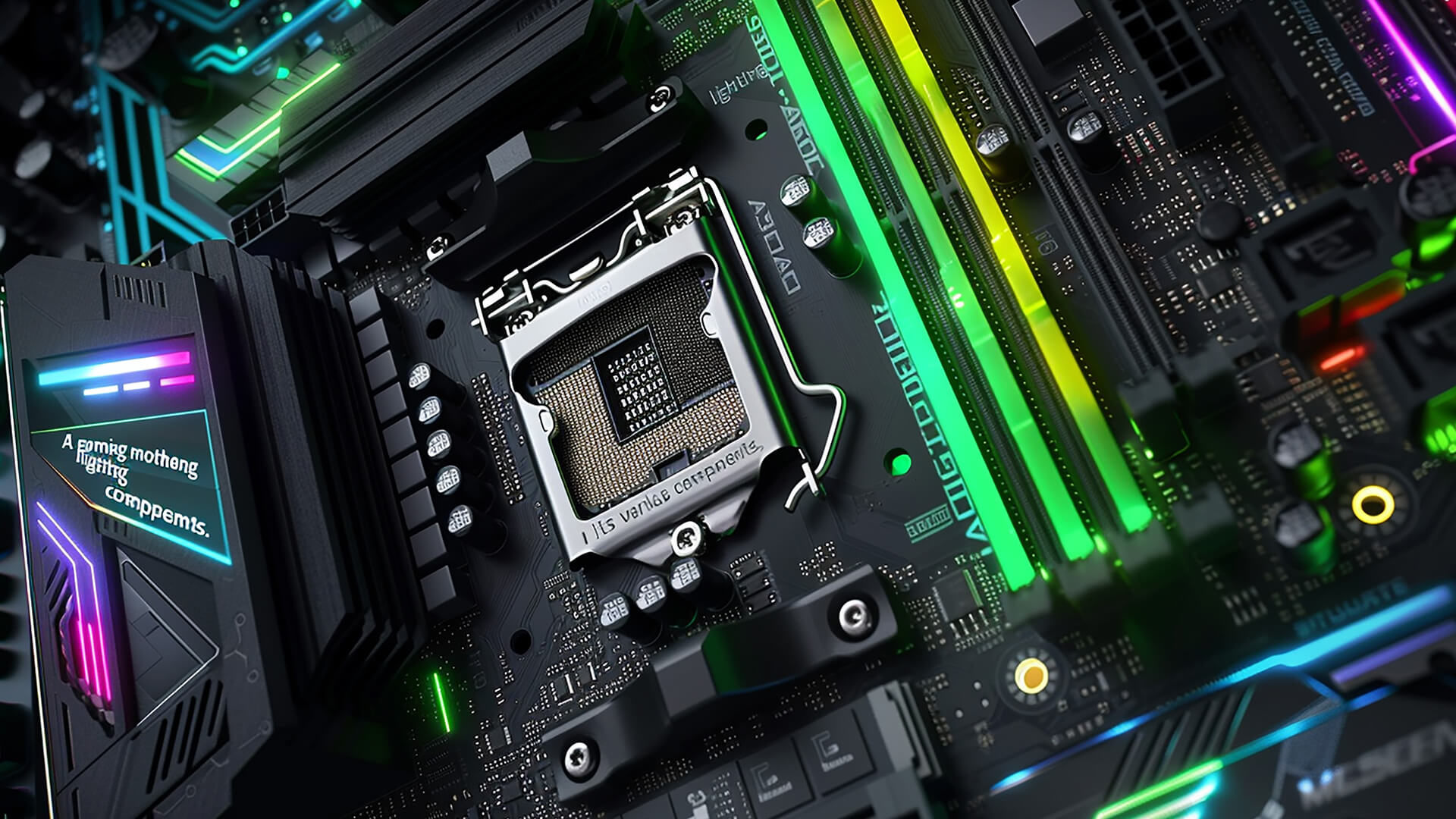
Motherboard size is called form factor. The main desktop sizes are ATX, Micro-ATX and Mini-ITX. The case must support the motherboard size you choose.
If you are building a gaming PC, a gaming motherboard often gives you stronger expansion, cooling support and features suited to high-performance setups.
Common Motherboard Sizes
| Form Factor | Best For | Notes |
| ATX | Full gaming and creator builds | More slots and headers |
| Micro-ATX | Value builds | Smaller, usually fewer slots |
| Mini-ITX | Compact PCs | Smallest, limited expansion |
What Motherboard Size Affects
Motherboard size affects:
- Case compatibility
- Number of PCIe slots
- Number of RAM slots
- M.2 slot count
- Fan headers
- USB headers
- Build space
- Cooling options
ATX is easiest for first-time builders. Mini-ITX looks clean and compact, but it can make cable routing, cooling and GPU clearance more difficult.
How to Check Case Support
Check the case specification page. It should list supported motherboard sizes. If the case supports ATX, it usually supports Micro-ATX too, but always confirm.
Also check cooler height, GPU length and radiator support at the same time.
How to Check Storage Compatibility
Storage compatibility is often missed, especially when buyers assume every SSD works the same way. Modern boards may support multiple M.2 drives, but slots can differ by PCIe generation, lane sharing and SATA support.
Check M.2 Slots
M.2 slots are used for modern NVMe SSDs. Check:
- Number of M.2 slots
- PCIe generation
- Supported lengths, such as 2280
- Heatsink availability
- Lane sharing with PCIe slots or SATA ports
A PCIe 5.0 SSD may work only at PCIe 4.0 speeds if the motherboard does not support PCIe 5.0 storage.
Check SATA Ports
SATA is still useful for older SSDs, hard drives and bulk storage. Check how many SATA ports the board includes, especially if you are reusing drives from an older PC.
Watch for Lane Sharing
Some motherboards disable certain SATA ports or reduce PCIe slot bandwidth when multiple M.2 drives are installed. Always read the storage section of the motherboard manual if you plan to use several drives.
How to Compare Motherboards Before Buying
To compare motherboards properly, avoid focusing only on price. Two boards may support the same CPU but offer very different long-term value.
Compare These Specs
Check:
- CPU socket
- Chipset
- RAM type and capacity
- PCIe generation
- M.2 slots
- USB ports
- Wi-Fi and Ethernet
- VRM quality
- BIOS flashback support
- Fan and RGB headers
- Audio features
- Rear I/O layout
- Warranty and brand support
Gaming Builds
For gaming, focus on CPU support, GPU slot layout, cooling headers, M.2 storage and strong enough VRMs. You do not need the most expensive board, but you should avoid underpowered boards for high-end CPUs.
Creator and Workstation Builds
For content creation, prioritise RAM capacity, M.2 storage, USB-C, networking and expansion slots. These builds often benefit from better chipsets and more connectivity.
Common Motherboard Compatibility Mistakes
Most compatibility problems come from simple checks being skipped. A few minutes of checking can prevent a dead-end build.
Avoid these mistakes:
- Buying the wrong CPU socket
- Ignoring BIOS support
- Mixing DDR4 and DDR5 parts
- Choosing a board that does not fit the case
- Forgetting GPU clearance
- Using an underpowered PSU
- Assuming every M.2 slot is the same
- Ignoring QVL lists for high-speed RAM
- Buying a Mini-ITX board without checking expansion needs
- Choosing a cheap board for a power-hungry CPU
Motherboard Compatibility Checklist
Use this checklist before ordering parts:
- Does the CPU match the motherboard socket?
- Does the chipset support the CPU features you need?
- Does the BIOS support the CPU out of the box?
- Does the board support DDR4 or DDR5?
- Does the RAM match the board’s supported type?
- Does the board have enough RAM slots?
- Does the GPU fit the PCIe slot?
- Does the GPU fit inside the case?
- Does the PSU support the GPU?
- Does the motherboard fit the case?
- Are there enough M.2 and SATA connections?
- Are there enough fan, USB and front-panel headers?
If the answer is yes to all of these, the build is likely compatible.
Wrapping Up
The best way to check motherboard compatibility is to start with the CPU socket, then confirm RAM type, GPU slot, case size, BIOS support and power requirements. Do not rely on one spec or a generic compatibility checker PC result without reading the motherboard specifications.
For most builders, the safest order is:
- Choose CPU.
- Match motherboard socket and chipset.
- Check BIOS support.
- Match DDR4 or DDR5 RAM.
- Confirm GPU slot, size and PSU.
- Check motherboard size against the case.
- Confirm storage and header needs.
Once those checks are done, your PC build is far less likely to run into compatibility problems.
FAQs
-
How do I know if my CPU is compatible with my motherboard?
Check the motherboard socket first, then check the manufacturer’s CPU support list. The socket must match, and the BIOS version must support the CPU.
-
Can any GPU work with any motherboard?
Most modern GPUs work with motherboards that have a PCIe x16 slot, but you still need to check case clearance, PSU wattage and power connectors.
-
How do I check if RAM is compatible with my motherboard?
Check the motherboard’s supported RAM type, speed, capacity and QVL list. DDR4 and DDR5 are not interchangeable.
-
What motherboard size do I need?
Choose ATX for full-size builds, Micro-ATX for value builds and Mini-ITX for compact PCs. The case must support the motherboard form factor.
-
Is a compatibility checker PC tool enough?
A compatibility checker PC tool is helpful, but you should still verify the motherboard manual, CPU support list, RAM QVL and case clearance before buying.
-
Can I use a new CPU on an old motherboard?
Only if the socket, chipset and BIOS support it. Some older boards need a BIOS update before newer CPUs will work.
-
Does motherboard compatibility affect gaming performance?
Yes, indirectly. The motherboard does not usually add FPS by itself, but poor CPU support, weak VRMs, limited RAM support or slow storage options can restrict the rest of the system.
You can pay with:
*PayPal Credit Representative Example: Assumed credit limit £1,200, Representative 23.9% APR (variable). Purchase rate 23.9% p.a (variable).Terms & Conditions apply.


PayPal Credit and PayPal Pay in 3 are trading names of PayPal UK Ltd, 5 Fleet Place, London, United Kingdom, EC4M 7RD. Terms and conditions apply. Credit subject to status, UK residents only, Five Tech LTD acts as a broker and offers finance from a restricted range of finance providers. PayPal Pay in 3 is not regulated by the Financial Conduct Authority. Pay in 3 eligibility is subject to status and approval. 18+. UK residents only. Pay in 3 is a form of credit. Check if affordable and how you will repay. May make other borrowing more difficult or expensive. See product terms for more details.
Copyright © 1996-2026 Fivetech LTD | Terms and Conditions
box.co.uk & Box are trading names of Five Tech Limited. Registered office: Box LTD, Unit 10 Woodford Trading Estate, Woodford Green IG8 8HF