


 Menu
MenuMenu


Get Sales Advice from Mon - Fri 9am - 5:00pm:
020 3337 8950POSTED: July 10, 2026
HP Printer Offline Issue 5 Easy Ways to Get Back Online
Seeing HP printers offline can be frustrating, especially when the printer is switched on, connected to Wi-Fi and ready to print. You send a document, but nothing happens. The printer may show as unavailable, the print queue may get stuck, or HP Smart may say the printer is offline even though it looks connected.
The good news is that most HP printer offline issues are fixable. In many cases, the problem is not the printer itself. It may be caused by a weak Wi-Fi connection, a stuck print job, the wrong default printer, an outdated driver, a changed printer IP address or a Windows or Mac printer status setting.
This guide explains how to fix an HP printer showing offline in five easy ways. It covers Wi-Fi fixes, Windows 11, Windows 10, Mac, HP Smart, print queues, printer drivers and what to do if your HP printer offline but connected to WiFi still refuses to print.
If you are comparing a replacement or upgrade, browse the HP printers’ range or explore all printer options at Box.co.uk.
Why Does Your HP Printer Say Offline?
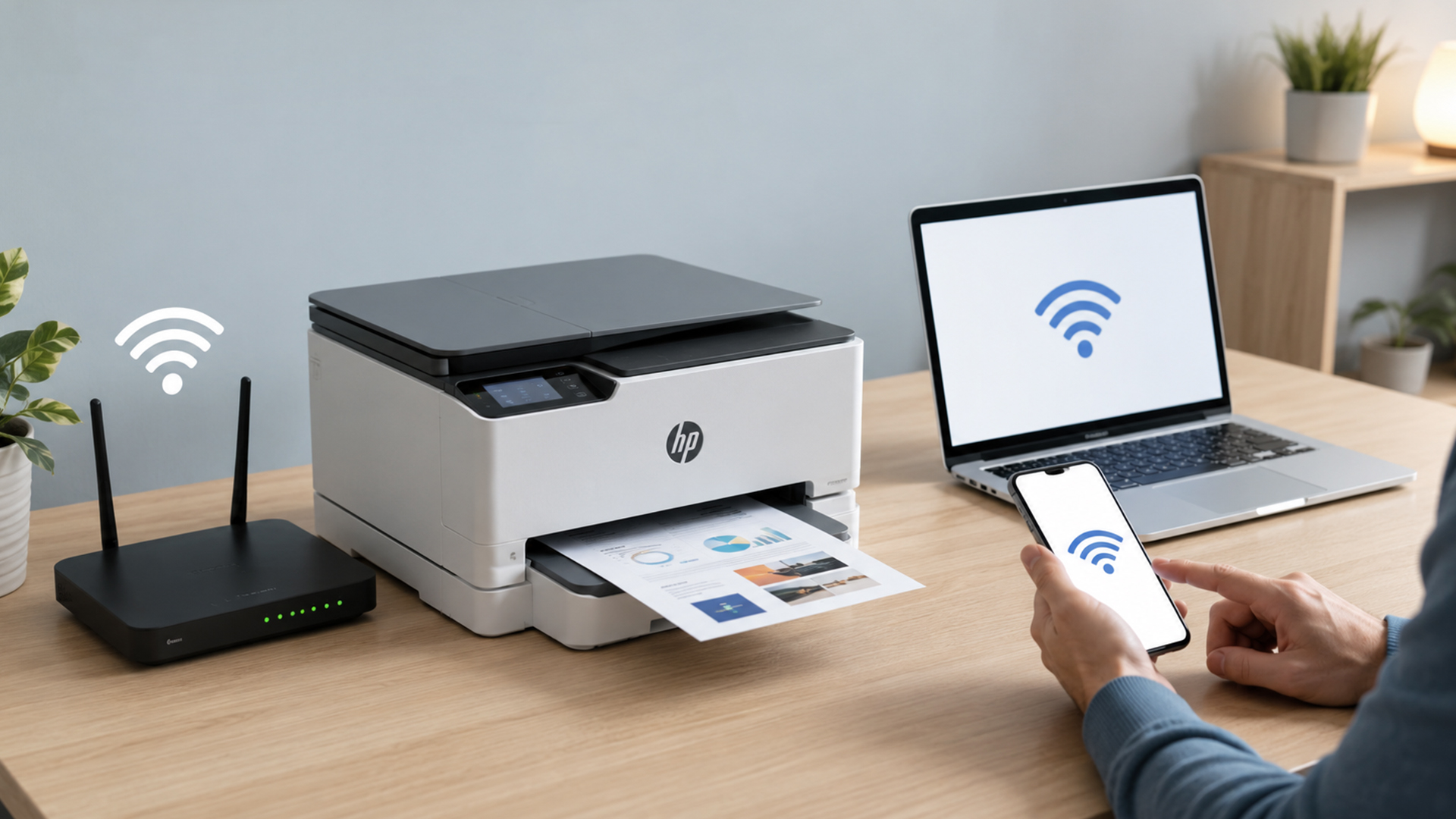
An HP printer says offline when your computer, phone, tablet or app cannot communicate with the printer properly. The printer may still have power and may still be connected to Wi-Fi, but your device cannot send the print job successfully.
This can happen with HP Envy, HP DeskJet, HP OfficeJet and HP LaserJet printers. The exact menu names may vary by model, but the causes are often similar.
Common Reasons HP Printers Show Offline
Your HP printer may show offline because of:
- Weak Wi-Fi signal
- Printer and computer on different networks
- Stuck print job
- Print queue paused
- “Use Printer Offline” enabled
- Wrong default printer selected
- Outdated printer driver
- HP Smart app connection issue
- Changed printer IP address
- Router restart or DHCP address change
- Printer sleep mode
- Firmware issue
- USB or Ethernet cable problem
In simple terms, the printer offline status usually means there is a communication issue between the device and the printer.
Why an HP Printer Can Be Offline but Still Connected to Wi-Fi
A common problem is when an HP printer says offline but is connected. This can happen because Wi-Fi connection and printer availability are not always the same thing.
For example, your printer may be connected to the router, but your laptop may be on a different network. Or the printer may have a new IP address after the router restarted, while Windows is still trying to print to the old address. This is why an HP printer shows offline but is connected.
This can also happen if the HP Smart app cannot refresh the printer status, if the print queue is stuck, or if Windows is using the wrong printer port.
When the Issue Is Caused by Windows, Mac or HP Smart
Sometimes the printer is working, but the operating system or app is not reading it correctly. Windows may keep the printer offline because of a paused queue. Mac may need the printer removed and re-added. HP Smart may need refreshing, updating or reinstalling.
That is why the best fix is usually to work through the basics first: power, network, queue, drivers and then device-specific settings.
For more HP printer guidance, read our guide on Can You Use an HP Printer Without Instant Ink? Your Options to understand whether HP printers can work without an ink subscription.
Quick Checks Before You Start Troubleshooting
Before changing settings, start with quick checks. These fix many offline issues without needing advanced troubleshooting.
Check the Printer Power, Paper and Ink or Toner
Make sure the printer is switched on and awake. Check that there is paper in the tray and that no warning lights are showing. If your printer needs ink or toner, check whether it can still print or whether the cartridge warning is blocking the job.
If you need replacements, browse replacement ink and toner.
Make Sure Your Printer and Device Are on the Same Network
If your HP wireless printer is offline, check that your printer and computer are connected to the same Wi-Fi network. Many routers have separate 2.4GHz and 5GHz networks, guest networks or extender networks. If your printer is on one and your laptop is on another, printing may fail.
This is one of the most common causes of an HP printer offline but connected to WiFi issue.
Restart Your HP Printer, Computer and Router
A simple restart can clear temporary connection problems. Turn off the printer, restart your computer and restart your router if needed. Wait for the printer to reconnect to Wi-Fi, then try printing again.
This power cycle can refresh the connection between the router, printer, and device.
1. Change Your HP Printer Status from Offline to Online
If you are asking how to change printer status from offline to online, start with the print settings on your computer. This is especially useful for HP printer offline Windows 11 and HP printer offline Windows 10 problems.
Turn Off “Use Printer Offline” on Windows
On Windows, the printer may be set to work offline. This setting can stop documents printing even when the printer is ready.
Go to your printer settings, open the print queue and check whether “Use Printer Offline” is selected. If it is, turn it off. Then try printing again.
This is one of the quickest ways to move an HP printer offline to online.
Set Your HP Printer as the Default Printer
If Windows is sending the job to the wrong device, your real printer may look offline while another printer is selected. Set your HP printer as the default printer, especially if you have used previous printers, virtual printers or PDF printers.
This helps your computer send jobs to the correct device every time.
Check the Printer Queue for Paused or Stuck Jobs
A stuck print job can block every job behind it. Open the print queue, cancel old or failed jobs, and then try printing a fresh document.
If the queue keeps freezing, restart the print spooler service or remove and re-add the printer.
2. Fix HP Printer Offline Issues on Wi-Fi
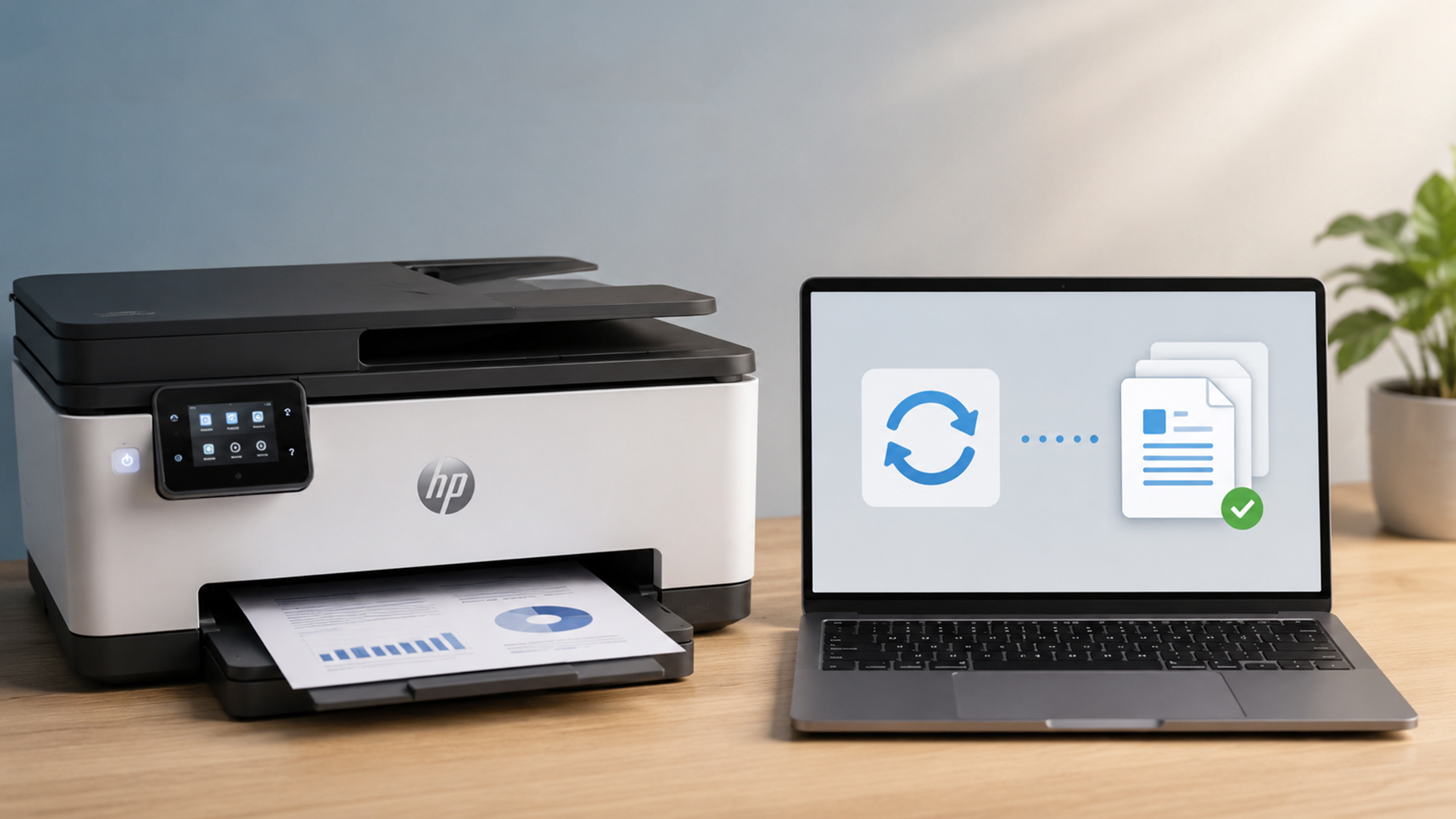
A wireless printer depends on a stable network connection. If your HP wireless printer offline issue keeps happening, the Wi-Fi connection is one of the first things to check.
Reconnect Your HP Printer to Wi-Fi
Use the printer control panel or HP Smart app to reconnect the printer to Wi-Fi. Make sure you choose the same Wi-Fi network that your laptop, phone or tablet uses.
If the printer has moved, the router has changed, or the Wi-Fi password has been updated, the printer may need to be reconnected from scratch.
Move the Printer Closer to the Router
A weak Wi-Fi signal can cause the printer to drop offline. If possible, move the printer closer to the router or remove obstacles between the printer and router.
If your printer is far away, near thick walls or close to other wireless devices, the connection may be unstable.
Check for Router or Network Connection Issues
If the router recently restarted, the printer may have received a new IP address. This can cause Windows or HP Smart to lose track of it. Restarting the printer and computer can help, but if the issue keeps returning, removing and re-adding the printer may be better.
For more setup help, read our guide to best printer connection setup or our mobile wireless printing tips.
3. Clear Print Queue and Restart Printer Services
If your printer is connected but still will not print, the issue may be a stuck print queue or print spooler problem.
Cancel Stuck Print Jobs
Open your print queue and cancel any old, failed or paused jobs. A stuck print job can make it look like the printer is offline because new documents cannot move through the queue.
After clearing the queue, restart the printer and send a small test page.
Restart the Print Spooler on Windows
The print spooler is the Windows service that manages print jobs. If it gets stuck, your HP printer may show offline or not respond.
Restarting the print spooler can clear the issue. On Windows, you can do this through Services by finding “Print Spooler”, restarting it, and then trying to print again.
This is especially useful if the printer queue keeps freezing or documents stay stuck.
Remove and Re-Add the HP Printer
If Windows or Mac still sees the printer as offline, remove the printer from your device and add it again. This can refresh the printer connection, update the port and fix stale network settings.
This is helpful if the printer IP address changed, the driver is confused, or the old printer entry is no longer working correctly.
4. Update HP Printer Drivers, Firmware and HP Smart
If your printer keeps going offline, outdated software may be part of the problem. Driver, firmware and app updates can improve communication between your printer and device.
Update or Reinstall HP Printer Drivers
The printer driver helps your computer talk to the printer. If the driver is outdated, corrupted or linked to the wrong port, the printer may show offline.
Reinstalling the latest HP driver can help fix:
- Printer not responding
- Offline status
- Failed print jobs
- Missing print features
- Incorrect printer settings
- Windows 11 or Windows 10 connection issues
If you use an older printer, check whether the model is still supported by your operating system.
Check for HP Printer Firmware Updates
Printer firmware controls the printer’s internal functions. Updating firmware can fix bugs, improve wireless performance and help with compatibility.
Use HP Smart or the printer’s settings menu to check for firmware updates where available.
Fix HP Smart Printer Offline Problems
If HP Smart printer offline appears even when the printer is connected, try refreshing the app first. Make sure the printer and phone or computer are on the same Wi-Fi network. Then restart the app, update it, or remove and re-add the printer inside HP Smart.
If HP Smart still shows the printer as offline, try printing directly from Windows or Mac. This can help you work out whether the issue is with the app or the printer connection.
If you are still comparing brands before buying, our HP vs Canon Printer: Which Is Better for Home and Work? guide explains which brand is better for home printing, office documents, ink costs, and long-term value.
5. Fix HP Printer Offline Issues on Windows and Mac
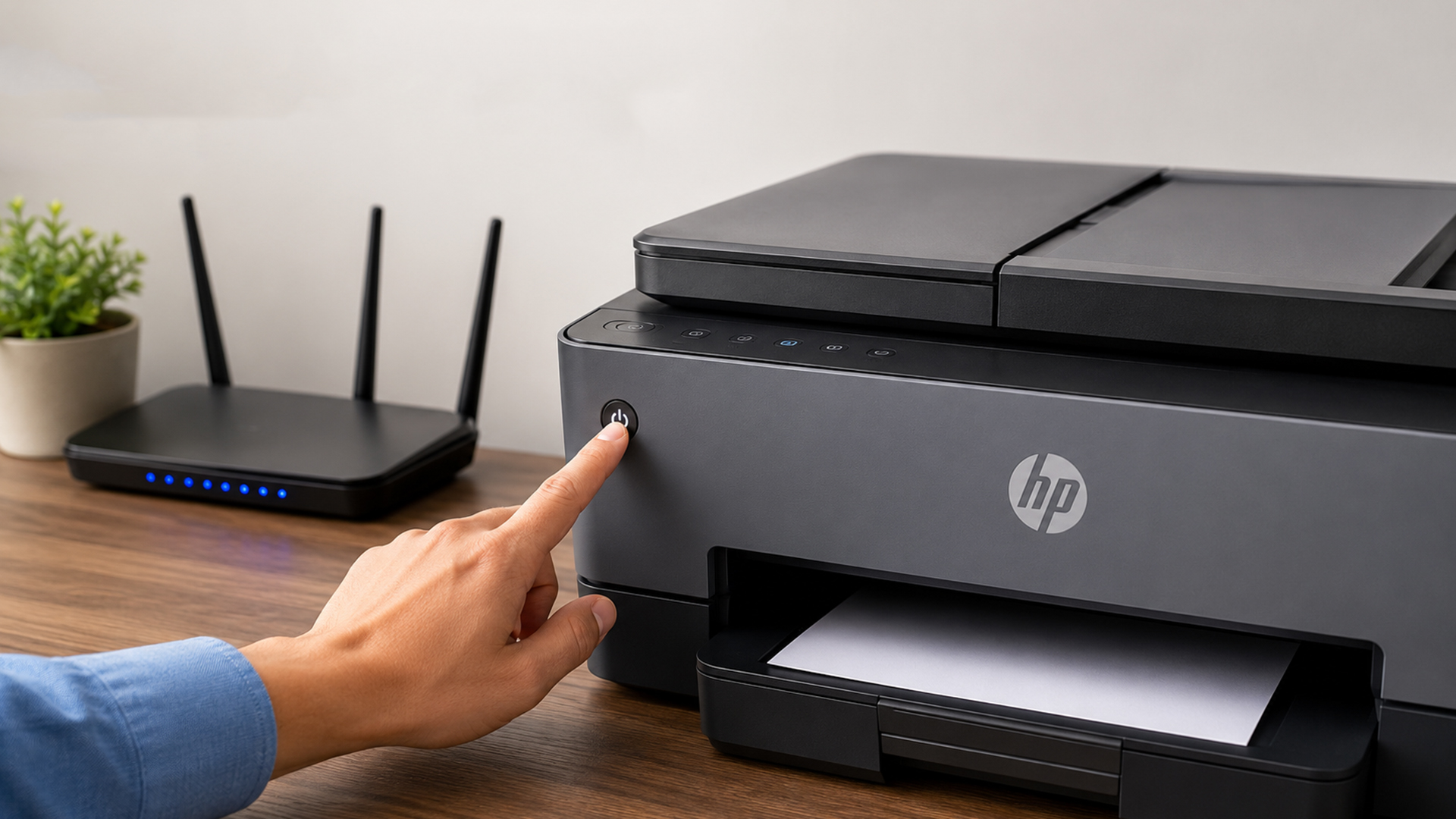
Different operating systems handle printers differently. The right fix depends on whether you use Windows 11, Windows 10 or Mac.
HP Printer Offline Fix for Windows 11
For an HP printer offline Windows 11 issue, start by checking Settings, the print queue and the Windows printer troubleshooter. Make sure the printer is not paused, not set to offline mode and is selected as the default printer.
If that does not work, remove and re-add the printer, update the driver, or reconnect the printer to Wi-Fi.
A good Windows 11 order is:
- Restart printer and PC
- Check same Wi-Fi network
- Clear print queue
- Turn off “Use Printer Offline”
- Run the printer troubleshooter
- Remove and re-add the printer
- Update driver and firmware
HP Printer Offline Fix for Windows 10
For an HP printer offline Windows 10 issue, the steps are similar. Check Devices and Printers, open the print queue, disable offline mode and set your HP printer as default.
If jobs are stuck, cancel them and restart the print spooler. If the printer still appears offline, reinstall the printer driver or add the printer again.
HP Printer Offline Fix for Mac
For an HP printer offline Mac issue, start by checking that your Mac and printer are on the same Wi-Fi network. Then open Printers & Scanners, remove the HP printer and add it again.
If needed, restart your Mac, printer and router. Also check that the printer is not paused and that the correct printer is selected when printing.
Model-Specific HP Printer Offline Fixes
The same basic fixes apply to most HP models, but some printer ranges are more likely to face certain issues.
HP Envy Printer Offline
HP Envy printers are often used at home, so Wi-Fi changes are a common cause. If your HP Envy printer is offline, check the Wi-Fi network, restart the router and reconnect through HP Smart.
HP DeskJet Printer Offline
HP DeskJet printers are common for family and student printing. If a DeskJet shows offline, check power, cartridges, Wi-Fi and whether the device is on the same network. Removing and re-adding the printer can help if the connection is stuck.
HP OfficeJet Printer Offline
HP OfficeJet printers are often used for home office work. If an OfficeJet keeps going offline, check the Wi-Fi strength, print queue, driver and firmware. If the printer is used heavily, also check for paper jams or low ink warnings.
HP 2700, 4100 and 6400 Printer Offline Issues
For models such as HP 2700, HP 4100 and HP 6400 series printers, offline issues are often linked to Wi-Fi setup, HP Smart connection problems or print queue errors. Reconnecting through HP Smart and confirming the same Wi-Fi network usually helps.
Why Your HP Printer Keeps Going Offline
If your HP printer keeps going offline, there may be an ongoing issue rather than a one-time connection problem.
Weak Wi-Fi Signal or Router Dropouts
A printer placed too far from the router may keep disconnecting. If the signal is weak, the printer may appear online sometimes and offline at other times.
Printer Sleep Mode or Power-Saving Settings
Some printers enter sleep mode to save power. Usually, they should wake when a print job arrives, but if the network connection drops during sleep, the printer may show offline.
Driver, Firmware or IP Address Conflicts
If the router changes the printer IP address, Windows may still try to print to the old one. This can cause the printer to appear offline even when it is connected.
Removing and re-adding the printer often fixes this. In some office setups, using a stable TCP/IP port instead of a changing connection can also help.
When Should You Replace or Upgrade Your HP Printer?
Most offline issues can be fixed, but sometimes an older printer becomes more trouble than it is worth. If your printer often drops connection, needs constant restarts or no longer works well with modern devices, upgrading may save time.
Signs the Offline Issue Could Be Hardware-Related
Consider upgrading if:
- The printer disconnects every day
- Wi-Fi setup fails repeatedly
- The printer is very slow to wake
- Drivers are no longer supported
- Replacement cartridges are expensive or hard to find
- Paper jams happen often
- The printer no longer suits your workload
If the printer is old and unreliable, replacing it may be easier than repeatedly troubleshooting.
When a New Wireless Printer May Be the Better Option
A newer wireless printer may offer easier setup, better mobile printing, improved Wi-Fi performance and better compatibility with Windows 11, Mac and HP Smart.
For home office and small business use, it can be worth choosing a printer that supports wireless printing, mobile printing, duplex printing and scanning.
Choosing the Right HP Printer for Home or Office Use
The best HP printer depends on how you print. If you need colour documents, browse colour inkjet printer choices. If you need fast document printing, compare fast laser printer models. If you are setting up a small office, explore workspace printer setups.
You can also compare these HP printer options:
| Product | Best For | Why It Makes Sense |
|---|---|---|
| Wide-format HP office printer | Larger office documents | Useful for users who need wide-format printing for work documents and layouts. |
| HP all-in-one printer option | Home office printing | A practical choice for printing, scanning and copying in one device. |
| Touchscreen office printer | Easy office control | Useful if you want a colour printer with a simple touchscreen-style workflow. |
| HP wireless office model | Shared wireless printing | A good fit for wireless office printing and everyday colour documents. |
| Colour laser Wi-Fi printer | Fast colour laser printing | Better for users who want laser-style speed and colour document output. |
For long-term value, also compare choose ink or toner and learn how to prevent inkjet print issues.
How to Print When an HP Printer Is Offline
Many users ask how to print offline HP printer, but the answer depends on what “offline” means. If the printer is genuinely disconnected, you cannot print until the connection is restored. If the printer is only marked offline by Windows or Mac, fixing the queue, default printer, Wi-Fi or driver can bring it back online.
If you urgently need to print, try connecting by USB if your printer supports it. This can help you print while you fix the wireless connection later.
Final Thoughts
If your HP printer is offline, start with the simplest fixes first. Check the printer power, confirm the Wi-Fi connection, make sure your device is on the same network, clear the print queue and restart the printer, computer and router.
If that does not work, turn off “Use Printer Offline”, set the HP printer as default, restart the print spooler, update drivers and firmware, or remove and re-add the printer. Most HP printer offline problems are caused by connection, queue or driver issues rather than a broken printer.
If your printer keeps going offline and no longer suits your setup, it may be time to upgrade. explore print-scan-copy models at Box.co.uk.
FAQs
What do I do if my HP printer says it’s offline?
Start by checking the printer power, Wi-Fi connection and paper tray. Then restart the printer, computer and router. If it still shows offline, clear the print queue, turn off “Use Printer Offline” and remove and re-add the printer.
How to get an HP printer to go back online?
To get an HP printer back online, make sure it is connected to the same Wi-Fi network as your device, set it as the default printer, clear stuck jobs and restart the print spooler. Updating the printer driver can also help.
Why would a printer suddenly go offline?
A printer can suddenly go offline because of a Wi-Fi dropout, router restart, changed IP address, stuck print job, paused queue, outdated driver or printer sleep mode. It is usually a communication issue rather than a hardware fault.
Is my printer’s offline status a driver issue?
It can be. If your printer is connected but still shows offline, the driver may be outdated, corrupted or linked to the wrong printer port. Updating or reinstalling the HP printer driver can help.
How do I reset my HP printer’s Wi-Fi?
You can reset your HP printer’s Wi-Fi through the printer control panel or HP Smart app, depending on the model. After resetting network settings, reconnect the printer to your Wi-Fi network and add it again on your computer or phone.
How do I reconnect my HP printer to Wi-Fi?
Use the HP Smart app or the printer’s wireless setup menu to choose your Wi-Fi network and enter the password. Make sure your computer or phone is connected to the same network before printing.
Why is my HP printer offline but connected to WiFi?
Your printer may be connected to Wi-Fi but still show offline if your computer is on a different network, the printer IP address changed, the print queue is stuck, or Windows or HP Smart has not refreshed the printer status.
How do I fix it if my HP printer is offline?
Fix it by restarting your printer and router, checking the same Wi-Fi network, clearing the print queue, turning off offline mode, setting the printer as default, updating drivers and removing and re-adding the printer if needed.
How to change printer status from offline to online?
On Windows, open the printer queue and turn off “Use Printer Offline”. Also make sure the printer is not paused and is set as the default printer. On Mac, remove and re-add the printer from Printers & Scanners if it remains unavailable.
You can pay with:
*PayPal Credit Representative Example: Assumed credit limit £1,200, Representative 23.9% APR (variable). Purchase rate 23.9% p.a (variable).Terms & Conditions apply.


PayPal Credit and PayPal Pay in 3 are trading names of PayPal UK Ltd, 5 Fleet Place, London, United Kingdom, EC4M 7RD. Terms and conditions apply. Credit subject to status, UK residents only, Five Tech LTD acts as a broker and offers finance from a restricted range of finance providers. PayPal Pay in 3 is not regulated by the Financial Conduct Authority. Pay in 3 eligibility is subject to status and approval. 18+. UK residents only. Pay in 3 is a form of credit. Check if affordable and how you will repay. May make other borrowing more difficult or expensive. See product terms for more details.
Copyright © 1996-2026 Fivetech LTD | Terms and Conditions
box.co.uk & Box are trading names of Five Tech Limited. Registered office: Box LTD, Unit 10 Woodford Trading Estate, Woodford Green IG8 8HF