


 Menu
MenuMenu


Get Sales Advice from Mon - Fri 9am - 5:00pm:
020 3337 8950LAST UPDATED: July 06, 2026
Best Printing Method: Wi-Fi, USB or Cloud?
Choosing between Wi-Fi vs USB vs cloud printing can feel more confusing than it needs to be. All three methods let you print documents, labels, homework, invoices, and photos, but they suit different setups.
For most homes, Wi-Fi printing is the best everyday option. For a single desk setup, USB printing is still the most reliable. For teams, hybrid workers and remote printing, cloud printing offers the most flexibility.
The right choice depends on how many people use the printer, where the printer sits, what devices you print from, and whether you need mobile printing. This guide compares Wi-Fi vs USB vs cloud printing in a practical way, so you can choose the best printing setup without overbuying or overcomplicating it.
Quick answer: Wi-Fi printing is best for shared home use, USB printing is best for a single computer, and cloud printing is best for remote access, mobile users, and managed work setups.
Understanding Different Printing Methods
Before comparing Wi-Fi vs USB vs cloud printing, it helps to understand what each method actually does.
Each one has a clear purpose:
| Printing Method | Best For | Main Strength |
|---|---|---|
| Wi-Fi printing | Homes and small shared spaces | Easy wireless access from multiple devices |
| USB printing | One computer at one desk | Stable, simple and direct connection |
| Cloud printing | Remote users and businesses | Print management and access from different locations |
There is no single best method for everyone. A student bedroom, home office, and busy workplace all need different printer connectivity options.
What Is Wi-Fi Printing?
Wi-Fi printing lets a printer connect to your wireless network. Once connected, laptops, desktops, tablets, and phones on the same network can send print jobs without a cable.
This is the most common option for modern homes and small offices because it keeps the printer accessible without needing it beside one computer.
Wi-Fi printing is ideal if you want to:
- Print from several devices
- Keep the printer away from your desk
- Print from a laptop without cables
- Use mobile printing from phones and tablets
- Share one printer with a family or team
- Reduce cable clutter
Many wireless printers also support mobile-friendly features such as AirPrint, Mopria, brand apps, or Wi-Fi Direct.
What Is USB Printing?
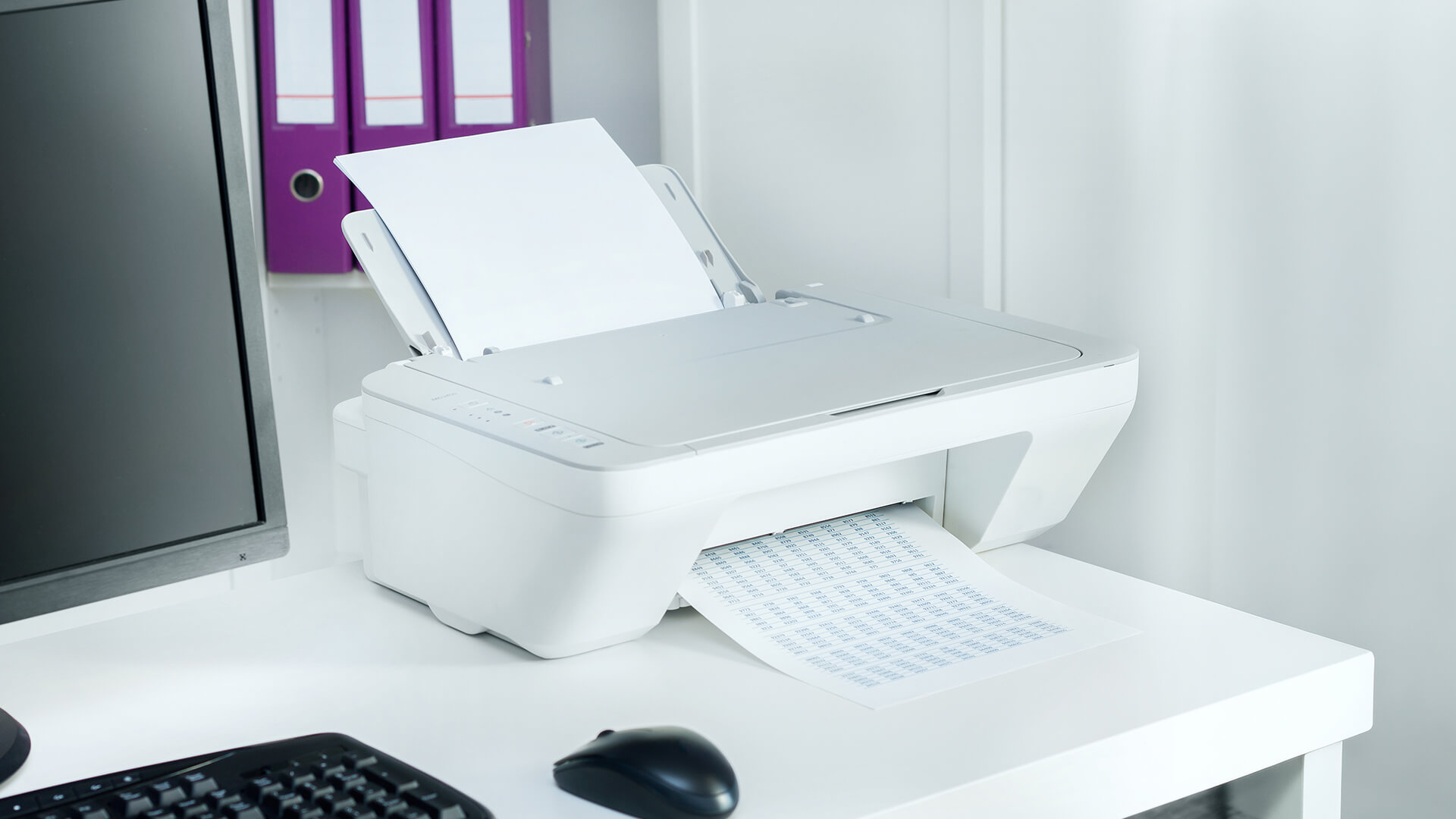
USB printing uses a cable between your printer and computer. It is the simplest form of local printing because the printer only talks directly to the connected device.
A USB printer is a strong choice if you only print from one PC or laptop. It can also be useful in environments where Wi-Fi is unreliable or where you do not want a printer on the network.
USB printing is best if you want:
- A direct cable vs wireless connection
- Fewer network issues
- Simple setup
- Stable printing from one computer
- A printer for a fixed desk
- Less dependence on router performance
The downside is convenience. A USB printer is usually not as easy to share with phones, tablets, or multiple computers unless another device acts as a print server.
What Is Cloud Printing?
Cloud printing lets you send print jobs through an online print service, printer app, or managed print platform rather than relying only on a direct cable or local Wi-Fi connection.
It is useful when you want more flexibility from your printing setup. For example, you may want to print from a phone, send a document to an office printer, manage print access for different users, or support people working across different locations.
Cloud print works best for:
- Remote printing
- Hybrid work setups
- Shared office printers
- Mobile printing
- Managed user access
- Businesses with multiple devices
- Teams that need central print control
For home users, cloud printing is usually about convenience. You can send files from supported apps, mobile devices, or cloud storage services without needing to sit next to the printer.
For offices, it can help simplify print management by giving admins more control over users, devices, and print queues. That makes it a better fit for work environments where several people need reliable access to the same printer.
Wi-Fi vs USB vs Cloud Printing: Key Differences
The best way to compare Wi-Fi vs USB vs cloud printing is to look at setup, reliability, speed, and convenience.
Quick Comparison Table
| Feature | Wi-Fi Printing | USB Printing | Cloud Printing |
|---|---|---|---|
| Needs internet? | Usually no for local printing | No | Usually yes |
| Needs Wi-Fi? | Yes, unless Wi-Fi Direct is used | No | Usually yes or network access |
| Best for phones | Very good | Limited | Good, if supported |
| Best for one PC | Good | Excellent | Overkill |
| Best for shared printers | Very good | Limited | Excellent for managed teams |
| Setup difficulty | Moderate | Easy | Moderate to advanced |
| Reliability | Good if network is strong | Excellent | Depends on service and network |
| Remote printing | Limited | No | Yes |
| Cable clutter | Low | Higher | Low |
| Office management | Basic | Basic | Strong |
Connectivity and Setup
USB printing is usually the easiest to set up. Plug in the cable, install the driver if needed, and print.
Wi-Fi printing takes a little more setup because the printer needs to join your wireless network. Once connected, it is easier to share.
Cloud printing depends on the platform. A home cloud print feature may be simple through a printer app. Business cloud printing can involve user accounts, permissions, policies, and printer registration.
| Setup Type | Easiest Option |
|---|---|
| One PC beside printer | USB |
| Family sharing one printer | Wi-Fi |
| Office with multiple users | Wi-Fi or cloud |
| Remote/hybrid team | Cloud |
| Mobile-first printing | Wi-Fi or cloud |
| Unstable Wi-Fi environment | USB |
For most people, Wi-Fi vs USB vs cloud printing comes down to whether they value simplicity, sharing, or remote access.
Speed and Reliability
USB printing is often the most reliable because it avoids network problems. It is direct, stable, and not affected by router placement or Wi-Fi congestion.
Wi-Fi printing is convenient, but speed and reliability depend on your wireless network. If the printer is far from the router, print jobs may delay, fail or appear offline.
Cloud printing is flexible, but it depends on both internet access and the cloud service being used. For large offices, this can still be very reliable when managed properly.
Common reliability issues include:
- Weak Wi-Fi signal
- Router congestion
- Outdated printer firmware
- Incorrect drivers
- Printer sleep mode
- Wrong network selected
- Poor mobile app support
- Firewall or workplace access rules
If your printer regularly drops offline, the problem is often the network rather than the printer itself.
Accessibility and Convenience
Wi-Fi wins for everyday convenience at home. USB wins for single-device reliability. Cloud wins for access across locations.
Think about who needs to print:
| User Need | Best Method |
|---|---|
| One desktop PC | USB |
| Laptop and phone | Wi-Fi |
| Family members sharing a printer | Wi-Fi |
| Small office team | Wi-Fi or network printing |
| Remote worker | Cloud printing |
| Managed business users | Cloud print platform |
| Occasional mobile printing | Wi-Fi Direct or AirPrint-style printing |
This is where Wi-Fi vs USB vs cloud printing becomes less about technology and more about behaviour. The best method is the one that fits how people actually print.
Which Printing Method Is Best for You?
The best printing method depends on your environment. A home setup does not need the same solution as a workplace.
Home Use
For most homes, Wi-Fi printing is the best choice. It lets different people print from different devices without moving cables around.
Wi-Fi printing works well for:
- Homework
- Boarding passes
- Labels
- Recipes
- Return forms
- Family documents
- Photos
- Mobile printing
If you are looking for printers for home, prioritise wireless support, mobile printing compatibility, easy setup, and low running costs.
A good home printer should be simple enough for everyone to use. If people constantly need help connecting to it, the setup is wrong.
Office and Shared Environments
For work setups, the best method depends on team size.
Small offices can often manage with Wi-Fi or wired network printing. Larger workplaces may benefit from cloud printing because it gives more control over access, users, and print queues.
Printers for work setups should be chosen around volume, paper handling, security, and how many people need access.
For office use, consider:
- Print volume
- Number of users
- Colour vs mono printing
- Duplex printing
- Secure print release
- Admin control
- Driver management
- Mobile access
- Network reliability
Cloud printing can be especially useful when staff use laptops, move between locations, or need a managed way to print without traditional print servers.
Remote and Mobile Printing Needs
Remote printing is where cloud printing makes the most sense. If users need to send jobs while away from the printer location, Wi-Fi and USB are not enough on their own.
For mobile printing, Wi-Fi is often enough if the phone and printer are on the same network. Many modern printers support phone printing through mobile apps or built-in mobile print standards.
If you need to connect printer to mobile devices, check for:
- AirPrint support for Apple devices
- Mopria support for Android
- Manufacturer mobile apps
- Wi-Fi Direct
- Cloud print features
- Bluetooth, if supported
- USB mobile printing support, if needed
Wi-Fi Direct is useful because it can connect a phone directly to a printer without using the main router. It still uses wireless connectivity, but it does not need the phone and printer to be on your home Wi-Fi network.
Devices and Accessories That Improve Printing
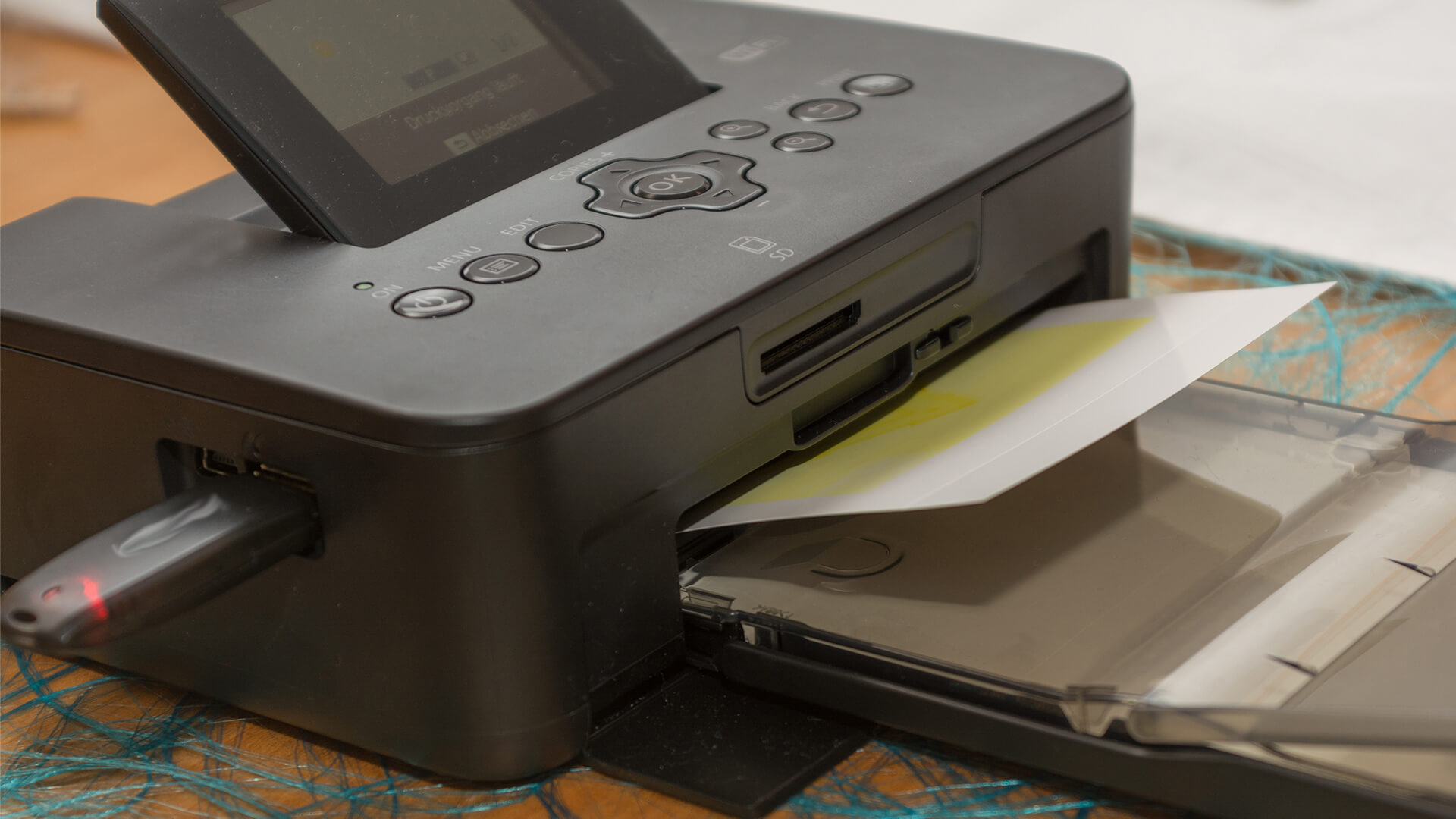
A good printer is only part of the setup. The right accessories, cables, and networking devices can make printing smoother and more reliable.
Wireless Printers and Smart Features
Modern wireless printers can support several connection types at once. That means you may not need to choose only one method.
A printer might support:
- Wi-Fi printing
- USB printing
- Ethernet
- Wi-Fi Direct
- Mobile apps
- Cloud printing services
- AirPrint or Mopria
- Scan-to-email or scan-to-cloud
- Remote status checks
This flexibility is useful. You can use Wi-Fi for daily printing, USB as a backup, and cloud features when remote access is needed.
When going for wireless printers, look at the supported connection types before buying. A printer with more connectivity options will usually last longer in a changing home or office setup.
Cables and USB Connectivity Options
USB is simple, but the cable still matters. Some printers include a USB cable, but many do not.
Useful accessories for printing setups can include:
- USB printer cables
- Replacement power cables
- Paper trays
- Ink or toner
- Printer stands
- Label rolls
- USB adapters
- Cable management clips
For a desktop printer, a good USB cable can be a reliable fallback even if you mainly use Wi-Fi.
Network and Cloud Printing Tools
Wi-Fi printing depends heavily on the quality of your network. A weak router or poor signal can make a perfectly good printer feel unreliable.
Networking devices for wireless printing can help if your printer is far from the router or your home office has weak coverage.
Consider improving:
- Router placement
- Wi-Fi signal strength
- Mesh Wi-Fi coverage
- Ethernet availability
- Network congestion
- Firmware updates
- Guest network settings
In an office, network printing may also need help from IT policies, printer permissions, and device management tools.
Setting Up Your Printer for Better Efficiency
A good printing setup should feel boring in the best possible way. You press print, the document appears, and nobody has to troubleshoot anything.
Choosing the Right Connection
Use this table as a simple decision guide.
| Situation | Best Connection |
|---|---|
| Printer beside one PC | USB |
| Printer shared by a household | Wi-Fi |
| Printer used by multiple office users | Wi-Fi, Ethernet or cloud |
| Printing from phones | Wi-Fi, AirPrint, Mopria or app |
| Printing away from the office | Cloud printing |
| Wi-Fi keeps dropping | USB or better networking |
| Need secure business print control | Cloud print management |
| Need simplest setup | USB |
If your printer supports more than one method, set up the main one first and keep another as a backup.
Optimising Network Printing
If you choose Wi-Fi printing, make the network stable before blaming the printer.
Try these steps:
- Place the printer closer to the router
- Avoid hiding the printer in a cupboard
- Use 2.4GHz Wi-Fi if range is more important than speed
- Keep printer firmware updated
- Restart the router and printer if jobs get stuck
- Keep the printer on the same network as your device
- Avoid guest networks unless printing is allowed
- Use Ethernet if the printer supports it and the location allows it
For shared printers, give the printer a clear name. “Office Printer” is much easier than a random model number when multiple people need to print.
Managing Print Jobs Effectively
Print queues can become messy, especially in offices or shared homes.
Good habits help:
- Cancel stuck jobs before resending
- Check paper size before printing
- Use duplex printing where possible
- Preview documents first
- Keep drivers updated
- Set default colour/mono preferences
- Use secure printing for sensitive documents
- Check ink or toner before large print runs
For offices, cloud print management can help reduce abandoned jobs, improve security, and make printers easier to manage across users.
Common Printing Problems and Quick Fixes
Most printer issues fall into a few common categories.
| Problem | Likely Cause | Quick Fix |
|---|---|---|
| Printer shows offline | Weak Wi-Fi or sleep mode | Restart printer and check network |
| Phone cannot find printer | Different network | Connect phone and printer to same Wi-Fi |
| USB printer not detected | Cable or driver issue | Try another port/cable and reinstall driver |
| Cloud print job not appearing | Service/account issue | Check user account and printer registration |
| Slow printing | Large file or weak connection | Use USB, Ethernet or reduce file size |
| Wrong printer selected | Multiple printers saved | Rename printers clearly |
| Print jobs stuck | Queue error | Clear print queue and restart printer |
A small setup check usually saves time later. Print a test page after setup and keep the connection method simple for everyday users.
Wi-Fi Direct vs Wi-Fi Printing
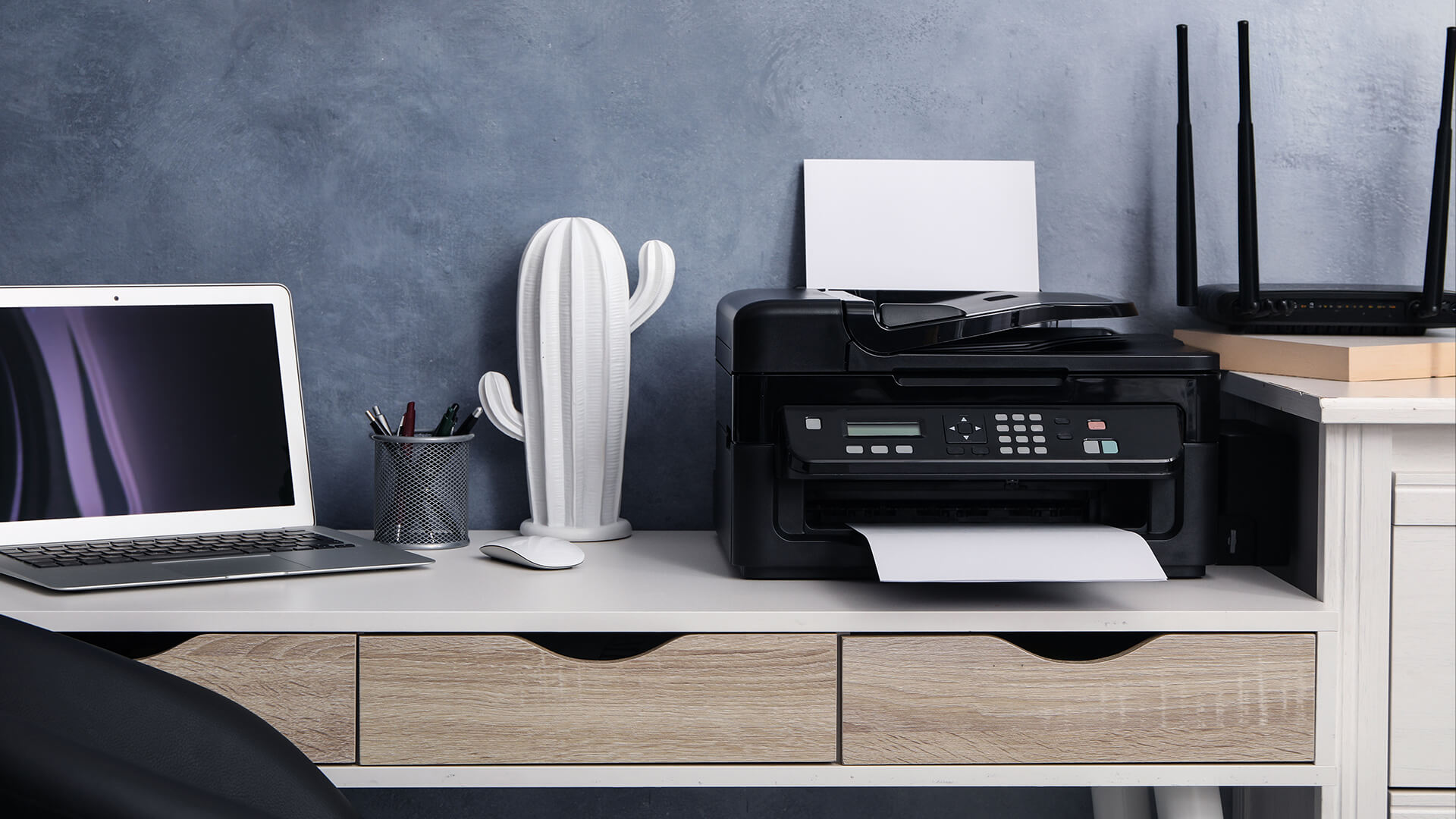
Wi-Fi Direct is worth covering because it often gets mixed up with normal Wi-Fi printing.
Standard Wi-Fi printing usually means:
- Printer connects to your router
- Your device connects to the same network
- Print jobs go through the local network
Wi-Fi Direct usually means:
- Your phone or laptop connects directly to the printer
- No router is needed
- It is useful for quick, local mobile printing
| Feature | Wi-Fi Printing | Wi-Fi Direct |
|---|---|---|
| Uses router | Yes | No |
| Good for shared home printing | Yes | Not as convenient |
| Good for quick mobile printing | Yes | Yes |
| Best for offices | Yes | Usually no |
| Remote printing | No | No |
Wi-Fi Direct is handy, but it is not the same as cloud printing. It is local, not remote.
Wi-Fi vs USB vs Cloud Printing: Pros and Cons
Here is a clear comparison of the three options so you can choose the right one.
Wi-Fi Printing Pros and Cons
| Pros | Cons |
|---|---|
| Great for shared printers | Depends on network quality |
| Works with phones and laptops | Can show offline if Wi-Fi is weak |
| Less cable clutter | Setup can be fiddly |
| Good for homes and small offices | Router issues can affect printing |
| Supports mobile printing features | May need app or driver setup |
USB Printing Pros and Cons
| Pros | Cons |
|---|---|
| Very reliable | Not convenient for multiple users |
| Simple setup | Needs a cable |
| No Wi-Fi required | Printer must sit near the computer |
| Good for single-PC setups | Poor mobile printing support |
| Less affected by network problems | Not ideal for shared offices |
Cloud Printing Pros and Cons
| Pros | Cons |
|---|---|
| Good for remote printing | Usually needs internet |
| Useful for hybrid workers | Setup can be more complex |
| Strong for business management | May depend on service or subscription |
| Helps manage shared printers | Overkill for many homes |
| Supports flexible access | Needs account and permissions setup |
Wrapping Up
Wi-Fi vs USB vs cloud printing is not about one method being better than the others. It is about choosing the method that fits your setup.
For most homes, Wi-Fi printing is the best option because it supports laptops, phones, tablets, and shared use. For one fixed computer, USB printing is still the simplest and most reliable choice. For hybrid teams, remote printing and managed work environments, cloud printing offers the most flexibility.
The best setup may also combine methods. A wireless printer can handle everyday mobile printing, while USB can remain available as a backup. An office printer can use network printing locally and cloud printing for managed access.
Choose based on how you print most often:
- Pick Wi-Fi for flexibility at home
- Pick USB for simple single-device reliability
- Pick cloud printing for remote access and work management
- Improve the network if wireless printing keeps dropping
- Add the right cables and accessories to avoid setup problems
FAQs
-
What is the difference between Wi-Fi and USB printing?
Wi-Fi printing connects the printer to a wireless network so multiple devices can print without cables. USB printing connects the printer directly to one computer using a cable. Wi-Fi is better for sharing, while USB is better for simple, reliable single-device printing.
-
Is cloud printing better than Wi-Fi printing?
Cloud printing is better if you need remote access, managed users, or business print control. Wi-Fi printing is better for normal home use, where devices are on the same network. For most homes, cloud printing is not necessary unless you need to print from outside the local network.
-
Which printing method is the fastest?
USB printing is usually the most direct and reliable. However, speed also depends on the printer, file size, driver, paper type, and print quality settings. For normal documents, Wi-Fi and USB can both feel fast if the network is stable.
-
Can you print from your phone without Wi-Fi?
Yes, in some cases. You may be able to use Wi-Fi Direct, Bluetooth on supported printers, USB adapters on some devices, or a printer manufacturer’s app. Wi-Fi Direct is one of the most common ways to print from a phone without using the main home Wi-Fi network.
-
What is the most convenient way to print?
For most people, Wi-Fi printing is the most convenient because it works across laptops, phones, tablets, and shared home devices. For businesses or remote workers, cloud printing may be more convenient because it supports printing from different locations.
-
Is USB printing more secure than Wi-Fi printing?
USB printing can be more private for a single-user setup because the printer is not shared across the network. However, offices may prefer managed network or cloud printing because it can include user permissions, secure print release, and admin controls.
-
Do I need internet for Wi-Fi printing?
Usually no. Local Wi-Fi printing normally only needs your device and printer to be on the same network. Internet may be needed for cloud printing, printer apps, firmware updates or remote printing features.
You can pay with:
*PayPal Credit Representative Example: Assumed credit limit £1,200, Representative 23.9% APR (variable). Purchase rate 23.9% p.a (variable).Terms & Conditions apply.


PayPal Credit and PayPal Pay in 3 are trading names of PayPal UK Ltd, 5 Fleet Place, London, United Kingdom, EC4M 7RD. Terms and conditions apply. Credit subject to status, UK residents only, Five Tech LTD acts as a broker and offers finance from a restricted range of finance providers. PayPal Pay in 3 is not regulated by the Financial Conduct Authority. Pay in 3 eligibility is subject to status and approval. 18+. UK residents only. Pay in 3 is a form of credit. Check if affordable and how you will repay. May make other borrowing more difficult or expensive. See product terms for more details.
Copyright © 1996-2026 Fivetech LTD | Terms and Conditions
box.co.uk & Box are trading names of Five Tech Limited. Registered office: Box LTD, Unit 10 Woodford Trading Estate, Woodford Green IG8 8HF