


 Menu
MenuMenu


Get Sales Advice from Mon - Fri 9am - 5:00pm:
020 3337 8950LAST UPDATED: July 01, 2026
Inkjet Printer Maintenance: How to Stop Clogs, Smudges and Poor Print Quality
Inkjet printer maintenance helps prevent the most common print quality issues, including faded prints, streaky printing, smudges, missing colours and blank sections on the page.
Most inkjet printer problems are caused by one of the following:
- Dried ink blocking the printer nozzles
- A clogged printhead causing lines, gaps or missing colours
- Low, empty or ageing ink cartridges
- Incorrect paper type or print settings
- Dust, debris or residue inside the printer
The good news is that regular maintenance can often fix or prevent these issues before they affect print quality. Simple tasks such as printing a printer test page, checking ink levels, running a nozzle check and using the correct paper settings can help keep an inkjet printer working reliably.
If you are facing similar problems, you are in the right place. In this guide, we will provide practical inkjet printer maintenance tips to help fix the issues and prevent them in the future.
Quick Inkjet Printer Maintenance Checklist
Use this quick checklist before running deeper cleaning, replacing parts or looking for new inkjet printer options. In many cases, these basic inkjet printer maintenance tips can solve the issue without much effort.
| Maintenance check | What to do | Why it helps |
|---|---|---|
| Print a test page | Print a page with black text and colour blocks | Shows faded prints, missing colours or streaky printing |
| Check ink levels | Look at the printer display or software | Low ink can cause patchy output and missing colours |
| Run a nozzle check | Use the printer’s maintenance menu | Helps identify blocked printer nozzles |
| Use the correct paper setting | Match the setting to plain, photo or glossy paper | Reduces smudging and ink saturation |
| Clean or align the printhead | Use the built-in cleaning or alignment option | Helps fix lines, gaps, blurry text and uneven colour |
| Replace old cartridges | Change empty, dried or faulty ink cartridges | Restores proper ink flow |
| Check for paper jams or debris | Look inside the paper path and tray | Helps prevent marks, feeding issues and repeated jams |
| Turn the printer off properly | Use the printer’s power button | Helps the printhead park correctly and reduces drying |
| Keep the printer dust-free | Cover trays and avoid dusty spaces | Reduces dirt inside the printer |
Why Inkjet Printers Clog, Smudge or Print Badly
Most inkjet printer problems come down to ink flow, paper handling or print settings. An inkjet printer uses liquid ink, so anything that blocks the flow of ink or stops it from drying properly can affect the final page.
Proper and timely inkjet printer maintenance helps prevent these issues by keeping ink flowing, reducing dust buildup, and ensuring the printer uses the right settings for the job.
Dried Ink and Clogged Printheads
An inkjet printer works by pushing tiny drops of ink through very small nozzles. If the printer is not used regularly, ink can dry in these nozzles, restricting the flow.
This is where printer ink drying out becomes a problem. Once dried ink builds up, it can lead to a clogged printhead, which may cause:
- Missing colours
- Gaps in text or images
- Faded prints
- Broken lines across the page
- Uneven colour output
- Blank sections on the print
This is especially common with home printers that are only used occasionally. A printer might sit untouched for weeks, then struggle when you need a clean document or photo straight away.
Paper, Settings and Ink Issues
Not every print problem is caused by a blocked printhead. The wrong paper type, incorrect settings or ageing ink cartridges can also lead to poor results.
For example, inkjet printer smudging often happens when the printer uses too much ink for the paper being loaded. Glossy paper, photo paper and plain paper all absorb ink differently, so the printer setting needs to match the paper.
Other common causes include:
- Low ink levels causing weak or uneven colour
- Old ink cartridges not feeding ink smoothly
- Paper that is damp, curled or too thin
- Print quality settings that use too much ink
- Dust or debris inside the paper path
- Handling prints before the ink has dried
Simple printer maintenance can usually narrow down the cause. Check the ink levels, confirm the paper setting, inspect the paper tray and run a test print before moving on to deeper cleaning.
How to Fix Lines, Streaks and Faded Prints
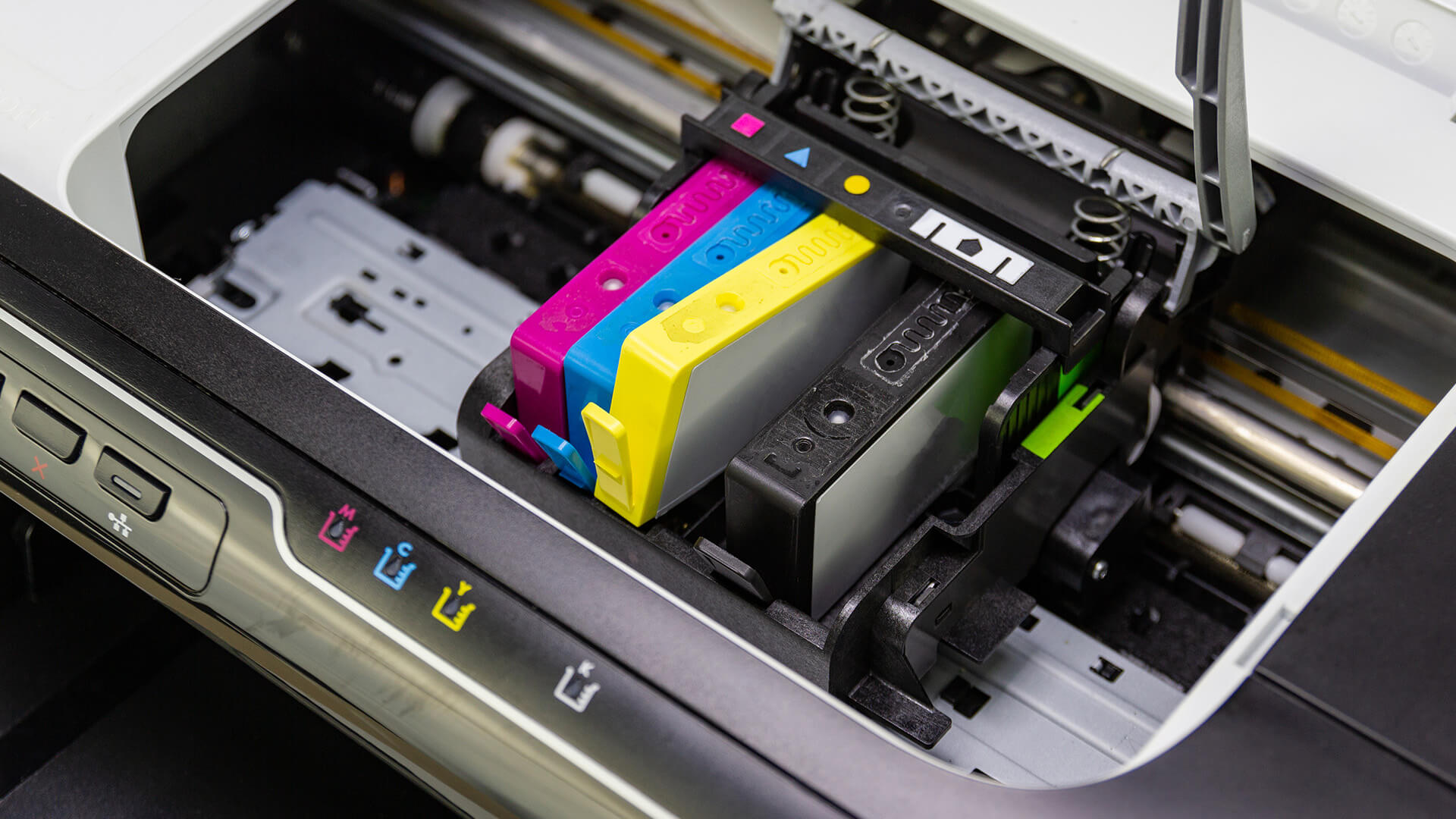
If you are dealing with inkjet printer printing lines, patchy colours or faded prints, start with the printer’s built-in maintenance tools before trying anything manual. Most printers include a nozzle check, cleaning cycle and printhead alignment option in the control panel, app or printer software. These options are the quickest to use and often solve the problem.
Run a Nozzle Check or Printer Test Page
A nozzle check helps show whether the printer nozzles are working properly. It usually prints a small pattern with lines, blocks or colour sections.
On the printed paper, look for:
- Missing lines
- Gaps in the pattern
- Weak colours
- One colour not printing
- Broken or uneven sections
- Streaky printing across the page
A printer test page can also help. If the problem only affects one colour, it may be a low or blocked ink cartridge. If all colours look weak, check the paper setting, print quality mode and ink levels.
This is also useful before running a cleaning cycle. It helps you confirm whether you need to clean printer heads or whether the problem is more likely caused by paper, settings or low ink.
Clean and Align the Printhead
Use the printer’s built-in cleaning cycle if the nozzle check shows gaps, missing colours or broken lines. This process helps clear a clogged printhead by moving ink through the nozzles.
Do not run deep cleaning repeatedly in one go. It can use a lot of ink, and if the ink in the cartridges is already low, cleaning may not work properly.
Use printhead alignment if:
- Text looks blurry
- Straight lines look uneven
- Colour edges look slightly shifted
- Images look soft or doubled
- Prints look misaligned after replacing cartridges
If the same issue keeps coming back after cleaning and alignment, check for old cartridges, dried ink or a possible hardware fault.
If you are also experiencing paper feeding problems, repeated jams or marks appearing in the same area of each page, our printer paper jam fix guide can help you identify and clear issues within the paper path.
How to Stop Inkjet Prints Smudging
Inkjet printer smudging usually happens when ink does not dry properly, the printer uses too much ink, or something inside the printer is marking the page as it feeds through.
As part of regular inkjet printer maintenance, it is worth checking the paper, settings, cartridges and rollers before running a deep clean. These are often the main causes of smears, wet-looking marks and messy printouts.
Match the Paper Type to the Printer Setting
The selected paper type tells the printer how much ink to use. If the setting does not match the paper, the page can become over-saturated, and the ink may sit on the surface for too long.
For example:
- Use a plain paper setting for everyday documents
- Use a photo paper setting for glossy or coated paper
- Give photo prints more drying time before handling
- Avoid stacking fresh prints too quickly
- Reduce print quality or density if the page is coming out too wet
This is one of the most important inkjet printer maintenance tips that will help you print better and save some ink. If the printer thinks it is using thicker or coated media when it is actually printing on standard paper, it may apply too much ink and cause smudging.
Poor paper can also make things worse. Damp, thin or curled sheets can absorb ink unevenly, leading to smears, soft edges or faded prints.
Check Cartridges, Rollers and Paper Path
If the paper setting looks correct, check the physical parts of the printer.
Old or leaking cartridges can leave ink inside the machine. Dirty rollers can then drag that ink across the page, causing marks that appear in the same place on multiple prints.
Look for:
- Ink marks around the cartridge area
- Loose paper fibres or dust
- Small scraps of paper in the paper path
- Damp or curled paper
- Smudges at the edge of the page
- Repeated marks in the same position
- Streaky printing that does not improve after changing paper
A suitable printer cleaner, cleaning sheet or lint-free cloth may help remove light residue, but always follow the printer’s manual before cleaning internal parts. Avoid forcing cloths, tools or liquids into areas that are difficult to reach.
How to Stop Printer Ink Drying Out
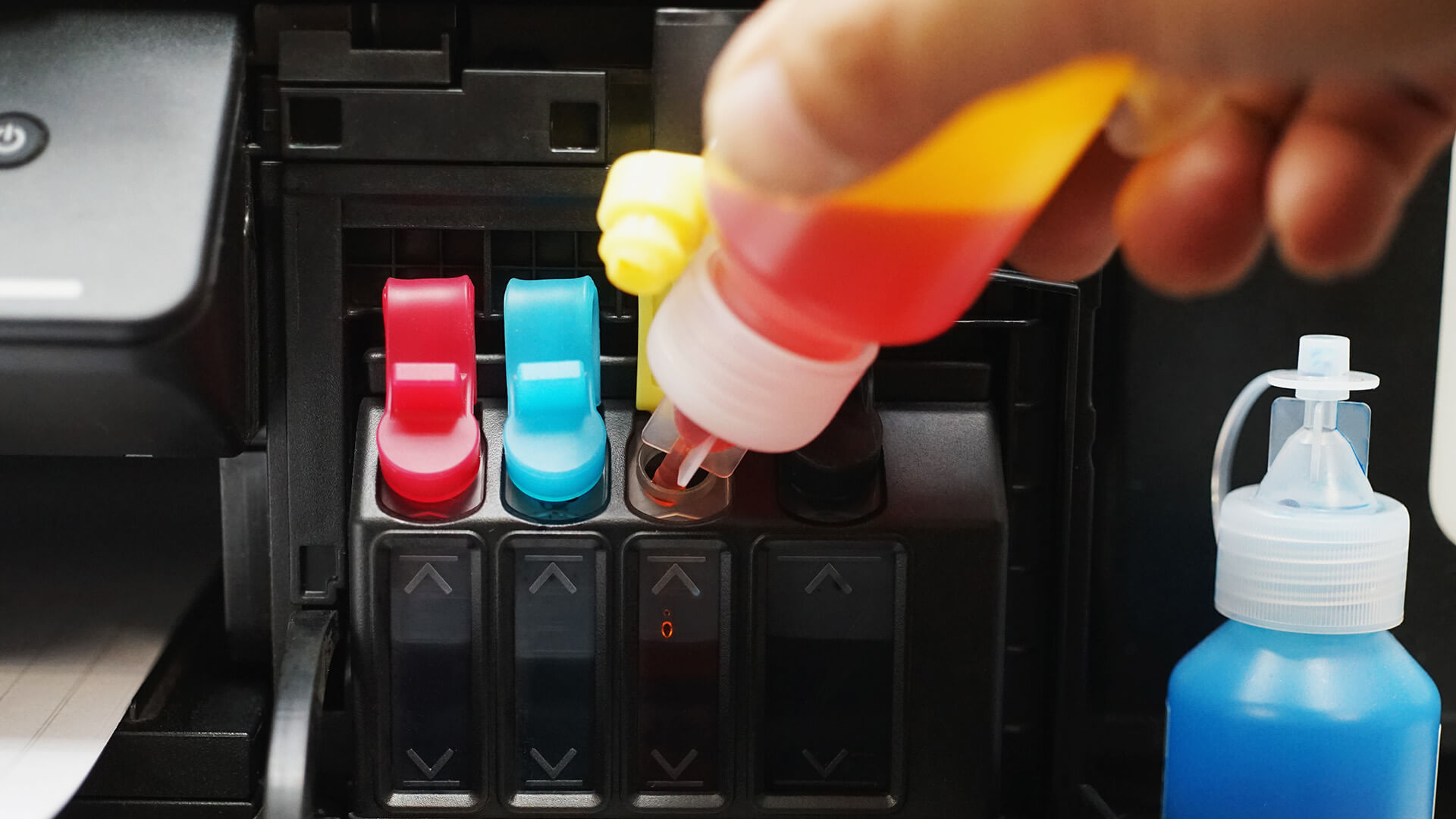
It is one of the most common reasons an inkjet printer starts producing missing colours, broken lines or blank patches.
Ink can dry inside the printer nozzles when the printer is left unused for too long. Once this happens, dried ink can restrict ink flow and lead to a clogged printhead.
Use the Printer Regularly
The easiest way to reduce printer ink drying out is to use the printer regularly.
If you do not print often, try printing a small printer test page once a week. It does not need to be anything detailed. A simple page with black text and a few colour blocks can help keep ink moving through the printer nozzles. This is one of the simplest inkjet printer maintenance tips because it helps prevent ink from sitting still for too long and also helps reduce printing costs in the long run.
Store the Printer and Cartridges Properly
Storage also matters. Keep the printer in a clean, dry space away from direct heat, strong sunlight and dusty areas.
Always turn the printer off using its power button. This helps the printhead return to its correct resting position, which can reduce the chance of ink drying around the nozzles. Avoid:
- Unplugging the printer while it is still powered on
- Leaving ink cartridges exposed outside the printer
- Storing cartridges near heat or sunlight
- Leaving the paper tray open in dusty rooms
- Using damp or curled paper
Good printer maintenance is not just about fixing problems after they happen. It is about preventing the small issues that lead to clogged nozzles, smudges and poor print quality.
Should You Replace Ink, Accessories or the Printer?
Sometimes, inkjet printer troubleshooting and maintenance are enough to fix the problem. Other times, it makes more sense to replace the ink, add the right consumables or upgrade the printer altogether.
The key is to look at how often the issue happens. A one-off or random print quality problem is usually worth troubleshooting. Repeated inkjet printer problems may point to old ink, worn parts or a printer that no longer suits how you use it.
When New Ink or Consumables Are Enough
Start with the simple fixes first. Many print quality problems are caused by empty, ageing or faulty ink cartridges rather than the printer itself.
New ink or consumables may be enough if:
- One colour is missing from the page
- Prints look weak even after a nozzle check
- The printer warns that the ink is low or empty
- Cartridges are old or have been stored for too long
- Smudging only happens with certain paper
- The issue started after changing the paper or print settings
It is also worth checking the basics while doing printer maintenance. Printer add-ons such as fresh paper, the correct paper type, a suitable printer cleaner or cleaning sheet can help in some cases, especially if the issue is linked to dust, paper fibres or residue inside the paper path.
When Replacing the Printer Makes More Sense
Replacing the printer becomes more sensible when the same problems keep coming back, even after basic maintenance.
Consider upgrading if:
- The clogged printhead keeps returning
- Printer ink drying out is a constant issue
- Cleaning cycles use too much ink without fixing the problem
- The printer is slow, noisy or unreliable
- Ink is expensive compared with how often you print
- Wireless printing or scanning no longer works well
- You now need copying, scanning or duplex printing
- Your home or office printing needs have grown
If you are planning to buy a new machine, our printer buying guide can help you choose the right model for your needs. Whether you are looking for everyday home printers or multifunction printers for scanning, copying, and regular document work, matching the printer to your exact needs is very important.
For home use, it is worth comparing inkjet with laser printers based on how often and what you print. As for small businesses, inkjet printers are a great choice because they offer high-quality colour printing, flexible media support, and lower upfront purchase cost. You can also check out our home office printer buying guide to make a well-informed decision.
But if you have high-volume printing needs and you need to get the work done quickly, a laser printer is the right choice.
Final Maintenance Tips for Home and Office Inkjet Printers
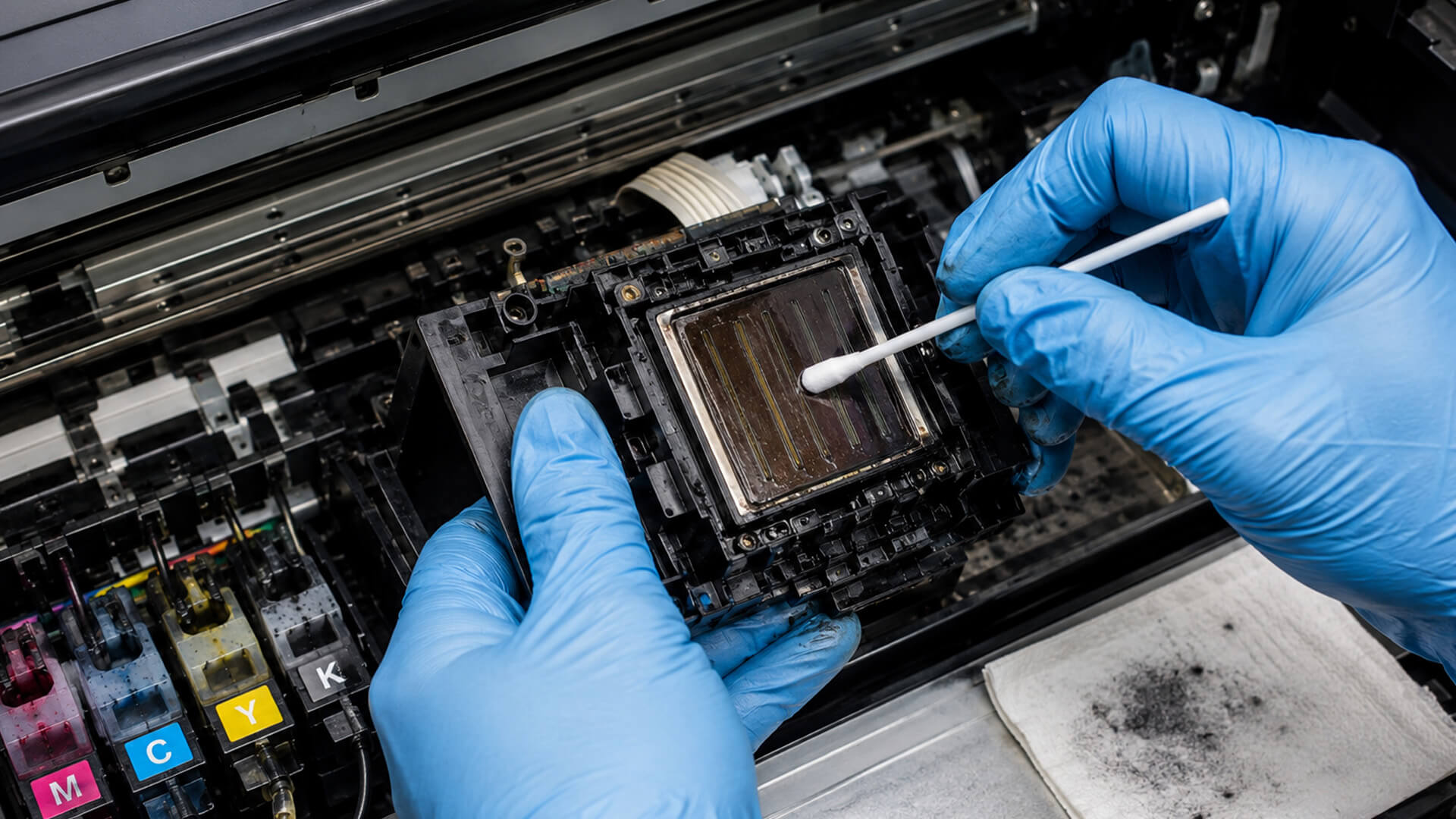
Good inkjet printer maintenance is mostly about prevention. A few regular checks can reduce clogs, smudges and poor print quality.
- Print a small printer test page weekly if the printer is rarely used
- Run a nozzle check before starting a cleaning cycle
- Do not overuse deep cleaning, as it can waste ink
- Use the correct paper type and matching print setting
- Let photo prints dry before handling or stacking
- Replace old ink cartridges before they cause bigger issues
- Keep the printer clean, covered and away from dust
- Check the paper path if smudges, marks or jams keep returning
Follow these tips as a routine, not just when problems appear. In this way, you will be able to keep your printer in good working condition.
Frequently Asked Questions
Why is my inkjet printer printing lines?
Your inkjet printer may be printing lines because the printhead is partially blocked, the ink is low, the nozzles are clogged, or the printhead needs aligning. Start by running a nozzle check or printer test page, then use the built-in cleaning cycle if you see gaps, missing colours or broken patterns.
How do I stop inkjet printer ink from drying out?
The easiest way to stop inkjet printer ink from drying out is to use the printer regularly. Printing a small page once a week with both black and colour ink can help keep ink moving through the nozzles. You should also turn the printer off using its power button and avoid leaving cartridges exposed outside the printer.
How often should I use my inkjet printer?
It is best to use an inkjet printer at least once a week, especially if it is not used daily. A quick test page with some text and colour blocks is usually enough to reduce the risk of dried ink, blocked nozzles and poor print quality.
Why is my inkjet printer smudging?
Inkjet printer smudging is usually caused by the wrong paper setting, unsuitable paper, too much ink being applied, dirty rollers, leaking cartridges or handling the print before it has dried. Check that the paper type in the printer settings matches the paper you are using, and allow photo or heavy-colour prints extra drying time.
Can a clogged inkjet printer be fixed?
A clogged inkjet printer can often be fixed with the printer’s built-in maintenance tools. Run a nozzle check first, then use the cleaning cycle if the pattern shows gaps or missing colours. If cleaning does not help after a few attempts, the ink cartridges, printhead or printer itself may need further attention.
When should I replace ink cartridges?
You should replace ink cartridges when the printer reports low or empty ink, when colours are missing, or when faded prints continue after cleaning and alignment. Old, dried or faulty cartridges can cause streaks, weak colour and repeated print quality problems.
Is it worth replacing an old inkjet printer?
Replacing an old inkjet printer may be worth it if clogs keep coming back, ink costs are too high, the printer is slow or unreliable, or it no longer supports the features you need. If maintenance is becoming frequent and expensive, a newer printer may offer better value and more consistent results.
You can pay with:
*PayPal Credit Representative Example: Assumed credit limit £1,200, Representative 23.9% APR (variable). Purchase rate 23.9% p.a (variable).Terms & Conditions apply.


PayPal Credit and PayPal Pay in 3 are trading names of PayPal UK Ltd, 5 Fleet Place, London, United Kingdom, EC4M 7RD. Terms and conditions apply. Credit subject to status, UK residents only, Five Tech LTD acts as a broker and offers finance from a restricted range of finance providers. PayPal Pay in 3 is not regulated by the Financial Conduct Authority. Pay in 3 eligibility is subject to status and approval. 18+. UK residents only. Pay in 3 is a form of credit. Check if affordable and how you will repay. May make other borrowing more difficult or expensive. See product terms for more details.
Copyright © 1996-2026 Fivetech LTD | Terms and Conditions
box.co.uk & Box are trading names of Five Tech Limited. Registered office: Box LTD, Unit 10 Woodford Trading Estate, Woodford Green IG8 8HF