


 Menu
MenuMenu


Get Sales Advice from Mon - Fri 9am - 5:00pm:
020 3337 8950LAST UPDATED: March 30, 2026
Gaming Mouse Feels Off? Hidden Firmware, Surface, and Input Lag Settings You Might Be Missing
If your aim feels inconsistent, your cursor feels delayed or your movements don't feel as responsive as they should, you're likely dealing with gaming mouse input lag or hidden setup issues.
Many players assume their mouse is faulty, but in reality, most problems come down to settings, firmware, surface compatibility, or overall system configuration. Even high-end mice can feel "off" if something in your setup isn't properly optimised.
In this guide, we'll explain what causes mouse input delay, why your gaming mouse may feel laggy or inconsistent, and how to fix the hidden issues affecting responsiveness. If you're upgrading, you can also explore a range of high-accuracy gaming mice designed for better tracking and responsiveness at Box.co.uk.
What Is Gaming Mouse Input Lag?
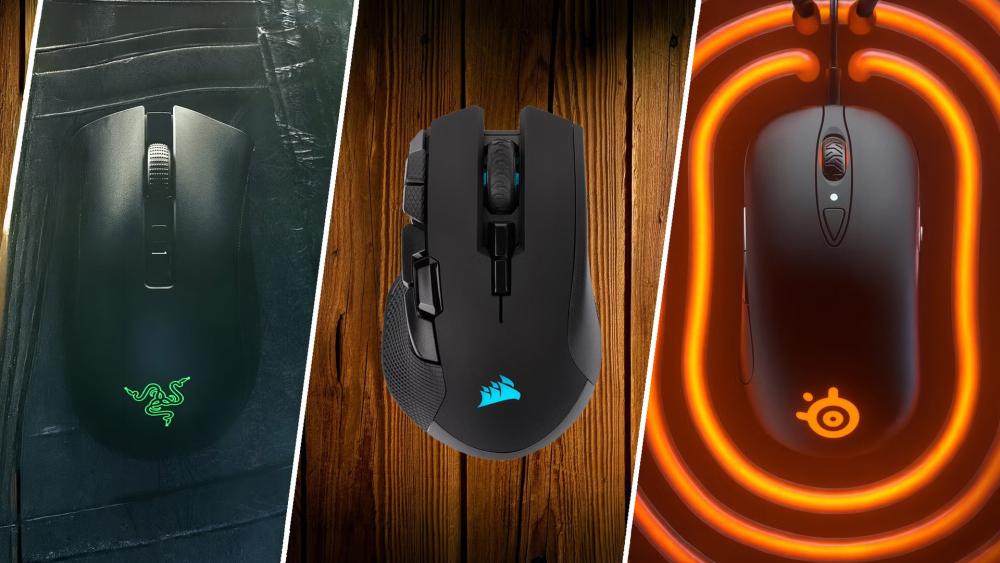
Gaming mouse input lag is the delay between when you move your mouse and when that movement shows up on your screen. Ideally, this should feel instant but when there's even a slight delay, your aim can start to feel off.
In real gameplay, this might show up as your crosshair reacting a fraction of a second late, your flicks feeling inaccurate or your tracking feeling slightly behind your hand movement. It's not always obvious, but over time it can make your overall performance feel inconsistent and harder to control.
This delay doesn't come from just one place. It's usually a combination of different factors working together, such as your mouse hardware, firmware, system performance, display response, and even your software settings. For example, an outdated driver, a struggling CPU or incorrect settings can all add small amounts of delay that build up into noticeable mouse input delay.
Even though the delay is often measured in milliseconds, it can still have a real impact especially in competitive games where timing and precision are critical. When your mouse doesn't feel fully connected to your movements, it becomes harder to aim confidently, react quickly, or track targets smoothly.
Understanding what causes this delay is the first step to fixing it and improving your overall gaming mouse responsiveness.
Why Input Lag Makes Your Mouse Feel "Off"
When gaming mouse input lag is present, your movements don't feel instant or connected. Instead of your crosshair responding immediately to your hand, there's a slight delay even if it's only a few milliseconds.
This can show up in different ways during gameplay. You might notice that your crosshair feels slightly behind your movement, making it harder to land precise shots. Flicks can feel less accurate, tracking moving targets becomes inconsistent, and overall aim starts to feel less controlled.
What makes this issue frustrating is that it's often subtle. The mouse still works, but something just doesn't feel right. Many players describe this as their mouse feeling "off" or "floaty," even when they can't pinpoint the exact cause.
Over time, this disconnect between your hand movement and on-screen response can affect muscle memory, making your aim feel unreliable especially in competitive games where precision and timing are critical.
Input Lag vs Tracking Issues
It's important to understand that input lag and mouse tracking issues are not the same thing, although they often happen together.
Input lag refers to a delay between your movement and the on-screen response. Your mouse is working correctly, but the signal is slightly delayed before it appears on screen.
Tracking issues, on the other hand, occur when your mouse movement is not being recorded accurately. This can result in cursor skipping, jittering, or inconsistent movement.
In real-world use, these problems often overlap. For example, a poor surface or incorrect settings can cause both delay and inconsistent tracking at the same time. This is why diagnosing the issue requires looking at your entire setup; not just the mouse itself.
If your aim feels both delayed and inconsistent, it's worth checking for lift-off distance tracking issues, as well as surface and sensor-related problems, to fully resolve the issue.
Common Causes of Gaming Mouse Input Lag
1- Hidden Setup Issues Most Players Miss
When your gaming mouse feels laggy or unresponsive, the problem is rarely just one thing. In most cases, input lag is caused by a combination of small issues across your setup; many of which are easy to overlook.
Even experienced players often miss these factors because they don't always create obvious problems. Instead, they slowly affect responsiveness, making your aim feel inconsistent or "off" over time.
Understanding these hidden causes is key to fixing mouse input delay and improving overall performance.
2- Incorrect DPI and Sensitivity Settings
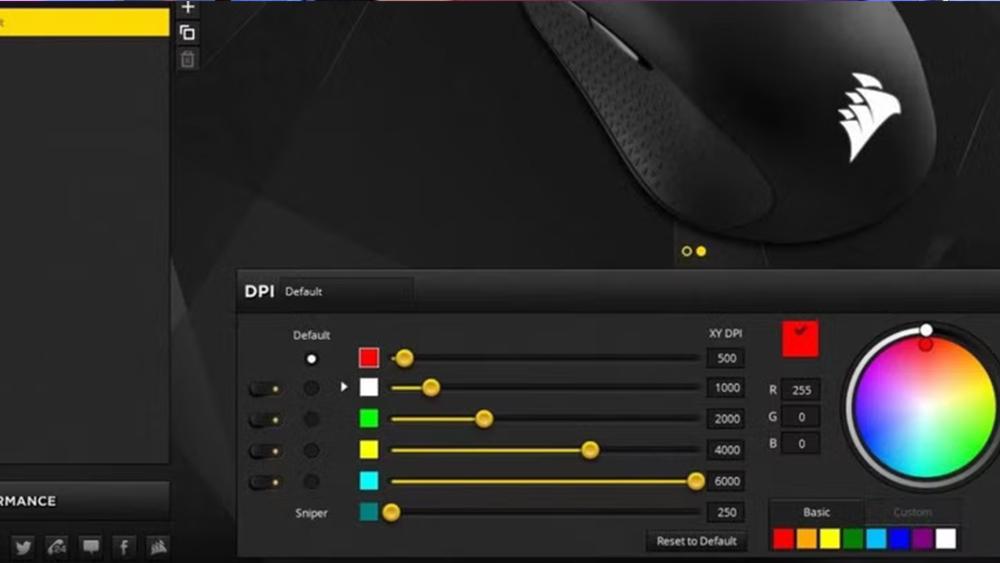
Your DPI mouse settings play a major role in how responsive and controlled your mouse feels.
DPI (dots per inch) determines how sensitive your mouse is to movement. If your DPI is not properly balanced with your in-game sensitivity, it can create inconsistent behaviour that feels like input lag.
For example:
- Very low DPI can make your mouse feel sluggish, requiring large movements and making quick reactions harder
- Very high DPI can make small movements overly sensitive, amplifying tiny inconsistencies and reducing control
This mismatch can lead to:
- Uneven tracking speed
- Overcorrection during aim
- A "floaty" or unstable feeling
Most players find the best balance within the 800–1600 DPI range, combined with properly adjusted in-game sensitivity. This range provides a good mix of control, responsiveness and consistency.
3- Outdated Gaming Mouse Firmware
One of the most overlooked causes of gaming mouse input lag is outdated firmware.
Your mouse firmware controls how the sensor processes movement, communicates with your system, and handles input data. Manufacturers frequently release updates to improve:
- Sensor accuracy and tracking consistency
- Input latency and responsiveness
- Compatibility with newer systems and games
If your firmware is outdated, your mouse may not be performing at its full potential. This can result in:
- Slight delays in input response
- Inconsistent tracking behaviour
- Occasional jitter or instability
Because these issues are subtle, many users don't realise firmware is the cause. Updating your mouse software is one of the simplest ways to improve mouse responsiveness and performance.
4- Poor Surface and Mouse Pad Issues
Your mouse pad has a direct impact on mouse sensor tracking and responsiveness.
Gaming mouse sensors rely on reading surface texture to track movement accurately. If the surface is inconsistent, worn out or unsuitable, the sensor may struggle to interpret movement correctly.
This can cause:
- Cursor skipping or jitter
- Inconsistent tracking speed
- Slight delays in movement response
Common surface-related problems include:
- Worn-out mouse pads with uneven texture
- Glossy or reflective surfaces that confuse the sensor
- Dust or dirt buildup affecting tracking
Switching to a high-quality surface such as extended gaming mouse pads with consistent texture can significantly improve tracking stability and reduce input issues.
5- System Performance and CPU Bottlenecks
Your PC plays a major role in how responsive your mouse feels.
Even if your mouse is working perfectly, poor system performance can lead to input delays. This is because your system must process mouse input, render frames and display the result; all in real time.
If your system is struggling, you may experience:
- Delayed input response
- Stuttering during movement
- Inconsistent frame timing
This is especially common when:
- CPU usage is high
- Frame rates are unstable
- Multiple background applications are running
In these cases, your mouse may feel less responsive; not because of the mouse itself, but because your system cannot keep up.
Using powerful gaming processors and maintaining stable performance can significantly reduce system-related input lag.
6- USB Polling Rate and Input Handling
Your mouse polling rate determines how often it sends updates to your PC.
For example:
- 1000Hz polling rate = 1000 updates per second
- Higher polling rates = more frequent updates
While higher polling rates can improve responsiveness, incorrect settings or system limitations can cause issues such as:
- Micro-stuttering
- Inconsistent input timing
- Increased CPU load
If your polling rate is too high for your system, it can actually reduce stability rather than improve performance.
Understanding how this works is important, especially if you're trying to optimise your setup. If needed, you can explore more about how polling rate affects input lag and how to choose the right setting.
How to Fix Gaming Mouse Input Lag – Step-by-Step Optimisation Guide
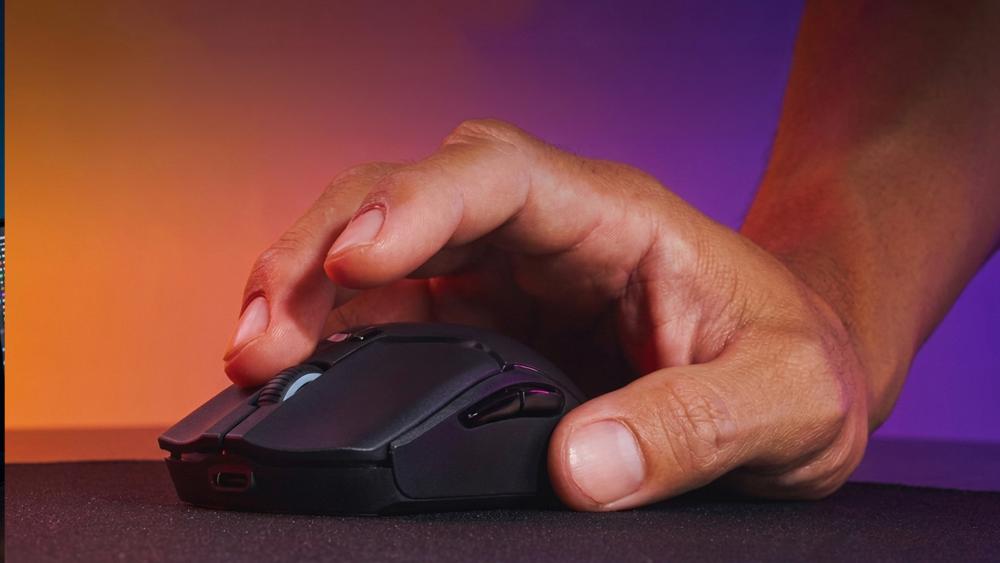
Fixing gaming mouse input lag isn't about changing just one setting: it's about improving how your entire setup works together. Your mouse, software, surface and system all contribute to how responsive your movements feel.
If your mouse feels delayed, inconsistent or "off," these steps will help you identify and fix the underlying causes.
1- Optimise Your Mouse Settings
The first place to start is your mouse configuration.
Your DPI and polling rate settings directly affect how your mouse responds to movement. If these are not set correctly, your aim can feel either too slow, too sensitive or inconsistent.
A balanced setup usually works best. Keeping your DPI within a moderate range and using a stable polling rate ensures your movements are translated accurately without adding unnecessary strain to your system.
Disabling features like mouse smoothing or acceleration is also important, as these can interfere with raw input and make your aim feel less predictable.
By fine-tuning these settings, you create a more stable and consistent foundation for mouse responsiveness.
2- Update Firmware and Software
Your mouse firmware plays a key role in how input is processed.
Manufacturers regularly release updates to improve performance, fix bugs and optimise sensor behaviour. If your firmware is outdated, your mouse may not be performing as efficiently as it should.
Updating your software ensures:
- More accurate sensor tracking
- Reduced input delay
- Better compatibility with your system
Because these improvements happen behind the scenes, many users overlook them but they can make a noticeable difference in overall gaming mouse performance.
3- Improve Your Surface Setup
Your mouse doesn't work in isolation; it relies on the surface beneath it.
A poor-quality or worn-out mouse pad can cause inconsistent tracking, which may feel like input lag. If the sensor struggles to read the surface properly, your movements won't be translated smoothly.
Using a high-quality mouse pad with a consistent texture helps the sensor track more accurately, resulting in smoother and more predictable movement.
This is why upgrading to extended gaming mouse pads or surfaces designed for control can instantly improve both tracking and responsiveness.
4- Reduce System Input Lag
Even if your mouse is perfectly configured, your system can still be delayed.
Your PC processes mouse input, renders frames and sends the image to your display. If any part of this process slows down, your mouse will feel less responsive.
Common causes include:
- High CPU usage
- Unstable frame rates
- Background applications consuming resources
Improving system performance by closing unnecessary programs, enabling high-performance settings and maintaining stable FPS can significantly reduce mouse latency.
This is especially important in competitive games, where consistent performance directly affects how responsive your input feels.
5- Choose the Right Mouse for Performance
Finally, the mouse itself matters.
Not all mice are designed with the same level of performance in mind. Some models prioritise features over responsiveness, while others are built specifically for low-latency performance.
For the best experience:
- Wired mice typically offer the most consistent, low-latency performance
- Modern wireless mice can also deliver excellent responsiveness with the right technology
- Ergonomic designs improve comfort and control during longer sessions
If your current mouse still feels inconsistent after optimisation, upgrading to a model designed for performance can make a significant difference.
You can explore the latest range of gaming mice at Box.co.uk to find options built for better tracking, lower latency and improved responsiveness.
Advanced Optimisation: Reduce Hidden Input Lag Further
Even after fixing the obvious issues, your gaming mouse input lag might still not feel completely right. That's because some of the biggest causes of delay come from deeper system settings that most players never check.
These hidden factors don't always create obvious problems, but they can subtly affect how responsive your mouse feels. By fine-tuning these areas, you can remove small delays and achieve a much smoother, more consistent experience.
1- Optimising Windows Settings for Better Responsiveness
Your operating system plays a key role in how quickly your mouse input is processed and displayed on screen.
One of the most common issues is mouse acceleration, also known as Enhance Pointer Precision. While this feature is designed for general use, it can interfere with raw input in games by making your movement inconsistent. Disabling it ensures your mouse movement remains predictable and directly tied to your hand movement.
Power settings also matter more than many players realise. If your system is running in a balanced or power-saving mode, it may limit performance to conserve energy. Switching to a High Performance power plan allows your system to prioritise speed and responsiveness instead.
Background applications can also introduce small delays. Programs running in the background compete for system resources, which can slow down how quickly your input is processed. Keeping your system clean and updated helps ensure that your mouse input is handled as efficiently as possible.
2- Why USB Connection Quality Affects Input Lag
The way your mouse is connected to your PC can also impact performance.
Many users plug their mouse into front panel USB ports or hubs for convenience, but these connections are often less stable than direct motherboard ports. This can lead to inconsistent input signals, which may feel like slight lag or micro-stuttering during movement.
For the most reliable performance, it's best to connect your mouse directly to the rear USB ports on your motherboard. These ports provide a more stable and direct connection, allowing your mouse to communicate with your system without interference.
Using a proper connection ensures that your mouse input is processed consistently, which is essential for maintaining smooth and responsive gameplay.
3- How System Performance Impacts Mouse Input Delay
Even if your mouse and settings are perfectly configured, your system performance can still introduce input lag.
Your PC is constantly processing multiple tasks at once—handling game data, rendering frames and managing background processes. If your system is under heavy load, it may struggle to prioritise mouse input, causing delays in how quickly your movements appear on screen.
This is especially noticeable when:
- CPU usage is high
- Frame rates are unstable
- Multiple applications are running in the background
In these situations, your mouse can feel less responsive, even though the hardware itself is working correctly.
Reducing unnecessary system load by closing background programs and optimising performance settings can make a noticeable difference. Maintaining stable performance is key to improving mouse responsiveness and reducing input delay.
For users with older systems, upgrading to more powerful gaming processors can also help eliminate these bottlenecks and deliver a smoother overall experience.
Wired vs Wireless Mouse: Which Has Less Input Lag?
| Features | Wired Mice | Wireless Mice (Modern) |
| Connection Type | Direct cable connection to PC | Wireless signal via USB receiver or Bluetooth |
| Input Latency | Consistently low latency | Very low latency (near-wired in high-end models) |
| Stability | No interference, highly stable | Stable with modern tech, but depends on signal quality |
| Responsiveness | Instant and predictable | Highly responsive on premium models |
| Interference Risk | None | Possible in crowded wireless environments |
| Ease of Use | Plug-and-play, no charging | Requires battery/charging |
| Flexibility & Movement | Limited by cable | Full freedom of movement |
| Best For | Competitive players wanting maximum consistency | Gamers wanting flexibility with near-equal performance |
Quick Troubleshooting Checklist (Fix Input Lag Fast)
If your mouse still feels off, use this quick checklist to identify and fix the issue:
Step-by-Step Fix
- Adjust DPI and sensitivity settings
- Set polling rate to a stable value (1000Hz recommended)
- Disable mouse acceleration
- Update firmware and drivers
- Clean your mouse sensor
- Use a high-quality mouse pad
- Plug into a rear USB port
- Close background applications
- Check system performance and FPS stability
This checklist covers the most common causes of gaming mouse input lag and tracking issues.
Improve Your Setup for Better Mouse Performance
Fixing input lag is only part of the process. To get the best possible performance, your entire setup needs to work together efficiently.
The combination of a high-quality mouse, a reliable surface and a well-optimised system can make a noticeable difference in how your mouse feels. Using high-accuracy gaming mice ensures better tracking precision, while extended gaming mouse pads provide a consistent surface for smoother movement. Adding the right gaming setup accessories can further improve comfort and control, especially during longer sessions.
If you're looking to upgrade, exploring the latest gaming mice, mouse pads and accessories at Box.co.uk can help you build a setup that feels more responsive, stable and accurate.
For a deeper understanding of how everything works together, it's worth reading our gaming mouse performance guide, which covers all aspects of optimisation in detail. You can also learn more about choosing the right mouse shape to improve comfort and control during extended gameplay.
Final Thoughts
If your gaming mouse feels off, the issue is rarely just the mouse itself: it's usually a combination of settings, surface quality and system performance. By optimising your setup, updating firmware and using the right hardware, you can significantly reduce gaming mouse input lag and achieve smoother, more consistent performance.
Choosing the right equipment also makes a big difference. Low-latency wired mice offer reliable, consistent responsiveness for competitive play, while modern lag-free wireless mice provide excellent performance with added flexibility. Pairing this with ergonomic computer mice can also improve comfort and control during long sessions, helping you maintain accuracy over time.
Ultimately, a well-optimised setup ensures your movements feel immediate and precise; giving you the confidence and consistency needed for better gameplay.
Frequently Asked Questions
Why does my gaming mouse feel delayed?
This is usually caused by input lag from system performance, incorrect settings, outdated firmware or poor surface quality.
Does DPI affect input lag?
DPI doesn't directly cause lag, but incorrect DPI settings can make movement feel inconsistent or harder to control.
Is wireless mouse lag still an issue?
Modern wireless mice have very low latency and can perform similarly to wired mice, especially high-end models.
How do I reduce mouse input delay?
Optimise your settings, update firmware, improve your mouse pad, reduce system load and ensure stable FPS.
Can a mouse pad fix input lag?
Yes, a good mouse pad improves tracking accuracy and consistency, which can reduce the feeling of input lag.
You can pay with:
*PayPal Credit Representative Example: Assumed credit limit £1,200, Representative 23.9% APR (variable). Purchase rate 23.9% p.a (variable).Terms & Conditions apply.


PayPal Credit and PayPal Pay in 3 are trading names of PayPal UK Ltd, 5 Fleet Place, London, United Kingdom, EC4M 7RD. Terms and conditions apply. Credit subject to status, UK residents only, Five Tech LTD acts as a broker and offers finance from a restricted range of finance providers. PayPal Pay in 3 is not regulated by the Financial Conduct Authority. Pay in 3 eligibility is subject to status and approval. 18+. UK residents only. Pay in 3 is a form of credit. Check if affordable and how you will repay. May make other borrowing more difficult or expensive. See product terms for more details.
Copyright © 1996-2026 Fivetech LTD | Terms and Conditions
box.co.uk & Box are trading names of Five Tech Limited. Registered office: Box LTD, Unit 10 Woodford Trading Estate, Woodford Green IG8 8HF