


 Menu
MenuMenu


Get Sales Advice from Mon - Fri 9am - 5:00pm:
020 3337 8950LAST UPDATED: July 20, 2026
How to Check Motherboard Model in Windows 10 or 11
Need to check motherboard model before buying RAM, choosing a CPU, updating BIOS or checking case compatibility? The quickest method in Windows 10 or Windows 11 is to open System Information and look for BaseBoard Manufacturer, BaseBoard Product and BaseBoard Version.
You can also use PowerShell, BIOS/UEFI, CPU-Z or the model number printed on the board. If Windows shows blank details or “To Be Filled by O.E.M.”, use BIOS, CPU-Z, your PC order history or the physical motherboard label instead.
Quick Answer: Press Windows + R, type msinfo32, press Enter, then check BaseBoard Manufacturer, BaseBoard Product and BaseBoard Version. That is usually enough to identify what motherboard you have.
What Is a Motherboard Checker?
A motherboard checker is any method or tool that helps you identify your motherboard info. That can be a built-in Windows tool, a PowerShell command, BIOS/UEFI, a third-party app such as CPU-Z, or the physical model number printed on the board.
A motherboard checker can help you find:
- Motherboard manufacturer
- Motherboard model
- BaseBoard Product
- BaseBoard Version
- Motherboard chipset
- BIOS or UEFI version
- Motherboard serial number
- Motherboard form factor
- CPU socket support
- RAM compatibility clues
You may need to check motherboard model when upgrading a CPU, adding RAM, replacing a case, updating BIOS, checking drivers or confirming whether a graphics card will fit your system.
For a quick refresher, read our guide on motherboard basics explained. First-time builders may also find our motherboard facts guide useful before choosing upgrade parts.
Method 1: Check Motherboard Model with System Information
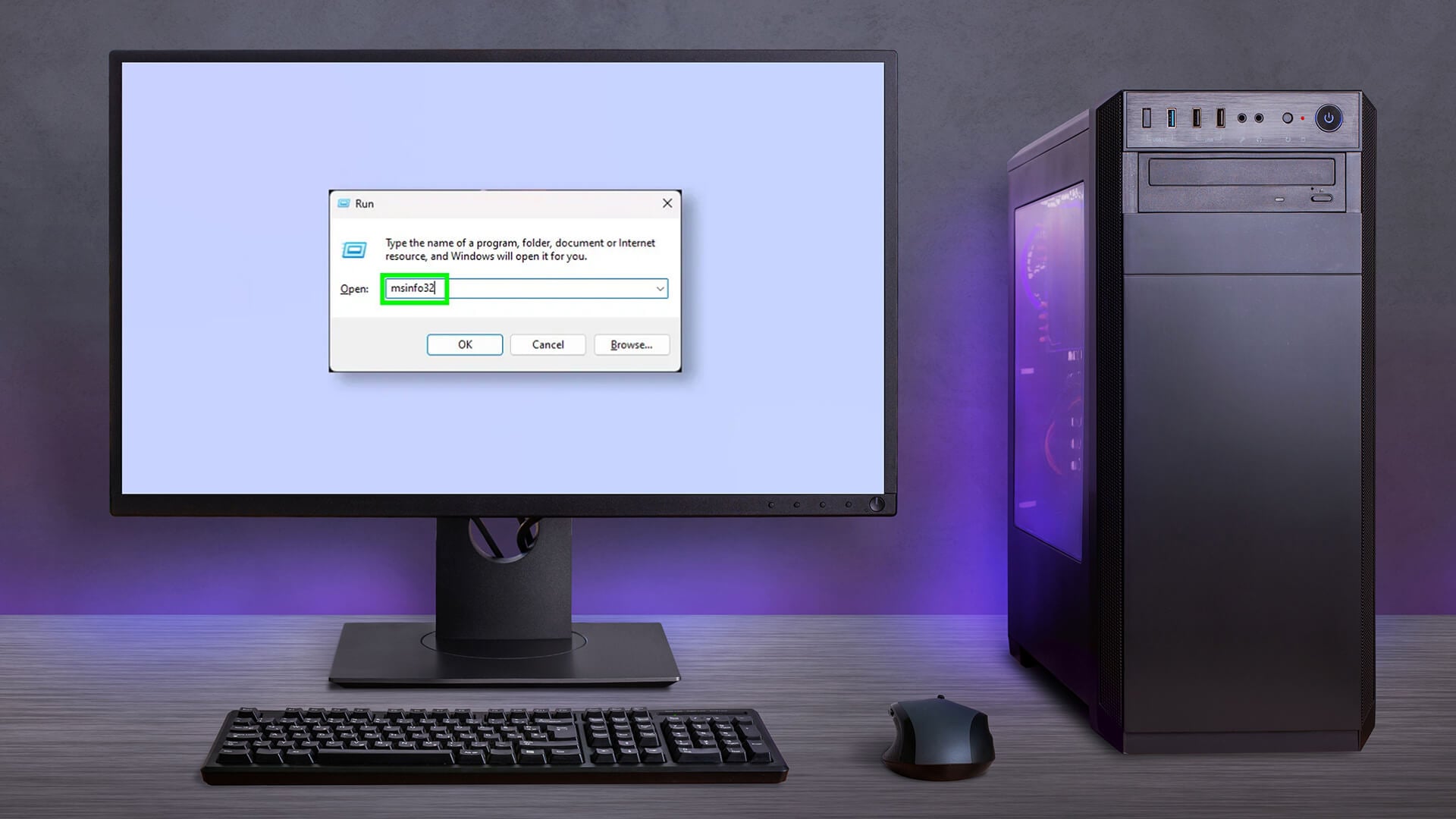
The easiest way to check motherboard model in Windows is with System Information.
Steps
- Press Windows + R.
- Type msinfo32.
- Press Enter.
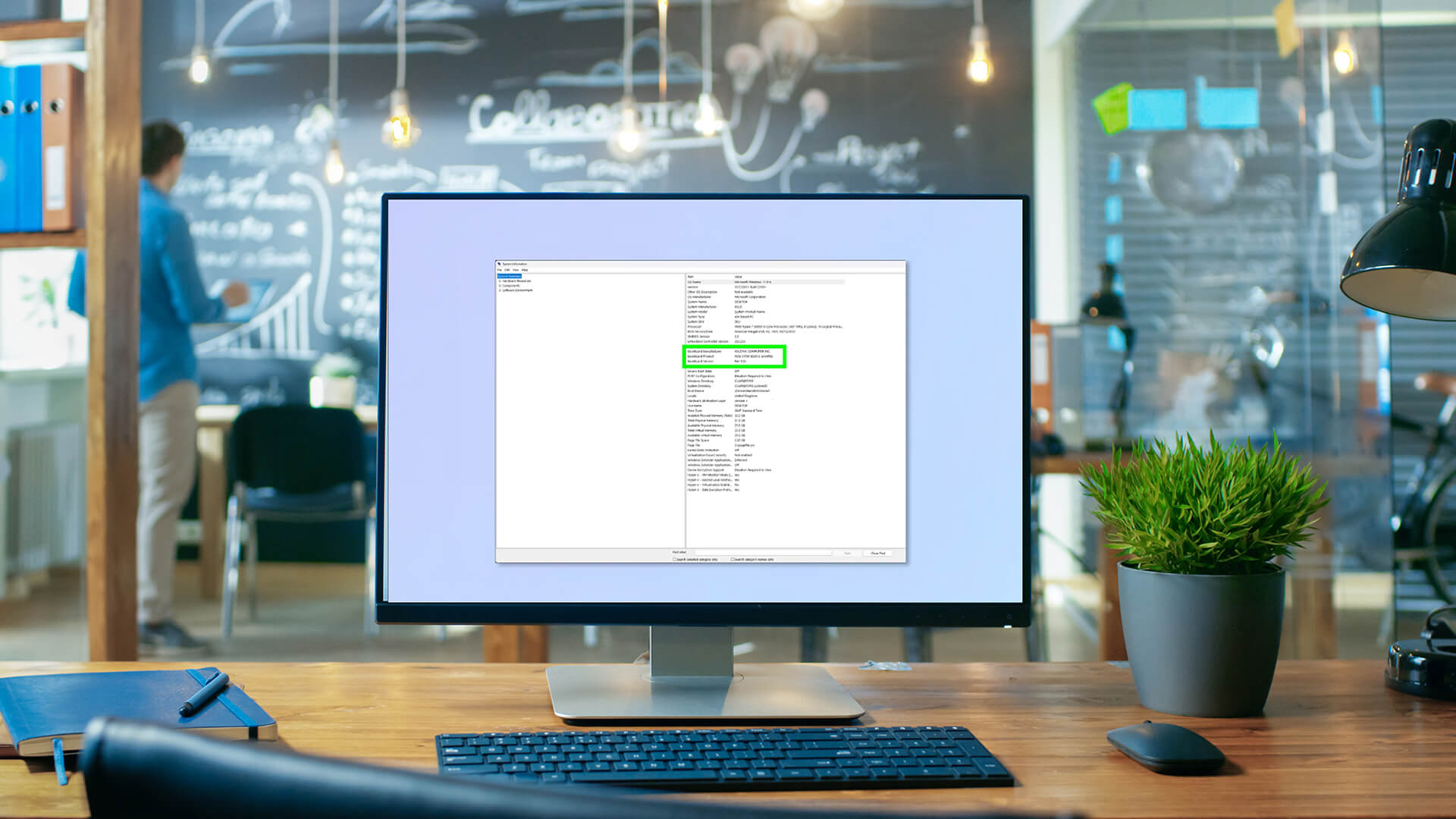
- In System Summary, look for:
-
- BaseBoard Manufacturer
- BaseBoard Product
- BaseBoard Version
These lines usually show the motherboard brand, model and version. For example, the manufacturer may be ASUS, MSI, Gigabyte or ASRock, while the product line shows the actual board model.
System Model vs BaseBoard Product
Do not confuse System Model with BaseBoard Product.
- System Model often shows the PC or laptop model, especially on prebuilt systems.
- BaseBoard Product is the motherboard model you need for upgrades and compatibility checks.
If you are planning an upgrade, use BaseBoard information first.
Method 2: Check Motherboard Model with PowerShell
PowerShell is a quick command-line option and works well in Windows 10 and Windows 11.
Steps
- Right-click Start.
- Open Terminal, Windows PowerShell or Windows Terminal.
- Run this command:
Get-CimInstance Win32_BaseBoard | Format-List Manufacturer,Product,Version,SerialNumber
This can show:
- Manufacturer
- Product
- Version
- SerialNumber
This is one of the cleanest ways to check motherboard model without opening the PC.
Alternative Short Command
You can also use:
Get-CimInstance Win32_BaseBoard
This gives the same motherboard info, but the formatted version is easier to read.
Method 3: Check Motherboard Model with Command Prompt
Another method is the WMIC command. It may work on some Windows 10 or Windows 11 systems, but Microsoft is moving away from WMIC, so PowerShell is the safer choice.
WMIC Command
Open Command Prompt and run:
wmic baseboard get product,Manufacturer,version,serialnumber
This may show your motherboard manufacturer, product, version and serial number.
Why WMIC May Not Work
WMIC is a legacy Windows tool and may be missing or removed on newer systems. If the command does not work, use the PowerShell method instead.
For a modern motherboard checker Windows 10 or Windows 11 method, PowerShell is the better option.
Method 4: Find Your Motherboard in BIOS or UEFI
BIOS or UEFI can also help you detect motherboard model, especially if Windows will not start.
Steps
- Restart the PC.
- Press the BIOS key during startup.
- Common keys include Delete, F2, F10 or F12.
- Look for a page called:
-
- Main
- System Information
- Board Information
- Hardware Information
- BIOS Information
The exact layout depends on the motherboard brand. You may see the motherboard model, BIOS version, CPU, memory and storage details.
BIOS/UEFI is useful when:
- Windows will not boot
- System Information is blank
- You need the BIOS version
- You are checking upgrade support
- You are preparing a BIOS update
Method 5: Use CPU-Z as a Motherboard Checker
CPU-Z is a popular hardware information tool. It can help you check PC motherboard model and view more detailed board information.
Steps
- Download CPU-Z from CPUID.
- Install and open the tool.
- Select the Mainboard tab.
- Check:
-
- Manufacturer
- Model
- Chipset
- BIOS brand
- BIOS version
- BIOS date
CPU-Z is helpful if Windows gives incomplete motherboard details or you want chipset and BIOS information in one place.
Use the official download source and avoid random installer mirrors.
Can a Motherboard Checker Online Detect Your Model?
A motherboard checker online cannot normally scan your PC directly from a webpage without a tool, app or browser permission. Websites cannot simply read your motherboard model from Windows on their own.
Online tools can still help if you enter your motherboard model manually. Manufacturer websites can then show:
- Drivers
- BIOS updates
- CPU support lists
- RAM support lists
- Manuals
- Chipset details
- Board version notes
If a website claims it can instantly detect your motherboard without installing anything, treat it carefully.
How to Find Your Motherboard Model Without Windows
If you cannot use Windows, you still have options.
Check the Motherboard Itself
On a desktop PC, the model number is often printed directly on the motherboard. Look near:
- RAM slots
- PCIe slots
- CPU socket
- Chipset heatsink
- Bottom edge of the board
- Between expansion slots
You may need to remove the side panel and use a torch. Turn off the PC and unplug it before looking inside.
Check Documentation or Order History
You can also find motherboard details from:
- Original motherboard box
- PC invoice
- System builder order
- Manufacturer support page
- Warranty paperwork
- Email receipt
- Prebuilt PC specification sheet
This is often the easiest option for prebuilts.
Laptops and Prebuilt PCs
Laptops and some prebuilts may use custom OEM boards. Windows may show a generic board name rather than a retail motherboard model. In that case, search by the full laptop or PC model instead.
If you are upgrading a desktop, our component compatibility checks guide explains what to confirm before buying parts.
What If Windows Shows Blank or Generic Motherboard Info?
Sometimes the computer motherboard check returns poor results.
You may see:
- Blank BaseBoard Product
- “To Be Filled by O.E.M.”
- Generic OEM board name
- Only the PC model
- Missing serial number
- Incomplete version number
This can happen with some prebuilts, laptops or older systems. It does not always mean the motherboard is faulty.
Try this order:
- Use PowerShell.
- Check BIOS/UEFI.
- Use CPU-Z.
- Check the physical board label.
- Search your PC model on the manufacturer support site.
- Check your order history or invoice.
If you still cannot identify the board, use the full system model for support and compatibility checks.
Motherboard Model, Version, Chipset and BIOS: What’s the Difference?
These terms are easy to mix up, but they are not the same.
Motherboard Model
The model is the main board name, such as the product line and model number. This is what you normally need when searching for specs, drivers and CPU support.
Motherboard Version
The version, sometimes called hardware revision, identifies a specific board revision. It can matter for BIOS updates, CPU support and manuals.
Motherboard Chipset
The chipset controls platform features such as CPU support, PCIe lanes, USB, storage and overclocking support. Examples include AMD B650, AMD X870, Intel B760 or Intel Z790.
BIOS or UEFI Version
The BIOS or UEFI version is the firmware version installed on the board. This matters when adding newer CPUs or fixing compatibility issues.
When you check motherboard version, make sure you know whether you are looking at board revision or BIOS version.
How to Check Motherboard Form Factor
Motherboard form factor tells you the board size. It matters when choosing a case.
Common types include:
- ATX: full-size desktop board
- Micro-ATX: smaller mainstream board
- Mini-ITX: compact small-form-factor board
To confirm form factor:
- Find your motherboard model.
- Search the official specifications page.
- Check the listed form factor.
- Compare it with your case support.
If you are choosing a new board, compare full-size PC boards for standard gaming and productivity builds, or compact motherboard choices for smaller cases.
For more help, read our motherboard size guide.
Which Method Should You Use?
Use this simple guide.
| Situation | Best Method |
|---|---|
| Fast Windows check | System Information |
| Command-line check | PowerShell Get-CimInstance |
| Older Windows method | Command Prompt WMIC |
| Windows will not start | BIOS/UEFI |
| Need chipset and BIOS details | CPU-Z Mainboard tab |
| Windows shows generic info | Physical board label or PC documentation |
| Laptop or prebuilt PC | Search by full system model |
For most users, System Information is enough. If it fails, use PowerShell or CPU-Z.
What to Do After You Find the Motherboard Model
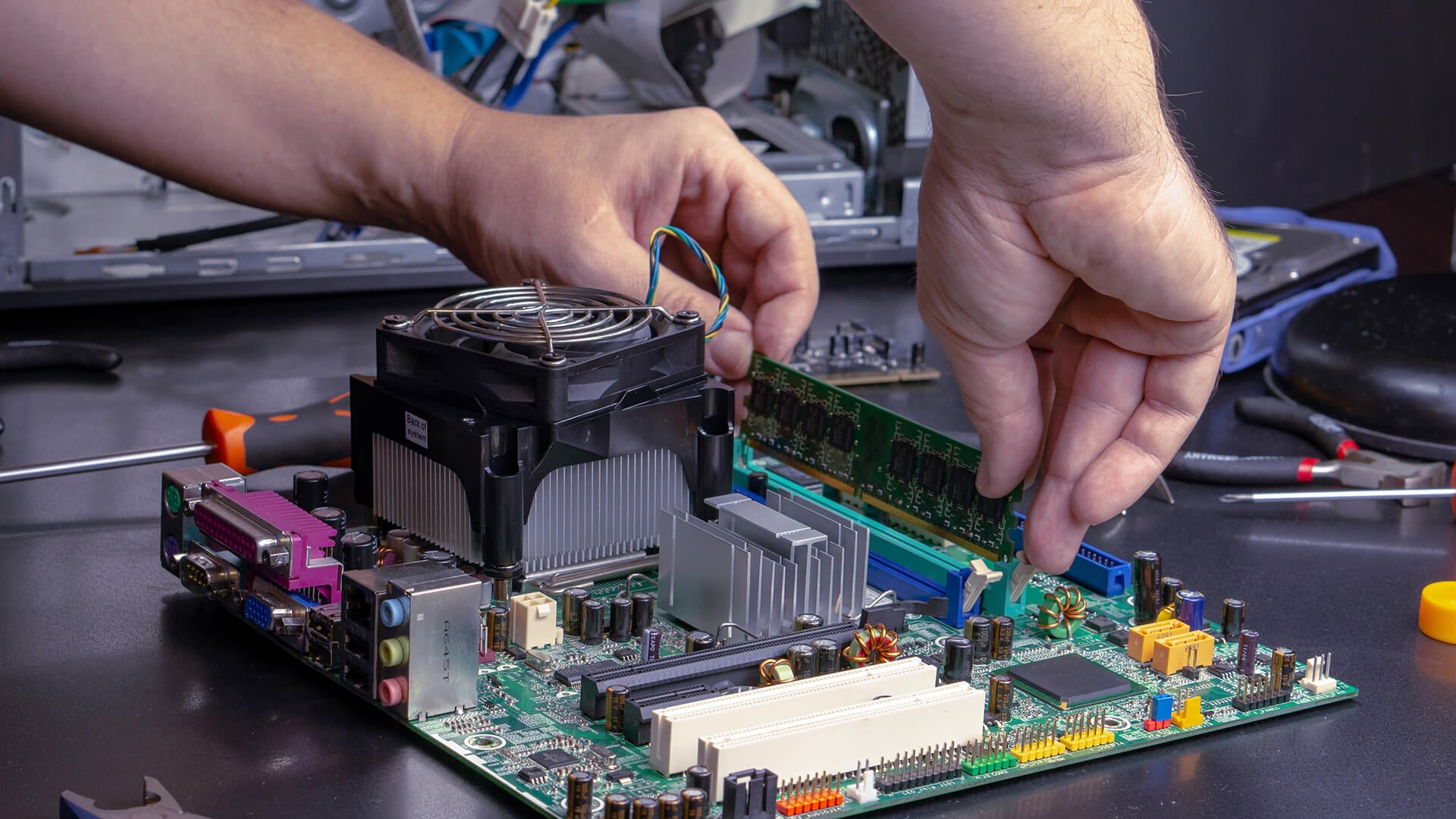
Once you find the motherboard details, use the model to check upgrades properly.
Check CPU Compatibility
Not every CPU works with every motherboard. You need to match:
- Socket
- Chipset
- BIOS version
- Power support
- Cooling needs
For upgrades, compare Intel-compatible boards or AMD platform motherboards depending on your processor.
Check RAM Support
Motherboards support specific RAM types and speeds. Check:
- DDR4 or DDR5
- Maximum capacity
- Supported speeds
- Number of slots
- Dual-channel support
- Memory QVL if needed
Check GPU, Storage and Expansion
Also confirm:
- PCIe slot support
- M.2 SSD slots
- SATA ports
- Case size
- Front panel connectors
- USB headers
- Wi-Fi support
- Fan headers
Our guide to internal PC component connections explains how the main parts link back to the board.
If you are replacing the board entirely, browse the full PC motherboard range.
Wrapping Up
The fastest way to check motherboard model in Windows 10 or Windows 11 is to use System Information. Open msinfo32 and look for BaseBoard Manufacturer, BaseBoard Product and BaseBoard Version.
Use PowerShell if you prefer a command as mentioned above. Use BIOS/UEFI or CPU-Z if Windows gives blank, generic or incomplete results.
The practical order is:
- System Information
- PowerShell
- BIOS/UEFI
- CPU-Z
- Physical board label
- PC documentation or order history
Once you know the model, check CPU, RAM, storage, graphics card and case compatibility before buying upgrades.
FAQs
-
How can I check my motherboard in Windows?
Open System Information by pressing Windows + R, typing msinfo32 and pressing Enter. Look for BaseBoard Manufacturer, BaseBoard Product and BaseBoard Version.
-
How can I find my motherboard model without opening the PC?
Use Windows System Information, PowerShell, BIOS/UEFI or CPU-Z. If those fail, check your PC order history, invoice, system builder page or manufacturer support page.
-
Will BIOS or UEFI show my motherboard model?
Yes, BIOS or UEFI often shows the motherboard model, BIOS version, CPU and memory details. The exact layout depends on the motherboard brand and system manufacturer.
-
Where is the model number printed on a motherboard?
The model number is usually printed near the RAM slots, PCIe slots, CPU socket, chipset heatsink or lower edge of the board. Turn off and unplug the PC before checking inside.
-
How can I tell whether my motherboard is ATX, Micro-ATX or Mini-ITX?
Find the motherboard model, then check the official specifications page. The form factor will usually be listed as ATX, Micro-ATX or Mini-ITX.
-
How can I check whether a motherboard is working properly?
Check whether the PC powers on, reaches BIOS/UEFI, detects CPU and RAM, recognises storage, keeps stable temperatures and runs without crashes. For faults, use motherboard debug LEDs, beep codes, BIOS checks and component testing.
-
Can any CPU work with any motherboard?
No. A CPU must match the motherboard socket, chipset support and BIOS version. Always check the motherboard CPU support list before upgrading.
You can pay with:
*PayPal Credit Representative Example: Assumed credit limit £1,200, Representative 23.9% APR (variable). Purchase rate 23.9% p.a (variable).Terms & Conditions apply.


PayPal Credit and PayPal Pay in 3 are trading names of PayPal UK Ltd, 5 Fleet Place, London, United Kingdom, EC4M 7RD. Terms and conditions apply. Credit subject to status, UK residents only, Five Tech LTD acts as a broker and offers finance from a restricted range of finance providers. PayPal Pay in 3 is not regulated by the Financial Conduct Authority. Pay in 3 eligibility is subject to status and approval. 18+. UK residents only. Pay in 3 is a form of credit. Check if affordable and how you will repay. May make other borrowing more difficult or expensive. See product terms for more details.
Copyright © 1996-2026 Fivetech LTD | Terms and Conditions
box.co.uk & Box are trading names of Five Tech Limited. Registered office: Box LTD, Unit 10 Woodford Trading Estate, Woodford Green IG8 8HF