


 Menu
MenuMenu


Get Sales Advice from Mon - Fri 9am - 5:00pm:
020 3337 8950LAST UPDATED: July 02, 2026
Best All-in-One Printer Features: What to Look for Before You Buy
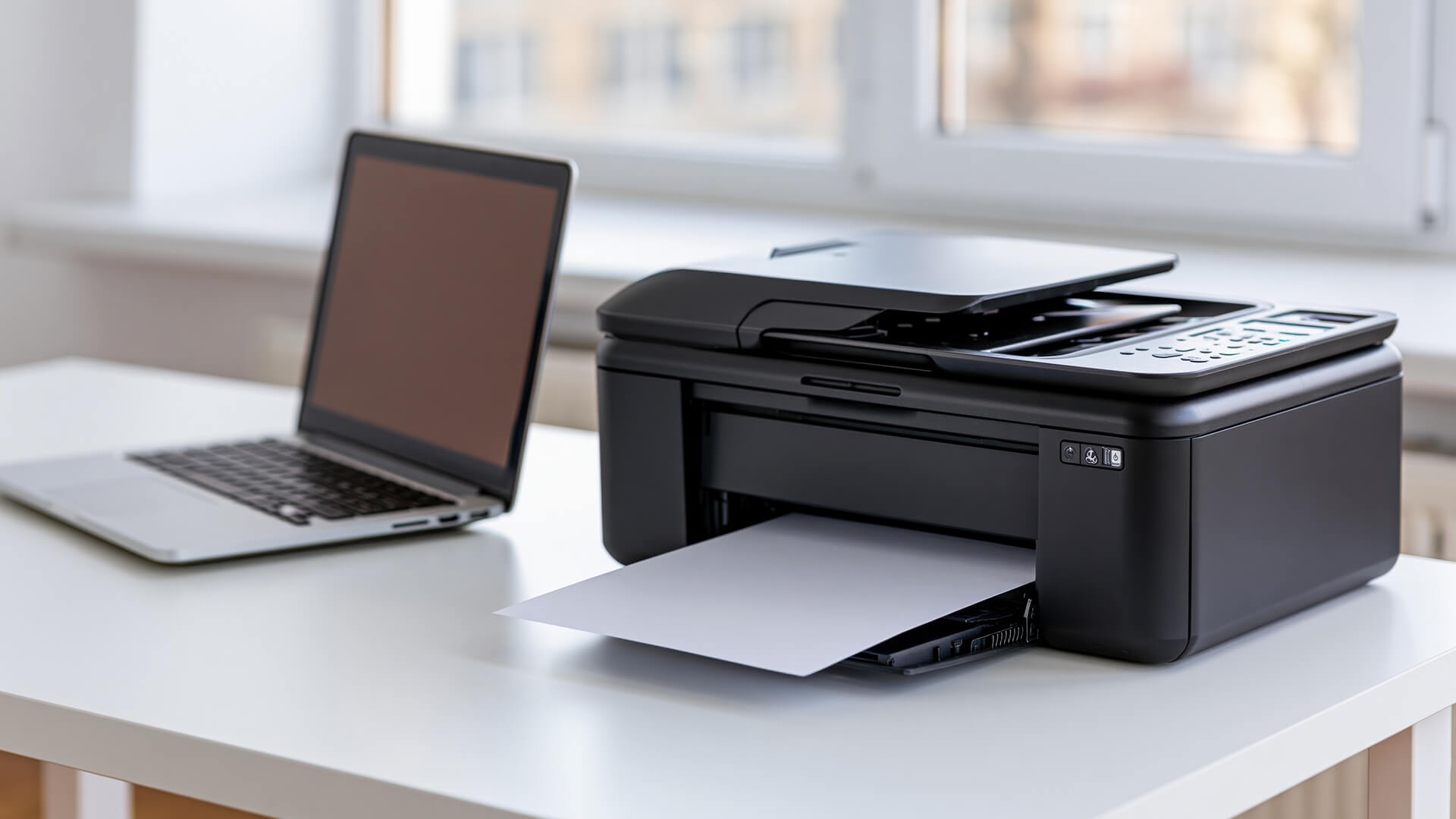
Choosing a printer is much easier when you know which all-in-one printer features actually matter. Most models can print, scan and copy, but the real difference comes from details like wireless printing, scan quality, paper handling, running costs and whether the printer suits your daily workload.
For home users, the priority may be simple Wi-Fi setup, clear document printing and occasional photo output. For people looking for an office printer, features like an automatic document feeder, duplex printing, mobile printing and stronger paper capacity can make daily tasks much easier.
This guide explains the all-in-one printer features worth checking before you buy, including print quality, scanning, copying, connectivity, ink or toner costs, A4 and A3 support, and whether an inkjet, laser or refillable tank model is the better fit.
Quick Answer: The Most Important All-in-One Printer Features
When it comes to all-in-one printers, the right features are the ones that match how often you print, how much you scan, what devices you print from and how much you want to spend on ink or toner over time. Before comparing multifunction printers for home and office, use this quick checklist to narrow down what matters most.
| Feature | Why it matters | Best for |
|---|---|---|
| Print, scan and copy | Covers the main everyday tasks from one device | Most homes and small offices |
| Automatic document feeder | Lets you scan or copy multi-page documents without placing each page manually | Admin work, forms and office paperwork |
| Duplex printing | Supports automatic two-sided printing to help reduce paper use | Reports, letters and regular documents |
| Duplex scanning | Scans both sides of a document with less manual effort | Contracts, invoices and double-sided forms |
| Wi-Fi and mobile printing | Makes it easier to print from phones, tablets and laptops | Shared homes, students and workspaces |
| Print quality and DPI | Helps determine how sharp text, graphics and images look | Photos, presentations and detailed documents |
| Paper tray capacity | Reduces how often you need to refill paper | Frequent printing and shared use |
| Running costs | Helps you understand the long-term cost of ink, toner or refills | Regular users and budget-conscious buyers |
| Touchscreen or LCD controls | Makes setup, copying and maintenance easier without always using a computer | Home offices and shared printers |
A single feature should not decide the purchase on its own. After comparing the multifunction printer features, you may find that you don't need an all-in-one machine. In such cases, a laser or inkjet printer may be the right choice. If this is the case, compare printer deals at Box and find the model that meets your needs the best.
Print, Scan, Copy and Fax: Which Functions Do You Actually Need?
Most all-in-one printers are built for printing, scanning, and copying tasks. That means one device can handle everyday documents, forms, return labels, homework, signed pages and simple copies without needing a separate scanner or copier.
Choose a 3-in-1 Model for Everyday Use
A 3-in-1 model is usually enough if you need:
- Printing for everyday documents, labels and occasional forms
- Scanning IDs, signed paperwork or receipts
- Copying schoolwork, admin pages or basic records
- A compact setup for home or light office use
- A simple MFP printer that avoids features you may never use
If you are choosing between a printer, scanner or all-in-one setup, a 3-in-1 model is usually the better choice than buying separate devices.
Choose a 4-in-1 Model if Fax is Still Part of Your Workflow
A 4-in-1 model adds a fax function, so it can print, scan, copy and fax from one machine. This is more useful for offices, admin teams, healthcare paperwork, legal documents and businesses that still deal with fax-based processes.
An all-in-one office printer with print, scan, copy, and fax is worth considering if you want one shared device for paper-based tasks. It can also work well as an AIO printer copier in a small office where several people need access to the same machine.
Check the Scanning Features Before Buying
Do not treat scanning as a basic extra. If you scan often, check the scanner resolution, supported document sizes and whether the printer has an automatic document feeder. A flatbed scanner is fine for single pages, but multi-page documents are much easier to handle with an ADF.
For basic forms and records, standard scanning is usually enough. For photos, detailed copies or image-heavy documents, stronger scan quality matters more.
Print Quality, Speed and Paper Handling
Good output is not just about sharp text. When comparing all-in-one printer features, check how the printer handles documents, photos, paper sizes and regular print volume.
Print Quality and DPI
- Print quality depends on the printer type, ink or toner, paper and print resolution.
- 600 DPI is usually enough for everyday text documents.
- 1200 DPI or higher is better for sharper graphics, images and detailed colour output.
- Photo-focused models should also be checked for colour accuracy, media support and borderless output.
- If you are looking for the best all-in-one printer for photos and documents, do not judge by DPI alone. Paper type and ink system matter too.
Print Speed and PPM
Print speed is usually listed in PPM, which means pages per minute.
- Higher PPM matters more for regular paperwork than for occasional home use.
- Black-and-white pages are usually faster than colour pages.
- Draft mode may print faster, but quality can drop.
- Photo printing and high-quality colour settings usually take longer.
For everyday printers for home use, moderate speed is usually fine. For productivity printers for workspaces, faster output and stronger paper handling are more important.
Paper Handling and Size Support
Paper handling affects how easy the printer is to live with day to day.
- Paper tray capacity matters if you print often or share the printer.
- A4 paper size is enough for most home and office documents.
- A3 paper size is useful for posters, plans, charts, layouts and larger creative work.
- An A3 all-in-one printer is worth considering if you regularly need bigger output.
- Borderless printing is useful for photos, flyers and creative projects.
A printer with strong paper handling will save time, especially if you regularly switch between documents, photos, envelopes or larger sheets.
Duplex Printing, Duplex Scanning and ADF
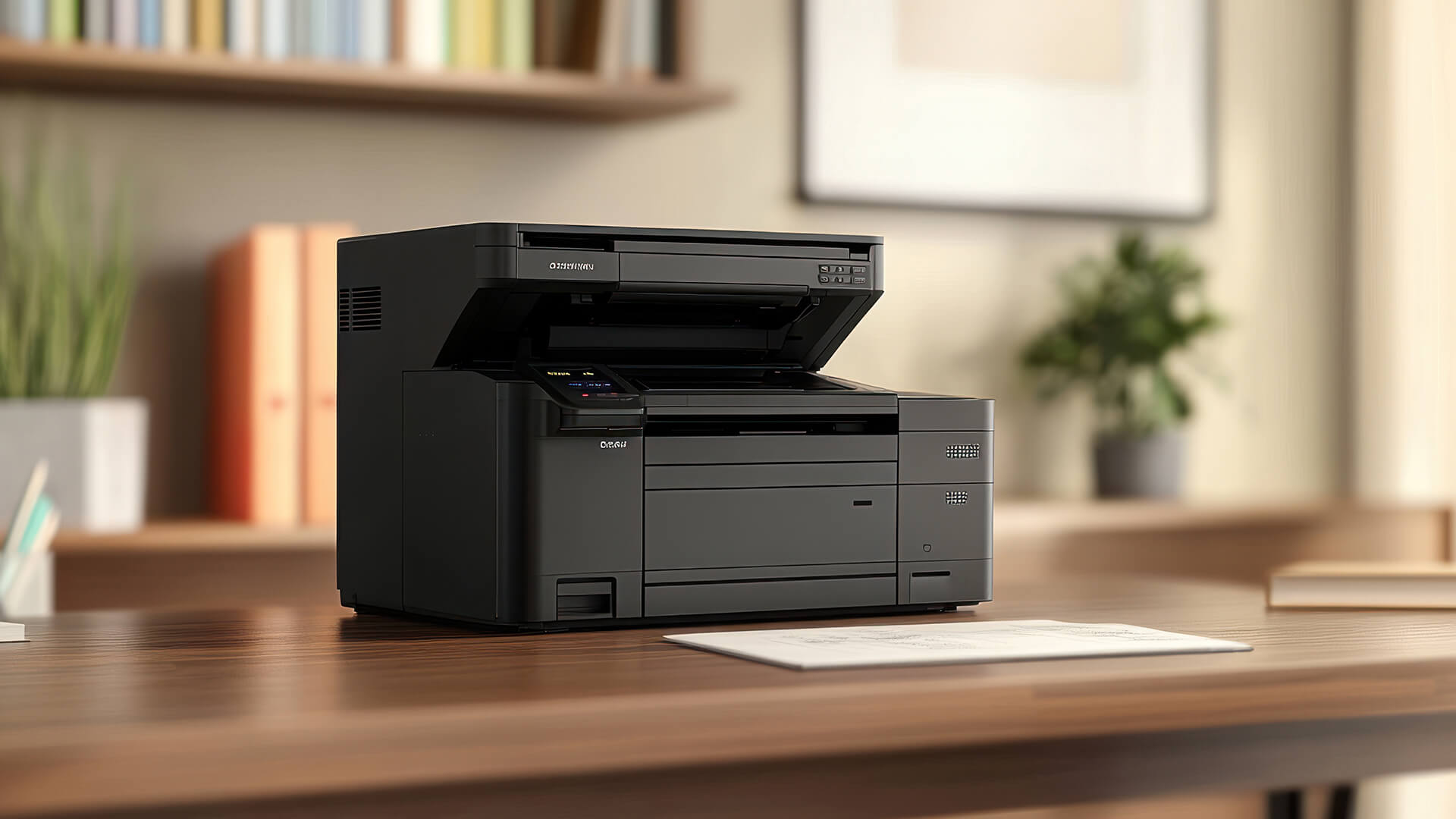
These are the all-in-one printer features that matter most if you regularly deal with forms, reports, invoices or multi-page documents.
Duplex Printing
Duplex printing helps save paper. It means the printer can print on both sides of the page automatically. It is useful because it can:
- Reduce paper use for long documents
- Keep reports and forms more compact
- Make office paperwork look neater
- Save time compared with manually flipping pages
Duplex Scanning
Duplex scanning is different from duplex printing. It means the scanner can capture both sides of a page, usually through an ADF (automatic document feeder).
This is useful for:
- Double-sided contracts
- Invoices and receipts
- Application forms
- Business records
- ID or admin paperwork
If scanning is a big part of your workflow, look specifically for an all-in-one printer with duplex scanning rather than assuming every model includes it.
Automatic Document Feeder
An automatic document feeder lets you load several pages at once instead of placing each sheet on the scanner glass manually.
It is worth having if you often scan or copy:
- Multi-page forms
- Work documents
- Homework packs
- Receipts and invoices
- Signed paperwork
The best all-in-one printer with duplex scanning will usually combine an ADF, duplex scanning and automatic two-sided printing. That combination saves the most time for document-heavy users.
Wi-Fi, Bluetooth, Mobile Printing and Screen Controls
Connectivity matters if several people will use the printer or if you often print from phones, tablets and laptops. A good Wi-Fi printer makes setup cleaner and removes the need to keep the printer connected by USB.
Wi-Fi and Mobile Printing
An all-in-one printer with Wi-Fi is usually the most practical choice for homes, students and small offices. A wireless printer lets multiple users print from different devices across the same network.
Wi-Fi is useful if you want to:
- Print from laptops, phones and tablets
- Share one printer between several users
- Keep the printer away from your desk
- Use printer apps for setup and maintenance
- Support mobile printing without extra cables
A wireless EcoTank printer for home printing can also make sense if you want cable-free use with lower refill-focused running costs.
AirPrint, Mopria and Cloud Printing
If you print from a phone or tablet, check which mobile standards the printer supports. Apple AirPrint is useful for iPhone, iPad and Mac users, while Mopria helps make Android printing easier.
Useful features to look for include:
- Apple AirPrint for Apple devices
- Mopria for Android devices
- Printer apps for scanning and maintenance
- Scan-to-phone or scan-to-email support
- Cloud printing through compatible apps and services
These features are especially useful for return labels, forms, emails, photos, tickets and documents saved on a phone.
Bluetooth and Screen Controls
Some buyers look for an all-in-one printer with Bluetooth and Wi-Fi, but Bluetooth is usually less important than Wi-Fi. A Bluetooth printer may help with short-range setup or occasional mobile use, but Wi-Fi is better for shared printing.
Screen controls are also worth checking. An all-in-one printer with screen controls can make copying, scanning and setup easier without always using a computer.
A touchscreen display or LCD screen can help with:
- Wi-Fi setup
- Copy settings
- Scan options
- Ink or toner alerts
- Paper size settings
- Error messages and maintenance
A touchscreen printer with auto duplex printing can be useful if you want simple controls for photos, documents and two-sided output. For most users, Wi-Fi, mobile printing and clear screen controls matter more than Bluetooth.
Inkjet, Laser or Refillable Ink Tank: Match the Printer to Your Workload
The printer type affects print quality, speed, running costs and how well the machine handles your usual workload. Before choosing a model, think about whether you print mostly documents, photos or a mix of both.
Inkjet Printers
An inkjet printer is a good fit for mixed home use, especially if you need colour printing for schoolwork, photos, creative projects, graphics and occasional office documents. If you want flexibility, colour inkjet printers for documents and photos are usually a better fit than mono-only models.
Choose inkjet if you need:
- Strong colour output for images and graphics
- Flexible printing for documents and photos
- A compact all-in-one setup for home use
- Borderless or photo-focused printing features
- Occasional printing rather than very high monthly use
Inkjet models can offer great flexibility, but always check the cartridge cost before buying. A low upfront price may not always mean low running costs over time.
Laser Printers
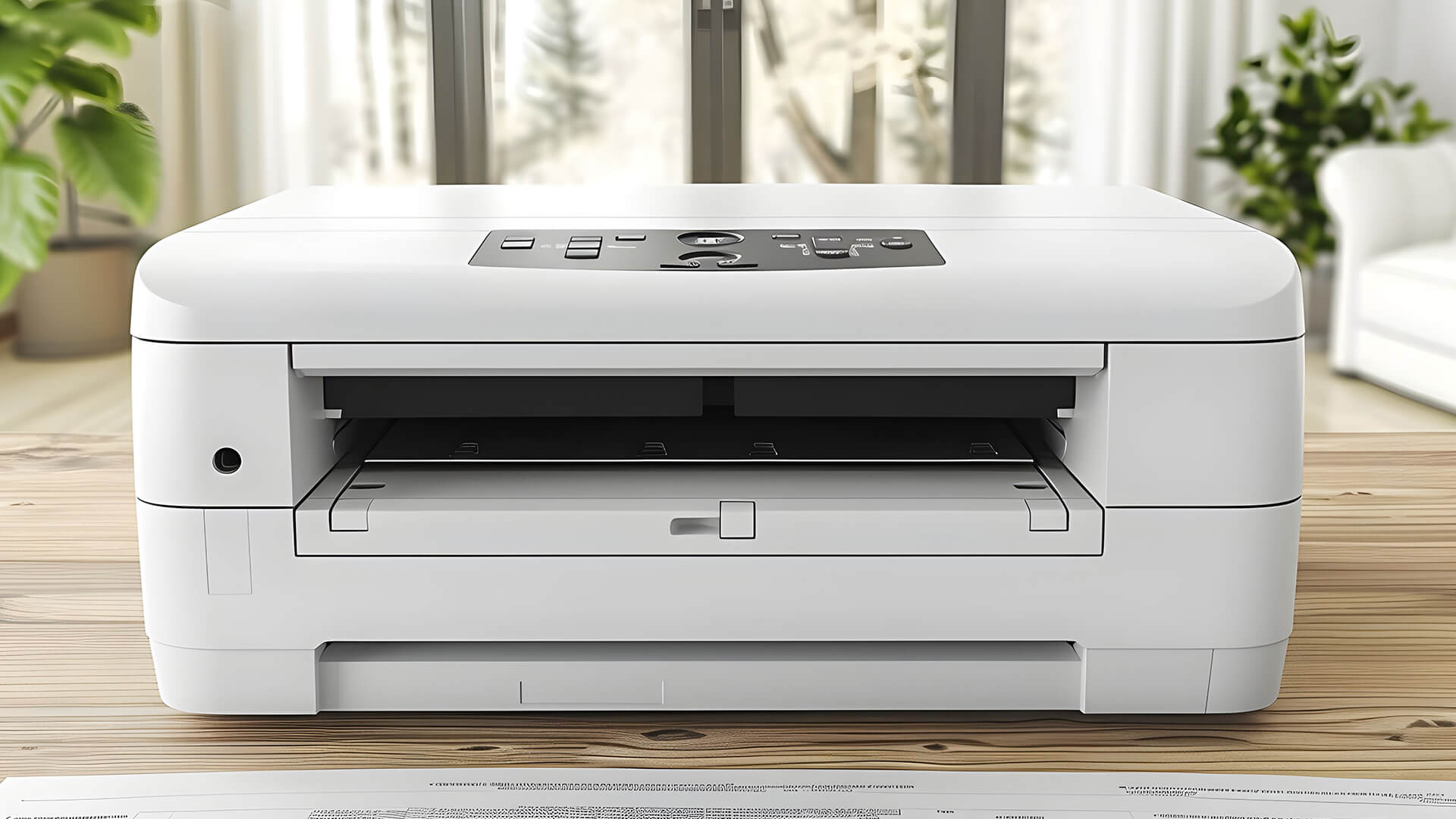
A laser printer is usually better for regular document printing, sharp text and higher print volume. If you mainly print letters, reports, invoices, or office paperwork, laser printers for regular document printing can be the more practical choice.
Choose laser if you need:
- Faster text printing
- Sharp black-and-white documents
- Higher monthly print volume
- Reliable output for office paperwork
- Stronger paper handling for regular use
If you rarely need colour, a black-and-white all-in-one printer can be a smart choice. Mono printing keeps things simple for forms, letters and reports, while toner cost may work out better for frequent document users.
Refillable Ink Tank Printers
A refillable ink tank printer is worth considering if you print often and want to reduce long-term ink spend. These models usually cost more upfront than some cartridge printers, but a refillable ink tank all-in-one printer can make sense if you want low running costs.
Choose a refillable ink tank if you want:
- Lower ink-focused running costs
- Less frequent refilling
- Regular colour and document output
- A better fit for frequent home printing
- A longer-term alternative to standard cartridges
Which Type Should You Choose?
Use this quick guide before buying:
| Printer type | Best for | Check before buying |
|---|---|---|
| Inkjet | Photos, colour documents and flexible home use | cartridge cost, print quality and photo features |
| Laser | Regular documents, sharp text and office printing | toner cost, speed and paper capacity |
| Refillable ink tank | Frequent printing with lower refill costs | Upfront price, ink bottle cost and refill process |
| Mono all-in-one | Text-heavy printing without colour | mono printing, scan features and paper handling |
If you're unsure whether an inkjet or laser printer is the better choice, consider your printing workload rather than comparing only the upfront price.
Which All-in-One Printer Features Fit Your Use Case?
The right all-in-one printer features depend on how you plan to use the printer. A home user may need simple wireless printing and low running costs, while a small office printer may need stronger paper handling, faster output and better scan support.
| Buyer need | Features to prioritise |
|---|---|
| Everyday home printing | Wi-Fi, print, scan, copy, compact size and low running costs |
| Photos and documents | Inkjet, high DPI, colour printing, photo printing and borderless printing |
| Home office admin | ADF, duplex printing, scan-to-PC, scan-to-cloud and paper tray capacity |
| Regular document printing | Laser, mono printing, higher PPM and lower toner cost |
| Small office use | ADF, duty cycle, network printing, paper capacity and fax if needed |
| Larger documents | A3 support, wide-format paper handling and suitable tray support |
| Low running costs | Refillable ink tank, high-yield supplies and low cost per page |
| Easy controls | touchscreen display, LCD screen and mobile app support |
If you want the best all-in-one printer for photos and documents, focus on an inkjet model with strong print resolution, good colour output and useful media support. For admin-heavy use, a home office printer with ADF, duplex printing and scan-to-cloud support will usually be more useful than a basic print-only model.
For a more focused setup, choose the right home office printer by looking at your scan volume, monthly print needs and available space. If most of your workload is text-based, an all-in-one laser printer for home use is often a better starting point than photo-focused inkjet models.
An A3 all-in-one printer is only worth considering if you regularly print posters, plans, charts, layouts or larger documents. For most everyday homes and offices, A4 support is enough.
Final Checklist Before You Buy
Use this quick checklist before comparing models. It will help you focus on the all-in-one printer features that match your workload, rather than paying extra for features you may not use.
- Do you need 3-in-1 or 4-in-1 functions?
- Will you print mostly documents, photos or both?
- Do you need colour output, or is mono enough?
- Is Wi-Fi enough, or do you need Ethernet, Bluetooth or mobile printing?
- Do you need an ADF or duplex scanning?
- Is A4 enough, or do you need A3 support?
- How often will you print each month?
- What are the ink, toner or refill running costs?
- Does the printer have enough paper tray capacity?
- Does the expected print volume match your workload?
- Does it have a screen for easier setup and control?
If you are still comparing multifunction printer features, our guide to choosing a printer can help you narrow things down by print type, workload, connectivity and long-term cost.
Frequently Asked Questions
What are the best all-in-one printers?
The best all-in-one printer depends on what you print most often. Inkjet models are usually better for colour documents and photos, laser models are better for regular text printing, and refillable ink tank models can help reduce long-term running costs.
What features does an all-in-one printer have?
Most models can print, scan and copy, while some also include a fax function. Other useful features can include Wi-Fi, ADF, duplex printing, duplex scanning, mobile printing and touchscreen controls.
Are all-in-one printers worth it?
Yes, they are worth it if you print, scan or copy regularly. They save space compared with separate devices and are useful for homes, students, home offices and small workspaces.
What are common problems with all-in-one printers?
Common issues include paper jams, slow printing, Wi-Fi problems, ink or toner costs, scanner errors and reduced print quality. Many of these problems can be reduced by choosing a printer that matches your print volume and workload.
Which is better, 1200 DPI or 600 DPI?
600 DPI is usually enough for sharp text documents. 1200 DPI can be better for graphics, images and more detailed output, but final quality also depends on the printer type, ink or toner and paper.
What are the disadvantages of a multifunction printer?
A multifunction printer can be larger than a basic print-only model, and advanced features may increase the price. If one part of the printer needs repair, it may also affect printing, scanning or copying from the same machine.
You can pay with:
*PayPal Credit Representative Example: Assumed credit limit £1,200, Representative 23.9% APR (variable). Purchase rate 23.9% p.a (variable).Terms & Conditions apply.


PayPal Credit and PayPal Pay in 3 are trading names of PayPal UK Ltd, 5 Fleet Place, London, United Kingdom, EC4M 7RD. Terms and conditions apply. Credit subject to status, UK residents only, Five Tech LTD acts as a broker and offers finance from a restricted range of finance providers. PayPal Pay in 3 is not regulated by the Financial Conduct Authority. Pay in 3 eligibility is subject to status and approval. 18+. UK residents only. Pay in 3 is a form of credit. Check if affordable and how you will repay. May make other borrowing more difficult or expensive. See product terms for more details.
Copyright © 1996-2026 Fivetech LTD | Terms and Conditions
box.co.uk & Box are trading names of Five Tech Limited. Registered office: Box LTD, Unit 10 Woodford Trading Estate, Woodford Green IG8 8HF