


 Menu
MenuMenu


Get Sales Advice from Mon - Fri 9am - 5:00pm:
020 3337 8950LAST UPDATED: July 17, 2026
Acer Aspire BIOS Key: How to Enter BIOS and Boot Menu Safely
The Acer Aspire BIOS key on most laptops is F2. Start tapping it as soon as the Acer logo appears, before Windows begins loading. F12 serves a different purpose, opening the one-time boot menu when the feature is available and enabled.
Knowing which option to use helps prevent unnecessary firmware changes. BIOS Setup is used to review system settings, change the boot order or check whether hardware is detected. The boot menu simply lets you start from another device, such as a recovery drive or bootable USB, for the current session.
This guide explains how to enter BIOS on an Acer Aspire using F2 or the Windows recovery menu, access the F12 boot menu and troubleshoot a BIOS key that does not respond. The general process applies across many Acer laptop options, although the exact menu layout and available settings may vary between Aspire models.
Quick Answer: What Is the Acer Aspire BIOS Key?
The standard Acer Aspire BIOS key is F2. Start tapping it when the Acer logo appears, before Windows begins loading.
| Task | Key or method | What it does |
|---|---|---|
| Open BIOS or UEFI | F2 | Opens the BIOS setup utility |
| Open the one-time boot menu | F12 | Let you select a startup device |
| Save changes and exit | F10 | Applies the selected BIOS settings |
| Enter BIOS through Windows | Advanced Startup | Opens UEFI Firmware Settings |
| Alternative function-key input | Fn + F2 | May work when the standard F2 is assigned another function |
The Acer Aspire setup key and Acer Aspire BIOS menu key both generally refer to F2. The Acer boot menu key is F12, although the boot-menu option may need to be enabled in BIOS on some models.
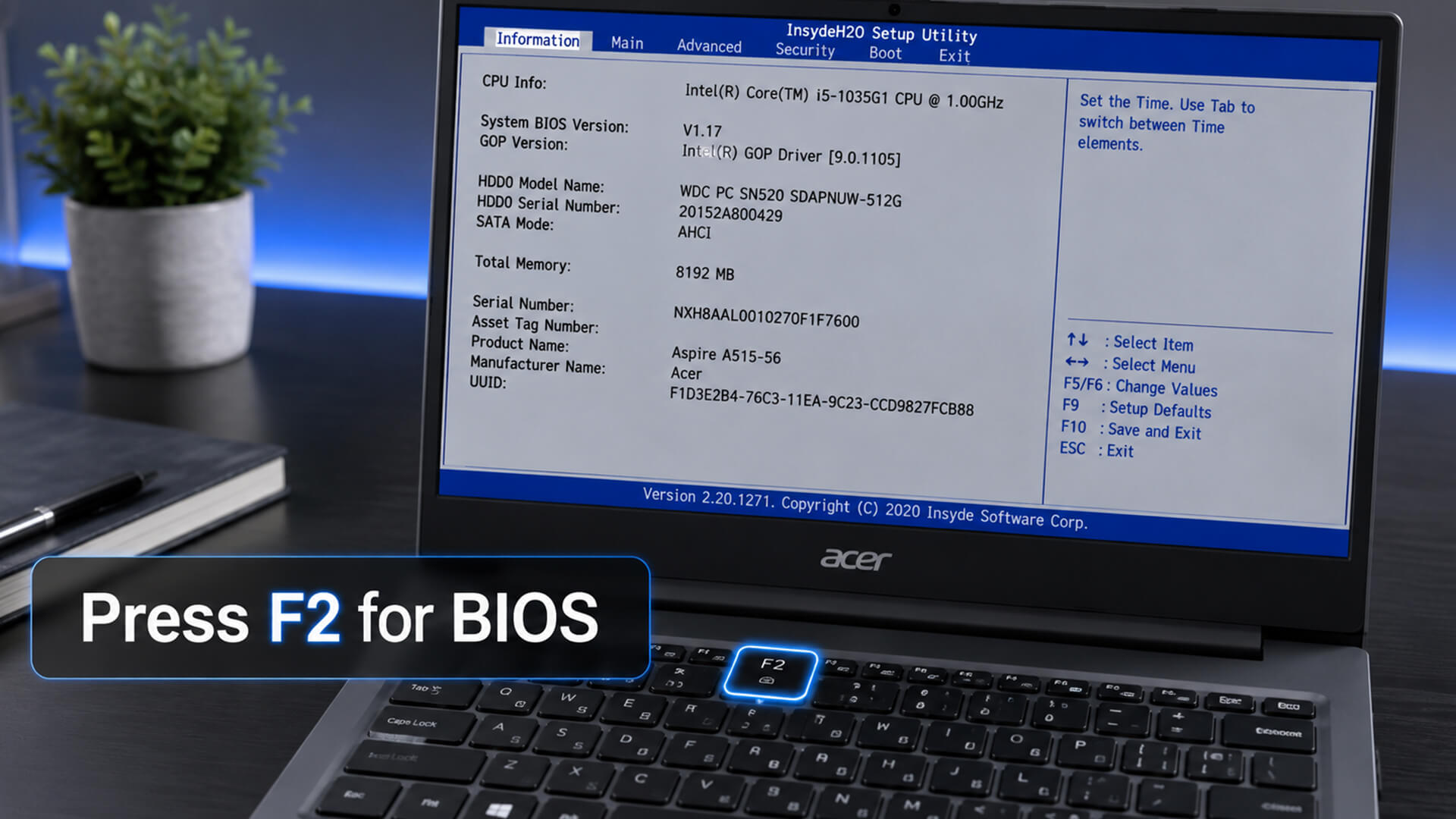
How to Enter BIOS on an Acer Aspire Using F2
The standard way to enter BIOS on an Acer Aspire is to press F2 during startup. The key must be detected before Windows begins loading.
- Save your work and shut down the laptop completely.
- Press the power button to switch it on.
- Start tapping F2 as soon as the Acer logo appears.
- Continue until the BIOS setup utility opens.
- Try Fn + F2 if your laptop assigns a secondary function to the F2 key.
- Use the arrow keys and Enter to navigate the available settings.
- Press F10 to save any necessary changes and exit.
The timing of the Acer Aspire setup key is important because it is only recognised during the early startup process. Tapping F2 several times is usually more reliable than pressing and holding it. Please note that the menu layout may differ across the different models in the Acer Aspire range.
How to Enter BIOS from Windows 11 or Windows 10
Windows Advanced Startup provides another way to open the UEFI firmware when F2 is missed or when Fast Startup makes the keypress window too short.
- Open Settings.
- Go to System > Recovery in Windows 11. On an Acer laptop running Windows 10, select Update & Security > Recovery instead.
- Select Restart now beside or under Advanced startup.
- Choose Troubleshoot.
- Select Advanced options.
- Open UEFI Firmware Settings.
- Select Restart to enter the BIOS or UEFI menu.
This method avoids startup-key timing and is useful when the Acer laptop BIOS key in Windows 10 or Windows 11 laptops does not respond. The UEFI Firmware Settings option may not appear on older systems that use a legacy BIOS.
How to Use and Enable the Acer Aspire Boot Menu
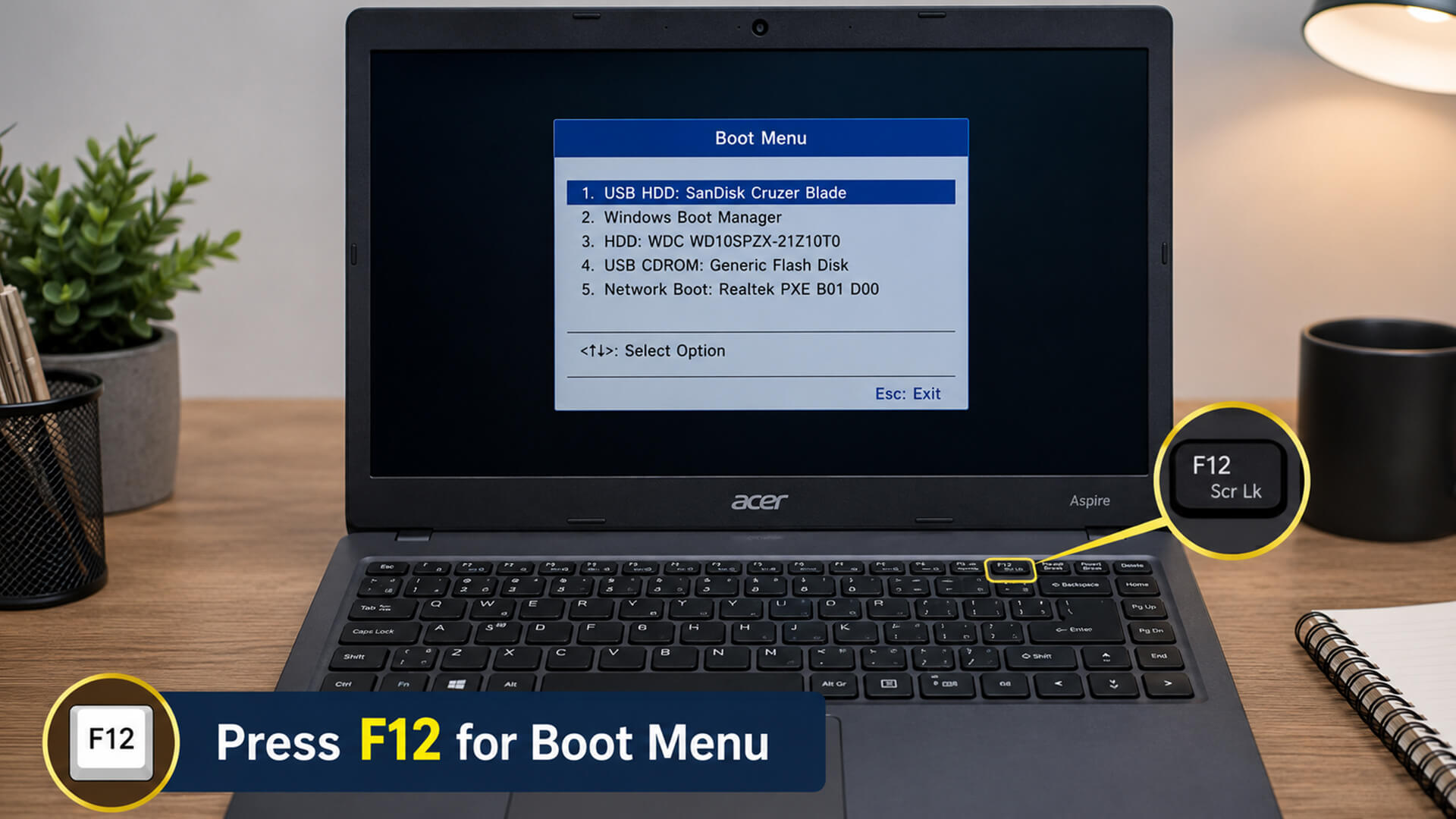
The Acer boot menu key is F12. It lets you start from another device for one session without permanently changing the laptop’s boot order.
- Shut down the laptop and connect the required bootable USB drive or external device.
- Turn the laptop on and repeatedly tap F12 when the Acer logo appears.
- Use the arrow keys to select the USB drive, internal SSD or another available device.
- Press Enter to begin booting from it.
If F12 does not open the menu:
- Restart the laptop and tap F2 to enter BIOS Setup.
- Open the Main tab and find F12 Boot Menu.
- Change the setting to Enabled.
- Press F10, confirm the change and allow the laptop to restart.
- Tap F12 at the Acer logo screen.
The Acer Aspire laptop boot menu key is useful for running recovery tools or installing an operating system. For a one-off task, use F12 rather than changing the permanent boot order. If you are dealing with a failed Windows installation, our laptop startup repair guide can help.
Acer Aspire BIOS Key Not Working: Common Fixes
If the BIOS key on your Acer Aspire is not working, it can be caused by missed timing, function-key behaviour or a startup process that moves too quickly. Try the following checks before assuming there is a firmware fault.
| Problem | What to try |
|---|---|
| Windows loads before the BIOS opens | Shut down fully, power on and start tapping F2 immediately |
| F2 controls brightness or another feature | Try Fn + F2 |
| An external keyboard does not respond | Disconnect it and use the built-in keyboard |
| The Acer logo appears only briefly | Use the Windows UEFI method covered above |
| The laptop freezes at the Acer logo | Disconnect USB devices, memory cards and other peripherals before restarting |
| F12 does not open the boot menu | Enter BIOS and check whether the F12 Boot Menu option is enabled |
| F2 and F12 both fail | Check the manual or Acer support page for the exact model |
- If you are wondering, are Acer laptops good? Yes, they are rated among the best laptops. But issues can happen with even the best machines, and not every problem is BIOS-related. If the laptop shows no lights or signs of power, the problem is not the BIOS hotkey. You may need to run Acer charging troubleshooting to check the adapter, socket, charging indicators and power-reset options.
- A device that switches on but fails to complete startup may need laptop memory boot fixes, particularly if the issue began after installing or replacing RAM. If the power, lights, and fans work but nothing appears on the display, you may need to fix the black screen on your Acer Aspire instead.
- When the laptop reaches Windows normally but F2 still fails, use UEFI Firmware Settings through Advanced Startup rather than repeatedly restarting the device.
Acer Aspire Laptop and Desktop BIOS Key Differences
The Acer Aspire laptop BIOS key is normally F2, while Acer Aspire desktops commonly use the Delete key instead.
If neither F2 nor Delete responds:
- Check the first startup screen for a key prompt.
- Try the Windows UEFI Firmware Settings method.
- Confirm the correct key in the manual for the exact model.
- Avoid trying random key combinations or changing hidden firmware options.
To compare Acer laptops, desktops, monitors and other products, browse the Acer tech hub at Box.
Can the Acer Aspire BIOS Key Unlock a Password?
No. F2 opens BIOS Setup, while F12 opens the boot menu. Neither key can bypass a Windows sign-in password, BIOS password or encrypted drive.
- Windows password: Reset it through the relevant Microsoft or local account recovery option.
- Known BIOS password: Enter the BIOS with F2 and use the existing password to change or remove it.
- Forgotten BIOS password: Contact Acer support or an authorised service centre.
- BitLocker screen: Enter the recovery key associated with the device or Microsoft account.
There is no Acer Aspire password unlock key. Avoid unofficial master passwords, unlock codes or hardware bypass methods, as these can compromise the laptop’s security.
BIOS Settings You Can Check Safely
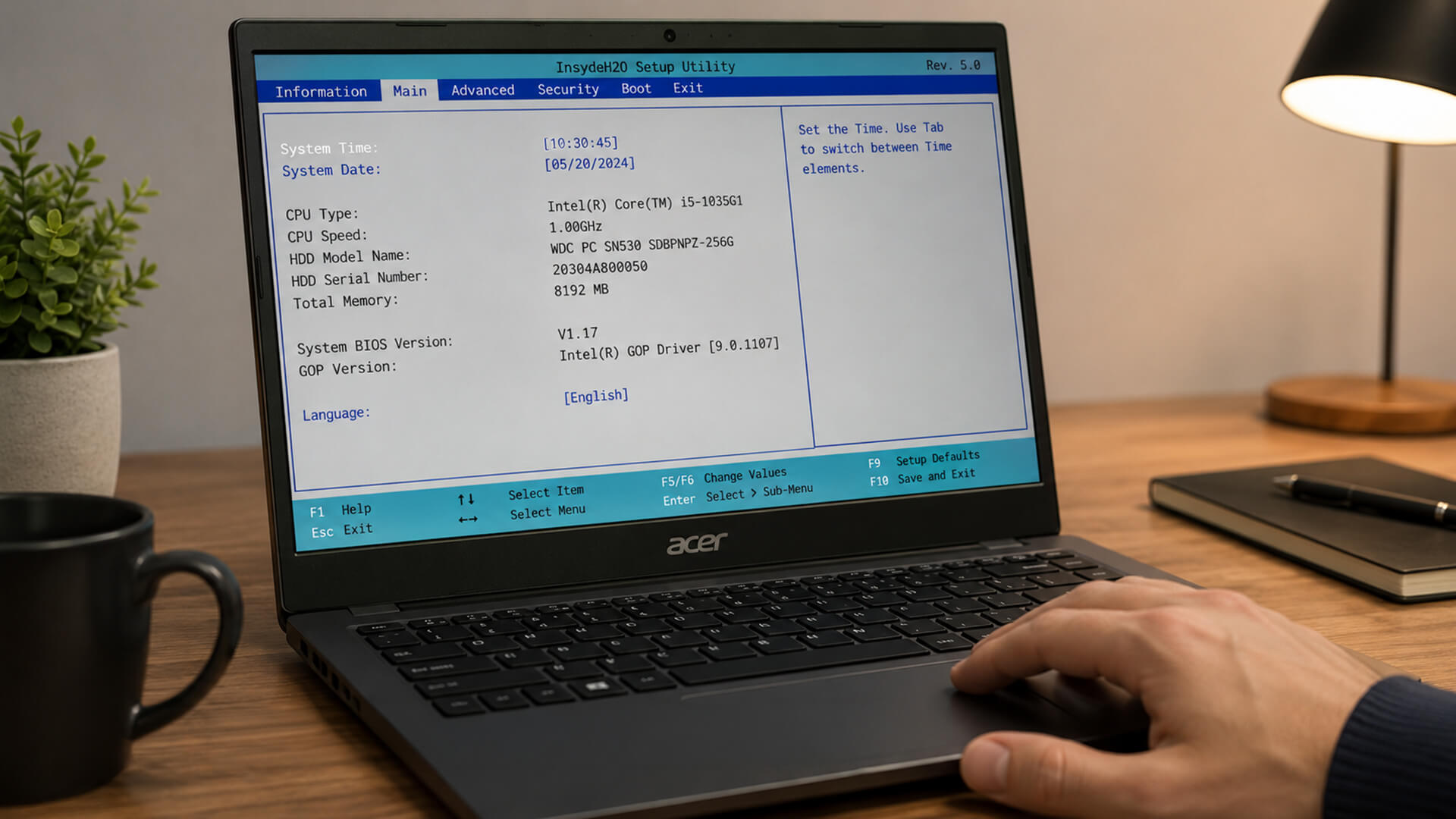
The Acer Aspire BIOS Setup includes several settings that can be reviewed without changing the laptop’s core configuration:
- Confirm that the internal SSD or hard drive is detected.
- Check the boot order if the correct drive is not starting.
- Review the system date and time.
- Check whether the F12 Boot Menu is enabled.
- Confirm the virtualisation setting when it is required for specific software.
- Load the default BIOS settings after an incorrect change.
Avoid changing storage mode, TPM settings, BIOS passwords, advanced power controls or Secure Boot without a clear reason. These options can affect Windows startup, device security and drive encryption.
Before making firmware changes, record the current settings and make sure the BitLocker recovery key is available. Save with F10 only after checking that the correct options have been selected.
Final Checklist for Acer Aspire BIOS and Boot Menu Access
Before restarting, use this checklist to choose the correct method and avoid unnecessary BIOS changes:
- Tap F2 at the Acer logo to enter BIOS or UEFI Setup.
- Use F12 for one-time boot-device selection when the boot menu is enabled.
- Open UEFI Firmware Settings through Windows if the startup hotkey is missed.
- Press F10 only when you are ready to save the selected changes.
- Avoid changing storage, security or password settings without a clear reason.
Frequently Asked Questions
How do I enter BIOS on an Acer Aspire?
Shut down the laptop, switch it on and begin tapping F2 when the Acer logo appears. Try Fn + F2 if the standard key does not respond.
Is it F2 or F12 for BIOS on an Acer laptop?
F2 opens BIOS or UEFI Setup. F12 opens the one-time boot menu when the option is available and enabled.
What does F10 do on an Acer laptop?
Inside BIOS Setup, F10 saves the selected changes and exits. Do not press it unless you are ready to apply those settings.
How do I enter the Acer BIOS without using F2?
Open Windows Advanced Startup, then select Troubleshoot, Advanced options, UEFI Firmware Settings and Restart.
How do I enable the F12 boot menu on an Acer Aspire?
Enter BIOS with F2, find the F12 Boot Menu option, set it to Enabled and press F10 to save. The option may not be available on every model.
How do I enter BIOS on an Acer laptop running Windows 11?
Open Settings, System and Recovery. Select Restart now under Advanced startup, then choose Troubleshoot, Advanced options and UEFI Firmware Settings.
You can pay with:
*PayPal Credit Representative Example: Assumed credit limit £1,200, Representative 23.9% APR (variable). Purchase rate 23.9% p.a (variable).Terms & Conditions apply.


PayPal Credit and PayPal Pay in 3 are trading names of PayPal UK Ltd, 5 Fleet Place, London, United Kingdom, EC4M 7RD. Terms and conditions apply. Credit subject to status, UK residents only, Five Tech LTD acts as a broker and offers finance from a restricted range of finance providers. PayPal Pay in 3 is not regulated by the Financial Conduct Authority. Pay in 3 eligibility is subject to status and approval. 18+. UK residents only. Pay in 3 is a form of credit. Check if affordable and how you will repay. May make other borrowing more difficult or expensive. See product terms for more details.
Copyright © 1996-2026 Fivetech LTD | Terms and Conditions
box.co.uk & Box are trading names of Five Tech Limited. Registered office: Box LTD, Unit 10 Woodford Trading Estate, Woodford Green IG8 8HF