


 Menu
MenuMenu


Get Sales Advice from Mon - Fri 9am - 5:00pm:
020 3337 8950LAST UPDATED: July 06, 2026
USB-C Charging Issues on Acer Laptops and Chromebooks: Troubleshooting and Solutions
USB-C charging is now common on many Acer laptops and Chromebooks, but it can still fail in ways that feel random. Sometimes the laptop does not charge at all. Sometimes it charges slowly, stops at a low battery level, or only works when the device is powered off. On Chromebooks, the issue may look even more confusing because the machine might not turn on, show a charge light, or recover after being plugged in. Acer’s own support guidance and ChromeOS help pages both treat charging problems as a mix of charger, cable, software, battery, and port issues rather than one single fault.
If you are dealing with Acer USB-C charging issues, the most useful approach is to rule out the simple causes first, then move toward firmware, power-management, and hardware checks. That is what this guide does. It covers quick fixes, laptop-specific steps, Chromebook-specific steps, charger compatibility, and the warning signs that point to a port or motherboard fault rather than a simple setup problem.
If you are comparing devices while troubleshooting, it also helps to know which machines are in this category. Many current Acer Laptops and Acer Chromebooks use USB-C for charging, but that does not mean every USB-C port on every model behaves the same way. Some devices are pickier about charger wattage, cable quality, or port support than users expect. We will cover this in detail in this guide. So let’s get started.
Why USB-C Charging Issues Happen on Acer Devices
USB-C charging problems usually happen because the power path has to get several things right at once. The charger needs to deliver enough power, the cable needs to carry it safely, the port needs to support charging properly, and the device has to recognise the connection correctly. When any part of that chain is weak, you get the usual symptoms behind Acer USB-C charging issues: no charging, slow charging, or a battery percentage that does not move. Windows guidance is clear that slow charging or discharge while plugged in often comes down to an incompatible charger, insufficient charger power, the wrong charging port, or a cable that does not meet the device’s power requirements.
-
How USB-C charging works
On compatible Acer devices, USB-C charging depends on USB-C Power Delivery, which is the part of the system that helps the charger and laptop agree on how much power should be supplied. That is why a phone charger and a laptop charger can both use USB-C but behave very differently in real use. If the wattage is too low or the cable cannot handle the required power, charging can become slow, inconsistent, or fail entirely.
-
Common Causes of Charging Problems
Most USB-C charging not working cases on Acer come from one of five causes: the charger is underpowered, the cable is unsuitable or damaged, the USB-C port is loose or dirty, power-management settings are confused, or the battery and charging system need a reset. Acer’s own battery-reset guidance specifically says that stored electrical charge can confuse the notebook’s power-management system and that an internal battery reset can help clear that state.
-
Differences Between Laptops and Chromebooks
Acer laptops and Acer Chromebooks can show similar charging symptoms, but the fixes are not always the same. Windows laptops usually lean more on BIOS, drivers, battery reports, and power settings. Chromebooks lean more on hardware resets, ChromeOS updates, and Diagnostics checks. That matters because the right fix for an Acer laptop not charging USB-C is not always the right fix for an Acer Chromebook USB-C charging problem.
Common USB-C Charging Problems on Acer Laptops and Chromebooks
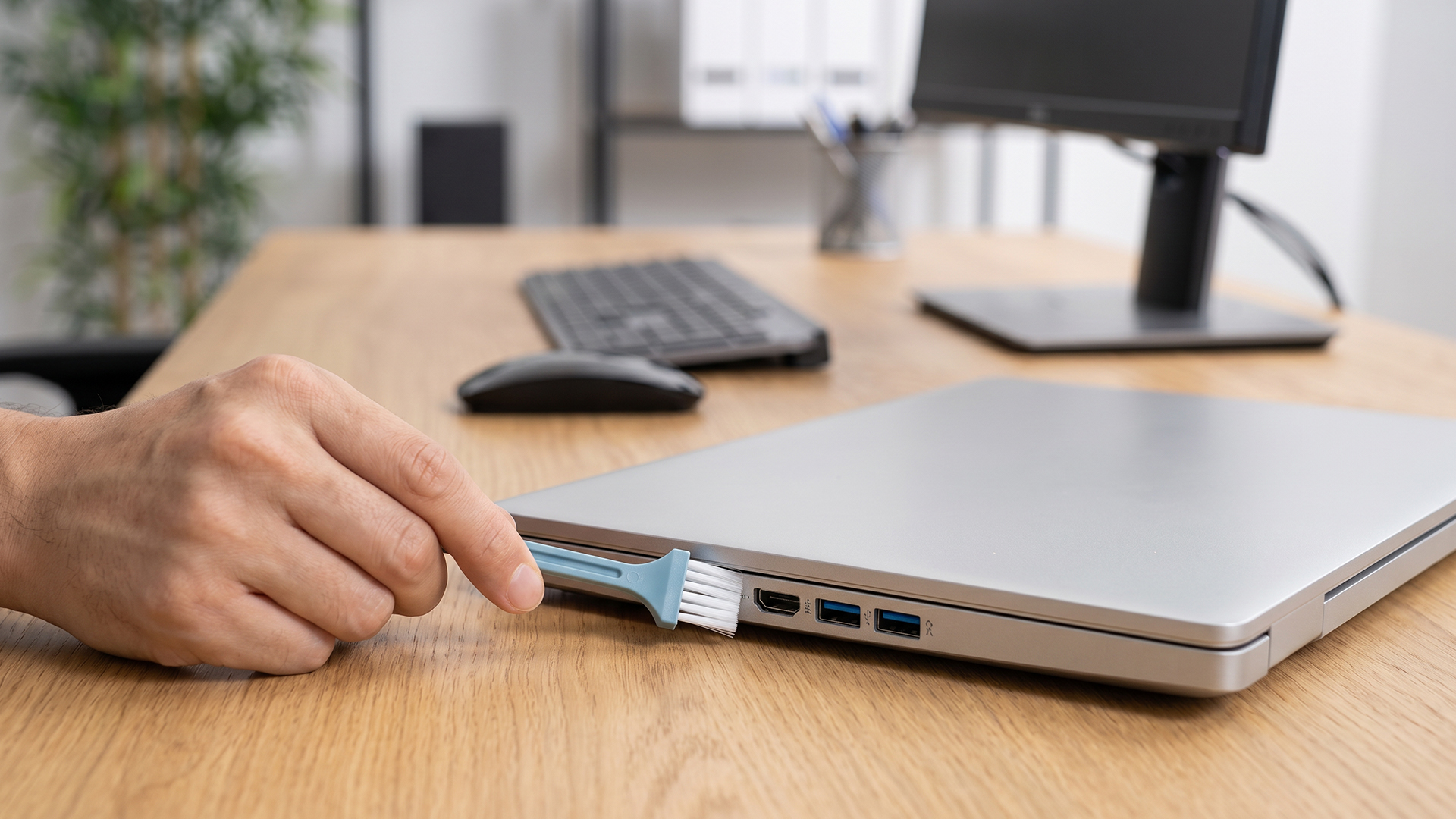
The most common form of Acer USB-C charging issues is simple: the cable is connected, but the battery does not charge. That can mean the charger is wrong, the port is not accepting power, or the battery system is stuck. On Chromebooks, the official troubleshooting flow starts with checking the power outlet, checking that the charger is fully connected, unplugging and reconnecting the charger in the right order, and then letting the device charge for at least 30 minutes.
-
Laptop Not Charging via USB-C
If the battery icon shows plugged in but the laptop does not charge, start by assuming a power mismatch before assuming hardware failure. Windows notes that a PC may charge slowly or even discharge while plugged in if the charger does not meet the device’s requirements or if the cable is not suitable. That is one of the most common explanations for Acer laptop not charging USB-C complaints.
-
Slow Charging or Inconsistent Charging
Slow charging often means the charger is technically working but not delivering enough wattage for the laptop’s needs. This is especially common when users switch from the original charger to a smaller USB-C adapter meant for a phone or tablet. It can also happen when the laptop is under load, because the machine uses power faster than the charger can replenish it.
-
Charger Connected but Battery Not Increasing
If the charger is connected and the laptop reports charging but the percentage does not rise, you may be dealing with a battery reading issue, a stuck power-management state, or a battery health problem rather than a dead charger. Acer specifically notes that an internal battery reset can fix incorrect battery readings and help resolve charging problems.
-
Device Only Charges When Powered Off
If the device only charges when switched off, the problem usually points back to available power. The charger may be enough to trickle-charge the battery when the system is idle, but not enough to charge it properly while the screen, background apps, and processor are active. This is a classic sign of a low-power or unsuitable USB-C charger rather than a guaranteed hardware failure.
Check the Basics First
Before changing settings or looking for repairs, start with the easy fixes. Many USB-C failures are still basic compatibility or connection problems. Here are a few Acer laptop charging issues fixes:
-
Check that the Charger Supports USB-C Power Delivery
The safest starting point is the charger itself. If it is not designed to provide enough power for a laptop, the device may not charge properly or may charge only very slowly. Windows explicitly advises using the charger and cable designed for the device when charging is slow or the battery drains while plugged in.
-
Check Cable Compatibility and Wattage
Do not treat all USB-C cables as equal. A weak or damaged cable can behave like a bad charger. If you are dealing with USB-C Power Delivery laptop issue symptoms, swap the cable before assuming the laptop is at fault. This is one of the easiest checks and one of the most overlooked.
-
Try a Different USB-C Port or Charger
If your Acer device has more than one USB-C port, test the other one. Also, try a known-good charger with the right wattage. If one charger works and another does not, the issue is probably compatibility rather than the laptop itself. If one port works and the other does not, the problem may be local to the port.
How to Fix USB-C Charging Issues on Acer Laptops
Once the basic charger and cable checks are done, move to the laptop itself. Acer’s own support guidance is very clear on two points for charging-related problems: reset the power system and update the BIOS when relevant. Those are often the best next steps for Acer USB-C charging issues on Windows laptops.
-
Update BIOS and Drivers
Acer’s Drivers and Manuals page is the correct place to look up BIOS and driver updates by model number, serial number, or SNID. Acer’s battery-not-charging support article recommends updating affected models to a newer BIOS version after resetting the adapter. If your Acer laptop charging issue started after an update, after docking changes, or after repeated USB-C errors, checking for BIOS and chipset updates is a sensible step.
-
Reset the Battery and Power System
Acer says an internal battery reset clears residual electrical charge, resets power-management circuits, fixes incorrect battery readings, and helps resolve charging problems. On models with a battery reset pinhole, this is often one of the most practical fixes. On others, an EC or power reset may be available through the power button procedure described for that model.
-
Check Windows Power Settings
Sometimes the laptop is not actually broken. Windows power and battery settings can affect charging behaviour, and smart charging can intentionally stop the battery from reaching 100% even while the machine is plugged in. Windows also allows you to generate a battery report with powercfg /batteryreport, which is useful when you need to check whether the battery capacity has dropped or if the system is reporting something abnormal.
How to Fix USB-C Charging Issues on Acer Chromebooks
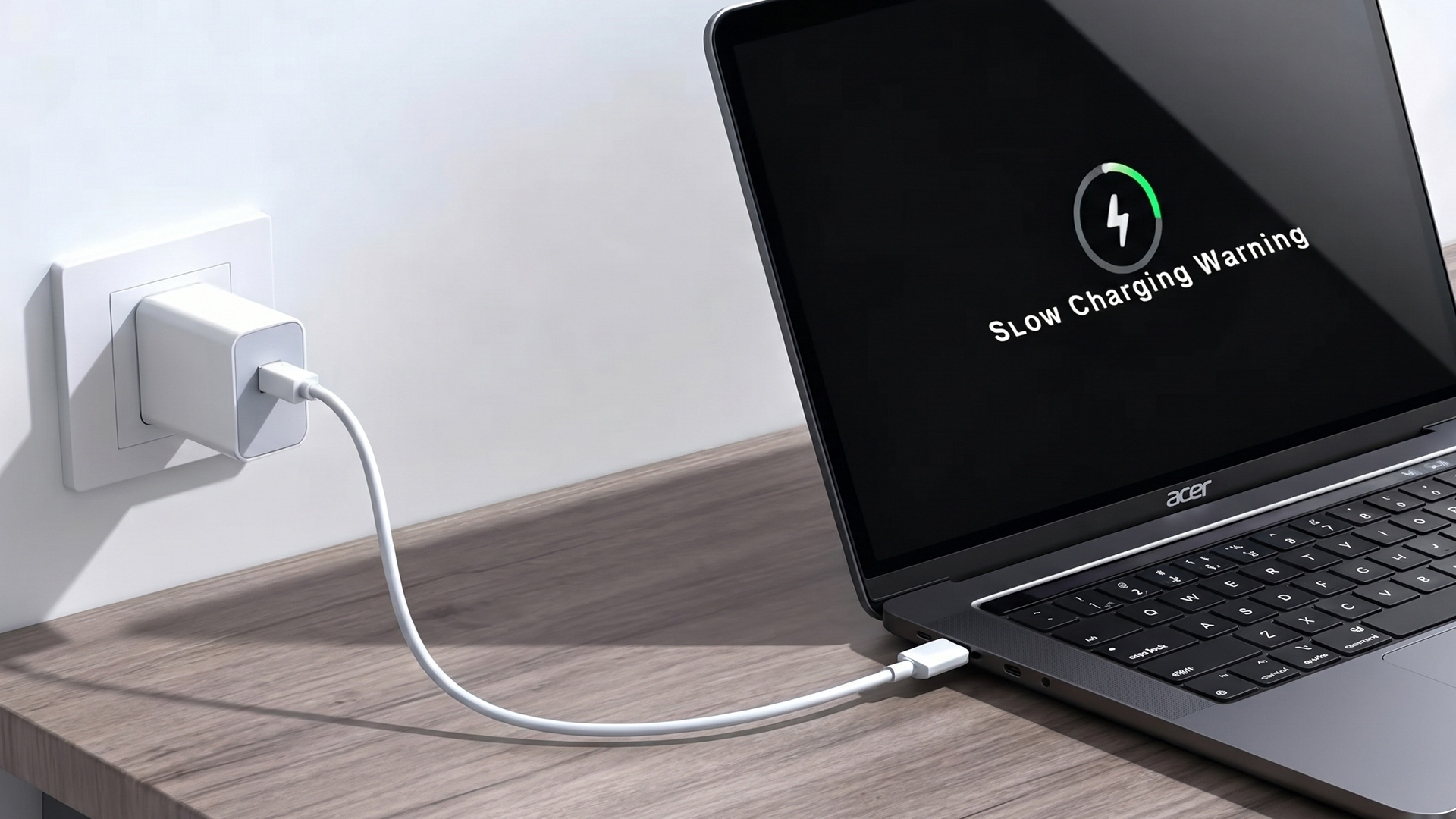
Chromebooks need a slightly different approach. If you are dealing with an Acer Chromebook USB-C charging problem, the best order is charger check, reconnect sequence, charge time, hardware reset, ChromeOS update, then Diagnostics.
-
Perform a Hardware Reset
For most Chromebooks, the standard hardware reset is to turn the device off, then hold Refresh and tap Power, then release Refresh when the Chromebook starts up. Google specifically recommends a hardware reset after simpler charging checks fail. This is one of the most useful fixes for Chromebook not charging USB-C problems.
-
Check ChromeOS Updates
ChromeOS updates are easy to miss, especially on devices used casually. To check, go to Settings, then About ChromeOS, then Check for updates. If charging problems started after instability, suspend issues, or failed system behaviour, getting the system fully updated is worth doing before assuming a hardware fault.
-
Use Diagnostics and Test the Charger
ChromeOS includes a Diagnostics app that can test battery-related problems on supported devices. If the charger and port seem fine but the battery still will not behave, run Diagnostics before you escalate. Also, repeat the official charging sequence: unplug the charger from the wall and device, reconnect to the Chromebook first, then the wall, and leave it charging for at least 30 minutes.
Hardware-Related Causes to Consider
If the quick fixes and resets do not work, start looking at physical causes. This is where Acer charger compatibility stops being the only suspect.
-
Faulty USB-C Port or Loose Connection
A damaged USB-C port often shows one of three signs: the cable feels loose, charging only works at certain angles, or one USB-C port works while the other does not. If the connector wobbles or charging drops in and out with movement, the port may need service rather than more troubleshooting.
-
Damaged Cable or Adapter
A damaged adapter or cable is one of the easiest faults to miss because the damage can be internal or near the connector strain point. If you can, test with another charger and cable that meet the same power requirements before looking deeper. Acer’s own charging guidance also includes resetting the adapter by disconnecting it from the wall for 30 seconds before reconnecting.
-
Battery Health Issues
A laptop battery that has aged badly may show charging symptoms even when the charger is fine. Windows says lithium-ion batteries deteriorate over time and allows you to generate a battery report to inspect capacity and recent use. If the report shows major capacity loss, the issue may be battery health rather than USB-C charging itself.
How to Check If Your Charger Is Compatible
One of the biggest causes of Acer USB-C charging issues is using a charger that is physically compatible but electrically unsuitable.
-
Understand Wattage Requirements
A small USB-C charger may work for a phone and still be too weak for a laptop. The common laptop range is often around 45W or 65W, with some systems needing more. If the charger provides less than the laptop expects, you may get slow charging, no charge gain, or battery drain while plugged in.
-
Why Not All USB-C Chargers Work
Not all USB-C chargers are interchangeable for laptops because the power output and the cable both matter. Windows explicitly lists insufficient charger power and inadequate cable capability as causes of charging problems. That is why Acer USB-C charging issues often come down to using the wrong charger rather than a broken laptop.
-
Choosing the Right Replacement Charger
The safest replacement is one that matches the laptop’s required wattage and supports proper USB-C Power Delivery. If you are replacing the full setup, change both the charger and cable together. That reduces the chance of fixing one weak link while leaving another one in place.
When USB-C Charging Won’t Work at All
If the laptop still will not charge after cable swaps, power resets, BIOS checks, and battery checks, the issue may be beyond home troubleshooting.
-
Signs of Port or Motherboard Failure
A completely dead USB-C charging path usually looks like no response from the charger, no charging light, no battery gain, or charging on one side only. On a Chromebook, it may also look like the device refusing to wake even after 30 minutes on charge and a hardware reset. At that point, port or board-level failure becomes more likely.
-
When to Seek Repair or Replacement
If your Acer device only charges intermittently, only through one port, or never charges even with a confirmed compatible charger, it is time to stop cycling through random accessories and move toward repair. Continuing to force a loose or damaged USB-C connection can make the fault worse.
-
Warranty and Service Options
Acer’s support pages let you check warranty status, look up your device by serial number or SNID, and access Drivers and Manuals before arranging service. That is the right point to escalate if you have ruled out the charger, cable, software, and battery-reset steps.
Tips to Avoid USB-C Charging Problems
Preventing Acer USB-C charging issues is mostly about using the right accessories and reducing wear on the charging path.
-
Use the Right Chargers and Cables
Stick to the correct wattage and a good-quality USB-C cable. If you swap chargers often between devices, label the higher-power laptop charger so it does not get mixed up with lower-power phone or tablet adapters.
-
Avoid Heat and Strain on the Port
Heat shortens battery life, and Microsoft’s battery-care guidance also notes that high temperatures can accelerate battery deterioration. Avoid charging in hot, cramped spaces, and do not leave the cable under constant sideways strain in the port.
-
Keep Firmware and Software Updated
Acer laptop charging behaviour can improve with BIOS and driver updates, while Chromebooks should stay current through ChromeOS updates. If you want fewer charging surprises over time, keep both the hardware firmware and operating system current.
Final Fix Guide: What to Try First
If you want the fastest route through Acer USB-C charging issues, use this order:
- Confirm the power outlet works and reconnect the charger fully.
- Swap to a known-good USB-C cable.
- Try another compatible charger with enough wattage.
- Test another USB-C port if your model has one.
- On Acer laptops, reset the battery or EC and check for BIOS and driver updates.
- On Acer Chromebooks, reconnect the charger in the correct order, wait 30 minutes, then run a hardware reset.
- Check Windows battery report or Chromebook Diagnostics if the device still sees power but does not gain charge.
- If none of that helps, move to warranty support or repair.
Frequently Asked Questions
-
Why is my Acer laptop not charging with USB-C?
The most common causes are an underpowered charger, a bad or low-rated cable, a power-management issue, or a faulty USB-C port. Start by checking charger wattage and cable quality before moving to BIOS and battery-reset steps.
-
Can all USB-C ports charge a laptop?
No. Some USB-C ports handle data or display but not power input. If your Acer laptop has more than one USB-C port, test both and check the model documentation to confirm which one supports charging.
-
Why is my Chromebook charging slowly?
Slow Chromebook charging usually means the charger is weak, the cable is poor, or the device needs time after a deep discharge. Start with the official reconnect steps and leave it on charge for at least 30 minutes before judging the result.
-
Do I need a specific charger for Acer USB-C laptops?
You need a charger with the right USB-C Power Delivery support and enough wattage for the laptop. A charger that works for a phone or tablet may still be unsuitable for a laptop.
-
How do I know if my USB-C port is damaged?
Look for a loose fit, charging that only works at certain angles, no response from known-good chargers, or one USB-C port working while the other does not. Those are stronger signs of a port fault than a software issue.
You can pay with:
*PayPal Credit Representative Example: Assumed credit limit £1,200, Representative 23.9% APR (variable). Purchase rate 23.9% p.a (variable).Terms & Conditions apply.


PayPal Credit and PayPal Pay in 3 are trading names of PayPal UK Ltd, 5 Fleet Place, London, United Kingdom, EC4M 7RD. Terms and conditions apply. Credit subject to status, UK residents only, Five Tech LTD acts as a broker and offers finance from a restricted range of finance providers. PayPal Pay in 3 is not regulated by the Financial Conduct Authority. Pay in 3 eligibility is subject to status and approval. 18+. UK residents only. Pay in 3 is a form of credit. Check if affordable and how you will repay. May make other borrowing more difficult or expensive. See product terms for more details.
Copyright © 1996-2026 Fivetech LTD | Terms and Conditions
box.co.uk & Box are trading names of Five Tech Limited. Registered office: Box LTD, Unit 10 Woodford Trading Estate, Woodford Green IG8 8HF