


 Menu
MenuMenu


Get Sales Advice from Mon - Fri 9am - 5:00pm:
020 3337 8950LAST UPDATED: January 27, 2026
How to Fix a Laptop That Won’t Turn On (Step-by-Step Troubleshooting Guide)
A laptop not turning on can be stressful, especially if you rely on it for work, study, or everyday tasks. One moment it’s working normally, and next there’s no response at all. Before assuming the worst, it’s worth knowing that many power-related problems are caused by simple issues that are easy to check and fix at home.
If your laptop was fine yesterday and now shows no signs of starting up, the cause could be anything from a charger problem to a drained battery or a temporary system glitch.
This step-by-step troubleshooting guide explains what to do if your laptop won’t turn on, helping you identify whether the issue is power-related, display-related, or something more serious. We’ll start with the quickest checks and clearly explain when it’s time to stop troubleshooting and consider professional help.
First Checks Before Troubleshooting
Before jumping into deeper fixes, it’s important to work out how your laptop is behaving when you try to turn it on. A laptop not turning on can mean very different things, and identifying the signs early will save time and frustration.
Start by pressing the power button and paying close attention to what happens. Do you see any lights on the keyboard or power button? Can you hear the fan spin up, even briefly? Does the screen stay completely black, or does it flash for a second and then go dark? These details help you tell the difference between a laptop that isn’t getting power at all and one that’s turning on but failing to display anything.
If there are no lights, no fan noise, and no warmth from the device, the issue is usually related to power delivery. If you hear sounds or see lights but nothing appears on screen, the laptop may be starting up but struggling with the display or startup process. Understanding this distinction early makes it much easier to work out how to fix a laptop not turning on without guessing.
Once you’ve noted these signs, you’re ready to move on to the next stage: troubleshooting a laptop that won't turn on.
Check the Power Source and Charger
If a laptop won’t turn on, the power supply is always the first thing to rule out. Many cases of a laptop not turning on come down to something simple that’s easy to miss.
Start with these basic checks:
- Make sure the charger is firmly connected to both the laptop and the wall socket.
- Plug the charger directly into a wall outlet rather than an extension lead or surge protector.
- Try a different wall socket to rule out a power issue in the room.
Next, take a closer look at the charger and cable itself:
- Check for frayed wires, bent pins, or visible damage along the cable.
- Gently move the cable while it’s plugged in and watch for flickering charging lights.
- If possible, test with a compatible spare charger to confirm whether the adapter is faulty.
Finally, check for indicator lights on the laptop. If there’s no charging light at all, it often explains why the laptop doesn’t turn on. A blinking or intermittent light can point to a damaged charger or a loose power port.
If everything looks fine and your laptop still isn’t responding, the next step is to check the battery, as battery issues can also stop a laptop from starting up.
Test the Battery
If your charger appears to be working but the laptop isn’t turning on, the battery is the next thing to check. Battery faults are a common reason for a laptop not starting, especially on older devices.
Start by testing whether the laptop can run on mains power alone:
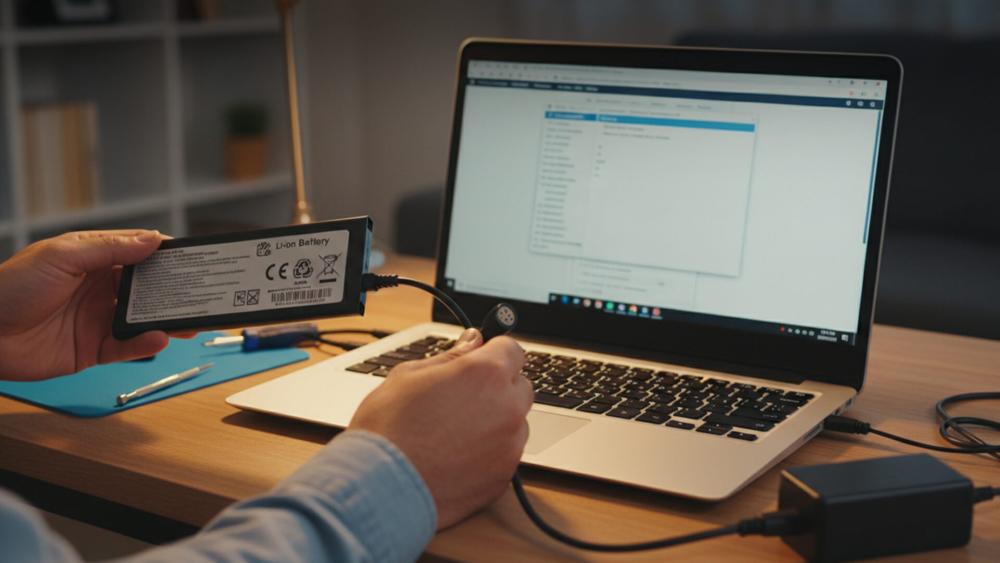
- If your laptop has a removable battery, power it off, remove the battery, then connect the charger and try turning it on.
- If it starts without the battery, the battery is likely faulty and needs replacing.
For laptops with built-in batteries, the process is less direct, but there are still signs to look out for:
- Does the battery percentage stay at 0% or fail to increase when plugged in?
- Does the laptop switch off immediately when the charger is removed?
- Has the battery life been noticeably poor before the laptop stopped turning on?
A failing battery can also explain situations where a laptop doesn’t turn on unless it’s plugged in. While this doesn’t usually mean the laptop itself is damaged, it does indicate that the battery is no longer holding a charge properly.
If the battery doesn’t appear to be the issue, the next step is to reset the power system. This helps clear residual charge that can stop a laptop from turning on, even when everything else seems fine.
Perform a Hard Reset (Power Drain Reset)
If your laptop won’t turn on after checking the charger and battery, a hard reset is one of the most effective next steps. This process clears any residual electrical charge that may be preventing the laptop from starting up properly.
Residual power can build up inside the system, especially after sleep mode crashes, overheating, or sudden shutdowns. When that happens, the laptop may appear completely dead even though there’s no permanent fault.
Follow these steps carefully:
- Turn the laptop off completely.
- Unplug the charger from the laptop and the wall socket.
- If the battery is removable, take it out.
- Press and hold the power button for 30 seconds to drain any remaining charge.
- Reconnect the charger (leave the battery out for now) and try turning the laptop on.
If the laptop powers on at this stage, shut it down again and refit the battery before restarting. This confirms the issue was caused by residual power rather than a hardware failure.
Hard resets often resolve cases where a laptop is not starting or appears unresponsive, with no lights or fan noise. If your laptop still isn’t turning on after this step, the problem may not be power-related, which is why the next section focuses on display and screen checks.
Check for Black Screen or Display Issues
Sometimes the laptop is actually powering up, but nothing appears on the screen, which can make it seem completely dead at first.
Start by checking for signs that the laptop is actually running:
- Do you hear the fan spinning or the hard drive working?
- Do keyboard lights, caps lock, or power indicators respond when pressed?
- Does the laptop feel warm after being on for a minute or two?
If you notice any of these signs, the issue may be related to the display rather than the power. To confirm this, try connecting the laptop to an external monitor or TV using an HDMI or DisplayPort cable:
- Turn the laptop on while connected to the external display.
- If the external screen works, the laptop screen or internal display cable may be faulty.
A black screen with fan noise is often mistaken for a laptop not starting up properly. Identifying this early helps you avoid unnecessary troubleshooting steps and focus on the real issue.
If there are no signs of power at all, or the external display also shows nothing, the next step is to remove anything connected to the laptop that could be interfering with startup.
Own an HP Laptop and facing problems working with it? Read our guide on common HP laptop problems and how to fix them.
Disconnect External Devices
External devices can sometimes stop a laptop from starting properly, even if everything else seems fine. If your laptop isn’t turning on or gets stuck during startup, removing anything connected to it is an important step.
Before trying to power it on again, disconnect all external accessories, including:
- USB drives and external hard drives
- SD cards and memory card readers
- Printers, scanners, and webcams
- Docking stations and USB hubs
- External keyboards and mice
Once everything is unplugged, press the power button and see if the laptop responds. Faulty or incompatible peripherals can interfere with the startup process and make it appear as though the laptop is not starting up at all.
If the laptop powers on after removing these devices, reconnect them one at a time once it has fully started. This helps you identify which accessory caused the issue. If there’s still no response, the next step is to pay attention to warning signs like beeping sounds, flashing lights, or unusual fan behaviour.
Listen for Beeps and Watch Indicator Lights
When a laptop refuses to start, it often gives subtle clues about what’s wrong. Beeping sounds, flashing lights, or unusual fan behaviour can all point to specific problems and help explain why the laptop is not starting as expected.
When you press the power button, take note of the following:
- Do you hear any beeps, either single or repeated?
- Are there lights flashing in a pattern on the power button or keyboard?
- Does the fan spin loudly and continuously, or start and stop quickly?
Beep codes and blinking lights are commonly used to signal hardware issues such as memory problems, motherboard faults, or graphics errors. The exact meaning varies by manufacturer, but repeated beeps or consistent light patterns usually indicate that the laptop is failing its initial hardware checks.
Loud or constant fan noise with no display can also be a sign of overheating or an internal component struggling to initialise. If you’re seeing or hearing any of these warning signs, it’s a strong indication that the issue goes beyond basic power checks. If there are no beeps, lights, or fan activity at all, the next step is to see whether the laptop can load its basic system controls.
Is your Lenovo laptop troubling you? Click here and learn how to troubleshoot common Lenovo laptop issues.
Try Booting into BIOS or Safe Mode
If your laptop shows some signs of life but still isn’t loading properly, it’s time to check whether it can access its basic system controls. This step helps narrow down whether the issue is software-related or a deeper hardware problem.
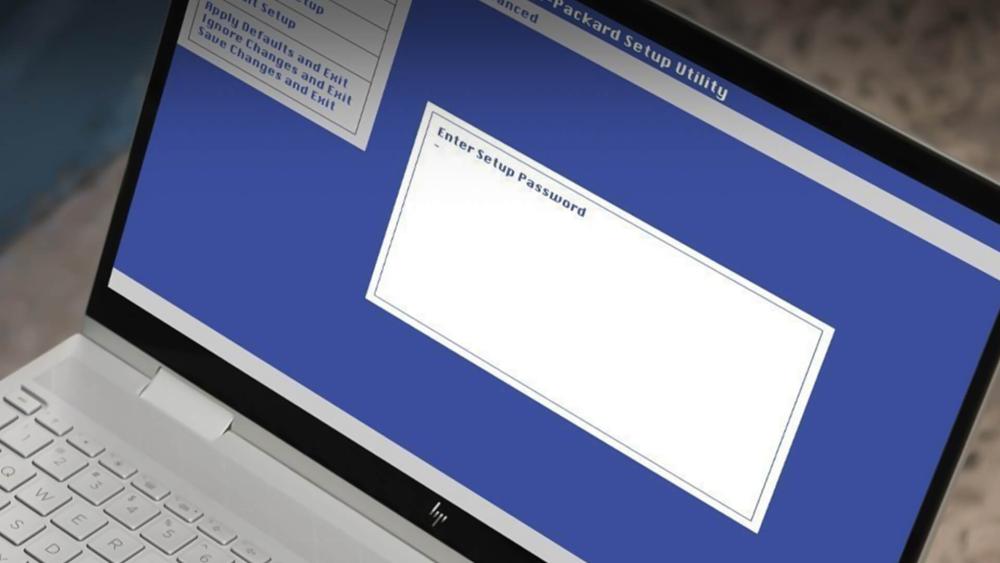
Start by trying to enter the BIOS:
- Turn the laptop off completely.
- Press the power button, then immediately tap one of these keys repeatedly: F2, F10, F12, Delete, or Esc (this varies by brand).
- If a settings screen appears, the laptop is powering on at a basic level.
If you can access the BIOS, it usually means the motherboard, processor, and power system are working. In this case, the problem may be related to the operating system rather than a complete hardware failure.
If the laptop begins to load Windows but doesn’t get very far, Safe Mode can help:
- Turn the laptop on and interrupt the startup a couple of times to trigger recovery mode.
- Choose Safe Mode from the advanced startup options.
Being able to reach Safe Mode often explains why a laptop is not starting up normally, especially after a recent update or driver change. If neither BIOS nor Safe Mode loads and the screen remains blank, the issue is more likely hardware-related, which is why the next step focuses on overheating and physical damage.
Check for Overheating or Physical Damage
Overheating and physical damage are two common reasons a laptop can suddenly stop responding. If your laptop won’t turn on after being used for long periods, heat may have triggered an automatic shutdown to protect internal components.
Start by feeling the base and vents of the laptop. If it was very hot before it stopped working, allow it to cool down fully before trying again. Blocked vents, dust build-up, or using the laptop on soft surfaces like beds or sofas can restrict airflow and cause this issue.
Take a moment to check for visible problems:
- Dust or debris blocking the cooling vents
- Signs of liquid spills, even if they happened earlier
- Cracks or dents from drops or knocks
If the laptop still shows no response after cooling and inspection, and there are no signs of life at all, the issue may be related to software changes or updates, which is what the next step addresses.
MacBook won’t turn on or boot? Read our step-by-step guide on fixing a MacBook that won’t turn on.
Problems After a Recent Update or Software Change
If your laptop stopped working shortly after an update, driver installation, or system change, software may be the reason it’s not starting properly. This is fairly common and can make it feel like the laptop has failed overnight.
In these situations, the laptop may power on but fail during startup, restart repeatedly, or show a blank screen. If you’re wondering why won’t my laptop turn on after an update, it’s often because the operating system is struggling to load correctly, rather than a hardware fault.
Try the following checks:
- Turn the laptop on and interrupt the startup process a couple of times to trigger the recovery menu.
- From the recovery options, attempt to boot into Safe Mode.
- If Safe Mode loads, the issue is likely caused by a recent update, driver, or corrupted system file.
Being able to access Safe Mode usually confirms that the laptop itself is functional, even if it’s not starting up normally. At this point, rolling back an update or running system repair tools may resolve the issue.
If the laptop doesn’t respond at all, won’t access recovery options, and shows no signs of activity, it’s a strong indicator that the problem is no longer software-related. The next step is to consider a repair or a replacement.
Final Words: Should You Repair or Replace Your Laptop?
Once basic troubleshooting hasn’t worked, the next step is deciding whether repairing the laptop is actually worth it. This usually comes down to the age of the device, how you use it, and whether the repair cost makes sense long term.
If the laptop is fairly new and mainly used for work, repair is often the sensible option. Business-focused laptops are generally designed to last longer, so fixing a power issue can be worthwhile if the device has otherwise been reliable. In cases where repair isn’t viable, users who rely heavily on their machines for work often look towards ranges such as reliable HP business laptops or Lenovo laptops for work and home as dependable replacements built for daily use.
For older laptops, especially those used for general household tasks, repair costs can quickly outweigh the benefits. If that’s the case, upgrading to one of the newer Windows laptops for everyday use can offer better efficiency, longer battery life, and improved reliability compared to an ageing system.
If you prefer macOS or are already familiar with Apple devices, another option is to consider affordable refurbished MacBooks, which can be a cost-effective alternative when repair prices are close to replacement costs. For users deeply invested in the Apple ecosystem, moving to newer Apple Mac laptops and desktops may provide better long-term value and performance.
When replacement makes more sense than repair, it’s worth keeping an eye on top laptop deals and offers from Box.co.uk to help reduce the overall cost, particularly if a laptop not starting has already disrupted work or study.
Just a practical tip: Box.co.uk also offers a laptop trade-in service, letting you put the value of your old or faulty device towards a new one and reduce the overall cost.
FAQs
Why won’t my laptop turn on even when it’s plugged in?
This usually points to a faulty charger, damaged power port, or internal hardware issue.
What should I do if my laptop won’t turn on at all?
Start by checking the power source, charger, and battery before moving on to deeper troubleshooting.
My laptop turns on, but the screen stays black – what does that mean?
It often indicates a display or graphics issue rather than a complete power failure.
Can a dead battery stop a laptop from turning on?
Yes, a failing battery can prevent startup, especially if the laptop won’t power on without being plugged in.
Why did my laptop stop turning on after an update?
A failed or corrupted update can stop the operating system from loading properly.
Is it safe to keep trying to turn my laptop on if it won’t start?
Repeated attempts aren’t recommended, as they can risk further damage if there’s a hardware fault.
You can pay with:
*PayPal Credit Representative Example: Assumed credit limit £1,200, Representative 23.9% APR (variable). Purchase rate 23.9% p.a (variable).Terms & Conditions apply.


PayPal Credit and PayPal Pay in 3 are trading names of PayPal UK Ltd, 5 Fleet Place, London, United Kingdom, EC4M 7RD. Terms and conditions apply. Credit subject to status, UK residents only, Five Tech LTD acts as a broker and offers finance from a restricted range of finance providers. PayPal Pay in 3 is not regulated by the Financial Conduct Authority. Pay in 3 eligibility is subject to status and approval. 18+. UK residents only. Pay in 3 is a form of credit. Check if affordable and how you will repay. May make other borrowing more difficult or expensive. See product terms for more details.
Copyright © 1996-2026 Fivetech LTD | Terms and Conditions
box.co.uk & Box are trading names of Five Tech Limited. Registered office: Box LTD, Unit 10 Woodford Trading Estate, Woodford Green IG8 8HF