


 Menu
MenuMenu


Get Sales Advice from Mon - Fri 9am - 5:00pm:
020 3337 8950POSTED: July 17, 2026
Acer Aspire Laptop Black Screen? Causes and Fixes That Work
An Acer Aspire laptop black screen can feel worrying, especially if the power light is on but nothing appears on the display. You may see a completely blank screen, a black screen with a cursor, no Acer logo at startup, or a screen that turns black after login.
The good news is that many Acer laptop black screen problems are fixable. The issue may be caused by sleep mode, static power lockout, a weak battery state, a Windows display problem, a graphics driver fault, a stuck startup repair screen or an external display setting. In some cases, it may be a hardware fault, but it is worth trying safe checks before assuming the laptop needs repair.
This guide explains the most common causes of an Acer Aspire blank screen and the safest fixes to try first. It covers power drains, battery reset pinholes, external monitor testing, Safe Mode, display driver rollback, Windows Recovery Environment and symptom-based checks for Acer Aspire no display problems.
Why Your Acer Aspire Laptop Screen Is Black
A black screen does not always mean the laptop is dead. In many cases, the laptop is running but the display is not waking, Windows is not loading correctly, or the graphics output is being sent somewhere else.
The best fix depends on when the black screen appears. An Acer Aspire black screen on startup is different from an Acer black screen after login, and an Acer Aspire black screen no logo can point to a deeper power, firmware or hardware issue.
Power Light On But the Screen Stays Black
If your Acer Aspire laptop blue light on but screen is black, the laptop may be receiving power, but the display is not showing an image. This can happen because of sleep mode, a frozen startup process, display output settings, graphics driver issues or a temporary static power lockout.
Start with simple checks. Increase the brightness, press the power button once to wake the laptop, and listen for fan noise or Windows startup sounds. If the keyboard lights or power light are active but the screen stays black, try a full restart and external monitor test.
Black Screen on Startup or No Acer Logo
An Acer Aspire black screen no logo can mean the laptop is not reaching the normal boot stage. This may be caused by a power issue, a BIOS/firmware issue, faulty RAM, a damaged display, or a problem with the motherboard.
If there is no Acer logo and no response on the built-in screen, test the laptop with an external monitor. If the external monitor works, the issue may be with the laptop screen, display cable or backlight. If neither screen works, the problem may be power, graphics, RAM or motherboard-related.
For BIOS and boot menu help, you can also read our guide: Acer Aspire BIOS Key: How to Enter BIOS and Boot Menu Safely.
Black Screen After Login or With a Cursor
An Acer Aspire laptop black screen with cursor usually suggests Windows has loaded, but the desktop or display environment is not appearing correctly. This can happen after a Windows update, display driver problem, corrupted startup app or failed login process.
If you can see a cursor, the laptop is not completely dead. Try keyboard shortcuts, Safe Mode and driver fixes before considering a reset.
Windows 10 or Windows 11 Black Screen Issues
An Acer laptop black screen Windows 10 issue can be caused by similar problems to Windows 11: display drivers, startup apps, updates, sleep mode problems or graphics settings. Windows may also enter recovery mode after failed startups.
If you see an Acer automatic repair black screen, Windows may be trying to repair startup files but failing to show the recovery screen correctly. In that case, you may need to force Windows Recovery Environment and use Startup Repair, Safe Mode or uninstall recent updates.
First Checks Before Trying Advanced Fixes
Before going into recovery settings, start with quick checks. These are safer, faster and often solve simple black screen problems.
Check Brightness, Sleep Mode and Power Status
Press the brightness-up key several times. Some Acer Aspire laptops use function keys for brightness, so you may need to hold the Fn key while pressing the brightness key.
Also press the power button once briefly to wake the laptop. Do not hold it down repeatedly at this stage. If the laptop is asleep or stuck in hibernation, a short press may wake it.
Disconnect USB Devices, Docks and Accessories
Unplug USB drives, external monitors, docking stations, memory cards, printers, webcams and other accessories. A connected device can sometimes delay startup or confuse display output.
After disconnecting everything except the charger, restart the laptop and check whether the screen appears.
Make Sure the Charger and Power Socket Work
A low battery or faulty charger can cause startup problems. Plug the charger directly into a working wall socket and check whether the charging light appears. If possible, test another compatible Acer charger.
If the laptop has been unused for a while, leave it charging for at least 20 to 30 minutes before trying again.
Test the Laptop With an External Monitor
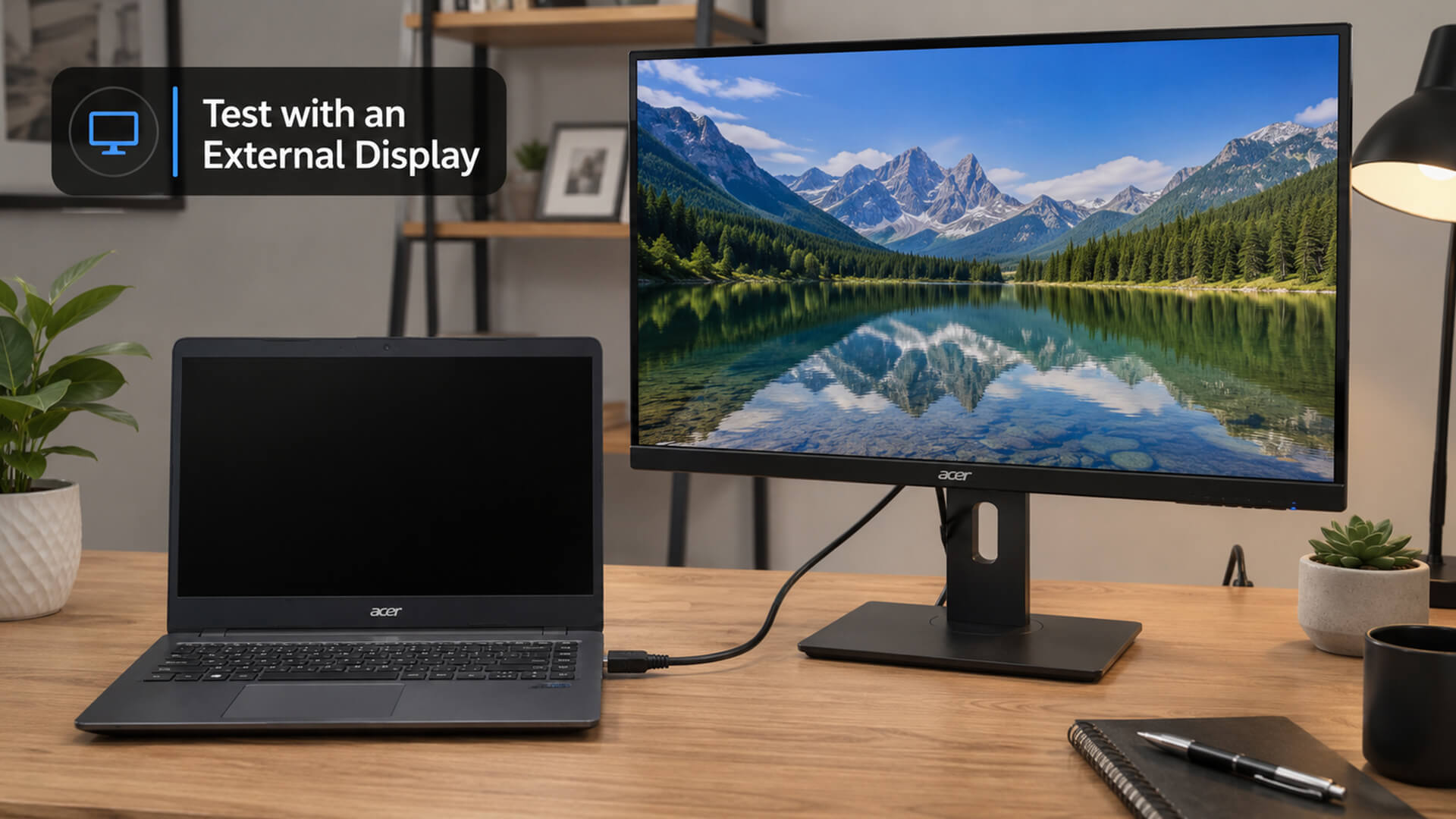
An external monitor test is one of the most useful checks for an Acer Aspire no display issue. Connect the laptop to a monitor or TV using HDMI or the correct display port. Then turn the laptop on and use the display toggle key if needed.
If the external screen works, the laptop itself may still be running normally. The issue may be the built-in display, backlight, display cable or screen settings. If the external screen also stays black, the issue may be deeper than the display panel.
How to Fix an Acer Aspire Laptop Black Screen
Work through these fixes in order. Start with the safest options before moving to Windows recovery or repair steps.
Restart the Laptop Properly
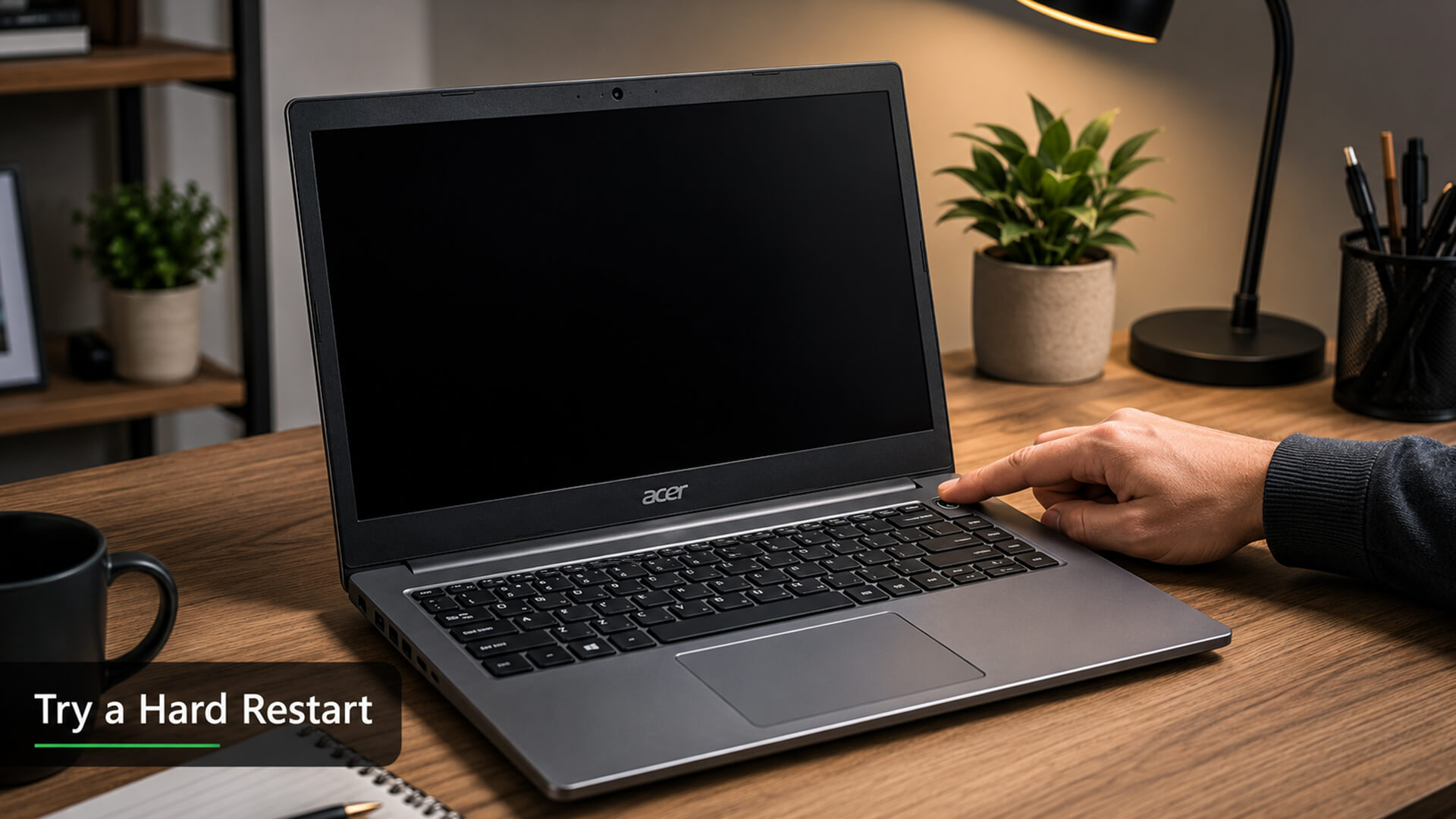
Hold the power button for around 10 seconds until the laptop turns off. Wait a few seconds, then press the power button again.
This can clear a frozen sleep state or failed startup. If the Acer logo appears after restarting, let Windows load fully before pressing more keys.
Perform a Full Power Drain
A power drain helps clear residual electricity and can fix a static power lockout. Turn off the laptop, unplug the charger and remove any connected devices. If your model has a removable battery, remove it. Hold the power button for around 15 to 30 seconds, then reconnect power and try turning the laptop on.
For models with built-in batteries, holding the power button with the charger unplugged can still help discharge residual power.
Use the Acer Battery Reset Pinhole
Some Acer Aspire laptops include a small battery reset pinhole on the bottom. It may be marked with a battery symbol. If your model has this feature, turn the laptop off, unplug the charger and gently press the internal reset button with a straightened paperclip for around 10 to 15 seconds.
Do not force anything into the hole. If you are not sure whether your model has a battery reset pinhole, check the laptop manual or product support page first.
Reset the Graphics Driver Shortcut
If Windows is running but the display is black, try the graphics reset shortcut:
Windows key + Ctrl + Shift + B
The screen may flicker, and you may hear a beep. This shortcut restarts the graphics driver and can help when the screen is black because of a display driver glitch.
Wake the Laptop From Sleep or Hibernation
If the laptop is stuck in sleep or hibernation, press a key, move the touchpad, press the power button briefly or close and reopen the lid. If that fails, hold the power button to shut down, wait a few seconds and restart.
If this keeps happening, update Windows, check power settings and update the graphics driver once the laptop is working again.
Boot Into Windows Recovery Mode
If Windows fails to load, you may need Windows Recovery Environment. One common way to trigger it is to interrupt startup several times. Turn the laptop on, then hold the power button when Windows begins loading. Repeat this process until Windows shows recovery options.
From there, choose troubleshooting options such as Startup Repair, Safe Mode, uninstall updates or system restore.
Start Windows in Safe Mode
Safe Mode starts Windows with basic drivers. This is useful if the black screen is caused by a bad graphics driver, startup app or recent software change.
Once in Safe Mode, you can uninstall problem apps, roll back the display driver, remove recent updates or run system checks.
Update or Roll Back the Display Driver
A faulty display driver can cause black screens after login, flickering or no display problems. If the issue started after a driver update, roll back the graphics driver in Device Manager. If the driver is old or corrupted, update it using the correct Acer or Windows driver.
For related display help, read our Intel display fix guide.
Run Startup Repair for Automatic Repair Black Screen
If you see an Acer automatic repair black screen, Startup Repair may help. In Windows Recovery Environment, choose Startup Repair and let Windows check for boot problems.
Startup Repair can fix some corrupted startup files, boot configuration issues and failed boot states. If it cannot repair the problem, try Safe Mode or uninstalling recent updates.
Uninstall Recent Updates or Problem Apps
If the black screen started after a Windows update, driver update or new app installation, remove the recent change in Safe Mode or Windows Recovery Environment. This can be especially helpful if the laptop reaches login but then goes black.
Fixes Based on the Exact Acer Black Screen Symptom
Different black screen symptoms can point to different causes. Use this section to narrow down the problem.
Acer Aspire Laptop Blue Light on But Screen Is Black
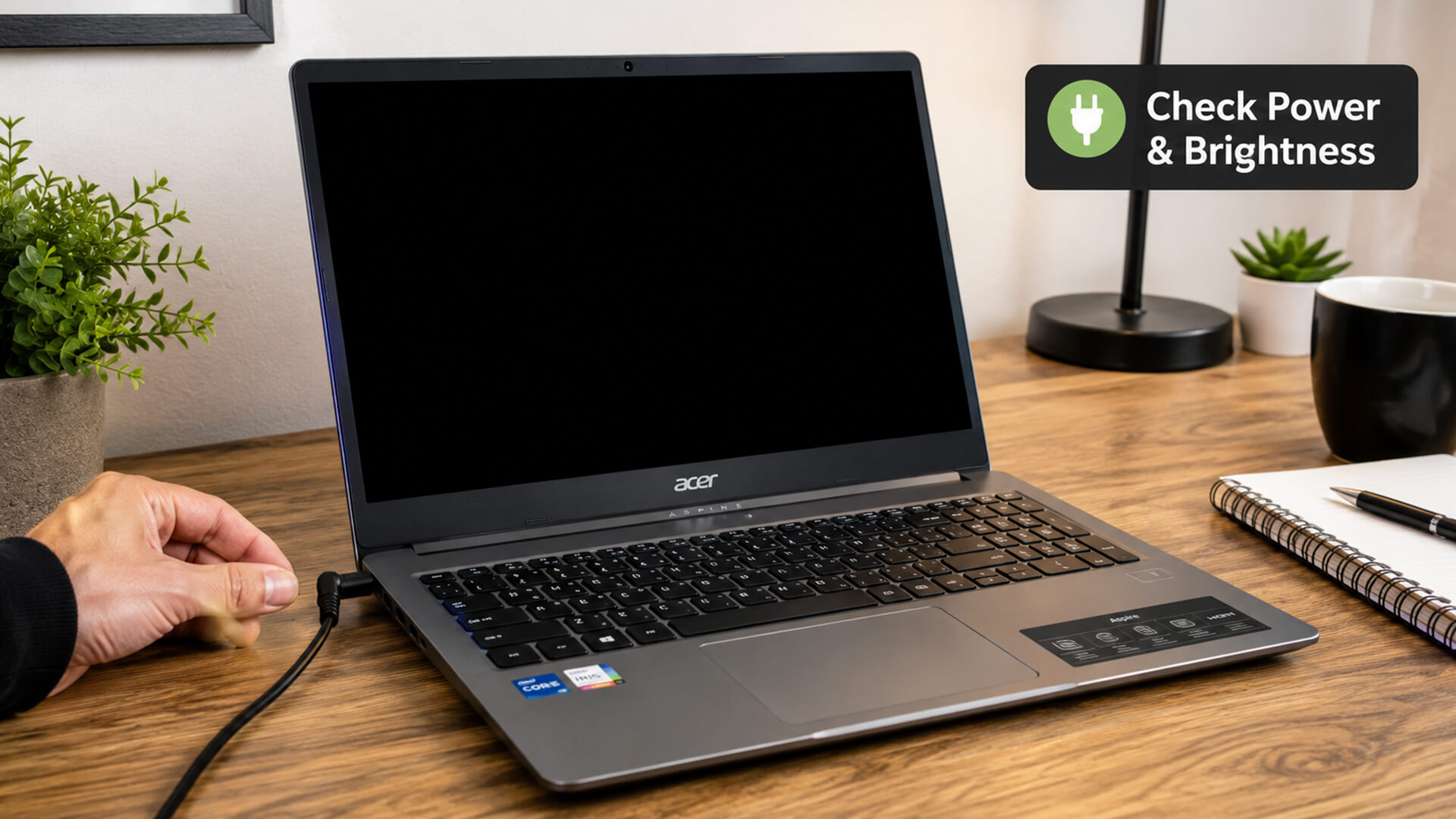
If the blue light is on but the screen is black, try a forced restart, power drain and external monitor test. This symptom may be caused by sleep mode, static lockout, display output settings or a failed screen/backlight.
If the external monitor works, the built-in display may need repair. If no screen works, the problem may be internal hardware or startup-related.
Acer Aspire Black Screen With No Logo
If there is no Acer logo, the laptop may not be completing the early startup stage. Try unplugging accessories, performing a power drain and using the battery reset pinhole if your model has one.
If there is still no display on the laptop screen or external monitor, professional diagnosis may be needed.
Acer Aspire Laptop Black Screen With Cursor
A black screen with cursor usually means Windows has started but the desktop is not loading correctly. Try opening Task Manager with Ctrl + Shift + Esc. If it opens, restart Windows Explorer from Task Manager. If that fails, boot into Safe Mode and check display drivers, startup apps and recent updates.
Acer Black Screen After Login
If the screen goes black after login, the cause is often software-related. It may be a graphics driver, startup program, Windows update, or corrupted user profile. Safe Mode is the best next step because it lets you troubleshoot without normal startup apps running.
Acer Aspire No Display on External Monitor
If neither the laptop display nor an external monitor shows anything, the issue may be more serious. It could involve RAM, motherboard, graphics hardware, or firmware. Try a power drain and battery reset first, but if there is still no display, get professional support.
What Causes an Acer Aspire Black Screen?
Understanding the cause helps you choose the right fix.
Temporary Power or Static Lockout
A static power lockout can stop the laptop from starting properly, even when the power light turns on. A power drain or battery reset can clear this on some models.
Sleep Mode or Hibernation Glitches
Sometimes a laptop fails to wake from sleep or hibernation. This can leave the screen black even though the system is technically still on. Restarting, updating Windows and adjusting power settings can help prevent this.
Faulty Display Driver or Windows Update
Display drivers and Windows updates are common causes of black screens after login. If the laptop worked normally before an update, try Safe Mode, driver rollback or uninstalling the latest update.
Loose Display Cable, RAM or Internal Hardware Fault
If the laptop has been dropped, knocked or repaired recently, internal parts may be loose or damaged. A loose display cable can cause the built-in screen to fail, while RAM or motherboard issues can stop the system from booting properly.
Damaged Screen or Backlight Failure
If the laptop works on an external monitor but the built-in display stays black, the screen or backlight may be faulty. You may still see a very faint image if you shine a light at the screen, but this check should be done carefully.
What Not to Do When the Screen Is Black
A black screen can be stressful, but rushing can make things worse.
Do Not Keep Force-Restarting Repeatedly
One or two forced restarts can help, but repeatedly forcing shutdowns may interrupt Windows repairs or updates. If the laptop is clearly trying to repair itself, allow time before turning it off.
Do Not Open the Laptop Unless You Know the Risks
Opening the laptop can damage clips, cables or components, and it may affect warranty cover. If you suspect a loose cable, faulty screen or motherboard problem, professional repair is safer.
Do Not Factory Reset Before Backing Up Data
A factory reset can remove apps and may risk data depending on the option chosen. Try Safe Mode, Startup Repair and external monitor access before resetting. If your files are important, back up your data first where possible.
When Should You Get Professional Repair Help?
Some black screen problems can be fixed at home. Others need expert diagnosis.
When There Is No Display on Any Screen
If the laptop screen and external monitor both stay black after power reset steps, the issue may be hardware-related. This is a good time to seek professional repair support.
When the Laptop Powers Off Repeatedly
If the laptop turns on, shows a light and then powers off repeatedly, there may be a battery, charger, motherboard or thermal issue.
When You See Signs of Screen or Motherboard Damage
Cracks, flickering before failure, liquid damage, burning smell, repeated shutdowns or no response from the keyboard can point to hardware damage.
When Repair Costs Make Replacement More Sensible
If the laptop is old, out of warranty or needs an expensive screen or motherboard repair, replacement may be better value. You can compare Aspire computing range, PC notebooks for work and study, or Acer notebooks for everyday use at Box.co.uk.
For help deciding whether Aspire is still right for you, read Are Acer Aspire Laptops Good? Pros, Cons & Who Should Buy One.
Final Checklist for Fixing an Acer Aspire Laptop Black Screen
Use this quick checklist before deciding the laptop needs repair.
| Step | What to Try | Why It Helps |
|---|---|---|
| 1 | Check brightness and wake from sleep | Rules out simple display and sleep issues |
| 2 | Disconnect USB devices and accessories | Removes devices that may block startup |
| 3 | Check charger and leave it plugged in | Confirms the laptop has enough power |
| 4 | Force restart once | Clears frozen startup or sleep state |
| 5 | Perform a power drain | Clears residual power or static lockout |
| 6 | Use battery reset pinhole if supported | Resets the internal battery connection on supported models |
| 7 | Test an external monitor | Shows whether the laptop or screen is the problem |
| 8 | Try graphics driver shortcut | Restarts the display driver in Windows |
| 9 | Boot into Safe Mode | Lets you remove bad drivers, apps or updates |
| 10 | Run Startup Repair | Fixes some Windows boot problems |
If these steps do not restore the display, the laptop may need professional repair.
For broader power checks, read our laptop power troubleshooting. If you are comparing similar display faults, our Lenovo black screen display checks may also help.
Final Thoughts: Fix Your Acer Aspire Black Screen Safely
An Acer Aspire black screen can be caused by something simple, such as sleep mode, brightness settings, static power lockout or a stuck Windows startup. It can also be caused by display drivers, Windows updates, a faulty screen, damaged backlight or internal hardware.
Start with safe checks first. Restart the laptop, disconnect accessories, test the charger, perform a power drain and try the battery reset pinhole if your Acer Aspire model supports it. Then test an external monitor and move into Windows fixes such as Safe Mode, Startup Repair and display driver rollback.
If the laptop still has no display on either the built-in screen or an external monitor, it may need expert diagnosis. If repair costs are high, compare replacement options from the Aspire notebooks for daily tasks, latest Acer tech range, or modern Windows notebook deals at Box.co.uk.
FAQs
How to fix Acer Aspire black screen?
Start by checking brightness, power, and sleep mode. Disconnect accessories, force restart the laptop, perform a power drain and test an external monitor. If Windows is loading but the screen stays black, try the graphics reset shortcut, Safe Mode, display driver rollback or Startup Repair.
Is the black screen of death fixable?
Yes, many black screen of death problems are fixable. If the cause is power lockout, sleep mode, a driver issue or a Windows startup error, the laptop can often be recovered. If the cause is screen, backlight, motherboard, or GPU damage, repair may be needed.
How do I bypass the black screen of death?
You should not try to bypass it blindly. Instead, identify the cause. Try a power drain, external monitor test, Windows Recovery Environment, Safe Mode and Startup Repair. If the laptop shows a cursor, use Task Manager or Safe Mode to fix startup apps or display drivers.
How to force an Acer laptop to turn on?
Plug in the charger, hold the power button for around 10 seconds to shut the laptop down, then press the power button again. If it still does not start, unplug the charger, perform a power drain, reconnect power and try again.
Is there a reset button on an Acer laptop?
Some Acer laptops have a battery reset pinhole on the bottom, usually marked with a battery symbol. Not every model has one. If your Acer Aspire has this pinhole, turn off the laptop, unplug the charger and press the internal button gently with a paperclip for around 10 to 15 seconds.
How do I wake up an Acer laptop?
Press a key, move the touchpad, open the lid, or press the power button briefly. If it does not wake, hold the power button to turn it off, wait a few seconds and restart. If the issue keeps happening, check Windows power settings and update the display driver.
What causes sudden black screen?
A sudden black screen can be caused by sleep mode problems, low power, static lockout, display driver failure, Windows update issues, overheating, a faulty screen, loose display cable, RAM problems or motherboard faults. The exact cause depends on whether the laptop still powers on and whether an external monitor works.
You can pay with:
*PayPal Credit Representative Example: Assumed credit limit £1,200, Representative 23.9% APR (variable). Purchase rate 23.9% p.a (variable).Terms & Conditions apply.


PayPal Credit and PayPal Pay in 3 are trading names of PayPal UK Ltd, 5 Fleet Place, London, United Kingdom, EC4M 7RD. Terms and conditions apply. Credit subject to status, UK residents only, Five Tech LTD acts as a broker and offers finance from a restricted range of finance providers. PayPal Pay in 3 is not regulated by the Financial Conduct Authority. Pay in 3 eligibility is subject to status and approval. 18+. UK residents only. Pay in 3 is a form of credit. Check if affordable and how you will repay. May make other borrowing more difficult or expensive. See product terms for more details.
Copyright © 1996-2026 Fivetech LTD | Terms and Conditions
box.co.uk & Box are trading names of Five Tech Limited. Registered office: Box LTD, Unit 10 Woodford Trading Estate, Woodford Green IG8 8HF