


 Menu
MenuMenu


Get Sales Advice from Mon - Fri 9am - 5:00pm:
020 3337 8950LAST UPDATED: January 02, 2026
Laptop RAM Not Detected or System Won’t Boot: Step‑by‑Step Troubleshooting
If your laptop RAM not detected message pops up, or your system won’t boot after a RAM upgrade, it can feel like you’ve bricked your machine. The good news: most laptop RAM not detected problems come down to seating, compatibility, or a simple BIOS/UEFI hiccup, not a dead motherboard.
This guide walks you through RAM troubleshooting in a proper order, like a good debug flow in a game: start with the easy checks, isolate variables, then confirm the fault before you spend money. We’ll also cover what to do if the laptop RAM not detected issue is actually power, heat, or display-related. So, without further ado, let’s get to it.
What Happens When Laptop RAM Isn’t Detected
When laptop RAM not detected shows up, it usually looks like one of these:
- Laptop powers on but black screens, then restarts in a loop
- Fans spin, keyboard lights up, but no image or BIOS screen
- BIOS/UEFI shows the wrong capacity (for example 8GB instead of 16GB)
- Windows boots but only reports one stick, or performance is weird
- You get beeps/blinks (many laptops use codes for RAM detection faults)
Under the hood, your system checks RAM detection during POST (power-on self test). If it can’t initialise memory, it may not boot at all. That’s why laptop RAM not detected often feels scarier than it is.
Before you dive deeper, note the three most common causes of laptop RAM not detected:
- A stick is not fully seated or not latched correctly
- The RAM is incompatible (generation, speed, rank, voltage, or capacity limits)
- One of the motherboard RAM slots or the memory controller is acting up
You’ll fix most of these with careful RAM check steps and a simple isolate-and-test approach.
Start Here – Rule Out Installation & Compatibility Issues
If you are in a hurry, we have covered the most common fixes for your RAM not detected issue especially if they arise after replacing RAM.

Check RAM Seating and Slot Alignment
Bad seating is the number one reason laptop RAM not detected happens after an upgrade. Laptop SO-DIMM memory (what most people call RAM sticks in a laptop) needs to go in at an angle, then click down until both side clips latch.
Do this exact seating routine:
- Power off completely, unplug charger, and hold power for 10 seconds (drains residual power)
- If your laptop has a removable battery, disconnect it
- Ground yourself (anti-static strap is ideal)
- Remove the RAM sticks and inspect the gold contacts for dirt or damage
- Reinsert: slide into the memory DIMM slot at roughly 30 degrees, then press down until it clicks
- Boot with the bottom panel still off (only if safe) so you can re-seat quickly if needed
If you’re getting laptop RAM not detected in only one configuration, swap the sticks around. A seating issue can look like a dead RAM card, but it’s just contact not lining up properly.
Also, pay attention to slot alignment. If the notch doesn’t match, it’s the wrong type (for example, DDR5 won’t physically fit in a DDR4 laptop RAM slot). That is a compatibility issue, not a fault.
Verify RAM Compatibility
If seating looks perfect and laptop RAM not detected continues, compatibility is next.
Compatibility checks that matter for RAMs in laptop:
- DDR generation: DDR4 vs DDR5 laptop RAM is not interchangeable
- Laptop form factor: you need SO-DIMM, not desktop DIMM ram
- Capacity limits: some laptops cap total RAM, or per-slot RAM
- Voltage and JEDEC profiles: some systems hate high-XMP-only kits
- Rank/density quirks: certain older platforms struggle with specific module layouts
For a deeper compatibility walkthrough, check out our guide on how to choose compatible laptop RAM and compare options.
If the laptop RAM not detected issue started after you mixed old and new modules, test with only the original stick. Mixing can work, but it can also trigger RAM detection problems, especially across different speeds and timings.
When the Problem Isn’t the RAM at All
Sometimes laptop RAM not detected is the symptom, not the cause. These are the sneaky ones that waste hours if you don’t rule them out.
Power Issues That Mimic RAM Failure
Unstable power can cause boot loops and failed memory training, which looks exactly like laptop RAM not detected.
Quick power checks:
- Try a different wall socket and charger (if you have one)
- Remove the battery (if possible) and boot on charger only
- Disconnect all USB devices and docks
- If the laptop has a reset pinhole, use it
If the system boots after a full power drain and minimal setup, your "laptop RAM not detected" event may have been power-related rather than bad RAM memory.
Overheating That Triggers Memory Errors
Heat can cause memory errors and random instability, especially after long sessions. If your laptop shuts down mid-game then refuses to boot and throws laptop RAM not detected behaviour, don’t ignore thermals.
Signs heat is involved:
- The issue appeared after a heavy gaming session or rendering
- The chassis feels unusually hot
- The fans were ramping like mad before the crash
- The laptop boots only after cooling down
If you’re comfortable working inside a laptop, cleaning dust and refreshing paste can genuinely help stability. If you’re doing a repaste, apply thermal paste of good quality and the right amount.
Heat-related faults can also damage modules over time, so keep this in mind when you check RAM later with diagnostics.
Display Output Problems Mistaken for Boot Failure
A brutal classic: the laptop is booting, but you see nothing, so you assume laptop RAM not detected.
Before you go deep, do a quick external output check:
- Check with external display by connecting to a monitor/TV via HDMI/USB-C
- Use your laptop’s display toggle shortcut (often Fn + a function key)
- Watch for backlight signs on the internal panel
If you get a display externally, your RAM may be fine and your issue is panel/cable/GPU output, not RAM troubleshooting.
Step-by-Step Diagnostics to Isolate the Fault
Now we do proper RAM troubleshooting: isolate variables until the culprit shows itself. This is the section that fixes most persistent laptop RAM not detected cases.
Test With One RAM Module at a Time
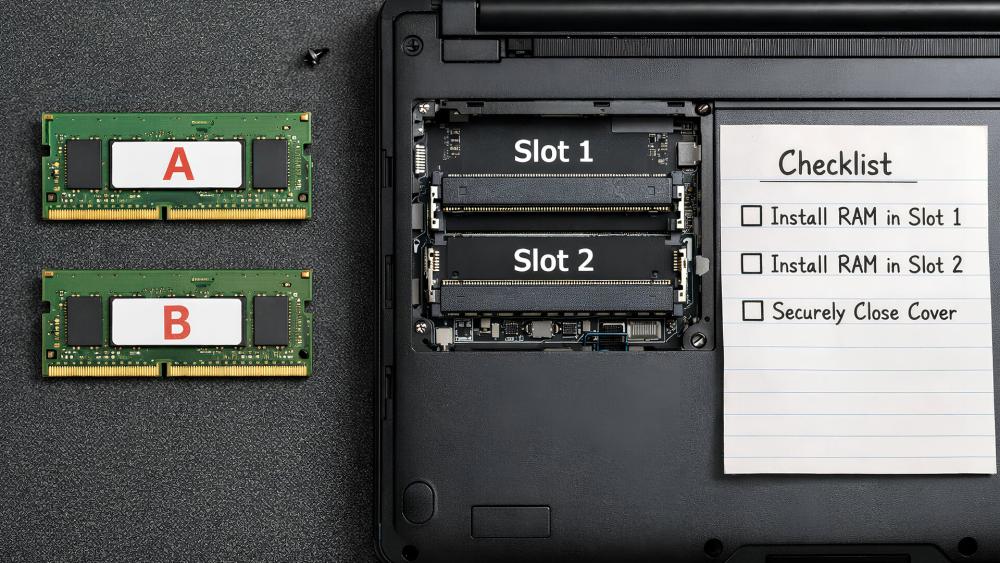
This is the fastest way to solve laptop RAM not detected without guessing.
Do this matrix test (yes, it’s a bit nerdy, but it works):
- Put Stick A in Slot 1 → boot and note result
- Stick A in Slot 2 → boot and note result
- Stick B in Slot 1 → boot and note result
- Stick B in Slot 2 → boot and note result
What the results mean:
- Only one stick fails in both slots: that stick is likely faulty (bad RAM card)
- Both sticks fail in one slot but work in the other: likely bad motherboard RAM slots
- Both sticks fail everywhere: compatibility, BIOS/UEFI, or motherboard issue
- Only mixed pair fails: mismatch timing/voltage or memory controller training issue
This is also a solid RAM test approach when you don’t have software tools available because the laptop won’t boot.
Reset BIOS / UEFI
A corrupted or confused BIOS/UEFI setting can cause laptop RAM not detected, especially after hardware changes.
Try these in order:
- Load "Optimised Defaults" in BIOS/UEFI (if you can enter it)
- Disable memory overclocking settings (rare on laptops but possible)
- If there’s a "memory training" or "fast boot" toggle, try disabling fast boot
- Clear CMOS (some laptops have a battery connector, others have a reset hole)
If you can’t reach BIOS, a full power drain plus CMOS reset method (if supported) is often enough to kick RAM detection back into line.
BIOS Updates and Hardware Recognition
If your laptop supports it, updating BIOS can improve memory compatibility and fix laptop RAM not detected scenarios on newer RAM kits.
Keep it safe:
- Only update BIOS when the laptop is stable on a known-good RAM setup
- Stay on mains power during the update
- Follow your manufacturer’s exact process
This step is especially important if you’re moving from older modules to newer-density sticks, where BIOS might not recognise the module layout properly.
How to Tell If the RAM Itself Is Actually Failing
By now, you’ve either fixed the laptop RAM not detected issue or you’ve narrowed it down. If you suspect the RAM is failing, look for patterns that point at the sticks, not the laptop.
Here are strong indicators that RAM memory itself is the issue, not compatibility:
Random Crashes Even with Old RAM:
If the laptop worked for months and now shows laptop RAM not detected plus random crashes, freezes, or blue screens even with the original RAM sticks, memory degradation or damage is on the table.
Errors Across Multiple Slots
If you’ve tested both motherboard RAM slots and the same stick errors everywhere, that’s a classic "bad module" sign. This is where a proper RAM test tool (like MemTest86) is useful once you can boot.
Failures After Heat or Power Events
If the issue started after a major overheating incident, liquid spill, or power surge, RAM can be collateral damage. Heat-stressed memory can behave fine sometimes, then trigger RAM detection failures under load.
If you want more details on this, you might want to check our guide on signs your laptop RAM may be failing for help.
Special Scenarios Where Users Can’t Fix the Issue
Some laptop RAM not detected cases are simply not DIY, and that’s not a skill issue. It’s the hardware.

Soldered Memory Laptops
Many thin-and-light laptops have soldered RAM. If the memory is soldered and the system reports laptop RAM not detected, you can’t swap RAM sticks because there are none. At that point, you’re looking at board-level repair or replacement.
Tip: If your laptop has one slot plus soldered RAM, you can still upgrade the slot, but you must be extra careful with compatibility to avoid ram detection issues.
CAMM2-based platforms
Some newer laptops use CAMM-style memory (a different module format). If your laptop uses CAMM2 and you’re getting laptop RAM not detected, you usually need manufacturer-approved parts and correct torque/installation methods. This is often best handled by a service centre.
Manufacturer-locked configurations
Some laptops are picky with RAM. They might boot with certain brands or module layouts and refuse others, leading to laptop RAM not detected even if the module is technically "correct" on paper. In these cases, sticking to known-good modules for compatibility is the play.
Final Checklist Before Replacing Any Hardware
Before you spend money because laptop RAM not detected is still haunting you, run this quick list:
- You reseated both ram sticks and confirmed the clips latch
- You tested one module at a time in each slot (basic ram test matrix)
- You confirmed DDR generation and SO-DIMM type (DDR4 vs DDR5)
- You checked the laptop’s RAM limits (per slot and total)
- You reset BIOS/UEFI to defaults
- You ruled out power issues and tried a full power drain
- You used an external monitor to confirm it’s not a display fault
- You considered overheating and cleaned/repasted if needed
If the laptop RAM not detected problem still persists and your matrix test points at the modules, replacing them is reasonable.
Conclusion
A laptop RAM not detected error looks dramatic, but in most cases it’s fixable with calm, methodical ram troubleshooting. Start with seating and compatibility, then isolate sticks and motherboard RAM slots using the one-at-a-time test. If the laptop still won’t boot, reset BIOS/UEFI and rule out power, heat, and display output problems. Once you’ve done those steps, you’ll know whether you’re dealing with bad RAM, a bad slot, or a non-DIY scenario like soldered memory. If you do need new memory, choose the right generation and form factor so you don’t end up back at square one with laptop RAM not detected. Browse laptop RAM options at Box to choose the right option for your needs.
FAQs:
How to check system RAM?
To check RAM in Windows, open Task Manager → Performance → Memory. In BIOS/UEFI, look for installed memory capacity. If laptop RAM not detected prevents boot, do the one-stick-at-a-time test to confirm basic RAM detection.
Why is my laptop not showing RAM?
Most commonly, the stick is not seated properly, the RAM is incompatible, or one of the motherboard RAM slots is faulty. If laptop RAM not detected appears after an upgrade, verify DDR generation and SO-DIMM type first.
How do you activate your RAM in BIOS?
Most laptops auto-detect RAM, so there’s nothing to "activate". If laptop RAM not detected is happening, reset BIOS/UEFI to defaults and disable any fast boot or memory-related tweaks, then re-test seating and compatibility.
How to enable both RAM in BIOS?
If one stick isn’t showing, swap modules between slots to see if the issue follows the stick or the slot. A slot-only failure points to motherboard RAM slots trouble. A stick-only failure points to a bad module or compatibility issue causing laptop RAM not detected.
How to make BIOS detect new RAM?
Ensure the module is compatible (DDR4 vs DDR5, SO-DIMM, capacity limits), reseat it correctly, then reset BIOS/UEFI defaults. If needed, update BIOS once the system is stable on known-good memory. This fixes many laptop RAM not detected cases tied to newer module layouts.
You can pay with:
*PayPal Credit Representative Example: Assumed credit limit £1,200, Representative 23.9% APR (variable). Purchase rate 23.9% p.a (variable).Terms & Conditions apply.


PayPal Credit and PayPal Pay in 3 are trading names of PayPal UK Ltd, 5 Fleet Place, London, United Kingdom, EC4M 7RD. Terms and conditions apply. Credit subject to status, UK residents only, Five Tech LTD acts as a broker and offers finance from a restricted range of finance providers. PayPal Pay in 3 is not regulated by the Financial Conduct Authority. Pay in 3 eligibility is subject to status and approval. 18+. UK residents only. Pay in 3 is a form of credit. Check if affordable and how you will repay. May make other borrowing more difficult or expensive. See product terms for more details.
Copyright © 1996-2026 Fivetech LTD | Terms and Conditions
box.co.uk & Box are trading names of Five Tech Limited. Registered office: Box LTD, Unit 10 Woodford Trading Estate, Woodford Green IG8 8HF