


 Menu
MenuMenu


Get Sales Advice from Mon - Fri 9am - 5:00pm:
020 3337 8950LAST UPDATED: January 27, 2026
Troubleshooting Your 10-Inch Tablet: Quick Fixes for Slowdowns, Battery and Wi-Fi Issues
Even a well-specced tablet can run into problems over time. If apps feel sluggish, battery life drops unexpectedly, or Wi-Fi keeps disconnecting, it can quickly turn everyday use into a frustration. The good news is that most issues can be resolved without specialist tools or repairs.
This 10 inch tablet troubleshooting guide covers the most common performance, battery, storage, and connectivity problems, along with simple fixes you can apply straight away. It also helps you decide when a repair makes sense and when it may be time to upgrade.
Fixing Slow or Laggy Performance
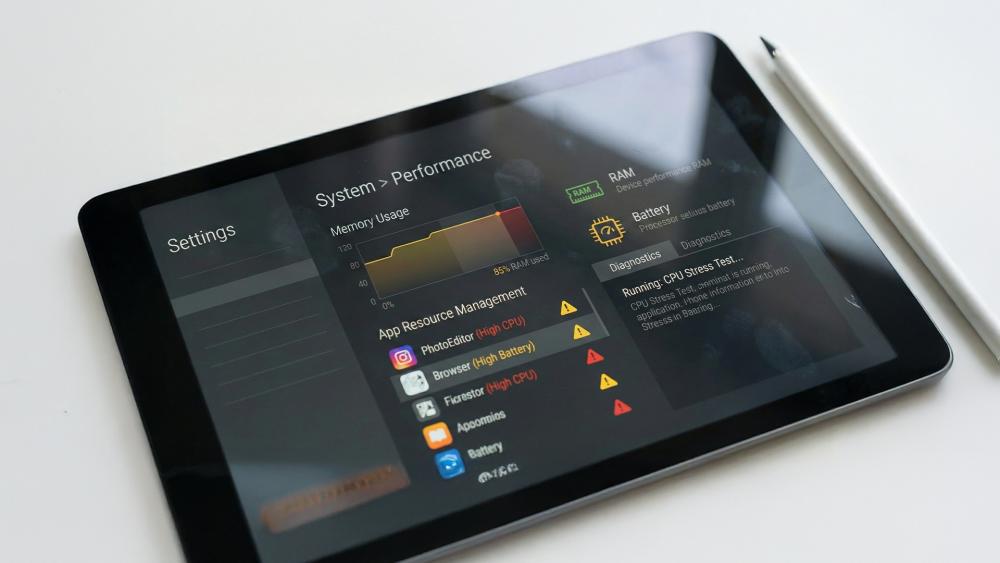
Slow performance is one of the most common complaints with tablets, but it is often caused by software issues rather than failing hardware.
Restart, Updates, and Quick System Checks
A full restart clears temporary files and resets background processes. It is a simple step, but one that resolves many issues immediately.
You should also check for:
- Pending system or security updates
- App updates that may improve performance
- Low power or battery saver modes that limit speed
Keeping software up to date is one of the easiest ways to keep your tablet running fast over time.
Background Apps and Performance Drains
Many apps continue running even when not actively in use. These background processes can slow performance and increase load on the system.
Closing unused apps, limiting background refresh, and reviewing which apps are allowed to run continuously helps restore responsiveness. Messaging and social apps are common culprits here.
App Issues and Simple Resets
If performance issues appear only when using a specific app, the app itself may be the problem. Clearing its cache or reinstalling it often fixes crashes, freezes, or lag.
If multiple apps behave unpredictably, a settings reset (without erasing data) can resolve deeper system conflicts.
Battery Drain and Overheating Fixes
Battery problems are closely linked to performance and usability. Sudden drain or excess heat usually indicates a settings or app issue.
Brightness, Refresh Rate, and Battery Settings
High screen brightness and elevated refresh rates consume more power. Adjusting these settings can significantly extend battery life during everyday use.
Reducing brightness, enabling adaptive brightness, and choosing balanced performance modes often helps fix 10-inch tablet battery problems, especially during long sessions.
App Behaviour That Causes Drain
Some apps drain the battery faster than others due to constant syncing, location access, or background activity. Reviewing battery usage statistics highlights which apps are responsible.
Limiting background access or replacing problematic apps reduces drain and improves overall stability.
Heat Causes and Safe Cooldown Steps
Overheating is often caused by:
- Prolonged gaming or video streaming
- Charging while under heavy load
- Using the tablet in warm environments
If the tablet feels hot, stop intensive tasks, remove the case temporarily, and allow it to cool naturally. Avoid placing it on soft surfaces that trap heat.
Freeing Up Storage and Removing Unwanted Apps
Low storage affects performance, updates, and app stability. Regular clean-up prevents these issues from building up.
Storage Clean-Up Priorities
Start by checking which categories use the most space. Media files, downloads, and cached data are usually the biggest contributors.
Clearing unnecessary files improves responsiveness and reduces update failures.
Removing Unused Apps and Downloads
Apps installed months ago but never used still consume storage and background resources. Removing them frees space and reduces system load.
Old downloads, PDFs, and installers can also be safely deleted once no longer needed.
Photo, File, and Cache Management
Backing up photos to cloud storage and clearing app caches helps reclaim space without losing important data. This is a key part of effective tablet storage cleanup.
Software, Settings and Reset Options to Fix Persistent Issues
When basic troubleshooting steps do not fully resolve problems, deeper software checks can often restore stability without requiring repairs. These steps are still safe for most users and focus on system-level fixes rather than hardware changes.
Network, Settings, and Preference Resets
Resetting system preferences can clear hidden configuration issues that affect performance, battery life, or connectivity. This does not remove personal data but restores default system behaviour.
This step is particularly useful when:
- Wi-Fi drops continue despite router fixes
- Battery drain persists after adjusting settings
- Performance feels inconsistent across apps
A settings reset is often more effective than repeated restarts when problems keep returning.
System Cache and Temporary File Clearing
Over time, temporary files and cached system data can build up and affect stability. Clearing system cache helps remove outdated data without impacting apps or files.
This can improve:
- App loading times
- System responsiveness
- Update reliability
It is a safe step to try before considering more drastic measures.
Factory Reset as a Last Software Option
If all other fixes fail, a factory reset can resolve deep software corruption. This should only be done after backing up all data.
A factory reset is worth considering if:
- Performance issues remain after updates and resets
- Battery behaviour is erratic without clear cause
- Apps crash across the system
In many cases, this restores performance to near-new levels.
Wi-Fi and Connectivity Problem Fixes

Unstable Wi-Fi is frustrating, especially when streaming, gaming, or working remotely. Fortunately, most tablet Wi-Fi issues are easy to diagnose.
Router and Network Basics to Check First
Start with the basics:
- Restart the router
- Move closer to the access point
- Check if other devices are affected
These steps rule out temporary network problems before adjusting tablet settings.
Device Settings That Affect Stability
On the tablet itself, toggling Wi-Fi off and on or resetting network settings can resolve persistent dropouts. Forgetting and reconnecting to the network often refreshes the connection.
Understanding Wi-Fi issues on tablets also helps when deciding whether a cellular model would offer better reliability.
Mobile Hotspot and Fallback Options
If your tablet supports mobile data or hotspot connections, using them temporarily helps determine whether the issue is network-related or device-specific.
This is particularly relevant when comparing Wi-Fi vs cellular tablets for consistent connectivity.
Audio, Camera and Peripheral Issues That Affect Everyday Use
While performance, battery, and Wi-Fi issues are the most common complaints, problems with audio, cameras, and connected accessories can also disrupt everyday tablet use. These issues are often software-related and can be fixed without repairs.
Speaker and Microphone Problems During Calls or Media Playback
If sound cuts out, distorts, or microphones stop working, the cause is often incorrect app permissions or audio routing. Checking sound output settings and ensuring the correct microphone is selected usually resolves the issue.
Bluetooth audio devices can also override built-in speakers, so disconnecting unused devices helps restore normal playback.
Camera Apps Crashing or Producing Poor Image Quality
Camera issues are often caused by app conflicts or outdated software. Restarting the tablet and updating the camera app resolves most problems.
Poor image quality can also result from storage being nearly full, as the system struggles to process and save files efficiently.
Keyboard, Mouse, and Accessory Connection Issues
Bluetooth accessories occasionally fail to reconnect after sleep or updates. Turning Bluetooth off and on or re-pairing the accessory usually restores the connection.
Keeping firmware and system updates current reduces recurring accessory issues over time.
App Compatibility and Software Support Limitations
Some problems are not caused by faults, but by software limitations related to app support or operating system age. Understanding this helps avoid chasing fixes that will never fully resolve the issue.
Apps No Longer Updating or Installing Correctly
If apps stop updating, the tablet may be running an older operating system version. This is common with ageing devices that no longer receive major updates.
In these cases, clearing app store cache and restarting may help temporarily, but long-term limitations remain.
Features Missing After App Updates
Occasionally, app updates remove features or change layouts, which can feel like a device issue. Reviewing app change logs or reverting to alternative apps often solves the problem.
This is not a fault with the tablet itself, but a change in software support.
When Software Limits Indicate an Upgrade Is Necessary
If multiple essential apps stop working correctly due to OS limitations, upgrading becomes the most reliable solution. Hardware repairs will not restore lost software compatibility.
This is one of the clearest indicators that it may be time to move on from the device.
Environmental and Usage Factors That Cause Repeated Issues
Some tablet problems return because of how and where the device is used, rather than faults with the tablet itself.
Using Tablets in Heat, Cold, or High Humidity
Extreme temperatures affect battery performance, screen responsiveness, and internal components. Tablets left in cars or near heat sources often experience throttling or sudden shutdowns.
Allowing the device to return to room temperature before use helps prevent long-term damage.
Charging Habits That Increase Wear Over Time
Constant charging while using demanding apps generates heat and accelerates battery wear. Using slower chargers during light tasks and avoiding full drain cycles improves longevity.
These habits reduce how often battery-related troubleshooting is needed.
Surface Placement and Airflow Restrictions
Placing tablets on soft surfaces such as beds or sofas restricts airflow and increases heat build-up. Using hard, flat surfaces improves cooling and system stability.
This is a surprisingly common cause of recurring overheating complaints.
Preventing Future Tablet Issues with Simple Maintenance Habits
Troubleshooting fixes issues in the moment, but good habits help prevent them from returning. A small amount of regular maintenance keeps a tablet reliable for years.
Keeping Software and Apps Updated Safely
Regular updates improve security and performance, but installing them during charging and idle time prevents slowdowns or overheating during use.
Delaying updates for too long can lead to compatibility issues and performance degradation.
Managing Storage Before It Becomes a Problem
Keeping at least some free storage space available allows the system to function smoothly. Waiting until storage is completely full often causes lag, update failures, and app crashes.
Checking storage usage monthly helps avoid emergency clean-ups later.
Physical Care That Affects Performance
Heat, dust, and poor airflow can all affect performance over time. Using protective cases that allow ventilation and avoiding prolonged charging under heavy load reduces stress on internal components.
This complements good digital habits and helps extend device lifespan.
When to Stop Troubleshooting and Seek Professional Help
Knowing when to stop self-troubleshooting is just as important as knowing what to try.
Warning Signs of Hardware Failure
Issues such as swelling batteries, persistent overheating, or visible screen distortion should not be ignored. These are signs of hardware failure rather than software faults.
Continuing to use the tablet in these conditions can cause further damage.
Data Protection Before Seeking Repairs
Before handing a device over for repair, backing up and signing out of accounts protects personal data and prevents access issues later.
This step is often overlooked and can cause unnecessary stress.
Choosing Repair or Replacement with Confidence
If troubleshooting repeatedly leads to the same issues, professional assessment or replacement is often the most cost-effective choice. At this stage, continued DIY fixes usually offer diminishing returns.
Repair vs Upgrade Decision Points
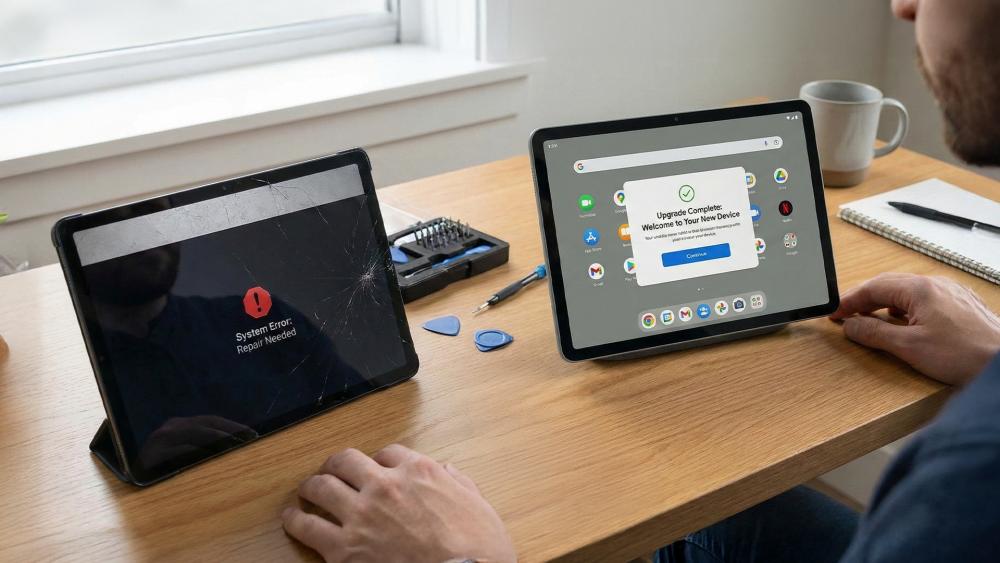
Not every issue means your tablet is at the end of its life. Knowing when to repair and when to upgrade saves money and time.
Common Faults That Are Worth Repairing
Issues such as battery degradation, charging port wear, or cracked screens are often worth fixing. With proper care, these repairs extend usability significantly.
Learning how to protect and repair your 10-inch tablet can prevent repeat damage after repairs.
Signs It's Time to Upgrade
It may be time to upgrade if:
- Software updates are no longer supported
- Performance issues persist after resets
- Battery life is poor even after optimisation
In these cases, upgrading to a newer model delivers noticeable improvements. Many users are surprised by what they gain when they upgrade to a new 10-inch tablet.
Data Backup Steps Before Repair or Upgrade
Before any repair or upgrade, back up:
- Photos and videos
- App data and documents
- Account credentials and settings
This ensures nothing is lost if the device needs to be reset or replaced.
Conclusion
Most issues covered in this 10 inch tablet troubleshooting guide are caused by software settings, background processes, or storage and connectivity problems rather than hardware failure. By working through performance checks, battery adjustments, Wi-Fi fixes, and storage clean-ups, many tablets can be restored to smooth, reliable operation in minutes.
Knowing when to repair and when to upgrade is just as important. Simple hardware fixes can extend a tablet's life, while upgrades make sense once software support or performance limits are reached. Regular maintenance, careful updates, and smart storage management reduce how often problems occur in the first place.
With the right approach, a 10-inch tablet can stay fast, stable, and dependable long after its initial setup.
FAQs
What are the quickest fixes for a slow 10-inch tablet?
Restarting the device, updating software, and closing background apps resolve most performance issues quickly.
What causes battery drain and overheating on a 10-inch tablet?
High brightness, demanding apps, background activity, and charging under load are the most common causes.
Why does tablet Wi-Fi keep dropping at home?
Router issues, weak signal strength, or outdated network settings on the tablet often cause Wi-Fi instability.
What's the safest way to free up storage on a tablet?
Remove unused apps, clear caches, and back up photos before deleting local copies.
When is it better to repair a tablet instead of upgrading?
Repairs make sense for isolated hardware faults, but upgrades are better when performance and software support decline.
You can pay with:
*PayPal Credit Representative Example: Assumed credit limit £1,200, Representative 23.9% APR (variable). Purchase rate 23.9% p.a (variable).Terms & Conditions apply.


PayPal Credit and PayPal Pay in 3 are trading names of PayPal UK Ltd, 5 Fleet Place, London, United Kingdom, EC4M 7RD. Terms and conditions apply. Credit subject to status, UK residents only, Five Tech LTD acts as a broker and offers finance from a restricted range of finance providers. PayPal Pay in 3 is not regulated by the Financial Conduct Authority. Pay in 3 eligibility is subject to status and approval. 18+. UK residents only. Pay in 3 is a form of credit. Check if affordable and how you will repay. May make other borrowing more difficult or expensive. See product terms for more details.
Copyright © 1996-2026 Fivetech LTD | Terms and Conditions
box.co.uk & Box are trading names of Five Tech Limited. Registered office: Box LTD, Unit 10 Woodford Trading Estate, Woodford Green IG8 8HF