


 Menu
MenuMenu


Get Sales Advice from Mon - Fri 9am - 5:00pm:
020 3337 8950LAST UPDATED: January 27, 2026
How to Keep Your 10-Inch Tablet Running Fast Over Time
A tablet rarely becomes slow overnight. It usually starts with small delays, apps taking a little longer to open, scrolling not feeling smooth, and multitasking becoming frustrating. Over time, those minor slowdowns add up and make everyday use feel harder than it should.
The good news is that most performance drops are avoidable. With the right habits and a bit of regular maintenance, you can keep strong 10 inch tablet speed for far longer than many people expect. This guide explains what causes tablets to slow down, the practical steps that help maintain performance over time, and how to tell when ongoing fixes are no longer enough and an upgrade is the better option.
Understanding Android Tablet Performance: What Actually Makes a Tablet Fast?
Before fixing performance issues, it helps to understand what controls 10 inch tablet speed in the first place. A tablet works like a system of connected parts. If one part is under strain, everything else slows down.
Most performance problems come down to four core areas: processing power, memory, storage, and software behaviour.
The Processor: CPU and GPU Working Together
The CPU handles everyday tasks like opening apps, browsing, and system processes. The GPU focuses on visuals, including games, video playback, and animations.
Tablets with modern octa-core processors, such as MediaTek Helio or Qualcomm Snapdragon chips, handle multitasking more smoothly. A stronger GPU also improves animation smoothness and gaming performance.
This matters for both entertainment tablets and specialist devices. For example, healthcare Android tablets rely on stable CPU performance to keep patient apps responsive during busy workflows.
RAM: How Many Apps Your Tablet Can Handle at Once
RAM is short-term memory. It holds data for apps you're actively using.
When RAM fills up, the tablet starts closing background apps to free space. This causes reloads, lag, and stuttering. Many mid-range tablets still ship with 3–4GB of RAM, while newer models offer 6GB or more for better multitasking.
This is especially noticeable on kids tablets, where multiple games, videos, and learning apps can quickly overwhelm limited memory.
Storage: Why Full tablets feel slow
Internal storage affects more than file space. When storage usage exceeds roughly 80%, tablets struggle to write temporary data efficiently. This slows app launches, updates, and system processes.
Higher-end tablets use faster storage types like UFS, while budget models often rely on slower eMMC storage. Keeping free space available is critical for long-term tablet speed optimisation.
Tablets Runs Slow? Here's How to Keep it Running Faster
1- Clearing Storage and Unused Apps
Storage has a direct and measurable impact on 10 inch tablet speed, yet it's often overlooked. Tablets rely on free internal storage not just for files, but for system operations like app caching, background updates, and temporary data processing. When storage becomes crowded, the system slows down because it can't move data efficiently.
Storage Clean-up Priorities
For consistent 10 inch tablet performance, it's recommended to always keep at least 15–20% of internal storage free. Once a tablet drops below roughly 80% capacity, read-and-write operations become slower, which can lead to lag, longer app load times, and occasional freezing.
A good starting point for tablet storage cleanup is checking which categories are using the most space. On Android tablets, tools like Files by Google or Device Care (on Samsung tablets) clearly show storage breakdowns. On iPadOS, the Storage section highlights large apps and unused content that can be removed safely.
Clearing app cache and data
Apps store temporary files, known as cache, to load faster. Over time, this cache can become bloated or corrupted, which negatively impacts 10 inch tablet performance.
Clearing cache is safe and does not remove personal data. For apps that frequently crash or freeze, clearing app data can also help, though it resets the app to its default state.
How to clear app cache on a tablet:
- Go to Settings
- Tap Apps (or Applications)
- Select the app you use most (for example, Chrome, YouTube, or social media apps)
- Tap Storage
- Select Clear Cache
- If problems persist, select Clear Data (you may need to sign in again)
For best results, clear cache for heavily used apps every 2–4 weeks. This form of routine cache management helps prevent gradual performance decline.
Removing unused apps and bloatware

Unused apps don't just take up space. Many continue running background services, which affects RAM usage and battery life.
How to remove unused apps properly:
- Go to Settings
- Tap Apps
- Review the full list of installed apps
- Select an app you no longer use
- Tap Uninstall to remove it completely
- If uninstall is not available, tap Disable to stop it running
This step is especially important for kids tablets, where unused games and learning apps quickly build up and affect responsiveness. Removing unused apps improves background app control and frees valuable storage.
Photo and File Housekeeping
Photos and videos are often the largest contributors to storage creep. High-resolution media files accumulate quickly, especially with automatic camera backups and messaging apps.
Regular storage management involves deleting duplicates, moving older media to cloud storage, or backing up files externally. Keeping media organised not only frees space but also makes system updates faster and more reliable.
2- Managing Background Processes and Notifications
Even when a tablet looks idle, many apps continue working in the background. These background processes use RAM, battery power, and processing resources, which gradually reduces 10 inch tablet speed if left unchecked.
Background activity and refresh controls
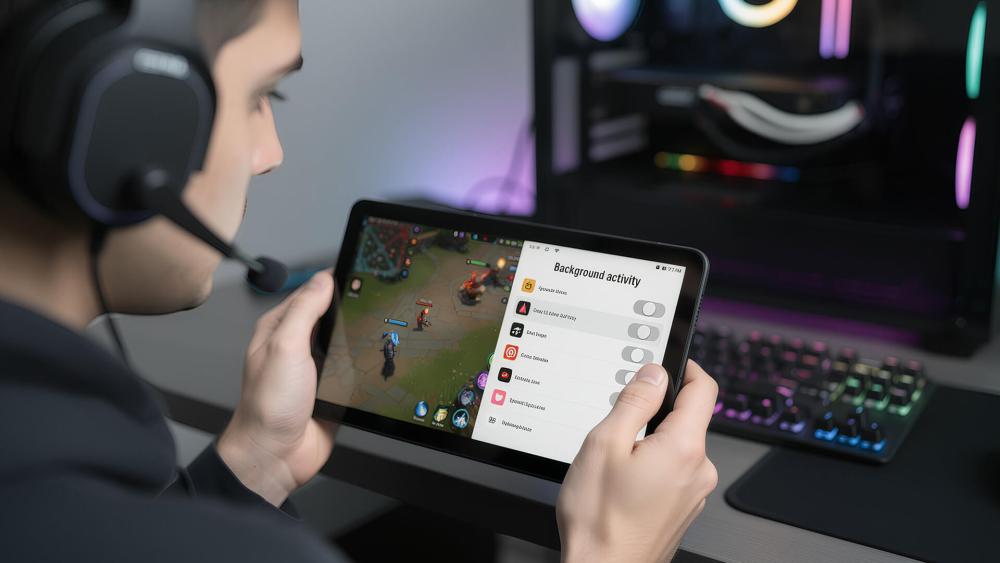
Background refresh allows apps to update content, sync data, and check for changes when you're not actively using them. While useful for some apps, too many running at once can slow overall performance.
How to limit background app activity:
- Go to Settings
- Tap Apps
- Select an app you don't need running constantly
- Tap Battery
- Choose Restrict or Optimise (wording varies by device)
Focus on social media, shopping apps, and games. Limiting background refresh for these apps improves background app control and frees up memory for active tasks.
Notification settings and performance impact
Every notification briefly wakes parts of the system. When dozens of apps send alerts, this constant activity affects both performance and battery life.
How to reduce notification-related slowdowns:
- Go to Settings
- Tap Notifications
- Review which apps are allowed to send alerts
- Turn off notifications for non-essential apps
- Keep notifications enabled only for messages, email, or critical apps
Reducing notifications lowers background processing and helps maintain stable tablet speed optimisation over time.
Startup and app behaviour habits
Some apps automatically start when the tablet powers on. These apps slow startup time and reduce available RAM before you even begin using the device.
Good performance habits to adopt:
- Restart the tablet at least once a week to clear temporary system memory
- Avoid force-closing essential apps unless needed
- Keep only regularly used apps installed
These small habits support long-term performance stability and reduce gradual slowdowns.
3- Software Updates and Security Patches
Keeping software up to date plays a major role in maintaining long-term 10 inch tablet speed. Updates are not just about new features; they often fix bugs, improve efficiency, and reduce background strain on the system.
Update routines and overall stability
Operating system updates are designed to improve how the tablet manages memory, storage, and background tasks. Over time, skipping updates can lead to performance drops and app instability.
How to check and install system updates:
- Go to Settings
- Tap System or About tablet
- Select Software update
- Tap Check for updates
- Install any available updates
- Enable automatic updates where possible
Keeping a regular update routine helps improve performance stability and prevents gradual slowdowns caused by outdated system processes.
App updates and compatibility
Apps are updated frequently to improve performance and stay compatible with newer versions of the operating system. Running outdated apps can cause freezing, crashes, and slower response times.
Best practice for app updates:
- Open the Google Play Store
- Tap your profile icon
- Select Manage apps & device
- Update apps regularly or enable auto-update
This ensures better app compatibility and helps your tablet handle multitasking more smoothly.
Security patches and device health
Security patches protect your tablet from vulnerabilities that can affect both safety and performance. Malware and exploits often run background processes that slow devices down.
Installing security patches improves device health and reduces the risk of performance issues caused by hidden threats. This is especially important for healthcare Android tablets, where stability and data protection are critical.
4- When Performance Issues Indicate an Upgrade
Regular maintenance can keep a tablet running smoothly for years, but there comes a point where software fixes are no longer enough. Knowing when slowdowns are caused by ageing hardware rather than settings helps you avoid wasting time on repeated tweaks that no longer deliver results.
Age-related slowdowns and hardware limits
As tablets get older, their processors, RAM, and storage reach practical limits. Newer apps and operating system updates are designed for faster chips and more memory, which puts increasing strain on older hardware.
Common signs of age-related slowdown include apps taking much longer to open, frequent reloads when switching between apps, delayed touch responses, and stuttering when scrolling. If these issues persist even after storage cleanup, cache management, background app control, and software updates, they are clear tablet upgrade signs rather than temporary problems.
Repair vs upgrade indicators

Unlike laptops, tablets are not designed to be easily upgraded. Components such as RAM and processors are fixed, and battery replacements may only offer limited improvement if overall performance is already constrained.
If a factory reset provides only short-term relief, or performance issues return quickly after basic optimisation, upgrading is often more cost-effective than repair. At this stage, it's worth reviewing options to upgrade to a faster tablet rather than continuing to troubleshoot ageing hardware.
| If you use your tablet for work, study, or multitasking, improving performance can also help you boost productivity by speeding up your tablet, especially when switching between apps or handling larger files. |
Data backup before upgrading
Before upgrading, always complete a full backup transfer to protect apps, photos, documents, and settings. Cloud sync services or local backups ensure nothing is lost and make setup on a new device much quicker.
Once your data is backed up, setup verification on a new tablet becomes straightforward, allowing you to restore content smoothly and benefit immediately from improved performance, better multitasking, and longer-term software support.
If you're unsure whether slow performance is a fixable issue or a sign it's time to move on, our guide to troubleshoot slow 10-inch tablets can help you decide with confidence.
5- Advanced performance tweaks (use with care)
If basic clean-up and background controls are no longer enough, there are a few deeper adjustments that can improve how fast a tablet feels in day-to-day use. These options don't increase raw hardware power, but they can reduce delays caused by animations and inefficient interfaces. They are best suited to confident users who are comfortable adjusting system settings.
Developer Options and animation scaling
Developer Options unlock hidden system settings that affect how the interface behaves. One of the most effective tweaks is reducing animation time. This doesn't make the processor faster, but it removes visual delays that make the tablet feel slow.
How to adjust animation settings:
- Go to Settings
- Tap About Tablet
- Tap Build Number seven times until Developer Options are enabled
- Return to Settings and open Developer Options
- Set Window Animation Scale, Transition Animation Scale, and Animator Duration Scale to 0.5x or Off
Reducing these animations makes apps open and close more quickly, improving perceived 10 inch tablet speed without affecting stability.
Using lightweight launchers
The launcher controls your home screen, app drawer, and navigation. Some default launchers include heavy animations, widgets, and background services that use extra RAM.
Switching to a lightweight launcher such as Nova Launcher or Lawnchair reduces memory usage and makes navigation feel more responsive. These launchers are especially helpful on tablets with limited RAM, where every background process matters.
Lightweight launchers also give more control over icons, grids, and gestures without adding extra system load.
Rooting and advanced control
Rooting gives full access to the operating system and allows deep changes such as removing system apps or overclocking hardware. While this can improve performance in specific cases, it comes with serious trade-offs.
Rooting can:
- Void warranties
- Reduce system security
- Cause instability or permanent damage if done incorrectly
Because of these risks, rooting is not recommended for most users. It should be avoided entirely on kids tablets, where safety and stability matter more than speed, and on healthcare Android tablets, where reliability and data protection are essential.
For long-term performance, regular maintenance and sensible settings provide far better results than aggressive system modifications.
Final thoughts: Keeping Your Tablet Fast for the Long Run
A slow tablet doesn't always mean it's time to replace it. In most cases, maintaining strong 10 inch tablet speed comes down to simple habits: keeping storage under control, managing background activity, staying up to date with software, and knowing when deeper tweaks are worth applying. These steps help your tablet stay responsive, stable, and reliable for everyday use.
However, when slowdowns persist despite regular maintenance, it's often a sign that hardware limits are being reached. At that point, upgrading can save time and frustration. At Box.co.uk, you can explore a wide range of latest 10-inch tablets designed for smoother multitasking, faster performance, and longer software support. Whether you're maintaining your current device or considering an upgrade, Box makes it easier to choose a tablet that stays fast for years to come.
Frequently Asked Questions
What's the best way to keep a 10-inch tablet running fast?
Regular storage cleanup, clearing app cache, limiting background apps, and keeping software updated are the most effective ways to maintain long-term performance.
Does clearing storage improve tablet performance?
Yes. Keeping at least 15–20% of storage free helps the system manage data efficiently and prevents slowdowns caused by full storage.
Can notifications and background apps slow down a tablet?
Yes. Excess notifications and background activity use RAM and processing power, which can reduce responsiveness and battery life.
Do software updates help performance over time?
They do. Software updates often include performance improvements, bug fixes, and security patches that help tablets run more smoothly.
When do performance issues suggest it's time to upgrade?
If slowdowns continue after optimisation, factory resets, and updates, and multitasking remains unreliable, it's usually a sign that the hardware has reached its limits and upgrading makes more sense.
You can pay with:
*PayPal Credit Representative Example: Assumed credit limit £1,200, Representative 23.9% APR (variable). Purchase rate 23.9% p.a (variable).Terms & Conditions apply.


PayPal Credit and PayPal Pay in 3 are trading names of PayPal UK Ltd, 5 Fleet Place, London, United Kingdom, EC4M 7RD. Terms and conditions apply. Credit subject to status, UK residents only, Five Tech LTD acts as a broker and offers finance from a restricted range of finance providers. PayPal Pay in 3 is not regulated by the Financial Conduct Authority. Pay in 3 eligibility is subject to status and approval. 18+. UK residents only. Pay in 3 is a form of credit. Check if affordable and how you will repay. May make other borrowing more difficult or expensive. See product terms for more details.
Copyright © 1996-2026 Fivetech LTD | Terms and Conditions
box.co.uk & Box are trading names of Five Tech Limited. Registered office: Box LTD, Unit 10 Woodford Trading Estate, Woodford Green IG8 8HF