


 Menu
MenuMenu


Get Sales Advice from Mon - Fri 9am - 5:00pm:
020 3337 8950LAST UPDATED: July 23, 2026
Windows 11 Debloat: Remove Bloatware Safely and Speed Up Your PC
A Windows 11 debloat can help make your PC feel cleaner, faster and easier to use. Over time, many Windows laptops collect pre-installed apps, OEM software, trial programs, startup applications, background processes, temporary files and tools you never use. These extras can take up storage, slow startup, use memory, and make the Start menu feel cluttered.
The good news is that you do not need to delete everything or run risky scripts to improve performance. The safest way to debloat Windows 11 manually is to remove unwanted applications, disable unnecessary startup apps, clear temporary files and adjust background settings carefully. This keeps Windows stable while still reducing clutter.
This guide explains how to debloat Windows 11 safely, what you can remove, what you should leave alone, when to use a Windows 11 debloater, and why tools such as Winhance, Win11Debloat and Chris Titus Tech’s utility should be used carefully.
If your laptop still feels slow after clean-up browse latest Windows 11 laptops and business-ready laptops at Box.co.uk.
What Does Windows 11 Debloat Mean?
Windows 11 debloat means removing or disabling unnecessary software, background tasks and pre-installed extras that you do not need. The aim is to make the system cleaner, reduce startup load, free storage and improve everyday responsiveness.
Bloatware can include trial antivirus tools, manufacturer utilities, games, promotional apps, unused Microsoft apps, shopping apps, media apps and programs that run automatically at startup.
However, debloating does not mean stripping Windows down until it breaks. A good debloat keeps useful Windows features, drivers, security tools and update services working properly.
What Counts as Windows 11 Bloatware?
Windows 11 bloatware usually means software that takes up space or system resources without providing value to you. This may include apps you never open, trial software, duplicate tools, promotional shortcuts, background updaters, and unnecessary startup applications.
Common examples include unused games, pre-installed streaming apps, manufacturer promotions, old printer utilities, expired security trials and apps that launch automatically even when you do not need them.
Some apps may look unnecessary but still be useful. For example, Windows Security, Microsoft Store, driver utilities and update components should usually be left alone unless you know exactly what you are doing.
Is It a Good Idea to Debloat Windows 11?
Yes, it can be a good idea to debloat Windows 11 if you do it carefully. A safe debloat can make your PC easier to use, reduce background activity and free storage. It can also help older laptops feel smoother, especially if they have limited RAM or storage.
The safest approach is simple: remove apps you recognise and do not use, disable startup programs that are not needed, clear temporary files and avoid aggressive system tweaks.
A risky debloat removes core Windows features, disables important services, deletes recovery tools or uses scripts without checking what they change. That can cause broken updates, missing features, app errors or system instability.
Safe Debloat vs Risky Debloat
| Debloat Type | What It Does | Risk Level |
|---|---|---|
| Manual app removal | Removes unwanted apps through Settings | Low |
| Startup app management | Stops unnecessary apps launching at sign-in | Low |
| Storage Sense clean-up | Deletes temporary files and Recycle Bin items | Low |
| PowerShell app removal | Removes selected built-in app packages | Medium |
| Third-party debloater tools | Applies multiple tweaks quickly | Medium to high |
| Debloated Windows 11 ISO | Installs a modified Windows image | High |
For most people, manual debloating is the best choice. It is slower, but much safer.
Before You Debloat Windows 11: Do These First
Before removing apps or changing settings, prepare your PC. This gives you a way back if something goes wrong.
Start by backing up important files. Save documents, photos, work files, downloads and browser bookmarks if needed. Then create a System Restore point, especially before using PowerShell or a third-party Windows 11 debloater.
Also check what is actually slowing your laptop. Open Task Manager and look at CPU, memory, disk and startup impact. If one app is using too much memory or launching at startup, you may not need a full debloat.
Quick Safety Checklist
| Step | Why It Matters |
|---|---|
| Back up important files | Protects your data before making system changes |
| Create a System Restore point | Gives you a rollback option if a tweak causes issues |
| Check Task Manager | Shows which apps actually affect performance |
| Remove apps slowly | Makes it easier to identify what caused a problem |
| Avoid unknown scripts | Prevents accidental removal of important Windows features |
Debloating should improve system stability, not make Windows harder to manage.
How to Debloat Windows 11 Manually
The best way to debloat Windows 11 manually is to use built-in tools first. Windows already gives you settings for uninstalling apps, managing startup programs, clearing storage and controlling background behaviour.
Manual debloating is better for beginners because you can see what you are removing. You are less likely to delete something important by accident.
Step 1: Remove Unwanted Applications
Go to Settings > Apps > Installed apps and review the list. Remove apps you clearly do not use, such as trial games, duplicate media players, unused shopping apps, expired antivirus trials or old device utilities.
This is the safest answer to how to delete Windows apps. If Windows allows you to uninstall the app from Settings, it is usually safe to remove.
Be careful with drivers, security tools, Microsoft Store, Windows Security, update tools and laptop-specific control apps. Some manufacturer apps are unnecessary, but others manage hotkeys, firmware updates, audio settings or battery features.
Step 2: Disable Startup Applications
Startup applications can slow boot time and use memory before you even open anything. Open Task Manager > Startup apps or go to Settings > Apps > Startup.
Disable apps that do not need to start automatically, such as game launchers, chat apps, cloud tools you do not use daily, media apps and printer utilities.
Do not disable security software, touchpad drivers, audio drivers or system utilities unless you understand what they do.
Step 3: Clear Temporary Files and Use Storage Sense
Go to Settings > System > Storage and use Storage Sense or Cleanup recommendations. These tools help remove temporary files, unused files, Recycle Bin content and other storage clutter.
This is safer than downloading a random cleaner. It also helps avoid deleting files that Windows still needs.
Step 4: Review Browser Extensions and Background Apps
A slow Windows 11 laptop is not always caused by Windows itself. Browser extensions can use memory, slow browsing and create pop-ups. Remove extensions you do not recognise or no longer use.
Also check apps that run in the background. Messaging tools, game launchers, cloud sync apps and update managers can all use resources.
Step 5: Uninstall Old Trial Software and OEM Software
Many laptops include OEM software from the manufacturer. Some tools are useful, such as update assistants or hardware diagnostics. Others are promotions, trial security suites or support apps you may never use.
Remove trial software that has expired, duplicate antivirus tools and promotional apps. Keep driver tools if you rely on them for firmware updates, laptop hotkeys or hardware diagnostics.
What to Delete to Debloat Windows 11
You should delete apps you understand and do not use. The safest Windows 11 debloat starts with obvious clutter, not core system features.
You can usually remove unused games, third-party trials, old launchers, duplicate media apps, unnecessary manufacturer promotions and apps you installed but no longer need.
Be more careful with system apps, drivers and services. Removing the wrong component can break Windows features, updates, search, security, Microsoft Store apps or device controls.
Apps You Can Usually Consider Removing
| App Type | Why You Might Remove It |
|---|---|
| Trial antivirus software | Can slow startup after the trial expires |
| Unused games | Takes storage and adds clutter |
| Duplicate media apps | Not needed if you already use another player |
| Shopping or promotion apps | Usually not essential |
| Old printer/scanner tools | Useful only if you still use that device |
| Unused game launchers | Can run background updates |
| Unused cloud sync apps | Can use memory and network bandwidth |
Always restart after removing several apps and check that Windows still works normally.
Apps and Features You Should Usually Keep
Keep Windows Security, Microsoft Store, Windows Update, core drivers, touchpad utilities, audio drivers, graphics drivers, recovery tools and important manufacturer update tools.
You can remove these only if you are certain they are not needed. For most users, keeping them is safer.
Windows 11 Debloat for Gaming
A Windows 11 debloat for gaming should focus on reducing startup load, background apps and storage clutter. It should not involve deleting random system services or disabling Windows updates completely.
For gamers, the biggest benefit usually comes from disabling unnecessary launchers at startup, removing unused apps, closing overlays you do not use and keeping graphics drivers updated.
Useful gaming debloat steps include removing old game launchers, disabling unnecessary startup apps, turning off background apps you do not need, clearing temporary files and making sure your SSD has enough free space.
Do not remove Xbox services if you use Game Pass, Xbox app features, controller support or Microsoft Store games. Do not remove graphics utilities if you need them for driver settings.
If your laptop still struggles in games after a clean-up, it may be hardware rather than bloat. In that case, compare performance gaming laptops.
Debloat Windows 11 Pro: Is It Different?
Debloat Windows 11 Pro follows the same basic steps as Windows 11 Home, but Pro users may have more management options. Windows 11 Pro is often used by business users, students and professionals who may rely on work accounts, BitLocker, remote access, domain settings or company management tools.
That means Windows 11 Pro debloating should be even more careful. Do not remove work apps, security tools, VPN clients, management agents or Microsoft 365 tools if your organisation needs them.
For business laptops, the best approach is to remove personal clutter and unused apps, but keep security, update and management features intact.
If you are choosing a device for work, compare Windows 11 Pro models or business-ready laptops.
Windows 11 Debloat PowerShell: Should You Use It?
Windows 11 debloat PowerShell commands can remove built-in apps and packages more quickly than Settings. However, PowerShell is more advanced and should be used carefully.
PowerShell can be useful when an app does not show an uninstall button in Settings. But it can also remove packages that are linked to Windows features, Store apps or user profiles.
A safer approach is to use Settings first, then use PowerShell only for specific apps you clearly want to remove. Avoid copying long commands from random websites without reading what they do.
PowerShell Safety Tips
Only run commands from sources you trust. Read the script before running it. Avoid commands that remove large groups of packages without showing what they target. Create a System Restore point first. Do not run PowerShell as administrator unless the command actually requires it.
If you are not comfortable reading scripts, do not use them. Manual debloating is safer.
Windows 11 Debloat GitHub Tools: What to Know
There are many Windows 11 debloat GitHub tools. Some are useful and well-maintained, but they are still third-party tools that can change system settings quickly.
GitHub tools are not automatically safe just because they are open source. You still need to check when the tool was updated, what it removes, whether the changes are reversible, how active the project is and whether other users report issues.
Popular tools include Win11Debloat, Winhance and Chris Titus Tech’s Windows Utility. These tools can be helpful for advanced users, but beginners should start with Windows Settings.
Win11Debloat: What It Does
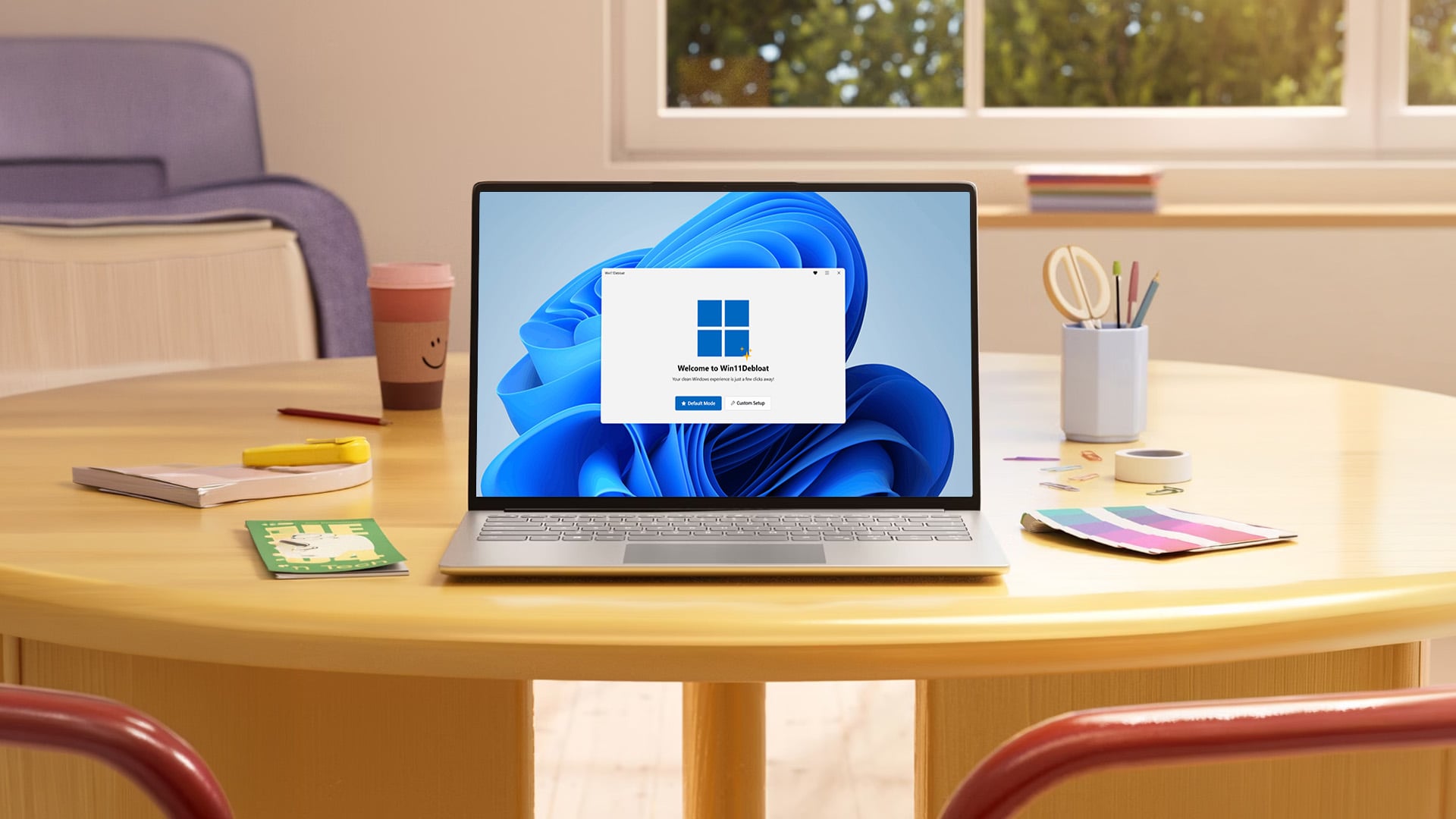
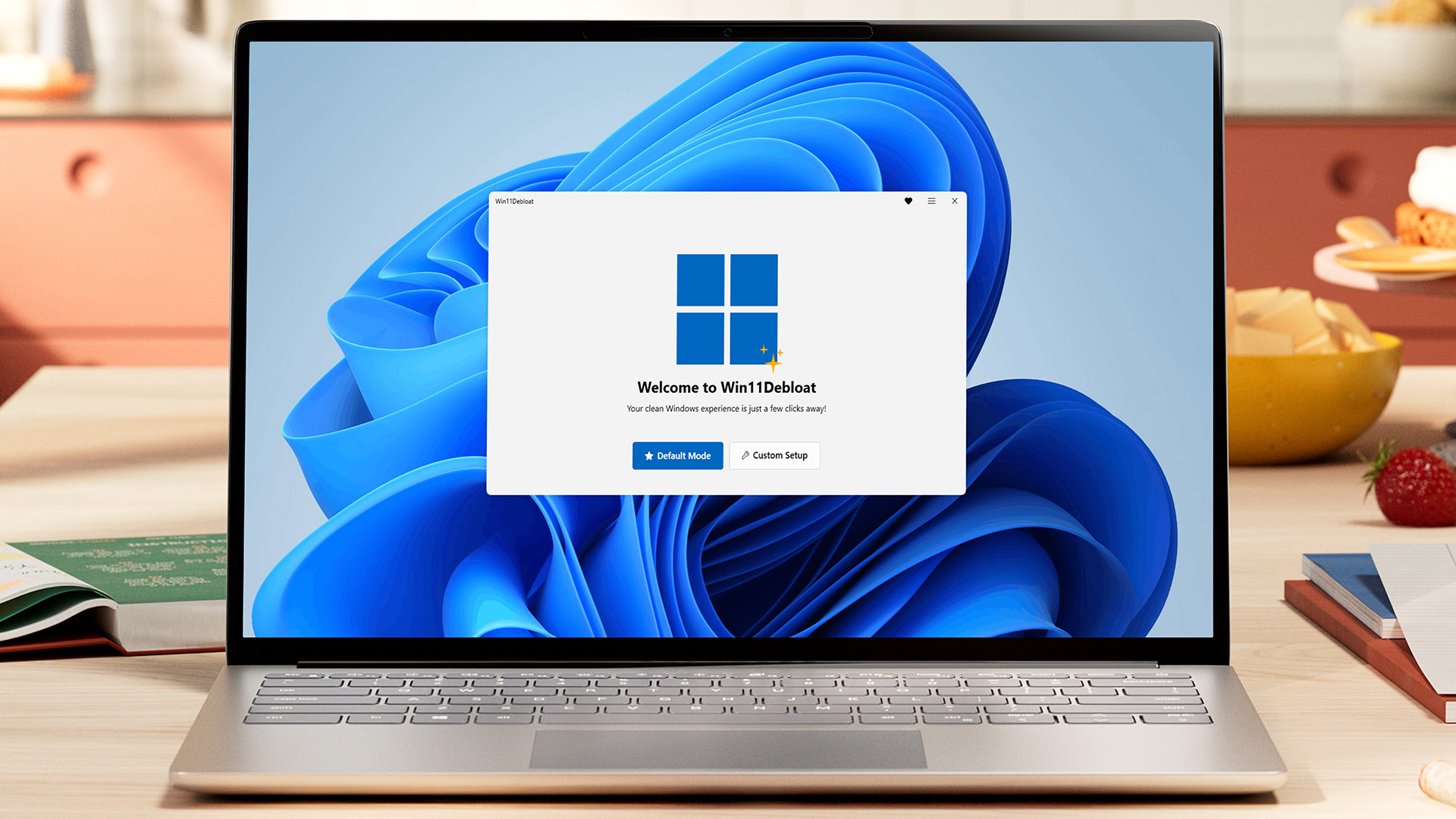
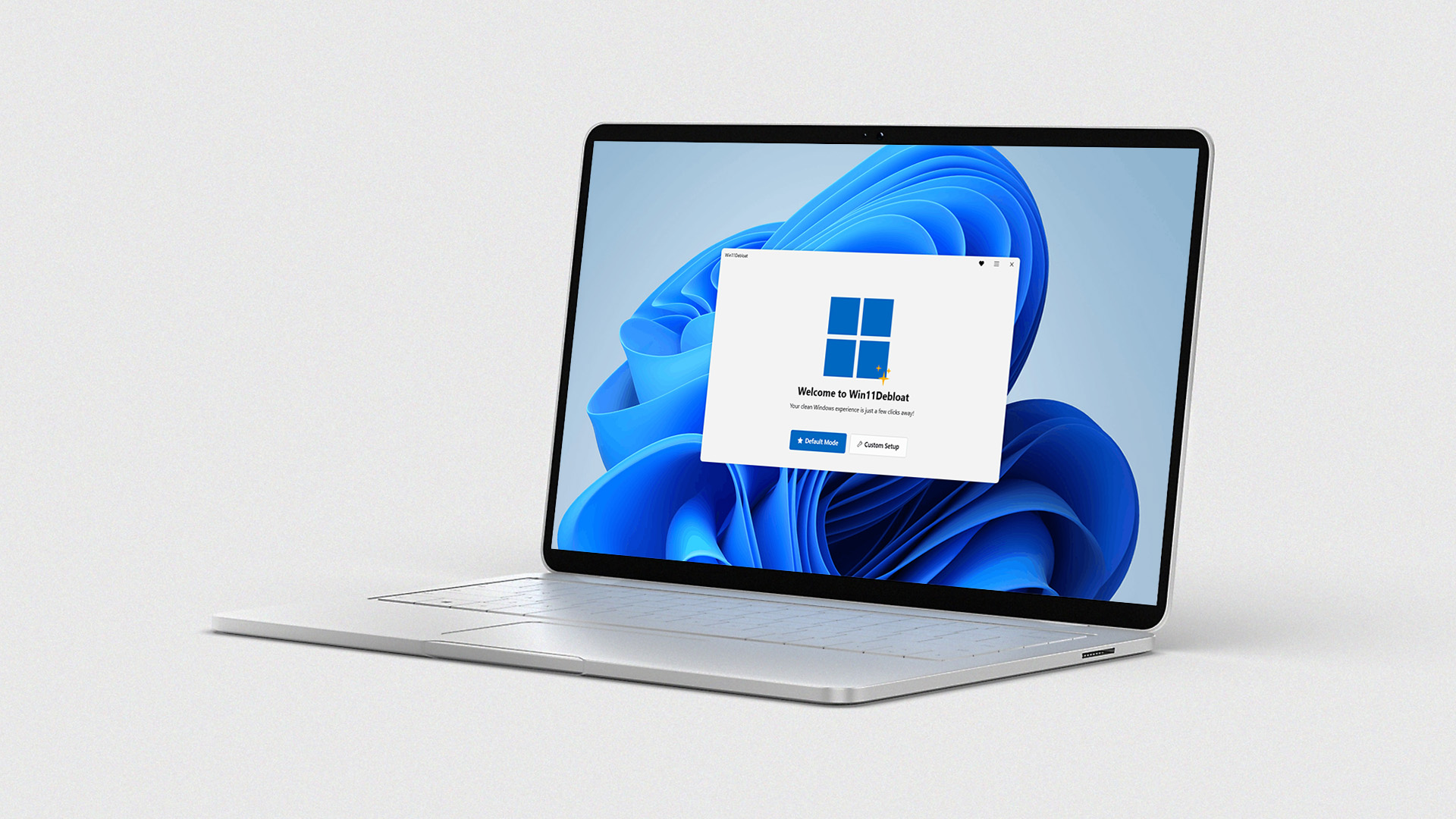
Win11Debloat is a PowerShell-based tool designed to remove pre-installed apps, disable some telemetry and clean up parts of the Windows experience. It is popular because it can apply several changes quickly.
The benefit is convenience. Instead of removing apps one by one, you can use a guided tool to apply multiple changes.
The risk is that you may remove features you later want. For example, if you use Microsoft Store apps, widgets, Copilot features, Xbox tools or certain Windows integrations, aggressive debloat options may not suit you.
Use Win11Debloat only after reading the options carefully. Do not choose every removal option just because it sounds cleaner.
Winhance: What It Does
Winhance is a Windows enhancement utility designed to debloat, optimise and customise Windows 10 and Windows 11. It uses a more visual interface than many script-only tools, which may make it easier to understand for some users.
It can help manage Windows apps, optional features, privacy settings, gaming and performance options, power settings and customisation.
The benefit is control. The risk is still the same: changing too many Windows settings at once can make troubleshooting harder. Use it slowly, apply changes in small groups and avoid options you do not understand.
Chris Titus Debloat Windows 11: Should You Use It?
Many users search for Chris Titus debloat Windows 11 because Chris Titus Tech’s Windows Utility is a well-known tool for Windows installs, tweaks, fixes and updates.
The utility can be helpful for advanced users who want a central tool for software installs, debloat tweaks and configuration. However, it should be treated as an advanced utility, not a casual “click everything” cleaner.
If you use it, choose conservative presets, read what each option does and avoid deep tweaks unless you know why you need them. The safest debloat is the one you can reverse or understand.
Windows 11 Debloater Tools: Pros and Cons
A Windows 11 debloater can save time, especially on a new laptop with lots of pre-installed apps. It can remove multiple apps, adjust privacy settings and disable unwanted features quickly.
However, debloater tools can also cause problems if they remove features you rely on. They may affect Microsoft Store, Xbox app features, widgets, search, Copilot, updates, OneDrive, printer tools or manufacturer utilities.
| Approach | Pros | Cons |
|---|---|---|
| Manual debloat | Safer, easier to understand, reversible | Slower |
| PowerShell commands | Precise and powerful | Easy to misuse |
| GitHub debloat tools | Fast and feature-rich | Can change too much at once |
| Debloated Windows ISO | Clean from first install | Highest risk, trust and update concerns |
For most readers, manual debloat is the best balance of safety and benefit.
Debloated Windows 11 ISO: Why You Should Be Careful
A debloated Windows 11 ISO is a modified Windows installation image with apps, services or features removed before installation. It may look attractive if you want a clean system from the start, but it carries more risk than normal debloating.
The biggest issue is trust. You need to know exactly who created the ISO, what was removed and whether anything else was added. A modified ISO can also create update issues, driver issues or missing feature problems later.
For most users, a clean official Windows install followed by manual debloating is safer than downloading a modified ISO from the internet.
If you are not an advanced user, avoid debloated ISOs.
How to Tell If Windows 11 Debloat Helped
After debloating, check whether your laptop actually feels better. Do not judge only by how many apps you removed.
Look at startup time, memory usage after boot, free storage, number of startup applications and general responsiveness. You can also use Task Manager to see whether background processes are lower than before.
If performance improves, keep your changes. If something breaks, use System Restore, reinstall the app or reverse the setting if possible.
For checking your PC’s performance score, read Windows Experience Index Guide: Check Your PC Score in Windows 11.
Common Windows 11 Debloat Mistakes to Avoid
The biggest mistake is removing too much too quickly. If you delete many apps and disable many services at once, it becomes difficult to know what caused a problem.
Another mistake is assuming every Microsoft app is bloatware. Some Windows apps support Store updates, security features, media tools, Xbox features, widgets or system functions.
A third mistake is using old scripts. Windows 11 changes over time, so an outdated debloat script may target features differently from the latest version.
Finally, do not disable Windows Update completely. Updates can be annoying, but they are important for security, drivers and system stability.
Best Safe Windows 11 Debloat Plan
The safest plan is simple. Start with manual steps, then move to advanced tools only if needed.
First, uninstall apps you do not use. Next, disable startup applications with high impact. Then use Storage Sense and Cleanup recommendations. After that, review browser extensions and background apps. Only then consider PowerShell or a trusted debloater tool for specific tasks.
This gives you most of the benefit with much less risk.
If Windows still feels slow after this, the problem may be limited RAM, an old SSD, weak CPU performance or malware rather than bloatware. Read our guide on fixes for a slow laptop for deeper troubleshooting.
Final Verdict!
A Windows 11 debloat is worth doing if your PC feels cluttered, slow to start or full of apps you never use. The safest method is to debloat manually through Windows Settings, Task Manager and Storage tools.
Remove unwanted applications, disable unnecessary startup apps, clear temporary files and keep important Windows features intact. Use PowerShell, Win11Debloat, Winhance or Chris Titus Tech’s utility only if you understand the changes and have a restore point.
Avoid aggressive debloating, random scripts and debloated Windows 11 ISO downloads unless you are an advanced user. A stable, clean Windows setup is better than a stripped-down system that breaks updates or features.
To explore newer devices, browse the Windows laptop range at Box.co.uk.
For more help, read our guide to useful Windows 11 features or learn How to Rotate Screen in Windows 11: Shortcuts, Settings & Fixes.
FAQs
Is it a good idea to debloat Windows 11?
Yes, it is a good idea if you do it safely. Removing unused apps, disabling unnecessary startup programs and clearing temporary files can make Windows 11 feel cleaner and faster. Avoid aggressive scripts unless you know what they change.
How to get rid of bloat in Windows 11?
Go to Settings, open Installed apps and uninstall programs you do not use. Then open Startup apps and disable unnecessary startup programs. Use Storage Sense or Cleanup recommendations to remove temporary files and unused storage clutter.
What to delete to debloat Windows 11?
Delete unused games, trial software, promotional apps, duplicate media apps, old launchers and apps you recognise but do not use. Avoid deleting drivers, Windows Security, Microsoft Store, Windows Update tools and important manufacturer utilities.
Is it safe to use Windows debloater?
A Windows debloater can be safe if it is trusted, updated and used carefully. However, it can also remove useful features or break settings if used aggressively. Beginners should start with manual debloating before using third-party tools.
What is the best Windows debloater?
There is no single best Windows debloater for everyone. For most users, the best debloat method is manual removal through Windows Settings and Task Manager. Advanced users may consider tools such as Win11Debloat, Winhance or Chris Titus Tech’s Windows Utility, but only after reading what each option does.
Is Chris Titus’ tool safe?
Chris Titus Tech’s Windows Utility is a popular open-source Windows tool, but it still makes system-wide changes. It is safer when used carefully with conservative settings and a restore point. Do not apply advanced tweaks unless you understand them.
Is Windows 11 still full of bloatware?
Windows 11 can include pre-installed apps, suggested content, OEM software and startup programs, especially on new laptops. Whether that counts as bloatware depends on what you use. The best approach is to remove what you do not need while keeping core Windows features stable.
You can pay with:
*PayPal Credit Representative Example: Assumed credit limit £1,200, Representative 23.9% APR (variable). Purchase rate 23.9% p.a (variable).Terms & Conditions apply.


PayPal Credit and PayPal Pay in 3 are trading names of PayPal UK Ltd, 5 Fleet Place, London, United Kingdom, EC4M 7RD. Terms and conditions apply. Credit subject to status, UK residents only, Five Tech LTD acts as a broker and offers finance from a restricted range of finance providers. PayPal Pay in 3 is not regulated by the Financial Conduct Authority. Pay in 3 eligibility is subject to status and approval. 18+. UK residents only. Pay in 3 is a form of credit. Check if affordable and how you will repay. May make other borrowing more difficult or expensive. See product terms for more details.
Copyright © 1996-2026 Fivetech LTD | Terms and Conditions
box.co.uk & Box are trading names of Five Tech Limited. Registered office: Box LTD, Unit 10 Woodford Trading Estate, Woodford Green IG8 8HF