


 Menu
MenuMenu


Get Sales Advice from Mon - Fri 9am - 5:00pm:
020 3337 8950LAST UPDATED: July 23, 2026
Windows Experience Index Guide: Check Your PC Score in Windows 11
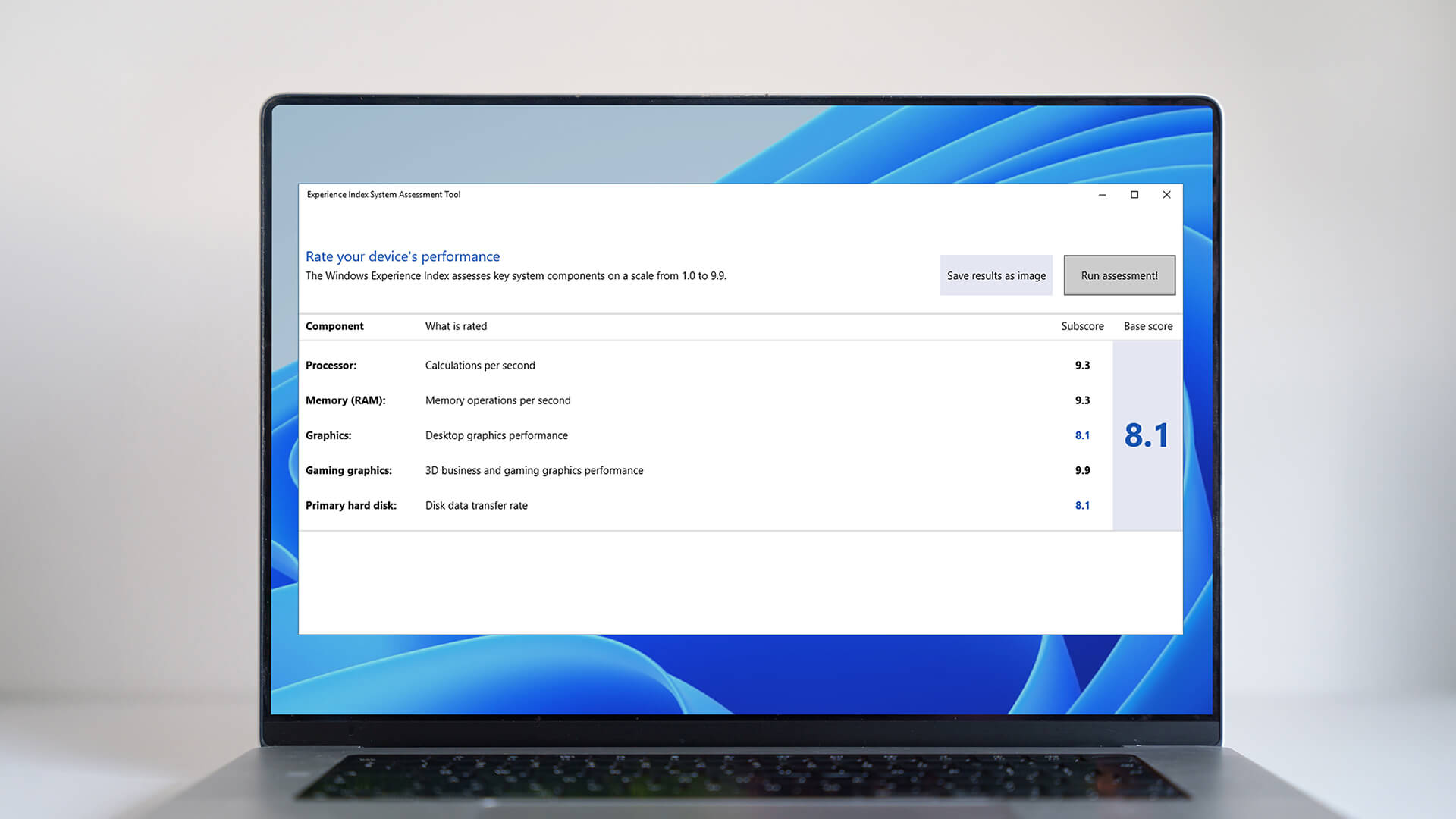
The Windows Experience Index is a built-in assessment that measures your PC’s processor, memory, graphics and primary storage performance. Each component receives a score, while the overall rating is set by the lowest result rather than an average. This makes it useful for spotting the part of the system most likely to limit performance.
Windows 11 no longer displays the original graphical score page, but the underlying Windows System Assessment Tool, known as WinSAT, is still available. You can run the assessment through Command Prompt and retrieve the results through PowerShell without installing third-party software.
This guide explains how to check the Windows 11 Experience Index, understand each subscore and fix missing or zero results. It also clarifies what the Windows performance index can tell you about your PC and where more specialised testing may still be needed.

How to Check the Windows Experience Index in Windows 11
You can run the Windows Experience Index using two built-in tools. Command Prompt performs the hardware assessment, while PowerShell displays the saved scores.
Step 1: Run the WinSAT Formal Assessment
- Save your work and close games or other demanding applications.
- If you are using a laptop, connect it to mains power.
- Open Start and search for Command Prompt or Windows Terminal.
- Select Run as administrator.
- Enter this command: winsat formal
- Press Enter and allow the assessment to finish.
The WinSAT Windows 11 command tests the processor, RAM, graphics and primary storage drive. Performance may temporarily slow while the checks are running, so avoid opening other applications until they have finished.
WinSAT stores the latest system assessment results in: C:\Windows\Performance\WinSAT\DataStore
Step 2: View the Scores in PowerShell
Once the WinSAT formal assessment is complete:
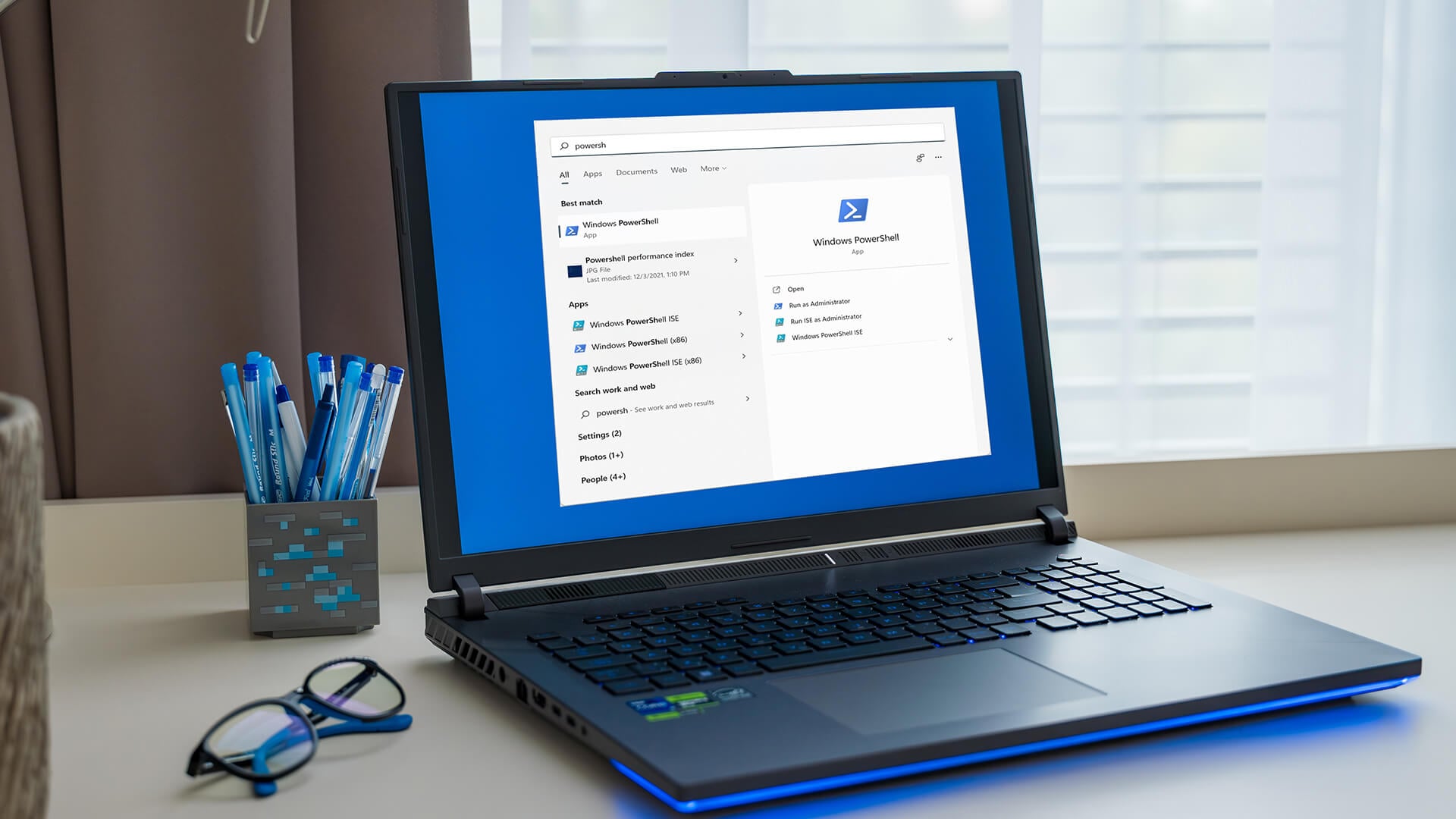
- Open Start and search for PowerShell or Windows Terminal.
- If you are using Windows Terminal, make sure a PowerShell tab is selected.
- Select Run as administrator.
- Enter: Get-CimInstance -ClassName Win32_WinSAT
- Press Enter to view the component scores and overall rating.
For a cleaner PowerShell performance check, use: Get-CimInstance -ClassName Win32_WinSAT | Select-Object CPUScore, MemoryScore, GraphicsScore, DiskScore, WinSPRLevel, WinSATAssessmentState
The results include separate processor, memory, graphics and primary disk scores. WinSPRLevel is the overall Windows Experience Index rating and is determined by the lowest calculated component score.
WinSATAssessmentState shows whether Windows considers the stored formal assessment valid:
- 0 means the assessment state is unknown.
- 1 means the assessment is valid.
- 2 means the result no longer matches the current hardware.
- 3 means no formal assessment is available.
- 4 means the assessment is invalid.
The full PowerShell output may also show D3DScore. However, on Windows 10 and Windows 11, this is not a current gaming or Direct3D performance score. It is an older compatibility value, which is why it has been excluded from the cleaner command above.
Does the Same Method Work in Windows 10?
Yes. The same commands can be used to check the Windows 10 Experience Index:
- Run winsat formal in an administrator Command Prompt.
- Run Get-CimInstance Win32_WinSAT in PowerShell.
- Read the individual subscores and the WinSPRLevel result.
The Windows System Assessment Tool in Windows 10 works in much the same way as WinSAT in Windows 11, although the menus and appearance of Windows Terminal may differ slightly.
Understanding Your Windows Experience Index Score
The PowerShell results separate the main hardware components so you can see which part of the PC received the lowest rating.
| PowerShell result | Component assessed | What the score represents |
|---|---|---|
| CPUScore | Processor | The CPU performance score for calculations and processor operations |
| MemoryScore | RAM | The memory performance score, based mainly on memory throughput |
| GraphicsScore | Desktop graphics | The graphics performance score for the Windows interface and general visual tasks |
| D3DScore | Old 3D graphics score | A result retained from older Windows versions. On Windows 10 and Windows 11, it does not measure current gaming or Direct3D performance. |
| DiskScore | Windows system drive | The primary disk score for the drive where Windows is installed |
| WinSPRLevel | Overall rating | The lowest valid component score |
Your Windows Experience Index score is not calculated as an average. If the processor scores 8.7, the memory scores 8.5 and the primary drive scores 7.6, the WinSPRLevel will be 7.6.
This makes the result useful for identifying the lowest-rated component. However, a lower subscore does not automatically mean the hardware is faulty or must be replaced. It only shows how that component performed within the assessment.
How to Read the 1.0 to 9.9 Rating
The Windows Experience Index rating uses a scale of 1.0 to 9.9, with higher scores representing stronger results in the WinSAT test.
- Below 5.0: An entry-level result suited mainly to web browsing, office applications and other basic everyday tasks.
- 5.0 to 7.9: A capable result for standard business work, multitasking, media playback and general home use.
- 8.0 and above: A strong result commonly associated with newer performance-focused hardware and more demanding workloads.
Avoid treating a particular score as proof that the PC is suitable for gaming, video editing or another demanding workload. Modern applications depend on factors that the index does not fully measure, including cooling, VRAM, processor architecture and software optimisation.
The Windows Experience Index benchmark is most useful for:
- Finding the lowest hardware subscore
- Comparing components within the same PC
- Checking whether a hardware or driver change affected the result
- Recording a basic performance baseline over time
Results produced under different Windows versions, drivers or system conditions may not be directly comparable.
Windows Experience Index Cannot Be Computed: Common Fixes
If the Windows Experience Index cannot be computed, Windows may not have a valid completed assessment to read. Work through these checks:
- Run both tools as administrator: Open Command Prompt and PowerShell with Run as administrator.
- Complete the formal test: Enter winsat formal and wait until the assessment finishes before checking the scores.
- Connect your laptop to power: Plug it into the mains and select a normal or performance-focused power mode.
- Restart the PC: This can clear an interrupted assessment or apply recent hardware and driver changes.
- Update important drivers: Install current graphics, chipset and storage drivers from the PC or component manufacturer.
- Finish Windows updates: Restart after any pending updates before running WinSAT again.
- Close demanding programs: Pause games, rendering tools, downloads and large file transfers during the test.
- Check the stored results: Look for a recent assessment file in C:\Windows\Performance\WinSAT\DataStore. If Windows is installed on a different drive, replace C: with the drive letter used for your Windows installation. Alternatively, enter %WinDir%\Performance\WinSAT\DataStore in File Explorer to open the correct folder automatically.
- Run the assessment again: Repeat winsat formal if the first attempt stopped or returned incomplete results.
Do not edit the stored assessment files manually. Changing a value may alter what PowerShell displays, but it will not improve the PC’s actual performance.
Why Is WinSPRLevel Showing 0?
A WinSPRLevel of 0 usually means that Windows cannot find a valid formal assessment. It does not normally mean the computer received a genuine performance score of zero.
Run winsat formal again, allow it to complete and then enter: Get-CimInstance Win32_WinSAT
If the individual scores are also missing or zero, restart Windows, update the relevant drivers and repeat the assessment. Microsoft classifies WinSAT results as valid, unavailable, invalid or inconsistent with the current hardware, so an old result may also need refreshing after a component change.
How to Improve Your Windows Experience Index Rating
Start with the lowest subscore. Improving an unrelated component may make the PC feel faster in some tasks, but it will not raise the overall rating if another result remains lower.
- Low CPU Score: Close unnecessary background applications, check that cooling vents are clear and use an appropriate Windows power mode. Laptop processors are rarely replaceable, so heavier workloads may eventually justify comparing Intel Core i7 laptop choices or more powerful Windows 11 laptop options.
- Low Memory Score: Check that compatible RAM modules are installed correctly and operating in the intended channel configuration. Choosing the right laptop RAM involves capacity, speed and compatibility rather than simply adding another module.
- Limited multitasking: More memory can reduce slowdowns when several applications are open. Buyers replacing an older machine may find high-performance laptops with 16GB RAM a more suitable starting point, although additional capacity does not guarantee a higher MemoryScore.
- Low Graphics Score or D3DScore: Install the correct graphics driver and ensure demanding applications use the intended GPU. Do not use D3DScore to judge gaming performance on Windows 10 or Windows 11 because Microsoft no longer calculates it as a live 3D assessment. If integrated graphics remain the main limitation, high-performance gaming laptops provide dedicated graphics for more demanding games and creative workloads.
- Low Disk Score: Maintain free storage space, check the system drive’s health and consider replacing a mechanical hard drive with an SSD where the device supports it.
Before replacing hardware, try to speed up a slow laptop by disabling unnecessary startup apps, removing unused software, installing Windows updates and freeing storage space. A careful Windows 11 debloat can also reduce unwanted background activity, but avoid scripts that remove essential services or security features.
These changes may improve everyday responsiveness without substantially altering the WinSAT result. Rerun WinSAT after a meaningful hardware upgrade, driver update or storage replacement to see whether the relevant subscore has changed.
What the Windows Experience Index Can and Cannot Tell You
The Windows Experience Index benchmark provides a quick comparison of your PC’s main hardware components, but it is not a complete measure of system performance.
What It Can Tell You
- Which processor, memory, graphics or storage result is the lowest
- Whether a hardware or driver change affected a subscore
- How the main components compare within the same PC
- Whether Windows has a valid formal WinSAT assessment stored
- A basic performance baseline that can be checked again after an upgrade
What It Cannot Tell You
- Real-time CPU, memory, disk or GPU usage
- Temperatures, cooling performance or thermal throttling
- Battery condition, charging health or power efficiency
- Performance in a specific game or professional application
- Network speed, display quality or software stability
- Whether a component is faulty simply because its score is lower
Final Thoughts: Is the Windows Experience Index Still Useful?
The Windows Experience Index remains useful for finding the lowest-rated component and checking whether a meaningful hardware or driver change affected the result. However, it should be treated as a quick system reference rather than a complete judgement of PC performance.
Use the score alongside Task Manager and workload-specific tests for gaming, editing or storage performance. There is little value in running WinSAT regularly unless the hardware, drivers or Windows installation have changed.
If the lowest result points to hardware that cannot be upgraded economically, comparing the current Windows laptop range or browsing the latest desktop options may be more practical than continuing to optimise an ageing system.
Frequently Asked Questions
How do I check the Windows Experience Index?
Run winsat formal in an administrator Command Prompt. Once it finishes, open PowerShell and enter Get-CimInstance Win32_WinSAT to display the results.
Is Windows Experience Index available in Windows 11?
Yes. Windows 11 does not include the old graphical score page, but you can still run WinSAT and read the stored assessment results through PowerShell.
What is the highest Windows Experience Index score?
The highest score on the modern scale is 9.9. Your overall score is determined by the lowest component result, not the average.
What is WinSPRLevel on a laptop?
WinSPRLevel is the overall Windows Experience Index rating. It normally matches the lowest valid processor, memory, graphics or primary disk score.
Why is my WinSPRLevel 0?
A score of 0 usually means Windows cannot find a valid completed assessment. Run winsat formal, allow it to finish and check Win32_WinSAT again.
How do I check my PC performance score?
Use WinSAT and PowerShell to view the hardware scores. For current CPU, memory, disk and GPU activity, open Task Manager > Performance.
How can I increase the Windows SPR level?
Identify the lowest subscore first. Updating drivers, correcting hardware settings or upgrading the limiting processor, RAM, graphics or storage component may improve it.
How do I clean up my PC to run faster?
Disable unnecessary startup apps, remove unused software, free storage space, install updates and scan for unwanted programs. These steps can improve responsiveness without necessarily changing the hardware score.
How often should I run the WinSAT assessment?
Run it after replacing hardware, installing important drivers or reinstalling Windows. Repeating the assessment regularly offers little benefit when the system has not changed.
You can pay with:
*PayPal Credit Representative Example: Assumed credit limit £1,200, Representative 23.9% APR (variable). Purchase rate 23.9% p.a (variable).Terms & Conditions apply.


PayPal Credit and PayPal Pay in 3 are trading names of PayPal UK Ltd, 5 Fleet Place, London, United Kingdom, EC4M 7RD. Terms and conditions apply. Credit subject to status, UK residents only, Five Tech LTD acts as a broker and offers finance from a restricted range of finance providers. PayPal Pay in 3 is not regulated by the Financial Conduct Authority. Pay in 3 eligibility is subject to status and approval. 18+. UK residents only. Pay in 3 is a form of credit. Check if affordable and how you will repay. May make other borrowing more difficult or expensive. See product terms for more details.
Copyright © 1996-2026 Fivetech LTD | Terms and Conditions
box.co.uk & Box are trading names of Five Tech Limited. Registered office: Box LTD, Unit 10 Woodford Trading Estate, Woodford Green IG8 8HF