


 Menu
MenuMenu


Get Sales Advice from Mon - Fri 9am - 5:00pm:
020 3337 8950LAST UPDATED: July 23, 2026
How to Rotate Screen in Windows 11: Shortcuts, Settings & Fixes
Need to rotate Windows 11 screen quickly because your display is sideways, upside down or stuck in portrait mode? The safest method is to open Settings > System > Display, choose the correct screen, then use Display orientation under Scale and layout.
You can rotate Windows 11 display into Landscape, Portrait, Landscape flipped or Portrait flipped. On 2-in-1 laptops and tablets, Windows 11 auto rotate can also turn the screen automatically when rotation lock is off and the device has a working sensor.
This guide covers the normal Windows settings method, keyboard shortcut behaviour, auto-rotate controls, NVIDIA and Intel display tools, Chrome screen issues, multi-monitor rotation and fixes for a screen that will not rotate back.
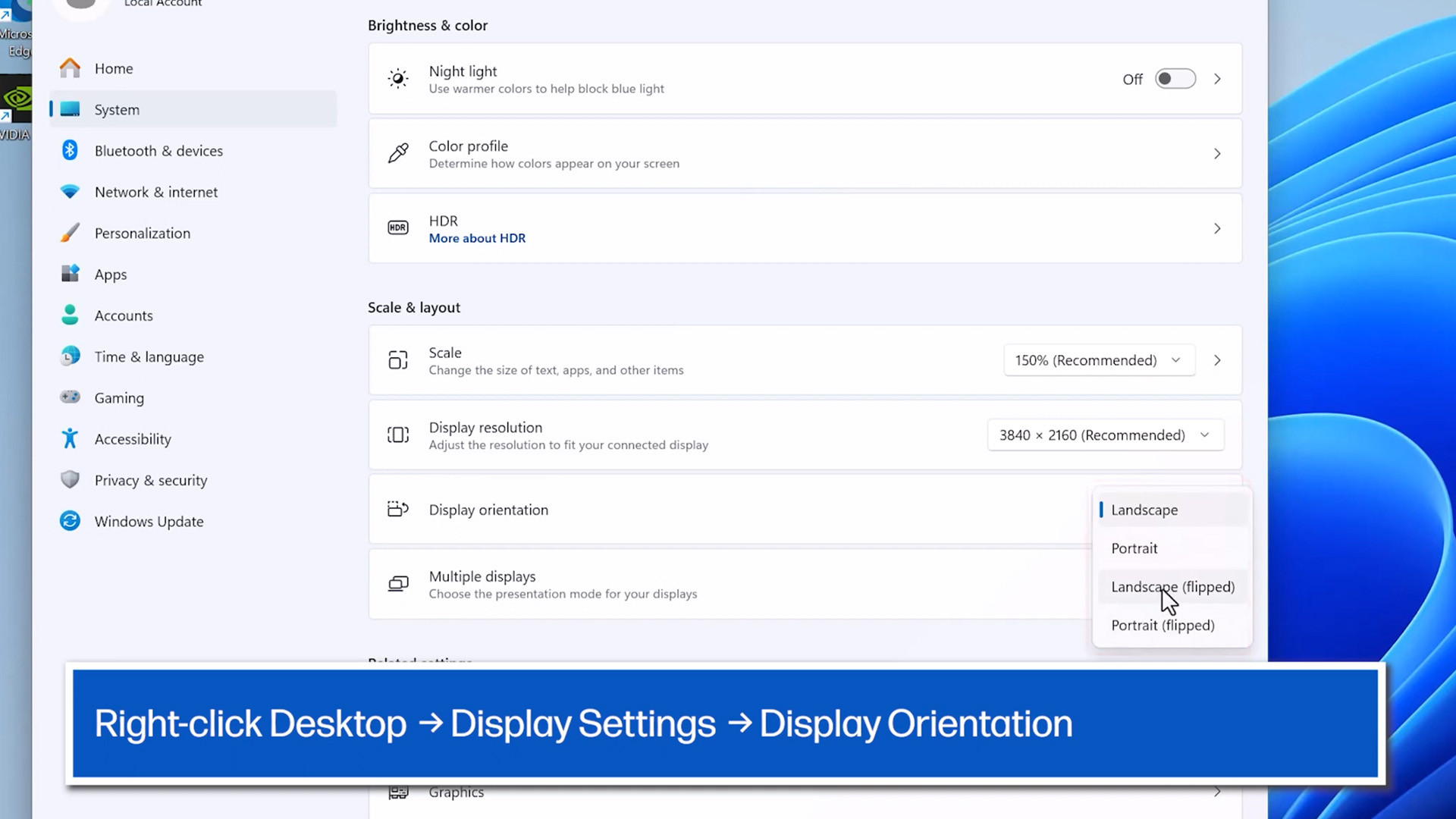
Quick answer: To rotate screen Windows 11, right-click the desktop, choose Display settings, select the correct display, open Display orientation, choose Landscape or Portrait, then click Keep changes.
How to Rotate Screen Windows 11 Using Display Settings
This is the most reliable way to change screen orientation in Windows 11.
- Right-click an empty area of the desktop.
- Select Display settings.
- Choose the correct display if you use more than one monitor.
- Scroll to Scale and layout.
- Open the Display orientation menu.
- Choose:
- Landscape
- Portrait
- Landscape flipped
- Portrait flipped
- Select Keep changes when Windows asks you to confirm.
Use Landscape to fix laptop screen from portrait to landscape. Use Landscape flipped only if you need to turn screen upside down Windows 11 for a special mounting setup.
If you use more than one display, always select the correct monitor first. This matters for external monitor rotation, vertical productivity displays and gaming setups with a second screen.
For a full second-screen setup, read our Dual-monitor setup guide.
What Each Windows 11 Screen Rotation Option Means
Windows 11 screen rotation has four main options.
| Option | What It Does | Best For |
|---|---|---|
| Landscape | Normal horizontal view | Laptops, monitors, everyday use |
| Portrait | Vertical screen layout | Coding, documents, social feeds |
| Landscape flipped | Horizontal but upside down | Unusual mounts or correction |
| Portrait flipped | Vertical but reversed | Specific monitor mounting setups |
For most users, Landscape is the correct option. If your screen suddenly looks sideways, upside down or flipped, return it to Landscape.
Portrait orientation is useful on a vertical monitor, especially for writing, spreadsheets, code, chat feeds and long webpages. Pairing a laptop with Portable screens for flexible workspace can make this easier if you move between desks.
Shortcut to Rotate Screen Windows 11
The old shortcut many users remember is:
- Ctrl + Alt + Up Arrow: normal landscape
- Ctrl + Alt + Down Arrow: upside-down screen
- Ctrl + Alt + Left Arrow: rotate left
- Ctrl + Alt + Right Arrow: rotate right
However, the shortcut to rotate screen in Windows 11 does not work on every PC. Windows 11 does not rely on one universal built-in shortcut for display rotation. Whether Ctrl + Alt + Arrow works depends on your graphics driver, graphics control panel, device manufacturer and whether hotkeys are enabled.
If the shortcut works, use Ctrl + Alt + Up Arrow to fix a flipped display quickly. If it does nothing, use Settings > System > Display > Display orientation instead.
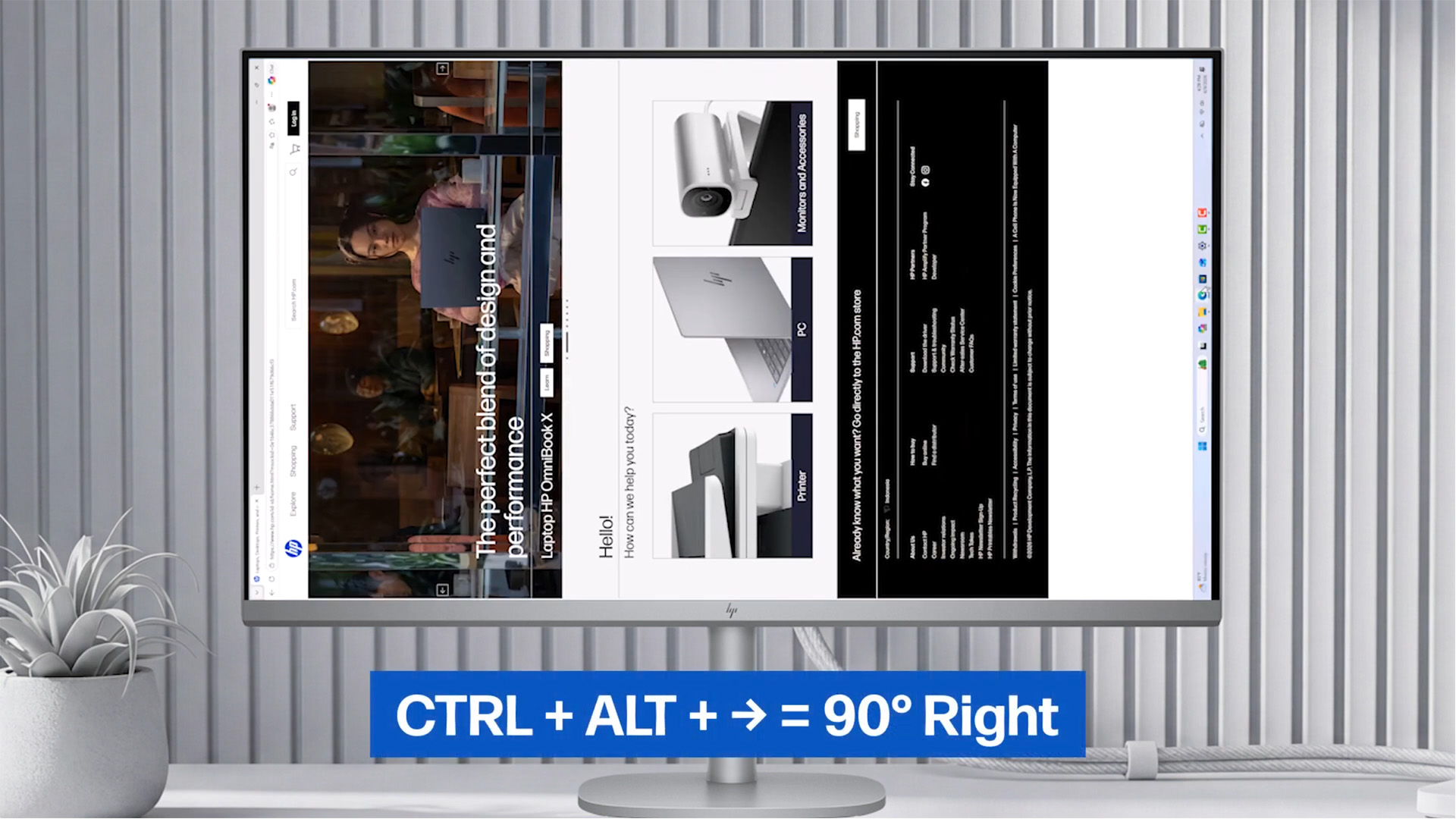
Rotate Screen Windows 11 Shortcut Not Working
If Windows 11 rotate screen shortcut is not working for you, do not assume the PC is broken. The shortcut may simply be disabled or unsupported.
Try these fixes:
- Use Windows Display settings instead.
- Restart the laptop or PC.
- Check Intel Graphics Command Center, NVIDIA App or AMD software for display controls.
- Update the display driver.
- Check whether your keyboard has arrow keys locked behind an Fn layer.
- Test with an external keyboard.
- Remove third-party hotkey tools that may be blocking shortcuts.
If you use Intel graphics and rotation settings are missing or unreliable, follow our guide to Fix Intel display drivers.
Shortcut to Rotate Screen Windows 11 NVIDIA
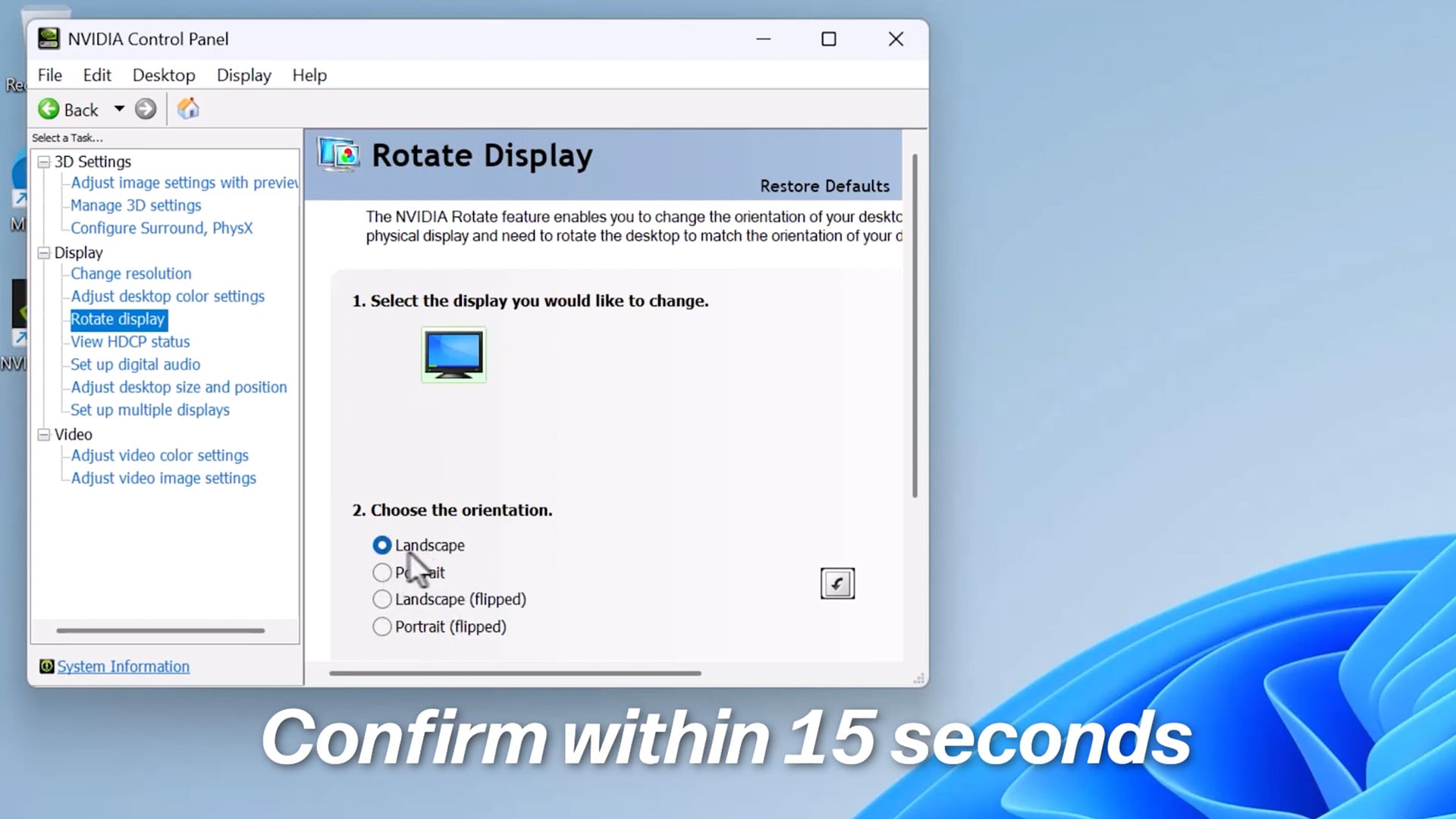
There is no guaranteed universal shortcut to rotate screen in Windows 11 on NVIDIA that works across every NVIDIA laptop or desktop. On many NVIDIA systems, rotation is handled through Windows Display settings, NVIDIA Control Panel or the newer NVIDIA App display controls rather than a simple keyboard shortcut.
Try this instead:
- Right-click the desktop.
- Open Display settings first.
- Change Display orientation in Windows.
- If needed, open NVIDIA Control Panel or NVIDIA App.
- Look for display rotation, resolution or monitor orientation options.
- Apply changes and test the correct monitor.
For gaming PCs, be careful when rotating the main display. Some games may open at odd resolutions or layouts after a rotation change. If that happens, return to Landscape, reopen the game, then check in-game display settings.
How to Rotate Laptop Screen Windows 11
To rotate laptop screen Windows 11 manually:
- Right-click the desktop.
- Select Display settings.
- Go to Scale and layout.
- Open Display orientation.
- Choose Landscape or Portrait.
- Confirm with Keep changes.
On standard laptops, manual rotation is usually enough. On convertible laptops, Windows 11 auto rotate may appear when the device is folded or used like a tablet.
If you often use tablet mode, pen input or tent mode, Flexible 2-in-1 laptops and Touchscreen laptop options are better suited to automatic orientation changes than traditional clamshell laptops.
Windows 11 Auto Rotate and Rotation Lock
Windows 11 auto rotate depends on hardware. Your device needs a sensor, usually an accelerometer, to detect when the screen has been turned.
Auto rotate is common on:
- 2-in-1 laptops
- convertible laptops
- tablets
- detachable Windows devices
- some touchscreen laptops
It is not common on normal desktop monitors or basic laptops.
Where Is Rotation Lock in Windows 11?
Windows 11 Rotation lock usually appears only when the device supports automatic rotation.
To check:
- Open Settings.
- Go to System.
- Select Display.
- Look for Rotation lock.
- Turn it on to stop auto rotate.
- Turn it off to allow auto rotate.
You may also see Rotation lock in Quick Settings on supported devices. Click the network, sound or battery area on the taskbar, then look for the rotation lock tile.
Disable Screen Rotation Windows 11
To disable Windows 11 screen rotation on a supported device, turn on Rotation lock.
Use this if your 2-in-1 laptop keeps rotating when you move it on the sofa, in bed, during a presentation or while using it in tent mode.
Steps:
- Open Settings.
- Select System.
- Open Display.
- Turn Rotation lock on.
If the option is greyed out, unfold the device, disconnect external displays or switch out of a mode that prevents the setting from changing.
Windows 11 Auto Rotate Not Working
If Windows 11 auto rotate is not working, check the basics first.
Try this order:
- Make sure the device supports auto rotate.
- Turn Rotation lock off.
- Restart the device.
- Disconnect external monitors.
- Fold or rotate the device into tablet mode again.
- Run Windows Update.
- Update graphics and sensor drivers.
- Check Device Manager for sensor errors.
- Test whether manual Display orientation still works.
Auto rotate will not work on most standard laptops because they do not have the required device accelerometer. In that case, use manual orientation settings instead.
If your Windows laptop is also slow, bloated or struggling after updates, our Windows 11 debloat guide can help clean up unnecessary apps safely.
Fix Laptop Screen from Portrait to Landscape
To fix laptop screen from portrait to landscape, use this direct method:
- Right-click the desktop.
- Select Display settings.
- Under Scale and layout, find Display orientation.
- Choose Landscape.
- Click Keep changes.
If the mouse movement feels confusing because the screen is sideways, turn your head or rotate the laptop carefully while making the change. You can also use keyboard navigation:
- Press Windows + I to open Settings.
- Use search and type Display.
- Open Display settings.
- Use Tab, arrow keys and Enter to reach Display orientation.
If you accidentally selected Portrait flipped or Landscape flipped, choosing Landscape should restore the normal view.
How to Rotate Chrome Screen on Windows 11
If you want to know how to rotate Chrome screen in Windows 11, first check what you actually need to rotate.
Chrome itself does not normally rotate the whole Windows display. You have three common situations:
-
Chrome Looks Sideways Because Windows Is Rotated
Fix it in Windows:
Settings > System > Display > Display orientation > Landscape
-
A Video in Chrome Is the Wrong Way Round
Check the video player first. Some websites include rotate, full-screen or aspect ratio controls. If not, you may need to rotate the full display temporarily or use the video file in a media player with rotation controls.
-
A Webpage Looks Too Zoomed or Odd
That is usually not rotation. Try:
-
- Ctrl + 0 to reset zoom
- Ctrl + Plus to zoom in
- Ctrl + Minus to zoom out
- Full-screen toggle with F11
For normal browsing, Windows screen rotation should be handled through Display settings, not Chrome settings.
Rotate Display in Windows 11 with Multiple Monitors
When using multiple monitors, Windows lets you rotate each display separately.
Steps:
- Right-click the desktop.
- Select Display settings.
- Click the monitor you want to rotate.
- Choose Identify if you are unsure which is which.
- Scroll to Scale and layout.
- Set Display orientation.
- Click Keep changes.
- Drag the display boxes to match your physical desk layout.
This is useful if one external monitor is mounted vertically and another stays horizontal.
For example:
- Laptop screen: Landscape
- Main gaming monitor: Landscape
- Side productivity monitor: Portrait
- Portable monitor: Portrait or Landscape depending on use
If your external display is flickering, tearing or ghosting after changing settings, use our guide to Solve common screen issues.
Screen Orientation Missing in Windows 11
If the screen orientation menu is missing, greyed out or not working, possible causes include:
- Display driver issue
- External display limitation
- Remote desktop session
- Manufacturer software override
- Tablet mode state
- Corrupted graphics settings
- Outdated Windows build
- Sensor driver problem on convertible laptops
Try:
- Restart Windows.
- Install Windows updates.
- Update the graphics driver.
- Disconnect and reconnect external monitors.
- Check the graphics control panel.
- Try another HDMI, USB-C or DisplayPort connection.
- Check Device Manager for driver warnings.
- Reinstall the display driver if needed.
If the issue appears after a driver update, rolling back the graphics driver may help.
Why Did My Windows 11 Screen Flip Sideways or Upside Down?
A sideways laptop screen or upside-down computer screen can happen because of:
- Accidental graphics hotkey
- Wrong Display orientation setting
- External monitor profile
- Graphics driver glitch
- Docking station issue
- 2-in-1 auto rotate behaviour
- Rotation lock setting
- Third-party display software
- Windows update or driver change
The fix is usually simple: set Display orientation back to Landscape and confirm the change.
If the screen keeps rotating again, check auto rotate, rotation lock, graphics software and any hotkey utilities installed by the laptop manufacturer.
Best Windows 11 Devices for Screen Rotation
Screen rotation is most useful on touch, 2-in-1 and portable display setups.
A standard clamshell laptop can rotate the display manually, but it may not support automatic rotation. A 2-in-1 laptop is better if you want to move between laptop, tablet, tent and presentation modes.
If you are checking whether a PC is capable enough for modern Windows tasks, our Windows Experience Index guide can help you assess the wider system.
Quick Troubleshooting Checklist
Use this checklist when you cannot rotate Windows 11 screen properly.
- Set orientation manually in Windows Display settings.
- Select the correct monitor first.
- Use Landscape to restore a normal screen.
- Turn off Rotation lock for auto rotate.
- Restart the laptop or PC.
- Disconnect external displays and test again.
- Update graphics drivers.
- Check Intel, NVIDIA or AMD display software.
- Check sensor drivers on 2-in-1 devices.
- Remove conflicting display utilities.
- Try another display cable or dock.
- Reconnect monitors one at a time.
For most users, manual Display settings fix the issue faster than hunting for shortcuts.
Wrapping Up
The best way to rotate Windows 11 screen is through the built-in Display settings. Right-click the desktop, open Display settings, select the correct screen, then change Display orientation under Scale and layout.
Use Landscape to fix a normal laptop or monitor. Use Portrait for a vertical display. Use flipped modes only when the screen is physically mounted that way.
The shortcut to rotate Windows 11 screen may work on some systems, but it is not reliable on every PC. If Ctrl + Alt + Arrow does nothing, use Windows settings or your graphics control panel instead.
For 2-in-1 laptops, Windows 11 auto rotate depends on device sensors and rotation lock. If it does not work, check rotation lock, drivers, tablet mode behaviour and external displays.
Best method for most users:
Display settings > Display orientation > Landscape or Portrait > Keep changes
If nothing fixes your laptop and you are looking for a new one to replace it, check out our Windows laptop range at Box for the best options. Or browse Windows 11 laptop range to find the perfect replacement.
FAQs
-
How do I rotate my screen 90 degrees in Windows 11?
Open Settings > System > Display, select the correct screen, then choose Portrait or Portrait flipped from Display orientation. Click Keep changes to confirm.
-
Why is the Ctrl+Alt+Arrow not working?
The Ctrl + Alt + Arrow shortcut is not universal in Windows 11. It depends on your graphics driver, graphics software and hotkey support. Use Display settings if the shortcut does not work.
-
Why is my screen not rotating in Windows 11?
Your screen may not rotate because rotation lock is on, the device lacks an accelerometer, the display driver is outdated, an external monitor is connected, or the Display orientation setting is missing or blocked.
-
Where is the rotation lock in Windows 11?
On supported devices, rotation lock is usually under Settings > System > Display. It may also appear in Quick Settings. If you do not see it, your device may not support automatic rotation.
-
What is the Ctrl Alt Up arrow on Windows 11?
On systems that support display rotation shortcuts, Ctrl + Alt + Up Arrow returns the screen to normal Landscape orientation. On many Windows 11 PCs, the shortcut may do nothing.
-
How to fix laptop screen from portrait to landscape?
Go to Settings > System > Display > Display orientation, choose Landscape, then select Keep changes. Make sure you select the correct display first if using more than one screen.
-
How to unlock screen rotation on Windows?
Open Settings > System > Display and turn Rotation lock off. This only appears on devices that support auto rotation, such as some 2-in-1 laptops and tablets.
-
How do I activate auto rotate?
Use a supported 2-in-1 laptop or tablet, then turn Rotation lock off in Display settings or Quick Settings. If auto rotate still does not work, update graphics and sensor drivers.
You can pay with:
*PayPal Credit Representative Example: Assumed credit limit £1,200, Representative 23.9% APR (variable). Purchase rate 23.9% p.a (variable).Terms & Conditions apply.


PayPal Credit and PayPal Pay in 3 are trading names of PayPal UK Ltd, 5 Fleet Place, London, United Kingdom, EC4M 7RD. Terms and conditions apply. Credit subject to status, UK residents only, Five Tech LTD acts as a broker and offers finance from a restricted range of finance providers. PayPal Pay in 3 is not regulated by the Financial Conduct Authority. Pay in 3 eligibility is subject to status and approval. 18+. UK residents only. Pay in 3 is a form of credit. Check if affordable and how you will repay. May make other borrowing more difficult or expensive. See product terms for more details.
Copyright © 1996-2026 Fivetech LTD | Terms and Conditions
box.co.uk & Box are trading names of Five Tech Limited. Registered office: Box LTD, Unit 10 Woodford Trading Estate, Woodford Green IG8 8HF