


 Menu
MenuMenu


Get Sales Advice from Mon - Fri 9am - 5:00pm:
020 3337 8950LAST UPDATED: February 20, 2026
Overheating & Fan Noise on Lenovo Laptops: Causes, Fixes & Prevention
Lenovo laptops are well-known for their reliability, minimal design, and solid performance. Their cooling systems are built to handle demanding tasks, but even the best machines can warm up over time. Dust build-up, ageing parts, or hot environments can all make the fan work overtime and cause your Lenovo laptop overheating problem.
If your laptop feels hotter than usual or the fan's whirring constantly, don't panic as it is a fairly common issue and usually nothing too serious. In most cases, a quick clean-up, a few software tweaks, or checking airflow can sort it.
That said, letting heat linger too long can slow your system down, trigger thermal throttling, or shorten battery life. So, it's worth giving it a bit of attention before it becomes a bigger nuisance. In this guide, you'll learn what causes Lenovo laptops to overheat, how to quiet down a noisy fan, and the simple steps to keep your machine cool and running smoothly.
Common Symptoms of Lenovo Laptop Overheating
Before you dive into fixes, it helps to recognise the tell-tale signs of a Lenovo laptop overheating. These symptoms can vary from a mild annoyance to issues that affect your everyday use:
- Fan running loud constantly – even when you're only browsing the web or typing up documents.
- Noticeable heat – the vents or palm rest feel hot to the touch after short use.
- Sudden slowdowns or lag – a sign of thermal throttling causes laptop to slow down, where the system automatically reduces performance to manage temperature. You can fix such issues easily by following our in-depth guide on speed & performance problems on Lenovo laptops.
- Unexpected shutdowns or freezes – your laptop may power off suddenly to prevent damage.
- Battery not charging properly – in some cases, overheating may interrupt battery charging, stopping the charge cycle mid-way. Read our guide on how to fix a Lenovo laptop not charging properly.
- Pop-up alerts or warnings in Lenovo Vantage – such as fan speed spikes or high CPU temperature notifications.
If you're noticing one or more of these signs, don't worry. Overheating in Lenovo laptops is often the result of something minor, like dust clogging the vents or a misconfigured power profile, and can usually be sorted with a few careful steps, which we'll cover next.
Why Is My Lenovo Laptop Overheating? Hardware vs Software Causes
When your Lenovo laptop overheating problem crops up, it usually comes down to one of two things, either something physical (hardware) is stopping the system from cooling properly, or a software setting is pushing the machine harder than needed. Understanding which is which makes it much easier to fix.
Hardware Causes
These are the physical reasons your laptop might be running too hot:
- Blocked vents or dust build-up – the most common culprit. Over time, dust gathers inside the cooling vents and fan blades, reducing airflow and trapping warm air.
- Dirty or failing fan – a fan that's full of debris or wearing out can't spin freely, which means heat isn't being pushed out properly.
- Aged or dry thermal paste – thermal paste transfers heat from the CPU and GPU to the cooling system. If it's dried out, the laptop can't cool itself efficiently.
- Poor ventilation or high room temperature – using your laptop on a bed, sofa, or lap can block the exhaust vents and cause temperatures to rise quickly.
Software Causes
Sometimes, it's not the hardware but what's happening inside the system:
- Too many background apps – programs running quietly in the background keep the CPU busy and raise its temperature unnecessarily.
- Outdated BIOS or drivers – old firmware can mishandle fan speeds and temperature controls.
- Incorrect Lenovo Vantage fan control settings – if the fan mode is set to 'Quiet' or 'Balanced', it might not spin up quickly enough when the laptop gets warm.
- GPU-heavy tasks or malware – editing software, games, or hidden malware can push the processor constantly, creating extra heat.
Both hardware and software factors can play a role, but the good news is most of them are easy to fix.
7 Fixes for Lenovo Laptop Overheating & Fan Noise
Now that you know what causes your Lenovo laptop overheating issue, it's time to sort it. Most fixes are simple enough to do at home with a bit of care and patience.
1- Check Airflow & Surface Placement
The first thing to do is make sure your laptop can breathe. Always use it on a flat, hard surface and not on a bed, sofa, or lap, so the air vents stay clear. You can also raise the back slightly with a stand to improve circulation.
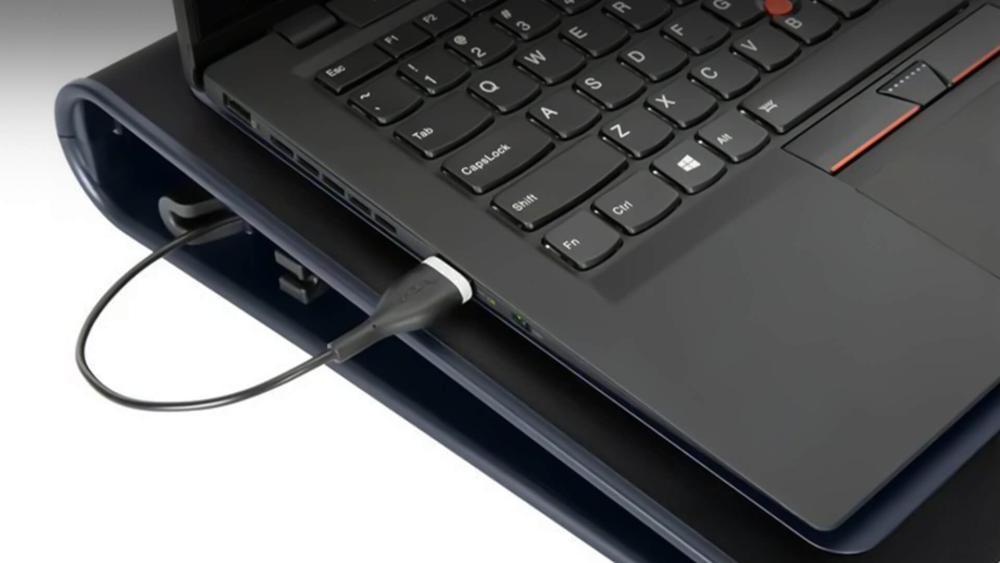
If you often work long hours or game, using a laptop cooling pad for Lenovo can make a noticeable difference by drawing extra heat away. Overheating can sometimes cause black screen or flickering display problems.
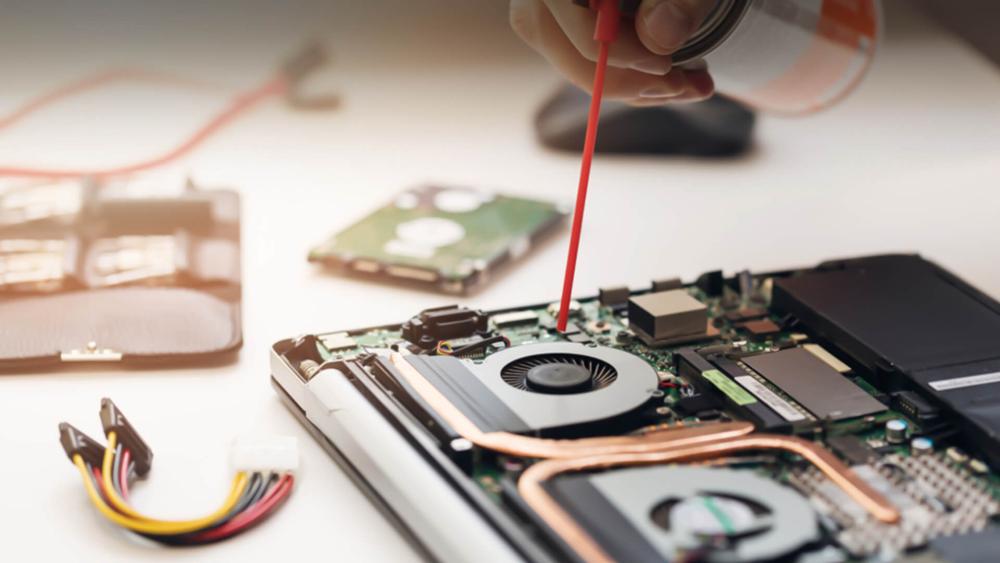
Dust and debris are the biggest causes of poor cooling. Shut down your laptop and gently blow compressed air through the vents. You can also use a soft brush to clear any visible dust.
Knowing how to clean a Lenovo laptop fan safely is key. Never poke anything metal into the vents. If the fan still sounds like a jet engine afterwards, it might be clogged deeper inside or starting to fail.
3- Run Lenovo Vantage Thermal & Fan Tests
Open Lenovo Vantage → Device → Power → Thermal Mode. Here, you can check your system's temperature and adjust the Lenovo Vantage fan control settings.
Switching from 'Quiet' to 'Performance' mode lets the fan run faster, which helps cool the laptop more efficiently during demanding tasks.
4- Update BIOS, Chipset & Power Drivers
Old system firmware can confuse temperature sensors or fan control. Visit Lenovo Support, download the latest BIOS and power management drivers, and install them carefully. This can instantly improve cooling performance and stop unnecessary fan spikes.
5- Check Background Apps & Power Plan
Press Ctrl + Shift + Esc to open Task Manager and see which apps are using the most CPU. Close unnecessary programs and browser tabs.
Then head to Control Panel → Power Options and select Balanced or Power Saver instead of High Performance to reduce heat generation.
6- Replace Thermal Paste (Advanced Fix)
If your laptop's a few years old and still running hot after cleaning, the thermal paste might need changing. Lenovo thermal paste replacement helps the CPU and GPU transfer heat properly again.
It's a delicate job, so only try it if you're confident and know how to do it properly. Otherwise, it's best handled by a technician. A good rule of thumb is to replace thermal paste every two to three years.
7- Inspect or Replace the Cooling Fan
If the noise continues after cleaning, you'll need to check whether the fan is failing. A healthy fan spins smoothly with a consistent hum, while a failing one rattles, vibrates, or makes grinding sounds.
If you suspect damage, contact an authorised Lenovo repair centre for inspection or replacement.
Preventive Measures to Stop Lenovo Laptop Overheating
Once you've cooled things down, it's worth putting a few habits in place to stop your Lenovo laptop overheating again. Regular upkeep keeps temperatures low, fan noise minimal, and performance steady.
Keep Vents Clean
Give your vents and fan area a quick clean every couple of months. Even a thin layer of dust can block airflow and raise internal temperatures.
Avoid Blocking Airflow
When charging or gaming, make sure the vents on the bottom and sides aren't blocked. Avoid using your laptop on soft surfaces.
Use a Cooling Pad
A laptop cooling pad for Lenovo helps maintain airflow and reduce heat buildup during long sessions. It also helps to cut down on fan noise by sharing some of the cooling work.
Monitor Fan Settings in Lenovo Vantage
Check your Lenovo Vantage fan control settings occasionally. You can switch between Quiet, Balanced, and Performance modes depending on what you're doing. This helps your laptop adapt cooling speed without running noisily all the time.
Replace Thermal Paste Periodically
Old paste dries out over time, making heat transfer less effective. A Lenovo thermal paste replacement every two to three years keeps the system cool and prevents throttling.
Keep Your System Updated
Updating your BIOS, chipset, and power management drivers ensures the laptop manages fan speed and temperature accurately. It also reduces overheating issues caused by firmware bugs.
When to Seek Professional Help for Lenovo Laptop Overheating and Fan Noise
Most Lenovo laptop overheating issues can be handled at home, but there are times when a professional eye is the safest bet. If you've tried the earlier steps and the fan's still roaring, or your laptop keeps heating up too quickly, it's worth getting it checked by an expert.
Here's when to reach out for help:
- Persistent fan noise: if the fan keeps rattling, grinding, or running at full speed even after cleaning.
- Frequent shutdowns: overheating that causes your laptop to power off unexpectedly could mean a deeper hardware fault.
- Heat-related performance drops: if it's throttling constantly or lagging even with light use.
- Charging issues linked to heat: sometimes overheating can affect the charging circuit or battery health.
- Failed fan or damaged thermal system: when airflow doesn't improve at all, the fan or internal cooling assembly may need replacement.
For these cases, it's best to contact an authorised Lenovo service centre or a trusted UK repair specialist. They can inspect the cooling fan, apply new thermal paste professionally, and ensure your laptop's components are safe from heat damage.
Conclusion
Lenovo laptops are known for dependable cooling and solid performance, but even top models can overheat if dust builds up or settings go off balance. Most Lenovo laptop overheating issues are simple to fix. A quick clean, updated drivers, or fresh thermal paste can make a big difference. Regular maintenance keeps your system cool, quiet, and long-lasting. If heat persists, it's wise to have it checked by a Lenovo-approved technician to avoid damage. For other Lenovo Laptop problems and their fixes, check out our troubleshooting guide for common Lenovo laptop issues.
Frequently Asked Questions
Why is my Lenovo laptop overheating even when idle?
This often happens when background apps or updates keep running quietly. Open Task Manager to spot high CPU usage and close any unnecessary processes.
How often should I clean my Lenovo laptop fan?
Give it a light clean every two to three months, especially if you use it daily or in dusty environments.
How to tell if the fan is failing vs just dirty?
A dirty fan usually makes a soft humming sound, while a failing one rattles, grinds, or struggles to spin even after cleaning.
How often should you change thermal paste?
For best cooling, replace thermal paste every two to three years. Over time, it dries out and loses its ability to transfer heat effectively.
Will a cooling pad reduce temperature or fan noise?
Yes. A good cooling pad helps airflow underneath the laptop, lowering heat buildup and easing the fan's workload, which can reduce noise.
How do I control fan speed using Lenovo Vantage?
Open Lenovo Vantage → Device → Power → Thermal Mode. Choose between Quiet, Balanced, or Performance depending on your workload and noise preference.
Can overheating damage my battery or motherboard?
Yes, prolonged heat can shorten battery life and stress internal components. Keeping your system cool helps maintain performance and prevent long-term damage.
You can pay with:
*PayPal Credit Representative Example: Assumed credit limit £1,200, Representative 23.9% APR (variable). Purchase rate 23.9% p.a (variable).Terms & Conditions apply.


PayPal Credit and PayPal Pay in 3 are trading names of PayPal UK Ltd, 5 Fleet Place, London, United Kingdom, EC4M 7RD. Terms and conditions apply. Credit subject to status, UK residents only, Five Tech LTD acts as a broker and offers finance from a restricted range of finance providers. PayPal Pay in 3 is not regulated by the Financial Conduct Authority. Pay in 3 eligibility is subject to status and approval. 18+. UK residents only. Pay in 3 is a form of credit. Check if affordable and how you will repay. May make other borrowing more difficult or expensive. See product terms for more details.
Copyright © 1996-2026 Fivetech LTD | Terms and Conditions
box.co.uk & Box are trading names of Five Tech Limited. Registered office: Box LTD, Unit 10 Woodford Trading Estate, Woodford Green IG8 8HF