


 Menu
MenuMenu


Get Sales Advice from Mon - Fri 9am - 5:00pm:
020 3337 8950POSTED: February 20, 2026
Speed & Performance Problems on Lenovo: Why It’s Slow & How to Fix It
Lenovo laptops are known for their durability, smart design, and reliable performance whether you’re working, creating, or studying. But even the best tech can feel a bit sluggish over time.
If your Lenovo laptop is running slow, booting slowly, or freezing during tasks, don’t worry. These issues are usually easy to fix, and in most cases, you won’t need a technician or tools.
In this step-by-step guide, we’ll explain why your Lenovo might be lagging and how to bring it back up to speed fast.
What It Means When Your Lenovo Laptop Is Running Slow
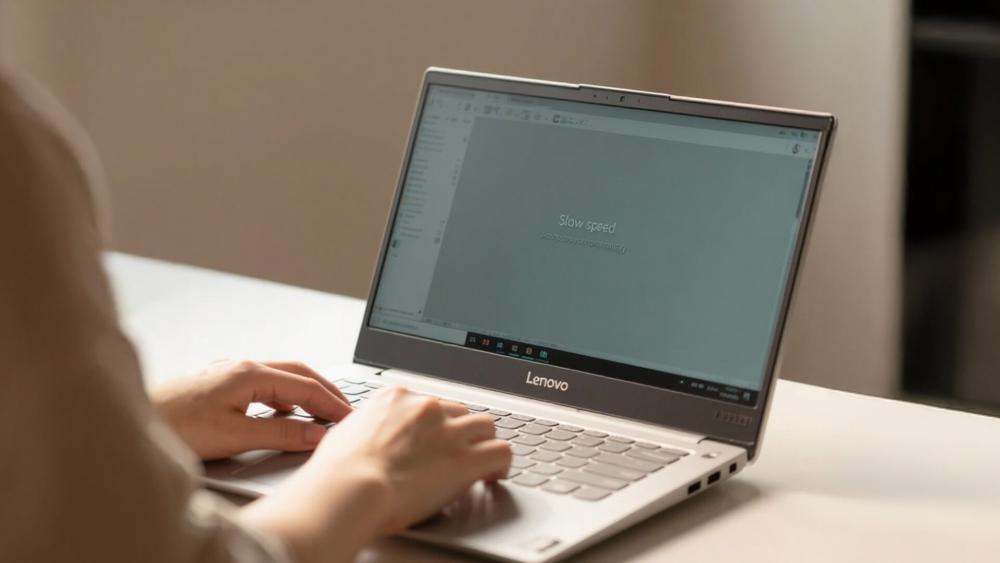
You know the feeling. Apps take forever to open; your laptop takes ages to boot up, or simple tasks feel like a chore. In some cases, your device may freeze, stutter during video calls, or show signs of high CPU usage even when you’re not running much.
If you’re on Windows 11, you might also notice background services slowing things down. Thankfully, a few smart checks and tweaks can restore that snappy performance.
Why Your Lenovo Might Be Slowing Down
There are several common reasons behind sluggish performance. Most aren’t hardware failures they’re just things that build up over time.
The good news? You can fix most of these at home.
1. Software / OS / Driver Issues
A corrupted system file, bloated startup apps, or a flawed Windows update can drag performance. On Windows 11, background services and telemetrics may also hog resources.
2. Thermal / Overheating Constraints
When your laptop runs hot, it may throttle CPU/GPU to prevent damage. Often slowdowns are symptoms of thermal stress. (You might like our guide on Lenovo laptop overheating & fan fixes for that.)
3. Storage Bottlenecks (HDD / Full SSD)
If your storage drive is filled up or too slow (e.g. HDD or older SATA SSD), your system will lag. A modern NVMe SSD upgrade often leads to dramatic speed boosts and benefits.
4. High CPU / Background Processes
Multiple background services, malware, or runaway processes can push CPU usage high and starve performance for your foreground tasks.
5. Insufficient RAM or Memory Swapping
If your RAM is too low, Windows starts swapping memory to disk (paging), which is much slower. Upgrading RAM can relieve this pressure, especially for apps, multitasking, or creative work.
6. Firmware / BIOS / EC / Driver Conflicts
Out-of-date BIOS, embedded controller firmware, or buggy graphics/storage drivers can undermine speed. Updating them often clears unseen stalls.
7. External Issues / Peripherals
Sometimes accessories, external drives, or connected hardware can cause delays. Also, slowdowns often caused by overheating or display stuttering may trace back to performance issues so it’s worth checking connected devices and system load.
Simple Fixes to Speed Up Your Lenovo Laptop

If your Lenovo laptop is running slow on Windows 11 or earlier, follow these steps in order. After each step, test your performance; you might not need to go further.
1. Clean Up Startup Apps
Unnecessary apps running in the background at startup can slow boot time and use up valuable memory.
- Press Ctrl + Shift + Esc to open Task Manager
- Click the Startup tab
- Right-click on apps you don’t need (like auto-updaters, music players, or utility tools)
- Click Disable
- Close Task Manager and restart your laptop to feel the difference
2. Run a System Cleanup
Temporary files, logs, and caches build up over time and can slow down performance.
- Search for "Disk Cleanup" in the Start menu and open it
- Select the main drive (usually C:)
- Tick boxes for Temporary files, Thumbnails, and System-created Windows error reporting
- Click OK > Delete Files
- Then go to Settings > System > Storage, and clear out large, unused files or apps
3. Update Windows & Lenovo Drivers
Outdated system drivers or firmware can cause lag, stutters, or poor resource management.
- Go to Settings > Windows Update, then click Check for updates
- Install all available updates
- Visit the Lenovo UK Support site
- Enter your laptop model and download the latest versions of:
- BIOS
- Embedded Controller (EC)
- Chipset, GPU, and storage drivers
- Restart your laptop after installing each
4. Check for High CPU or Memory Usage
Background tasks or software bugs can hog system resources, slowing everything down.
- Open Task Manager (Ctrl + Shift + Esc)
- Under the Processes tab, click CPU or Memory to sort highest to lowest usage
- If something is taking up too much (like 90–100%), right-click it and select End task
- Make a note of which programs keep reappearing these might need uninstalling
5. Keep Your Laptop Cool
Heat causes thermal throttling, where your CPU slows itself down to stay safe.
- Avoid using your laptop on beds, cushions, or uneven surfaces
- Clean vents gently using compressed air or a soft brush
- Prop the back of the laptop up slightly to allow airflow
- Use a cooling pad if you work long hours or game often
Display stuttering is often linked to performance issues, especially from heat buildup
6. Upgrade to a Solid State Drive (SSD)
Older hard drives are slower and more fragile; an SSD gives you a major performance boost.
- Check if your Lenovo already has an SSD; if not, consider an upgrade
- Choose a modern NVMe SSD if your model supports it (much faster than SATA)
- Use cloning software to copy your current drive, or do a clean install of Windows
Lenovo SSD upgrade benefits include quicker boot, faster load times, and a smoother overall experience
7. Add or Upgrade RAM
Low memory forces your system to use slower storage for memory tasks, which creates lag.
- In Task Manager > Performance, check how much memory is being used
- If usage is consistently high, check your Lenovo model’s RAM specs
- Add another RAM stick or replace it with higher capacity (e.g. upgrading from 4 GB to 8 GB or 16 GB)
- Dual-channel RAM setups offer better performance for multitasking
8. Adjust Your Power Settings
Some performance is held back by power-saving features, especially when unplugged.
- Go to Control Panel > Hardware and Sound > Power Options
- Select the High Performance power plan
- In Advanced settings, adjust options for processor state and graphics to ensure full performance
- If on a Lenovo performance model, enable "Performance Mode" via Lenovo Vantage
9. Reset or Reinstall Windows (Last Resort)
Sometimes, clutter or corruption runs too deep, starting fresh can fix deep system lag.
- Back up all important files to OneDrive or an external drive
- Go to Settings > System > Recovery
- Under Reset this PC, choose Remove everything for a clean install
- Follow prompts to reinstall Windows; once complete, update all drivers from Lenovo Support
Keep Your Lenovo Running Smooth with Good Habits
Once your Lenovo laptop is running fast again, a few simple habits can help keep it that way. Regular maintenance; both digital and physical can make a huge difference in long-term speed, stability, and lifespan.
- Avoid unnecessary apps: Only install software you actually use. The more apps running in the background, the more memory and CPU your laptop will use even when idle.
- Clean up every few months: Go through your files, uninstall unused programs, and run Disk Cleanup or Storage Sense to clear out junk. Keeping your SSD at least 25% free helps maintain speed.
- Use Lenovo Vantage: Lenovo’s built-in tool is perfect for checking system health, updating firmware, and making performance tweaks. It’s an easy way to stay optimised.
- Keep vents clear and airflow open: Use your laptop on a flat, hard surface. Avoid soft fabrics that block airflow. Regularly clean dust from vents to prevent overheating.
- Check hardware annually: If you’re confident, open your laptop once a year to check for dust buildup or loose cables. If not, a quick visit to a technician can keep things in top shape.
FAQs
Why does my Lenovo slow down after some updates?
Some updates, especially large Windows releases, may introduce new background services or reset your power settings. Always check for driver updates via Lenovo Vantage after any major update to ensure full compatibility.
Why does performance drop when playing games?
It’s usually due to heat buildup or limited GPU power. If your laptop gets too hot, it throttles performance to stay safe. Make sure it’s well-ventilated, and check that your graphics drivers are up to date.
Can a laptop SSD upgrade help speed?
Absolutely. Switching from a traditional hard drive to an SSD is one of the biggest speed boosts you can get faster boot times, app loading, file access, and overall system responsiveness.
How do I know which component is causing the slowdown?
Start with Task Manager. It shows which apps or processes are using the most CPU, memory, or disk. If everything looks normal but it’s still slow, it could be an older hard drive or low RAM capacity.
Do I need to reinstall Windows often?
Not usually. A clean install is helpful if your system is heavily cluttered or facing persistent issues, but regular updates, cleanup, and good habits should keep your laptop running smoothly.
Final Thoughts & What to Do Next
A Lenovo laptop running slow doesn’t always mean it’s time for a replacement. Lenovo devices are built to last, and most performance issues are caused by common factors like background apps, overheating, or a full hard drive. By following a few smart steps like cleaning up your system, checking your startup apps, or upgrading your SSD, you can restore your laptop’s speed without any stress.
And if you're in the market for a faster, feature-rich Lenovo model or simply exploring your next upgrade, check out Box.co.uk. We stock the latest Lenovo laptops from ultra-light work machines to gaming powerhouses with fast delivery and expert advice across the UK.
Need help with other issues? Explore the full Lenovo troubleshooting guide to learn more about fixing display problems, battery issues, and more.
You can pay with:
*PayPal Credit Representative Example: Assumed credit limit £1,200, Representative 23.9% APR (variable). Purchase rate 23.9% p.a (variable).Terms & Conditions apply.


PayPal Credit and PayPal Pay in 3 are trading names of PayPal UK Ltd, 5 Fleet Place, London, United Kingdom, EC4M 7RD. Terms and conditions apply. Credit subject to status, UK residents only, Five Tech LTD acts as a broker and offers finance from a restricted range of finance providers. PayPal Pay in 3 is not regulated by the Financial Conduct Authority. Pay in 3 eligibility is subject to status and approval. 18+. UK residents only. Pay in 3 is a form of credit. Check if affordable and how you will repay. May make other borrowing more difficult or expensive. See product terms for more details.
Copyright © 1996-2026 Fivetech LTD | Terms and Conditions
box.co.uk & Box are trading names of Five Tech Limited. Registered office: Box LTD, Unit 10 Woodford Trading Estate, Woodford Green IG8 8HF