


 Menu
MenuMenu


Get Sales Advice from Mon - Fri 9am - 5:00pm:
020 3337 8950LAST UPDATED: November 05, 2025
Why Is My Lenovo Laptop Not Charging? How to Diagnose & Fix It
Lenovo laptops are known for their reliability, strong performance, and intelligent battery management systems, which is why they remain a top choice for users who value durability and consistent day-to-day performance. However, even the most reliable machines can face minor issues. For example, if your Lenovo laptop says “plugged in, not charging,” it means the charger is connected and supplying power, but the battery isn’t increasing its charge level. In other words, your laptop can run on mains power, yet the battery percentage stays the same.
This message often confuses users because the laptop looks like it’s working normally but refuses to charge. The issue could be temporary or related to how the system manages power.
At this stage, it’s important not to panic. A Lenovo laptop battery not charging doesn’t always mean it’s faulty or there is some serious issue with your machine.
Common Symptoms of Lenovo Laptop Battery Not Charging
When a Lenovo laptop battery not charging issue appears, users often notice a few clear signs:
- The battery icon shows “plugged in, not charging” even with the adapter connected.
- The battery percentage stays the same for long periods or drops while plugged in.
- The laptop only charges when switched off or charges very slowly.
- Lenovo Vantage reports limited charging or “Conservation Mode” is active.
- The charger or port feels loose or warm, suggesting a power delivery problem.
UK users may also find that using an unofficial adapter or plug type not suited for UK mains voltage (230 V, Type G) can trigger inconsistent charging.
Possible Causes: Hardware vs Software
You Lenovo laptop’s battery not charging problem can stem from several different issues, but they usually fall into two main groups: hardware faults and software or firmware conflicts. Understanding the difference helps you troubleshoot your Lenovo laptop more efficiently.
Hardware Causes
Hardware problems prevent power from physically reaching or charging the battery. These include:
- A faulty power adapter or cable that fails to deliver consistent voltage.
- A damaged or loose charging port that interrupts power flow.
- Battery wear or cell degradation after many charge cycles.
- Overheating or component failure inside the power management circuit.
Software & Firmware Causes
Software controls how and when the battery charges. Common culprits are:
- Lenovo Vantage settings such as Conservation Mode, which intentionally limits charging to extend battery life.
- Outdated or corrupted battery firmware, BIOS, or power drivers (like Microsoft ACPI).
- Incorrect charging thresholds or firmware bugs preventing voltage negotiation.
Both hardware and software factors can trigger a Lenovo plugged in not charging fix scenario. In the next section, we’ll go through the different Lenovo laptop battery not charging fixes to identify which one applies to your laptop.
14 Fixes That Will Resolve Lenovo Laptop Not Charging Problem
1. Check the Power Source & Wall Socket
Ensure the wall socket is delivering stable power. Test another device, or try a different outlet. UK mains supply is 230 V using Type G plugs, If you are using an unstable or extension-lead connection, it can interrupt charging.
2. Inspect the Adapter, Cable & Connector
Examine the power adapter and cable for cuts, kinks, or burns. If the LED on the adapter doesn’t light up, it may have failed. Using a charger with incorrect wattage or voltage can also stop charging. Always match your model’s official Lenovo laptop AC adapter rating.

3. Clean & Inspect the Charging Port
Dust, debris, or bent pins inside the DC jack or USB-C port can block contact. Use compressed air or a soft brush to clean it. If movement causes intermittent power, the port or motherboard solder joint might need professional repair.
4. Try an Alternate Charger or USB-C PD (if supported)
If your Lenovo supports USB-C Power Delivery, try another compatible charger to rule out adapter failure. Ensure the replacement matches the correct wattage and PD profile. This step often isolates whether your Lenovo’s laptop charger is working or not.
5. Remove or Reset the Battery (if removable)
For laptops with a detachable battery, power down, remove it, and hold the power button for 20 seconds to discharge residual power. Then reconnect and try charging again. This can clear small firmware locks that prevent charging.
6. Perform a Power Reset/Hard Reset
Disconnect the charger, hold the power button for 30 seconds, then reconnect. This drains stored current from capacitors and can fix power-state conflicts causing a Lenovo laptop battery not charging error.
7. Check Battery Health & Use Battery Report
Run powercfg /batteryreport in Windows or open Lenovo Vantage to compare the design capacity vs full charge capacity. If capacity has dropped drastically, the cells are worn out and require replacement.
8. Update or Reinstall Battery Drivers
Open Device Manager → Batteries, right-click Microsoft ACPI-Compliant Control Method Battery, and uninstall it. Restart the laptop to reinstall automatically. This refreshes driver communication between Windows and the battery controller.
Is your Lenovo laptop running slower or hanging in-between tasks? Read our guide to fix speed & performance problems on Lenovo laptops.
9. Reset BIOS / Update BIOS Firmware
Enter BIOS (press F1 or F2 at startup) and load default settings. If the battery still isn’t detected, check Lenovo’s support site for a BIOS or EC firmware update. Updating can resolve voltage-negotiation or charging-threshold bugs.
10. Disable Conservation Mode in Lenovo Vantage
Open Lenovo Vantage → Power → Battery Settings, and turn off Conservation Mode. This mode limits charging to 55-60 % to preserve lifespan but can make users think the laptop isn’t charging.

11. Calibrate the Battery
Charge to 100 %, then discharge completely until the laptop shuts down. Recharge to full again. This resets Lenovo battery firmware and it can read the charge percentage correctly.
12. Reset Power Plans / Use Windows Troubleshooter
Open Control Panel → Power Options, and restore default settings. Then run Windows Power Troubleshooter to fix hidden configuration issues that may affect charging behaviour.
13. Replace or Repair Faulty Hardware
If the laptop still shows a Lenovo laptop battery not charging warning after all checks:
- Replace a damaged charger or cable.
- Replace a worn-out battery (check Lenovo battery replacement cost in the UK for a pricing estimate).
- Repair or replace the charging port / DC jack if it’s loose or damaged.
14. Advanced Fix: Internal Inspection or Professional Repair
For persistent issues, the fault could involve the power IC or motherboard circuit. These require professional testing tools. Contact Lenovo UK support or an authorised Lenovo service centre for repair or warranty assistance.
Best Practices to Avoid Battery Charging Issues in Lenovo Laptops
Once your Lenovo laptop battery not charging issue is resolved, following a few consistent habits can prevent it from happening again and help extend your battery’s lifespan.
Use Genuine or Compatible Chargers with Correct Wattage
Always use a Lenovo-approved adapter or one that matches the exact voltage and wattage of your original charger. Low-wattage or non-certified adapters can cause slow charging, overheating, or long-term battery wear.
Avoid Extreme Temperatures and Overheating
High internal temperatures reduce battery health and may trigger safety cut-offs. Keep vents clear, use the laptop on hard surfaces, and ensure cooling fans are working properly. If the battery drains quickly or stops charging when hot, overheating or fan failure can be the reason behind it.
Keep the Charging Port Clean and Secure
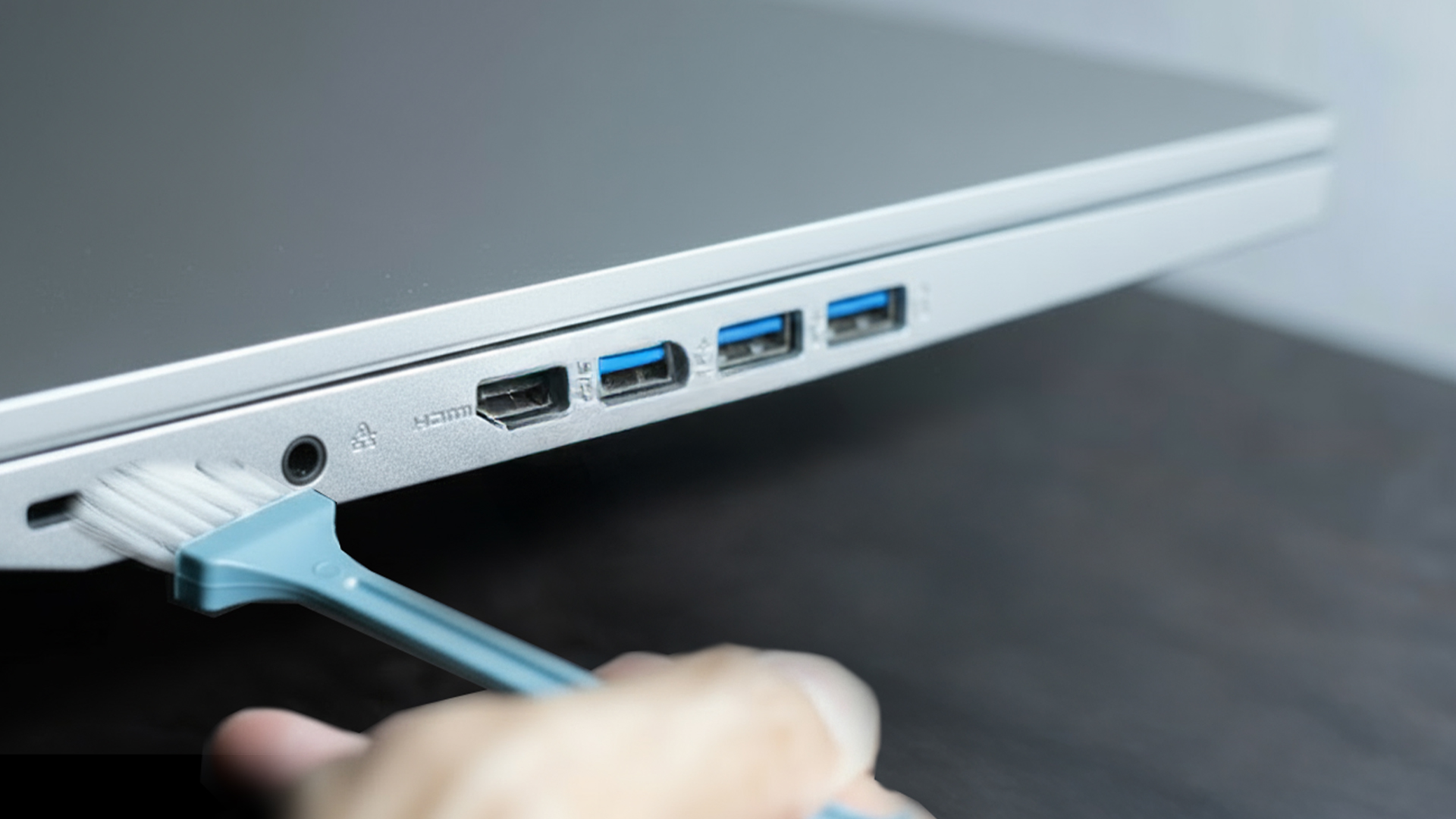
Regularly inspect and clean the DC jack or USB-C port. Dust and debris can cause unstable connections. Avoid forcing connectors in or wiggling them while plugged in.
Monitor Battery Health via Lenovo Vantage
Open Lenovo Vantage → Device → Power to check battery health, enable or disable Conservation Mode, and view charging thresholds. This helps detect degradation early and maintain proper charging limits.
Update Firmware, BIOS, and Power Drivers Regularly
Keep your system up to date. Lenovo frequently releases battery firmware, BIOS, and power management driver updates that improve compatibility and charging control. Outdated versions can lead to communication errors or firmware lockups. Sometimes BIOS issues can also lead to black screen or flickering problems. Check out our detailed guide on how to fix a black screen or flickering display issue on Lenovo laptops.
Store and Charge Properly
If storing your laptop for weeks, keep the battery around 50–60 % charge and disconnect the adapter. Avoid leaving it plugged in 24/7, as constant top-off charging accelerates wear even with modern control circuits.
Conclusion
Lenovo laptops are generally considered one of the best in the market and their battery runs smoothly for years without any problems. However, problems can arise from time to time and battery not charging doesn’t necessarily mean that something big is wrong with your machine.
The issue can be fixed most of the time without requiring any major repairs. If problems persist, Lenovo’s UK support and authorised service centres can provide safe, reliable solutions.
Frequently Asked Questions
Why does my Lenovo laptop say “plugged in, not charging”?
This usually means the laptop detects the charger but the battery isn’t accepting power. It can be caused by settings in Lenovo Vantage, outdated drivers, or a weak adapter.
Why does my Lenovo only charge to 60% or 80%?
Your Lenovo Vantage charging settings may have Conservation Mode turned on. This feature limits charging to extend battery life. Simply turn it off to charge fully.
Why does my laptop only charge when it’s off?
If charging only works when powered down, the adapter wattage may be too low, or background power draw is too high. Using the original Lenovo adapter usually fixes this.
Can I charge my Lenovo laptop through USB-C?
Yes, if your model supports USB-C Power Delivery (PD). Always check the rated wattage and use a certified PD charger to avoid underpowering the laptop.
How do I check my battery health on Windows 11?
Run the command powercfg /batteryreport or open Lenovo Vantage → Device → Power to compare the design capacity and current full charge capacity.
Can a BIOS update fix charging issues?
Yes. A Lenovo BIOS update can often fix battery problems that prevent proper charging. Always perform BIOS updates while plugged in to avoid interruptions.
You can pay with:
*PayPal Credit Representative Example: Assumed credit limit £1,200, Representative 23.9% APR (variable). Purchase rate 23.9% p.a (variable).Terms & Conditions apply.


PayPal Credit and PayPal Pay in 3 are trading names of PayPal UK Ltd, 5 Fleet Place, London, United Kingdom, EC4M 7RD. Terms and conditions apply. Credit subject to status, UK residents only, Five Tech LTD acts as a broker and offers finance from a restricted range of finance providers. PayPal Pay in 3 is not regulated by the Financial Conduct Authority. Pay in 3 eligibility is subject to status and approval. 18+. UK residents only. Pay in 3 is a form of credit. Check if affordable and how you will repay. May make other borrowing more difficult or expensive. See product terms for more details.
Copyright © 1996-2026 Fivetech LTD | Terms and Conditions
box.co.uk & Box are trading names of Five Tech Limited. Registered office: Box LTD, Unit 10 Woodford Trading Estate, Woodford Green IG8 8HF