


 Menu
MenuMenu


Get Sales Advice from Mon - Fri 9am - 5:00pm:
020 3337 8950LAST UPDATED: July 14, 2026
Chrome Using Too Much Memory? How a 16GB RAM Laptop Helps
If Chrome is using too much memory, making your laptop feel slow, the problem is not always Chrome alone. It is usually a mix of open tabs, heavy websites, Chrome extensions, background processes, Windows 11 apps, and limited system memory.
The good news is that you can often reduce Chrome memory usage with a few simple fixes. Close heavy tabs, remove unused extensions, use Chrome Task Manager, turn on Chrome Memory Saver, and keep Chrome updated. If your laptop only has 4GB or 8GB RAM, though, tweaks may only get you so far.
This guide explains why Google Chrome RAM usage gets high, how to fix it, when high memory use is normal and when a 16GB RAM laptop becomes the smarter upgrade for smoother browsing and multitasking.
Quick answer: If Chrome is using too much memory, turn on Memory Saver, close unused tabs, remove extensions, check Chrome Task Manager and update Chrome. If your laptop still struggles with Chrome, video calls, Office apps, and Windows 11 at the same time, a 16GB RAM laptop can make everyday multitasking feel much smoother.
Why Is Chrome Using Too Much Memory?
Chrome uses memory because modern websites are not simple pages anymore. Many tabs behave like full apps, especially email, video streaming, social media, cloud documents, project tools, and online design platforms.
Chrome can end up taking a large share of available RAM and make the whole laptop feel sluggish. That can happen faster on laptops with limited RAM.
Chrome Runs Tabs, Extensions, and Processes Separately
Chrome separates many tabs, extensions, and browser tasks into different processes. This helps stability because one broken tab is less likely to crash the whole browser.
The downside is that memory usage can look high in Windows Task Manager. You may see several Chrome processes even when only one Chrome window is open.
Chrome can use RAM for:
- Open tabs
- Inactive tabs
- Extensions
- Background pages
- Web apps
- Video playback
- Downloads
- Browser security features
- Preloaded pages
- Synced services
That is why Google Chrome using too much memory is often about the full browsing session, not just one visible tab.
Heavy Websites Can Increase Chrome Memory Usage
Some websites use much more RAM than others.
Heavy sites include:
- Gmail and Outlook
- YouTube and streaming sites
- Canva and design tools
- Google Docs and Microsoft 365
- Project management dashboards
- Social media feeds
- Shopping sites with lots of scripts
- Browser games
- News pages with video and ads
One heavy tab can use more memory than several simple tabs. That is why Chrome high memory usage can happen even when you do not think you have much open.
Extensions and Background Apps Add Extra Pressure
Chrome extensions can be useful, but they also add memory and CPU load. Ad blockers, password managers, shopping tools, grammar checkers, VPN extensions, screenshot tools, and productivity extensions may all run in the background.
Some are worth keeping. Others quietly slow things down.
If Chrome feels heavy, extensions should be one of the first things you check.
How Much Memory Should Chrome Normally Use?
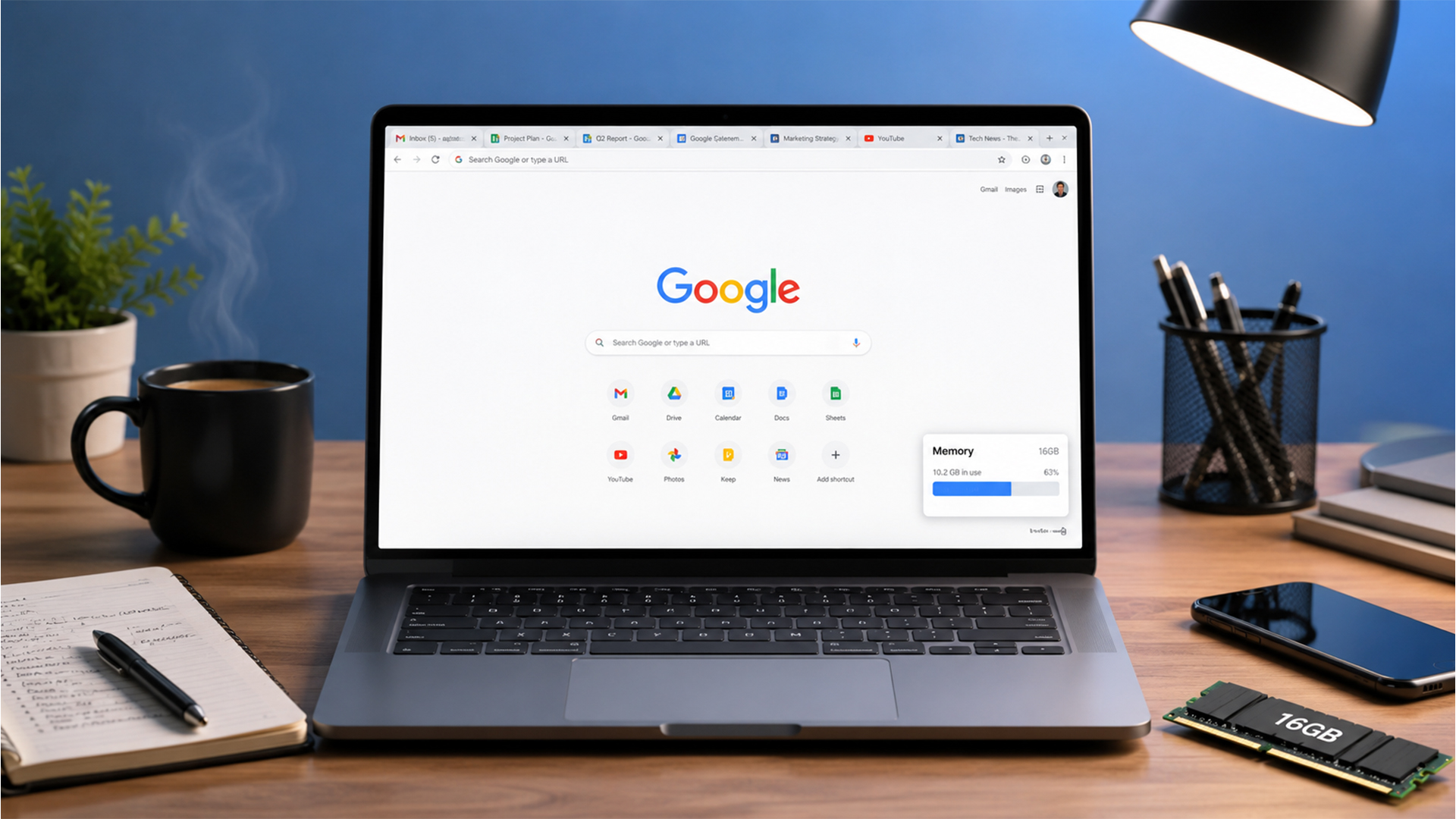
There is no single “normal” amount because Chrome memory usage depends on what you are doing. A clean browser with a few light tabs may use relatively little RAM. A workday browser session with 20 tabs, video calls, documents, dashboards, and extensions can use several gigabytes.
Is 1000 MB of Chrome Memory Normal?
Yes, 1000 MB, or around 1GB, can be normal for Chrome, especially if you have a heavy website open. A video tab, web app, email inbox, or design tool can use a lot of memory on its own.
It becomes a problem when:
- Your laptop starts freezing
- Tabs reload constantly
- Windows feels slow
- Video calls stutter
- Fans run loudly
- Task Manager shows memory near full
- Other apps struggle to open
- Chrome crashes or shows page errors
The number matters less than how the laptop behaves.
When Chrome High Memory Usage Becomes a Problem
Chrome high memory usage becomes a problem when it affects the rest of your laptop.
Watch for:
- Slow typing in Google Docs
- Lag when switching tabs
- Pages reloading when you return to them
- Teams or Zoom becoming choppy
- Windows 11 taking longer to respond
- The laptop using the SSD heavily as overflow memory
- Chrome using too much CPU at the same time
If the whole system slows down, you either need better browser management, more RAM, or both.
How to Check Chrome RAM Usage in Task Manager
On Windows 11:
- Press Ctrl + Shift + Esc to open Task Manager.
- Select Processes.
- Find Google Chrome.
- Check Memory and CPU.
- Expand Chrome to see individual processes where available.
This gives you a system-wide view. For a Chrome-specific view, use Chrome Task Manager.
Quick Fixes to Reduce Chrome Memory Usage
Start with these fixes before buying a new laptop. They are simple and usually make an immediate difference.
1. Close Unused Tabs and Heavy Web Apps
The quickest Chrome RAM usage fix is to close tabs you do not need.
Prioritise closing:
- Old shopping tabs
- Paused video tabs
- Duplicate documents
- Social feeds
- Browser games
- Unused dashboards
- Old research tabs
- Pages with auto-playing video
If you need to keep something, bookmark it or add it to a reading list instead of leaving it open all day.
2. Remove or Disable Unnecessary Chrome Extensions
To check extensions:
- Open Chrome.
- Select the three-dot menu.
- Go to Extensions.
- Select Manage extensions.
- Turn off anything you do not use.
- Remove extensions you no longer trust or need.
This is one of the easiest ways to reduce Chrome memory usage and improve browser performance.
3. Use Chrome Task Manager to Find Memory-Hungry Tabs
Chrome has its own Task Manager.
To open it:
- Open Chrome.
- Select the three-dot menu.
- Go to More tools.
- Select Task Manager.
- Sort by Memory footprint.
- End tabs or extensions you do not need.
This is useful because it shows which tab, extension or background page is causing the problem.
4. Clear Cache When Chrome Feels Slow or Unstable
Clearing cache will not magically fix every RAM problem, but it can help if Chrome feels unstable or sites keep loading badly.
To clear browsing data:
- Open Chrome settings.
- Go to Privacy and security.
- Select Delete browsing data.
- Choose cached images and files.
- Clear the data.
You do not always need to delete passwords, history, or cookies. Start with cached files if you only want a light clean-up.
5. Update Chrome to the Latest Version
Chrome works best when it is up to date.
To update:
- Open Chrome.
- Select the three-dot menu.
- Go to Help.
- Select About Google Chrome.
- Install any available update.
- Restart Chrome.
Updates can improve stability, security, and performance.
How Chrome Memory Saver Helps Reduce RAM Usage
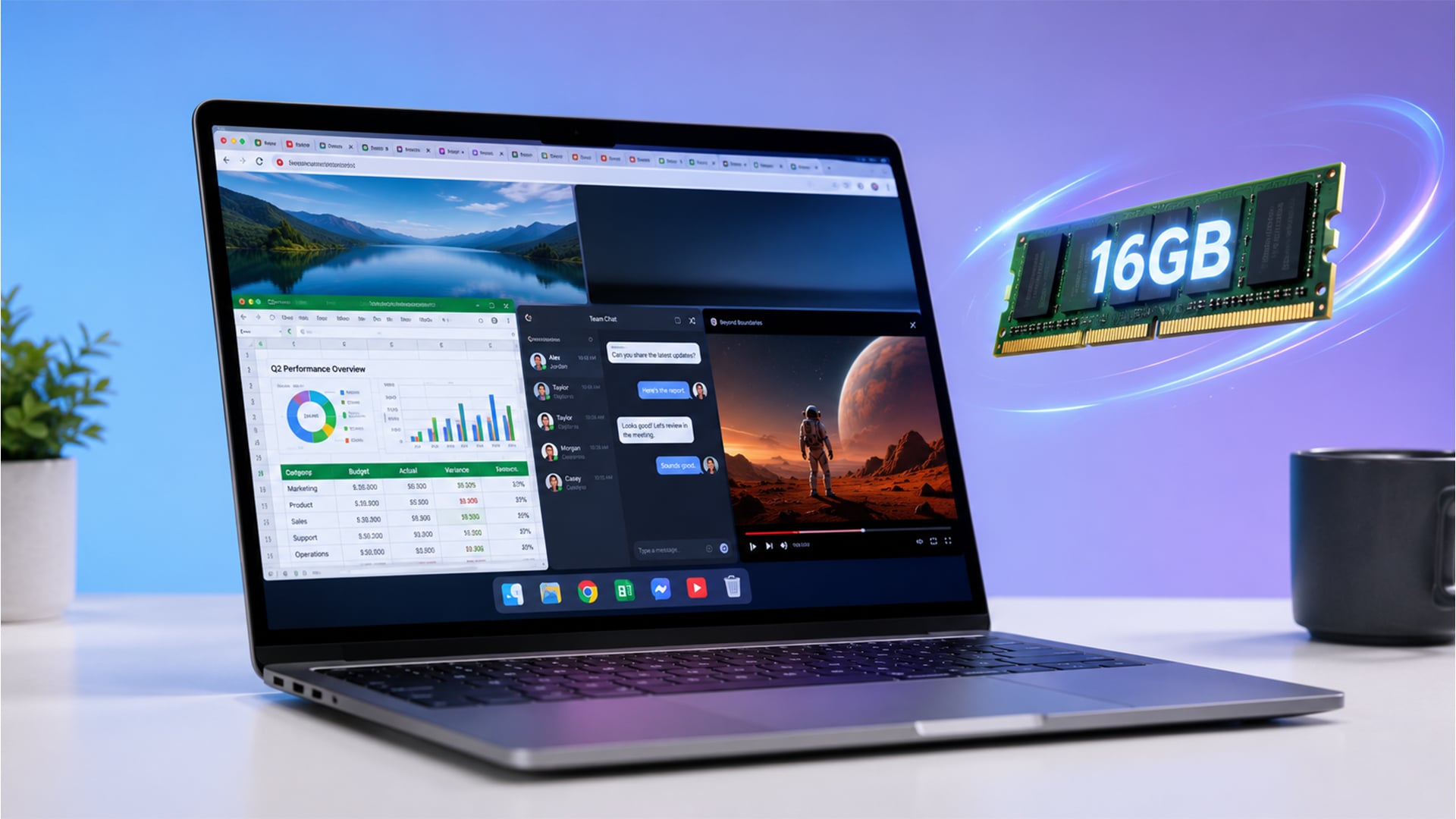
Chrome Memory Saver is one of the best built-in tools for laptop users. It helps reduce Chrome tab memory usage by deactivating tabs you are not currently using.
What Chrome Memory Saver Does
When Memory Saver is on, Chrome frees memory from inactive tabs. When you click an inactive tab again, it reloads automatically.
This helps active tabs run more smoothly because Chrome is not keeping every tab fully active all the time.
Memory Saver is useful if:
- You keep many tabs open
- Your laptop has 8GB or 16GB RAM
- You use Chrome for work or study
- Tabs slow down after a few hours
- Video calls struggle when many tabs are open
- You want better laptop memory management
Moderate, Balanced and Maximum Mode
Chrome Memory Saver offers different tab deactivation levels.
Use:
- Moderate if you want fewer tabs deactivated
- Balanced for the best everyday balance
- Maximum if your laptop struggles and you want stronger memory savings
Most users should start with Balanced. Use Maximum if Chrome using too much memory is still a daily problem.
Which Websites Should Stay Always Active
Some websites should not be deactivated.
Keep these always active if needed:
- Music players
- Live dashboards
- Email inboxes
- Web chat tools
- Trading or monitoring tools
- Online meetings
- Cloud documents you are actively editing
- Sites with forms you do not want to reload
This avoids losing progress or interrupting useful background activity.
Do You Need a Chrome Memory Saver Extension?
Usually, no. Chrome Memory Saver is built into Chrome, so most people should use the built-in feature first.
A Chrome memory saver extension or Chrome tab saver extension may help with specialised workflows, but extensions can also add more background processes. Keep your setup simple unless you have a clear need.
Chrome Using Too Much CPU vs Too Much Memory
Chrome using too much CPU is different from Chrome using too much memory, though they can happen together.
CPU Usage vs RAM Usage
RAM is memory. It helps your laptop keep active apps and tabs ready.
CPU is processing power. It handles active tasks such as video playback, scripts, page loading, downloads, screen sharing, and browser games.
In simple terms:
- High RAM usage can make multitasking slow
- High CPU usage can make the laptop hot, noisy or laggy
- High RAM and CPU together can make everything feel stuck
Why Chrome Can Use High CPU
Chrome can use high CPU because of:
- Video streaming
- Video calls
- Screen sharing
- Browser games
- Ads and trackers
- Poorly optimised websites
- Heavy extensions
- Too many active tabs
- Malware or unwanted software
- Outdated Chrome
- Background web apps
On Mac, users may see terms such as Google Chrome Helper. On Windows, you are more likely to see multiple Chrome processes in Task Manager. The idea is similar: Chrome uses helper processes to run tabs, plugins, and web content.
How to Reduce Chrome CPU Usage on Windows 11
Try this:
- Close tabs playing video or animation.
- Disable unused extensions.
- Use Chrome Task Manager to end heavy tasks.
- Update Chrome.
- Restart the laptop.
- Check Windows Task Manager for other apps using CPU.
- Scan for unwanted software if behaviour looks suspicious.
- Turn off unnecessary background apps in Windows.
If Chrome using too much CPU only happens on one website, that site may be the issue.
When Chrome Fixes Are Not Enough
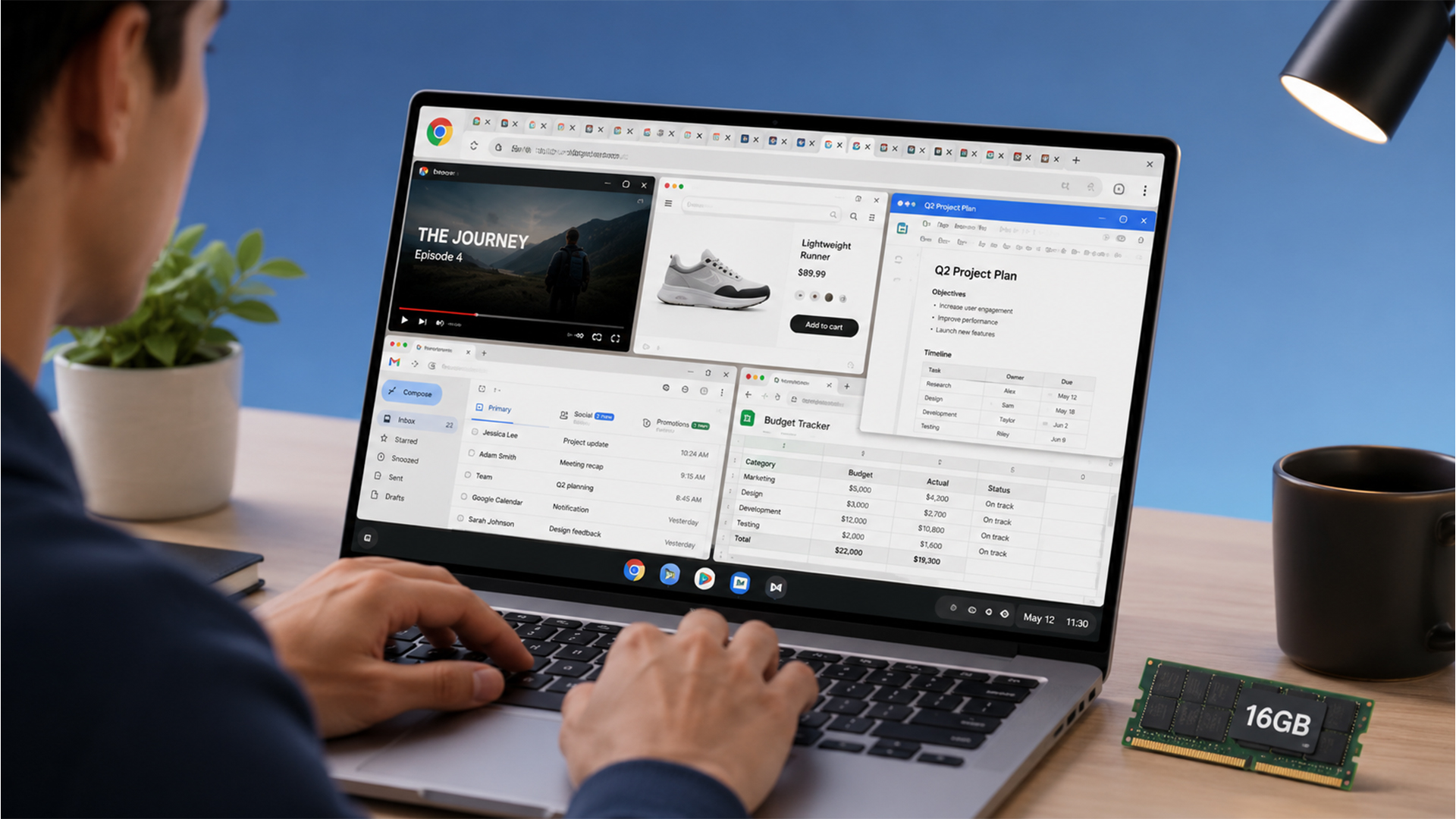
Sometimes the browser is not the real problem. The laptop simply does not have enough system memory for modern multitasking.
Why 8GB RAM Can Struggle with Chrome and Windows 11
8GB RAM can still work for basic browsing, but it gets tight when Windows 11, Chrome, security software, cloud storage and video calls are running together.
A typical busy session might include:
- Chrome with 15 tabs
- Teams or Zoom
- Word or Excel
- Spotify
- OneDrive
- antivirus
- background updates
That can quickly push memory usage high, especially on older laptops.
How Multiple Tabs, Video Calls and Office Apps Use Memory
Chrome is rarely the only app open. Most people use it alongside work or study tools.
Common memory-heavy combinations include:
- Chrome plus Teams
- Chrome plus Zoom
- Chrome plus Excel
- Chrome plus Canva
- Chrome plus Google Docs
- Chrome plus Spotify
- Chrome plus Outlook
- Chrome plus cloud storage sync
This is where a 16GB RAM laptop helps. It gives Windows and Chrome more room to keep everything active without forcing constant tab reloads.
Signs Your Laptop Needs More RAM Instead of More Tweaks
You may need a new or upgraded laptop if:
- Task Manager often shows memory near full
- Chrome tabs reload all the time
- your laptop freezes during video calls
- switching apps is slow
- typing lags in web apps
- the fan is always loud
- Windows updates make the laptop crawl
- the laptop only has 4GB or 8GB RAM
- RAM is not upgradeable
If these problems happen daily, browser fixes may only be temporary. If you are comparing upgrade options, start with all laptop deals at Box so you can balance 16GB RAM, SSD storage, processor power and screen size without overpaying.
Is a 16GB RAM Laptop Better for Chrome?
Yes. A 16GB RAM laptop is usually much better for Chrome-heavy users than an 8GB model.
It will not make a bad website perfect, but it gives the system more breathing room.
Why 16GB RAM Is the Sweet Spot for Heavy Browsing
16GB RAM is the practical sweet spot for most Chrome users because it supports:
- Many browser tabs
- Video calls
- Office apps
- Cloud storage
- Music streaming
- Research sessions
- Online shopping
- Dashboards
- Background apps
- Windows 11 performance
For most buyers, 16GB RAM gives a strong balance between cost and multitasking performance. For users who keep Chrome, Teams, Word, Spotify and cloud storage open together, 16GB multitasking laptops are a sensible starting point.
And for a broader memory comparison, read our 16GB vs 32GB laptop RAM guide.
How 16GB RAM Helps with 30 to 50 Browser Tabs
If you keep 30 to 50 tabs open, 16GB RAM gives Chrome more room to hold active tabs, extensions and web apps.
You should still use Memory Saver and close unnecessary tabs. More RAM helps, but good tab management still matters.
For tab-heavy browsing, 16GB RAM can reduce:
- Tab reloads
- App switching delays
- System slowdowns
- Stuttering during calls
- Lag when opening new pages
Why 16GB RAM Is Better for Students and Hybrid Workers
Students and hybrid workers often run Chrome all day. They use browser tabs for research, coursework, video calls, email, calendars and cloud documents.
A 16GB RAM laptop is helpful for:
- Online classes
- Research tabs
- Teams or Zoom
- Google Docs
- Microsoft 365
- PDF readers
- Revision resources
- Remote work dashboards
- Presentations
For students and everyday users, our 16GB RAM enough guide explains why 16GB is usually the right baseline.
When 32GB RAM Is Worth Considering Instead
32GB RAM is worth considering if you use Chrome alongside heavier apps.
Choose 32GB if you regularly use:
- 4K video editing
- Virtual machines
- Large spreadsheets
- Programming tools
- Docker
- Heavy design apps
- Big datasets
- AI tools
- Gaming while streaming
- Hundreds of browser tabs
For office buyers, our business RAM and storage advice can help match RAM and SSD specs to workload.
What to Look for in a Laptop for Heavy Chrome Use
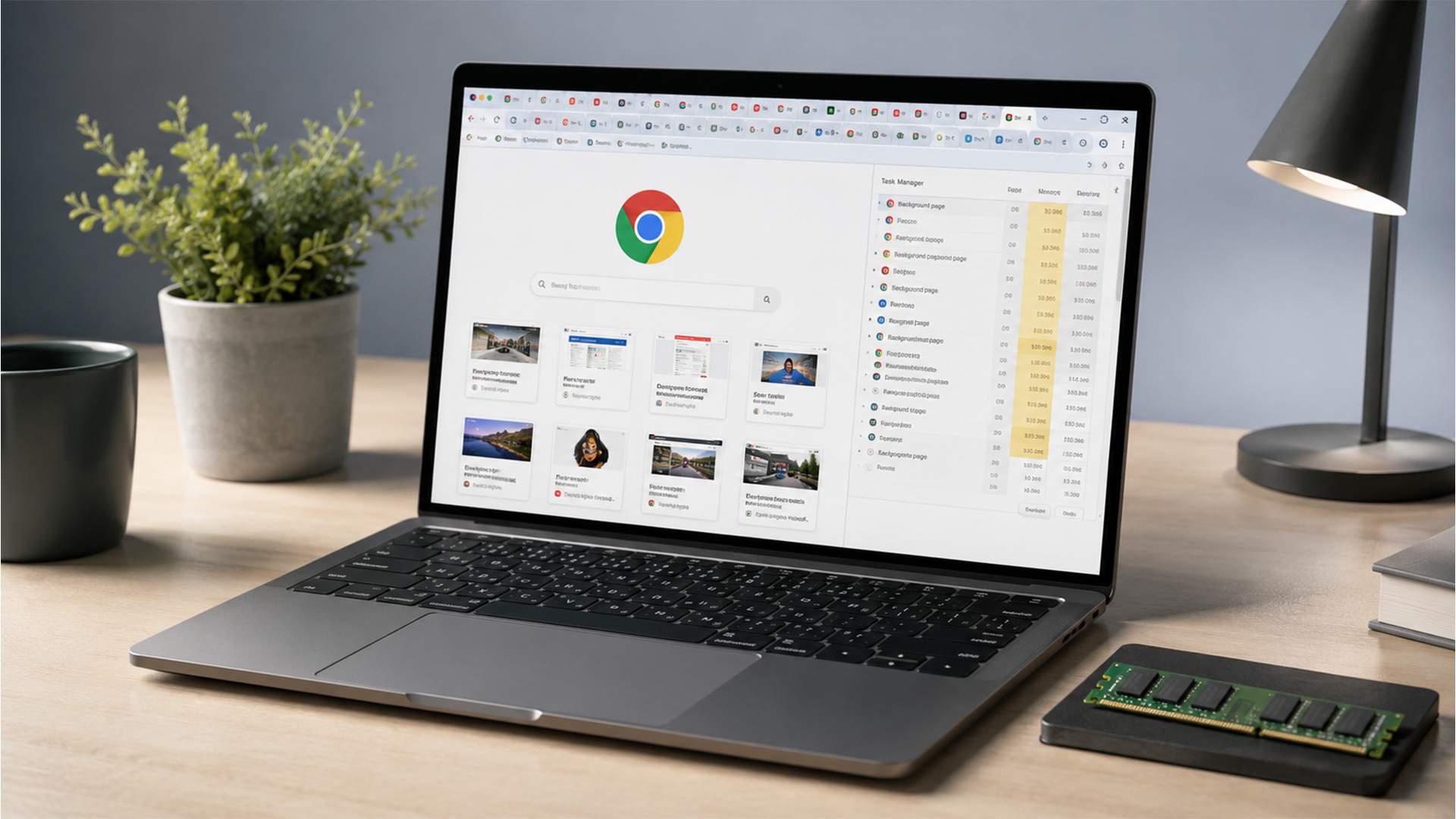
If Chrome is central to your day, do not only check the RAM. A good browsing laptop also needs the right processor, SSD, screen and battery life. For office buyers managing Chrome, Microsoft 365, video calls and admin tools all day, business-ready Windows 11 Pro laptops are a better fit than basic home laptops.
Choose 16GB RAM for Smooth Multitasking
16GB RAM is the main spec to prioritise for heavy Chrome use. It gives you enough laptop memory for tabs, extensions, background processes and Windows 11.
For a full buying breakdown, read our laptop RAM buying guide.
Pick an SSD for Faster Startup and App Loading
SSD storage makes the whole laptop feel quicker. It helps with:
- Windows startup
- Opening Chrome
- Launching apps
- Loading files
- Updates
- Switching tasks
A 512GB SSD is a good target for most users. A 1TB SSD is better if you store lots of photos, downloads, documents or media.
Match the Processor to Your Workload
For light Chrome use, a modest modern processor is fine. For heavier multitasking, choose Intel Core i5, Intel Core i7, AMD Ryzen 5 or better. For Chrome-heavy browsing, video calls and everyday work, Intel i5 laptop options are a strong middle-ground choice.
The processor matters more if you:
- Use video calls
- Run browser-based apps
- Work with large spreadsheets
- Open many tabs
- Stream and multitask
- Use creative tools
Choose the Right Screen Size
For browsing, screen space matters.
A 14-inch laptop is good for portability. A 15.6-inch laptop gives more room for tabs, documents and split-screen work. If most of your day is spent in Chrome, email, documents and streaming apps, Windows laptops for everyday browsing offer plenty of practical options.
Choose based on where you use the laptop most.
Check Battery Life, Ports and Portability
If you work away from a desk, check:
- Battery life
- Weight
- USB-C
- HDMI
- Wi-Fi standard
- Webcam quality
- Keyboard comfort
- Charger size
A fast laptop is less useful if it is awkward to carry or uncomfortable to type on.
If you are ready to upgrade and get a new laptop for gaming, our guide on the best 16GB RAM gaming laptops lists some great options for you to check out.
Wrapping Up
If Chrome using too much memory only happens occasionally, start with browser fixes. Turn on Memory Saver, close unused tabs, remove unnecessary extensions, check Chrome Task Manager, clear cache when needed and update Chrome.
If Chrome feels slow every day and your laptop has 4GB or 8GB RAM, a 16GB RAM laptop is likely the better long-term fix. It gives Chrome, Windows 11, video calls, Office apps and background processes more room to work.
FAQs About Chrome Using Too Much Memory
-
How do I stop Chrome from using so much memory?
Turn on Memory Saver, close unused tabs, remove unnecessary extensions, use Chrome Task Manager to find heavy tabs, clear cache if Chrome feels unstable and keep Chrome updated. If your laptop has only 4GB or 8GB RAM, upgrading to 16GB can also help.
-
Why is Chrome using so much memory with only one tab open?
One tab can still use a lot of memory if it is a heavy web app, video site, dashboard, email inbox, design tool or page with ads and scripts. Chrome extensions and background processes can also run even when only one tab is visible.
-
Is it normal for Chrome to use 1000 MB of memory?
Yes, it can be normal for Chrome to use around 1000 MB of memory, especially with a heavy tab open. It is a problem only if the laptop slows down, tabs crash, video calls stutter or Windows runs out of available memory.
-
How do I clear RAM cache in Chrome?
Chrome does not have a simple “clear RAM cache” button for normal users. The practical fixes are to close tabs, restart Chrome, use Memory Saver, end heavy tasks in Chrome Task Manager and clear cached files if sites feel slow or unstable.
-
How do I reduce RAM usage in a browser?
Close unused tabs, remove extensions, avoid keeping heavy web apps open, use built-in memory saving features, update the browser and restart it occasionally. On older laptops, reducing browser RAM usage may also require more system memory.
-
Is Chrome still a RAM hog?
Chrome can use a lot of RAM because modern websites, tabs and extensions are demanding. However, features such as Memory Saver and tab memory usage previews make it easier to manage than before.
-
Does Chrome drain RAM?
Chrome uses RAM to keep tabs, web apps and extensions ready. That is normal. It becomes an issue when Chrome uses so much system memory that Windows, apps and video calls slow down.
-
Why is Chrome using 70% of my CPU?
Chrome may use 70% CPU because of video streaming, screen sharing, browser games, heavy ads, extensions, background web apps or a poorly optimised website. Use Chrome Task Manager and Windows Task Manager to find the process causing the spike.
You can pay with:
*PayPal Credit Representative Example: Assumed credit limit £1,200, Representative 23.9% APR (variable). Purchase rate 23.9% p.a (variable).Terms & Conditions apply.


PayPal Credit and PayPal Pay in 3 are trading names of PayPal UK Ltd, 5 Fleet Place, London, United Kingdom, EC4M 7RD. Terms and conditions apply. Credit subject to status, UK residents only, Five Tech LTD acts as a broker and offers finance from a restricted range of finance providers. PayPal Pay in 3 is not regulated by the Financial Conduct Authority. Pay in 3 eligibility is subject to status and approval. 18+. UK residents only. Pay in 3 is a form of credit. Check if affordable and how you will repay. May make other borrowing more difficult or expensive. See product terms for more details.
Copyright © 1996-2026 Fivetech LTD | Terms and Conditions
box.co.uk & Box are trading names of Five Tech Limited. Registered office: Box LTD, Unit 10 Woodford Trading Estate, Woodford Green IG8 8HF