


 Menu
MenuMenu


Get Sales Advice from Mon - Fri 9am - 5:00pm:
020 3337 8950LAST UPDATED: July 07, 2026
How to Factory Reset a Samsung Laptop: Windows 10 & 11 Guide
If your Samsung laptop is slow, glitchy, full of old files, or stuck at startup, a reset can give it a clean, fresh start. The safest way to factory reset Samsung laptop models depends on whether Windows still works, whether you can sign in, and whether Samsung Recovery is available.
This guide covers Samsung Recovery and reset on Windows 11 and Windows 10, along with sign-in screen resets. It will also walk you through solutions for older Windows 7 models, and what to do before and after resetting.
Quick answer: If you can log in, use Reset this PC from Windows Settings. If Windows will not boot, try Samsung Recovery with the F4 recovery key on supported models. If you cannot log in, use the Windows sign-in screen reset through Shift + Restart.
Before You Factory Reset a Samsung Laptop
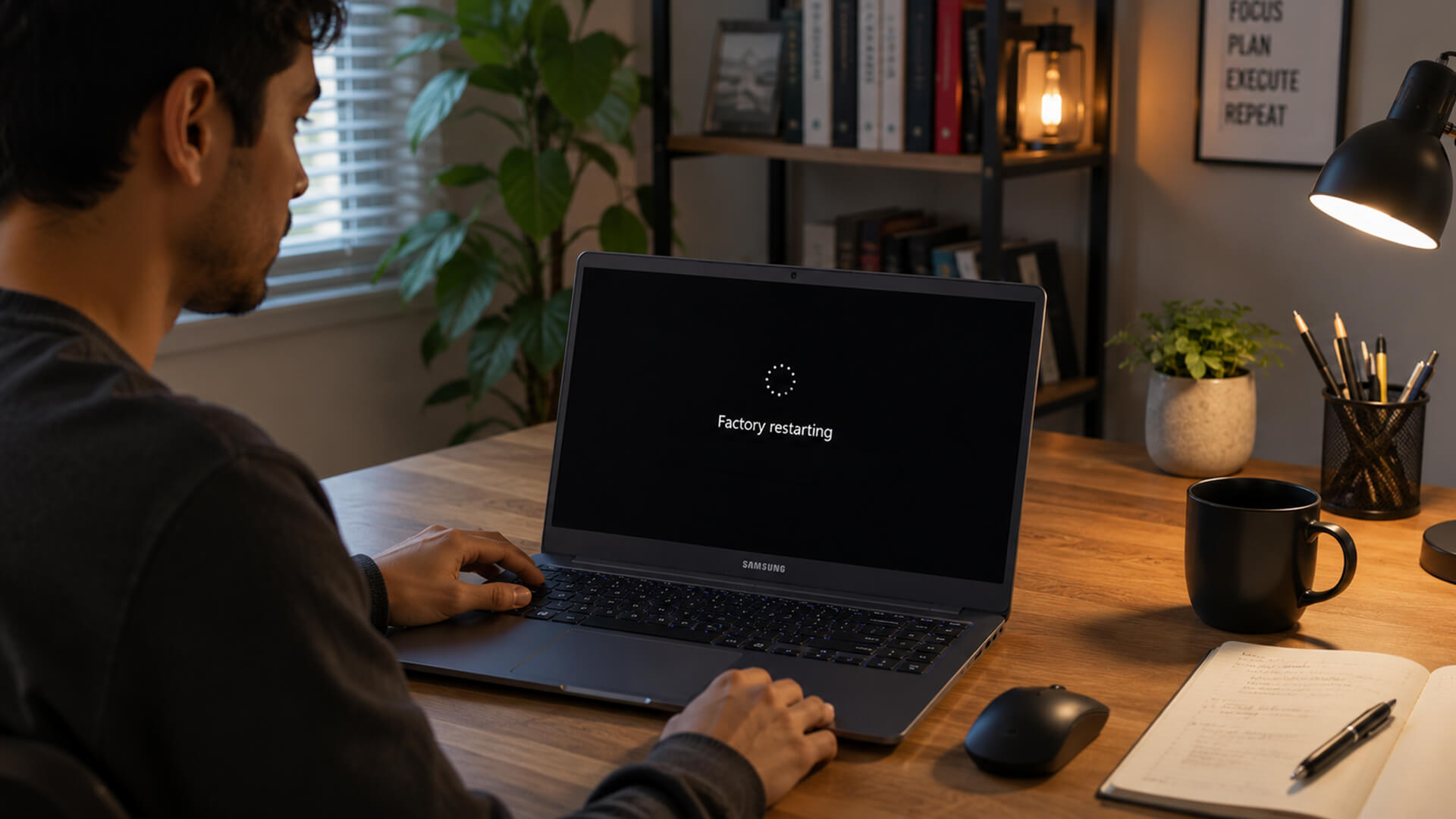
A factory reset is useful, but it can remove apps, settings, and files depending on the option you choose. Do these checks first.
Back Up Important Files, Passwords, and Licence Keys
Before you factory reset a Samsung laptop, back up anything you cannot replace.
Back up:
- documents
- photos
- videos
- coursework
- work files
- downloads
- browser bookmarks
- app licence keys
- saved passwords
- game saves
- email archives
- BitLocker recovery key
Use OneDrive, Google Drive, an external drive, or another trusted backup method.
If you are resetting because the device is slow, it may be worth trying out the steps in our speed up a slow laptop before resetting guide first. A reset is useful, but it is not always the first fix.
Check Whether You Need a Reset, Restore, or Reformat
These terms are often mixed up.
- Factory Reset: Reinstalls Windows and returns the laptop close to its original state.
- Restore: Rolls the laptop back to a previous backup or restore point.
- Hard Reset: Forces the laptop to power off and restart.
- Reformat: Wipes and prepares the drive, usually as part of a clean Windows install.
For most users, Reset this PC or Samsung Recovery laptop tools are safer than manually formatting the drive.
Keep the Laptop Plugged In
A reset can take a while. Keep the charger connected from start to finish.
Do not force the laptop off during the reset unless it is clearly stuck for a very long time. The screen may go black, and the laptop may restart several times.
Know What Will Be Deleted
Windows reset options matter.
| Reset Option | What It Does | Best For |
|---|---|---|
| Keep my files | Reinstalls Windows but keeps personal files | Fixing software problems without wiping documents |
| Remove everything | Removes personal files, apps and settings | Selling, giving away, or starting completely fresh |
| Cloud download | Downloads Windows again from Microsoft | Corrupt local files or a cleaner reinstall |
| Local reinstall | Uses files already on the laptop | Faster reset when internet is slow |
If you are selling or giving away the laptop, choose Remove everything and use the drive-cleaning option if offered.
Best Way to Factory Reset a Samsung Laptop
The best method depends on your situation.
Use Samsung Recovery When Windows Will Not Boot
Use Samsung Recovery if:
- Windows will not load
- Your Samsung laptop is stuck during startup
- You want Samsung’s factory recovery option
- The F4 recovery key works on your model
- The recovery partition is still present
This is often the best way to restore a Samsung laptop to factory settings on supported models.
Use Reset This PC When You Can Log In
Use Windows Settings if:
- You can sign in
- Windows 10 or 11 still opens
- The laptop is slow or unstable
- You want to keep files or remove everything
- Samsung Recovery is not available
This is the easiest option for most Samsung Galaxy Book reset situations.
Use Windows Recovery Environment When You Cannot Log In
Use the Windows sign-in screen reset if:
- You forgot your password
- The profile will not load
- Windows reaches the lock screen
- You cannot access Settings
- You need to reset without logging in
This is the usual route for factory reset Samsung laptop without password searches.
How to Factory Reset a Samsung Laptop Using Samsung Recovery
Samsung Recovery is Samsung’s own recovery tool. It can help restore, back up, or reset supported Samsung laptops.
It is not available on every model, and some newer or lower-storage laptops may not include the same recovery options.
Use the Samsung Laptop Recovery Key
The common Samsung laptop recovery key is F4.
Use it like this:
- Shut down the laptop.
- Plug in the charger.
- Press the power button.
- Press F4 repeatedly before the Samsung logo appears.
- Wait for Samsung Recovery to open.
If F4 does not work, the recovery partition may be missing, Samsung Recovery may not be supported, or Windows recovery may be the better option.
Start Computer Factory Reset in Samsung Recovery
Once Samsung Recovery opens:
- Choose Computer factory reset.
- Select Start factory reset.
- Confirm the reset.
- Wait while the laptop resets.
- Let the laptop restart.
- Complete the Windows setup screens.
This process can remove files and apps, so only continue once your backup is ready.
When Samsung Recovery Is the Best Option
Use Samsung Recovery if you want to Samsung laptop reset to factory settings with Samsung’s own factory tools.
It is especially useful when:
- Windows will not boot
- The laptop has driver issues
- The system is badly corrupted
- You want Samsung’s original setup restored
- You are preparing the laptop for a clean restart
If your Galaxy Book is having sleep or wake problems rather than full system failure, try our guide to fix Samsung Galaxy Book sleep and wake issues before resetting.
How to Factory Reset a Samsung Laptop on Windows 11
This is the best method if you can log in.
Open Recovery Settings in Windows 11
- Click Start (Windows Key).
- Open Settings.
- Go to System.
- Select Recovery.
- Find Reset this PC.
- Click Reset PC.
Choose Keep My Files or Remove Everything
Choose Keep my files if you want to keep personal files and fix Windows.
Choose Remove everything if you want a full reset, especially before selling or giving away the laptop.
Select Cloud Download or Local Reinstall
Choose Cloud download if:
- Windows files may be damaged
- Local reinstall fails
- You have a stable internet connection
- You want a fresh Windows download
Choose Local reinstall if:
- Your internet is slow
- You want a faster process
- Windows files are likely still healthy
Complete the Windows 11 Reset Process
After choosing your options:
- Review the reset summary.
- Confirm the reset.
- Keep the laptop plugged in.
- Wait for restarts to finish.
- Complete setup.
- Sign in with your Microsoft account.
- Install updates and Samsung drivers.
If you are replacing an older device, compare Windows 11 laptops with modern recovery options before spending too much time on a very old laptop.
How to Factory Reset a Samsung Laptop on Windows 10
Samsung laptop factory reset process on Windows 10 is very similar to Windows 11, but the menu path is different.
Open Recovery Settings in Windows 10
- Click Start.
- Open Settings.
- Select Update & Security.
- Choose Recovery.
- Under Reset this PC, click Get started.
- Start Reset This PC on Windows 10
Choose one of these options:
- Keep my files
- Remove everything
Then choose:
- Cloud download
- Local reinstall
Choose the Right Reset Option for Your Files
Use Keep my files if you want to fix Windows but keep documents and personal files.
Use Remove everything if:
- The laptop is being sold
- The laptop is being passed to someone else
- Malware is suspected
- You want a clean start
- You do not need anything on the drive
Reinstall Apps and Drivers After Resetting
After resetting:
- Run Windows Update
- Reinstall essential apps
- Sign back into cloud storage
- Restore backed-up files
- Install Samsung updates
- Check Device Manager for missing drivers
If you are still using an older Windows laptop, it may be worth browsing Windows laptops for everyday computing for a more modern replacement.
How to Factory Reset a Samsung Laptop Without Password
You can reset many Windows laptops without signing in, but only if you can reach the Windows sign-in screen or recovery tools.
This is useful for:
- Forgotten passwords
- Broken user profiles
- Laptops stuck at login
- Samsung Galaxy Book factory reset without password searches
- Reset without logging in situations
Reset from the Windows Sign-In Screen
- Turn on the laptop.
- Go to the Windows sign-in screen.
- Hold Shift.
- Select Power.
- Choose Restart while still holding Shift.
- Wait for Windows Recovery Environment.
- Select Troubleshoot.
- Choose Reset this PC.
- Select Keep my files or Remove everything.
- Follow the on-screen instructions.
If you do not know the password and you are selling, donating, or starting fresh, choose Remove everything.
Reset a Samsung Galaxy Book Without Password
For a factory reset Samsung Galaxy Book without signing in, try the sign-in screen method first.
If the laptop will not reach the sign-in screen, try:
- Samsung Recovery with F4
- Windows Recovery Environment
- A Windows installation USB
- Manufacturer support
- Your school or workplace IT team if it is managed
Do not attempt to bypass security on a device you do not own or have permission to reset.
What to Do If BitLocker Recovery Appears
Some Samsung laptops may ask for a BitLocker recovery key during reset or recovery.
A BitLocker recovery key is a 48-digit key. It may be stored in:
- Your Microsoft account
- A work or school account
- Printed recovery key paperwork
- A saved USB drive
- Your organisation’s IT system
If you cannot find the BitLocker recovery key, you may lose access to the files on the drive.
How to Factory Reset a Samsung Laptop on Windows 7
If you have an older Samsung laptop running Windows 7 that you wish to reset, don’t worry, as the solution isn’t lost. The process, however, depends heavily on the age of the Samsung notebook and whether the original recovery partition still exists.
Windows 7 is no longer a modern supported operating system for everyday secure use, so consider upgrading or replacing the laptop where possible.
Use Samsung Recovery on Older Samsung Notebook Models
On older Samsung notebooks:
- Shut down the laptop.
- Press the power button.
- Press the recovery key shown for your model, often F4.
- Open Samsung Recovery Solution if available.
- Choose the restore or factory image option.
- Follow the on-screen instructions.
The exact wording may differ on older Samsung notebooks.
Restore Samsung Laptop to Factory Settings from Recovery
If the recovery partition still exists, Samsung Recovery may restore the laptop to the original Windows 7 factory image.
This can help if:
- The laptop is being reused offline
- You need to recover old files first
- You are preparing it for a Windows upgrade
- The current Windows install is unusable
Use Installation Media If the Recovery Partition Is Missing
If recovery is missing, you may need:
- Windows installation media
- The correct licence key
- Samsung drivers
- A backup of important files
- External storage
- Technical support
For most users, replacing an old Windows 7 laptop with a newer model is safer and easier.
Factory Reset vs Hard Reset vs Reformat Samsung Laptop
These are not the same thing.
What a Factory Reset Does
A factory reset reinstalls Windows and can remove files, apps and settings. It is used for software problems, selling the laptop or getting a clean start.
Use it when you want to:
- Reset Samsung laptop to factory settings
- Fix major software issues
- Remove old apps
- Prepare the laptop for someone else
- Start from a clean Windows install
What a Hard Reset Does
A Samsung laptop hard reset usually means forcing the laptop to power off and restart.
Try this if the laptop is frozen:
- Hold the power button for 10 to 15 seconds.
- Wait a few seconds.
- Press power again.
A hard reset does not normally delete your files. It is closer to a forced reboot.
When Formatting a Samsung Laptop Makes Sense
To reformat Samsung laptop storage usually means wiping the drive and reinstalling Windows.
This may make sense if:
- Windows is badly corrupted
- Reset this PC fails
- The recovery partition is missing
- You are doing a clean install
- You are replacing the drive
For most users, Reset this PC is easier than manual formatting.
When You Should Avoid a Full Reformat
Avoid manual formatting if:
- You do not have a Windows installer
- You do not have drivers ready
- You have not backed up files
- BitLocker is enabled, and you do not have the key
- The laptop is managed by your school or work
- You only need to fix a minor issue
If you want a fresh Windows laptop instead of rebuilding an old one, Windows laptop deals and offers are worth checking.
Common Samsung Laptop Factory Reset Problems
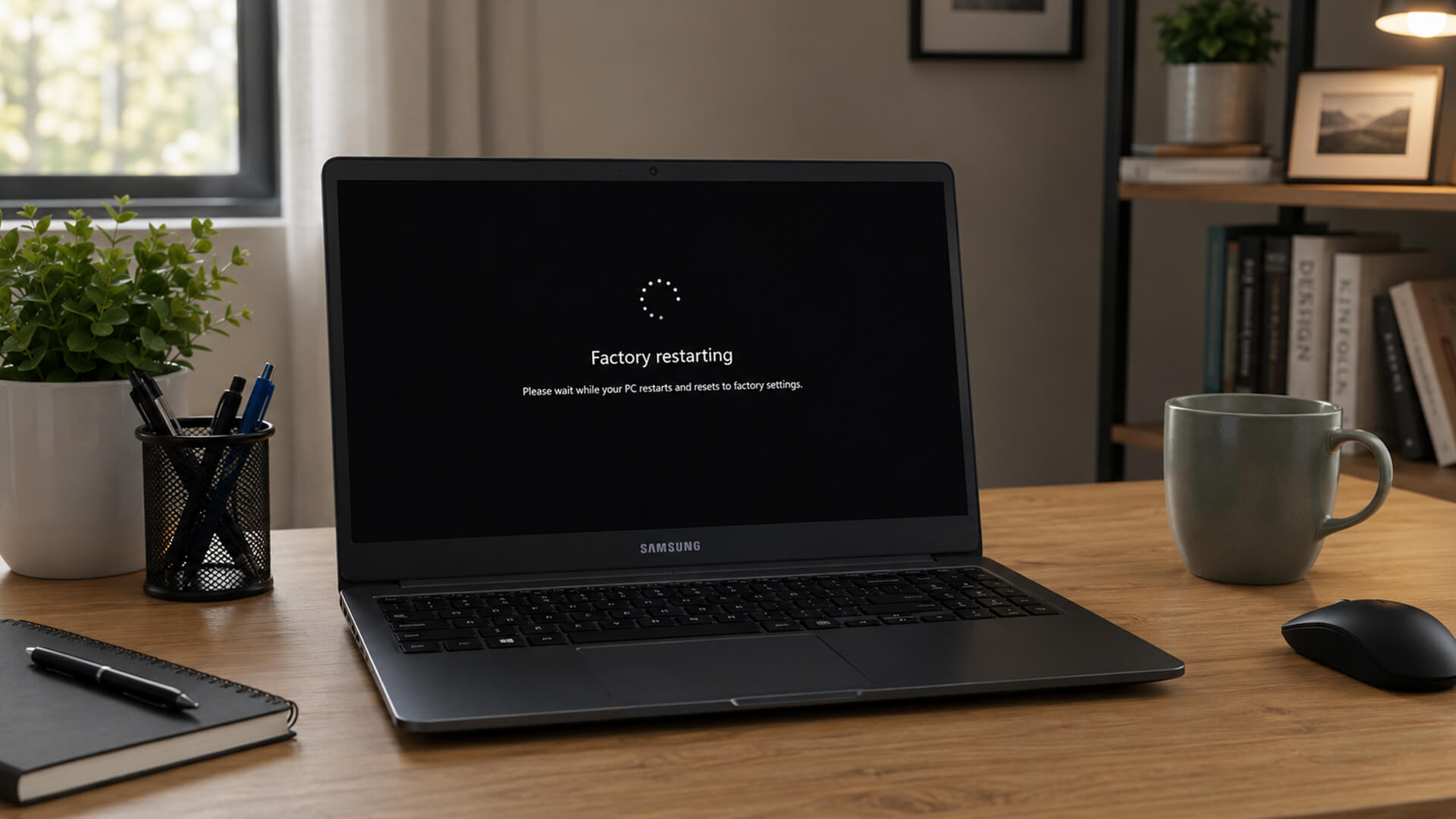
Resetting does not always go perfectly. Here are the most common problems and what to do.
Samsung Recovery or F4 Key Is Not Working
Possible reasons:
- Samsung Recovery is not installed
- Recovery partition is missing
- The model does not support Samsung Recovery
- F4 was pressed too late
- The keyboard is not responding
- The drive was replaced or wiped
Try this:
- Shut down fully and try F4 again
- Use Windows Recovery Environment
- Use Reset this PC from Settings
- Create a Windows installation USB
- Contact Samsung support
Reset This PC Gets Stuck or Fails
A reset can take time, and the screen may go black during the process.
If it appears stuck:
- Wait longer than usual before interrupting
- Keep the charger connected
- Check for signs of activity
- Avoid forcing shutdown too early
- Retry from Windows Recovery Environment if it fails
If it fails repeatedly, use Cloud download or Windows installation media.
Samsung Laptop Will Not Boot After Reset
If the laptop will not boot after reset:
- Unplug accessories
- Restart again
- Enter Windows Recovery Environment
- Try Startup Repair
- Check BIOS/boot order if using USB media
- Reinstall Windows if needed
If the screen is blank, use our dedicated guide to troubleshoot Galaxy Book display problems before assuming the reset failed.
Recovery Options Are Missing from Windows
If recovery options are missing:
- Windows files may be damaged
- The recovery partition may be gone
- The drive may have been replaced
- Samsung Recovery may not be installed
- System files may be corrupted
Try Samsung Recovery, Windows Recovery Environment, or a Windows installation USB.
What to Do After Resetting a Samsung Laptop
A reset is not finished when the desktop appears. Spend a few minutes setting it up properly.
Install Windows Updates First
Go to:
Settings > Windows Update
Install all important updates, then restart.
Update Samsung Drivers and Firmware
Use Samsung Update or the Samsung support page for your model to check:
- Chipset drivers
- Graphics drivers
- BIOS or firmware updates
- Touchpad drivers
- Wi-Fi drivers
- Audio drivers
Restore Files from Backup
Bring back only what you need.
Restore:
- Documents
- Photos
- Work folders
- Browser bookmarks
- Course files
- App projects
- Saved installers
Avoid restoring old junk folders that caused clutter before.
Reinstall Essential Apps
Install only what you use.
Start with:
- Browser
- Office apps
- Cloud storage
- Antivirus/security tools
- Video call apps
- Creative software
- Printer software
- Password manager
Check Security, Storage and Performance
After setup:
- Turn on Windows Security
- Check BitLocker status
- Remove trialware you do not need
- Check startup apps
- Set up OneDrive or backup
- Test Wi-Fi
- Check battery health
- Make a restore point if needed
If you are setting up a second-hand or returned device, our guide to set up a refurbished laptop safely is useful after the reset.
Should You Reset or Replace Your Samsung Laptop?
A reset can fix software problems, but it cannot fix weak hardware.
When a Reset Can Fix Slow Performance
A reset may help if the laptop has:
- Too many startup apps
- Corrupted Windows files
- App conflicts
- Malware symptoms
- Cluttered storage
- Broken settings
- Driver issues
Try a reset before replacing if the hardware is still good.
When Hardware Age or Storage Problems Matter
A reset may not help much if the laptop has:
- Very low RAM
- Old storage
- Failing SSD
- Weak battery
- Overheating
- Damaged screen
- Broken keyboard
- Unsupported Windows version
In that case, replacement may be the smarter option.
When a New Samsung Galaxy Book Is a Better Option
Consider replacing if repair or reset will not solve the real issue.
You can browse Samsung laptops for work, study and everyday use if you want to stay with Samsung.
Good upgrade options include:
- Samsung Galaxy Book4 i5 laptop for everyday use – A reliable all-rounder designed for daily tasks like browsing, streaming and office work, offering smooth performance and great value for everyday users.
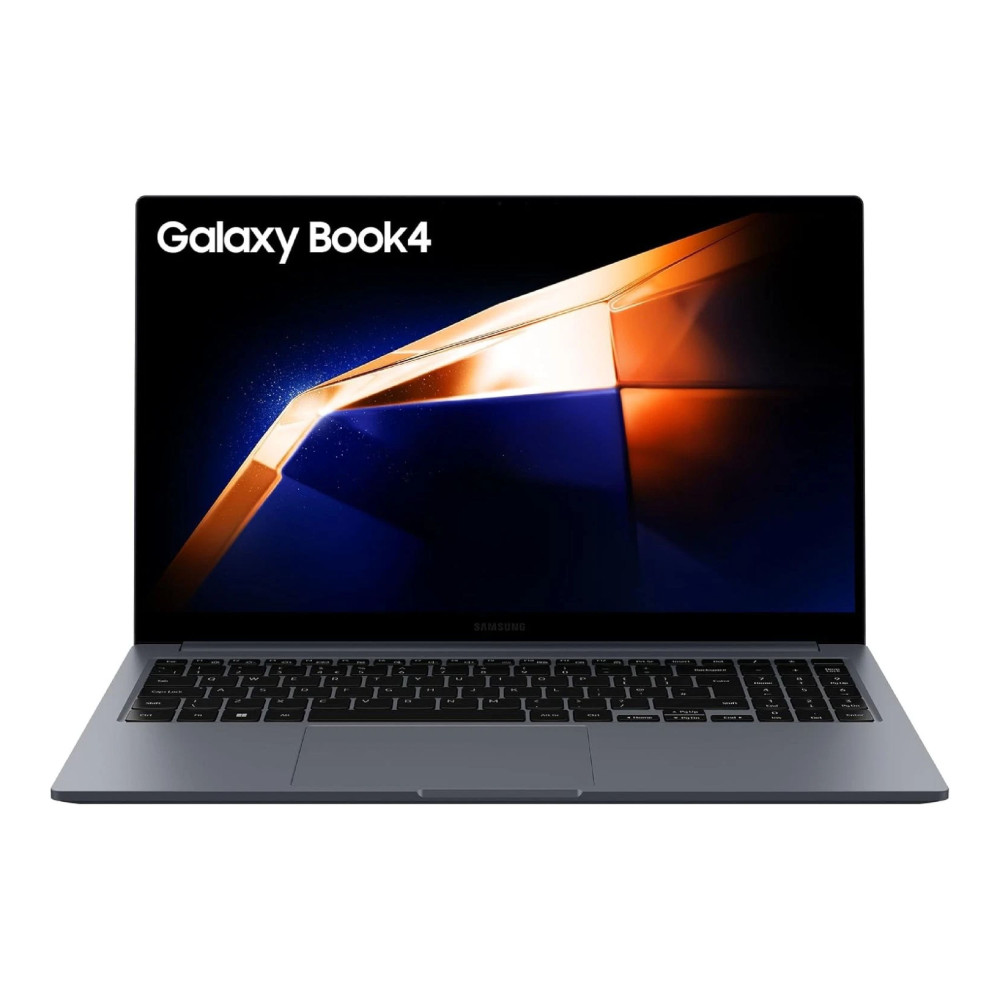
- Samsung Galaxy Book4 i7 laptop for multitasking – Built for heavier workloads, this model handles multitasking with ease, making it ideal for professionals, students and anyone running multiple apps at once.
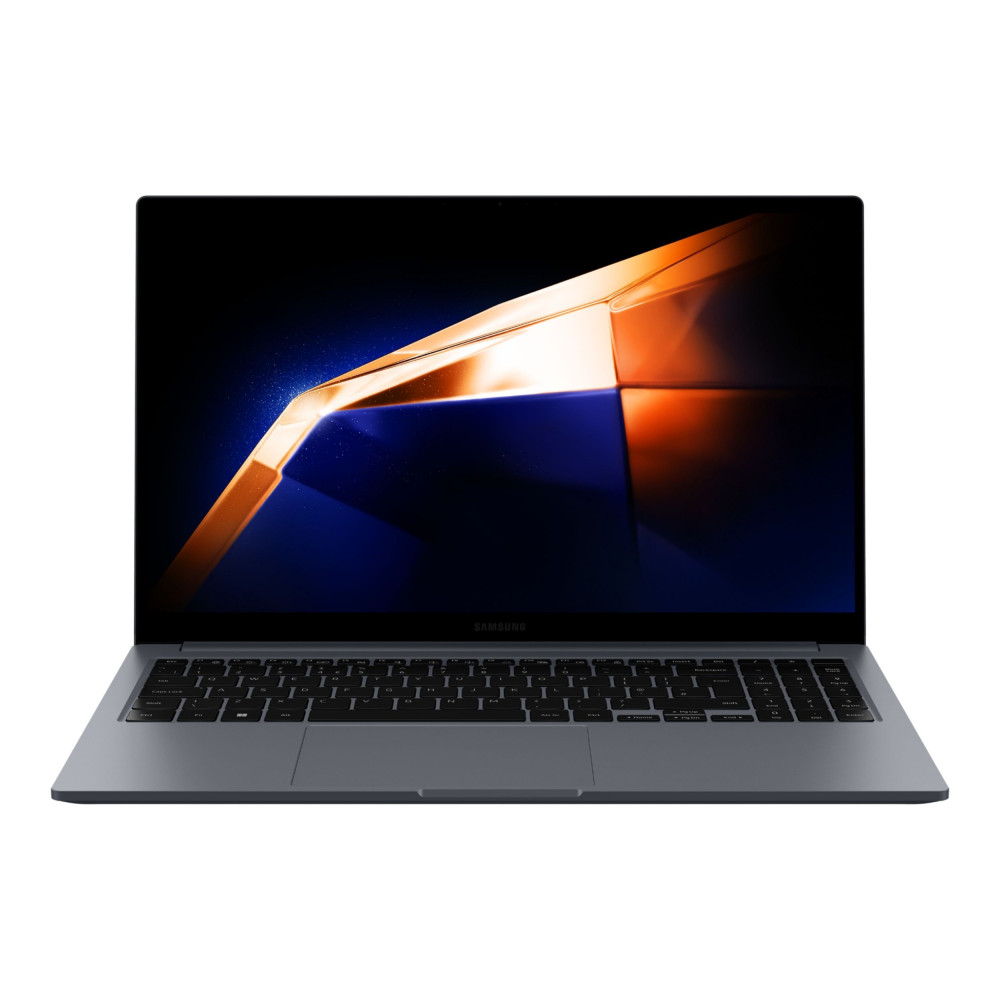
- Galaxy Book4 Pro 14 for professional productivity – A premium, lightweight laptop with powerful performance and a stunning display, perfect for creative work, business use and high-performance productivity.
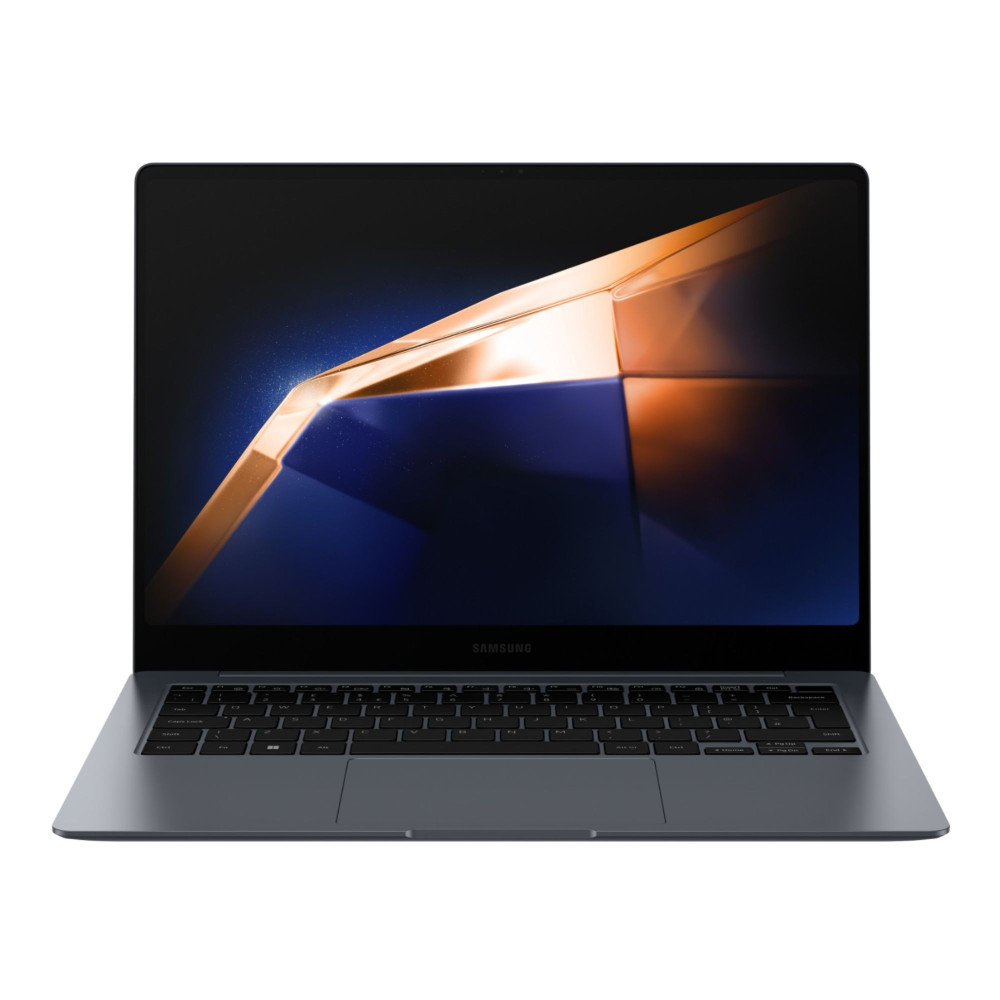
Shop Samsung Galaxy Book4 Pro 14
- Galaxy Book5 360 touchscreen 2-in-1 laptop – A flexible 2-in-1 device with a touchscreen and 360-degree hinge, ideal for users who want the versatility of both a laptop and a tablet in one sleek design.
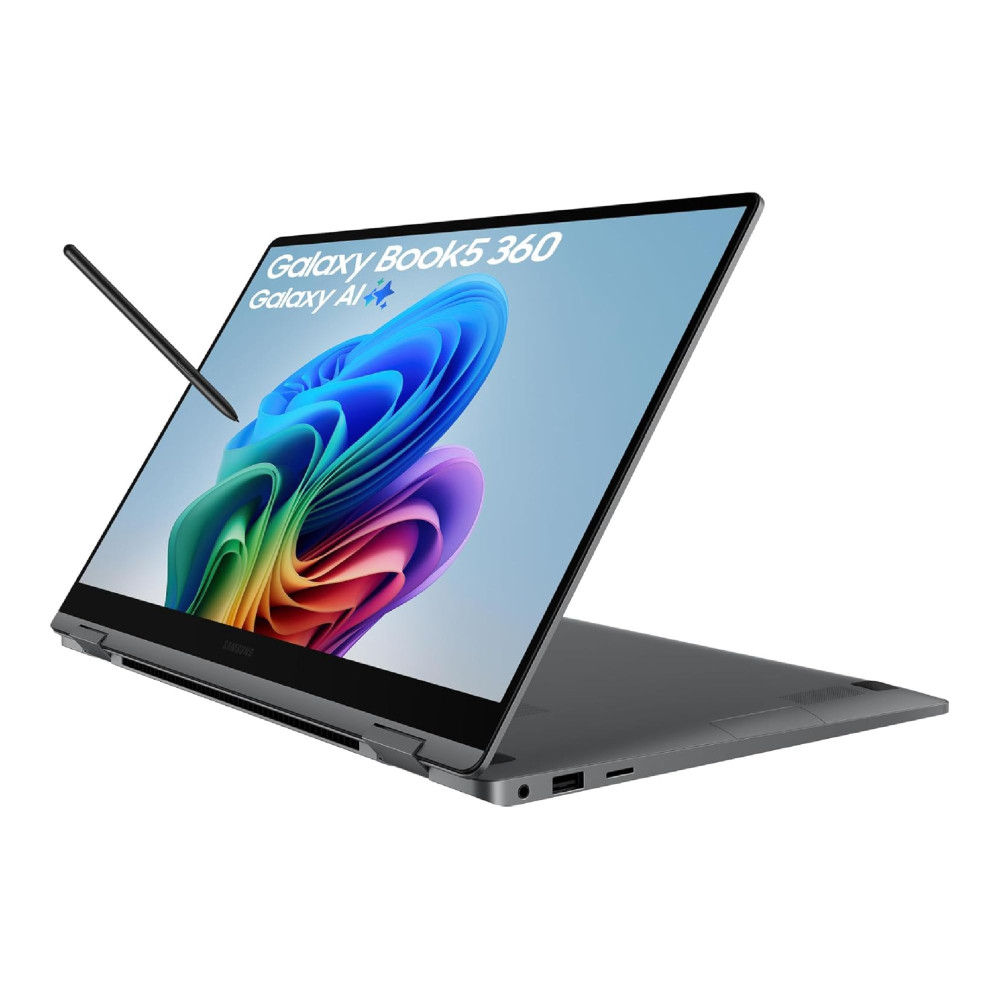
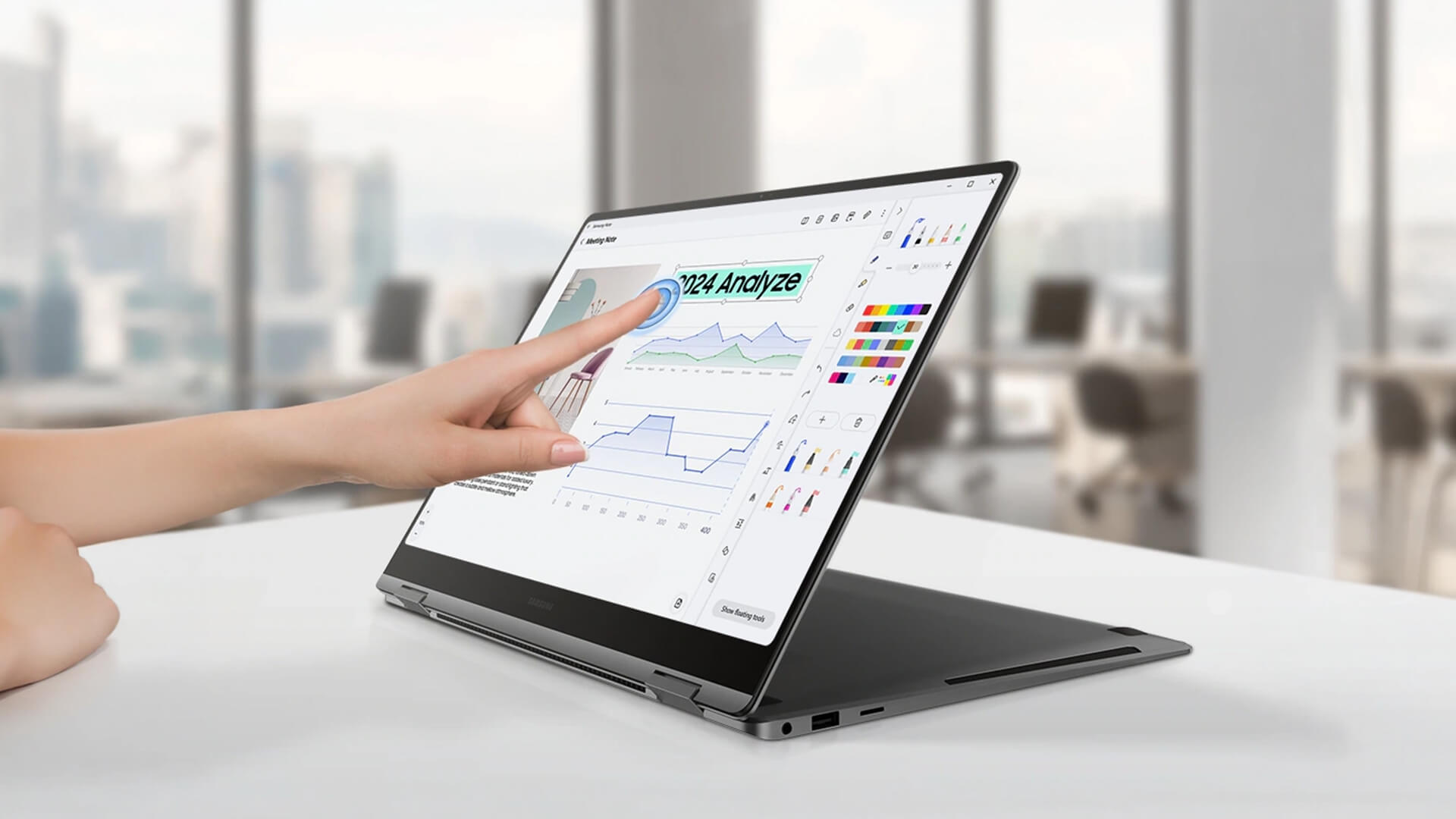
If you like pen, touch, and flexible screen modes, touchscreen laptops for flexible productivity are great to check out. You can also go for convertible 2-in-1 laptops to enjoy more flexibility.
Final Words
The easiest way to factory reset Samsung laptop models is to use Windows Reset this PC if you can log in. If Windows will not boot, try Samsung Recovery with the F4 key on supported models. If you cannot log in, reset from the Windows sign-in screen using Shift + Restart.
Use this simple order:
- Back up files.
- Save passwords and licence keys.
- Keep the charger plugged in.
- Use Windows Settings if you can log in.
- Use Samsung Recovery if Windows will not boot.
- Use sign-in screen recovery if you cannot access your account.
- Reinstall updates, drivers, and apps after reset.
A reset can solve many Windows problems, but it is not magic. If the laptop is old, slow, unsupported, or physically damaged, replacing it may be better value than repeatedly resetting it.
FAQs
-
How do I force my laptop to factory reset?
If you can sign in, go to Settings > System > Recovery > Reset this PC on Windows 11, or Settings > Update & Security > Recovery > Reset this PC on Windows 10. If you cannot sign in, hold Shift on the sign-in screen, choose Restart, then go to Troubleshoot > Reset this PC.
-
Is F11 or F12 factory reset?
On Samsung laptops, the common recovery key is usually F4, not F11 or F12. F11 or F12 may open recovery or boot menus on some other brands, but Samsung Recovery is commonly accessed by pressing F4 before the Samsung logo appears on supported models.
-
How do I factory reset my Samsung laptop without logging in?
From the Windows sign-in screen, hold Shift, select Power, then choose Restart. When Windows Recovery Environment opens, select Troubleshoot > Reset this PC. Choose Keep my files or Remove everything, then follow the reset steps.
-
How do I force my Samsung to factory reset?
For a Samsung Windows laptop, try Samsung Recovery by shutting it down, turning it on, and pressing F4 repeatedly before the Samsung logo appears. If that does not work, use Windows Recovery Environment or Windows installation media.
-
How do I factory reset a laptop I can’t get into?
Use the Windows sign-in screen reset. Hold Shift, choose Restart, then go to Troubleshoot > Reset this PC. If the laptop will not reach the sign-in screen, try Samsung Recovery with F4, Windows Recovery Environment, or a Windows installation USB.
-
What is the master reset code for Samsung?
There is no universal master reset code for Samsung Windows laptops. To reset a Samsung laptop, use Samsung Recovery, Windows Reset this PC, or Windows Recovery Environment. Do not trust websites offering “master reset codes” for laptops.
-
What is the Samsung laptop format key?
On many supported Samsung Windows laptops, the recovery key is F4. Press it repeatedly before the Samsung logo appears to open Samsung Recovery. It is better to think of F4 as a recovery key, not a simple format key.
-
Can I factory reset a Samsung Galaxy Book without password?
Yes, if you can reach the Windows sign-in screen, use Shift + Restart, then Troubleshoot > Reset this PC. If BitLocker appears, you may need your recovery key. If the device belongs to a school or workplace, contact IT before resetting.
You can pay with:
*PayPal Credit Representative Example: Assumed credit limit £1,200, Representative 23.9% APR (variable). Purchase rate 23.9% p.a (variable).Terms & Conditions apply.


PayPal Credit and PayPal Pay in 3 are trading names of PayPal UK Ltd, 5 Fleet Place, London, United Kingdom, EC4M 7RD. Terms and conditions apply. Credit subject to status, UK residents only, Five Tech LTD acts as a broker and offers finance from a restricted range of finance providers. PayPal Pay in 3 is not regulated by the Financial Conduct Authority. Pay in 3 eligibility is subject to status and approval. 18+. UK residents only. Pay in 3 is a form of credit. Check if affordable and how you will repay. May make other borrowing more difficult or expensive. See product terms for more details.
Copyright © 1996-2026 Fivetech LTD | Terms and Conditions
box.co.uk & Box are trading names of Five Tech Limited. Registered office: Box LTD, Unit 10 Woodford Trading Estate, Woodford Green IG8 8HF