


 Menu
MenuMenu


Get Sales Advice from Mon - Fri 9am - 5:00pm:
020 3337 8950LAST UPDATED: July 07, 2026
Galaxy Book Screen Flicker or Display Artifacts? What to Check First
The latest Samsung Galaxy Book range is well regarded for its slim design, vibrant AMOLED panels, and smooth day-to-day performance, making it a popular choice for work, study, and media use. These are some of the reasons to buy a Samsung Galaxy Book Laptop, but like any modern Windows device, they can occasionally show unexpected display behaviour, such as screen flickering, visual artifacts, or unstable brightness. These Galaxy Book display issues are not always a sign of a faulty screen and are often linked to software settings, driver behaviour, or normal characteristics of modern display panels.
This guide breaks down the key checks to make when display problems appear, helping you identify whether the cause is likely to be a simple configuration issue, a software-related conflict, or something that may need further investigation.
Identify the Type of Display Issue You're Seeing
Before changing settings or installing updates, it helps to pinpoint the exact Galaxy Book display issue you are facing. Different symptoms often point to very different causes, especially on Samsung Galaxy Book display panels that use AMOLED technology. Paying attention to when the problem appears, how long it lasts, and what you are doing at the time can quickly narrow the possibilities.
The screen flickers at low brightness or on battery
Flickering that appears mainly at low brightness levels or when running on battery power is commonly linked to power management behaviour. On a Galaxy Book laptop with an AMOLED display, this can be influenced by adaptive brightness, power settings, or refresh rate changes designed to save battery. These symptoms are usually intermittent rather than constant, which helps distinguish them from more serious Galaxy Book display issues related to hardware faults.
Lines, blocks, sparkles, or visual noise
Visible lines, blocks, or random sparkles across the screen are often more noticeable and harder to ignore. These Samsung screen issues can point towards graphics driver instability, refresh rate mismatches, or communication problems between the system and the display panel. On a Samsung Book laptop, they may appear during startup, when switching resolutions, or when connecting accessories.
Ghosting or image retention after static content
If faint outlines remain after leaving static content on screen, this is usually image retention rather than permanent damage. Image retention on a Galaxy Book laptop is a known behaviour of OLED panels and often fades after a short time. Understanding this distinction is important, as not all display issues involving ghosting indicate a failing panel or the need for Galaxy screen repair.
Issues are limited to specific apps or video playback
Problems that only appear in certain apps, games, or during video playback often point to software rather than the Samsung Galaxy Book's display panel itself. Hardware acceleration, HDR settings, or app-level rendering can all trigger visual instability. In these cases, Galaxy Book display issues tend to disappear when switching apps or changing playback settings, which is a useful clue before moving on to deeper checks.
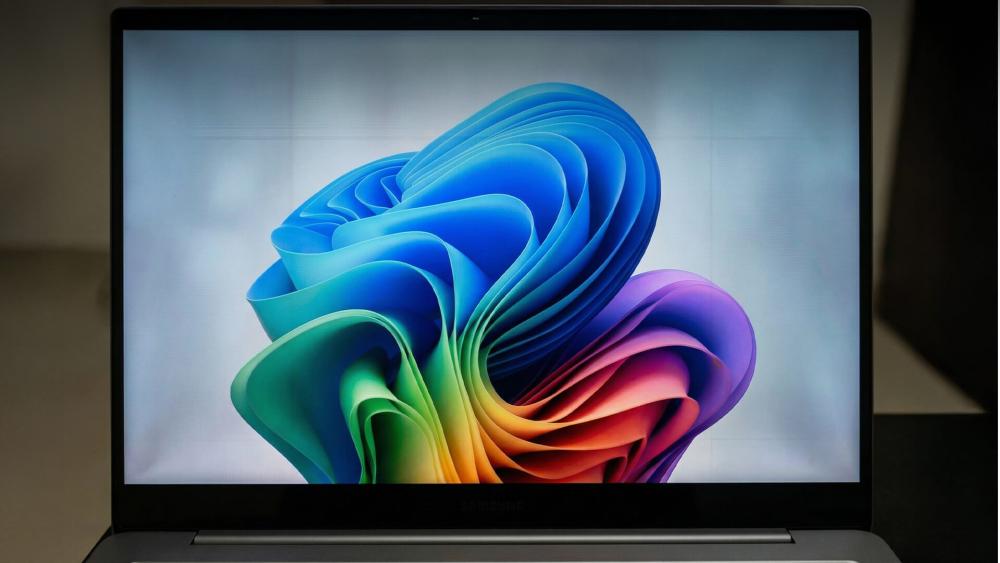
Quick Checks to Narrow Down the Cause
Once you have identified how Galaxy Book display issues are appearing, the next step is to isolate whether the problem is coming from the screen itself or from the system driving it. These quick checks are designed to rule out obvious causes without making permanent changes. They are especially useful on a Galaxy Book laptop, where display behaviour can be influenced by software, drivers, or external connections.
External monitor check to isolate panel vs system
Connecting an external screen is one of the fastest ways to narrow things down. Using external monitors for testing helps determine whether the issue is tied to the Samsung Galaxy Book display or to the graphics output more generally. If the external screen looks stable while the laptop panel continues to show flicker, lines, or artifacts, the cause is more likely panel-related. If the same problem appears on both screens, it often points towards driver issues, Windows flickering problems, or GPU behaviour rather than a faulty display. When testing, make sure the display cables and adapters are secure, as loose or low-quality connections can also trigger display issues on Galaxy Book laptops.
Restart and safe mode test
A simple restart can sometimes resolve temporary glitches, but Safe Mode is far more revealing. Booting into Safe Mode loads Windows with minimal drivers and services, which helps determine whether third-party software or recent changes are involved. If Galaxy Book display issues disappear in Safe Mode, it strongly suggests a software or driver-related cause rather than a problem with the laptop's hardware. If the issue remains visible even here, it becomes more likely that the display panel or its control firmware needs further attention.
Settings That Commonly Cause Galaxy Book Display Issues
Many Galaxy Book display issues are triggered by everyday settings rather than faults with the laptop's display itself. Because these laptops are designed to balance performance, battery life, and visual quality, certain options can introduce instability if they do not work well together. Reviewing these settings is often enough to resolve Samsung screen issues without moving on to repairs or replacements.
Refresh rate and dynamic switching
Modern Galaxy Book laptops support multiple refresh rate modes, which can switch dynamically depending on usage. While this helps reduce power consumption, frequent switching can sometimes lead to flickering or uneven motion, especially on an AMOLED display. If Galaxy Book display issues become more noticeable when scrolling or watching videos, manually setting a fixed refresh rate can help stabilise the panel and reduce visual distractions.
Adaptive brightness and power profiles
Adaptive brightness adjusts screen output based on ambient light and power conditions. On a Samsung Book laptop, this can sometimes result in subtle brightness fluctuations that feel like flicker, particularly when running on battery. Power profiles can also affect how aggressively the system manages the display. Tweaking these options can improve consistency when Galaxy Book display issues appear, mainly during mobile use or extended work sessions.
Also Read: Galaxy Book Pro vs Book 360 vs Book Edge
HDR, colour profiles, night light
HDR, custom colour profiles, and night light or blue light filters all modify how content is rendered on the Samsung Galaxy Book display. When combined, they can occasionally cause washed-out colours, uneven brightness, or short flashes during transitions. These are common Galaxy Book display issues on OLED panels and are often resolved by simplifying colour settings or disabling HDR temporarily to test stability.
Hardware acceleration in apps and browsers
Hardware acceleration allows apps and browsers to offload visual tasks to the GPU, improving performance in many cases. However, it can also trigger flickering, tearing, or brief artifacts during scrolling and video playback. If Galaxy Book display issues only appear in certain apps, adjusting hardware acceleration settings is a sensible next step before assuming a deeper problem.
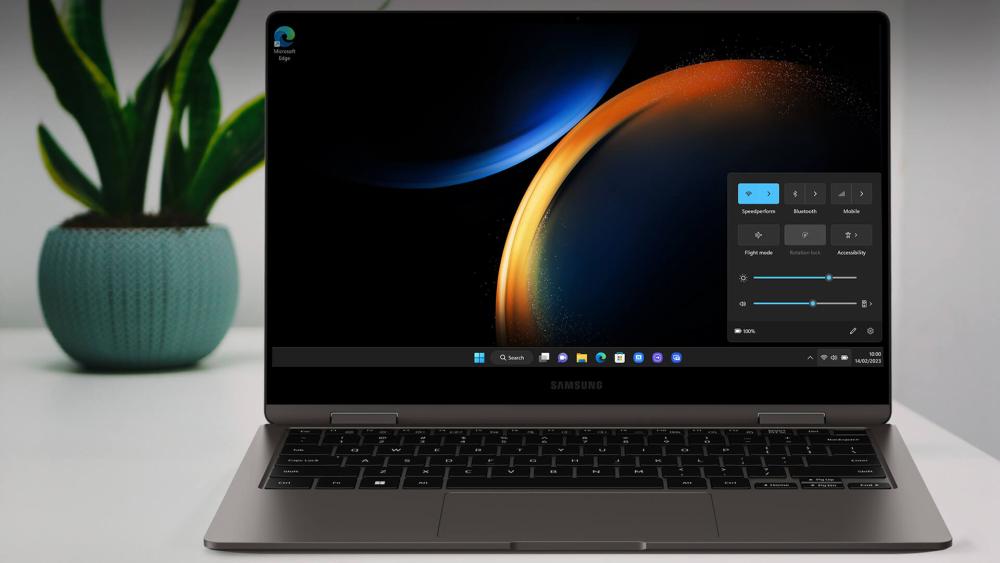
Updates That Often Resolve Display Problems
Keeping software up to date plays a major role in preventing ongoing Galaxy Book display issues. Image stability on a Samsung Galaxy Book display depends on close coordination between Windows, graphics drivers, and system firmware. When one of these falls out of sync, flickering, artifacts, or unstable brightness can appear even if the hardware itself is fine.
Graphics driver updates
Outdated or unstable graphics drivers are a common cause of visual problems on a Galaxy Book laptop. Driver updates often include fixes for Windows flickering problems, improved handling of refresh rate changes, and better compatibility with AMOLED panels. If Galaxy Book display issues appeared after a Windows update or software install, checking for newer graphics drivers is one of the most effective steps to take.
BIOS and firmware updates
BIOS and firmware updates are easy to overlook, but they play a key role in how the system controls the display panel. These updates can improve communication between the hardware and display, helping to resolve brightness instability, sleep issues, or panel detection problems. Applying the latest firmware can reduce persistent Galaxy Book display issues that are not affected by driver changes alone.
Windows updates are affecting display stability
Windows updates frequently include changes to the graphics pipeline, power management, and HDR handling. While these updates usually improve overall stability, they can occasionally introduce short-term display behaviour changes. If Galaxy Book display issues appear suddenly, reviewing recent Windows updates and allowing time for follow-up patches can be an important part of troubleshooting.
Get More Out of Your Samsung Galaxy Book: Explore Galaxy AI & Copilot+ Features and boost your productivity!
AMOLED and OLED Behaviour Explained
Some Galaxy Book display issues are not faults at all, but characteristics of modern OLED technology. Samsung Galaxy Book display panels are designed to prioritise contrast and colour accuracy, which means they can behave differently from traditional LCD screens. Understanding what is normal helps avoid unnecessary concern and makes it easier to spot when something genuinely needs attention.
Image retention vs burn-in
Temporary image retention can occur after static content has been displayed for a long time. On an AMOLED display or OLED screen, faint outlines may linger briefly before fading away during normal use. This type of Galaxy Book display issue is usually harmless and does not indicate permanent damage. Burn-in, by contrast, is far rarer and develops over a much longer period, typically under extreme usage conditions rather than everyday work.
Normal behaviour vs warning signs
Minor brightness shifts, slight colour changes, or brief retention effects are generally considered normal panel behaviour on a Samsung Galaxy Book display. However, persistent lines, large discoloured areas, or artifacts that never clear can signal a deeper problem. If these symptoms remain visible across reboots and different apps, they move beyond expected Galaxy Book display issues and may require further investigation.
Best everyday settings for long screen use
Using balanced brightness levels, avoiding static images for extended periods, and allowing the panel to refresh naturally can all help maintain display consistency. Simple adjustments like moderating HDR use and keeping refresh rate behaviour stable support long-term panel health. These habits reduce the chances of recurring Galaxy Book display issues and help the screen perform reliably over time.
Final Words: When to Contact Support
After working through the checks above, most Galaxy Book display issues should be easier to classify. At this stage, the key decision is whether the behaviour points to software configuration or a potential hardware fault. Knowing the difference helps avoid unnecessary downtime and ensures the right next step is taken.
Signs it's software-related
Display problems that come and go, change after updates, or only appear in certain situations are usually software-driven. If Galaxy Book display issues disappear after adjusting settings, updating drivers, or testing in Safe Mode, the Samsung Galaxy Book display itself is unlikely to be at fault. Flickering tied to sleep behaviour, power changes, or specific features is also commonly resolved through updates or configuration tweaks rather than physical repairs.
Signs it may be hardware-related
Persistent lines, blocks, or artifacts that remain visible across reboots and different apps can indicate a panel or internal connection issue. If Galaxy Book display issues are present even when using default settings and after all updates have been applied, the likelihood of a hardware cause increases. In these cases, seeking professional assessment is the safest way to determine whether the display panel or internal components need attention.
If the issue is hardware-related, it's a good idea to explore new Samsung laptops for everyday work rather than spending too much on older laptops. With Box.co.uk, you can also trade in your old machine to save money on your upgrade and enjoy better performance, longer battery life, and the latest features, all at a better value.
Frequently Asked Questions
How to fix the Samsung Galaxy Book 3 360 Pro screen flickering?
Screen flickering on the Samsung Galaxy Book 3 360 Pro is often linked to refresh rate settings, adaptive brightness, or graphics driver behaviour. Start by checking display settings, updating graphics drivers, and testing whether the issue appears on battery power or only when plugged in. If flickering continues after updates and setting adjustments, further diagnostics may be required.
Can refresh rate settings cause flickering or artifacts?
Yes, refresh rate changes can sometimes trigger flickering or visual artifacts, particularly on AMOLED panels. Dynamic switching between refresh rates may cause brief instability during scrolling or video playback. Setting a fixed refresh rate is a useful way to test whether this is the cause.
What to do if a Samsung screen starts flickering?
If a Samsung laptop screen starts flickering, first restart the system and check for pending Windows or driver updates. Testing with an external monitor can help determine whether the issue is related to the display panel or the system itself. Safe Mode is also useful for ruling out third-party software conflicts.
Is a laptop screen flickering a hardware issue?
Laptop screen flickering is not always caused by hardware problems. In many cases, it is linked to software settings, driver conflicts, or power management behaviour. Hardware issues are more likely when flickering is constant, appears immediately on startup, or is accompanied by persistent lines or discolouration.
Is AMOLED image retention the same as burn-in?
No, image retention and burn-in are not the same. Image retention on AMOLED screens is usually temporary and fades with normal use. Burn-in is permanent and develops over a long period under extreme conditions. Occasional image retention is considered normal behaviour for OLED-based displays.
You can pay with:
*PayPal Credit Representative Example: Assumed credit limit £1,200, Representative 23.9% APR (variable). Purchase rate 23.9% p.a (variable).Terms & Conditions apply.


PayPal Credit and PayPal Pay in 3 are trading names of PayPal UK Ltd, 5 Fleet Place, London, United Kingdom, EC4M 7RD. Terms and conditions apply. Credit subject to status, UK residents only, Five Tech LTD acts as a broker and offers finance from a restricted range of finance providers. PayPal Pay in 3 is not regulated by the Financial Conduct Authority. Pay in 3 eligibility is subject to status and approval. 18+. UK residents only. Pay in 3 is a form of credit. Check if affordable and how you will repay. May make other borrowing more difficult or expensive. See product terms for more details.
Copyright © 1996-2026 Fivetech LTD | Terms and Conditions
box.co.uk & Box are trading names of Five Tech Limited. Registered office: Box LTD, Unit 10 Woodford Trading Estate, Woodford Green IG8 8HF