


 Menu
MenuMenu


Get Sales Advice from Mon - Fri 9am - 5:00pm:
020 3337 8950POSTED: 14 January, 2026
Galaxy Book Sleep Issues: Common Causes and Quick Fixes
Galaxy Book sleep issues are one of the most common complaints among users of Samsung laptops. It doesn't mean there's anything wrong with your Galaxy Book. You close the lid expecting your device to rest, only to reopen it and find a black screen, an unresponsive display, or a laptop that refuses to wake without a forced restart.
These problems can feel random, but they usually come down to how Windows 11 handles sleep mode, power management, and external devices on Galaxy Book laptops.
The good news is that most Galaxy Book sleep problems don't indicate faulty hardware. In many cases, a few setting changes, driver updates, or power adjustments can restore normal behaviour.
This guide breaks down why Galaxy Book sleep mode can fail, how to fix it quickly, and how to prevent the issue from returning, whether you use your laptop on the go or at a desk with an external monitor.
So, let's get into it!
How Galaxy Book Sleep Issues Usually Show Up
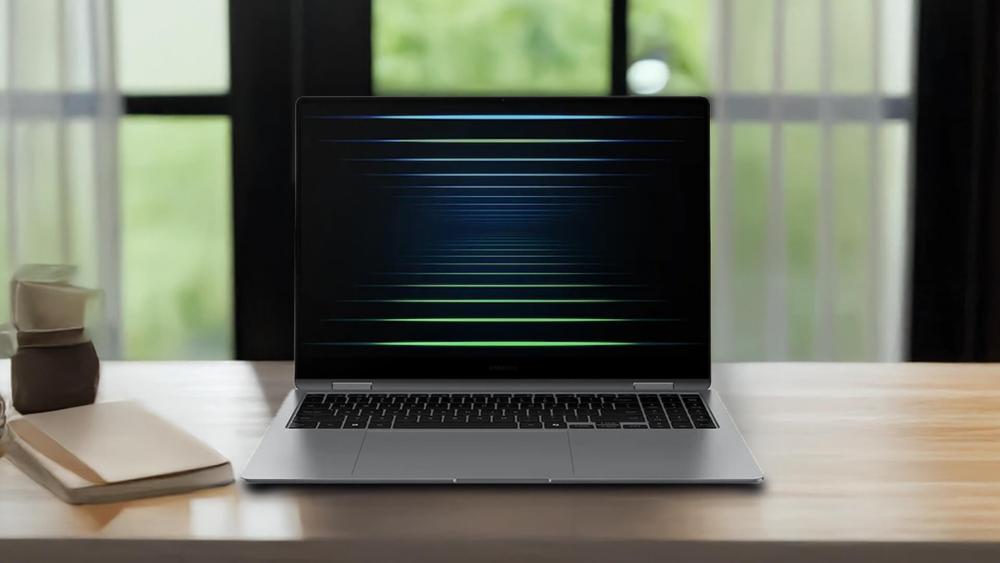
Understanding how the problem presents itself is the first step toward identifying whether the cause is related to sleep mode, lid close settings, power management, or a display-related conflict.
Screen stays black after opening the lid
This is one of the most common and confusing Galaxy Book sleep issues. You open the lid expecting the screen to turn on, but instead you're met with a completely black display. There's no Samsung logo, no Windows lock screen; just darkness.
In many cases, the laptop itself is awake. You might hear fans spinning, feel warmth from the chassis, or notice that the keyboard's backlight is on. This usually means Windows has resumed sleep mode, but the display hasn't reactivated properly.
This type of black screen Galaxy Book issue is often linked to:
- Modern Standby failing to reinitialise the display
- Graphics driver timing issues during wake
- Conflicts caused by previously connected external monitors
- USB-C display output not switching back to the internal panel
Because the system appears "on but unusable," users often force a shutdown, which temporarily fixes the problem but doesn't address the underlying cause.
Laptop wakes only with the power button
Another common Galaxy Book sleep problem is when opening the lid does nothing at all; no screen, no keyboard lights yet pressing the power button instantly wakes the laptop as expected.
This behaviour usually points to a galaxy book lid close issue, where the lid sensor and Windows power settings aren't aligned. Even if your sleep setting says "Sleep when lid is opened," Windows 11 may prioritise the power button as the primary wake trigger under certain conditions.
This can happen when:
- Lid close action settings differ between battery and plugged-in modes
- Power plans have been modified or corrupted
- Fast Startup interferes with proper sleep transitions
While the laptop is technically working, this behaviour can be frustrating; especially for users who expect instant wake just by opening the lid.
Keyboard lights on but no display
In this scenario, the Galaxy Book appears active: keyboard backlighting turns on, function keys respond, and Bluetooth devices may reconnect yet the display remains blank.
This strongly suggests that the system has successfully exited sleep mode, but the display output is stuck or misdirected. This is especially common if you regularly connect:
- USB-C hubs
- Docking stations
- External monitors
- Display cables & adapters
Windows may still be trying to send video output to an external display that's no longer connected, making it look like a Galaxy Book wake failure when it's actually a display routing issue.
This symptom often overlaps with broader Galaxy Book display issues, rather than a pure power problem.
Issue happens only on battery or only when plugged in
Some Galaxy Book sleep issues seem to follow a pattern; they only occur when the laptop is running on battery, or only when it's plugged into mains power or a docking station.
This usually happens because Windows uses different power plans depending on the power source. Lid close actions, sleep timers, USB power management, and wake permissions can all behave differently when plugged in versus running on battery.
For example, on battery, the laptop may enter a deeper sleep state to save power. When plugged in, external devices may stay powered and interfere with sleep. USB power delivery can change wake behaviour when connected to chargers or hubs
This inconsistency often leads users to believe there's a hardware fault, when it's a configuration mismatch between power plans and sleep settings.
Why Galaxy Book Sleep Behaviour Can Be Unpredictable
Sleep behaviour on modern Samsung laptops, including Galaxy Book models, is more complex than it used to be. This isn't unique to Galaxy Books; it's largely the result of how Windows 11 manages power, background activity, and connected devices on modern hardware.
Several overlapping technologies now control how your Galaxy Book enters sleep mode and how it wakes again. When these systems don't line up perfectly, sleep behaviour can feel inconsistent, even though the laptop itself is working as intended.
Sleep vs Hibernate vs Modern Standby
Traditional sleep mode works by keeping your current session stored in RAM, allowing the laptop to wake quickly with minimal delay. Hibernate, on the other hand, saves everything to the storage drive and powers the system off completely, which uses no battery but takes slightly longer to resume.
Most newer Galaxy Book laptops running Windows 11 use Modern Standby by default. This mode is designed to provide faster wake times and allow certain background tasks such as email syncing, Windows updates, or Bluetooth connections to continue while the laptop appears to be asleep.
While Modern Standby can be convenient, it also means the system never fully "switches off." In some situations, this can lead to:
- Incomplete wake sequences
- Displays failing to turn back on
- Increased battery drain while the lid is closed
These behaviours are usually software-related and don't indicate a fault with the Galaxy Book itself.
| If you're comparing different models and want to understand how sleep behaviour, performance, and features vary across the range, our Galaxy Book series comparison guide breaks down the key differences to help you choose the right option. |
Lid Close Actions Overriding Expected Behaviour
It's common to assume that setting your laptop lid close action to "Sleep" guarantees predictable behaviour. Windows may override this setting under certain conditions.
For example, active background tasks, connected external devices, or network activity can prevent the system from entering the expected sleep state or change how it wakes later. This can result in Galaxy Book lid close issues where the laptop:
- Stays partially awake when the lid is closed
- Doesn't wake when the lid is reopened
- Requires the power button to resume properly
These overrides are part of Windows power management logic and are designed to prioritise system stability, even if the behaviour feels unexpected.
Fast Startup and Shutdown Confusion
Fast Startup is a Windows feature that blends shutdown and hibernate to reduce boot times. While it often works well, it can sometimes preserve temporary power or driver states between sessions.
Over time, this can cause minor inconsistencies in how the system handles sleep and wake cycles. Instead of starting from a clean power state, the Galaxy Book may reuse stored information that no longer matches the current hardware or driver configuration.
When this happens, users may experience intermittent Galaxy Book standby issues, such as delayed wake, black screens, or sleep states that don't behave consistently. Disabling Fast Startup or performing a full restart periodically can help prevent this from building up.
Quick Fixes That Solve Most Galaxy Book Sleep Issues
Most users find that one or two of these fixes are enough to restore normal sleep and wake performance; no repairs required.
Perform a Proper Power Reset
A proper power reset is one of the simplest and most effective ways to fix Galaxy Book sleep problems, especially if the laptop is stuck in a black screen state or won't wake correctly.
Over time, small amounts of residual power can remain in the system, keeping certain components in an unstable state. A power reset fully clears this and forces the laptop to reinitialise its power management correctly.
How to do a proper power reset:
- Shut down your Galaxy Book completely
- If the screen is black or unresponsive, hold the power button for around 10 seconds until the laptop turns off.
- Disconnect the charger and any external devices
- Unplug USB devices, external monitors, docking stations, and hubs.
- Press and hold the power button for 15–20 seconds
- This drains any remaining electrical charge from the system.
- Leave the laptop powered off for at least 1 minute
- Reconnect the charger only and power the laptop back on
Once restarted, test sleep mode by closing and reopening the lid. This step alone often resolves Galaxy Book wake failure and black screen issues caused by stuck sleep states.
Update Windows, Drivers, and Firmware in the right order
Sleep and wake behaviour on Galaxy Book laptops is controlled almost entirely by software. If Windows, drivers, or firmware are outdated or updated in the wrong sequence; sleep mode can behave unpredictably.
Updating everything in the correct order ensures that power management, graphics output, and Modern Standby all work together properly.
Recommended update order (important):
- Windows 11 updates
- Go to Settings > Windows Update
- Install all available updates
- Restart when prompted, even if the update seems minor
- Chipset and graphics driver updates
- These drivers control how the system enters sleep mode and how the display wakes
- Use Samsung Update or Device Manager to check for updates
- Restart again after installation
- BIOS / firmware update (Samsung support)
- Only update firmware after Windows and drivers are fully up to date
- Firmware updates improve how the laptop handles sleep states at a hardware level
Updating drivers before firmware can sometimes reintroduce older power issues, which is why the order matters. Once everything is updated, test sleep mode again before changing other settings.
Reset Power Plans and Lid Close Settings
Power plans control how your Galaxy Book behaves when idle, when the lid is closed, and when running on battery versus mains power. Over time, these plans can become misconfigured or corrupted; often without the user realising.
Resetting them restores Windows' default power management behaviour, which frequently fixes Galaxy Book sleep mode problems immediately.
How to reset power plans:
- Open Control Panel
- Go to Power Options
- Select a default plan (such as "Balanced")
- Click Change plan settings
- Choose Restore default settings for this plan
Then check lid close settings:
- In Power Options, select Choose what closing the lid does
- Set the lid close action to Sleep or Hibernate
- Make sure both On battery and Plugged in settings match
- Save changes
This ensures that the Galaxy Book lid close behaviour is consistent and prevents situations where the laptop sleeps correctly in one scenario but fails to wake in another.
Settings That Commonly Prevent Proper Wake
Many Galaxy Book sleep issues are caused by Windows power and wake settings changing quietly in the background. These changes often happen after Windows 11 updates, driver installations, or when new devices are connected, and they can affect how the laptop sleeps and wakes without any obvious warning.
Reviewing and correcting these settings can resolve many Galaxy Book wake failures without advanced troubleshooting.
Lid Close and Power Button Configuration
Your Galaxy Book follows specific rules for what happens when you close the lid or press the power button, and these rules can differ between battery and plugged-in use. When the settings don't match, the laptop may behave inconsistently, such as waking only with the power button or not responding when the lid is opened.
Windows can also prioritise the power button over the lid sensor if sleep didn't complete properly. Checking these options in Control Panel under Power Options and ensuring consistent settings for both power states helps restore predictable wake behaviour.
Wake Permissions for Keyboard, Mouse, and Bluetooth
Windows controls which devices are allowed to wake the system, and these permissions can change after updates. Bluetooth devices are particularly affected, as they may disconnect briefly during sleep.
If no device is permitted to wake the laptop, it can appear unresponsive even though it's ready to resume. Reviewing wake permissions in Device Manager and allowing at least one input device to wake the system improves wake reliability, especially when using wireless accessories.
Wake Timers and Scheduled Background Activity
Windows 11 allows background tasks such as updates or maintenance to wake the laptop automatically. In some cases, this can interrupt sleep and lead to incomplete wake behaviour later.
Disabling unnecessary wake timers in the advanced power settings can help keep your Galaxy Book in a stable sleep state until you choose to wake it.
External Devices That Interfere With Sleep and Wake
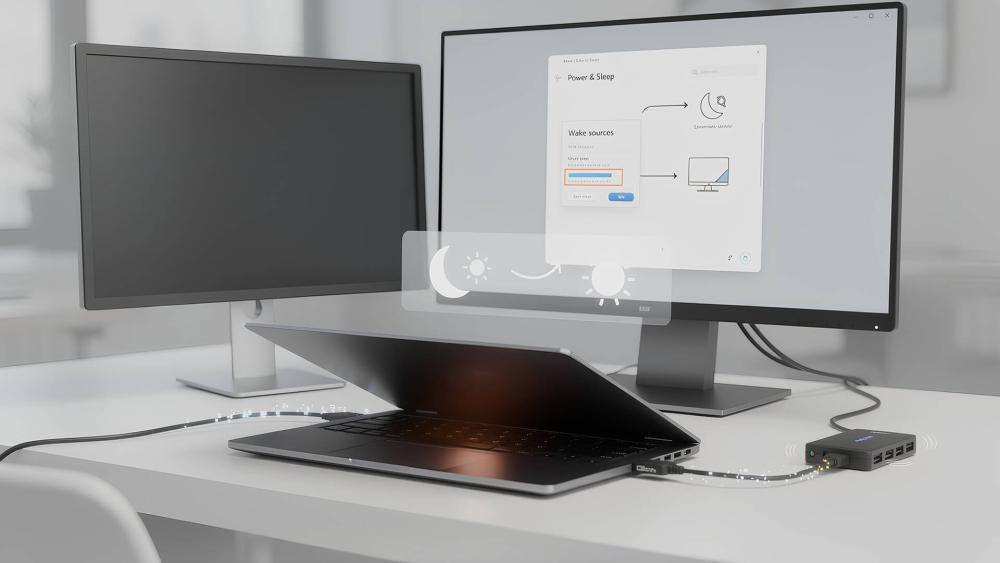
Connected accessories can influence how your Galaxy Book handles sleep and wake, even when they're not actively in use. If sleep issues only occur when certain devices are connected, the laptop itself is usually working normally.
USB Devices and Hubs
USB devices and USB-C hubs can prevent clean sleep or interfere with waking, especially multi-port hubs that handle power, data, and display connections. Disconnecting all USB devices and reconnecting them one at a time helps identify any accessory affecting sleep behaviour.
External Monitors
External monitors can cause black screen issues after sleep if Windows continues sending display output to a screen that's no longer connected. This is common when switching between desk and portable use. Using Windows + P and selecting "PC screen only" often restores the internal display immediately.
Docking Stations
Docking stations manage charging, networking, and displays at the same time, which can affect sleep behaviour. Some docks keep connections active during sleep, leading to incomplete wake. Testing sleep without the dock connected is an effective way to confirm whether it's contributing to the issue.
Is It a Sleep Issue or a Display Issue?
When a Galaxy Book doesn't wake as expected, sleep mode is often blamed first but it isn't always the real culprit. In many situations, the laptop has woken up perfectly, and it's the display that hasn't caught up. The result looks like a sleep failure, even though Windows is already running quietly in the background.
This confusion is particularly common on Galaxy Book laptops because power management and display output are tightly connected. Graphics drivers, Modern Standby, and external displays all play a role in deciding where and how the screen output appears after sleep. If that handover doesn't happen smoothly, the screen can stay black even though the system is fully awake.
That's why it's important to pause before treating the problem as a sleep issue. Once you know whether your Galaxy Book is awake but simply not showing anything, the solution is usually much faster and far less disruptive.
How to Avoid Sleep Issues Going Forward
Once your Galaxy Book is sleeping and waking reliably again, a few small adjustments can help prevent the same issues from returning. These recommendations are based on how Galaxy Book laptops are typically used and how Windows 11 manages power in different situations.
Best lid close settings for travel
When travelling, your Galaxy Book is often closed, moved around, and running on battery power, which makes stability more important than instant wake times. Setting the lid close action to hibernate rather than sleep helps avoid wake failures, overheating, and battery drain while the laptop is in a bag or backpack. If you won't be using the device for an extended period, a full shutdown is the safest option.
Best settings for desk use
At a desk, convenience and fast access are usually the priority, especially if you regularly connect an external monitor or accessories. Keeping sleep mode enabled provides quick wake times, while using consistent lid close settings for both battery and plugged-in use helps avoid unpredictable behaviour. Limiting how many devices are allowed to wake the laptop and disconnecting unused USB hubs can further reduce the chance of wake or display conflicts.
When hibernate works better than sleep
If Galaxy Book sleep issues continue to appear occasionally, hibernate can be a more reliable everyday alternative. It works particularly well if sleep problems happen unpredictably, the laptop is left unused for long periods, or battery drain during sleep has been an issue. Although waking from hibernate takes slightly longer, it offers a cleaner power state and often eliminates recurring standby problems altogether.
Final Thoughts
Galaxy Book sleep issues can be frustrating, but they're rarely a sign that something is wrong with the laptop itself. In most cases, these problems come down to how Windows 11 manages sleep mode, power settings, and connected devices; all of which can be adjusted with a few practical changes.
By understanding the difference between sleep and display-related issues, reviewing key power and wake settings, and being mindful of how external monitors and accessories are used, you can restore reliable sleep behaviour and prevent the issue from coming back. Once configured properly, Galaxy Book laptops are well suited for both portable use and desk-based setups, offering flexibility without compromising stability.
If you're considering a new Galaxy Book, upgrading your setup, or looking for accessories that work seamlessly with Samsung laptops, BOX.co.uk has a wide range of Galaxy Book laptops, Samsung laptops, external monitors, and display cables & adapters to suit different ways of working. Whether you're building a home office or need a dependable laptop for life on the move, you'll find expert guidance and trusted options in one place.
Explore the latest Galaxy Book range and compatible accessories at BOX.co.uk, and set up a workspace that works smoothly; sleep mode included.
You can pay with:
*PayPal Credit Representative Example: Assumed credit limit £1,200, Representative 23.9% APR (variable). Purchase rate 23.9% p.a (variable).Terms & Conditions apply.


PayPal Credit and PayPal Pay in 3 are trading names of PayPal UK Ltd, 5 Fleet Place, London, United Kingdom, EC4M 7RD. Terms and conditions apply. Credit subject to status, UK residents only, Five Tech LTD acts as a broker and offers finance from a restricted range of finance providers. PayPal Pay in 3 is not regulated by the Financial Conduct Authority. Pay in 3 eligibility is subject to status and approval. 18+. UK residents only. Pay in 3 is a form of credit. Check if affordable and how you will repay. May make other borrowing more difficult or expensive. See product terms for more details.
Copyright © 1996-2026 Fivetech LTD | Terms and Conditions
box.co.uk & Box are trading names of Five Tech Limited. Registered office: Box LTD, Unit 10 Woodford Trading Estate, Woodford Green IG8 8HF