


 Menu
MenuMenu


Get Sales Advice from Mon - Fri 9am - 5:00pm:
020 3337 8950LAST UPDATED: October 13, 2025
How to Set Up a Refurbished Laptop: A Step-by-Step Beginner’s Guide
A refurbished laptop is more than just a second-hand device; it’s an opportunity to own quality tech at a fraction of the cost.
But to make the most of that opportunity, you need to set up a refurbished laptop in a right way from the very start. Unlike brand-new laptops, refurbished models may come with pre-set configurations, older software, or usage history you’ll want to clear. That’s why a proper setup isn’t just recommended; it’s essential. It gives you the chance to maximise your laptop’s performance, secure your data, personalise your settings, and ensure everything works exactly as it should be.
This beginner-friendly refurbished laptop setup guide will take you step by step through everything you need to know from powering on for the first time to installing software, securing your system, and checking hardware
So, let’s get into it!
Step 1: Inspect Your Refurbished Laptop Before Powering On

Setting up your refurbished laptop starts with a careful inspection. Box.co.uk offers strict testing and professional grading. It’s wise to personally check your device. This ensures you’re fully satisfied with its condition and functionality before moving forward with your setup.
Exterior Condition
Before anything else, examine the outer casing.
-
Look for dents, scratches, cracks, or scuff marks on the body and edges.
-
Open and close the laptop to ensure the hinges feel sturdy and smooth, without any wobble or creaking.
-
If you’ve purchased a slim, portable device like the HP EliteBook 840 G7, this check is crucial to ensure durability in daily use.
-
Surface marks are normal on some graded laptops, especially those marked as Refurbished-Very Good, but there should be no structural damage.
Screen Quality
The display is your main interface, so check it carefully before powering it on.
-
Inspect for cracks, scratches, pressure marks, or surface blemishes under bright light.
-
Tilt the screen slightly to see if there are dead pixels or discoloration patches.
-
For high-resolution models like the Refurbished Apple MacBook Pro M3 or the Lenovo IdeaPad Slim 5, a flawless screen ensures you fully enjoy the display’s quality.
-
The screen bezel should also be intact, with no loose fittings or lifting edges.
Keyboard & Trackpad
Comfortable typing and smooth navigation are essential.
-
Press every key gently to check for stuck keys, uneven feedback, or missing keys.
-
The trackpad should respond quickly to touch, clicks, scrolling, and gestures without lag or inconsistency.
-
Business laptops like the Dell Latitude 5420 or Lenovo ThinkPad X1 Carbon are known for their typing experience, making sure yours meets expectations.
-
Look for any obvious wear on frequently used keys, though minor signs of use are normal in refurbished devices.
Ports & Slots
Your ports connect your laptop to the outside world, don’t skip this step.
-
Check every port: USB-A, USB-C, HDMI, charging port, headphone jack, SD card slot.
-
Insert a USB device or cable to ensure secure fit and reliable connection.
-
Ensure no ports feel loose, wobbly, or obstructed.
-
Models like the HP ProBook 440 G9 or Lenovo ThinkPad T14 often come with a wide range of ports for business use; each should work flawlessly.
Battery & Charger
Power on your laptop using the charger before setup begins.
-
Plug in the official or compatible charger and check for a charging light or on-screen indicator.
-
The charging port should feel firm, and the cable should stay securely in place.
-
Devices like the ASUS ExpertBook B1 are designed for long battery life. Confirm proper charging to ensure you benefit fully from this feature.
-
If the battery charges and holds power, your laptop is ready for setup.
Step 2: Power On and Complete the Initial Boot Setup
After checking the physical condition of your refurbished laptop, it’s time to switch it on and set up the operating system.
Connect to Power
Always plug in the laptop before turning it on for the first time.
-
Even if the battery shows some charge, using a direct power source prevents the device from shutting down during setup.
-
This is especially important for refurbished models like the Lenovo ThinkPad T14 Gen 1 or Dell Latitude 5420, which are designed for professional use and may require firmware updates on first boot.
Power On & Complete Basic Setup
Once connected to power, press the power button and allow the laptop to boot naturally.
-
Most refurbished laptops will load directly into the operating system setup wizard.
-
If you notice unusually long boot times, error messages, or failure to start, make note of it; this may need to be raised with the retailer.
-
Choose your preferred language, region, and keyboard layout based on your personal or work needs.
-
This ensures correct system language, local time settings, and compatible keyboard input, particularly important if you’re using models like the HP ProBook 440 G9 for international tasks.
Create a User Account
Setting up a user account personalises the laptop and secures your data.
-
On Windows, you’ll create a Microsoft account or local account with a strong password.
-
On macOS, you’ll sign in with your Apple ID, which also links your apps and settings.
-
On ChromeOS, you’ll use a Google account to sync preferences and cloud storage.
-
This account will control your device access, so use a password you can remember but that’s also secure.
Set Up Two-Factor Authentication
Most systems will offer security options during setup.
-
Choose security questions or enable two-factor authentication (2FA) where possible.
-
This ensures you can recover your account if needed and adds a layer of protection particularly useful if your laptop contains sensitive work or personal information.
Watch for Any Startup Errors
During setup, be mindful of how the laptop performs.
-
If the laptop freezes, shows activation errors, or displays unusual messages, make a note.
-
These issues may require support from your retailer, especially if the device came with a pre-installed operating system.
-
Box.co.uk offers warranty-backed support for cases where activation or setup errors occur with refurbished laptops.
Step 3: Activate and Set Up the Operating System
After completing the initial boot process, the next step is to make sure the operating system is properly activated and configured. This confirms that your laptop is running a genuine, licensed version of the software, which is essential for receiving updates and accessing key features.
Check Operating System Activation
Activation confirms your system’s legitimacy and unlocks updates.
-
For Windows laptops, go to Settings > System > Activation and check the activation status.
-
If your laptop is activated, you’ll see a message confirming that Windows is genuine and properly licensed.
-
If activation is required, enter the product key provided by the retailer or refer to the documentation included with your purchase.
-
Windows 11 laptops like the Refurbished HP EliteBook 840 G7 or Lenovo ThinkPad T14 Gen 1 often come pre-activated.
Set Up Cloud Accounts
Connecting your operating system with your cloud account unlocks full functionality.
-
On Windows, link your Microsoft account to sync settings, OneDrive, and the Microsoft Store.
-
On macOS, sign in with your Apple ID to access iCloud services, the App Store, and device syncing.
-
On ChromeOS, use your Google account to sync Chrome settings, bookmarks, and Google Drive.
-
This step ensures a seamless transition across your devices and simplifies file management and app access.
Review and Accept License Agreements
Most operating systems will ask you to review their terms.
-
Carefully read through the End User License Agreement (EULA).
-
Accept the terms to complete the activation and setup process.
-
This is a routine step but ensures you’re compliant with software usage terms.
Step 4: Connect to the Internet and Install System Updates
Once the operating system is set up and activated, the next essential step is to connect your laptop to the internet. A stable connection allows you to download system updates, security patches, and software that improve performance and protect your device.
Connect to Wi-Fi or Ethernet
Ensure your laptop is connected to a secure network before proceeding.
-
Use Wi-Fi if available or connect via Ethernet cable for a more stable setup, especially for larger updates.
-
Confirm the connection is stable before starting any downloads.
Check for System Updates
Once connected, immediately check for available updates.
-
On Windows, go to Settings > Update & Security > Windows Update and click Check for updates.
-
On macOS, open System Preferences > Software Update and install all available updates.
-
On ChromeOS, click on the clock in the lower right corner, then Settings > About ChromeOS > Check for updates.
-
Allow the updates to download and install fully, this may include security patches, feature updates, or driver updates.
-
Accept all critical and recommended updates during the first setup.
-
Some laptops may restart several times during this process. This is normal and ensures all updates are applied correctly.
Step 5: Install Essential Software and Productivity Tools
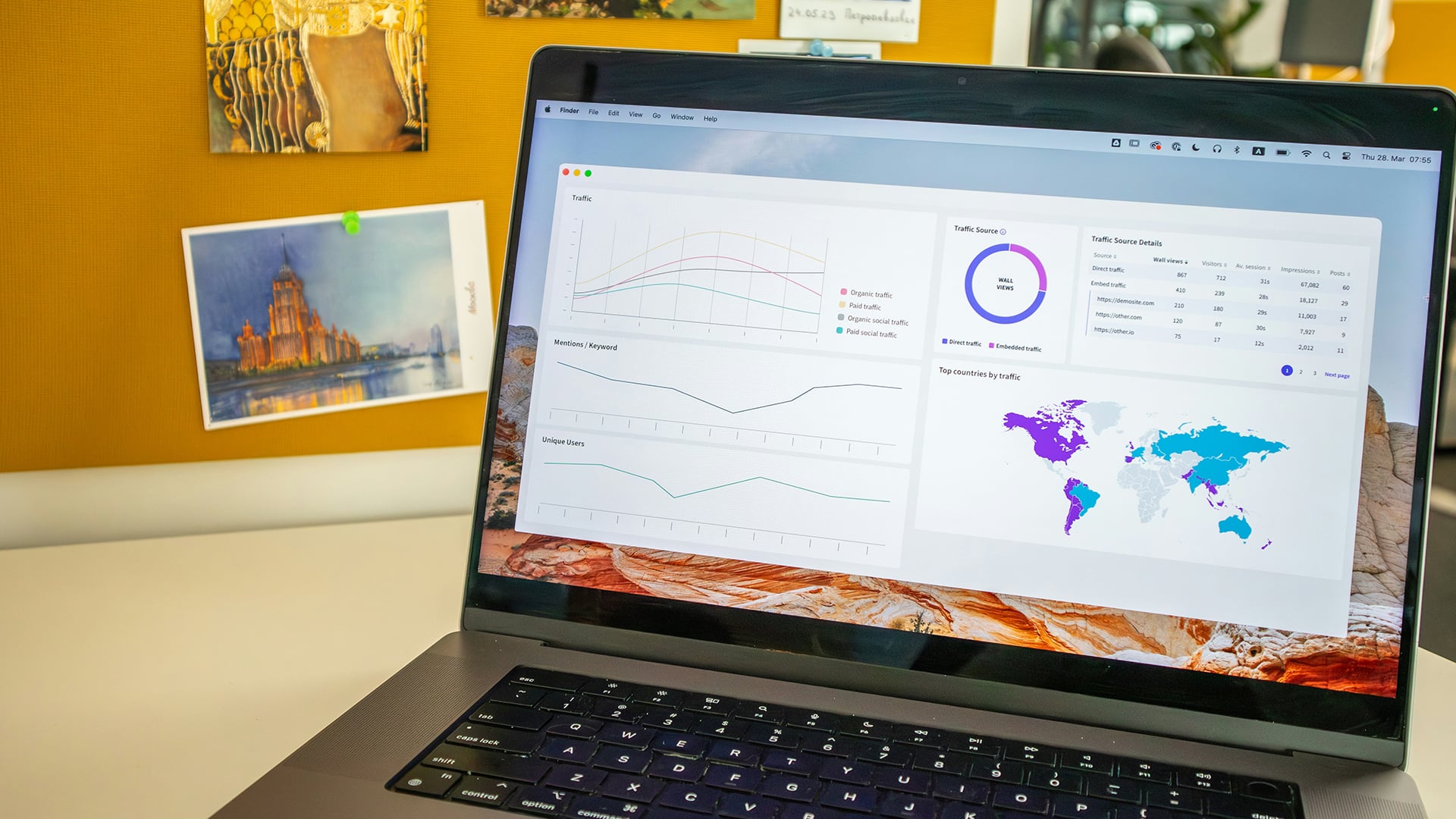
With your operating system activated and updated, your refurbished laptop is ready for the applications that support your work, study, or personal tasks. Installing essential software ensures your device is functional from day one.
Install a Web Browser
The pre-installed browser may not always meet your preferences.
-
Download a trusted browser like Google Chrome, Mozilla Firefox, or Microsoft Edge for reliable web access.
-
Using an updated browser ensures secure browsing, faster load times, and compatibility with modern websites.
Set Up Office and Productivity Tools
Choose the right productivity suite based on your needs.
-
Install Microsoft Office for Word, Excel, and PowerPoint; ideal for professional and academic use.
-
Alternatively, you can use Google Workspace for cloud-based productivity.
-
Install apps like Zoom, Microsoft Teams, Skype, or Slack for video calls and messaging.
-
These apps support seamless collaboration, especially for remote workers and students.
Set Up Cloud Storage Services
Cloud storage offers flexibility and backup options.
-
Use OneDrive, Google Drive, or Dropbox to save your files online.
-
Linking your storage account ensures your documents, photos, and projects are always accessible, even if you switch devices.
Step 6: Configure Security Settings and Install Antivirus Protection
Setting up your refurbished laptop’s security is critical to protecting your data, privacy, and system integrity. Even a fully tested refurbished laptop needs strong digital safeguards.
Enable Built-in Security Features
Most operating systems offer basic security tools that should be enabled by default.
-
On Windows, activate Windows Defender and ensure the Firewall is turned on.
-
On macOS, make sure the Firewall and Gatekeeper settings are active to block untrusted applications.
-
On ChromeOS, built-in security features operate automatically but check that system protections are active.
Install Trusted Antivirus Software
While built-in tools are helpful, dedicated antivirus software provides enhanced security.
-
Choose reputable options like Bitdefender, Norton, or McAfee, or stick with Windows Defender if you prefer a free, built-in option.
-
Avoid downloading antivirus software from unknown sources to prevent malware risks.
Step 7: Personalise Your Laptop Settings

Once your laptop is secured and ready to go, it’s time to personalise it to fit your preferences. This not only makes using your device more enjoyable but also improves productivity by setting everything up the way you like it.
Adjust Display Settings
Tweak display brightness, resolution, and scaling for your comfort.
-
Set a resolution that balances clarity with performance.
-
Adjust brightness for eye comfort, especially if using the laptop for extended periods.
-
Models like the Apple MacBook Air M2 or Dell Latitude 5420 offer vibrant displays, tuning them right enhances your viewing experience.
Configure Power Settings
Power settings help you balance performance with battery conservation.
-
On Windows, use the Power & Battery Settings to choose between performance mode or battery saver.
-
On macOS, adjust Energy Saver preferences for similar control.
Customise Appearance and Accessibility Features
Personalise wallpapers, themes, and accessibility settings to suit your style.
-
Change themes, adjust font sizes, or enable accessibility tools like voice narration or screen magnifiers.
-
These settings improve both the look and usability of your laptop.
Step 8: Test All Hardware Components and Peripherals
With your refurbished laptop configured and software installed, it’s important to ensure that all hardware components work correctly. Even though refurbished laptops are tested before resale, checking everything yourself gives you confidence that the device meets your expectations.
Test the Audio
Play a song, video, or system sound to check the built-in speakers.
-
Listen for clear audio without distortion, crackling, or static.
-
Test the microphone by recording a short audio clip or using a video conferencing app like Zoom.
Check the Webcam
Open your camera app or use a video call app to check the webcam.
-
The image should be clear, without flickering, distortion, or dead pixels.
-
Webcam performance is particularly important for students and remote workers using laptops.
Test Wi-Fi, Bluetooth, and Network Connection
Connect to Wi-Fi and pair with a Bluetooth device.
-
The laptop should connect smoothly without repeated dropouts.
-
Test Bluetooth with a wireless mouse, headphones, or phone.
-
Stable wireless performance is essential for portable devices.
Connect External Devices
Try connecting your laptop to an external display or printer if applicable.
-
The device should detect and display correctly without manual adjustments.
-
This is particularly useful for users of business laptops, often used with docking stations or external refurbished monitors.
Step 9: Final Performance Check and Tips for Long-Term Use
Before you dive into everyday tasks, perform a final check to confirm your refurbished laptop is running at its best. This ensures you’ve completed the setup process thoroughly and gives you a clean starting point.
Run a Multitasking Test
Open several common applications at once.
-
Try a web browser, word processor, media player, and an email client simultaneously.
-
Observe how the laptop handles multitasking; it should run smoothly without freezing or significant slowdown.
Test Battery Performance – Observe Initial Battery Life
Unplug the charger and use the laptop under normal conditions.
-
Note how long the battery lasts during light and heavy use.
-
Check for sudden battery drops or charging issues.
Apply Long-Term Care Practices
Maintain your laptop for better performance over time.
-
Keep the operating system and antivirus software updated.
-
Clean temporary files and unwanted software regularly.
-
Avoid overcharging by unplugging the charger when the battery reaches full.
-
Store the laptop in a protective case when travelling.
|
For Gaming Laptops: Here Are the Additional Things You Should Check! |
Final Thoughts: Start Your Refurbished Tech Journey with Confidence
Setting up a refurbished laptop may seem like a task reserved for tech experts, but with the right steps, anyone can do it confidently. By carefully inspecting your device, completing the setup process, securing your system, and optimising performance, you’ll get the most out of your refurbished laptop; whether it’s for work, study, or everyday use. If you’re looking for a trusted place to buy professionally tested, warranty-backed refurbished laptops, Box.co.uk is the perfect choice. Customers can trust that our refurbished range is fully aligned with the R2 Certification, a benchmark of responsibility and sustainability in electronics recycling.
With a wide selection of top brands, clear grading, and excellent after-sales support, Box.co.uk ensures you get high-quality tech at great value. And it doesn’t stop at laptops, if you’re searching for a complete refurbished setup, including desktop PCs and monitors, you’ll find an extensive range ready for immediate use. Whether you need a portable device or a full workstation, Box.co.uk has everything you need to set up a refurbished laptop confidently, save more, and buy with peace of mind.
You can pay with:
*PayPal Credit Representative Example: Assumed credit limit £1,200, Representative 23.9% APR (variable). Purchase rate 23.9% p.a (variable).Terms & Conditions apply.


PayPal Credit and PayPal Pay in 3 are trading names of PayPal UK Ltd, 5 Fleet Place, London, United Kingdom, EC4M 7RD. Terms and conditions apply. Credit subject to status, UK residents only, Five Tech LTD acts as a broker and offers finance from a restricted range of finance providers. PayPal Pay in 3 is not regulated by the Financial Conduct Authority. Pay in 3 eligibility is subject to status and approval. 18+. UK residents only. Pay in 3 is a form of credit. Check if affordable and how you will repay. May make other borrowing more difficult or expensive. See product terms for more details.
Copyright © 1996-2026 Fivetech LTD | Terms and Conditions
box.co.uk & Box are trading names of Five Tech Limited. Registered office: Box LTD, Unit 10 Woodford Trading Estate, Woodford Green IG8 8HF