


 Menu
MenuMenu


Get Sales Advice from Mon - Fri 9am - 5:00pm:
020 3337 8950LAST UPDATED: April 17, 2026
Best MacBook Pro Configurations for Video Editing, Music Production and Coding
Choosing the best MacBook Pro configurations can feel overwhelming, especially with multiple chip options, memory tiers, and storage choices available in 2026. Many users assume that going for the highest spec is the safest option, but that is not always the most practical or cost-effective approach.
In reality, the right configuration depends entirely on your workflow. A setup that works perfectly for video editing may not be ideal for coding or music production. Factors like CPU performance, GPU power, unified memory, and storage all play different roles depending on how you use your MacBook Pro.
This 2026 MacBook Pro buying guide simplifies that decision. Whether you are editing videos, producing music, or writing code, the focus is on matching the hardware to your workflow. The goal is to help you choose a setup that delivers the right balance of performance, efficiency, and long-term value.
Which MacBook Pro Should You Choose in 2026?
The search for the best MacBook Pro configuration begins with understanding the key differences between models. Size, chip tier, and workload all play a role in how the MacBook Pro performs in real-world use.
14-inch vs 16-inch MacBook Pro: Size, Portability and Power
The 14-inch model is more portable and easier to carry, making it ideal for users who work on the go. The 16-inch model offers a larger workspace, which is especially useful for video editing, music production, and multitasking.
Both models feature the Liquid Retina XDR display, but the 16-inch version provides better sustained performance under heavy workloads due to improved thermal headroom. It also tends to deliver longer battery life up to 24 hours, depending on usage.
For users comparing options, most MacBook Pro laptops deliver similar core performance at the same chip level, but the 16-inch model is better suited for extended, demanding sessions.
M5 vs M5 Pro vs M5 Max Explained
The choice between MacBook Pro M5, M5 Pro, and M5 Max comes down to how much performance you actually need.
- Apple M5 chip: Best for general professional use, coding, and lighter creative tasks
- Apple M5 Pro chip: Balanced option for editing, development, and multitasking
- Apple M5 Max chip: Designed for intensive workloads like 8K editing and GPU-heavy rendering
The main difference lies in CPU and GPU scaling. As you move up, you get more cores, better GPU core scaling, and higher performance for demanding applications.
Choosing Based on Your Workflow Needs
The best way to decide the right MacBook Pro is by focusing on your daily workload rather than specs alone.
- Video editors benefit more from GPU power and media engines
- Music producers rely heavily on CPU performance and memory
- Developers need a balance of CPU performance and multitasking capability
Matching the hardware to your workload ensures better MacBook Pro performance without overspending on features you may not fully use.
Best MacBook Pro Configuration for Video Editing

Video editing is one of the most demanding workflows, and choosing the right setup directly impacts playback smoothness, render times, and overall efficiency. The right MacBook Pro for video editing should balance CPU, GPU, memory, and storage without unnecessary overspending.
Recommended Specs for 4K and 8K Editing
For 4K editing, the MacBook Pro M5 Pro is the most practical choice. It offers strong multi-core performance and enough GPU power for smooth timelines and faster exports.
For 8K workflows or heavy effects, the MacBook Pro M5 Max is a better fit. It provides higher GPU performance and better handling of complex projects.
In terms of memory:
- 16GB unified memory works for basic 4K editing
- 24GB–36GB is ideal for smoother multitasking
- 64GB+ is recommended for professional 8K workflows
GPU Power and Media Engine Advantages
Video editing benefits heavily from GPU acceleration. Higher-end chips deliver better GPU rendering performance, especially for effects, colour grading, and high-resolution footage.
Apple's hardware-accelerated media engine plays a key role here. It enables faster encoding and decoding of formats like ProRes and HEVC, improving export speeds and real-time playback without overloading the CPU.
Storage, RAM and Workflow Efficiency
Storage and memory both affect how smoothly your editing workflow runs.
- 512GB can work for light projects, but fills up quickly
- 1TB is the safer starting point for most editors
- 2TB+ is ideal for large projects and long-term use
For flexibility, many editors rely on external drives using Thunderbolt 5 connectivity, especially when working with large media files.
If you are building a full setup, pairing your MacBook with docking stations for maximum connectivity helps manage external storage, displays, and accessories more efficiently.
Best MacBook Pro Configuration for Music Production
Music production places different demands on a system compared to video editing. Stability, low latency, and CPU efficiency matter more than GPU power. The right MacBook Pro for music production should prioritise processing power, memory, and fast storage.
CPU Performance for Audio Workloads
Audio software relies heavily on CPU performance, especially when running multiple tracks, effects, and real-time processing. The MacBook Pro M5 can handle basic projects, but the MacBook Pro M5 Pro is a better choice for larger sessions.
More CPU cores improve handling of complex mixes and reduce the risk of dropouts during playback. This is where multi-core CPU workloads and macOS optimisation help deliver stable performance.

RAM for Large Projects and Plugins
RAM becomes important when working with multiple plugins, virtual instruments, and layered tracks.
- 16GB works for smaller projects
- 24GB–36GB is ideal for most producers
- 64GB+ is useful for large orchestral templates or heavy plugin use
Higher unified memory ensures smoother playback and prevents slowdowns when sessions become more complex.
Storage for Sample Libraries and Sessions
Music production often requires large sample libraries and project files, making storage a key consideration.
- 512GB is limiting for most users
- 1TB is a safer starting point
- 2TB+ is ideal for heavy sample-based workflows
Fast internal storage improves load times, while external drives can be used for expansion. Pairing your setup with laptop productivity accessories can also help streamline your workspace and workflow.
Best MacBook Pro Configuration for Coding and Development
Coding and development workloads vary widely, but most benefit from strong CPU performance, sufficient memory, and reliable multitasking. The right MacBook Pro for coding should be efficient, responsive, and capable of handling multiple tools at once.
Best Setup for Everyday Development
For general development tasks like web development, app building, and scripting, the MacBook Pro M5 is usually sufficient. It offers good performance for editors, terminals, and light multitasking.
However, many developers prefer the MacBook Pro M5 Pro for better headroom, especially when running multiple applications simultaneously. When it comes to picking the best MacBook Pro for developers, CPU performance matters a lot. For everyday development and coding, a MacBook Pro M3 with a high-core processor also works fine.

Heavy Workloads (Docker, VMs, AI Tools)
More demanding workflows, such as running Docker containers, virtual machines, or local AI tools, require more resources. In these cases, the MacBook Pro M5 Max becomes more suitable.
Memory plays a bigger role here than GPU power. Configurations with 24GB or higher unified memory help maintain smooth performance under load, especially with multiple environments running at once.
Multitasking Performance
Development workflows often involve multiple tools running together, such as IDEs, browsers, terminals, and simulators. This is where both CPU performance and memory capacity impact real-world MacBook Pro speed.
For longer coding sessions and frequent builds, systems with better sustained performance (active cooling) perform more consistently. For users who work unplugged, understanding MacBook Pro battery life in real workflows can also help in choosing a setup that fits their daily routine.
M5 vs M5 Pro vs M5 Max: Real Performance Differences
Understanding the real difference between chip tiers helps avoid overspending. While all three options are powerful, each one is designed for a different level of workload.
CPU-Based Workloads
For tasks like coding, music production, and general productivity, CPU performance matters most. The MacBook Pro M5 handles everyday workloads well, but the MacBook Pro M5 Pro offers more cores and better performance in sustained, multi-threaded tasks.
For most users, the jump from M5 to M5 Pro is noticeable, while moving to M5 Max does not always provide a significant benefit for CPU-heavy work.
GPU-Based Workloads
GPU performance becomes important in video editing, rendering, and visual effects. This is where the MacBook Pro M5 Max stands out, offering higher GPU core scaling and improved GPU rendering performance.
If you are looking for the best MacBook Pro for creators who work around complex timelines or 3D workloads, the Max chip delivers a clear advantage over the Pro.
Long-Term Performance and Stability
Sustained performance is where the differences between chip tiers become more noticeable. During longer workloads like rendering, exporting, or compiling, systems with better thermal management maintain consistent speeds instead of slowing down.
This is also where thermal design plays a key role. Our guide on MacBook Pro cooling explains how active cooling systems help maintain consistent performance during longer, demanding workloads without throttling.
At the same time, cooling behaviour also affects acoustics. If you are working in quieter environments like studios or offices, it is worth understanding how the system behaves under load. A quick MacBook Pro fan noise check can help set expectations around noise levels during heavier tasks.
Overall, long-term performance is not just about raw power. It is about how consistently the system can deliver that performance over time.
How Much Memory and Storage Do You Actually Need?
Choosing the right configuration is not just about the chip. Memory and storage have a direct impact on how smoothly your MacBook Pro handles real-world tasks over time.
16GB vs 24GB vs 36GB+
Unified memory affects how well your system handles multitasking and demanding applications.
- 16GB is suitable for everyday professional use, light editing, and development
- 24GB–36GB provides a noticeable improvement for heavier workflows
- 64GB+ is best for advanced video editing, large projects, and intensive multitasking
512GB vs 1TB vs 2TB+
Storage needs vary depending on your workflow.
- 512GB works for basic use but fills up quickly
- 1TB is the most practical starting point for most users
- 2TB+ is ideal for creators handling large files and long-term projects
For users working with external drives, Thunderbolt 5 connectivity ensures fast data transfer and seamless expansion when needed.
Where to Spend Your Budget First
If you are deciding where to invest, memory should usually come first, followed by storage, and then higher chip tiers if your workload demands it.
For most users, increasing RAM delivers more noticeable improvements in MacBook Pro performance. Instead of upgrading storage or jumping to a higher-tier chip, more RAM matters more.
Best MacBook Pro Configuration for Most Use Cases
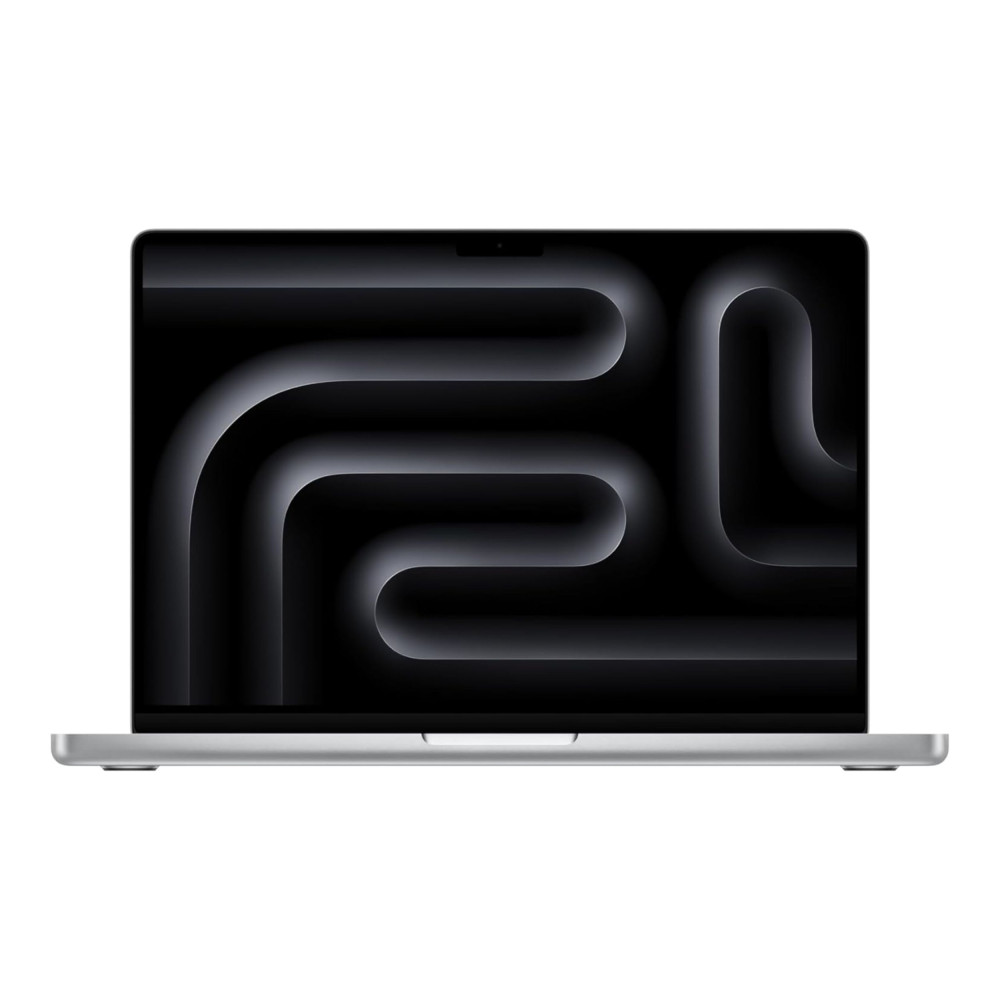
For most users, a MacBook Pro M5 with 24GB unified memory and 1TB storage offers the best mix of performance and value. It handles everyday professional tasks, creative work, and development without unnecessary cost, making it a strong choice among MacBook Pro laptops.
Final Words
Choosing the best MacBook Pro configurations ultimately comes down to how you plan to use the device. There is no single "best" option for everyone, but there are clear recommendations based on different workflows.
If your focus is content creation, especially video editing or design, stepping up to a MacBook Pro M5 Max with higher memory ensures smoother performance in demanding projects. This makes it the ideal configuration for those looking for a reliable MacBook Pro for video editing.
For developers, the MacBook Pro M5 Pro remains the most practical option. It provides the CPU performance and memory headroom needed for coding, virtual environments, and multitasking, making it a dependable MacBook Pro for developers.
If long-term value is your priority, investing in higher unified memory and storage upfront is the better approach. Pairing your device with essentials like bags & cases also helps protect your investment over time.
In short, this MacBook workflow guide proves that the right configuration is the one that aligns with your workflow. Focus on memory and sustained performance first, then scale up GPU power only if your work truly requires it.
Frequently Asked Questions
Which MacBook Pro is best for music production and video editing?
A MacBook Pro with the M5 Pro chip, at least 24GB RAM, and 1TB storage is ideal for handling both audio and video workflows smoothly.
Which macOS is best for music production?
The latest stable version of macOS is usually best, as it includes optimisations for Apple silicon and improved performance with modern DAWs.
How much RAM do I need for video editing on a MacBook?
16GB is the minimum for 4K editing, while 24GB–36GB is recommended for smoother performance. 64GB+ is ideal for 8K workflows.
Is the MacBook Air M4 enough for 4K video editing?
Yes, it can handle basic 4K editing, but for heavier projects and sustained performance, a MacBook Pro is the better choice.
Can we do coding on a MacBook Pro?
Yes, MacBook Pro is excellent for coding. It handles development tools, multitasking, and heavy workloads efficiently.
You can pay with:
*PayPal Credit Representative Example: Assumed credit limit £1,200, Representative 23.9% APR (variable). Purchase rate 23.9% p.a (variable).Terms & Conditions apply.


PayPal Credit and PayPal Pay in 3 are trading names of PayPal UK Ltd, 5 Fleet Place, London, United Kingdom, EC4M 7RD. Terms and conditions apply. Credit subject to status, UK residents only, Five Tech LTD acts as a broker and offers finance from a restricted range of finance providers. PayPal Pay in 3 is not regulated by the Financial Conduct Authority. Pay in 3 eligibility is subject to status and approval. 18+. UK residents only. Pay in 3 is a form of credit. Check if affordable and how you will repay. May make other borrowing more difficult or expensive. See product terms for more details.
Copyright © 1996-2026 Fivetech LTD | Terms and Conditions
box.co.uk & Box are trading names of Five Tech Limited. Registered office: Box LTD, Unit 10 Woodford Trading Estate, Woodford Green IG8 8HF