


 Menu
MenuMenu


Get Sales Advice from Mon - Fri 9am - 5:00pm:
020 3337 8950LAST UPDATED: January 27, 2026
Using a 10-Inch Tablet for Digital Art and Design
A modern tablet is no longer just a consumption device. With the right setup, a 10 inch tablet for digital art can be a powerful creative tool for sketching, illustration, layout work, and concept design. While it will not replace a full studio setup for every artist, it offers a level of portability and flexibility that dedicated drawing tablets cannot.
This guide explains what actually matters when using a 10-inch tablet for digital art and design. We cover stylus features, drawing apps, screen feel, and when it still makes sense to move to a dedicated drawing tablet instead.
Stylus Features That Matter for Digital Art
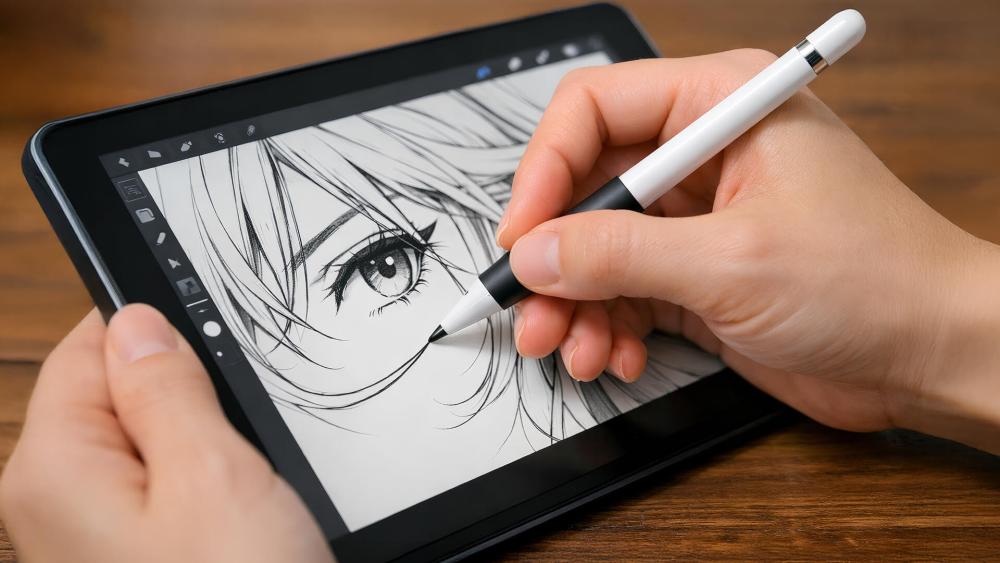
For digital artists, the stylus is more important than raw tablet performance. A good stylus and accessories for drawing is a great idea as they determine how natural drawing feels and how much control you have over lines, shading, and texture.
Pressure Sensitivity and Control
Pressure sensitivity allows line thickness, opacity, or brush intensity to change based on how hard you press the stylus. This is one of the most important features for natural-looking artwork.
In real-world use:
- Higher pressure levels offer smoother transitions rather than abrupt changes
- Consistent pressure response matters more than headline numbers
- Good pressure control improves sketching, inking, and painting workflows
Most modern tablets support pressure-sensitive styluses, but the quality of implementation varies widely.
Tilt Support and Shading
Tilt support allows brushes to react when the stylus is angled, mimicking real pencils, charcoal, or calligraphy tools. This is particularly useful for shading and expressive strokes.
Tilt support benefits artists who:
- Sketch with broad strokes
- Use digital pencils or charcoal brushes
- Shade large areas quickly
Without tilt support, shading often feels artificial or requires manual brush adjustments.
Latency and Line Stability
Latency refers to the delay between pen movement and the line appearing on screen. High latency breaks flow and makes drawing feel disconnected.
Equally important is line stability:
- Low jitter produces cleaner strokes
- Stable input reduces the need for heavy smoothing
- Consistent lines improve confidence while drawing
A tablet with low stylus latency often feels more "paper-like" even on glass.
Recommended Apps for Drawing and Sketching
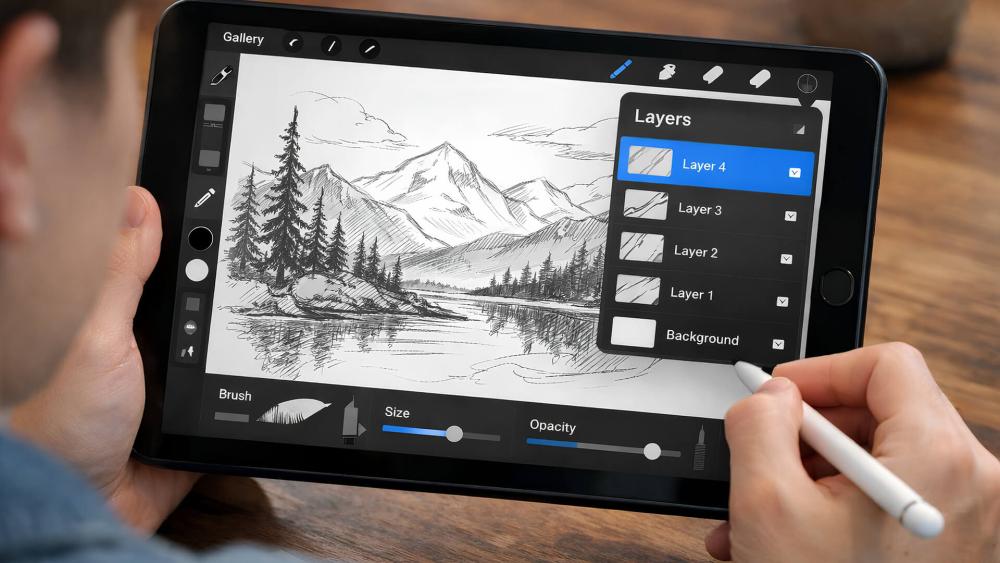
The app ecosystem plays a huge role in how capable a tablet feels for creative work. A good drawing app should balance performance, brush tools, and export flexibility.
Sketching and Illustration Apps
Sketch-focused apps are ideal for ideation, character design, and concept art. They prioritise fast startup, responsive brushes, and minimal interface clutter.
Artists often look for:
- Customisable brush engines
- Layer support
- Gesture-based controls
These apps are well suited to quick sketches and finished illustrations alike.
Design and Layout Tools
For designers, tablets are often used for layout planning, wireframing, or light design work rather than final production.
Design apps typically focus on:
- Vector tools and grids
- Precise alignment
- Text handling and layout structure
A 10-inch tablet works best here as a complementary device rather than a full desktop replacement.
File Export Formats and Sharing
Export flexibility matters once artwork leaves the tablet. Common formats include:
- PNG or JPEG for sharing
- PSD for layered editing
- PDF for review and markup
Good apps make exporting quick and painless, allowing artists to move between tablet and desktop workflows easily.
Performance, Storage, and File Handling for Digital Art
While stylus feel and apps define the drawing experience, performance and storage quietly determine how smoothly creative work progresses over time.
Performance for Layer-Heavy Artwork
Digital art apps rely heavily on memory and processing power when working with multiple layers, large canvases, or high-resolution brushes.
In practice:
- Sketching and light illustration run well on most modern tablets
- Large canvases with many layers can introduce lag on entry-level hardware
- Brush-heavy painting styles benefit from consistent performance more than raw speed
For artists who mainly sketch or illustrate, performance is rarely a bottleneck. For painters or designers working at print resolution, performance limitations become noticeable sooner.
Storage Needs for Art Files and Assets
Artwork files grow quickly, especially when layers and version history are preserved. Time-lapse recordings, reference images, and exported files add to storage pressure.
Artists typically store:
- Native app project files
- High-resolution PNG or PSD exports
- Reference images and mood boards
A tablet used regularly for art benefits from generous internal storage or a cloud workflow to avoid constant file management interruptions.
Cloud Sync and Cross-Device Workflows
Many artists use tablets as part of a wider creative setup. Cloud syncing allows work started on a tablet to continue on a desktop or laptop.
This workflow works best when:
- Files sync automatically in the background
- Export formats remain compatible across devices
- Version control is clear and predictable
For artists who move between tablet and desktop, reliable syncing is just as important as drawing performance.
Screen Texture and Pen Feel

How a screen feels under the stylus affects comfort just as much as stylus technology itself. The best display for digital art may be different for everyone. Here are the options you can choose from:
Glass Feel vs Paper-Like Texture
Most tablets use smooth glass displays, which can feel slippery for drawing. This allows fast movement but reduces friction.
Some artists enjoy:
- Smooth strokes for inking
- Minimal resistance for long sessions
Others find glass uncomfortable or too imprecise, especially for sketching.
Matte Films and Drawing Comfort
Matte screen protectors add resistance, creating a paper-like feel. This improves control but slightly reduces sharpness and colour vibrancy.
Matte films:
- Improve stylus grip
- Reduce glare
- Increase drawing comfort
They are a popular upgrade for artists who sketch frequently.
Calibration and Palm Rejection Basics
Palm rejection prevents accidental input when resting your hand on the screen. Poor palm rejection causes stray marks and interrupts workflow.
Proper calibration ensures:
- Accurate pen alignment
- Consistent pressure response
- Fewer drawing errors
These basics are essential for frustration-free drawing.
Colour Accuracy and Display Consistency for Artists
Display quality affects more than visual enjoyment. For digital art, colour accuracy and consistency influence how artwork translates across devices and formats.
Colour Accuracy vs Visual Punch
Some tablets favour vibrant, saturated displays that look impressive but may not represent colours accurately. Others prioritise neutral colour profiles that reflect real-world tones more faithfully.
For artists:
- Illustrators benefit from predictable colour output
- Designers need consistency across screens
- Casual sketchers can prioritise vibrancy over accuracy
Absolute colour accuracy is not essential for every artist, but predictable behaviour reduces surprises when exporting or printing work.
Brightness Consistency Across the Screen
Uneven brightness can affect shading perception, especially on large colour gradients. Consistent illumination helps maintain confidence in tonal balance while painting.
This becomes more noticeable when:
- Working on darker scenes
- Shading large areas
- Using the tablet at lower brightness levels
A display that remains consistent across angles and brightness settings feels more trustworthy during long sessions.
When a Dedicated Drawing Tablet Still Makes Sense

While 10-inch tablets are powerful, they are not always the best tool for every artist. If you regularly use your tablet for creative work, here are some things you need to consider:
Larger Canvas and Pro Workflows
Professional illustrators working on large canvases often prefer bigger displays. More screen space reduces zooming and keeps tools visible.
For complex projects:
- Larger drawing tablets feel less restrictive
- Extended sessions are more comfortable
- Multi-panel layouts are easier to manage
Precision Input and Shortcut Controls
Dedicated drawing tablets often include:
- Programmable shortcut buttons
- Physical dials or sliders
- More granular pen control
These features speed up professional workflows and reduce reliance on on-screen menus.
Studio Setup and Monitor Pairing
In studio environments, drawing tablets integrate seamlessly with large monitors and desktop software. This setup is ideal for:
- Production work
- Client-facing projects
- Colour-critical design
Tablets excel at portability, but studios benefit from dedicated hardware.
Workflow Tips That Make Drawing on a Tablet Easier
Small workflow adjustments often make a bigger difference than hardware upgrades.
Canvas Size and Resolution Choices
Working at excessively high resolutions can introduce unnecessary lag. Choosing canvas sizes appropriate for the final output improves performance without sacrificing quality.
A practical approach:
- Sketch at lower resolutions
- Increase resolution only for final artwork
- Avoid oversized canvases unless required
This keeps the tablet responsive and extends battery life during long sessions.
Gesture Controls and Shortcut Optimisation
Modern drawing apps rely heavily on gestures for undo, redo, zoom, and brush changes. Learning these shortcuts reduces reliance on menus and improves flow.
Artists who customise gestures often find:
- Fewer interruptions while drawing
- Faster iteration
- Less screen clutter
This is especially helpful on smaller 10-inch displays.
Battery Awareness During Creative Sessions
Drawing apps can be demanding during long sessions. High brightness, screen recording, and cloud syncing all increase battery drain.
Managing this includes:
- Lowering brightness slightly
- Disabling background sync during long sessions
- Charging before extended work
These habits prevent sudden interruptions mid-project.
When a 10-Inch Tablet Is the Right Creative Tool
A 10-inch tablet excels when creativity benefits from mobility and immediacy.
It is especially well suited for:
- Sketching ideas anywhere
- Concept art and visual brainstorming
- Portable illustration and note-based design
For many artists, the tablet becomes a creative notebook rather than a production workstation, and that is where it shines.
Conclusion
A 10 inch tablet for digital art offers an impressive balance of portability, performance, and creative flexibility. With a pressure-sensitive stylus, low latency input, and the right drawing apps, it becomes a capable tool for sketching, illustration, and light design work.
Screen texture, palm rejection, and stylus responsiveness matter far more than raw specifications. For many artists, a tablet is not a replacement for a studio setup, but a complementary tool that supports creativity anywhere.
If your work values mobility, quick iteration, and flexible workflows, a 10-inch tablet is a powerful creative companion. If you rely on large canvases, shortcut-heavy workflows, or studio-grade precision, a dedicated drawing tablet may still be the better choice.
FAQs
Is a 10-inch tablet good for digital art and sketching?
Yes. With the right stylus and apps, a 10-inch tablet is excellent for sketching, illustration, and concept art.
Which stylus features matter most for drawing on a tablet?
Pressure sensitivity, low latency, tilt support, and reliable palm rejection matter most.
Do screen protectors affect the feel of drawing on a tablet?
Yes. Matte protectors improve control and reduce glare but slightly soften image clarity.
Which apps work best for digital art on a 10-inch tablet?
Apps with strong brush engines, layer support, and export flexibility work best.
When is a dedicated drawing tablet a better choice than a 10-inch tablet?
When working on large canvases, using shortcut-heavy workflows, or operating in a full studio setup.
You can pay with:
*PayPal Credit Representative Example: Assumed credit limit £1,200, Representative 23.9% APR (variable). Purchase rate 23.9% p.a (variable).Terms & Conditions apply.


PayPal Credit and PayPal Pay in 3 are trading names of PayPal UK Ltd, 5 Fleet Place, London, United Kingdom, EC4M 7RD. Terms and conditions apply. Credit subject to status, UK residents only, Five Tech LTD acts as a broker and offers finance from a restricted range of finance providers. PayPal Pay in 3 is not regulated by the Financial Conduct Authority. Pay in 3 eligibility is subject to status and approval. 18+. UK residents only. Pay in 3 is a form of credit. Check if affordable and how you will repay. May make other borrowing more difficult or expensive. See product terms for more details.
Copyright © 1996-2026 Fivetech LTD | Terms and Conditions
box.co.uk & Box are trading names of Five Tech Limited. Registered office: Box LTD, Unit 10 Woodford Trading Estate, Woodford Green IG8 8HF