


 Menu
MenuMenu


Get Sales Advice from Mon - Fri 9am - 5:00pm:
020 3337 8950LAST UPDATED: June 11, 2026
When Should You Upgrade from HDD to SSD? A Practical Timeline for UK Users
If your computer feels slower than it should, the smartest upgrade is often not a whole new machine. In many cases, the right time to upgrade from HDD to SSD is when everyday tasks start dragging, boot times feel painfully long, and your storage drive becomes the bottleneck holding everything else back. Solid-state drives are faster, quieter and more common in modern PCs, as compared to older hard disk drives found in many ageing systems.
For UK users, that makes the decision fairly practical. A full replacement laptop or desktop can be expensive, but an HDD to SSD upgrade can often breathe new life into a system you already own. If you are trying to replace hard drive with SSD, planning a dell hard drive upgrade, or looking for a replacement hard drive for HP laptop use, the key question is not just whether SSDs are better. It is when the switch starts making real sense for your performance, storage needs and budget. Dell’s upgrade guidance specifically highlights SSDs as a way to improve system performance, reliability and laptop battery life.
This guide breaks that down in a straightforward way. We will look at HDD vs SSD performance, the biggest benefits of upgrading to SSD, the most common failing hard drive symptoms, and a realistic timeline for when to switch from HDD to SSD. We will also cover internal SSD vs external SSD decisions, what to keep in mind when upgrading computer storage, and when keeping an HDD still makes sense.
Understanding the Difference Between HDD and SSD Storage
What a Hard Disk Drive (HDD) Is and How It Works
A hard disk drive stores data on spinning magnetic platters and uses a moving read/write head to access files. That mechanical design is why HDDs have traditionally offered large capacities at lower prices, but it is also why they tend to be slower, noisier and more vulnerable to wear over time. HDDs are more common in older devices as they are a traditional storage designed around moving parts.
That does not make HDDs useless. In fact, they still have a place when you want lots of cheap capacity for files, archives or backups. If you mainly store large media libraries and do not need rapid file access, an Internal HDD or External HDD can still be a sensible option.
What a Solid State Drive (SSD) Is and How It Works
A solid-state drive uses flash memory instead of moving parts. That means it can access data much faster, run silently, and handle bumps or movement better than a traditional hard drive. Microsoft says SSDs are smaller and faster than HDDs, while also helping devices stay thinner and lighter.
For users planning an internal SSD upgrade, this is the key difference. An SSD is not just another storage device. It changes how the whole system feels, especially during boot-up, app launches and multitasking. That is why SSD storage upgrades are often recommended before more expensive component changes.
Why SSDs Are Faster and More Reliable Than HDDs
The short version of HDD vs SSD performance is simple: SSDs skip the waiting that comes with spinning disks and moving parts. SSDs are much faster, quieter and use less energy than HDDs, and NVMe SSDs are significantly faster than SATA SSDs, which are already far quicker than traditional hard drives.
That speed difference affects more than benchmarks. It is what makes Windows feel snappier, games load faster, and large applications open without that awkward pause that older drives often create. If you are wondering whether to replace HDD with SSD, this is the biggest reason so many users now do it. If you still have questions regarding the differences between the two technologies, check out our blog on SSD vs HDD for details.
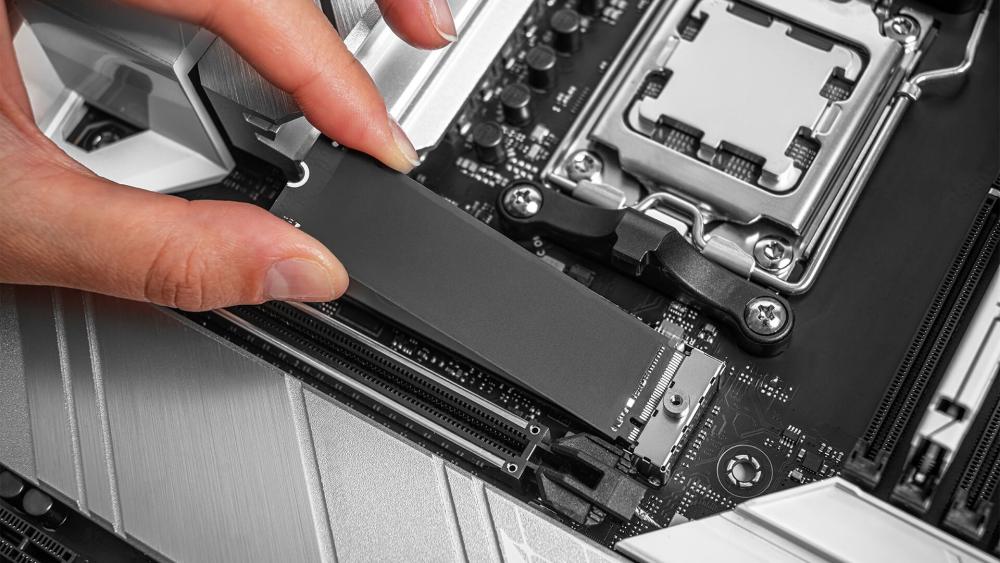
Why Many UK Users Are Switching from HDD to SSD
How SSDs Improve Computer Speed and Performance
The biggest reason to upgrade from HDD to SSD is simple: responsiveness. SSDs are faster storage drives, and that translates into less waiting across the whole system. For users dealing with a PC running slow HDD setup, the upgrade usually improves the feel of the machine more than small software tweaks ever will.
Faster Boot Times and Application Loading
If your desktop takes ages to reach the login screen or your laptop needs a tea break before opening Chrome, that is usually storage-related. SSDs reduce boot times and speed up application loading because they can access files almost instantly compared with an HDD.
Better Reliability and Lower Risk of Drive Failure
Another reason many users switch from HDD to SSD is reliability. Hard drives can fail mechanically because they rely on moving parts. That can cause you to lose data if it ever fails. To make sure you are prepared, it is a good idea to check out our guide on SSD / HDD Failure Warnings & Data Recovery for more information.
Energy Efficiency Benefits for Laptops
For laptops, SSDs also bring power benefits. Dell says SSDs consume less energy than HDDs, which can help notebook battery life. That makes a best SSD upgrade for laptop decision about more than just speed. It can also make a machine quieter, cooler and more practical to carry every day.
Key Signs It Is Time to Upgrade from HDD to SSD
Your Computer Takes Too Long to Boot
One of the clearest signs it is time to upgrade from HDD to SSD is painfully slow startup. If you press the power button and then spend the next few minutes waiting for Windows to become usable, your storage is often the limiting factor. Microsoft’s storage guidance and optimisation tools both point to disk performance as a major part of overall PC responsiveness.
Programs and Files Load Slowly
If apps hesitate before opening, files take too long to copy, or installing updates feels slower than it should, that is another strong clue. A hard drive slowing down is often most obvious in those everyday moments. This is one of the most common reasons people decide to replace hard drive with SSD rather than keep fighting with an ageing drive.
Frequent System Freezes or Performance Lag
System hangs, stutters and random pauses can also point towards storage issues, especially when everything else seems fine. Microsoft’s Device Performance and Health tools are designed to flag system problems including storage-related issues, while Dell recommends checking drive diagnostics when performance becomes unreliable.
Hard Drive Noise or Early Failure Warnings
This is the point where waiting becomes risky. Clicking, grinding, repeated drive errors, corrupted files or SMART warnings are classic HDD failure signs. Microsoft advises users to take critical storage warnings seriously, especially when they are combined with slowness, freezing or long startup times. HP’s hard drive health guidance also highlights unusual noises, crashes, slow file access and bad sectors as warning signs.
If you are seeing those failing hard drive symptoms, do not just think about performance. Think about your data. At that stage, an HDD to SSD upgrade is less of a convenience upgrade and more of a smart preventative move.
A Practical Timeline for Upgrading from HDD to SSD
When Your Computer Is 2–3 Years Old
There is no fixed age where every HDD should be replaced, but the 2–3 year mark is often when users start noticing a widening gap between what older storage can deliver and what modern software expects. That is especially true if your machine shipped with a standard hard drive rather than an SSD from day one.
When Your System Performance Starts Declining
The best time to upgrade from HDD to SSD is usually when performance decline becomes visible in normal use, not when the drive finally dies. If boot times are dragging, apps take too long to load, and multitasking feels clumsy, that is your cue. Waiting longer often means living with avoidable frustration.
When Your HDD Is Nearing Its Lifespan
A well-maintained laptop often lasts around three to five years. That is not a hard rule for storage, but it is a useful reality check. As a system moves through that age range, signs hard drive is failing become more important to watch, especially in machines still relying on older mechanical storage. Hard drives are electro-mechanical devices that do not last forever.
When You Need Better Productivity or Gaming Performance
Sometimes the right time to replace HDD with SSD is not about failure at all. It is about needing better performance. If you are studying, working from home, editing media, or playing games that constantly stream assets, an SSD upgrade can make the whole system feel more fit for purpose. That makes storage upgrade benefits much easier to justify than they were a few years ago.
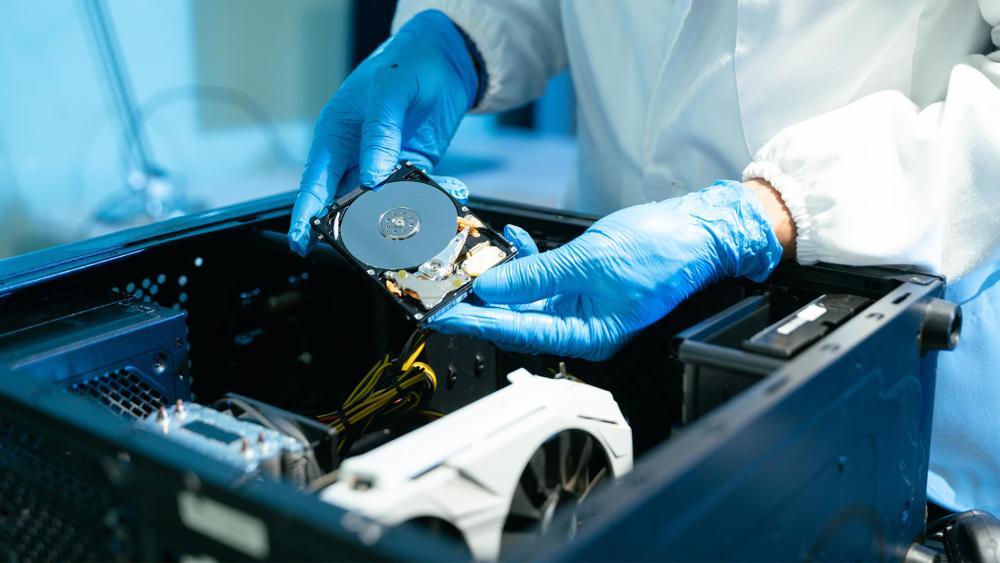
How an SSD Upgrade Improves Everyday Computing
Faster Multitasking for Work and Study
An SSD helps your system deal with lots of small tasks at once. Opening browser tabs, switching between apps, loading documents and syncing cloud folders all become smoother when storage is no longer the bottleneck. That is why SSD upgrade benefits are often most obvious during work and study rather than synthetic tests.
Better Performance for Creative Software
Creative apps usually move large files around constantly. If you work with photos, video, music or design tools, an internal SSD upgrade can improve launch times, project loading and file-saving speeds. You are not just saving a few seconds here and there. You are removing the repetitive delays that make a system feel dated.
Improved Gaming and Application Performance
For gaming enthusiasts, the case for an HDD to SSD upgrade is especially clear. Games install faster, load screens are reduced, patching feels less painful, and open-world titles tend to stream assets more smoothly. It will not magically raise your GPU performance, but it absolutely improves the feel of the overall experience. That is why the benefits of upgrading to SSD are so often noticed first by players and power users.
A More Responsive and Reliable Computer Experience
The biggest win is not any one benchmark. It is consistency. A good SSD makes a PC feel ready when you sit down, not half-awake and catching up. For many users, that alone is enough to make upgrading laptop storage or desktop storage feel worthwhile.
Choosing the Right SSD for Your Computer
When choosing an SSD for your computer, there are some points you need to consider:
SATA SSD vs NVMe SSD Differences
When choosing an SSD, the first major decision is SATA or NVMe. SATA SSDs are widely compatible and still offer a huge step up from HDDs. NVMe SSDs are faster again, but require motherboard support and the right slot. If you want more information, check out our guide on SATA vs NVMe SSDs for a detailed comparison.
Storage Capacity Options for Different Users
The right capacity depends on how you use your machine. A lighter-use laptop may be fine with 500GB. Gamers, creators and anyone with large file libraries may want 1TB or more. If you need fast portable space as well as an internal drive, adding an External SSD can be a smart companion move.
Compatibility with Laptops and Desktop PCs
Before buying, check what your machine actually supports. That matters for a dell hard drive upgrade, a replacement hard drive for HP laptop, or any broader desktop SSD upgrade. It is recommended to check your system’s supported drive type, interface and form factor before replacing storage.
Budget-Friendly SSD Options for UK Users
The good news is that an affordable SSD upgrade is much easier to find than it used to be. You do not need the fastest NVMe drive on the market to feel a major improvement over an HDD. In many cases, even a mainstream SATA SSD is enough to make an older laptop or PC feel significantly quicker.
HDD vs SSD: Is Upgrading Worth It in 2026?
Wondering if it is worth upgrading your HDD with an SSD? Well, here are some points to answer your question:
Performance Improvements You Can Expect
In 2026, the answer is yes for most users. HDD vs SSD performance is still not close in day-to-day responsiveness. SSDs boot faster, open apps faster and feel more immediate in normal use. Even where the rest of the hardware is older, moving from HDD to SSD usually produces one of the most noticeable upgrades you can make.
Cost vs Long-Term Benefits
The upfront cost is the main reason some users delay the switch, but the long-term value is usually strong. If the choice is between struggling on with a hard drive slowing down or getting a few more years out of a good laptop or desktop, the storage upgrade often makes financial sense. It is one of the cleanest ways to improve speed without paying for a full replacement machine.
When Keeping an HDD Still Makes Sense
There are still cases where an HDD is worth keeping. If you need lots of cheap bulk storage for media, backups or rarely used files, a hard drive still offers good value per gigabyte. That is why many users keep an HDD for archives while using an SSD for Windows, apps and active projects.
Combining SSD and HDD for Balanced Storage
For plenty of users, the best answer is not SSD instead of HDD, but SSD plus HDD. Use the SSD as your main system drive, then keep a hard drive for bulk files or backups. That setup gives you the speed of an SSD with the capacity value of a hard drive. It is one of the most practical storage upgrade benefits for desktops and upgrade-friendly laptops alike.
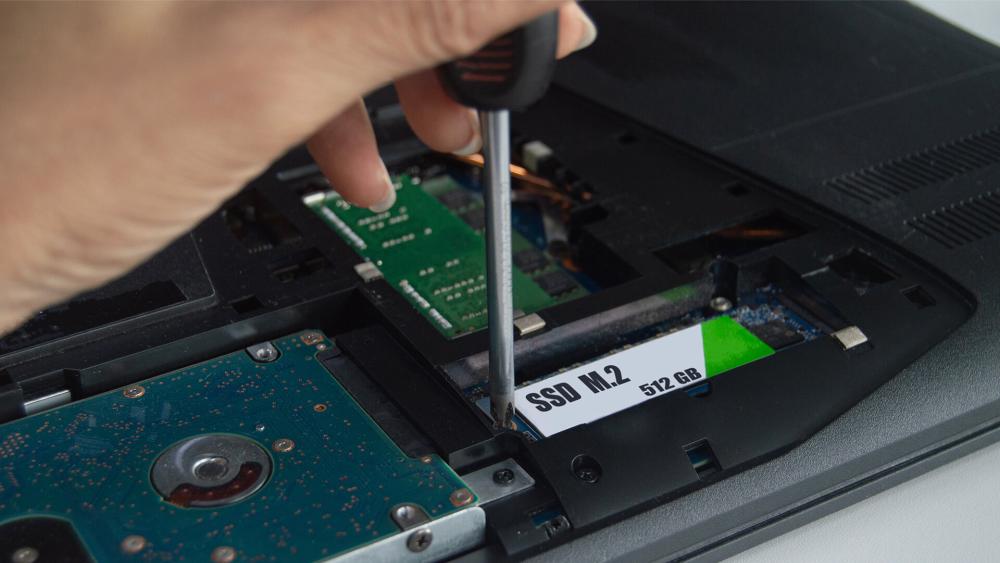
Wrapping Up:
The best time to upgrade from HDD to SSD is when your current drive starts holding your computer back. If your PC takes too long to boot, apps open slowly, the system freezes more often, or you are seeing obvious HDD failure signs, there is little reason to keep putting up with it. A good SSD upgrade can make an older machine feel far more responsive without the cost of replacing everything else.
For most UK users, the practical answer is this: do not wait for total failure. If your laptop or desktop is two to five years old, performance is slipping, or you rely on your machine for work, study or gaming, an HDD to SSD upgrade is often one of the smartest and most affordable changes you can make. It improves speed, helps reliability, and makes everyday use less frustrating.
And if you are still weighing up internal SSD vs external SSD, the rule of thumb is simple. Choose an internal SSD if you want your main system to feel faster. Choose external storage if you mainly need extra portable space. Either way, making the switch from HDD to SSD is one of the clearest upgrades available in 2026.
FAQs
How do I know when to upgrade from HDD to SSD?
The clearest signs are long boot times, slow app loading, freezing, lag, storage warnings or unusual hard drive noises. If your system feels fine apart from storage speed, it is usually a strong case to upgrade from HDD to SSD.
Is upgrading from HDD to SSD worth it for older computers?
Yes, in many cases it is. If the rest of the system is still usable, an SSD can make an older PC feel much faster and more responsive for everyday work, study and browsing.
How much faster is an SSD compared to an HDD?
The exact difference depends on the drive type, but SSDs are significantly faster in real-world use. SATA SSDs already offer a major jump over HDDs, while NVMe SSDs can be much faster again.
Can I replace my laptop HDD with an SSD easily?
Often yes, but it depends on the laptop model. You need to check the supported interface, form factor and upgrade access before buying.
How long do HDDs typically last before replacement?
There is no exact expiry date, but hard drives are mechanical devices and wear over time. For many users, replacement becomes more likely as systems move into the three-to-five-year range and start showing age or health warnings.
Should I keep my HDD after upgrading to an SSD?
Yes, if you still need extra capacity. Many users keep an HDD for bulk storage and use the SSD as the main boot drive for Windows, apps and games.
What type of SSD is best for upgrading a laptop or PC?
A SATA SSD is a strong choice for many older systems, while NVMe is better for newer machines that support it and users who want higher performance.
Does upgrading to an SSD improve gaming performance?
It improves loading times, installs, updates and overall responsiveness. It will not replace the need for a capable GPU or CPU, but it does make gaming feel smoother day to day.
You can pay with:
*PayPal Credit Representative Example: Assumed credit limit £1,200, Representative 23.9% APR (variable). Purchase rate 23.9% p.a (variable).Terms & Conditions apply.


PayPal Credit and PayPal Pay in 3 are trading names of PayPal UK Ltd, 5 Fleet Place, London, United Kingdom, EC4M 7RD. Terms and conditions apply. Credit subject to status, UK residents only, Five Tech LTD acts as a broker and offers finance from a restricted range of finance providers. PayPal Pay in 3 is not regulated by the Financial Conduct Authority. Pay in 3 eligibility is subject to status and approval. 18+. UK residents only. Pay in 3 is a form of credit. Check if affordable and how you will repay. May make other borrowing more difficult or expensive. See product terms for more details.
Copyright © 1996-2026 Fivetech LTD | Terms and Conditions
box.co.uk & Box are trading names of Five Tech Limited. Registered office: Box LTD, Unit 10 Woodford Trading Estate, Woodford Green IG8 8HF