


 Menu
MenuMenu


Get Sales Advice from Mon - Fri 9am - 5:00pm:
020 3337 8950LAST UPDATED: June 17, 2026
SSD vs HDD: Which Storage Is Right for You?
The storage devices have come a long way, but the solid-state drive vs hard drive debate is still going strong. Whether you're buying a new workstation, a gaming rig, a server PC, or getting a new machine for your kids, you'll have to dive into the world of SSD vs HDD to figure out the right storage for your machine.
To select the best storage device for your PC, you might need to go into research mode, but since you're here, we've made things easy for you. In this guide, we'll explain everything you need to consider before selecting the next internal storage for your PC.
Looking for a quick answer? Here’s what you should consider:
- Need speed? Go with an SSD, its faster, quieter, and more energy efficient.
- Need lots of storage for less? An HDD offers higher capacity at a lower price.
- For most users, a combo (SSD + HDD) gives the best of both worlds.
Now that you have an objective answer for selecting the best internal storage for your PC, let’s get into the details and help you choose the right option. But before that, here’s a quick recap of the basic definitions of both SSDs and HDDs.
What is an HDD (Hard Disk Drive)?
Think of an HDD like a vinyl record and needle setup: inside, there are circular metal platters that spin at high speed, and a tiny arm (the “read/write head”) swoops back and forth to record or fetch data.
- Because of all that moving around, it takes a moment for things to get started. Booting up your computer or loading a file isn’t instant.
- HDDs are great for storing lots of stuff like photos, videos, backups as they typically offer more space for less money. You can buy huge storage capacity for relatively little cash.
- The downside? They're heavier, a bit noisier (you can hear the spin and clicks sometimes), they can get damaged if dropped, and they draw more power.
What is an SSD (Solid-State Drive)?
An SSD is more like a USB flash drive or your phone’s storage because it holds data on tiny electronic memory chips instead of spinning disks. There are no moving parts.
- This means it’s much quicker. Turning on your computer, opening apps, accessing files, everything happens much faster. Instant or nearly instant.
- It’s also more durable, since there’s nothing mechanical to wear down or break if you bump or move the device. Better shock resistance.
- SSDs run quieter, use less power (so if you’re on a laptop, your battery lasts longer), and generate less heat.
The trade-off: cost per gigabyte is still higher than HDDs. Also, there’s a limit to how many times you can write to the memory before it starts to wear out (though modern SSDs are much better in this regard).
SSD vs HDD: Key Factors to Consider Before Making the Final Call
Here is a deep dive into the world of computer storage, with a focus on the key differences between SSD and HDD. But if you're in a hurry to select the best hard drive for your PC, here’s a quick overview of all the important features.
| Feature | SSD (Solid-State Drive) | HDD (Hard Disk Drive) |
| Speed & Performance | Extremely fast. Boots in ~10s. Apps open instantly. Excellent for multitasking & gaming. | Slower. Boot times ~30–40s. Noticeable delays with large apps & multitasking. |
| Capacity & Cost | Cost per GB is higher. Common sizes: 512GB to 2TB. Prices have dropped but still premium. | Much cheaper per GB. Ideal for large storage (2TB–10TB+). Great for media & backups. |
| Durability & Lifespan | Lasts 5–10 years. No moving parts. Better shock resistance. Limited write cycles (TBW). |
Lasts 3–5 years. Prone to mechanical failure due to moving parts. Vulnerable to drops. |
| Form Factor & Interface | SATA SSDs (~550MB/s), M.2 SATA (same speed), NVMe Gen 3/4/5 (up to 10,000+ MB/s). | Mostly 2.5” or 3.5” drives. Uses SATA interface. No major speed upgrades over the years. |
| Power Consumption | Lower power draw (~2–3W). Improves battery life by 30–50% in laptops. | Higher power use (~6–7W). Drains laptop batteries faster. |
| Noise & Heat | Silent operation. Generates less heat. Ideal for quiet or compact setups. | Audible spinning/clicking. Produces more heat. May need stronger cooling. |
| Use Case Fit | Best for speed-focused users: gamers, creators, students, and mobile professionals. | Best for bulk storage, backups, media collections where speed isn't a priority. |
| Upgrade Recommendation | Highly recommended for primary OS/apps. NVMe preferred for max performance. | Recommended for secondary storage. Not ideal for modern OS or high-speed needs. |
Speed & Performance
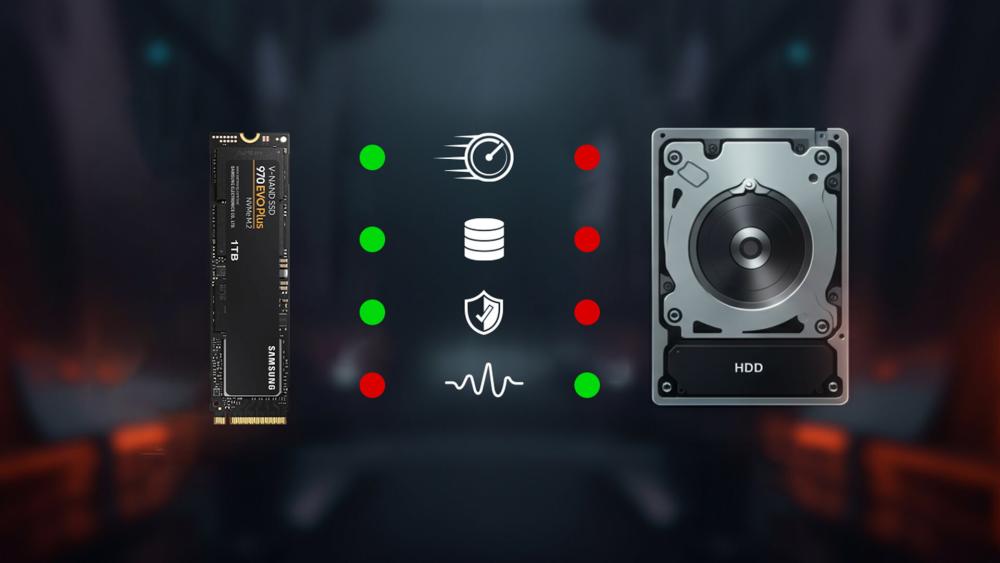
When it comes to SSD vs HDD speed, solid-state drives always win. They are designed to use electronic memory (flash chips), which allows them to access data almost instantly as there are no moving parts.
On the flip side, HDDs have spinning disks (platters) and a mechanical arm (read/write head) that has to physically move to the correct location. That makes processing slower, and you have to wait longer for programmes or applications to load.
Converting this into real-time terms means the following:
- Booting times: SSDs speed up the boot time of your PC to as little as 10 seconds, while HDDs can still take up to 40 seconds, that's a lot of time considering the speeds. It's time to go for Fast SSD Upgrades for Desktop & Laptop if you're still lagging behind.
- Opening apps or files: SSDs make apps open almost instantly. With HDDs, you experience delays, especially on large apps or programmes with many files.
- In the realm of SSD vs HDD performance and speed, SSDs are the clear winner, and there’s no argument about it.
- Random access vs sequential tasks: SSDs lead by a large margin when you're multitasking, like opening lots of small files or running numerous background processes, because there’s no arm physically moving around. HDDs are decent for large, continuous data transfers but become slower when dealing with scattered or random files.
Capacity & Cost
After analysing the SSD vs HDD speed comparison, the next big thing to consider is the price of the storage medium you're buying. Here are some key pointers to help you make the right decision:
- HDDs clearly win in this category. You can get much larger storage for much less money per gigabyte. If you need several terabytes just to store movies, backups, or large archives, Internal HDDs for Storage Expansion often make more sense from a cost perspective.
- The prices of SSDs have dropped significantly in recent years for common sizes like 512GB, 1TB, and 2TB. However, as you scale up or go for high-performance SSDs, the cost per gigabyte is still noticeably higher than an HDD.
A solid SSD vs HDD comparison often depends heavily on price, but you should make that compromise carefully and only after considering all technical aspects. The hard drive for your PC isn’t something you'll replace often, so making the right choice is essential.
Durability & Lifespan
A practical SSD vs HDD comparison won’t give you the full picture if it doesn’t consider how long each drive lasts in real-world use.
For the non-technical user, HDDs typically last around 3–5 years under regular desktop or home use. SSDs often last 5–10 years, especially if you’re not constantly writing massive amounts of data. So, we have a clear winner in the SSD vs HDD lifespan match-up.
Digging deeper, HDDs fall behind because they have many moving parts, making them more vulnerable to physical damage and wear over time. SSDs, on the other hand, have no mechanical components, which significantly improves their durability.
However, that doesn’t mean SSDs are immune to failure. They have limited write cycles, often measured as TBW (Terabytes Written), meaning you can only rewrite data to the same cells a limited number of times. This is especially important to consider when buying Portable External SSDs for Fast Data Transfer. In general, the higher the write endurance, the longer the SSD will last.
Form Factors & Interfaces
At a deeper level, choosing the best internal storage for your PC involves more than just price, capacity, and performance. You also need to understand form factors and interfaces.
The most common type still around is the SATA SSD. These usually come in a 2.5-inch form factor and connect via the SATA interface, the same one used by traditional HDDs. They’re much faster than HDDs but are the slowest type of SSD available today, with read/write speeds of around 500–550 MB/s.
If you're upgrading from a hard drive, a SATA SSD is still a solid step forward as it is affordable, widely supported, and perfectly fine for general use. It’s becoming old technology. Even an external hard drive with similar specs is now considered outdated.
Then there's the M.2 SATA SSD, a slim, stick-like drive that plugs directly into your motherboard. Performance-wise, it’s the same as a regular SATA SSD. The only real advantage is its compact size, making it ideal for laptops and small builds.
The SSD vs hard drive battle is decisively won by SSDs with the arrival of M.2 NVMe SSDs. These drives use the PCIe interface instead of SATA, allowing them to break past old speed limits. NVMe SSDs come in several generations:
- Gen 3: ~3,500 MB/s
- Gen 4: ~7,000 MB/s
- Gen 5: 10,000 MB/s and beyond

Power Use, Noise & Heat
These factors may seem minor but are crucial, especially when you’re working on the go or attending meetings in quiet cafés or libraries. The type of storage in your PC can have a noticeable impact on all three.
Starting with HDDs, their moving parts require more power, around 6–7 watts under load. SSDs, by contrast, have no motors or spinning disks, which means power draw is far lower, often resting at 2–3 watts during active use.
Translated into real-world laptop usage, this means 30–50% longer battery life, or at the very least a noticeable improvement, when using an SSD over an HDD.
Noise and heat tell a similar story. HDDs generate audible sounds, humming, clicking during reading/writing, and sometimes vibration. In a quiet environment, these sounds can be quite disruptive. SSDs, on the other hand, offer a completely silent experience with minimal heat generation, making them a much better choice for modern, quiet computing.
Best Use Cases: When is SSD or HDD the Right Option for Your PC?
Here are some examples to help you select the right storage option for your PC.
Students
Students benefit most when their laptop or machine boots fast, lets them open documents, slideshows, PDFs, and browser tabs without lag, and handles periodic media or project work. An SSD makes a big difference in startup and everyday responsiveness. If running virtual labs, coding environments, or online classes, faster storage means fewer delays. For large archives (lectures, recorded classes), an external HDD or cloud storage works well for overflow.
Creators
Photographers, video editors, graphic designers and 3D animators often deal with large files and huge scratch/asset folders. An NVMe SSD allows quick load and export of high‑res images or 4K/8K video, and smoother timeline scrub and render speeds. Still, big HDDs are useful for storing raw footage, archives, backup versions or old projects that don’t need frequent access. The mix (fast SSD + high‑capacity HDD) usually gives creators the best workflow.
Gamers
Any gamer knows the frustration of long loading screens, slow level transitions, texture pop‑ins, or delayed map streaming. An SSD, especially NVMe, cuts down game load times dramatically, makes open‑world games smoother, and improves overall system responsiveness with quick installs/patches. While an HDD can store large game libraries cheaply, putting your most played games on SSD gives the best experience. This will help you choose an SSD or HDD for gaming.
Backups
For backup and archive purposes, speed is less important than capacity, reliability, and cost per gigabyte. HDDs are still excellent for periodic backups, storing media collections, old photos/videos, or system images you don’t need all the time. SSDs can be used for incremental or fast local backups, but because of cost and wear, HDD or cloud storage is often the better choice for long‑term, large‑scale backups. So in an external SSD vs HDD choice, HDDs are a much better option.
Final Words: The Best Option
The right choice often depends on what you are running and what your usage is. For desktops and work machines, a combo of SSD and HDD is the best choice. You should also consider HDD lifespan vs SSD, SSD life expectancy vs HDD, and overall SSD vs HDD life. SSDs have no moving parts, making them more durable in laptops, while HDDs can still last well when used mainly for backup or external storage. If you need extra space, comparing external hard drive SSD vs HDD can help you choose between faster portable SSDs and larger, more budget-friendly external hard drives for PC and Mac. In laptops a SSD is the perfect option but if you want some extra storage space, go with External Hard Drives for PC & Mac.
Frequently Asked Questions
Is SSD really better than HDD?
Yes, an SSD is generally better than an HDD for speed, durability, boot times, and everyday performance. However, HDDs can still be useful if you need large storage at a lower cost.
Is a 256GB SSD better than a 1TB hard drive?
A 256GB SSD is faster than a 1TB hard drive, but it offers less storage space. Choose the SSD if speed matters more, and choose the 1TB HDD if you need more room for files, photos, videos, or backups.
What are the disadvantages of SSD?
The main disadvantages of SSDs are higher cost per GB and limited write cycles over time. They can also be more expensive than HDDs when you need very large storage capacities.
Are HDDs outdated now?
HDDs are not completely outdated, but they are no longer the best choice for speed. They are still useful for bulk storage, backups, and budget-friendly high-capacity drives.
Which storage type is faster, HDD or SSD?
SSD storage is much faster than HDD storage. An SSD can load Windows, apps, games, and files more quickly because it uses flash memory instead of moving mechanical parts.
Can I replace my laptop’s HDD with an SSD?
Yes, many laptops allow you to replace an HDD with an SSD. You will need to check your laptop’s storage type and size compatibility, such as 2.5-inch SATA SSD or M.2 SSD.
Do SSDs have a longer lifespan than HDDs?
SSDs often last longer in everyday use because they have no moving parts and are less likely to suffer damage from bumps or drops. However, lifespan depends on usage, write cycles, drive quality, and storage conditions.
Is it necessary to defragment an SSD?
No, you should not defragment an SSD. SSDs do not need defragmentation, and doing so can cause unnecessary writes that may reduce the drive’s lifespan.
What are the best practices to improve the lifespan of an SSD?
To improve SSD lifespan, keep enough free storage space, update firmware when needed, avoid unnecessary defragmentation, use built-in drive optimisation tools, and keep regular backups of important files.
Does the size of the SSD affect its speed?
Yes. The interface (SATA vs NVMe) and the SSD’s controller/flash type make a big difference. A small NVMe SSD can outperform a larger SATA SSD even if they have the same gigabytes.
Can I use both SSD and HDD together, or is one enough?
Yes, many setups combine both: SSD for the operating system and applications (for speed), and HDD for large files, media libraries, and backups (for capacity). That gives the benefits of both worlds. If budget allows, going all SSD is great, but HDDs still make sense for bulk storage.
Will using an SSD make my laptop battery last much longer?
It depends on what you're doing, but in many cases yes. SSDs use less power, especially during idle and lighter tasks. This means cooler temperatures, less demand on cooling/fans, which all help conserve battery. For people who travel or use laptops away from power outlets, that can make a noticeable difference.
Does having a faster drive (NVMe) matter for gaming?
Definitely. A faster drive reduces load times, helps with smoother texture streaming, reduces pop ins in open world games, and can improve performance in games with lots of asset loading. If you have big games, using NVMe SSD for your most played ones will improve the experience.
You can pay with:
*PayPal Credit Representative Example: Assumed credit limit £1,200, Representative 23.9% APR (variable). Purchase rate 23.9% p.a (variable).Terms & Conditions apply.


PayPal Credit and PayPal Pay in 3 are trading names of PayPal UK Ltd, 5 Fleet Place, London, United Kingdom, EC4M 7RD. Terms and conditions apply. Credit subject to status, UK residents only, Five Tech LTD acts as a broker and offers finance from a restricted range of finance providers. PayPal Pay in 3 is not regulated by the Financial Conduct Authority. Pay in 3 eligibility is subject to status and approval. 18+. UK residents only. Pay in 3 is a form of credit. Check if affordable and how you will repay. May make other borrowing more difficult or expensive. See product terms for more details.
Copyright © 1996-2026 Fivetech LTD | Terms and Conditions
box.co.uk & Box are trading names of Five Tech Limited. Registered office: Box LTD, Unit 10 Woodford Trading Estate, Woodford Green IG8 8HF