


 Menu
MenuMenu


Get Sales Advice from Mon - Fri 9am - 5:00pm:
020 3337 8950LAST UPDATED: July 06, 2026
MSI Motherboard BIOS Update Guide (2026): How to Update Safely Step-by-Step
An MSI motherboard BIOS update can improve CPU compatibility, system stability, memory support, and motherboard behaviour, but it needs to be done carefully. For most users, the safest method is MSI’s built-in M-FLASH tool, which updates the BIOS from a USB drive inside the BIOS environment. MSI’s own support guide says to prepare a FAT32 USB drive, download the correct BIOS for your motherboard model, copy the extracted files to the USB root directory, enter BIOS with the Delete key, and use M-FLASH to run the update.
This guide explains how to update MSI BIOS safely, when a BIOS update is worth doing, and which method to use if your board supports the Flash BIOS Button.
What is a BIOS Update and Why It Matters
A BIOS update is a motherboard firmware update. It changes the low-level software that helps your motherboard initialise hardware, boot the system, and communicate with key components such as the CPU, memory, SSDs, and graphics card.
What BIOS Does
BIOS, or UEFI BIOS on modern boards, loads before Windows. It checks your hardware, applies system settings, controls boot order and helps the motherboard manage the CPU, RAM, storage and other devices.
For gamers and PC builders, BIOS matters because it can affect:
- CPU compatibility support
- RAM stability and EXPO/XMP profiles
- Boot system configuration
- SSD and PCIe compatibility
- Fan behaviour and hardware detection
- General system stability updates
If you are planning PC components for system upgrades, the motherboard BIOS is worth checking before installing a newer CPU or changing major hardware.
When You Should Update BIOS
You do not need to update BIOS every time a new version appears. Update when there is a clear reason, such as:
- You are installing a newer CPU.
- MSI lists a fix that applies to your system.
- You have stability issues linked to RAM, booting or hardware detection.
- You need better compatibility with new components.
- MSI support recommends the update.
MSI’s older BIOS flashing guidance recommends not to flash when the system is running fine if you do not know what you are doing. That does not mean BIOS updates are bad, but it does mean they should be done for a purpose.
Benefits of Updating
A correct MSI motherboard BIOS upgrade can bring hardware support improvements, better system compatibility, improved memory handling and bug fixes. It can also help when building with newer processors, faster RAM or newer storage.
This is especially important when choosing a mobo for system upgrades, as newer processors may need a recent BIOS version before they work properly.
What You Need Before Updating MSI BIOS
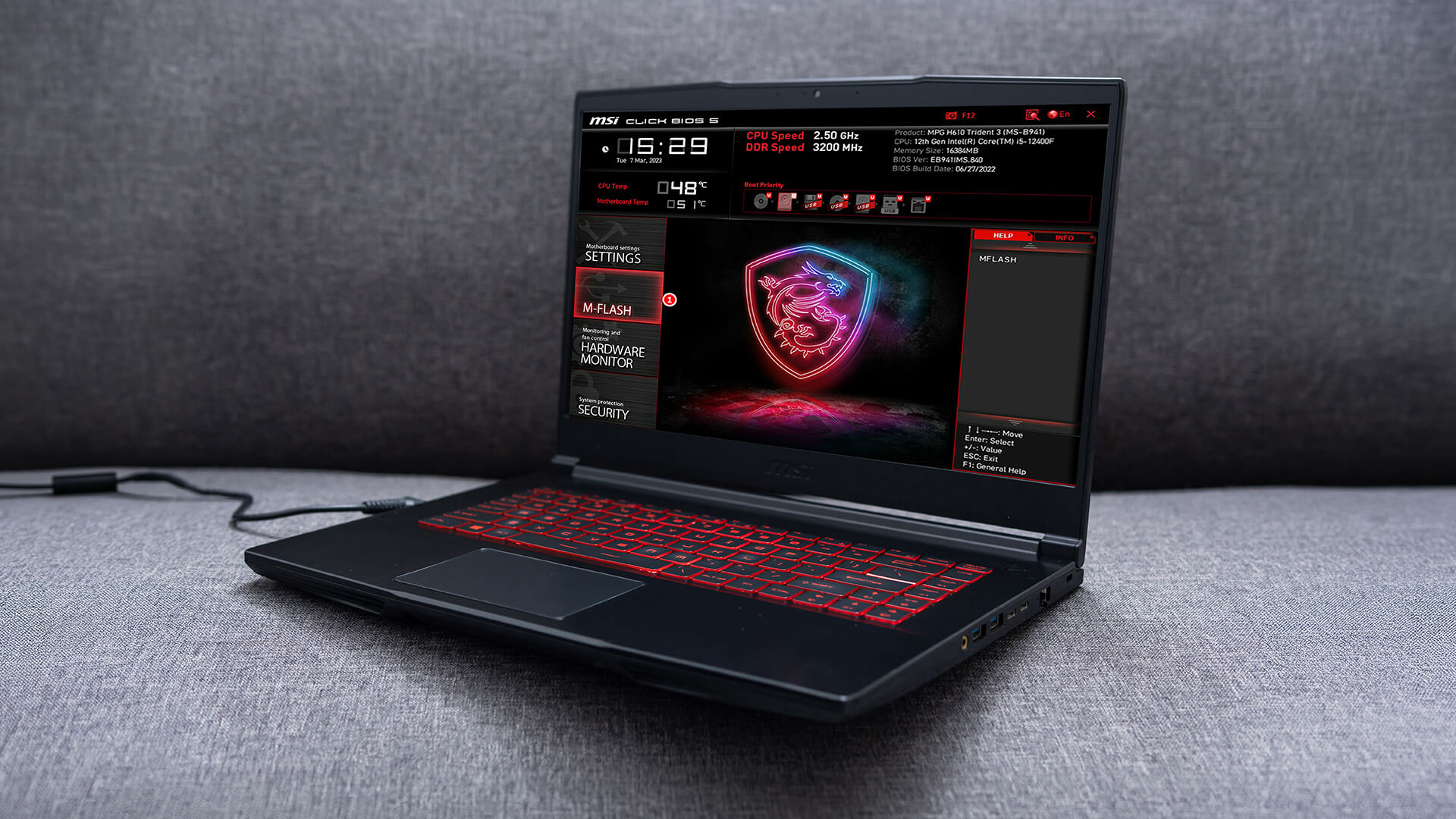
Before starting any MSI BIOS flash update, prepare properly. Most failed updates come from using the wrong file, interrupting power or not following the correct USB process.
USB Drive Setup
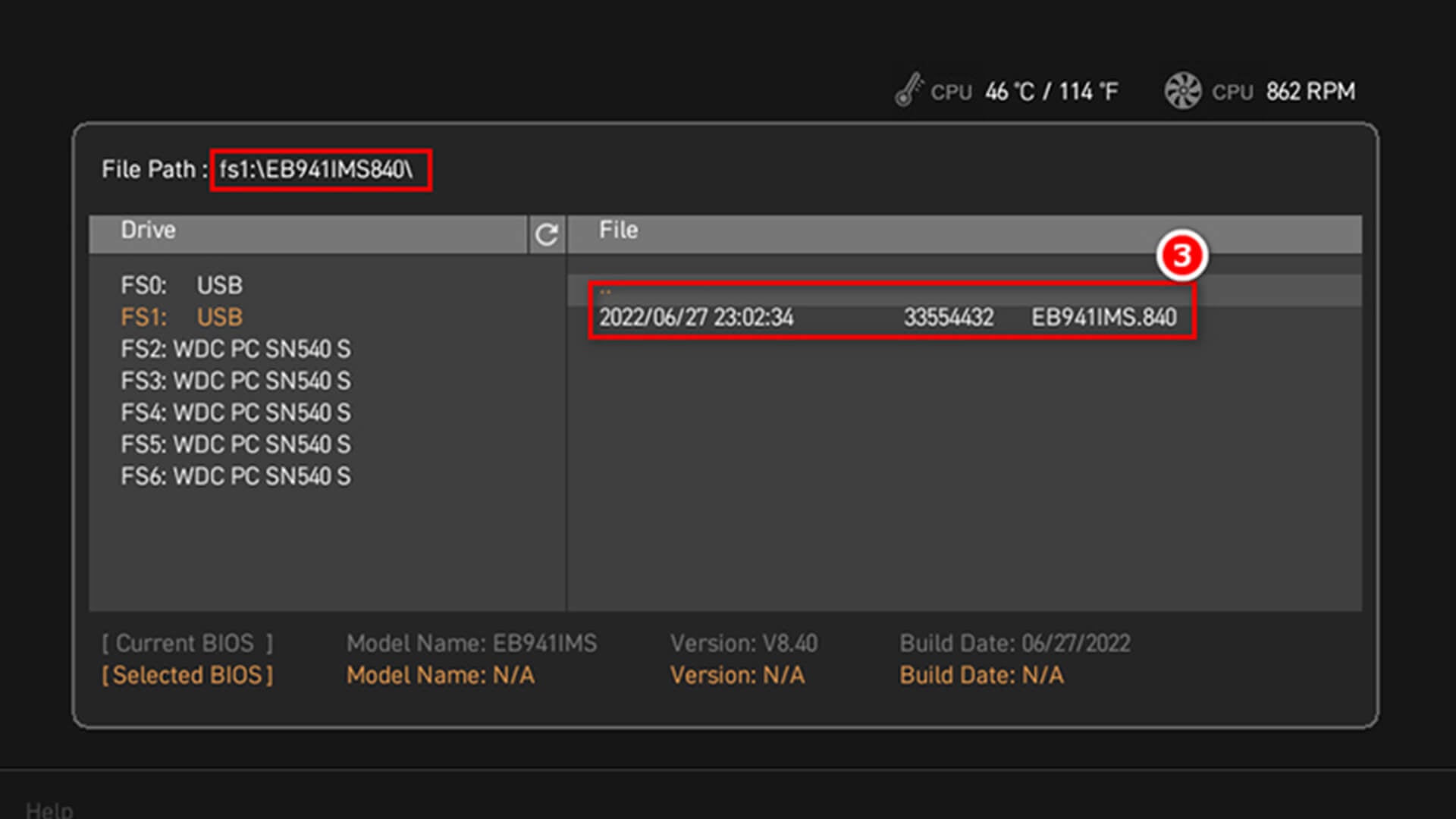
Use a USB flash drive that you can format. MSI’s M-FLASH guide says to format the USB drive as FAT32, download the BIOS file, extract it and copy the BIOS folder to the root directory of the USB drive. MSI also warns not to place files inside extra subfolders, as this may cause reading issues.
Quick USB checklist:
- Use a small, reliable USB drive if available.
- Format it to FAT32.
- Back up anything on it first.
- Extract the downloaded BIOS ZIP file.
- Copy the extracted BIOS folder or required file to the USB root.
Checking Motherboard Model
This step matters. BIOS files are model-specific. A BIOS for one MSI motherboard should not be used on a different board, even if the names look similar.
Check your model using:
- The motherboard box
- The motherboard label or printed model name
- BIOS screen
- Windows system information tools
- MSI Center or motherboard documentation
If you are buying a new board, browse MSI mobo in the UK carefully and confirm the exact model before downloading firmware.
Downloading Correct BIOS Version
Only download BIOS files from MSI’s official support page. MSI’s download page lets users select product line, category, and product model to find software, drivers, manuals, and utilities.
Avoid third-party BIOS files. A BIOS is not like a normal driver. The wrong file can stop the motherboard from booting.
How to Update MSI BIOS Step-by-Step
There are two common ways to update MSI BIOS: M-FLASH and Flash BIOS Button. For most working systems, M-FLASH is the recommended method. Flash BIOS Button is useful on supported boards, especially if the system cannot boot or needs BIOS support before a CPU is installed.
Method 1: M-FLASH Recommended
Use M-FLASH if your system boots and you can enter BIOS.
Step 1: Download BIOS
Go to the MSI support page for your exact motherboard model. Download the latest BIOS version that matches your board.
Read the update notes first. If the BIOS version is marked beta or is aimed at a specific issue you do not have, consider whether you really need it.
Step 2: Transfer to USB
Extract the downloaded ZIP file. Copy the extracted BIOS folder or file to the root of your FAT32 USB drive.
Do not hide it inside another folder. MSI specifically says not to place the files in subfolders to avoid reading issues.
Step 3: Enter BIOS
Restart the PC and press the Delete key repeatedly during boot to enter BIOS. MSI’s guide lists this as the route into the BIOS setup screen before choosing M-FLASH.
Before updating, make a note of important settings such as:
- Boot order
- XMP or EXPO memory settings
- Fan curves
- RAID settings, if used
- Secure Boot settings
- Any manual CPU or voltage settings
A BIOS update can reset these.
Step 4: Use M-FLASH
Inside BIOS, select M-FLASH. MSI says the system will enter the M-FLASH interface, where you select the USB drive, choose the BIOS file and confirm the update.
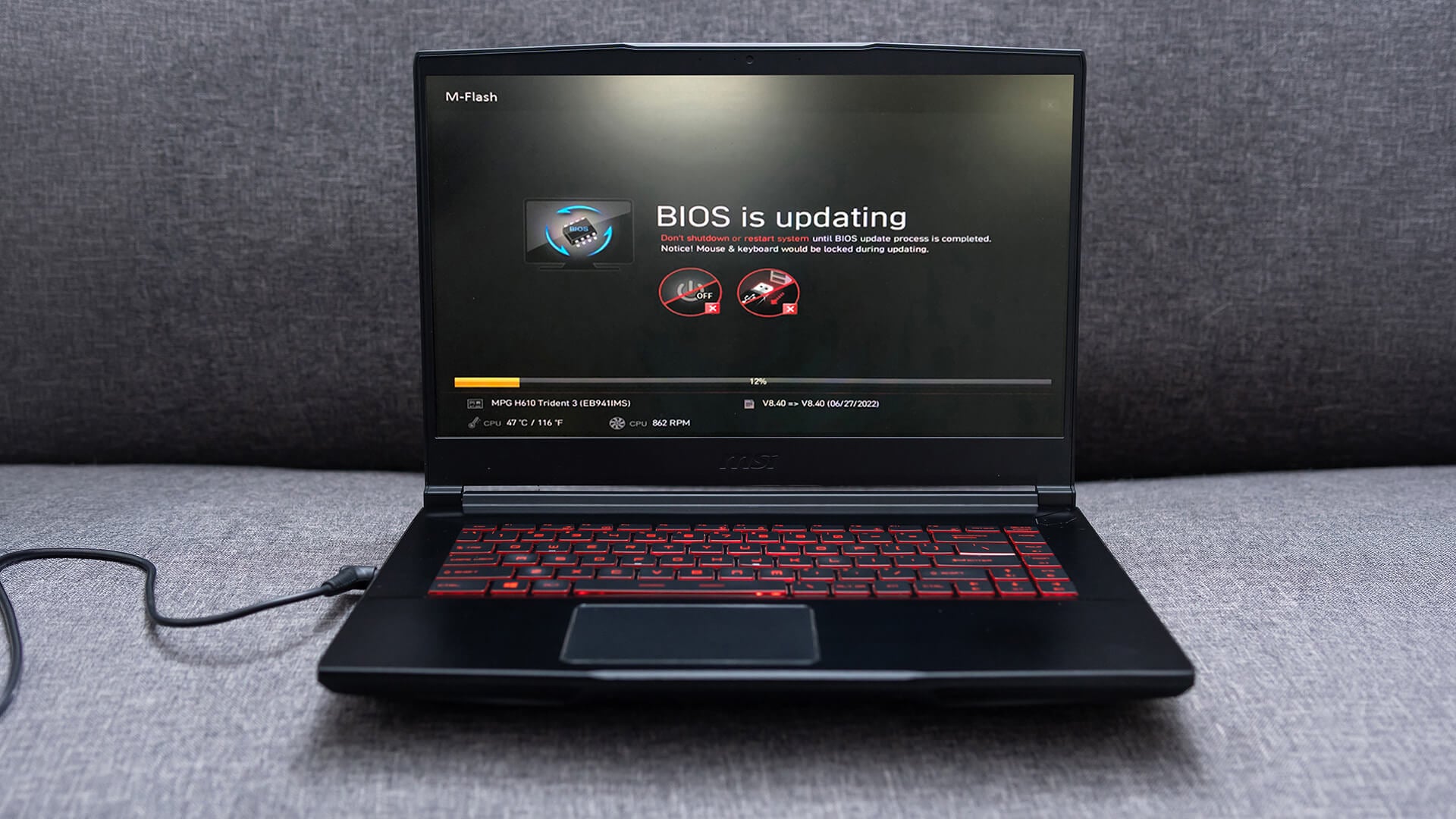
Once the update starts:
- Do not switch off the PC.
- Do not remove the USB drive.
- Do not disconnect power.
- Do not press reset.
- Do not interrupt the flashing process.
MSI warns not to turn off the computer, disconnect power or remove the USB drive during the update. After completion, the computer should restart automatically, and you can enter BIOS again to confirm the new version.
Method 2: BIOS Flash Button
Some MSI motherboards support Flash BIOS Button. This method can refresh BIOS without a working boot environment and, on supported models, without CPU and RAM installed. MSI states this feature is only available on models with the Flash BIOS Button.
Use this method if:
- Your motherboard supports Flash BIOS Button.
- The PC cannot boot into BIOS.
- You need BIOS support for a newer CPU.
- The board manual recommends this route.
Here’s how to use the Flash BIOS Button:
Step 1: Works Without CPU on Supported Boards
MSI’s Flash BIOS Button guide explains that if a motherboard has BIOS faults or fails to boot, supported models can refresh BIOS using the Flash BIOS Button without CPU and RAM. It also says models without the Flash BIOS Button do not support this feature.
Step 2: Plug USB and Press Button
For Flash BIOS Button, MSI says to format a USB drive to FAT32, download the latest matching BIOS, extract it, rename the unzipped BIOS file to MSI.ROM, copy it to the USB drive, connect CPU power and the 24-pin motherboard power cable, insert the USB into the rear I/O BIOS port, then press the Flash BIOS Button. The indicator light flashes during the process and goes off when complete.
Basic steps:
- Format USB as FAT32.
- Download the correct BIOS.
- Extract the file.
- Rename the BIOS file to MSI.ROM.
- Copy it to the USB root.
- Connect CPU power and 24-pin ATX power.
- Insert USB into the marked BIOS USB port.
- Press Flash BIOS Button.
- Wait until the LED stops flashing.
MSI also warns not to power off or shut down during the BIOS refresh process, as this may damage the BIOS chip.
What Happens After a BIOS Update
After an MSI motherboard update, the PC may restart more than once. This is normal. Give the system time to finish hardware training and configuration.
System Restart
After M-FLASH completes, MSI says the computer automatically restarts. You can then press Delete again to enter BIOS and confirm the BIOS version has updated.
The first boot may take longer than usual, especially after a firmware installation step that changes CPU or memory support.
Settings Reset
A BIOS update may reset settings to default. Check:
- Boot drive priority
- XMP or EXPO profile
- Fan curves
- Secure Boot
- Resize BAR
- TPM settings
- SATA mode
- Virtualisation settings
If your system suddenly boots differently after the update, the settings reset is usually the reason.
Performance and Compatibility Improvements
The update may improve compatibility with new CPUs, RAM kits, storage devices or graphics cards. It may also include system stability updates, firmware recovery options or motherboard setup optimisation.
However, a BIOS update will not magically make a slow PC fast. If your system feels sluggish, you may get more practical gains from SSD, RAM or power supply upgrades depending on the issue. For users adding SSD storage for faster performance, or going for memory upgrades, a newer BIOS can sometimes improve storage detection, boot behaviour or PCIe compatibility.
Tips for a Smooth BIOS Update
The safest way to update MSI BIOS safely is to slow down, check the model twice and avoid unnecessary risks.
Use Official BIOS Files
Only use MSI’s official support page. Match:
- Exact motherboard model
- Correct revision, if listed
- Correct BIOS file
- Correct update method
This is especially important if you are comparing boards such as MSI Z790 vs B760 because BIOS files are tied to the exact motherboard, not just the chipset family.Also, if you wish to compare these boards with other options for example, an MSI vs ASUS motherboard comparison, our guide might help.
Ensure Stable Power
BIOS flashing should not be done during storms, unstable power or while testing a questionable PSU. If the PC loses power mid-update, the board may fail to boot.
A reliable PSU for stable system performance matters for system stability in general, not just BIOS updates. If your system shuts down under load, fix that before attempting a firmware update.
Follow Proper Steps
Use this quick safety checklist:
- Confirm the motherboard model.
- Download from MSI only.
- Read the BIOS notes.
- Format USB to FAT32.
- Extract the file.
- Use M-FLASH for a working system.
- Use Flash BIOS Button only if supported.
- Do not interrupt the update.
- Recheck BIOS version after restart.
- Reapply required settings carefully.
Common MSI BIOS Update Mistakes to Avoid
A BIOS update is not difficult, but careless steps can cause problems.
Avoid these mistakes:
- Downloading BIOS for the wrong board.
- Using a USB drive that is not FAT32.
- Leaving the BIOS file inside multiple folders.
- Updating during unstable power.
- Removing the USB during flashing.
- Restarting the PC because the screen appears inactive.
- Forgetting to re-enable XMP or EXPO after the update.
- Using Flash BIOS Button on a board that does not support it.
If you are unsure, read your motherboard manual before starting.
Final Thoughts
An MSI motherboard BIOS update is safe when you use the right file, the right method and stable power. For most users, M-FLASH is the best option because it is built into MSI BIOS and gives a clear USB update method. For supported boards, Flash BIOS Button is useful when the system cannot boot or needs a firmware update before a new CPU will work.
The main rule is simple: do not update casually, but do not fear BIOS updates when they are needed. If you are upgrading CPU, RAM, storage or motherboard hardware, a correct BIOS version can make the build smoother and more stable.
FAQs
-
Is it safe to update MSI BIOS?
Yes, it is safe if you use the correct official MSI BIOS file, follow the update steps and do not interrupt power during the process. The main risks come from using the wrong file or shutting the system down mid-update.
-
How often should I update my MSI BIOS?
Only update when there is a clear reason. For example, update for CPU compatibility, stability fixes, memory support improvements or if MSI support recommends it. You do not need every BIOS version if your system is stable.
-
Can I update BIOS without a CPU?
Yes, but only on MSI motherboards that support Flash BIOS Button. MSI says supported boards can refresh BIOS without CPU and RAM, but models without the Flash BIOS Button do not support this feature.
-
How long does a BIOS update take?
It often takes a few minutes, but timings vary by board and method. Do not interrupt the update even if the screen looks inactive. Wait until the system restarts or the Flash BIOS LED stops flashing.
-
Do I need to update BIOS for a new CPU?
Sometimes, yes. If the motherboard was made before the CPU was released, it may need a BIOS update for CPU compatibility support. Check MSI’s CPU support list and BIOS notes for your exact motherboard model.
-
What USB format should I use for MSI BIOS update?
Use FAT32. MSI’s M-FLASH and Flash BIOS Button guides both refer to preparing a FAT32 USB drive before copying the BIOS files.
-
What is the best MSI BIOS update method?
For a working system, M-FLASH is usually the best method. If the system cannot boot and the motherboard supports Flash BIOS Button, use the Flash BIOS Button method instead.
You can pay with:
*PayPal Credit Representative Example: Assumed credit limit £1,200, Representative 23.9% APR (variable). Purchase rate 23.9% p.a (variable).Terms & Conditions apply.


PayPal Credit and PayPal Pay in 3 are trading names of PayPal UK Ltd, 5 Fleet Place, London, United Kingdom, EC4M 7RD. Terms and conditions apply. Credit subject to status, UK residents only, Five Tech LTD acts as a broker and offers finance from a restricted range of finance providers. PayPal Pay in 3 is not regulated by the Financial Conduct Authority. Pay in 3 eligibility is subject to status and approval. 18+. UK residents only. Pay in 3 is a form of credit. Check if affordable and how you will repay. May make other borrowing more difficult or expensive. See product terms for more details.
Copyright © 1996-2026 Fivetech LTD | Terms and Conditions
box.co.uk & Box are trading names of Five Tech Limited. Registered office: Box LTD, Unit 10 Woodford Trading Estate, Woodford Green IG8 8HF