


 Menu
MenuMenu


Get Sales Advice from Mon - Fri 9am - 5:00pm:
020 3337 8950LAST UPDATED: May 22, 2026
MSI Monitor Settings for Gaming: Best Setup for FPS, Visuals & Performance
The best MSI monitor gaming settings depend on your monitor, GPU, game type and room lighting. For most players, the right setup is simple: set the monitor to its maximum refresh rate, use a balanced response time mode, enable Adaptive Sync if supported, adjust brightness for visibility and choose a game mode that suits what you play.
These settings will not increase your PC’s actual FPS, but they can make gameplay feel smoother, clearer, and more responsive.
Why MSI Monitor Settings Matter for Gaming
Your MSI screen does more than display the game. Refresh rate, response time, adaptive sync, brightness and game modes all affect how smooth and clear gameplay feels. MSI’s gaming monitor range commonly includes features such as high refresh rates, fast response times, Adaptive Sync and gaming visibility tools, depending on the model.
For players comparing MSI display setups, the best settings are the ones that match your hardware and game style, not just the most aggressive options in the menu.
-
Impact on FPS and Smoothness
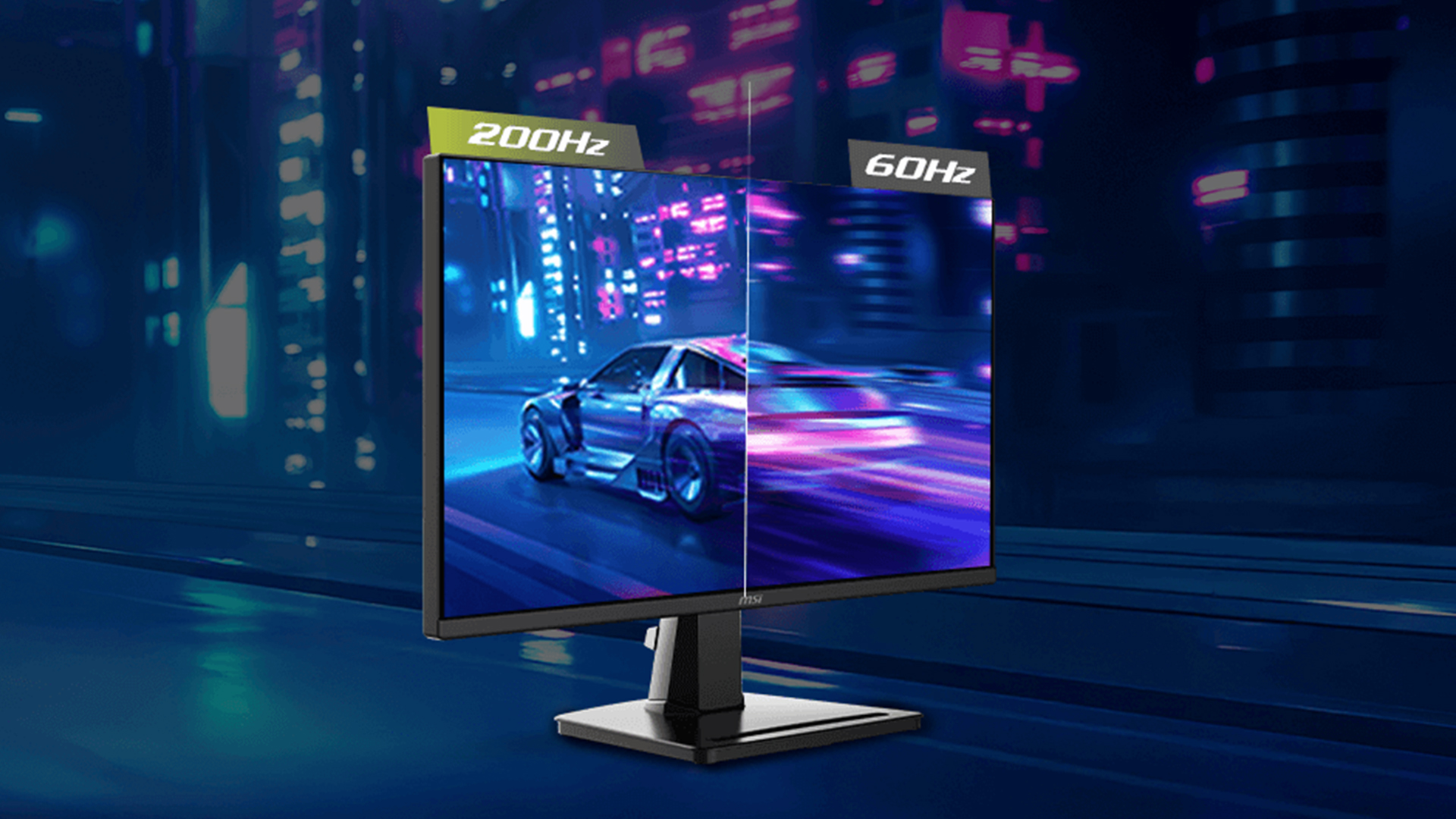
A monitor setting cannot create extra FPS. Your GPU and CPU decide that. However, the right MSI refresh rate setting makes sure the frames your PC produces are shown properly. If you have a 180Hz monitor but Windows is set to 60Hz, you are not using the display’s full potential.
-
Visual Clarity and Detail
Brightness, contrast, sharpness, and colour settings affect how clearly you see enemies, dark corners, HUD elements, and distant objects. For FPS games, visibility often matters more than cinematic colour.
-
Competitive Advantage
Lower motion blur, reduced tearing, and better visibility can make competitive games feel more controlled. This will not replace aim, reaction time or a stable internet connection, but good MSI monitor gaming settings help remove avoidable display problems.
Essential MSI Monitor Settings to Adjust
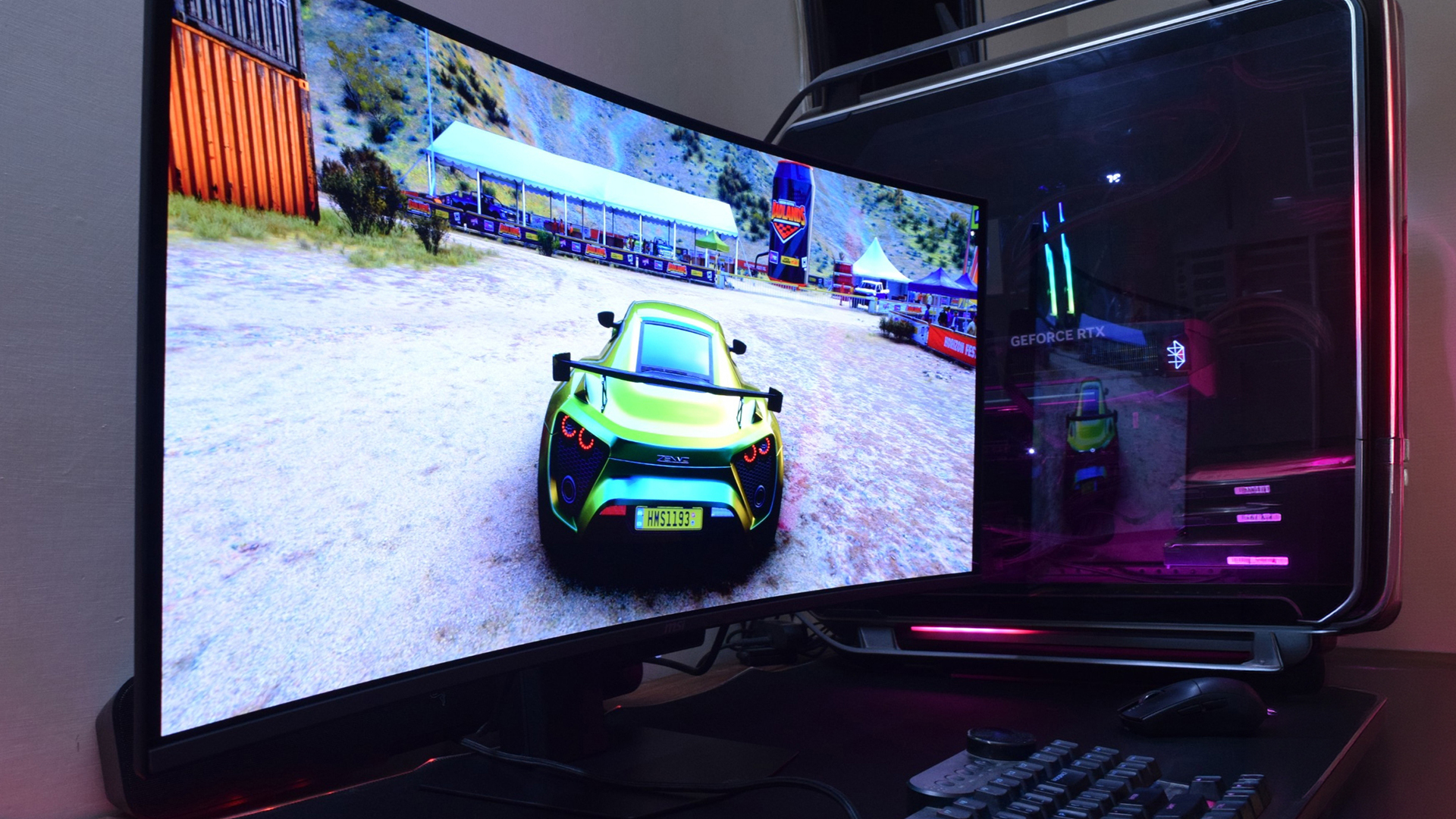
Start with the basics before using advanced features. The most important best MSI monitor settings are refresh rate, response time and adaptive sync.
Refresh Rate Settings
Set your MSI monitor to the highest refresh rate it supports. This is usually done in Windows display settings, the GPU control panel, and sometimes the monitor’s own OSD. MSI gaming displays commonly advertise refresh rates such as 144Hz, 170Hz, 180Hz, 200Hz, 240Hz, or higher, depending on model.
Quick setup:
- Use DisplayPort where possible for PC gaming.
- Use HDMI only if it supports your target resolution and refresh rate.
- Check Windows display settings.
- Check NVIDIA Control Panel or AMD Software.
- Confirm the monitor OSD shows the correct refresh rate.
For players shopping for fast refresh rate displays, refresh rate should be one of the first specs to check.
Response Time / Overdrive
Response time settings control how quickly pixels transition. MSI monitors may use labels such as Normal, Fast, Fastest, or similar depending on the model. The fastest option is not always the best because it can cause overshoot or inverse ghosting. This is especially worth checking on Rapid IPS models, where MSI Rapid IPS panel performance is strongest when response time is tuned for clean motion rather than simply pushed to the highest setting.
Best approach:
- Start with Fast or the middle setting.
- Avoid the strongest mode if bright trails appear.
- Test in a fast game, not just on the desktop.
- Turn off extreme motion blur reduction modes if they make the image too dim.
For FPS settings on MSI, balanced overdrive is usually better than forcing the maximum mode.
Adaptive Sync: FreeSync or G-Sync Compatible
Adaptive Sync helps match the monitor’s refresh behaviour to the GPU output. MSI describes Adaptive Sync on some monitors as matching the display’s refresh rate with the GPU for smoother gameplay.
Enable it if:
- Your monitor supports Adaptive Sync, FreeSync or G-Sync Compatible.
- Your GPU supports it.
- You play games with fluctuating FPS.
- You want less screen tearing.
For esports players chasing the lowest possible latency, you may test Adaptive Sync on and off. For most users, keeping it on gives smoother gameplay.
Best MSI Monitor Settings for FPS Games
FPS games need visibility, smoothness, and quick response. The best MSI monitor gaming setup for shooters usually prioritises refresh rate, response time, and enemy visibility over cinematic visuals.
High Refresh + Low Latency Setup
Use this baseline for competitive FPS:
| Setting | Recommended Setup |
| Refresh rate | Maximum supported Hz |
| Response time | Fast or balanced |
| Adaptive Sync | On for smoothness, test off for lowest latency |
| Game mode | FPS or User |
| Motion blur reduction | Test carefully, often optional |
| Brightness | High enough for dark visibility |
| Sharpness | Moderate, avoid over-sharpening |
If the game has NVIDIA Reflex or AMD Anti-Lag support, enable it in-game or through your GPU software where appropriate.
Sharpness and Visibility Tweaks
Sharpness can make outlines look clearer, but too much adds halos and noise. Use a moderate setting. For shooters, you want enemies to stand out without making the image look crunchy.
Good starting points:
- Use FPS mode if it improves clarity.
- Reduce overly saturated colour modes.
- Avoid heavy post-processing filters.
- Keep black equaliser or Night Vision subtle.
Brightness for Enemy Visibility
Set brightness based on your room and game. A brighter screen can help in dark areas, but too much brightness can wash out detail.
Use this rule: raise brightness until dark areas are readable, then stop before blacks turn grey. MSI’s Night Vision and AI Vision features are designed to improve visibility in dark areas on supported monitors.
Best MSI Monitor Settings for Visual Quality
For single-player games, RPGs, racing games and cinematic titles, visual quality matters more than pure visibility. Here, the best MSI monitor calibration gaming setup should focus on colour, contrast, brightness and resolution.
Colour and Contrast Settings
Use a User or Standard mode if you want a balanced image. Game modes can boost visibility, but they may oversaturate colours or crush dark detail.
Suggested approach:
- Start with Standard or User mode.
- Adjust brightness to your room.
- Keep contrast near default unless the image looks washed out.
- Avoid extreme colour temperature settings.
- Use sRGB mode if you want more natural colours and your monitor supports it.
HDR Configuration
Only use HDR if your MSI monitor handles it well and the game supports it properly. Some monitors are “HDR ready” but do not have the brightness or local dimming needed for a true premium HDR experience.
Use HDR for:
- Single-player games
- Cinematic games
- High-brightness displays
- QD-OLED or stronger HDR-capable panels
Turn HDR off if the image looks grey, dim or inconsistent. MSI QD-OLED screens can sometimes have this issue. If you want to learn more about this, our guide to MSI QD OLED display explained is a much-read.
Immersive Gaming Setup
For RPGs, racing, open-world, and story games, use visual settings that look natural rather than overly sharpened. If you are comparing high-res screens, resolution and panel quality may matter more than esports-focused visibility settings.
Advanced MSI Features to Use
MSI monitors often include extra gaming tools. These are useful, but not every feature should be switched on permanently. Use them when they solve a specific problem.
Night Vision
Night Vision brightens darker parts of the image to make details easier to see. MSI’s Night Vision or AI Vision is a feature that reveals details in dark scenes or enhances dark-area visibility, depending on the monitor.
Best use:
- FPS games
- Dark maps
- Battle royale games
- Horror games where visibility is too low
Avoid setting it too high, as it can flatten contrast.
Gaming Intelligence Features
MSI Gaming Intelligence can offer features such as picture-in-picture, picture-by-picture, game crosshairs, and input switching, but MSI notes that available functions depend on monitor support.
Use these features if your monitor supports them and they help your setup. Do not worry if your model does not include every option.
Crosshair and Overlay Tools
Crosshair overlays can help in games with minimal reticles, but they are not needed for every player. Some MSI monitors also support smart crosshair-style tools on selected models. MSI describes Gaming Intelligence features on certain monitors as including Smart Crosshair, Night Vision AI, and related gaming tools.
Use overlays responsibly and check each game’s rules if playing competitively.
Customising Settings Based on Your Setup
The best settings change depending on your GPU, console, monitor resolution, and room lighting. A budget PC and a high-end rig should not use exactly the same setup.
Low-End vs High-End GPUs
If your GPU struggles to hit your monitor’s full refresh rate:
- Enable Adaptive Sync.
- Lower in-game graphics settings.
- Use 1080p or 1440p depending on GPU strength.
- Prioritise stable FPS over maximum visuals.
- Avoid heavy ray tracing if FPS drops too much.
If your GPU is high-end:
- Use the monitor’s maximum refresh rate.
- Match resolution to your panel.
- Use higher texture and clarity settings.
- Test HDR if the monitor supports it well.
Console vs PC Gaming
For console gaming, use HDMI and check whether the monitor supports the console’s target refresh rate and resolution. Some MSI monitors include console-focused modes, and MSI also adds features such as FHD 120Hz or PS5 optimisation on selected models.
For PC gaming, DisplayPort is often the safer choice for high refresh rate and full feature support.
Room Lighting Adjustments
Your room affects how the monitor looks. A bright room may need higher brightness. A dark room may need lower brightness to avoid eye strain.
Use this simple rule:
- Bright room: raise brightness and avoid overly dark presets.
- Dark room: lower brightness and keep contrast comfortable.
- Night gaming: avoid maximum brightness.
- Competitive gaming: tune visibility without washing out the image.
Best Settings by Game Type
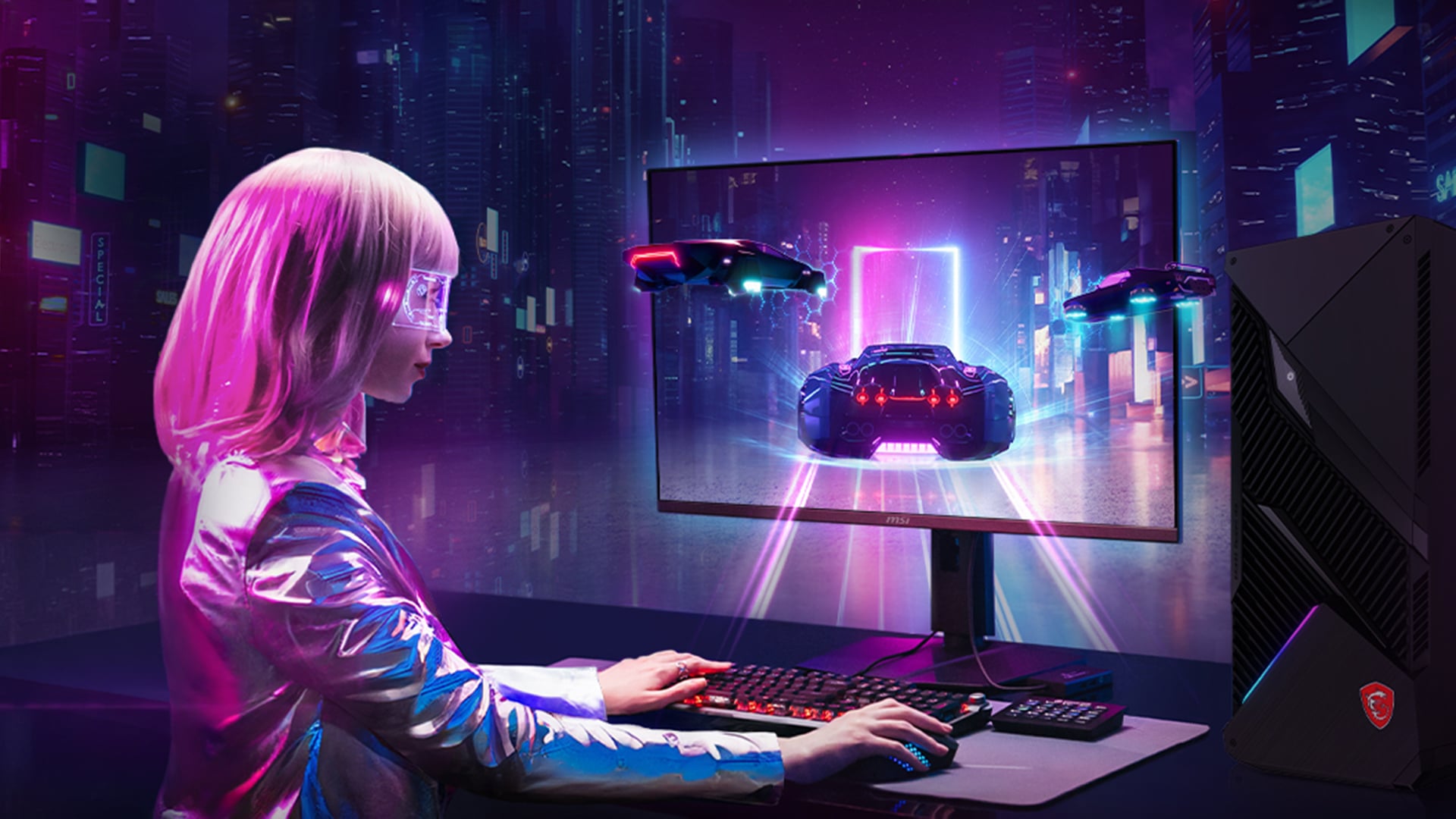
Different games need different monitor settings. Save profiles if your MSI monitor supports them.
FPS and Esports
Use:
- Maximum refresh rate
- Fast or balanced response time
- FPS mode or User mode
- Moderate sharpness
- Night Vision on low or medium
- Adaptive Sync on unless testing lowest latency
Racing and Sports Games
Use:
- High refresh rate
- Balanced response time
- Natural colours
- Adaptive Sync on
- Medium brightness
- Motion blur reduction only if it does not dim the image too much
RPGs and Story Games
Use:
- Standard or User mode
- Better colour accuracy
- HDR if the monitor handles it well
- Lower sharpness
- Comfortable brightness
- Adaptive Sync on
Strategy and Work Mixed Use
Use:
- Standard mode
- Comfortable brightness
- Natural colour temperature
- Higher resolution scaling if needed
- Avoid aggressive FPS presets
Wrapping Up
The best MSI monitor gaming settings are not about switching everything to maximum. The best setup is balanced: full refresh rate, clean response time, smooth sync, good visibility, and natural colour.
Use this final checklist:
- Set refresh rate to the maximum supported value.
- Use the correct cable for your resolution and refresh rate.
- Choose Fast or balanced response time before trying the strongest mode.
- Enable Adaptive Sync for smoother gameplay.
- Use FPS mode for shooters, Standard or User mode for visuals.
- Adjust brightness for your room.
- Use Night Vision lightly.
- Test HDR before keeping it on.
- Save different profiles for different games if supported.
- Recheck settings after driver updates or changing cables.
If you want a better gaming experience, settings matter, but the monitor itself still matters too. For smoother gameplay and stronger display performance, compare performance gaming displays with the refresh rate, panel type, and resolution that fit your setup.
FAQs
-
What is MSI gaming mode?
MSI gaming mode is a monitor preset designed for different game types, such as FPS, Racing, RTS, or RPG, depending on the model. It adjusts picture settings to suit that style of game.
-
What is the best game mode for MSI monitor?
For FPS games, use FPS mode or a custom User mode. For single-player visuals, use Standard, User, or RPG mode if it gives better colour and contrast.
-
What response time setting should I use?
Use Fast or the middle response time setting first. Avoid the strongest mode if you notice bright trails, inverse ghosting, or harsh motion artefacts.
-
How do I get better graphics on an MSI monitor?
Set the correct resolution and refresh rate, use a good cable, adjust brightness and contrast, avoid over-sharpening, enable HDR only when it looks right, and choose a colour mode that suits the game.
-
What are the best settings for MSI monitors?
For most gamers: maximum refresh rate, balanced response time, Adaptive Sync on, moderate brightness, Standard or User mode for visuals, FPS mode for shooters, and light Night Vision only when needed.
-
Should I use Night Vision on an MSI monitor?
Use Night Vision for dark games or FPS maps where visibility matters. Keep it subtle because high settings can make the image look washed out.
-
Does changing MSI monitor settings increase FPS?
No. Monitor settings do not increase actual FPS. They improve how frames are displayed, which can make gameplay feel smoother and clearer.
You can pay with:
*PayPal Credit Representative Example: Assumed credit limit £1,200, Representative 23.9% APR (variable). Purchase rate 23.9% p.a (variable).Terms & Conditions apply.


PayPal Credit and PayPal Pay in 3 are trading names of PayPal UK Ltd, 5 Fleet Place, London, United Kingdom, EC4M 7RD. Terms and conditions apply. Credit subject to status, UK residents only, Five Tech LTD acts as a broker and offers finance from a restricted range of finance providers. PayPal Pay in 3 is not regulated by the Financial Conduct Authority. Pay in 3 eligibility is subject to status and approval. 18+. UK residents only. Pay in 3 is a form of credit. Check if affordable and how you will repay. May make other borrowing more difficult or expensive. See product terms for more details.
Copyright © 1996-2026 Fivetech LTD | Terms and Conditions
box.co.uk & Box are trading names of Five Tech Limited. Registered office: Box LTD, Unit 10 Woodford Trading Estate, Woodford Green IG8 8HF