


 Menu
MenuMenu


Get Sales Advice from Mon - Fri 9am - 5:00pm:
020 3337 8950LAST UPDATED: April 13, 2026
How macOS Uses Memory on MacBook Air (And Why It Matters for Performance)
When choosing a MacBook Air, one of the most common questions users ask is: how much memory do I actually need? Understanding MacBook Air memory usage is essential because it directly affects performance, multitasking and how long your device stays responsive over time.
Unlike traditional laptops, modern MacBook Air laptops use Apple's unified memory system, which works very differently from standard RAM. Combined with macOS memory management, this creates a system that can feel fast and efficient even with lower memory configurations but also behave differently under heavy workloads.
In this guide, we'll break down how macOS uses memory, how Apple Silicon changes performance, and what it means for everyday tasks like browsing, multitasking and creative work.
If you're exploring options, you can browse the latest MacBook Air laptops and the wider MacBook range to compare configurations and find the right fit for your needs.
How Memory Works on MacBook Air

To understand performance on a MacBook Air, it's important to first understand how memory works. Apple's approach is quite different from traditional laptops, and this difference is one of the key reasons MacBooks feel smooth and responsive in everyday use.
What Is Unified Memory?
Modern MacBook Air models use what Apple calls unified memory architecture (UMA). Instead of separating system memory (RAM) and graphics memory (VRAM), unified memory is shared across the entire system.
This means the CPU, GPU and other components all access the same memory pool. As a result, data doesn't need to be copied between different memory types, which improves efficiency and reduces latency.
In practical terms, this allows MacBook Air unified memory to handle tasks more smoothly, especially when switching between apps or working with graphics-heavy content. Even lower memory configurations can feel faster because the system uses memory more intelligently.
How macOS Manages RAM Differently
macOS is designed to actively manage memory in the background, ensuring that resources are used as efficiently as possible.
Instead of leaving memory unused, macOS fills available RAM with cached data and frequently used resources. This might look like high macOS memory usage, but it actually improves performance by allowing apps to load faster.
When more memory is needed, macOS dynamically reallocates resources, compresses data or uses swap memory to maintain performance. This approach is very different from traditional systems where unused RAM is simply left idle.
Why Apple Silicon Changes Everything
Apple Silicon chips, such as the M1, M2 and newer generations, are designed specifically to work with unified memory and macOS.
These chips deliver:
- Higher memory bandwidth
- Faster data access
- Improved efficiency for multitasking
Because of this integration, Apple silicon memory behaves differently from traditional RAM. Tasks that might require more memory on other systems can often run smoothly on a MacBook Air due to better optimisation.
This is why even base models can feel fast for everyday use but it's also why understanding memory limits is important for heavier workloads.
Understanding Memory Usage in macOS

To fully understand MacBook Air RAM usage, it's helpful to look at how macOS manages memory behind the scenes. The system uses several techniques to keep performance smooth, even when memory is under pressure.
What Is Memory Pressure?
Instead of simply showing how much RAM is used, macOS focuses on something called memory pressure.
This metric, visible in Activity Monitor, shows how efficiently your system is handling memory. It is typically displayed as:
- Green: System is running efficiently
- Yellow: Memory is being used more heavily
- Red: System is under strain
Memory pressure is a more accurate indicator of performance than raw usage numbers. Even if your RAM appears full, your system can still perform well as long as memory pressure remains low.
How Swap Memory Works
When your MacBook Air runs out of available RAM, macOS uses a feature called swap memory.
This involves temporarily moving data from RAM to your SSD, freeing up memory for active tasks. While this helps keep the system running, it is slower than using actual RAM.
Frequent swap memory usage can lead to:
- Reduced performance
- Increased SSD activity
- Slower multitasking
However, thanks to fast SSDs in modern MacBook Air models, swap performance is still relatively efficient compared to older systems.
To better understand connectivity limits, it's worth exploring MacBook Air USB-C limitations explained, especially when setting up multiple devices or docks.
Memory Compression Explained
Another important feature is macOS memory compression.
Instead of immediately moving data to the SSD, macOS compresses inactive data within RAM. This allows more information to fit into the available memory without needing to use swap.
This process happens automatically and helps maintain performance, especially during multitasking. It's one of the reasons macOS can handle workloads efficiently even with limited RAM.
Understanding Memory Usage in macOS
To fully understand MacBook Air RAM usage, it's helpful to look at how macOS manages memory behind the scenes. The system uses several techniques to keep performance smooth, even when memory is under pressure.
If you're planning a multi-monitor setup, make sure you understand MacBook Air external display support and how it affects your overall workspace.
What Is Memory Pressure?
Instead of simply showing how much RAM is used, macOS focuses on something called memory pressure.
This metric, visible in Activity Monitor, shows how efficiently your system is handling memory. It is typically displayed as:
- Green: System is running efficiently
- Yellow: Memory is being used more heavily
- Red: System is under strain
Memory pressure is a more accurate indicator of performance than raw usage numbers. Even if your RAM appears full, your system can still perform well as long as memory pressure remains low.
How Swap Memory Works
When your MacBook Air runs out of available RAM, macOS uses a feature called swap memory.
This involves temporarily moving data from RAM to your SSD, freeing up memory for active tasks. While this helps keep the system running, it is slower than using actual RAM.
Frequent swap memory usage can lead to:
- Reduced performance
- Increased SSD activity
- Slower multitasking
However, thanks to fast SSDs in modern MacBook Air models, swap performance is still relatively efficient compared to older systems.
Memory Compression Explained
Another important feature is macOS memory compression.
Instead of immediately moving data to the SSD, macOS compresses inactive data within RAM. This allows more information to fit into the available memory without needing to use swap.
This process happens automatically and helps maintain performance, especially during multitasking. It's one of the reasons macOS can handle workloads efficiently even with limited RAM.
Common Memory-Related Issues on MacBook Air
Even though macOS is highly optimised, users may still experience performance issues related to memory, especially when running multiple apps or demanding workloads. Understanding these problems can help you identify whether your MacBook Air memory usage is affecting performance.
Slow Performance and App Freezing
One of the most noticeable signs of memory limitations is when your MacBook Air starts to feel slow or unresponsive.
This can happen when too many apps are open at once or when certain applications require more memory than is available. As macOS tries to manage this, it may rely more heavily on swap memory, which can lead to:
- Delayed app switching
- Slower loading times
- Occasional app freezing or lag
While this doesn't always happen immediately, it becomes more noticeable during heavier multitasking or prolonged usage.
High Memory Pressure
High memory pressure is a key indicator that your system is struggling to keep up with current workloads.
When memory pressure moves from green to yellow or red in Activity Monitor, it means macOS is working harder to manage available memory. This can result in reduced responsiveness, especially when switching between apps or performing multiple tasks simultaneously.
In these situations, the system may start compressing memory more aggressively or using swap, both of which can affect performance over time.
When macOS Uses Too Much Swap
While swap memory helps keep your system running, excessive usage can impact performance.
When macOS frequently moves data between RAM and storage, it can lead to:
- Slower overall system responsiveness
- Increased load on the SSD
- Reduced efficiency during multitasking
Although modern MacBook Air models have fast SSDs, relying heavily on swap is not ideal for long-term performance, especially for users working with demanding applications.
How to Optimise Memory Usage on MacBook Air
The good news is that there are several ways to improve macOS memory usage and keep your MacBook Air running smoothly.
Managing Background Apps
One of the simplest ways to reduce memory usage is to manage the number of apps running in the background.
Applications that remain open—even if not actively used—still consume memory. Closing unused apps can:
- Free up system resources
- Reduce memory pressure
- Improve overall responsiveness
It's also helpful to monitor Activity Monitor to see which apps are using the most memory.
Choosing the Right RAM Configuration
If you're buying a new MacBook Air, choosing the right memory configuration is crucial.
While base models can handle everyday tasks well, users who plan to:
- Multitask heavily
- Use creative software
- Keep their laptop for several years
will benefit from higher memory configurations.
This is especially important because MacBook Air unified memory cannot be upgraded later, making it a long-term decision.
Best Practices for Performance
Maintaining good system performance involves a few simple habits:
- Restart your Mac periodically to clear memory
- Keep macOS updated for performance improvements
- Avoid running too many heavy apps at once
- Use optimised apps designed for Apple Silicon
These small adjustments can make a noticeable difference in how your system handles memory over time.
Choosing the Right MacBook Air for Your Setup
If you're planning to use a docking station, choosing the right MacBook Air laptop is just as important as selecting the right dock. Different models offer varying levels of performance, memory, and connectivity, all of which can affect your overall docking experience.
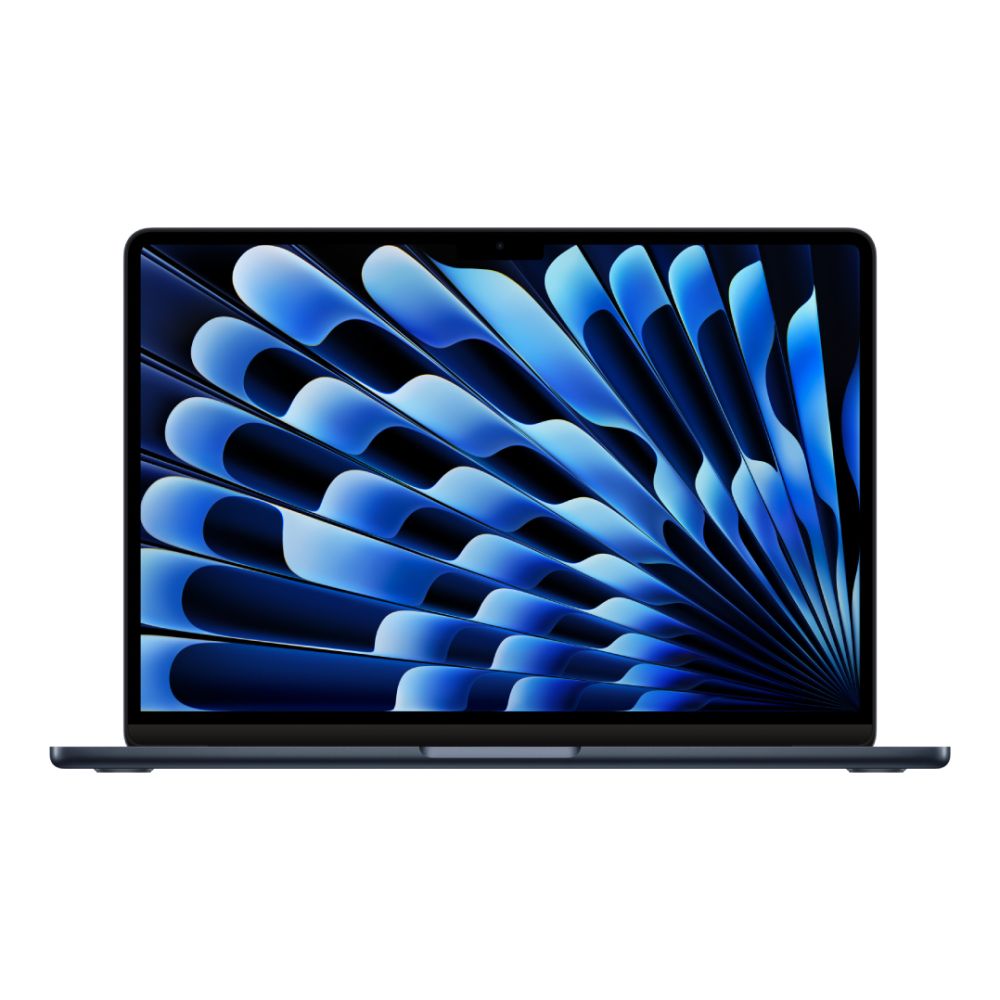
Apple MacBook Air M3 (13.6") – MC8K4B/A
The MacBook Air M3 13.6-inch is a strong choice for users to build a compact and efficient desk setup. With 16GB of unified memory, it handles multitasking, external devices, and everyday workloads smoothly.
Its smaller size makes it ideal for users who want a balance between portability and performance, while still being capable of supporting a reliable MacBook Air docking setup for productivity tasks such as browsing, office work, and light creative use.
This model is particularly well suited for students and remote workers who need a flexible laptop that transitions easily between portable and desk-based use.
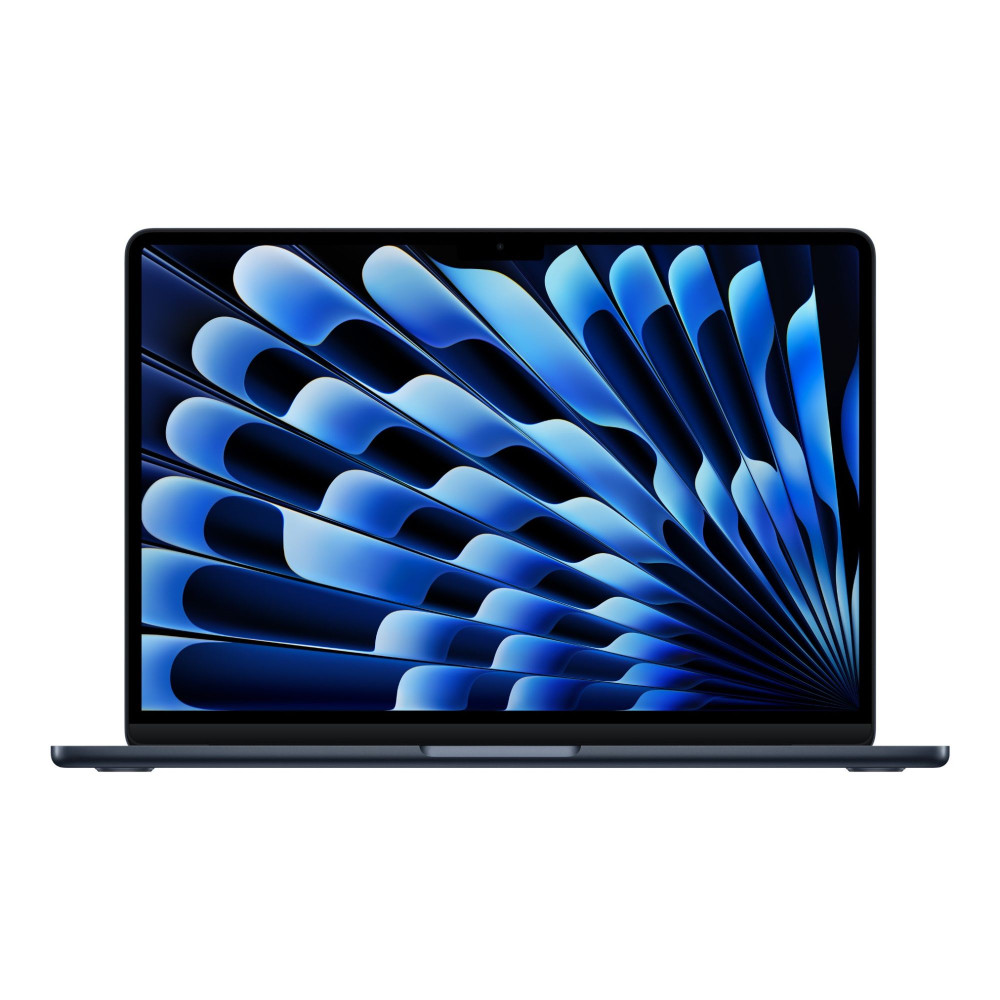
Apple MacBook Air M4 (15.3") – MW1L3B/A
The MacBook Air M4 15.3-inch is better suited for users who want a more expansive workspace and slightly higher performance headroom.
The larger display provides more screen space when working without an external monitor, while the 16GB memory ensures smoother performance when connected to multiple devices through a dock. This makes it a great option for users to build a more advanced MacBook Air workstation setup.
It's ideal for professionals, multitaskers, or users who frequently connect accessories, storage and displays, as it offers a more comfortable and capable setup for extended use.
Final Thoughts: Choosing the Right Memory for Your Needs
Understanding MacBook Air memory usage is key to getting the best performance from your device. While macOS is highly efficient and designed to manage memory intelligently, your experience still depends on how you use your laptop.
For everyday tasks like browsing, streaming, and office work, lower memory configurations can perform very well thanks to Apple's optimisation. However, for users who multitask heavily or run demanding applications, higher memory options provide a smoother and more consistent experience.
It's also important to think long-term. Since memory cannot be upgraded later, choosing the right configuration upfront can have a direct impact on your MacBook Air lifespan and how well it performs over time.
If you're exploring options, you can browse the latest MacBook Air laptops and the wider MacBook range at Box.co.uk to find a configuration that matches your performance needs.
FAQs
Why does my MacBook Air use so much RAM?
macOS uses available memory to cache data and improve performance, so high usage is normal. It only becomes an issue if memory pressure is high or performance slows down.
How does macOS manage memory?
macOS uses a combination of memory compression, caching and swap memory to efficiently manage RAM and keep the system responsive.
How to maximise MacBook Air performance?
You can improve performance by managing background apps, reducing memory-heavy tasks and choosing the right RAM configuration for your needs.
What is swap memory on MacBook Air?
Swap memory is when macOS uses SSD storage as temporary memory when RAM is full. It helps maintain performance but is slower than actual RAM.
Why does MacBook Air slow down with low memory?
When memory is limited, macOS relies more on compression and swap, which can reduce performance during multitasking or heavy workloads.
You can pay with:
*PayPal Credit Representative Example: Assumed credit limit £1,200, Representative 23.9% APR (variable). Purchase rate 23.9% p.a (variable).Terms & Conditions apply.


PayPal Credit and PayPal Pay in 3 are trading names of PayPal UK Ltd, 5 Fleet Place, London, United Kingdom, EC4M 7RD. Terms and conditions apply. Credit subject to status, UK residents only, Five Tech LTD acts as a broker and offers finance from a restricted range of finance providers. PayPal Pay in 3 is not regulated by the Financial Conduct Authority. Pay in 3 eligibility is subject to status and approval. 18+. UK residents only. Pay in 3 is a form of credit. Check if affordable and how you will repay. May make other borrowing more difficult or expensive. See product terms for more details.
Copyright © 1996-2026 Fivetech LTD | Terms and Conditions
box.co.uk & Box are trading names of Five Tech Limited. Registered office: Box LTD, Unit 10 Woodford Trading Estate, Woodford Green IG8 8HF