


 Menu
MenuMenu


Get Sales Advice from Mon - Fri 9am - 5:00pm:
020 3337 8950LAST UPDATED: April 13, 2026
How Many External Displays Can a MacBook Air Support by Chip (M1–M5)?
If you are shopping for a MacBook Air and planning a proper desk setup, MacBook Air external display support is one of the biggest specs to check before you buy. Apple's Air lineup looks tidy on the surface, but when it comes to a Mac display setup, the chip inside makes a massive difference. An M1 model behaves very differently from an M4 or M5 model, especially once you start connecting Mac monitors, docks, and high-resolution panels. Apple's own tech specs and display support confirms that the supported number of screens changes by chip generation, not just by screen size.
For most buyers, MacBook Air external display support comes down to one simple question: can it run one screen, two screens, or a full dual-monitor setup without workarounds? The answer is straightforward once you break it down. M1 and M2 MacBook Air models natively support one external display. M3 improves things by allowing a second external display, but only when the laptop lid is closed. M4 and M5 move things forward again by supporting up to two external displays while still using the built-in MacBook display.
That matters whether you are building a work setup for spreadsheets, a creator desk for editing, or a battle-station style setup where one panel handles the game guide, Discord, or capture tools while the other handles the main workload. MacBook Air external display support is not just a niche spec. It decides whether your external display for MacBook Air setup feels plug-and-play or becomes a workaround hunt involving docks, adapters, and extra software. If you are comparing current Apple MacBook Air models, this is one of the specs worth treating like a frame-rate cap before you buy: check it first, avoid pain later.
Quick Answer: MacBook Air External Display Support by Chip
Here is the short version of MacBook Air external display support by generation:
| Generation | Support |
| M1 MacBook Air | Supports one external display up to 6K at 60Hz. |
| M2 MacBook Air | Supports one external display up to 6K at 60Hz. That applies to both the 13-inch and 15-inch M2 MacBook Air models. |
| M3 MacBook Air | Supports one external display up to 6K at 60Hz with the lid open, or two external displays when the lid is closed, with the second display supported up to 5K at 60Hz. |
| M4 MacBook Air | Supports up to two external displays up to 6K at 60Hz while also supporting the built-in display at full native resolution. |
| M5 MacBook Air | Supports up to two external displays. Apple says that can mean two displays up to 6K at 60Hz or 4K at 144Hz, or one display up to 8K at 60Hz, 5K at 120Hz, or 4K at 240Hz, while still supporting the built-in display. |
If all you need is the cheat code, that is it. But to really understand MacBook Air external display support, you need to know how Apple defines native support, what clamshell mode changes on M3, and why docks do not magically increase the number of supported screens on older chips.
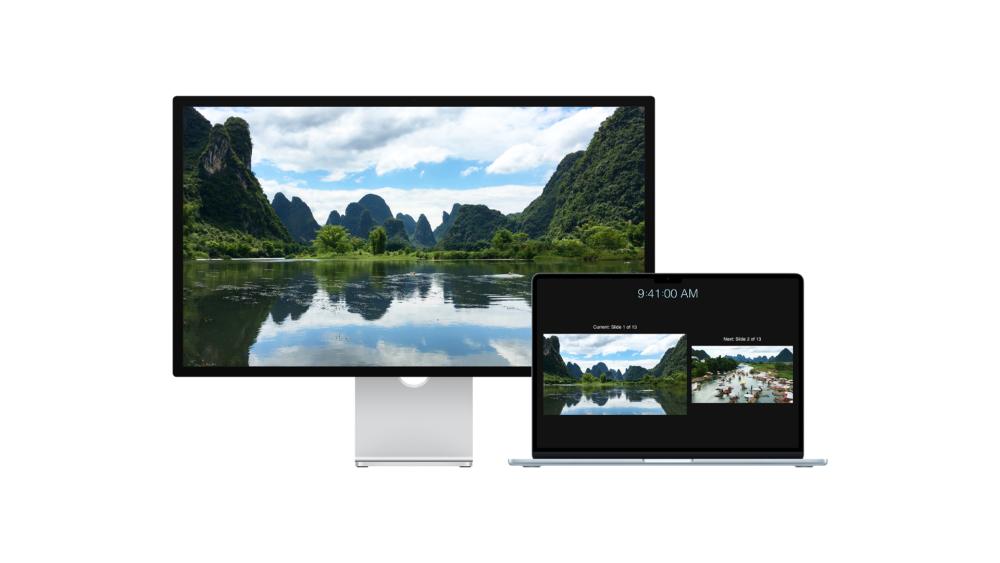
What MacBook Air External Display Support Means in Real Life
When it comes to MacBook Air external display support, people often assume any dock with two HDMI ports will deliver a proper MacBook Air dual monitor setup. That is where plenty of buyers get caught out. Apple's support documentation is clear that the maximum number of external monitors for MacBook Air is tied to the Mac model itself. A supported hub or daisy chain can sometimes let you run more than one display over a single Thunderbolt port, but it does not raise the maximum number of displays the Mac can support.
So, if you are using an M1 or M2 MacBook Air, MacBook Air external display support still means one native external screen, even if your laptop docking stations look loaded with ports. You can absolutely connect one quality Apple Mac display alternative, one ultrawide, or one high-resolution productivity panel, but a second native extended screen is not part of the official spec.
This is also why MacBook Air external display support should be treated differently from simple port count. Two USB-C ports do not automatically mean two native displays. The chip's display engine is doing the heavy lifting. Think of it like comparing a game's settings menu to actual GPU horsepower. The ports are the menu. The chip decides what can really run. Apple's specs show that the jump from M3 to M4 is where the Air stops feeling restricted for a proper MacBook Air multiple monitors desk setup.

Chip-by-Chip Breakdown
-
M1 MacBook Air External Display Support
For M1, MacBook Air external display support is simple and limited: one external display up to 6K at 60Hz. That is the official native limit. If your plan is a clean single-screen desk setup, the M1 still handles it well. One good MacBook Air external monitor can transform the experience for writing, browsing, editing, or office work.
Where M1 becomes restrictive is when buyers want a true MacBook Air dual monitor layout with two extended displays. Native support does not stretch that far. You can mirror, adapt, or use third-party solutions, but out of the box, MacBook Air external display support on M1 is still one external panel.
-
M2 MacBook Air External Display Support
M2 brought performance improvements, a newer design, and more buyer interest in desktop-style setups, but MacBook Air external display support stayed at one native external display up to 6K at 60Hz. That applies whether you are looking at the original 13-inch version or the later 15-inch model.
That is why searches around M2 MacBook Air monitors remain so common. Buyers see the newer design and assume dual displays come with it, but the display limit does not. So, if you are building around an M2, the smartest move is usually one excellent main panel rather than two average ones. A strong single-screen setup, especially with USB-C monitors or a tidy desk paired with Accessories for monitors, often feels better than forcing a complicated workaround.
-
M3 MacBook Air External Display Support
M3 is where MacBook Air external display support starts to open up. With the lid open, it still supports one external display up to 6K at 60Hz. But if you close the MacBook Air lid, Apple says you can use a second external display, with the second supported up to 5K at 60Hz.
That means MacBook Air external displays on M3 are finally practical for more serious desk setups, but there is a catch. If you want the internal laptop screen active at the same time, you are back to one external monitor. So, MacBook Air external display support on M3 is better than M2, though it still is not as flexible as M4 or M5. It is a solid middle ground for anyone happy to use the Air in clamshell mode on a desk.
-
M4 MacBook Air External Display Support
M4 is the big quality-of-life jump. Apple states that MacBook Air external display support on M4 includes up to two external displays with up to 6K resolution at 60Hz while also supporting the built-in display at full native resolution. In plain English, that means a proper triple-screen style workspace if you count the laptop screen itself.
This is why interest around M4 MacBook Air monitors is much stronger for buyers building real desktop replacements. If your workflow involves side-by-side documents, a browser on one panel and editing tools on another, or even a stream-style layout with dashboards and chat windows, M4 finally gives the Air a more premium multi-screen feel without weird caveats. MacBook Air external display support here feels modern rather than compromised.
-
M5 MacBook Air External Display Support
M5 pushes MacBook Air external display support even further. Apple says the M5 MacBook Air supports up to two external displays, with options including two displays up to 6K at 60Hz or 4K at 144Hz, or one display up to 8K at 60Hz, 5K at 120Hz, or 4K at 240Hz, while still supporting the built-in display.
That makes M5 the most flexible Air yet for a high-end external display setup. It is especially useful if you want sharper panels, faster refresh rates, or a more premium Apple Mac display alternative without stepping up to a Pro model. For buyers who want the most future-proof MacBook Air external display support, M5 is the cleanest answer in the lineup and the best one if you are looking to connect productivity monitors with your Mac.
Can You Go Beyond Native MacBook Air External Display Support?
Yes, but there is a difference between native and workaround-based support. MacBook Air external display support natively is what Apple lists in the tech specs. If you want more screens than that on M1 or M2, DisplayLink is the common route. DisplayLink's macOS software enables extra screens over supported USB graphics hardware rather than through the Mac's native display pipeline. DisplayLink also notes current macOS limitations around virtual displays, and the software requires permissions such as Screen Recording to function properly.
So, for example, MacBook Air external display support on M1 or M2 can be expanded in practice with a DisplayLink dock or adapter, but that is not the same as native dual-monitor support. It adds complexity, software dependence, and sometimes compatibility quirks. For some buyers, that trade-off is fine. For others, it is a sign they should skip straight to M4 or M5 instead of trying to mod the setup into shape.
If your goal is a cleaner setup, it is usually better to match the Mac to the desk from day one. Pair M1 or M2 with one strong Mac monitor. Pair M3 with a clamshell dual-screen desk. Pair M4 or M5 with two proper monitors and enjoy native macOS display management without extra software layers. That route is usually less hassle, less troubleshooting, and much more "plug in and play" than trying to brute-force MacBook Air multiple monitors through the wrong hardware.
Best Monitor Setup for Each Chip
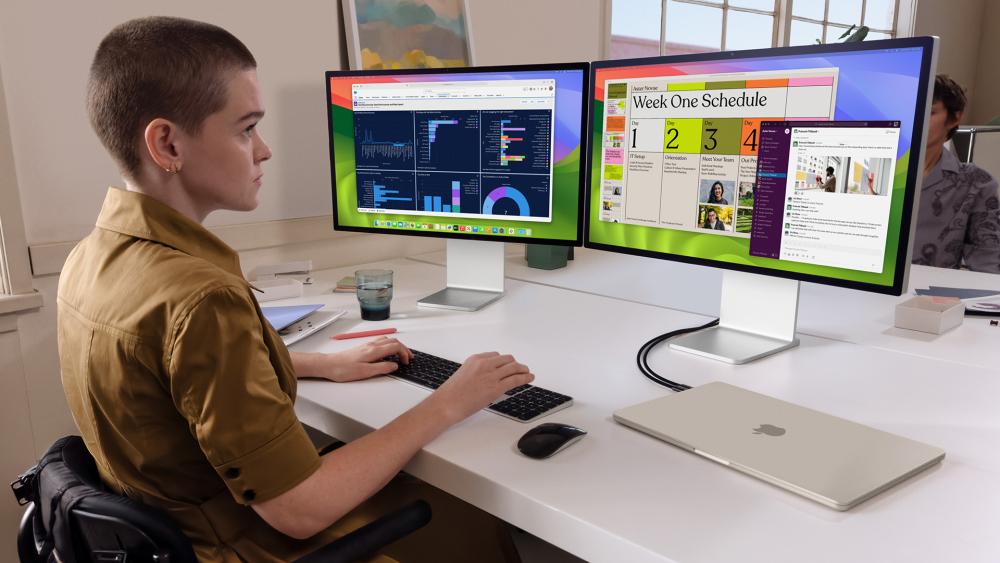
Because MacBook Air external display support varies so much, the best buying advice changes by generation.
For M1 and M2, the sweet spot is one premium external monitor. A 4K panel, a sharp ultrawide, or a good USB-C office display makes more sense than trying to force a complicated dual-screen rig.
For M3, the best setup depends on whether you are happy running clamshell mode. If yes, MacBook Air external display support becomes much more interesting, because two external displays are possible with the lid closed. A vertical side monitor plus a main 4K display is a strong setup for work and content management.
For M4 and M5, you can finally build a native multi-monitor desk without compromise. That is where a pair of matching panels, a Thunderbolt-friendly dock, and reliable monitor accessories start making real sense. M4 and M5 are the Air chips that actually justify a more advanced desk build.
Common Mistakes to Avoid
A lot of confusion around MacBook Air external display support comes from the same few mistakes.
The first is assuming a dock increases native monitor support. Apple explicitly says hubs and daisy chaining do not raise the maximum number of displays your Mac can connect.
The second is mixing up mirrored and extended displays. Native MacBook Air external displays support is about how many independently usable screens you can run, not how many copies of the same image you can push out. That matters if you want actual workspace expansion.
The third is ignoring refresh rate and resolution combinations. Mac display support is not just about screen count. M5, for example, can go beyond basic 6K60 scenarios and supports options like 4K at 144Hz across two displays or 4K at 240Hz on one display, depending on the setup. That is a huge improvement for buyers who care about smooth scrolling, responsive creative work, or high-refresh external panels.
The fourth is not thinking through MacBook Air USB-C limitations in practical terms. Two USB-C ports sound simple, but once you add charging, storage, Ethernet, and displays, a tidy dock or hub starts to matter much more. The chip sets the display limit, but the right accessories still make the whole setup far easier to live with. That is where practical extras like monitor accessories, monitor cables and adapters, and docking stations come in. If you want to learn more about this, you can check out our MacBook Air USB-C limitations explained guide.
Wrapping Up
If you want the simplest summary, MacBook Air external display support is most limited on M1 and M2, more flexible on M3, and genuinely strong on M4 and M5. M1 and M2 are best treated as one-monitor machines unless you are willing to rely on DisplayLink. M3 is a workable dual-screen option for clamshell users. M4 and M5 are the first MacBook Air chips that really feel comfortable in a native multi-monitor workstation setup.
So, if your buying decision depends on MacBook Air external display support, do not just compare storage or RAM. Compare your actual desk goals. One screen? M1 or M2 can still do the job. Two external screens with fewer caveats? M4 or M5 is where things get far easier.
FAQs
How many external monitors can a MacBook Air M5 support?
A MacBook Air with M5 supports up to two external displays. Apple says that can be two displays up to 6K at 60Hz or 4K at 144Hz, or one display up to 8K at 60Hz, 5K at 120Hz, or 4K at 240Hz, while also supporting the built-in display.
Does the MacBook Air support daisy chaining?
Yes, in certain supported setups, but daisy chaining does not increase the maximum number of displays your MacBook Air can support. Apple says it can enable up to two displays over a single Thunderbolt port in supported scenarios, but the Mac's chip still decides the overall display limit.
Can a MacBook Air support two external monitors?
Yes, but it depends on the chip. M1 and M2 natively support one external display. M3 supports two external monitors only when the lid is closed. M4 and M5 natively support up to two external displays while keeping the built-in screen active.
Can the MacBook Air M1 support a 144Hz monitor?
In practice, it often can with the right resolution, cable, and display, but Apple's official M1 spec only states support for one external display up to 6K at 60Hz rather than listing every high-refresh combination. So, the safe answer is that 144Hz support can depend on the exact monitor and connection path, while the official guaranteed limit remains one external display up to 6K at 60Hz.
What is DisplayLink for MacBook Air?
DisplayLink is a software-and-hardware solution that enables additional displays on macOS using supported USB graphics devices rather than relying only on the Mac's native display pipeline. It is commonly used to expand older MacBook Air setups beyond native limits, though it requires software installation and permissions.
How do you connect two monitors to a MacBook Air with a docking station?
It depends on the chip. On M4 and M5, native dual external monitors are officially supported. On M3, two external monitors are supported with the lid closed. On M1 and M2, a docking station alone does not increase native display support, so dual extended monitors usually require a DisplayLink-compatible dock or adapter.
You can pay with:
*PayPal Credit Representative Example: Assumed credit limit £1,200, Representative 23.9% APR (variable). Purchase rate 23.9% p.a (variable).Terms & Conditions apply.


PayPal Credit and PayPal Pay in 3 are trading names of PayPal UK Ltd, 5 Fleet Place, London, United Kingdom, EC4M 7RD. Terms and conditions apply. Credit subject to status, UK residents only, Five Tech LTD acts as a broker and offers finance from a restricted range of finance providers. PayPal Pay in 3 is not regulated by the Financial Conduct Authority. Pay in 3 eligibility is subject to status and approval. 18+. UK residents only. Pay in 3 is a form of credit. Check if affordable and how you will repay. May make other borrowing more difficult or expensive. See product terms for more details.
Copyright © 1996-2026 Fivetech LTD | Terms and Conditions
box.co.uk & Box are trading names of Five Tech Limited. Registered office: Box LTD, Unit 10 Woodford Trading Estate, Woodford Green IG8 8HF