


 Menu
MenuMenu


Get Sales Advice from Mon - Fri 9am - 5:00pm:
020 3337 8950LAST UPDATED: April 13, 2026
Using a MacBook Air with a Dock: What Works and What Breaks
Using a MacBook Air with a docking station is one of the easiest ways to turn a lightweight laptop into a full desktop setup. While the MacBook Air is designed for portability, many users want to connect external displays, storage, keyboards and other accessories to create a more productive workspace.
This is where MacBook Air docking becomes essential; but it's not always as simple as plugging everything in. While many setups work smoothly, others can run into limitations, especially when it comes to display support, bandwidth and compatibility.
In this guide, we'll explain what works well with a MacBook Air docking station, what common issues you might face, and how to build a reliable setup for everyday use.
If you're building a workspace, you can explore Apple Air MacBook models, laptop docking stations, and compatible accessories at Box.co.uk.
So, let's get into it!
Why Use a Dock with a MacBook Air?
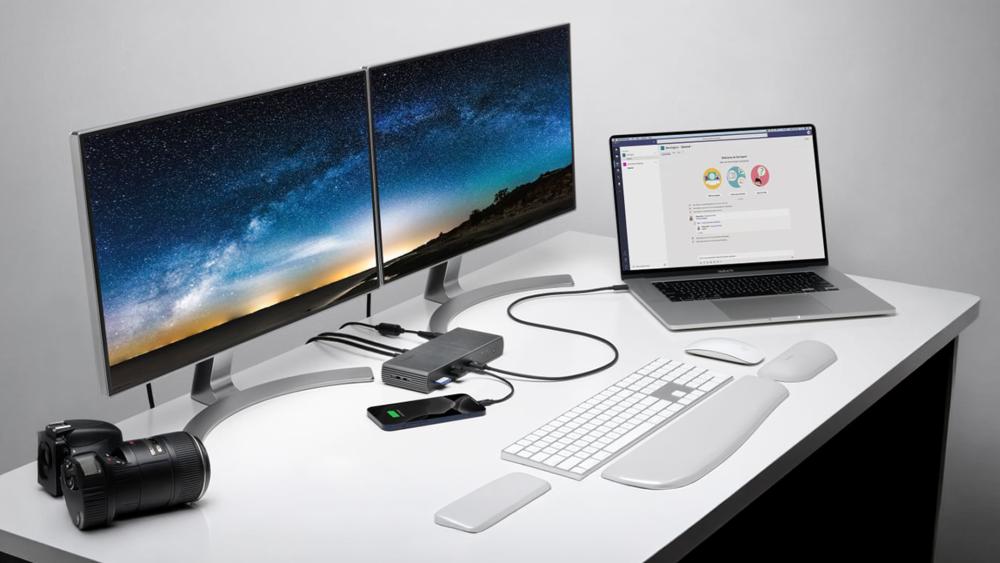
The MacBook Air is designed to be thin, lightweight and portable but that design also means limited connectivity. A docking station helps expand its capabilities and makes it more practical for desk-based use.
1- Expanding Limited Ports
Most MacBook Air models rely on a small number of USB-C (Thunderbolt) ports, which are used for charging, data transfer, and display output. This can quickly become limiting if you need to connect multiple devices at once.
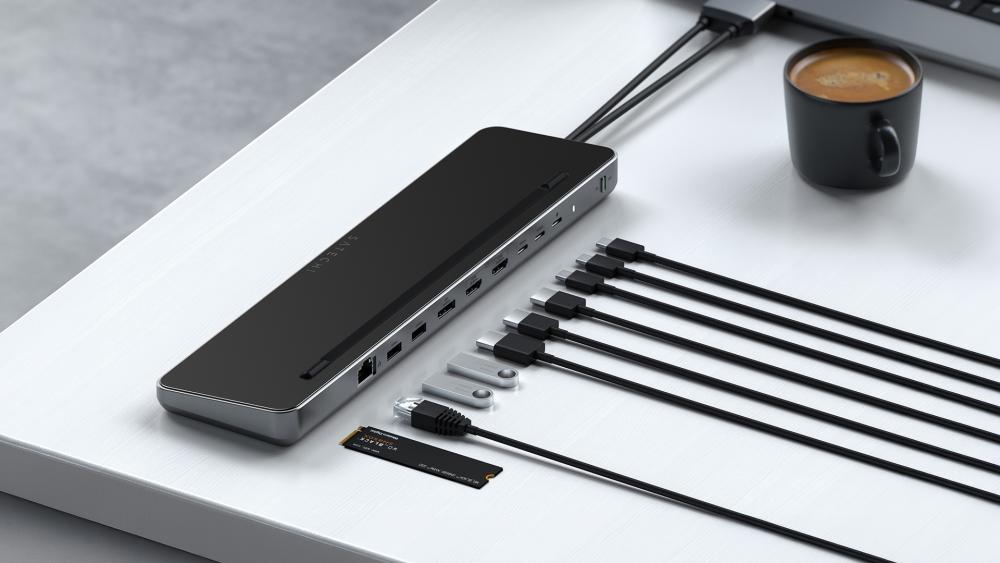
A MacBook Air USB-C dock allows you to expand these ports into:
- USB-A connections for accessories
- HDMI or DisplayPort for monitors
- Ethernet for stable internet
- SD card slots for media transfer
This makes it much easier to connect multiple devices without constantly swapping cables.
2- Creating a Full Desk Setup
A docking station allows you to transform your MacBook Air into a complete MacBook Air workstation setup.
With a single connection, you can link your laptop to:
- External monitors
- Keyboard and mouse
- External storage
- Audio devices
This creates a more comfortable and efficient workspace, especially for users who work at a desk for long periods.
You can explore high-resolution displays and accessories to enhance your setup.
3- Productivity Benefits
Using a dock improves productivity by allowing you to work across multiple devices and screens more easily.
Instead of relying on a single laptop screen, you can:
- Use larger displays for better visibility
- Multitask across multiple windows
- Keep peripherals connected at all times
For users working remotely or managing multiple tasks, a MacBook Air docking setup can significantly improve workflow and efficiency.
What Works Well with MacBook Air Docking
While there are a few limitations to be aware of, most aspects of MacBook Air docking station setups work very reliably when configured correctly. For everyday users, docking can significantly improve convenience, allowing multiple devices to connect through a single cable without compromising usability.
Charging and Power Delivery
One of the biggest advantages of using a MacBook Air USB-C dock is the ability to handle charging and connectivity at the same time. Most modern docks support USB-C power delivery, which means your laptop can stay powered while connected to all your accessories.
In practical use, this creates a much cleaner and more efficient setup. Instead of juggling multiple cables, you can connect everything including power through a single dock. As long as the dock provides enough wattage, charging remains stable even during multitasking or light workloads, making it ideal for daily desk use.
Connecting External Displays
External display support is one of the most common reasons users invest in a MacBook Air docking setup. With the right dock, connecting a monitor is straightforward and works reliably for most productivity tasks.
In everyday use, a single high-resolution display can significantly improve workflow by giving you more screen space for documents, apps and multitasking. Whether you're working on spreadsheets, editing content or simply organising windows more efficiently, this setup feels natural and responsive.
For most users, a single-monitor setup delivers the best balance of performance and compatibility, especially on newer MacBook Air models.
If you want a deeper understanding of connectivity limits, read our guide on MacBook Air USB-C limitations explained to avoid common setup mistakes.
Using Peripherals and Storage
Docking stations also make it easy to manage multiple devices at once, turning your laptop into a complete MacBook Air workstation setup.
Once connected, peripherals such as keyboards, mice and external storage devices typically work instantly without additional configuration. This plug-and-play experience is one of the key strengths of macOS compatibility with docks.
In real-world setups, this allows you to keep all your accessories permanently connected to the dock. When you plug in your MacBook Air, everything from input devices to external SSDs becomes available immediately, making it ideal for both work and home environments.
What Breaks or Causes Issues
While a MacBook Air docking setup can work very well, there are a few important limitations that can affect performance and usability. Understanding these in advance helps you avoid common problems and build a more reliable setup.
Display Limitations on M-Series Chips
One of the most noticeable limitations with MacBook Air models, especially those using Apple's M-series chips, is external display support.
Most base models are designed to support only one external display natively, regardless of how many ports or connections your dock provides. This can be confusing for users expecting a dual-monitor setup, as simply plugging in more screens won't automatically enable them.
There are workarounds, such as using DisplayLink-compatible docks, which allow multiple displays through software-based solutions. However, these require additional drivers and may not deliver the same smooth performance as native display support. For many users, this becomes a key limitation when building a multi-monitor workstation.
Bandwidth Bottlenecks
Another important factor to consider is how data is shared across a dock. When you connect multiple devices through a single MacBook Air USB-C dock, they all rely on the same connection bandwidth.
In real-world use, this means performance can vary depending on what you're doing. For example, using a high-resolution display, transferring files from an external SSD and running multiple peripherals at the same time can put pressure on the connection.
This doesn't always cause obvious issues, but it can lead to slower data transfer speeds or reduced performance in certain scenarios. Understanding how your devices share bandwidth helps you create a more balanced and efficient setup.
Compatibility Issues with Some Docks
Not all docking stations are designed equally, and compatibility with macOS can sometimes be inconsistent.
Some docks may require additional drivers to unlock full functionality, while others may have limited support for certain features, such as display output or high-speed data transfer. In some cases, users may experience intermittent connectivity issues or devices not being recognised properly.
To avoid these problems, it's important to choose a dock that is specifically designed for MacBook Air dock compatibility and tested for macOS. Reliable, well-supported docks tend to provide a much smoother experience and reduce the chances of setup issues.
Best Docking Setup for MacBook Air Users
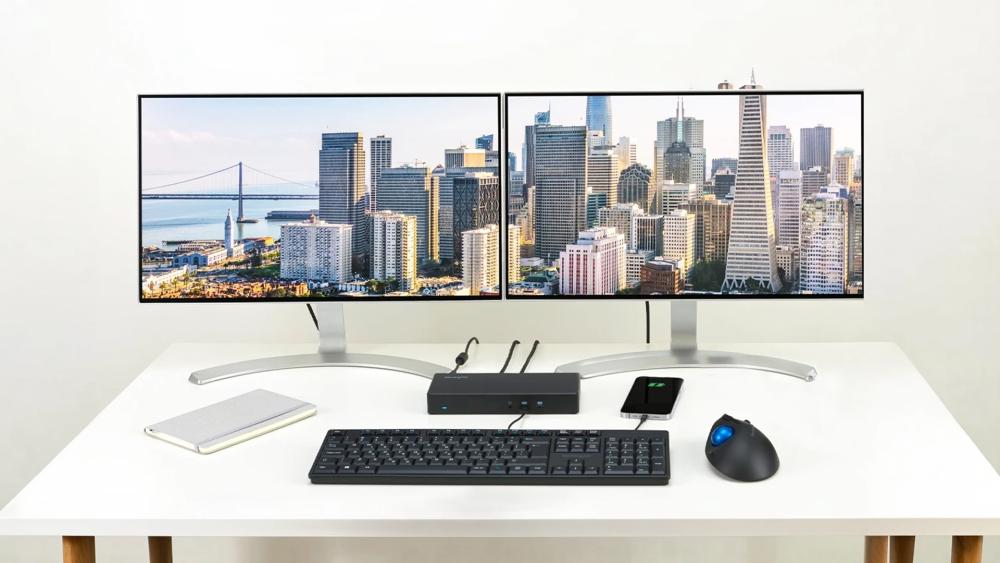
Creating the right MacBook Air docking setup depends on how you use your laptop day to day. Whether you need a simple productivity boost or a full workstation, the key is choosing a setup that balances performance, compatibility, and ease of use.
Single Monitor Productivity Setup
For most users, a single external display is the simplest and most reliable setup.
Connecting your MacBook Air to one high-resolution display through a dock gives you more screen space for multitasking, making it easier to work with documents, spreadsheets or multiple applications at once. This setup works seamlessly with macOS and avoids the display limitations found on many M-series MacBook Air models.
In practice, this is the best option for students, remote workers and everyday users who want a clean and efficient workspace without running into compatibility issues.
Multi-Device Workstation Setup
If you want a more advanced MacBook Air workstation setup, a docking station allows you to connect multiple devices through a single cable.
This can include a monitor, external storage, keyboard, mouse and other accessories, creating a full desktop-like experience. Once everything is connected to the dock, you can plug in your MacBook Air and instantly access your entire setup.
However, it's important to be aware of limitations such as display support and bandwidth. While multi-device setups work well, adding too many high-performance devices at once can affect overall performance. Planning your setup carefully helps ensure everything runs smoothly.
For multi-monitor setups, it's important to understand MacBook Air external display support and how it affects your docking configuration.
Clean Desk Setup Tips
A well-organised desk setup can make a big difference in both productivity and comfort.
Using a docking station helps reduce cable clutter by centralising all connections into a single hub. Positioning your dock neatly, managing cables properly and using wireless accessories where possible can create a cleaner and more efficient workspace.
It's also helpful to choose accessories that are fully compatible with macOS, as this reduces setup issues and ensures a smoother overall experience.
To optimise performance when using multiple apps and devices, learn how macOS manages memory on MacBook Air and how it impacts your workflow.
Final Thoughts: Getting the Most from Your MacBook Air Setup
Using a dock with your MacBook Air can completely change how you use your laptop. What starts as a lightweight, portable device can quickly become a full MacBook Air workstation setup, capable of handling productivity, multitasking and everyday desk-based work with ease.
However, getting the most out of MacBook Air docking isn't just about buying any dock; it's about understanding how the system works. Factors like USB-C bandwidth, display support and macOS compatibility all play a role in how smooth your setup feels. When these are properly considered, most users can achieve a clean, reliable, and highly functional workspace.
For many people, a simple setup with a single external display and essential peripherals will deliver the best experience. More advanced setups can also work well, if you plan around limitations such as external display support on certain models and shared bandwidth across connected devices.
It's also worth choosing the right accessories. Reliable laptop docking stations, compatible high-resolution displays and quality accessories for your MacBook Air can make a noticeable difference in both performance and usability.
Ultimately, a well-planned setup allows you to enjoy the best of both worlds; the portability of a MacBook Air and the functionality of a desktop environment. By keeping things simple, choosing compatible hardware and understanding the limitations, you can build a setup that feels seamless, efficient and tailored to your workflow.
Explore a wide range of MacBook Air accessories, docking stations and displays at Box.co.uk to build your perfect setup with confidence.
You can pay with:
*PayPal Credit Representative Example: Assumed credit limit £1,200, Representative 23.9% APR (variable). Purchase rate 23.9% p.a (variable).Terms & Conditions apply.


PayPal Credit and PayPal Pay in 3 are trading names of PayPal UK Ltd, 5 Fleet Place, London, United Kingdom, EC4M 7RD. Terms and conditions apply. Credit subject to status, UK residents only, Five Tech LTD acts as a broker and offers finance from a restricted range of finance providers. PayPal Pay in 3 is not regulated by the Financial Conduct Authority. Pay in 3 eligibility is subject to status and approval. 18+. UK residents only. Pay in 3 is a form of credit. Check if affordable and how you will repay. May make other borrowing more difficult or expensive. See product terms for more details.
Copyright © 1996-2026 Fivetech LTD | Terms and Conditions
box.co.uk & Box are trading names of Five Tech Limited. Registered office: Box LTD, Unit 10 Woodford Trading Estate, Woodford Green IG8 8HF