


 Menu
MenuMenu


Get Sales Advice from Mon - Fri 9am - 5:00pm:
020 3337 8950POSTED: September 19, 2025
How to Check Battery Health of a Lenovo Laptop
When it comes to getting the best out of your Lenovo laptop, battery health plays a major role. A weak or worn-out battery can cut your productivity short, whether you’re working, gaming, or studying on the go. Regularly monitoring your Lenovo laptop battery health not only helps you understand its current condition but also ensures you know when a replacement might be due.
In this guide, we’ll cover all the ways you can check your Lenovo battery health, run tests, and take steps to maximise its lifespan.
Why Checking Lenovo Laptop Battery Health Matters?

A laptop battery naturally wears down over time, losing its ability to hold a charge. For Lenovo laptops, this could mean reduced usage time, sudden shutdowns, or overheating during extended use.
For casual users, battery wear may just be inconvenient, but for professionals relying on Lenovo ThinkPad laptops, it can be a serious setback. Students using a Lenovo IdeaPad laptop for studies or gamers running intensive titles also need to keep an eye on battery performance to avoid interruptions.
By checking your Lenovo laptop battery health regularly, you’ll know exactly when it’s time to optimise settings or prepare for a Lenovo battery replacement.
Built-in Ways to Check Lenovo Laptop Battery Health:
Luckily, you don’t need specialist tools to check the status of your Lenovo laptop battery. Here are two reliable methods:
1.Windows Battery Report:
Windows has a built-in feature that generates a detailed battery health report.
- Open Command Prompt as an administrator.
- Type powercfg /batteryreport and hit Enter.
- A file named battery-report.html will be saved in your system. Open it in a browser to view full details, including design capacity, full charge capacity, and charge cycles.
This is a quick way to spot if your Lenovo battery is holding significantly less charge than it should.
2. Lenovo Vantage App:
Lenovo provides its own software, Lenovo Vantage, pre-installed on most models.
- Open the app and go to the Device section.
- Click on Power or Battery.
- Run a Lenovo battery test to get a clear picture of the current condition.
Using Lenovo Vantage is often more accurate because it’s designed specifically for Lenovo hardware, whether you’re on a ThinkPad or an IdeaPad or any other model.
Lenovo Battery Test Options:
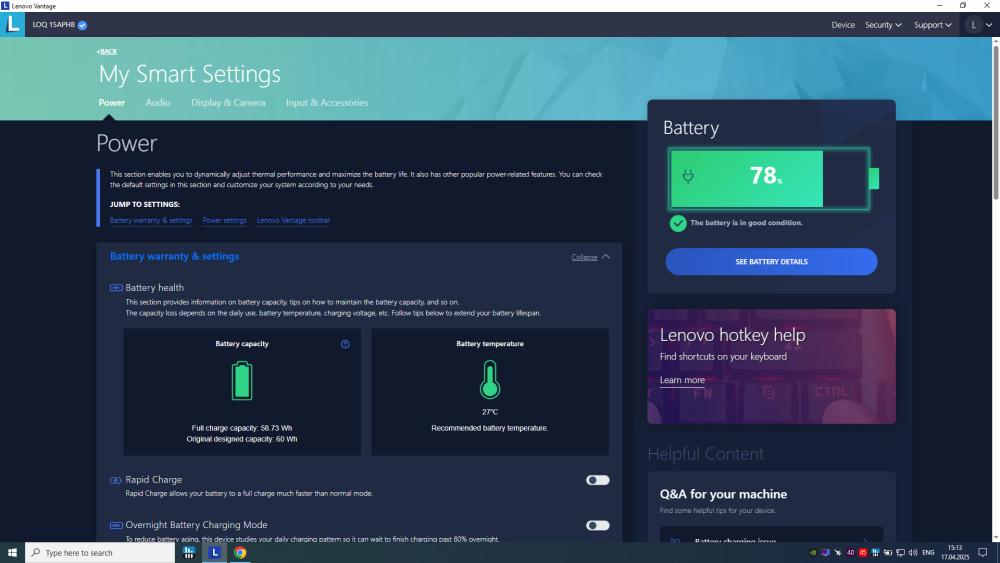
Beyond quick checks, you can run in-depth diagnostics. Here are some ways to try out:
1. Lenovo Vantage Battery Test:
- Go to Hardware Settings > Power.
- Select Battery Status and click Run Battery Test.
This will generate results that show whether your battery is in good condition or needs attention.
2. Lenovo BIOS Diagnostics:
For a more advanced check:
- Restart your laptop and press F2 or Enter during boot.
- Navigate to the diagnostics section and run a Lenovo battery test.
The BIOS method is useful if your laptop doesn’t boot properly or if you want results outside the operating system.
Once you see your battery’s design capacity vs current full capacity, you’ll know if a Lenovo laptop battery replacement is on the horizon.
When to Consider Lenovo Laptop Battery Replacement?

Most laptop batteries last around 2–4 years, depending on usage. If your Lenovo starts giving you frequent low battery warnings, sudden shutdowns, or a Windows alert saying “Consider replacing your battery”, it’s time to take action.
You have two main options:
- Official Lenovo Batteries: Best choice for reliability and compatibility.
- Third-Party Batteries: Cheaper but may not offer the same performance or safety standards.
If your device is older, instead of replacing the battery, you may want to explore upgrading to newer options from our list of the best Lenovo laptops.
Tips to Prolong Lenovo Laptop Battery Health:
Before you rush for a replacement, good habits can help extend the life of your Lenovo battery:
- Avoid Extreme Charging Cycles: Don’t always charge to 100% or drain to 0%. Aim to keep your charge between 20–80%.
- Adjust Performance Settings: Lower brightness, disable unused background apps, and switch to battery saver mode when not gaming or working on heavy tasks.
- Safe Charging Habits: Use original Lenovo chargers and avoid keeping your laptop plugged in 24/7.
- Storage Care: If storing your laptop for long periods, keep the battery at around 50% rather than fully charged.
These habits apply across models, whether you’re on a Lenovo ThinkPad for work or an IdeaPad for casual use.
Final Word:
Monitoring your Lenovo laptop battery health is crucial to keeping your device reliable and efficient. With tools like Windows Battery Report and Lenovo Vantage, you can easily check your battery status and run Lenovo battery tests.
When signs of wear become clear, consider a Lenovo laptop battery replacement, or if your device is ageing, upgrading to the latest Lenovo laptops may be the smarter option. You can go for the best Lenovo ThinkPad laptops or ideapads and get the best prices at box.co.uk.
If you are not willing to upgrade at this time, with a few simple habits, you can extend your battery’s life and keep your laptop running smoothly.
FAQs - Lenovo Battery Health:
1. How do I run a battery health check on my Lenovo laptop?
You can generate a Windows Battery Report or use the Lenovo Vantage app to run a Lenovo battery test.
2. Does Lenovo Vantage show accurate battery health?
Yes, Lenovo Vantage provides one of the most accurate readings as it is specifically built for Lenovo laptops.
3. How long should a Lenovo laptop battery last before replacement?
Most Lenovo laptop batteries last between 2 to 4 years, depending on usage.
4. Can I replace my Lenovo ThinkPad battery myself?
Yes, many ThinkPads allow user-replaceable batteries, though some models may require professional servicing.
5. What is the cost of Lenovo laptop battery replacement in the UK?
The cost varies, but typically ranges from £50 to £120 depending on the model and whether you choose an official Lenovo battery.
You can pay with:
*PayPal Credit Representative Example: Assumed credit limit £1,200, Representative 23.9% APR (variable). Purchase rate 23.9% p.a (variable).Terms & Conditions apply.


PayPal Credit and PayPal Pay in 3 are trading names of PayPal UK Ltd, 5 Fleet Place, London, United Kingdom, EC4M 7RD. Terms and conditions apply. Credit subject to status, UK residents only, Five Tech LTD acts as a broker and offers finance from a restricted range of finance providers. PayPal Pay in 3 is not regulated by the Financial Conduct Authority. Pay in 3 eligibility is subject to status and approval. 18+. UK residents only. Pay in 3 is a form of credit. Check if affordable and how you will repay. May make other borrowing more difficult or expensive. See product terms for more details.
Copyright © 1996-2026 Fivetech LTD | Terms and Conditions
box.co.uk & Box are trading names of Five Tech Limited. Registered office: Box LTD, Unit 10 Woodford Trading Estate, Woodford Green IG8 8HF