


 Menu
MenuMenu


Get Sales Advice from Mon - Fri 9am - 5:00pm:
020 3337 8950LAST UPDATED: October 01, 2025
How to Choose the Best Kingston RAM for Your Motherboard
Choosing the right Kingston RAM for your system can make all the difference between a smooth, responsive PC and one that constantly struggles to keep up. Whether you’re gaming, streaming, editing, or simply multitasking across dozens of browser tabs, your RAM memory is one of the most critical components for performance. A RAM upgrade is often the easiest and most affordable way to give both laptops and desktops a new lease of life.
With so many options available, from Kingston DDR5 modules designed for cutting-edge builds to reliable laptop RAM for everyday use, it’s essential to understand how to match your computer RAM with your motherboard. Compatibility ensures stability, speed, and long-term reliability. Kingston, being one of the most trusted names in pc memory, offers everything from entry-level upgrades to high-performance FURY RAM tailored for serious gamers.
This guide will walk you through how to choose the best Kingston RAM for your specific motherboard, what factors to consider before buying, and why upgrading your desktop RAM or laptop RAM through Box.co.uk is the smartest way to boost performance.
Understanding Kingston RAM Options:
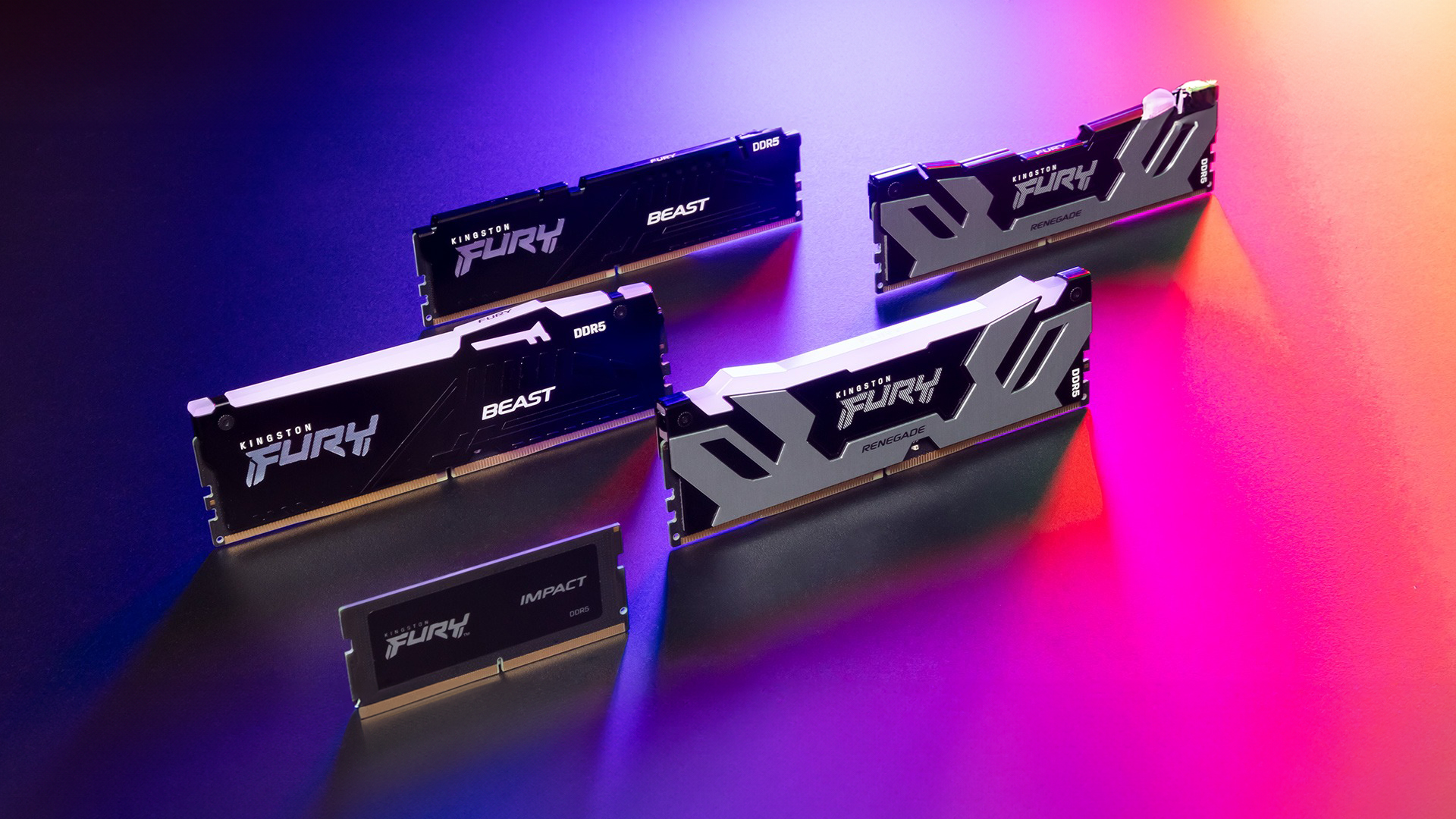
When shopping for Kingston RAM, you’ll find several product lines designed for different types of users, from casual upgraders to hardcore gamers. Knowing the difference between each option helps you make the right choice for your PC memory upgrade.
Kingston DDR4 vs Kingston DDR5:
- Kingston DDR4 remains a popular and affordable choice for most systems. It delivers solid performance for general computing, streaming, and light gaming.
- Kingston DDR5, on the other hand, represents the next step in memory. With higher frequencies, greater bandwidth, and improved efficiency, it’s built for modern gaming rigs and workstations that demand cutting-edge speed.
If you want more information regarding which on to choose, check out our complete guide on DDR4 vs DDR5 RAM for a detail comparison.
Kingston FURY RAM:
For enthusiasts and gamers, Kingston FURY RAM is the go-to choice. Designed with features like automatic overclocking, lower latency, and stylish heat spreaders, it provides the performance boost needed for smooth gameplay and high-end applications. It’s one of the most popular options for desktop RAM upgrades.
Kingston Memory for Laptops:
If you’re running out of space on your laptop RAM, Kingston offers reliable SO-DIMM modules that deliver stability and speed without draining battery life. These modules are perfect for students, professionals, and gamers who rely on portable devices.
How to Match RAM with Your Motherboard:
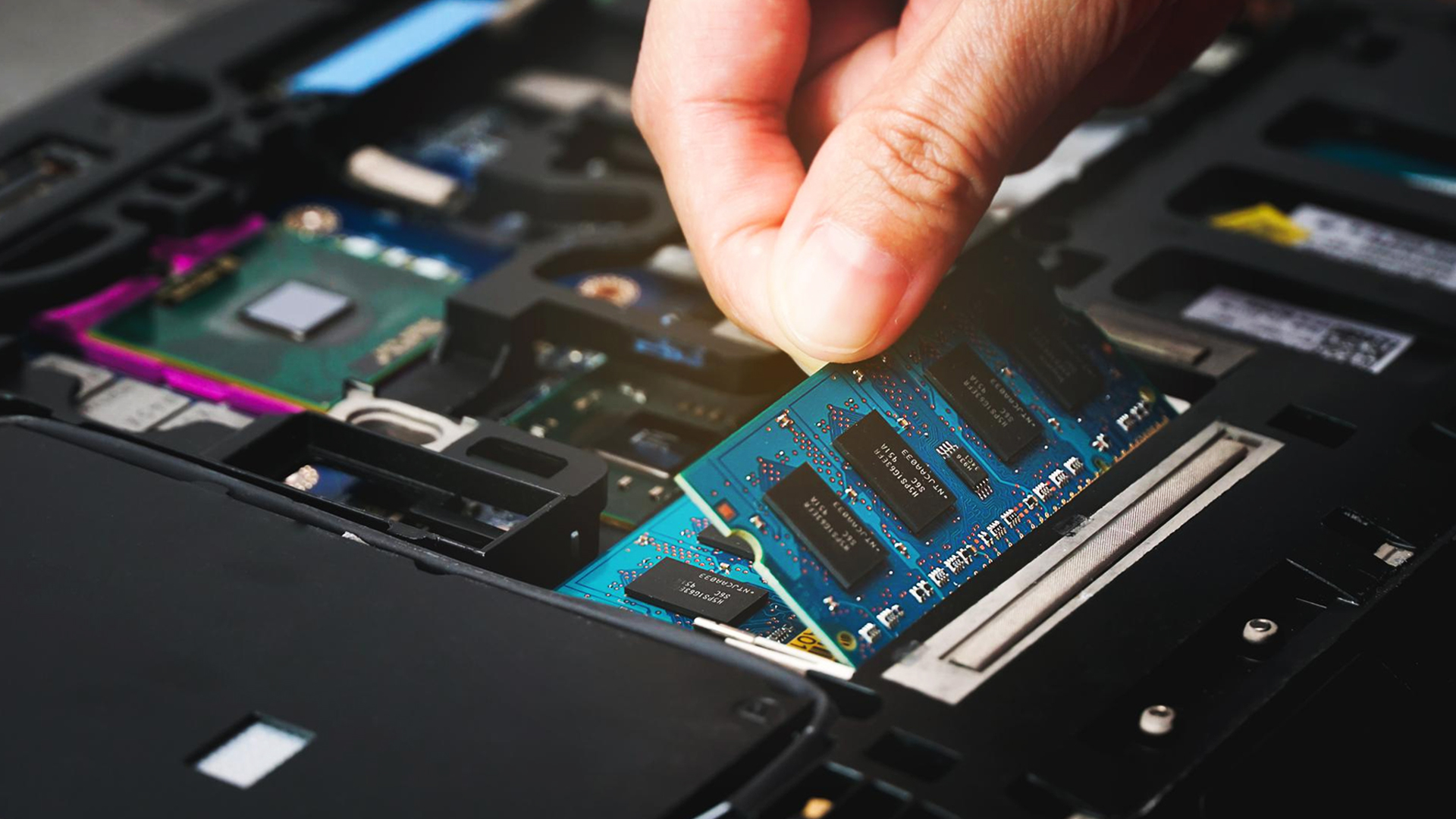
Even the best Kingston RAM won’t perform as expected if it isn’t compatible with your motherboard. Before investing in a PC memory upgrade, it’s essential to check your system specifications and confirm that the modules you choose will work seamlessly.
DDR Compatibility:
Motherboards are designed to support a specific generation of memory. For example, a DDR4 motherboard won’t accept Kingston DDR5 modules, and vice versa. Always confirm which standard your board supports before buying.
Capacity and Slot Limits:
Each motherboard has a maximum supported RAM capacity. Some entry-level boards may only support up to 32GB of RAM memory, while high-end gaming and workstation boards can handle 128GB or more. Checking these limits ensures your ram upgrade delivers the expected performance.
Form Factor: DIMM vs SO-DIMM:
Desktops require full-sized DIMM modules, whereas laptops and compact systems use smaller SO-DIMM sticks. Buy RAM with the correct form factor for proper installation of your laptop RAM or desktop RAM.
Speed and Frequency:
Many motherboards specify maximum supported speeds. While Kingston FURY RAM can automatically overclock to higher frequencies, your system’s BIOS must support XMP (Extreme Memory Profile) or equivalent for full performance benefits. Without this, your new PC memory may only run at default speeds.
BIOS Updates and Stability:
In some cases, a BIOS update may be required for your motherboard to support newer Kingston RAM modules, especially when upgrading to the latest Kingston DDR5 technology. Keeping your firmware up to date ensures system stability and compatibility.
By carefully matching your motherboard’s capabilities with the right Kingston memory, you’ll avoid errors, crashes, and wasted money.
Factors to Consider When Choosing Kingston RAM:
Not all Kingston RAM modules are the same. The right choice depends on your workload, budget, and motherboard support. Here are the key factors to keep in mind before making a PC memory upgrade.
Capacity (GB Size):
- 8GB: Suitable for light users, basic office work, and web browsing.
- 16GB: The sweet spot for most gamers and multitaskers using desktop RAM or laptop RAM.
- 32GB+: Ideal for creators, video editors, and professionals who need high-performance computer RAM.
Speed (MHz Rating):
The speed of your RAM memory directly impacts how quickly data can be transferred. Kingston DDR5 offers significantly higher frequencies than DDR4, making it better for modern gaming and intensive workloads.
Latency (CL Rating):
Lower latency means your PC memory responds faster. While the difference might be small in everyday use, gamers and professionals often benefit from choosing Kingston FURY RAM with optimised latency for smoother performance.
Overclocking Potential:
For enthusiasts, FURY RAM provides easy overclocking via XMP profiles. This ensures you can squeeze maximum performance out of your PC memory upgrade without compromising stability.
Future-Proofing:
If you’re building or upgrading a gaming PC today, investing in Kingston DDR5 is a smart choice. Even though DDR4 is still widely supported, DDR5 is quickly becoming the new standard for desktop RAM.
By balancing these factors, you can ensure your Kingston memory choice not only works with your current system but also keeps your setup competitive for years to come. You can also check out our RAM buying guide for some help on choosing the right module for your needs.
RAM Upgrade for Laptops vs Desktops:
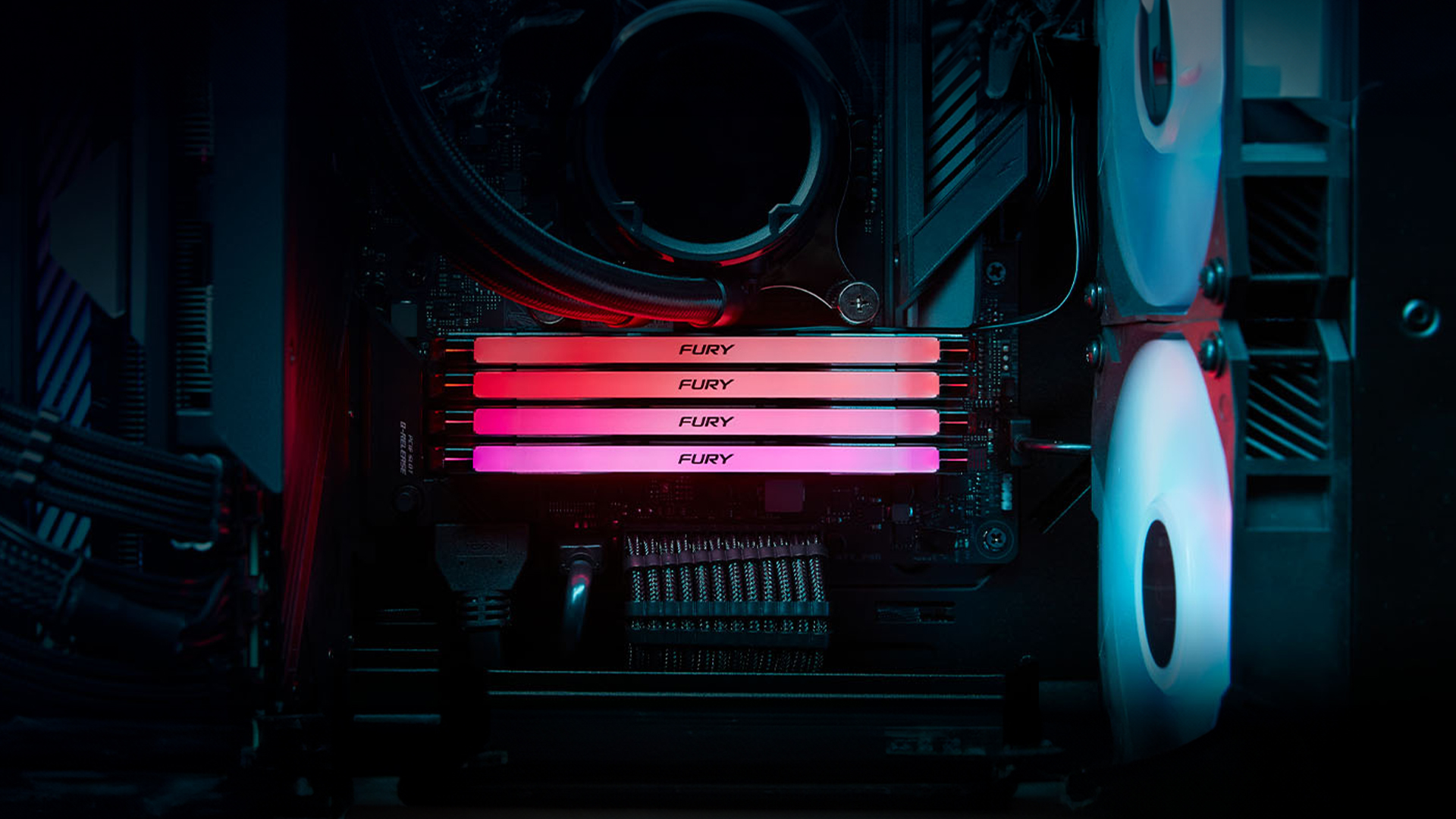
Upgrading your system with Kingston RAM can vary depending on whether you’re working with a desktop PC or a laptop. While the goal is the same, boosting performance with a PC memory upgrade, the process and hardware requirements differ.
Laptop RAM Upgrades:
Most laptops use SO-DIMM modules, which are smaller than standard DIMMs. A laptop RAM upgrade is often one of the most effective ways to breathe new life into an older machine. Adding an extra stick of Kingston memory can drastically improve multitasking, reduce lag, and extend the usability of your device. Installation is usually simple: remove the back cover, slot in the module, and you’re ready to go.
Desktop RAM Upgrades:
Desktops offer more flexibility. With full-sized DIMM slots, users can choose between budget-friendly Kingston DDR4 or cutting-edge Kingston DDR5 modules. High-performance builds often benefit from FURY RAM, which supports automatic overclocking for added speed. A desktop RAM upgrade is especially valuable for gamers and content creators looking for smoother performance in demanding applications.
When to Upgrade?
If your system is struggling with multitasking, loading large files, or keeping up with modern games, a RAM upgrade is a cost-effective solution. Whether it’s an office laptop or a gaming tower, switching to quality Kingston RAM ensures reliable improvements across the board.
Step-by-Step Guide to Installing Kingston RAM:
Upgrading to Kingston RAM is a straightforward process, but doing it properly ensures your new PC memory performs at its best. Here’s a step-by-step guide to installing both desktop RAM and laptop RAM.
Preparation:
- Power off your device and unplug it from the mains.
- Press the power button once (while unplugged) to discharge any residual power.
- Ground yourself by touching a metal surface to avoid static damage to your RAM memory or motherboard.
Installing Kingston RAM in a Desktop:
- Open the side panel or top panel of your case to access the motherboard.
- Locate the DIMM slots.
- Push down the clips on either side of the slot.
- Align the notch on your Kingston DDR4 or Kingston DDR5 module with the slot.
- Press firmly until the module clicks into place and the clips snap back.
Installing Kingston RAM in a Laptop:
- Remove the back panel of your laptop.
- Locate the SO-DIMM slot.
- Slide the laptop RAM stick in at a 45-degree angle.
- Press down gently until it locks into place.
- Reassemble the laptop case.
Configuring BIOS/XMP:
Once installed, power on your system. For Kingston FURY RAM, enable XMP (Extreme Memory Profile) in the BIOS to unlock its rated speed. This ensures you get the full benefit of your PC memory upgrade.
Testing Your Installation:
Run memory diagnostics or stress tests to ensure your new Kingston memory is functioning correctly. If your PC fails to boot or crashes, recheck installation and compatibility.
Troubleshooting Common RAM Issues:
Upgrading to Kingston RAM is usually smooth, but occasionally users run into problems. Here are the most common issues you may face after a PC memory upgrade, along with quick fixes.
System Fails to Boot:
If your PC won’t start after installing new desktop RAM or laptop RAM, double-check that the module is fully seated in the slot. In some cases, your motherboard may not support the capacity or speed of the new Kingston DDR5 module, so confirming compatibility is essential.
Blue Screens or Random Crashes:
Frequent crashes often point to unstable RAM memory. Run a memory diagnostic tool to confirm whether the issue is with your new module. If errors appear, try lowering the RAM frequency in the BIOS or reseating the Kingston memory sticks.
Mismatched RAM Issues:
Mixing different brands or combining old DDR4 modules with new Kingston RAM may cause performance drops or instability. For the best results, always install matching sets from the same Kingston kit.
BIOS Not Detecting RAM Speed:
If your system shows the wrong speed for your FURY RAM, you likely haven’t enabled XMP. Enter the BIOS and activate the profile to unleash full performance. Without this step, your PC memory may default to slower speeds.
Overheating:
While rare, improper airflow or using overclocked RAM memory can lead to higher temps. Ensuring your case has proper cooling and using heat spreader-equipped modules like Kingston FURY RAM can help maintain stability.
By following these troubleshooting steps, you can quickly resolve most problems and get your Kingston RAM running at peak performance.
Conclusion:
Upgrading your system with Kingston RAM is one of the simplest and most effective ways to unlock more performance. Whether you’re a gamer chasing smoother frame rates, a content creator managing heavy workloads, or a casual user looking for faster everyday computing, there’s a PC memory upgrade to suit your needs.
From high-performance FURY RAM for enthusiasts to efficient laptop RAM for portable devices, Kingston’s range covers every scenario. With next-gen options like Kingston DDR5 and reliable DDR4 modules still widely supported, you can choose the perfect computer RAM for your build while ensuring compatibility with your motherboard.
By carefully matching your system’s requirements with the right Kingston memory, you’ll gain speed, stability, and future-proofing. And with Box.co.uk offering a wide selection of genuine Kingston products, upgrading your laptop or desktop RAM has never been easier.
FAQs - Kingston RAM for Your Motherboard:
- How do I know if Kingston RAM is compatible with my motherboard?
Check your motherboard’s manual for supported memory type, capacity, and frequency. If it supports DDR4, you’ll need Kingston DDR4, while newer boards may support Kingston DDR5. Always match DIMM (desktop) or SO-DIMM (laptop) form factors. - Is Kingston FURY RAM good for gaming?
Yes, Kingston FURY RAM is designed for gamers. It offers high speeds, low latency, and overclocking support, all of which improve frame rates and reduce stuttering in demanding titles. - Should I choose DDR4 or Kingston DDR5 for my PC?
If your motherboard supports DDR5, opting for Kingston DDR5 is the best way to future-proof your system. DDR4 is still reliable and affordable, making it a solid choice for budget-friendly PC memory upgrades. - How much RAM do I really need for gaming?
Most modern games run well on 16GB of Kingston RAM, but for heavy multitasking, streaming, or AAA titles, 32GB offers smoother performance and future-readiness. - Can I mix Kingston RAM with other brands?
While it’s possible, mixing RAM brands often leads to stability issues. For the best results, use matching Kingston memory modules from the same kit to ensure consistent performance.
You can pay with:
*PayPal Credit Representative Example: Assumed credit limit £1,200, Representative 23.9% APR (variable). Purchase rate 23.9% p.a (variable).Terms & Conditions apply.


PayPal Credit and PayPal Pay in 3 are trading names of PayPal UK Ltd, 5 Fleet Place, London, United Kingdom, EC4M 7RD. Terms and conditions apply. Credit subject to status, UK residents only, Five Tech LTD acts as a broker and offers finance from a restricted range of finance providers. PayPal Pay in 3 is not regulated by the Financial Conduct Authority. Pay in 3 eligibility is subject to status and approval. 18+. UK residents only. Pay in 3 is a form of credit. Check if affordable and how you will repay. May make other borrowing more difficult or expensive. See product terms for more details.
Copyright © 1996-2026 Fivetech LTD | Terms and Conditions
box.co.uk & Box are trading names of Five Tech Limited. Registered office: Box LTD, Unit 10 Woodford Trading Estate, Woodford Green IG8 8HF