


 Menu
MenuMenu


Get Sales Advice from Mon - Fri 9am - 5:00pm:
020 3337 8950LAST UPDATED: June 18, 2025
RAM Buying Guide: How to Choose Memory for Any Device
Upgrading your RAM is one of the most effective ways to improve a PC's performance without replacing the entire system. Whether you're building a brand-new gaming rig or speeding up your ageing laptop, this RAM buying guide will walk you through everything you need to know, from what RAM memory actually does to which type best suits your usage to ensuring it fits your motherboard when you buy RAM.
What is RAM and Why It's Important?

RAM, short for Random Access Memory, is a temporary computer memory storage component that helps your system access information faster. It doesn't store data long-term like a hard drive or SSD; instead, it holds active data that your system needs to retrieve quickly, such as files, programs, or game environments.
Everyday tasks like browsing, streaming, photo editing, and gaming rely on computer memory to keep things smooth. The more RAM your PC has, the more responsive it becomes, especially when multitasking or handling demanding applications.
How Much RAM Do You Really Need?

There's no one-size-fits-all answer, as the right amount of RAM memory depends on how you use your system.
Below is a use-case table guide reflecting recommended configurations inspired by real-world workflows rather than guesswork. Whether you're choosing DDR4 laptop RAM for basic tasks or searching for the best DDR5 RAM for creative work, use this as your starting point.
Home & Office
| RAM Size | Recommended For | Performance Tier |
| 8GB | Web browsing, email, office apps, light usage | Entry Level |
| 16GB | Multitasking, productivity software, light photo editing | Mid-Range |
| 32GB | Occasional heavy file use, Photoshop, creative tools | High End |
Gaming
| RAM Size | Recommended For | Performance Tier |
| 8GB | Older/lighter games like Minecraft, DOTA 2 | Entry Level |
| 16GB | AAA gaming, Call of Duty, GTA V, background tasks | Mid-Range |
| 32GB+ | Streaming while gaming, mods, high-res textures | High End |
Graphics Workstations
| RAM Size | Recommended For | Performance Tier |
| 16GB | Adobe Illustrator, basic 3D tools | Entry Level |
| 32GB | CAD software, high-res image rendering | Mid-Range |
| 64GB+ | Simulations, complex 3D modelling, textures | High End |
Video Workstations
| RAM Size | Recommended For | Performance Tier |
| 16GB | Editing Full HD content | Entry Level |
| 32GB | Working with 4K video, colour grading | Mid-Range |
| 64GB+ | 6K/8K video, multiple timelines | High End |
Education & Student Use
| RAM Size | Recommended For | Performance Tier |
| 4GB | Basic school tasks, writing, Zoom | Entry Level |
| 8GB | Multitasking between browser + apps | Mid-Range |
Virtual Machines / Development Environments
| RAM Size | Recommended For | Performance Tier |
| 16GB | Basic local dev tools, web IDEs | Mid-Range |
| 32GB | Android Studio, Docker, code compiling | High End |
| 64GB+ | Multiple VMs, enterprise-grade virtualisation | Ultra |
When to Upgrade Your RAM?

If your system feels sluggish, especially when switching between programs or running several apps simultaneously, it might struggle with limited RAM memory.
-
Frequent slowdowns when switching between open apps or browser tabs.
-
Task Manager shows high RAM usage above 80% during normal use.
-
The system stutters or lags when gaming, especially in modern titles.
-
Creative software (e.g., Photoshop, Premiere Pro) feels sluggish when loading large files.
-
You're forced to close apps just to keep your system running smoothly.
-
Multitasking becomes frustrating, especially with multiple Chrome tabs or background tools like Spotify, Discord, or OBS.
Tip: To check RAM usage, press CTRL + SHIFT + ESC to open Task Manager and view the Memory column under the Performance tab. If you're maxing out your RAM regularly, it's time to buy RAM and upgrade.
DDR4 vs DDR5: Which One Should You Choose?
DDR5 RAM is the newest generation, offering improved performance, higher capacity support, and greater bandwidth compared to DDR4 RAM. It delivers faster data transfer rates, starting at 4800MHz and scaling well into 6000MHz territory. DDR4, on the other hand, typically ranges from 1600MHz to 3200MHz and is widely compatible with older systems.
That doesn't automatically mean DDR5 RAM is the right choice for everyone. While ideal for new builds and high-performance setups, DDR4 RAM remains affordable, reliable, and sufficient for many users. Moreover, some motherboards and CPUs only support one or the other you can't mix them.
If you're building a new PC with a 12th, 13th, or 14th Gen Intel CPU or AMD Ryzen 7000 and 9000 series, you should have the option of going with DDR5 RAM. Just check your motherboard specs carefully, as some boards still have only DDR4 RAM. For upgraders using older platforms, DDR4 will continue to serve well for years to come.
Best DDR4 RAM Recommendation:
If you're upgrading a desktop running DDR4, modules like the Kingston RAM FURY Beast 16GB DDR4 3200MHz (KF432C16BB/16) offers excellent reliability and value. 
Best DDR5 RAM Recommendation:
On the other hand, if you're building with the latest chipsets, DDR5 RAM kits G.Skill Trident Z5 Neo RGB 32GB DDR5 6000MHz (F5-6000J3038F16GX2-TZ5NR) delivers the kind of speed and headroom that futureproofs your build. 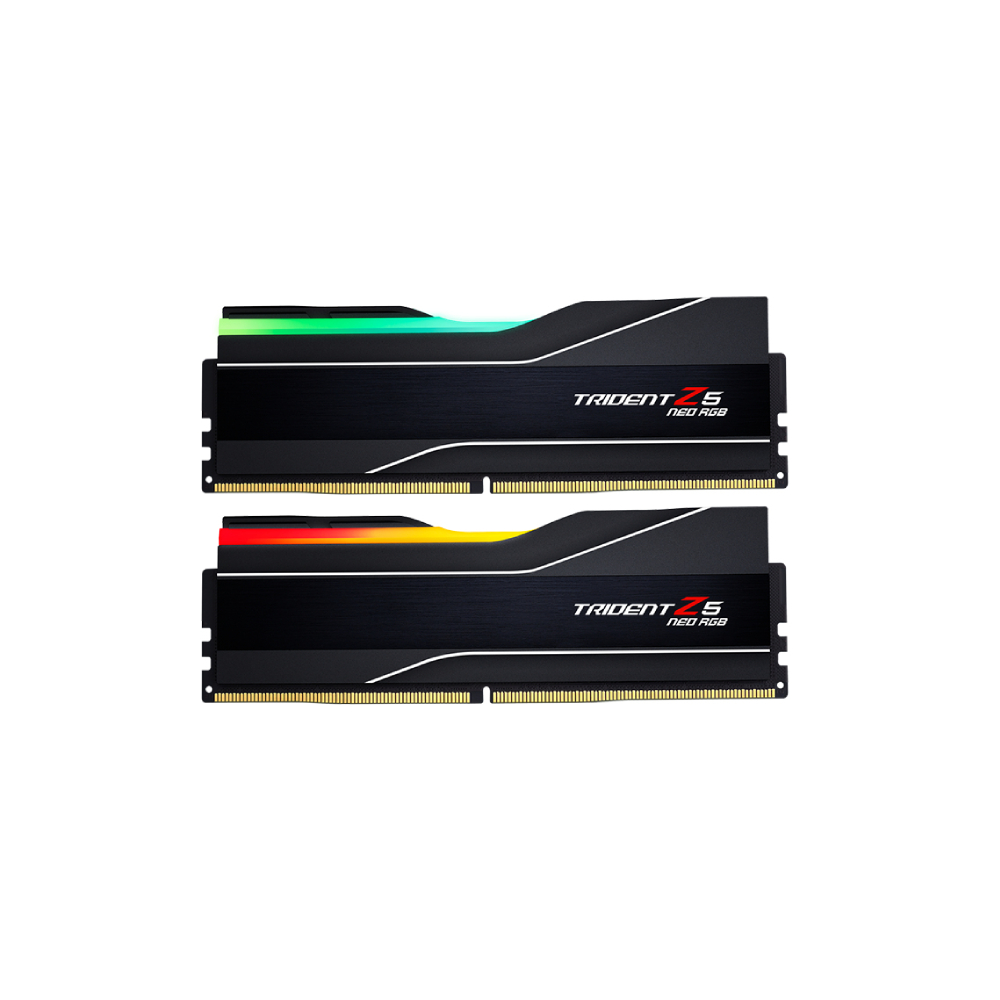
Compatibility: Making Sure Your RAM Will Fit
When choosing RAM, you must ensure it physically and electrically matches your system. Desktop PCs use long DIMM modules, while laptop RAM relies on smaller SODIMM modules. The pin layout differs too: desktop DIMMs usually have 288 pins, while laptop memory SODIMMs come with 260.
Your motherboard's specifications will tell you which RAM type it supports, including maximum speed and capacity per slot. Most modern motherboards offer two or four slots. Filling them correctly ideally with identical sticks unlocks dual-channel mode, which doubles memory bandwidth and boosts overall efficiency.
It's also important to check your CPU's memory support. For instance, AMD Ryzen 5000 processors support DDR4 only, while Ryzen 9000 and Intel 13th/14th Gen chips support DDR5 RAM. Still unsure? Many motherboard manufacturers provide compatibility lists to guide you when you buy RAM.
RAM Speed vs Latency: Which Matters More?
Speed and latency go hand in hand. PC RAM speed is measured in megahertz (MHz) and determines how fast data can move to and from your memory. Higher numbers generally mean better performance, especially in gaming or video rendering tasks.
Latency, on the other hand, measures delay—such as how long the RAM memory takes to respond to requests. It's measured as CAS (Column Access Strobe) latency, often abbreviated as CL. Lower CL numbers mean quicker communication between your memory and CPU.
Dual-Channel vs Single-Channel Memory

Memory configuration also plays a key role in performance. Using a single stick of RAM runs your system in single-channel mode, which limits bandwidth. Installing two or more matching sticks activates dual- or even quad-channel mode, depending on your motherboard.
Dual-channel offers improved throughput, making it a better choice for gaming and multitasking. It's not just about total capacity - a 2x8GB kit in dual-channel will typically outperform a single 16GB stick in real-world usage.
For best results, always install RAM in matched pairs. Ensure both sticks are the same brand, speed, and capacity to avoid compatibility issues and ensure optimal performance.
Should You Enable XMP or Memory Tuning?
Many RAM modules are rated for speeds higher than the motherboard's default. Without any tweaks, your system might run memory at its base speed, such as 2400MHz—even if it's rated for 3200MHz or more.
This is where XMP (Extreme Memory Profile) comes in. Found in most BIOS menus, XMP enables your RAM to operate safely at its advertised speeds. It's a one-click setting that doesn't require manual configuration or technical knowledge.
Some motherboards support multiple memory profiles for DDR5 RAM users. To use one, simply select the one matching your RAM's rated speed and restart.
Server Memory Types at a Glance
When building or upgrading servers, performance and reliability are paramount. Unlike consumer-grade RAM, server memory is engineered for stability under sustained loads and typically falls under four main categories:
| Memory Type | Description | Best For |
| UDIMM (Unbuffered DIMM) | Direct signal access without buffering. Lower latency but limited stability at high capacities. | Entry-level servers, small business use |
| RDIMM (Registered DIMM) | Uses a register to reduce electrical load, improving stability and scalability. | Enterprise-grade servers |
| LRDIMM (Load Reduced DIMM) | Replaces register with a buffer, reducing motherboard load and power usage. | Data centres, high-capacity environments |
| MRDIMM (Multi-Rank DIMM) | Accesses multiple ranks per module to boost throughput and reduce latency. | High-performance computing, large data workloads |
RAM Design & Style Considerations

RAM can also be part of your PC’s visual identity. Many brands now offer modules with sleek heat spreaders, vibrant RGB lighting, and colour-coordinated finishes. Take the Corsair RAM Vengeance DDR5 6000MHz (CMH32GX5M2E6000C36), for example. It delivers high-speed gaming performance while syncing beautifully with iCUE lighting setups.
If you're building a showpiece PC with a tempered glass case, you might favour RGB-equipped sticks from G.SKILL or Kingston RAM Fury. For AMD-compatible DDR5 setups, G.Skill Trident Z5 Neo RGB DDR5 6000MHz brings both premium design and excellent tuning flexibility for EXPO profile. For minimalist builds, there are stealthier options with no lights and subdued colours.
Leading RAM Brands Worth Considering

When buying RAM, it pays to stick with reputable manufacturers. Brands like Corsair RAM, Kingston RAM, Crucial, and G.Skill offer proven performance, wide compatibility, and design consistency. Whether it's the Kingston FURY Beast for reliable everyday use, G.Skill Trident Z5 for Ryzen-optimised setups, or Crucial DDR5 laptop RAM SODIMMs for laptop upgrades, these options cover everything from budget builds to high-end rigs.
Whichever route you take, these leading RAM brands deliver a smart mix of speed, stability, and style helping your system look as good as it runs.
Final Thoughts: Choose RAM with Confidence
RAM might not be the flashiest component in your setup, but it’s one of the most impactful when it comes to real-world performance. From understanding the basics of computer memory types and speeds, to comparing DDR4 RAM vs DDR5 RAM, to learning about compatibility, aesthetics, and futureproofing this RAM buying guide can help you make smarter, more informed decisions. The key takeaway? Match your RAM to your usage, your hardware, and your ambitions.
If you're ready to buy RAM or build a new system, take the time to review your motherboard specs, prioritise matched pairs, and consider enabling XMP to unlock full performance.
Still not sure where to start? Explore our full range of PC RAM, DDR5 kits, or laptop RAM options to find your ideal upgrade
Want even more tips on choosing memory that matches your build? Check out our full guide on how to choose the best computer memory for your PC for expert advice.
RAM Buying Guide: FAQs
How to choose the amount of RAM?
Start by thinking about how you use your device. If it’s just for browsing and office tasks, 8GB is fine. For gaming, creative work, or multitasking, aim for 16GB to 32GB. Always check your motherboard’s RAM capacity and supported speeds before buying.
Is 32GB RAM overkill for PC?
It depends on what you're doing. For most users, 32GB is more than enough. But if you're gaming while streaming, editing 4K video, or running virtual machines, 32GB gives you extra headroom and futureproofing.
How do I know how much RAM to buy?
Check your system’s current RAM usage via Task Manager (Windows) or Activity Monitor (Mac). If you’re regularly using over 80% of your memory or experience lag during multitasking, it’s time to upgrade. Match your RAM type and slot support to your motherboard.
Is 80% RAM usage too high?
Yes, especially during regular tasks. When your RAM usage hits 80% or more, your system may slow down or freeze when running multiple apps. If this happens often, consider upgrading your memory.
What is the ideal amount of RAM for a gaming PC?
For most games in 2025, 16GB is the sweet spot. It handles AAA titles, background apps, and multiplayer without breaking a sweat. If you're gaming and streaming at the same time, 32GB is ideal.
How much RAM do I need for gaming in 2025?
In 2025, 16GB is the recommended baseline for modern gaming. It ensures smooth gameplay for demanding titles. If you’re playing at 4K, modding, or using high-res texture packs, 32GB offers better long-term performance.
You can pay with:
*PayPal Credit Representative Example: Assumed credit limit £1,200, Representative 23.9% APR (variable). Purchase rate 23.9% p.a (variable).Terms & Conditions apply.


PayPal Credit and PayPal Pay in 3 are trading names of PayPal UK Ltd, 5 Fleet Place, London, United Kingdom, EC4M 7RD. Terms and conditions apply. Credit subject to status, UK residents only, Five Tech LTD acts as a broker and offers finance from a restricted range of finance providers. PayPal Pay in 3 is not regulated by the Financial Conduct Authority. Pay in 3 eligibility is subject to status and approval. 18+. UK residents only. Pay in 3 is a form of credit. Check if affordable and how you will repay. May make other borrowing more difficult or expensive. See product terms for more details.
Copyright © 1996-2026 Fivetech LTD | Terms and Conditions
box.co.uk & Box are trading names of Five Tech Limited. Registered office: Box LTD, Unit 10 Woodford Trading Estate, Woodford Green IG8 8HF