


 Menu
MenuMenu


Get Sales Advice from Mon - Fri 9am - 5:00pm:
020 3337 8950LAST UPDATED: July 13, 2026
iMac Running Slow? 12 Easy Fixes to Speed Up Your iMac in 2026
If your iMac is running slow, it does not always mean the machine is past its best. In many cases, a slow iMac comes down to storage space, too many apps running, login items, browser load, background tasks, or a recent macOS update still settling in.
The good news is that many fixes are built into macOS and do not cost anything. Before replacing your iMac, it is worth checking what is using memory, what is filling the startup disk and which apps are running in the background.
This guide covers 12 practical ways to speed up your iMac, from quick restarts and Activity Monitor checks to storage clean-up, Safe Mode and Disk Utility. It will also explain when a slow iMac can be fixed with simple steps, and when it may be time to consider an upgrade.
Why Is My iMac Running Slow?
There is rarely one single reason for an iMac running slow. Most slowdowns come from storage, software load, memory use or temporary macOS tasks. These are the most common causes:
- Low storage on the startup disk: macOS needs enough working space for updates, temporary files and app data. If the drive is nearly full, your iMac may start to feel laggy, freeze, or take longer to launch apps.
- Too many apps or browser tabs open: Heavy apps, video calls, creative tools and lots of browser tabs can all compete for processor power and memory, especially on older models.
- High CPU or memory use: If your iMac is running slow even with enough storage, check whether one app is using too much CPU or causing high memory pressure in Activity Monitor. This is also a common MacBook issue, so the same check can help if you use both an iMac and an Apple laptop
- Too many login items: Apps that open automatically at startup can make the iMac feel slow from the moment you sign in.
- Background work after updates: macOS may run system tasks after an update, including file syncing, app updates and indexing. This can make an Apple iMac running slow feel more difficult to use.
- Spotlight indexing: Search indexing can temporarily affect macOS performance, especially after major updates, large file transfers or restoring from a backup.
- Older hardware limits: Older Intel iMacs may struggle with modern apps, heavier websites and newer macOS features. Newer Apple silicon models are generally better suited to current everyday workloads.
- Outdated or buggy apps: One unsupported app, old extension or background tool can cause slowdowns even if the rest of the iMac is working normally.
- Storage or file-system errors: If apps freeze, files open slowly, or the system behaves strangely, disk errors may be part of the problem and should be checked with Disk Utility.
Quick Checks Before Fixing a Slow iMac
Before trying deeper fixes, start with a few simple checks. If your iMac is running slow, these steps can help you work out whether the problem is temporary, storage-related or caused by apps using too many resources.
| Quick check | Why it matters |
|---|---|
| Restart your iMac | Clears temporary glitches and stuck processes |
| Check storage | Low free storage space on the startup disk can slow down macOS |
| Update macOS and apps | Helps fix bugs and app compatibility issues |
| Back up important files | Protects your data before bigger changes |
| Note when it started | Helps identify updates, apps or new software as the cause |
Start here:
- Restart your iMac and test it again
- Check how much storage is available
- Update macOS and installed apps
- Back up important files before deleting, reinstalling or resetting anything
- Think about whether the slowdown started after an update, a new app or a storage warning
- Note whether your Mac is running slow only with certain apps, or all the time
If your iMac is slow even after these checks, the next step is to look at memory, storage and app behaviour more closely. For users who want to understand memory terms before troubleshooting, our guide on macOS memory can help make Activity Monitor easier to read.
12 Easy Fixes to Speed Up an iMac Running Slow
Most “iMac is running slow” problems can be fixed without requiring any advanced troubleshooting. Start with the simple, free checks first, then move towards deeper software troubleshooting if the problem continues. If you also use an Apple laptop, many of the fixes mentioned below can also help fix a slow MacBook Air.
| Fix | What it helps with | Difficulty |
|---|---|---|
| Restart your iMac | Temporary glitches and stuck apps | Easy |
| Use Activity Monitor | Apps using too much CPU or memory | Easy |
| Free up storage | Low space on the startup disk | Easy |
| Remove unused apps and large files | Clutter and storage pressure | Easy |
| Disable unnecessary login items | Slow startup and background load | Easy |
| Quit heavy apps, tabs and extensions | High CPU, memory use and fan noise | Easy |
| Clear browser cache and temporary files | Browser slowdowns and web clutter | Easy |
| Update macOS and installed apps | Bugs and compatibility issues | Easy |
| Give macOS time after an update | Temporary post-update background work | Easy |
| Run Disk Utility First Aid | Disk or file-system issues | Moderate |
| Start in Safe Mode | Startup software or extension conflicts | Moderate |
| Test a new user account or reinstall macOS | Deeper software issues | Advanced |
1. Restart Your iMac
Restarting sounds basic, but it is often the quickest iMac running slow fix. It closes stuck apps, clears temporary glitches and refreshes background processes that may have been running for too long.
Try this first:
- Save any open work
- Restart the iMac from the Apple menu
- Wait for it to fully load before opening apps again
- Test the same app or task that felt slow before
If the iMac feels faster after restarting, the issue may have been temporary. If the slowdown comes back quickly, move on to Activity Monitor and storage checks.
2. Use Activity Monitor to Find Heavy Apps
Activity Monitor shows what your iMac is doing in real time. If your iMac is running slow, open Activity Monitor and check which apps are using too much CPU, memory or energy.
Try this:
- Open Activity Monitor from Applications > Utilities
- Sort by CPU to find apps using heavy processor power
- Check the Memory tab for high memory pressure
- Quit apps you recognise and do not need open
- Avoid force-quitting system processes you do not understand
If one app keeps using too many resources, update it, restart it or consider replacing it with a lighter alternative. This is one of the best ways to understand macOS performance instead of guessing.
3. Free Up Storage on the Startup Disk
Low storage can make a slow iMac feel worse, especially when macOS has little room to manage temporary files and app data. Aim to keep enough free storage space on the startup disk so the system has room to work properly.
Try this:
- Open System Settings and check Storage
- Delete old downloads, duplicate files and unused installers
- Move large videos, photo libraries or archives to external storage
- Empty the Bin after checking that the files are no longer needed
- Keep your desktop tidy if it is full of large files
This is one of the easiest ways to speed up a Mac for free, especially if the iMac has been used for years without a clean-up.
4. Remove Unused Apps and Large Files
Apps you no longer use can take up space, add background helpers and make your system feel cluttered. Removing them is a simple way to speed up your iMac and reduce storage pressure.
Try this:
- Delete apps you no longer use
- Check Applications for old trial software or duplicate tools
- Remove large files from Downloads
- Move old project folders to external storage
- Restart after a bigger clean-up
This can help fix a slow iMac when the issue is mostly clutter, storage pressure or old software you no longer need.
5. Disable Unnecessary Login Items
Login items open automatically when you sign in. If too many apps launch at startup, a slow-running Mac may feel worse just after turning the iMac on.
Try this:
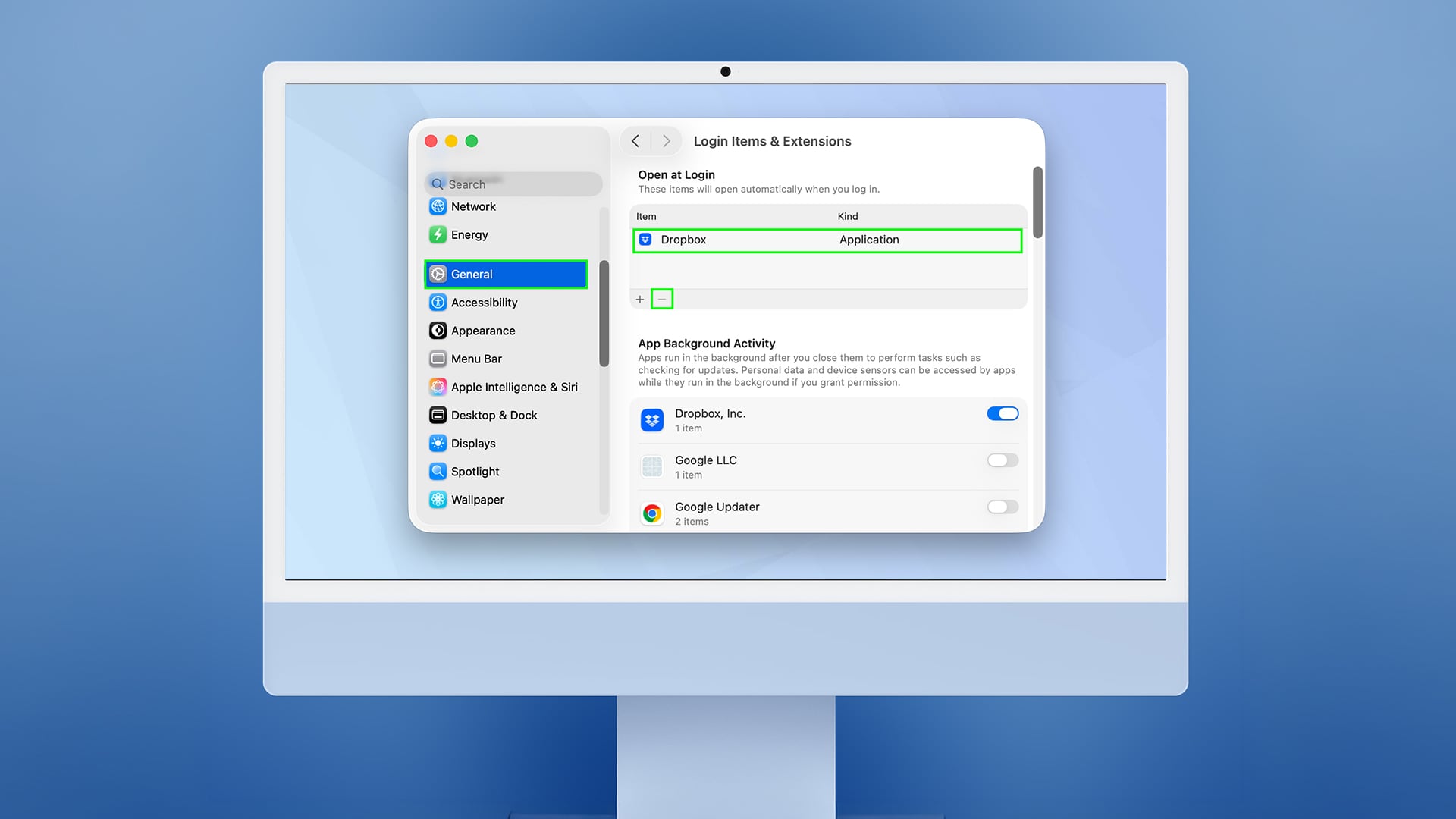
- Open System Settings
- Go to General > Login Items & Extensions
- Remove apps you do not need at startup
- Turn off background items you recognise and do not use
- Restart and check whether startup feels faster
Keep only essential tools in login items. Apps like cloud sync, messaging tools and launchers can be useful, but they do not all need to open the moment your iMac starts.
6. Quit Heavy Apps, Tabs and Extensions
If your Mac is running slow and the fan is loud, the issue may be heavy apps, too many browser tabs or extensions running in the background. This is common when working with lots of tabs, video calls, editing apps or games.
Try this:
- Close apps you are not using
- Reduce open browser tabs
- Remove extensions you do not need
- Avoid running several heavy apps at the same time
- Check Activity Monitor again after closing them
This fix is especially useful if the slowdown happens during creative apps, streaming, browser-heavy work or gaming on an iMac. If the iMac runs fine with fewer apps open, the problem is likely workload rather than a broken machine.
7. Clear Browser Cache and Temporary Files
A browser can become slow when old site data and cache files build up. This will not fix every slow iMac, but it can help if the main problem happens while browsing.
Try this:
- Clear the cache from your browser settings
- Remove extensions you do not use
- Close and reopen the browser
- Update the browser if an update is available
- Avoid deleting system folders manually
This is another safe way to speed up a Mac for free, but keep it browser-focused. Do not delete random system files just because they look like temporary data.
8. Update macOS and Installed Apps
Outdated software can cause bugs, slowdowns and compatibility problems. If your Apple iMac is running slowly, check whether macOS and your main apps are up to date.
Try this:
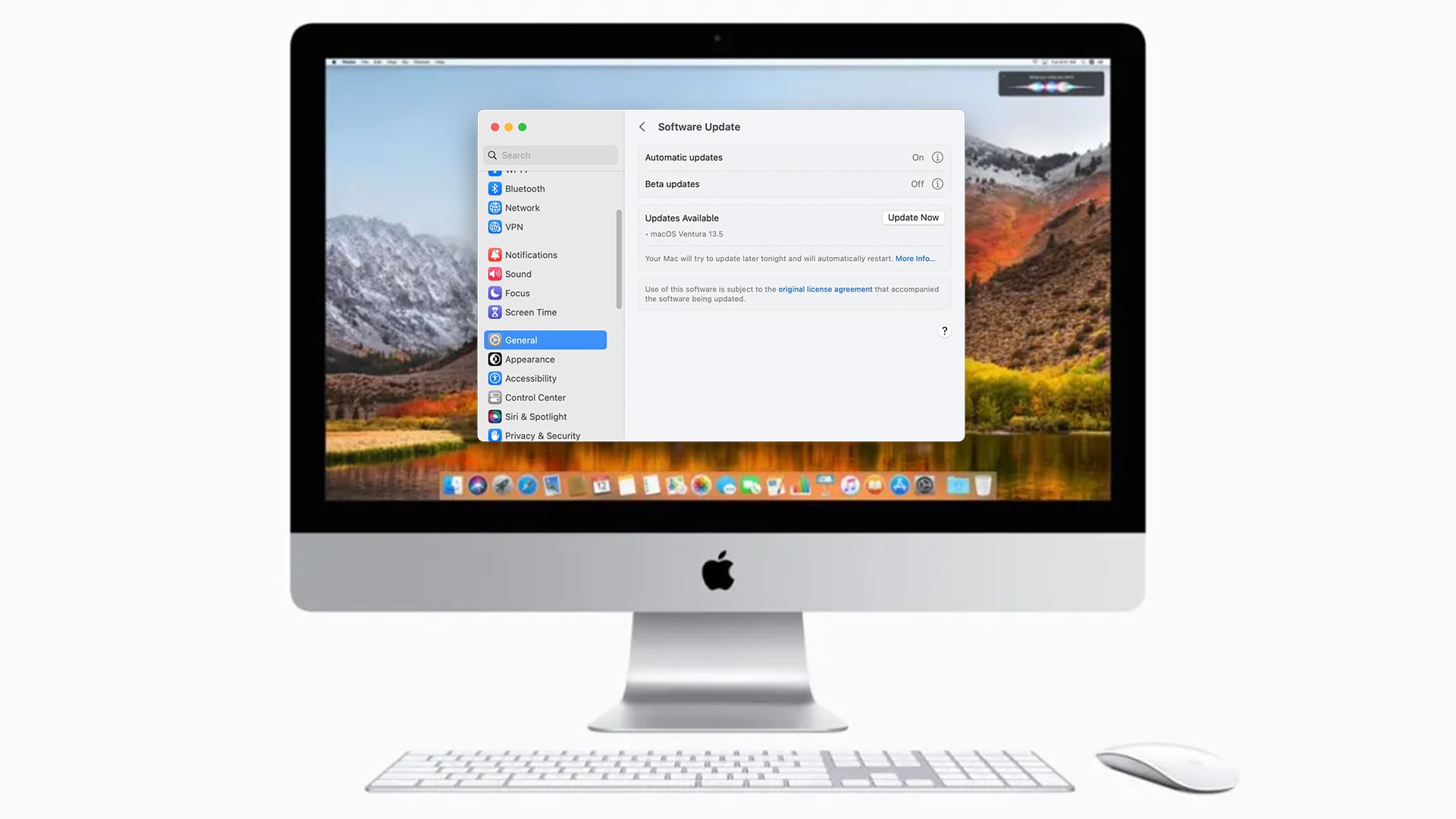
- Open System Settings and check Software Update
- Update apps from the App Store
- Update non-App Store apps from their own menus
- Restart after installing updates
- Remove apps that no longer support your macOS version
This can improve Mac performance when the issue is caused by app bugs, older extensions or software that has not been updated for your current macOS version.
9. Give macOS Time After an Update
An iMac running slow after an update is not always a permanent problem. After a major macOS update, the system may spend time organising files, syncing data and rebuilding search information.
Try this:
- Leave the iMac plugged in and awake for a while
- Avoid opening too many apps straight after a major update
- Check Activity Monitor if the slowdown continues
- Update apps that may not yet work smoothly with the new macOS version
- Restart again once updates and background work have settled
Spotlight indexing can make the iMac feel slower for a short time after updates or major file changes. If performance does not improve later, move back to Activity Monitor, storage checks and app updates.
10. Run Disk Utility First Aid
Disk Utility can check your storage for errors that may cause unusual behaviour. If you have tried simple fixes and still need an iMac running slow fix, First Aid is worth running before more drastic steps.
Try this:
- Back up important files first
- Open Disk Utility from Applications > Utilities
- Select your startup disk or volume
- Click First Aid and let the check finish
- Restart the iMac after the process
Disk Utility is not a magic speed booster, but it can help if storage errors are contributing to freezes, crashes or slow file access.
11. Start in Safe Mode
Safe Mode helps test whether startup software, extensions or background items are causing the slowdown. If Safe Mode feels smoother, the problem may be linked to software loading during normal startup.
Try this:
- Back up important work first
- Start the iMac in Safe Mode
- Test basic tasks such as browsing, opening files and launching apps
- Restart normally
- Remove or update apps that seem linked to the slowdown
This can help fix a slow iMac when the issue is caused by software conflicts rather than storage or hardware limits.
12. Test a New User Account or Reinstall macOS
If your iMac computer is still running slow after the easier fixes, test whether the problem is tied to your user account. A fresh user account can help separate profile issues from system-wide problems.
Try this:
- Create a new user account
- Sign in and test the same tasks
- If the new account is faster, check your original account’s login items, apps and settings
- Back up your files before any reinstall
- Reinstall macOS only as a last software fix
If you still see your Mac running slowly with the spinning wheel after storage checks, Activity Monitor, Safe Mode and First Aid, the issue may be deeper software trouble, failing storage or ageing hardware.
How to Make an Old iMac Faster
For an older iMac, keep the workload lighter: close apps you are not using, reduce browser tabs, move large files to external storage and keep enough free space for macOS to work properly.
If your Mac is running slow, avoid running too many modern apps together, especially creative tools, video calls or heavy browser sessions. You can still improve Mac performance with careful clean-up, but older Intel iMacs may not match newer Apple silicon models for current workloads.
If you have already tried the main fixes and still need to speed up your iMac every time you use it, replacement may be more sensible than constant troubleshooting. For comparing Apple options, the Apple Store at Box is a great place to start. You can also check out all-in-one desktop PCs if you are comparing Mac and Windows machines.
Final Verdict: Fix Your iMac First, Upgrade Only If Needed
If your iMac is running slow, try the free fixes first: restart, check storage, use Activity Monitor, remove login items, update apps and run Disk Utility First Aid. If the same issues continue after those steps, the problem may be ageing hardware, limited memory or storage limits.
At that point, it may be worth comparing the latest iMac range or Apple Mac desktop options. If you no longer need a fixed desktop setup, a MacBook can also make sense before you upgrade.
Frequently Asked Questions
How do I fix my slow iMac?
Start with the simple fixes first: restart your iMac, check Activity Monitor, free up storage, remove unnecessary login items and update macOS and apps. If the issue continues, run Disk Utility First Aid and test Safe Mode.
How do I clean up my iMac to make it run faster?
Delete unused apps, remove old downloads, clear browser cache, empty the Bin and move large files like videos, photos or backups to external storage. Always check files before deleting them.
Why is my Mac so slow and laggy all of a sudden?
A sudden slowdown can happen after a macOS update, a new app install, low storage, heavy browser use, background processes or Spotlight indexing. Activity Monitor can help show what is using the most CPU or memory.
How do I find out what is slowing down my Mac?
Open Activity Monitor and check the CPU, Memory and Energy tabs. Look for apps using unusually high resources, then quit or update any apps you recognise and do not need open.
How do I clear the cache and speed up my Mac?
Clear the cache from your browser settings first, as this is the safest place to start. Avoid deleting random system cache folders unless you know exactly what they do.
How to improve Mac performance?
Keep enough storage free, reduce login items, close heavy apps, update software, manage browser tabs and check memory pressure in Activity Monitor. These fixes can improve everyday performance without costing anything.
Why is my Mac so slow when I have plenty of storage?
Storage may not be the issue. Check memory pressure, CPU usage, background apps, browser extensions, outdated software or hardware age.
Why is my Mac so slow even after a factory reset?
It may still be finishing setup, indexing files or syncing data. If it stays slow, check Activity Monitor, run Disk Utility First Aid and consider whether the iMac’s age, memory or storage hardware is limiting performance.
You can pay with:
*PayPal Credit Representative Example: Assumed credit limit £1,200, Representative 23.9% APR (variable). Purchase rate 23.9% p.a (variable).Terms & Conditions apply.


PayPal Credit and PayPal Pay in 3 are trading names of PayPal UK Ltd, 5 Fleet Place, London, United Kingdom, EC4M 7RD. Terms and conditions apply. Credit subject to status, UK residents only, Five Tech LTD acts as a broker and offers finance from a restricted range of finance providers. PayPal Pay in 3 is not regulated by the Financial Conduct Authority. Pay in 3 eligibility is subject to status and approval. 18+. UK residents only. Pay in 3 is a form of credit. Check if affordable and how you will repay. May make other borrowing more difficult or expensive. See product terms for more details.
Copyright © 1996-2026 Fivetech LTD | Terms and Conditions
box.co.uk & Box are trading names of Five Tech Limited. Registered office: Box LTD, Unit 10 Woodford Trading Estate, Woodford Green IG8 8HF