


 Menu
MenuMenu


Get Sales Advice from Mon - Fri 9am - 5:00pm:
020 3337 8950LAST UPDATED: November 25, 2025
MacBook Air Slowing Down or Lagging? How to Restore Speed & Responsiveness
The Apple MacBook Air has long been praised for its reliability, sleek design and smooth everyday experience, but even the best machines can lose a bit of their snappiness over time. If you've noticed your MacBook Air is running slow, apps are taking longer to open, or the system is feeling generally unresponsive, you're not alone. Many users experience dips in MacBook Air performance as storage fills up, background processes build, or macOS needs a little routine maintenance.
This guide cuts through the noise with clear, practical steps to help you understand "Why is my MacBook Air lagging?" and what you can do about it. From simple storage clean-ups to deeper system checks, we'll show you the most reliable ways to speed up your Mac and restore that smooth, lightweight feel the Apple MacBook Air is known for. Whether your latest MacBook Air slowed down after an update or your Mac is moving slowly out of nowhere, these fixes are built for everyday UK users who just want their device to feel fast again.
14 Quick Fixes to Speed Up a Slow or Lagging MacBook Air
When your MacBook Air's performance starts to dip, the good news is that most issues can be resolved with a few quick and practical steps. These fixes are designed around the most common MacBook Air lagging reasons, and are a perfect way to fix a MacBook Air running slow. The fixes discussed below also help speed up MacBook Air 2025 models in minutes.
1. Free Up Storage Space (Critical for macOS Performance)
A nearly full SSD is one of the common reasons a MacBook Air slows down or lags. MacBook laptops need free space for virtual memory and system tasks. When storage drops too low, everything from app launches to updates can feel sluggish, and it often leads users to wonder, "Why is my MacBook Air slow after an update?" Keeping at least 15–20% of your drive free can noticeably improve MacBook Air performance.
Remove large downloads, old iPhone backups and duplicate files, then empty your Trash. Offloading big items to iCloud or an external drive is an easy way to avoid the common MacBook Air full storage slow issue.
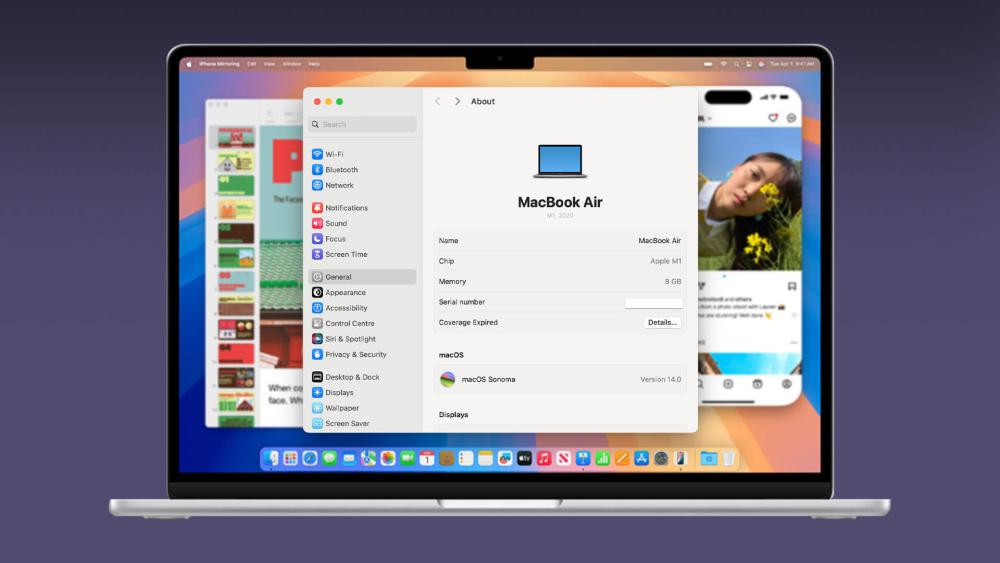
2. Check Mac Performance Using Activity Monitor
If your apps are freezing or your MacBook Air feels unusually sluggish, something may be consuming too many system resources. A quick look in Activity Monitor can reveal what's slowing things down.
- Open Activity Monitor on your Apple Mac Air and review the CPU and Memory tabs.
- Look for apps showing unusually high usage.
- Quit any tasks that are stuck, unresponsive or using far more RAM than expected.
- If memory pressure is consistently high, close heavy browser tabs or demanding apps.
- This simple check helps you quickly restore MacBook Air performance to its normal standards.
3. Update macOS to the Latest Version
Running an outdated system can quickly affect MacBook Air performance, especially when newer apps rely on recent features and optimisations. If you're wondering, "Why is my MacBook Air lagging?" after ignoring a few updates, this is often the cause. Each macOS release includes performance tweaks, security fixes and stability improvements that help keep the high-end laptops like a MacBook Air running smoothly. Head to Apple menu → System Settings → General → Software Update and install any pending updates to ensure your system stays fast and reliable.
4. Restart Your Mac Regularly
A simple restart can make a noticeable difference to MacBook Air performance, especially if your system hasn't been rebooted in a while. It clears temporary files, refreshes memory and stops background tasks that may be slowing everything down on your Apple Mac Pro. If you notice your Mac is moving slow randomly, a quick restart is often the easiest way to bring things back up to speed.
5. Disable Unnecessary Startup Apps
A MacBook not turning on or booting properly can be very frustrating. Too many apps launching at startup can slow boot times and affect MacBook Air performance, especially on older models. Trimming this list helps your system feel quicker right away.
- Go to System Settings → General → Login Items.
- Remove apps you don't need opening automatically.
- Keep only essentials to avoid a MacBook Air lagging start-up.
This small tweak is a reliable MacBook Air performance fix and helps avoid lagging.
6. Clear System & App Cache Files
Old cache files can build up over time and subtly impact MacBook Air performance, especially if you haven't cleared them in months. A quick tidy-up can help your system feel lighter and smoother.
- Open Finder → Go → Go to Folder, then type ~/Library/Caches.
- Delete the contents of each folder (not the folders themselves).
- Empty your Trash afterwards.
This is a quick macOS slowing down fix and is safe when done carefully, helping you optimise macOS performance without using third-party tools.
7. Reduce RAM Usage on 8GB MacBook Air Models [H3]
Many everyday slowdowns come from limited memory, especially on 8GB models, where apps like Chrome can quickly consume RAM and impact overall MacBook Air performance. When this happens, macOS begins using swap storage, which feels noticeably slower. Closing heavy apps, limiting browser tabs and quitting background processes can help speed up Mac behaviour instantly. It is a very important tip for older models, and this is why it is specifically included in our MacBook Air optimisation guide. RAM on a MacBook is soldered, and you can't do much about it. Buying a new laptop is the only option. Hence, knowing what to look for when buying a new MacBook is a good idea to make the right choice.
8. Prevent Overheating and Thermal Throttling [H3]
A MacBook Air running hot can instantly lose speed because the system slows itself down to protect internal components. This thermal throttling affects day-to-day MacBook Air performance, especially during video calls, streaming or editing tasks. Keeping your laptop on a hard surface, avoiding bed or sofa use, and closing intensive apps can help maintain stable temperatures. If you're looking for a MacBook Air overheating fix, simple cooling habits often make a noticeable difference and prevent recurring slowdowns.

9. Limit Heavy Browser Tabs
Browser tabs, especially media-heavy ones, can eat through memory and cause noticeable drops in MacBook Air performance. Apps like Chrome often run multiple background processes, which can make a MacBook Air run slow. Closing unused tabs, switching to lighter browsing sessions or using tab-sleeping extensions can quickly reduce system load. It's a simple way to speed up your Mac without changing any settings and often restores smooth performance almost instantly.
10. Manage Background Syncing Services (iCloud, OneDrive, Dropbox)
Background syncing tools can quietly slow MacBook Air performance, especially when they're uploading large files or constantly indexing your folders. MacBook Air lagging problems can happen due to services like iCloud Drive, OneDrive and Dropbox running in the background. Pause syncing when working on intensive tasks or limit which folders are being uploaded. This small adjustment can help restore smoother behaviour and prevent unnecessary system strain.
11. Optimise iCloud & Storage Settings
Fine-tuning your storage settings can noticeably improve MacBook Air performance, especially if your SSD is getting tight on space. Using iCloud intelligently helps keep your drive clear without losing access to important files.
- Open System Settings → Apple ID → iCloud and enable Optimise Mac Storage.
- Store large, rarely used files in iCloud rather than locally.
- Review About This Mac → Storage to spot apps or files taking up unnecessary space.
It is a perfect way to free up space on your MacBook Air and prevent slowdowns over time.
12. Check SSD Health Using Disk Utility
A failing or overworked SSD can affect MacBook Air performance, and checking its condition is a quick way to rule out deeper issues. Disk Utility offers a simple built-in test to spot errors early.
- Open Applications → Utilities → Disk Utility.
- Select your internal drive from the sidebar.
- Click First Aid to scan for problems and repair filesystem errors.
- Restart your Mac afterwards for best results.
13. Scan for Malware or Unwanted Apps
Although macOS is generally secure, hidden background processes or adware can still affect MacBook Air performance, especially if something is quietly using system resources. Symptoms like random slowdowns or fans ramping up can sometimes point to unwanted software. Running a quick scan with a trusted tool helps rule out issues and supports a reliable MacBook Air performance boost. It's also a simple way to keep your system clean, maintain stability and avoid recurring MacBook Air lagging reasons linked to unwanted apps.
14. Consider the Age of Your MacBook Air
Older models naturally show reduced MacBook Air performance over time, especially those with limited RAM or slower SSDs. As modern apps become more demanding, even light multitasking can make a Mac Air slow down. If you're using a model from several years back, occasional lag is often due to hardware limitations rather than a fault. In these cases, managing storage, reducing background tasks and following MacBook Air maintenance tips can help keep things running as smoothly as possible.
A Simple MacBook Air Optimisation Plan — Works for 90% of Users
If you want a straightforward way to improve your Apple's MacBook Air performance, this quick optimisation plan covers the essentials most users need. Here are some of the best MacBook Air performance boost tips.
Clear Cache / Cookies
- Open Finder and press Command + Shift + G.
- Type ~/Library/Caches and press Return.
- Delete the contents of the folders (but not the folders themselves).
- Empty your Trash and restart your Mac.
Run Apple Diagnostics (Check Hardware)
Running a quick diagnostic helps identify MacBook Air lagging reasons. You can also conduct a MacBook Air hardware diagnostics check with the steps mentioned below.
Intel MacBook Air models:
- Turn off your Mac.
- Turn it on and immediately hold D.
- Release when the diagnostics screen appears.
- Follow the on-screen instructions.
Apple Silicon MacBook Air models:
- Turn off your Mac.
- Hold the Power button until startup options appear.
- Select Diagnostics.
- Follow the prompts.
Reset NVRAM / PRAM and SMC (Intel Models Only)
SMC MacBook Air reset for lagging is a practical fix that many people don't know about.
PRAM / NVRAM reset:
- Turn off your Mac.
- Turn it on and immediately hold Command + Option + P + R.
- Keep holding for 20 seconds.
SMC reset (for supported Intel models):
- On T2 models: Shut down → Hold Control + Option (left) + Shift (right) + Power for 10 seconds → Release → Turn on.
- Apple Silicon models handle this automatically with a simple restart.
Conclusion
Keeping your MacBook Air performance optimised doesn't require anything complicated. A bit of regular maintenance, enough free storage and attention to system resources can prevent most slowdowns before they start. Whether you're dealing with a MacBook Air running slow or trying to speed up your MacBook Air, the fixes above cover the issues most users face day to day. With consistent care and a few smart habits, you can prevent your MacBook from slowing down and keep your Apple laptop running reliably for years. In case the above fixes don't work, the only option is to go for a new machine. Budget buyers can check out refurbished MacBooks as they offer impressive value at an affordable price.
Frequently Asked Questions
Why is my MacBook Air slow even when I have plenty of storage?
If storage isn't the issue, the slowdown usually comes from high CPU or RAM usage, background apps, outdated software or overheating. Checking Activity Monitor often reveals the cause.
How can I test my Mac's speed?
You can check system performance through Activity Monitor, which shows CPU, memory and energy usage. For a more detailed view, run Apple Diagnostics to rule out hardware faults.
Why is my brand-new MacBook Air lagging?
A new Mac should not behave that way. Contact Apple Support as your first step, and meanwhile, test the device in Safe Mode to see if the lag is triggered by third-party software.
Why is my MacBook Air (2017) running slow after updating to macOS Monterey 12.7.1?
This update has caused slow performance, spinning beachballs and loud fan activity for many users. Starting the Mac in Safe Mode helps you check whether third-party software is causing the issue. If performance improves there, review and remove any apps or background tools triggering the slowdown.
How often should I clean my MacBook's system files?
Every few months is usually enough. Light, regular clearing of cache, old downloads and unused apps helps maintain smooth performance without overdoing it.
Why is my MacBook Air 2020 Intel Model running slow?
The 2020 Intel Air uses a 2-core processor and limited RAM, so it can feel sluggish with modern apps. Removing heavy antivirus tools, checking background processes, limiting Chrome tabs and clearing leftover system files often solves most slowdowns.
Is it worth reinstalling macOS to fix slowness?
Yes, a clean reinstall can solve deep software conflicts and restore responsiveness. Always back up your data first, then perform a clean install if simpler fixes haven't helped.
You can pay with:
*PayPal Credit Representative Example: Assumed credit limit £1,200, Representative 23.9% APR (variable). Purchase rate 23.9% p.a (variable).Terms & Conditions apply.


PayPal Credit and PayPal Pay in 3 are trading names of PayPal UK Ltd, 5 Fleet Place, London, United Kingdom, EC4M 7RD. Terms and conditions apply. Credit subject to status, UK residents only, Five Tech LTD acts as a broker and offers finance from a restricted range of finance providers. PayPal Pay in 3 is not regulated by the Financial Conduct Authority. Pay in 3 eligibility is subject to status and approval. 18+. UK residents only. Pay in 3 is a form of credit. Check if affordable and how you will repay. May make other borrowing more difficult or expensive. See product terms for more details.
Copyright © 1996-2026 Fivetech LTD | Terms and Conditions
box.co.uk & Box are trading names of Five Tech Limited. Registered office: Box LTD, Unit 10 Woodford Trading Estate, Woodford Green IG8 8HF