


 Menu
MenuMenu


Get Sales Advice from Mon - Fri 9am - 5:00pm:
020 3337 8950LAST UPDATED: January 16, 2026
Common HP Laptop Problems and Easy Fixes (Simple Guide for Everyday Users)
HP laptops are known for their reliable performance, solid build quality, and wide range of models designed for everyday use. Whether for work, study, or entertainment, they remain a popular choice for users seeking dependable technology without complications.
However, like any device, HP laptops can run into issues over time. From slow performance to startup and display concerns, these HP laptop problems are quite common and often easier to fix than you might expect. This simple guide walks you through the most frequent issues and practical solutions, helping everyday users handle basic HP laptop troubleshooting with confidence.
Problem #1: HP Laptop Running Slow
One of the most frustrating HP laptop problems is a slow system that struggles to keep up with everyday tasks like browsing, opening apps, or multitasking. This issue is commonly linked to background processes, limited storage or RAM, especially on older devices. Many people using HP Pavilion laptops for everyday work report this problem, but it is not due to the laptop itself; rather, it is caused by their usage habits. However, if you follow the tips below, you can avoid such issues.
How to Fix a Slow HP Laptop
- Restart your laptop to clear temporary files and refresh system memory
- Disable unnecessary startup programs from Task Manager
- Remove unused applications and free up storage space
- Install pending Windows and driver updates to improve stability
- Perform basic checks as part of regular HP laptop troubleshooting
- If these fixes don’t work, you might need to upgrade the RAM or SSD in your HP laptop.
Problem #2: Slow Boot Time on HP Laptop
Slow startup is another common issue that leaves users waiting longer than expected to access their system. The common reasons behind HP laptop startup problems are usually too many startup applications or system errors, and it is frequently listed among everyday HP laptop problems.
How to Fix Slow Boot Time
- Disable unnecessary startup programs using Task Manager
- Check for system updates and install any pending patches
- Run a disk cleanup to remove temporary system files
- Scan for errors as part of routine HP laptop maintenance & troubleshooting
- Restart the system after changes to see improvement
Problem #3: HP Laptop Overheating or Fan Always Loud
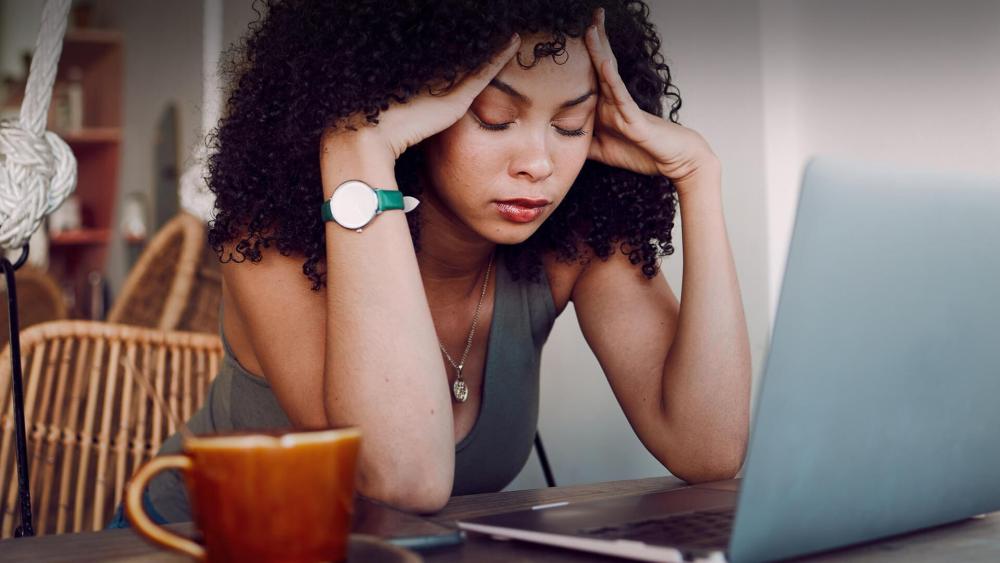
HP laptop problems, such as overheating and constant fan noise, affect performance and make the device uncomfortable to use. Such HP laptop faults develop when dust blocks airflow, the laptop is used on soft surfaces, or the system is under heavy load.
How to Fix Overheating or Loud Fan Problems
- Make sure the laptop is always used on a solid surface rather than beds or sofas
- Use compressed air occasionally to remove dust build-up around the vents
- Reduce workload by closing heavy programs you are not actively using
- Installing the latest system and driver updates can help regulate heat more efficiently
- Taking short breaks during long sessions allows the device to cool naturally
Problem #4: HP Laptop Battery Draining Quickly
Fast battery drain is one of the most noticeable HP laptop problems, especially when it comes to gaming laptops like HP Victus and HP Omen. This often happens due to high screen brightness, background apps, or ongoing battery problems that develop as the battery ages.
How to Fix Battery Draining on an HP Laptop
- Lower the screen brightness and switch on battery saver mode
- Check which apps are using the most power and close them when not needed
- Disconnect external devices that are not required
- Update Windows power settings while troubleshooting battery issues on your HP laptop
- Calibrate the battery occasionally to improve accuracy and performance
Problem #5: HP Laptop Not Charging
When an HP laptop remains plugged in, but the battery percentage doesn’t increase, it can quickly disrupt everyday use. The problem is commonly related to charger issues, power settings, or underlying HP laptop battery issues that require attention.
How to Fix an HP Laptop Not Charging
- Check the charging cable and adapter for visible damage
- Try a different power socket to rule out outlet issues
- Restart the laptop after unplugging the charger for a few minutes
- Review power and battery settings to ensure charging is not limited
- If the issue continues, it may point to deeper battery issues in the HP laptop hardware
Problem #6: HP Laptop Won’t Turn On
When pressing the power button does nothing, it can feel alarming and is considered one of the more serious problems. This situation may be caused by power supply faults, drained batteries, or internal BIOS problems in HP laptop systems.
How to Fix the HP Laptop Not Turning on Problem
- Disconnect the charger and hold the power button for 15 seconds before trying again
- Plug the laptop directly into a wall socket and avoid extension leads
- Remove external devices such as USB drives and try starting the laptop
- Check for charging lights to confirm power is reaching the device
- If the laptop still does not respond, you need professional help
Problem #7: HP Laptop Keeps Restarting
Frequent and unexpected restarts are critical problems that interrupt work and can point to system instability. Such HP laptop errors can occur due to software conflicts, failed updates, or more serious underlying errors that need attention.
How to Fix an HP Laptop That Keeps Restarting
- Check Windows Update history and roll back any recent updates if the issue started suddenly
- Remove newly installed software that may be causing conflicts
- Scan the system for corrupted files using built-in diagnostic tools
- Make sure drivers are up to date, especially graphics and chipset drivers
- Monitor system temperature, as overheating can also trigger restarts
Problem #8: HP Laptop Black Screen while Power Is On
A black screen while the laptop appears to be running is one of the more confusing HP laptop problems users face. A black screen on an HP laptop may look like a critical issue, but it can be fixed with simple fixes most of the time.
Black Screen Fix on an HP Laptop
- Increase screen brightness using the keyboard shortcut to rule out a dim display
- Connect the laptop to an external monitor to check if the display is working
- Restart the device and press the display toggle keys during startup
- Update or reinstall display drivers if the screen remains blank
Problem #9: HP Laptop Blue Screen Error
Seeing a blue screen message appear suddenly is one of the more alarming problems, often causing unexpected shutdowns or restarts. Such HP laptop issues usually occur due to driver conflicts, corrupted system files, or hardware-related faults that need prompt attention.
How to Fix Blue Screen Error on an HP Laptop
- Take note of any error codes shown on the screen before restarting
- Update critical drivers, especially graphics and system drivers
- Remove recently installed software that may be causing instability
- Run built-in Windows diagnostics to check for system file errors
Problem #10: HP Laptop Screen Display Problems
HP laptop screen problems, such as flickering, dim visuals, or distorted colours, can make even simple tasks uncomfortable. These display-related concerns are often associated with driver issues or incorrect display settings.
How to Fix HP Laptop Screen Display Problems
- Adjust screen resolution and refresh rate from display settings
- Update or reinstall graphics drivers to correct visual glitches
- Check the screen for physical damage or loose hinges
- Connect an external monitor to confirm whether the issue is display-specific
- Restart the system after changes to ensure settings apply properly
Problem #11: External Display Not Working with HP Laptop
External display issues usually occur due to incorrect display settings, faulty cables, or general issues related to output detection. If you are using an HP Envy laptop for home and work, or a high-end HP EliteBook business laptop, don’t worry about external display problems, as they are mostly connection-related.
How to Fix External Display Issues on an HP Laptop
- Check the HDMI or DisplayPort cable for damage and reconnect it securely
- Use the display projection shortcut to switch between screen modes
- Restart both the laptop and the external monitor
- Update display drivers to improve monitor compatibility
- Test the monitor with another device to rule out hardware faults
Facing Display or Signal Issues on HP Victus? Read our Guide on how to Fix Flicker, Blackout and No Signal Problems on your HP gaming laptop.
Problem #12: HP Laptop Keyboard Not Working Properly
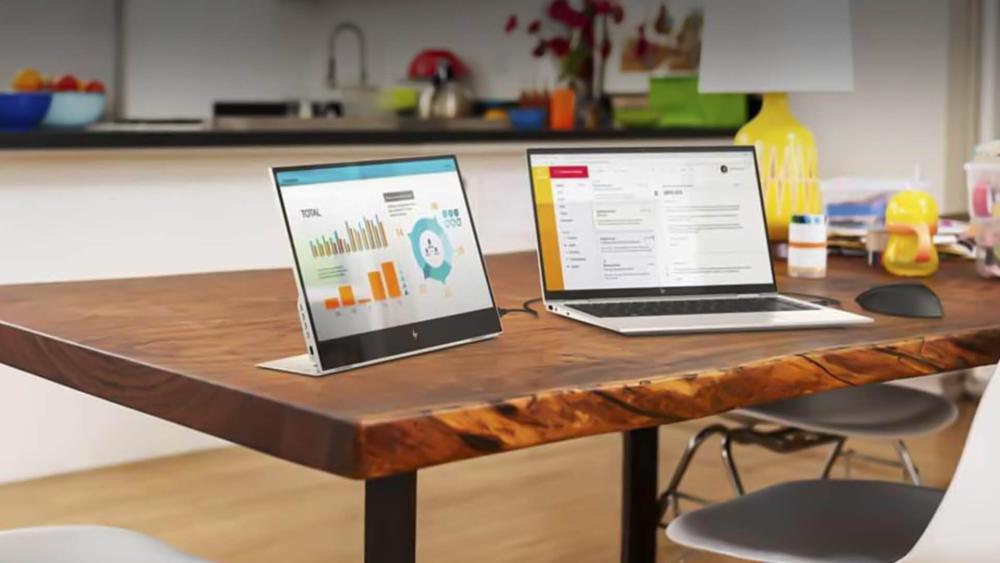
Unresponsive keys or incorrect input are extremely frustrating HP laptop problems. The main reasons include software glitches, accidental setting changes, or common issues that develop with regular use.
How to Fix HP Laptop Keyboard Issues
- Restart the laptop to rule out temporary system errors
- Check keyboard settings to ensure the correct language and layout are selected
- Clean the keyboard gently to remove dust or debris under the keys
- Update or reinstall the keyboard driver from Device Manager
- Test an external keyboard to confirm whether the issue is hardware-related
Problem #13: HP Laptop Touchpad Not Responding
A touchpad that stops responding or behaves unpredictably quickly affects usability. If your HP laptop mouse is not working, it is probably due to disabled settings or outdated drivers. Here is how you can fix it.
How to Fix HP Laptop Touchpad Problems
- Use the keyboard shortcut to make sure the touchpad hasn’t been disabled
- Check touchpad settings and sensitivity options in Windows
- Update or reinstall the touchpad driver from Device Manager
- Disconnect any external mouse and test the touchpad again
- Restart the laptop to apply any changes properly
Problem #14: Wi-Fi Connectivity Issues on HP Laptop
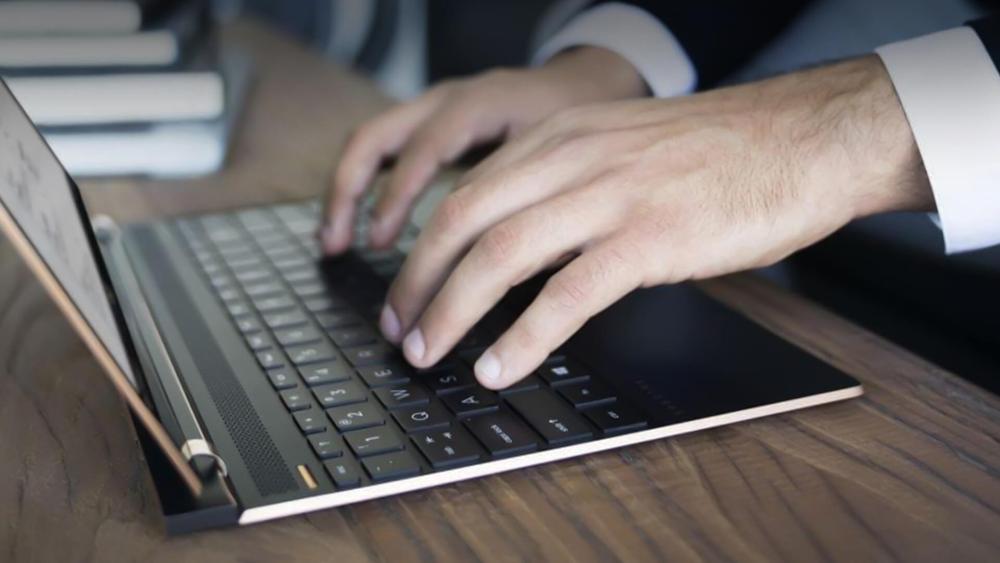
Unstable or missing internet access is one of the most disruptive and common HP laptop problems, especially for work, study, or streaming. These issues usually show up when Wi-Fi settings are misconfigured, drivers are outdated, or the network itself is unstable.
How to Fix Wi-Fi Not Working on an HP laptop
- Turn Wi-Fi off and back on, then reconnect to the network
- Restart the router and the laptop to refresh the connection
- Forget the Wi-Fi network and add it again using the correct password
- Update the wireless network driver from Device Manager
- Run the built-in Windows network troubleshooter for quick detection
Problem #15: HP Laptop Audio Not Working
No sound coming from the speakers or headphones is one of the more annoying problems, particularly during calls or media playback. This is often linked to muted settings, incorrect audio output selection, or system problems caused by driver issues.
How to Fix Audio Problems in an HP Laptop
- Check the volume level and make sure the sound is not muted
- Confirm the correct playback device is selected in sound settings
- Restart the laptop to clear temporary audio glitches
- Update or reinstall the audio driver from Device Manager
- Test with headphones to determine whether the issue is speaker-related
Problem #16: HP Laptop Freezing or Becoming Unresponsive
Among the many HP laptop problems, a frozen screen or unresponsive system is one of the most disruptive, often halting work without warning. This issue typically occurs when the system is overloaded, software becomes unresponsive, or underlying performance errors affect the laptop.
How to Fix a Frozen HP Laptop
- Wait a few moments to see if the system recovers on its own
- Use Task Manager to close any applications that are not responding
- Restart the laptop if the screen remains frozen for an extended time
- Check available storage space, as low memory can cause freezing
- Keep Windows and drivers updated to reduce future system lock-ups
Tips to Keep Your HP Laptop Working Smoothly
Regular care and smart usage habits can help reduce HP laptop problems and keep your device running smoothly for years. These simple tips are easy to follow and make a noticeable difference in day-to-day performance.
- Keep your laptop clean by gently wiping the screen, keyboard, and vents to prevent dust build-up
- Always use your HP laptop on a flat, hard surface to maintain proper airflow and avoid overheating
- Install system and driver updates regularly to reduce software-related HP laptop issues
- Avoid overcharging and unplug the charger once the battery is full to minimise battery problems on your HP laptop
- Use a protective sleeve or bag when travelling to prevent physical damage
- Shut down or restart your laptop occasionally instead of leaving it in sleep mode for long periods
- Remove unused applications to free up storage and reduce background load
Following these steps helps prevent common wear and tear and ensures your HP laptop stays reliable, efficient, and in excellent condition over time. Moreover, if you are buying used machines, make sure you opt for refurbished HP laptops with a warranty from a reputable retailer like box.co.uk.
Final Words: When to Contact HP Support or a Local Repair Shop
While many HP laptop problems can be resolved at home using simple checks and adjustments, some situations require professional attention. If your laptop continues to show persistent errors, fails to power on, or experiences repeated hardware-related faults, it may be time to seek expert help.
HP hard drive failure, recurring startup faults, or internal component damage should not be ignored, as they can worsen over time. Reaching out to HP Support or a trusted local repair shop ensures your device is properly diagnosed and repaired, helping extend its lifespan and maintain reliable performance.
Frequently Asked Questions
Why does my HP laptop become slow over time?
HP laptops can slow down due to too many startup programs, low storage space, or outdated software. Regular maintenance and updates help improve overall performance.
How do I fix a black screen on my HP laptop?
A black screen can often be resolved by adjusting brightness settings, restarting the laptop, or updating display drivers. Connecting to an external monitor can also help identify the cause.
What should I do if my HP laptop battery drains too fast?
Lowering screen brightness, closing unused apps, and enabling battery saver mode can help improve battery life. If the issue persists, the battery may need to be checked.
Why is my HP laptop overheating and making loud fan noise?
Overheating usually happens due to blocked vents, dust build-up, or heavy usage. Cleaning the vents and allowing better airflow can reduce heat and fan noise.
When should I contact HP Support for laptop issues?
If your laptop fails to turn on, keeps restarting, or shows repeated errors even after troubleshooting, contacting HP Support or a professional repair service is recommended.
You can pay with:
*PayPal Credit Representative Example: Assumed credit limit £1,200, Representative 23.9% APR (variable). Purchase rate 23.9% p.a (variable).Terms & Conditions apply.


PayPal Credit and PayPal Pay in 3 are trading names of PayPal UK Ltd, 5 Fleet Place, London, United Kingdom, EC4M 7RD. Terms and conditions apply. Credit subject to status, UK residents only, Five Tech LTD acts as a broker and offers finance from a restricted range of finance providers. PayPal Pay in 3 is not regulated by the Financial Conduct Authority. Pay in 3 eligibility is subject to status and approval. 18+. UK residents only. Pay in 3 is a form of credit. Check if affordable and how you will repay. May make other borrowing more difficult or expensive. See product terms for more details.
Copyright © 1996-2026 Fivetech LTD | Terms and Conditions
box.co.uk & Box are trading names of Five Tech Limited. Registered office: Box LTD, Unit 10 Woodford Trading Estate, Woodford Green IG8 8HF