


 Menu
MenuMenu


Get Sales Advice from Mon - Fri 9am - 5:00pm:
020 3337 8950LAST UPDATED: December 08, 2025
Cooler Master Fan LEDs Not Working? Fix RGB Sync, Headers, and Power Issues
If your Cooler Master RGB fans suddenly stop glowing, glitch, or only light up in random colours, you’re not alone. A Cooler Master fan RGB fix is usually straightforward once you know where the issue sits. Most problems come down to header mix-ups, power not reaching the LEDs, the wrong controller setup, or software refusing to sync. This guide breaks down the simplest checks first, then walks you through ARGB vs RGB differences, motherboard settings, and common daisy-chain faults so you can get your lighting back to full shine without tearing your whole build apart. So, without further ado, let’s get to it.
Why Your Cooler Master Fan LEDs Stop Working

Before diving into fixes, here are the most common reasons your Cooler Master RGB lighting stops working. These points help you identify the likely cause right away, making your Cooler Master fan RGB fix much easier:
Wrong header type used
Plugging a 3-pin 5V ARGB fan into a 4-pin 12V RGB header is one of the biggest reasons LEDs fail.
Misaligned connectors
Arrow indicators not lining up or a shifted pin can stop lighting instantly.
Fans receiving motor power but not LED power
The fan spins, but the lighting cable isn’t powered or connected to the right hub/header.
Daisy-chain breaks
One faulty fan or a bad link in the chain can kill RGB for every fan after it.
Faulty or overloaded ARGB/RGB hub
Splitters and hubs can fail or be overloaded, especially with multi-fan setups.
Incorrect RGB software sync
MasterPlus+, Aura Sync, Mystic Light, RGB Fusion, or Polychrome may not detect the controller.
Damaged LEDs or burnt connectors
Overvoltage, incorrect headers, or bent pins can physically damage the lighting circuit.
These are the exact issues this guide helps you diagnose and fix so your lighting looks as good as your airflow.
Understand Cooler Master’s RGB Types (ARGB vs RGB) Before You Troubleshoot
Before you try any Cooler Master fan RGB fix, you need to know which type of lighting your fans actually use. Mixing up ARGB and RGB is one of the most common causes of dead LEDs, burnt connectors, or fans that simply refuse to light up.
3-Pin 5V ARGB – Addressable Lighting
- Uses a 3-pin, 5V connector labelled "ARGB", "D-G", "5V-D", or "JRAINBOW"
- Allows individual LED control for smooth effects, gradients, and per-LED animations
- Works with Cooler Master ARGB hubs and motherboard software
- Very sensitive to incorrect header connections, which is why many lighting issues occur here
4-Pin 12V RGB – Fixed Colour Channels
- Uses a 4-pin, 12V connector labelled "RGB", "12V G R B", or "JRGB"
- All LEDs show the same colour at the same time
- Older but still common in budget fans and cases
- FAR less tolerant of incorrect plugs but also easier to route
Why Mixing the Wrong Headers Causes LED Failure
- 5V ARGB into 12V RGB = instant burnout risk for Cooler Master addressable fans
- 12V RGB into 5V ARGB = no light at all, but usually does not cause damage
- Misaligned arrows cause short circuits or dead LED strips
- Some motherboards attempt to shut down the header to prevent damage, causing complete no-light behaviour
Understanding this difference is essential because the wrong connection is one of the fastest ways to break lighting on Cooler Master RGB fans.
Step 1 – Check Your RGB Header Connection
If your lighting isn’t turning on at all, this is the first place to check. Most Cooler Master fan RGB fix cases come down to a wrong header, wrong orientation, or a chain that isn’t connected where you think it is.
Identify the Correct Header on the Motherboard
Make sure you’re plugging into the right lighting header. Motherboards often have multiple, but they’re not the same:
3-pin ARGB (5V) headers are labelled: "5V", "D-G", "ADDR_HEADER", "ARGB", "JRAINBOW"
The connector has one missing pin, so it only fits one way.
4-pin RGB (12V) headers are labelled: "12V G R B", "RGB_LED", "JRGB"
No missing pin - but easier to plug in incorrectly.
Key points when checking the header:
- The arrow on the fan cable must point to "5V" or "12V" depending on the type
- If using a Cooler Master ARGB splitter or hub, make sure the hub is connected to the correct header
- If your fans came with a Cooler Master ARGB controller, plug the fans into the controller first and then connect the controller to the motherboard
- Some cases route the ARGB header through the case hub, meaning you only need to connect one cable to the motherboard
The Most Common RGB Header Mistakes
These are the problems that cause most RGB failures:
- Plugging 3-pin ARGB into a 4-pin RGB header: Leads to dead LEDs and possible connector damage.
- Misaligned arrows: Even a one-pin offset interrupts the lighting signal.
- Daisy-chain connected backwards: ARGB has a specific input/output direction. Reversing the chain stops lighting for all fans.
- Using both the motherboard header and the controller at the same time: This can conflict and stop lighting completely.
Double-checking these points is one of the fastest ways to revive your lighting before moving into deeper troubleshooting. If your fan is also acting weird along with your lights, you might also want to check out our Cooler Master Fan Keeps Stopping guide for step by step instructions on fixing this issue.
Step 2 – Ensure Your RGB Fans Are Receiving Power

A surprising number of lighting problems happen because the fan is getting motor power, but the LEDs aren’t getting any power at all. Before moving deeper into your Cooler Master fan RGB fix, make sure every cable is actually supplying what it should.
Difference Between Power Cable vs Lighting Cable
Cooler Master fans have separate cables for spinning and for lighting. Mixing these up is one of the easiest ways to think something is broken when it’s not.
- SATA Power: Some ARGB hubs or controllers need SATA power. Without this, the fans spin but lighting stays off.
- PWM Fan Header (CPU_FAN / SYS_FAN): This cable powers the fan motor. If only this is connected, the fan spins with zero RGB.
- ARGB/RGB Cable (Lighting): This is the lighting signal. Without it, the fan spins but doesn’t light up.
Many gamers assume spinning fans mean everything is powered, but RGB lighting always requires its own source.
Signs Your Fan Has Power but LEDs Don’t
Here’s how to tell when your fan motor is fine, but your lighting isn’t getting the signal or voltage it needs:
- Fans spin normally but stay completely dark: Classic sign of missing ARGB/RGB connection.
- Lighting flickers or cuts out randomly: Often caused by unstable SATA power or a loose lighting connector.
- Lighting resets colours on every reboot: Usually down to a hub or controller not getting stable power.
- Only the first fan in the chain lights up: The others may not be receiving proper power or signal through the daisy-chain.
If any of these symptoms match what you’re seeing, it’s highly likely your lighting cable or hub power is the culprit.
Step 3 – Fix RGB Sync Problems (Motherboard + Software)
If your fans light up but won’t change colours, won’t sync with your other components, or behave inconsistently, this is where your Cooler Master fan RGB fix continues. In most cases, the LEDs work, but the software or controller isn’t talking to them properly.
Syncing with Cooler Master MasterPlus+
Cooler Master’s MasterPlus+ software is required if you’re using a Cooler Master ARGB controller or a fan series that relies on CM’s internal firmware. If this is your setup:
- Make sure the controller is recognised in the software
- Check for firmware updates, as outdated firmware causes colour desync and missing effects
- Only one lighting platform should control your fans at a time
- Restart your PC after installing or updating MasterPlus+
If the controller isn’t detected, try a different USB header or cable and check that the hub has SATA power connected.
Syncing with Motherboard Ecosystems
If your fans are plugged directly into your motherboard rather than a Cooler Master controller, you’ll need to use your motherboard’s software instead:
- ASUS Aura Sync (Armoury Crate)
- MSI Mystic Light
- Gigabyte RGB Fusion
- ASRock Polychrome
Tips to avoid conflicts:
- Disable other RGB tools so only one program controls lighting
- Restart after changing software
- Update your motherboard BIOS and chipset drivers
- Make sure your ARGB header is enabled in BIOS if your board has a toggle
Lighting Not Changing Colour? Try This
If your fans light up but simply won’t change colour or sync:
- Reset the lighting profile to a static colour
- Switch effects to something simple like "Static" or "Colour Cycle" for testing
- Test one fan at a time to see if a single fan is blocking the chain
- Check braid tension on daisy-chain connectors
- Disable any conflicting third-party RGB apps
Many colour-sync problems are caused by a single "bad" fan or a hub that isn’t receiving a clean control signal.
Step 4 – Test Your RGB Setup (Single Fan Method)
When your RGB chain refuses to behave, isolating one fan at a time is one of the easiest and most reliable ways to carry out a Cooler Master fan RGB fix. This method helps you find whether the issue is a bad fan, a bad hub, or a broken daisy-chain connection.
Why Testing One Fan at a Time Works
Testing a single fan cuts out all the extra variables. Splitters, hubs, long chains, and extra cables can hide the real problem. Connecting one fan directly to the motherboard ARGB header lets you confirm:
- The header is working
- The fan’s LED ring is functional
- The RGB signal is stable
- No extra accessories are causing interference
If one fan lights up directly, but the full chain does not, the problem isn’t your motherboard.
Eliminate Splitter, Hub, or Daisy-Chain Problems
A bad accessory can break lighting for every fan connected to it. Look for:
- Faulty ARGB splitters: Cheaper or older splitters fail often and can kill the whole chain.
- Damaged or overloaded ARGB hubs: Too many fans on one output can cause flicker or total LED failure.
- Bad daisy-chain connectors: One bad link can cut the signal for everything downstream.
Swap in known working cables or connect fans directly to the board to confirm.
When a Single Fan Lights Up but the Chain Doesn’t
If your test fan lights up but the rest of your fans don’t:
- The RGB signal is dropping somewhere down the chain
- Fans may be in the wrong order for addressable lighting
- A faulty fan is blocking the signal
- The ARGB header on your hub may have a dead output
Move fans around in the chain, test different outputs on the hub, and check whether the problem follows a specific fan or stays with a specific port.
Step 5 – Physical Damage, Loose Pins, or Burnt LEDs
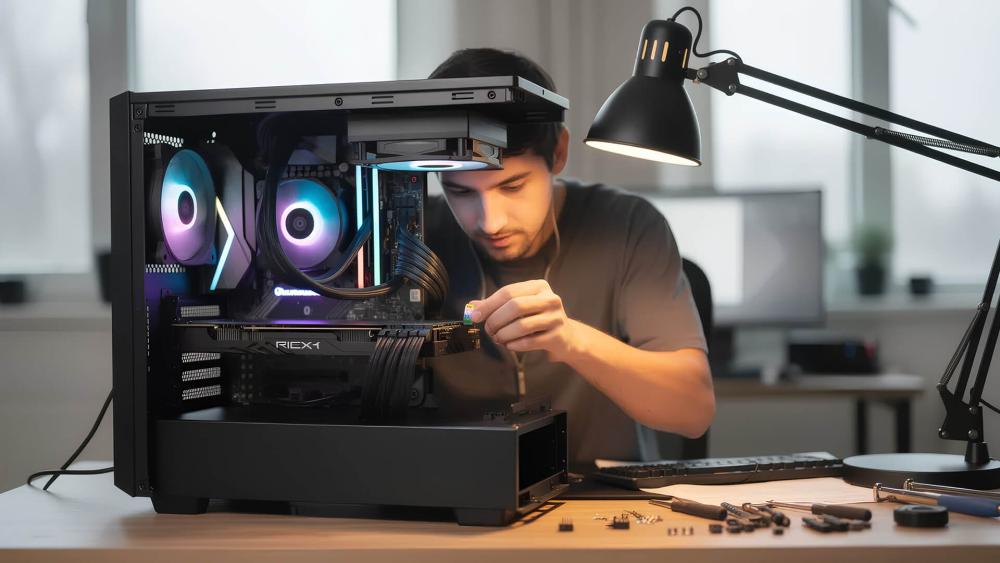
If your RGB still refuses to work after all previous checks, it’s time to inspect the hardware itself. Physical damage is less common but can completely stop lighting from working, even if the fan still spins. This step is essential for a thorough Cooler Master fan RGB fix.
How to Inspect ARGB Connectors
Start by carefully examining the ARGB connectors on both the fan and the hub or motherboard:
- Look for pins that sit higher or lower than the others
- Check for wobbly connectors that don’t lock firmly
- Ensure the arrow indicator hasn’t rubbed off or rotated
- Inspect the cable housing. Stretched or twisted cables can break internal wires
A loose ARGB plug can easily interrupt the digital signal needed for addressable lighting.
Check for Burn Marks, Melted Plastic, or Bent Pins
Misplugging a 5V ARGB connector into a 12V RGB header is the fastest way to cause physical damage. Look for:
- Blackened or darkened contacts
- Slight melting around the connector housing
- Bent, broken, or missing pins
- A burnt smell from the cable or hub
Even slight damage can prevent lighting signals from reaching the LEDs.
When One Fan’s Fault Breaks the Entire Chain
With daisy-chained ARGB setups, one damaged fan can shut down the whole chain:
- A fan with a burnt LED can kill the signal forwarding
- A broken "OUT" port on one fan stops all fans after it
- Damaged cables may pass power but not the data signal
To confirm this, place the suspected fan first in the chain. If nothing lights up, that fan is likely the culprit.
Step 6 – Check Case Compatibility and Controller Setup
Many Cooler Master fans route their RGB signal through the PC case or through an included controller. If the routing isn’t correct, or the case uses a non-standard hub, you’ll often see lighting issues even when the fans themselves are fine. This step helps you complete your Cooler Master fan RGB fix by confirming your case and controller setup isn’t working against you.
Cooler Master Cases With Built-In ARGB Hubs
Cooler Master cases like the TD500, HAF, and MasterBox series often include an ARGB hub pre-installed. These hubs simplify cable management but can create confusion if you’re not sure how your lighting is routed.
Key things to check:
- The case’s ARGB hub must be connected to SATA power
- The hub’s signal cable must connect to a 5V ARGB header, not a 12V RGB header
- Some cases pre-install fans to the hub internally. Unplugging them to troubleshoot is highly recommended
- If your case includes a dedicated mode button, make sure it’s not overriding motherboard sync
- Only one RGB path should be used: motherboard OR controller, not both at once
If your fans light up using the case button but not through software, it means the hub is in standalone mode, and you need to switch it to MB (motherboard) mode.
Using Third-Party Controllers With Cooler Master Fans
Not all RGB controllers work with Cooler Master fans, especially if they use a proprietary wiring layout or mixed-voltage headers.
Compatibility rules:
- ONLY use 5V ARGB controllers for ARGB fans
- Don’t mix 12V RGB controllers with ARGB devices
- Some cheap controllers output unstable signal timing, causing flicker or desync
- If the controller uses a custom connector layout, you may need an adapter
- If lighting works on the controller but not the motherboard, the controller may not properly pass through the ARGB signal
When in doubt, Cooler Master’s own ARGB controller or the motherboard’s native header is the safest option for stable lighting control.
Step 7 – When Your Cooler Master LEDs Still Don’t Work
If you’ve checked headers, tested single fans, inspected cables, and verified your case or controller setup, and the RGB is still refusing to cooperate, this final stage helps you complete your Cooler Master fan RGB fix. At this point, you’re looking to rule out system-level conflicts or identify dead hardware.
Reset Everything (BIOS, Controller, Software)
If RGB lighting is behaving unpredictably or not showing up in software, a reset often clears conflicts:
- Reset BIOS RGB settings to default
- Reinstall MasterPlus+ or your motherboard’s RGB software
- Power-cycle your controller by unplugging SATA power for a minute
- Remove all third-party RGB apps to avoid signal conflicts
- Update your BIOS and chipset drivers
Resets fix issues where lighting works physically but the software refuses to control it.
Swap Ports to Identify a Dead Header
Motherboard and controller headers can fail, especially after accidental overvoltage on ARGB ports.
To test:
- Move the fan chain to another 5V ARGB header
- Reverse the order of your fans
- Try a different ARGB port on your hub or controller
- Connect only one fan to each header to confirm signal output
If one header works and another doesn’t, you’ve found the problem.
When You Need Replacement Parts
Sometimes a full fix requires swapping a component that has failed internally. Common parts that give out include:
- ARGB hubs (especially ones included in cases)
- Fan splitters with loose joints or intermittent signal
- Cooler Master ARGB controllers with outdated firmware or dead ports
- Daisy-chain ARGB cables that have bent connectors
If replacing one of these parts instantly fixes your lighting, you’ve located the failed component.
This is also a good time to consider upgrading to better higher-quality cooling components, or pairing your lighting setup with a Reliable Power Supply to avoid unstable RGB behaviour in the future. If you are considering an upgrade, our Cooler Master Fan Series Compared guide might be a great starting point.
Conclusion
Fixing Cooler Master RGB issues doesn’t need to be stressful. Once you understand the difference between 3-pin ARGB and 4-pin RGB, check your headers, test single fans, and confirm your controller or case hub is wired correctly, most lighting problems become straightforward to sort out. With these steps, you should be able to complete a reliable Cooler Master fan RGB fix without replacing your fans or tearing down your PC unnecessarily. And if a splitter, hub, or header turns out to be the culprit, swapping to quality parts and ensuring stable power from a reliable power supply helps keep your lighting consistent long-term. If you are looking to upgrade your parts, you can find quality choices from RGB-friendly cases to the best Cooler Master fan options at Box.
FAQs
Why does only one fan light up?
This usually means the RGB chain is broken. A faulty daisy-chain cable, a dead fan output, or one damaged fan can block the lighting signal for every fan after it. Testing a single fan directly is the quickest way to confirm this.
Why do my fans spin but don’t glow?
The PWM cable powers the fan motor, but the ARGB/RGB cable powers the LEDs. If the fan spins with no lighting, your lighting connector, hub, or motherboard header isn’t supplying the signal.
Why does my RGB flicker?
Flickering often comes from unstable SATA power, an overloaded ARGB hub, or a loose lighting cable. Poor-quality splitters can also cause signal drop.
Can 12V RGB damage a 5V ARGB fan?
Yes. Plugging a 5V ARGB fan into a 12V RGB header can burn the LEDs instantly and may damage the connector. Always match 3-pin ARGB with 5V headers.
Should all arrows on connectors line up?
Yes. Cooler Master’s ARGB connectors must align arrow-to-5V or arrow-to-data. Misalignment is one of the most common causes of LED failure.
You can pay with:
*PayPal Credit Representative Example: Assumed credit limit £1,200, Representative 23.9% APR (variable). Purchase rate 23.9% p.a (variable).Terms & Conditions apply.


PayPal Credit and PayPal Pay in 3 are trading names of PayPal UK Ltd, 5 Fleet Place, London, United Kingdom, EC4M 7RD. Terms and conditions apply. Credit subject to status, UK residents only, Five Tech LTD acts as a broker and offers finance from a restricted range of finance providers. PayPal Pay in 3 is not regulated by the Financial Conduct Authority. Pay in 3 eligibility is subject to status and approval. 18+. UK residents only. Pay in 3 is a form of credit. Check if affordable and how you will repay. May make other borrowing more difficult or expensive. See product terms for more details.
Copyright © 1996-2026 Fivetech LTD | Terms and Conditions
box.co.uk & Box are trading names of Five Tech Limited. Registered office: Box LTD, Unit 10 Woodford Trading Estate, Woodford Green IG8 8HF