


 Menu
MenuMenu


Get Sales Advice from Mon - Fri 9am - 5:00pm:
020 3337 8950POSTED: July 27, 2026
How to Check What Graphics Card You Have: 7 Easy Methods
Knowing how to check graphics card details is useful for gaming, upgrades, driver updates, video editing, troubleshooting and checking whether your PC meets a game’s system requirements. Your graphics card, also called a GPU or video card, controls how your computer handles visuals, games, external monitors, 3D work and graphics-heavy apps.
The good news is that you do not need to open your PC to find basic graphic card information. Windows 11 and Windows 10 include several built-in tools that can show your GPU model number, driver details, video memory, display adapter and whether you are using integrated graphics or a dedicated graphics card.
This guide explains how to check graphics card details using seven easy methods, including Task Manager, Device Manager, DirectX Diagnostic Tool, Windows Settings, System Information, PowerShell and trusted GPU checker software. It also explains how to check laptop graphics card details, how to tell whether your GPU is NVIDIA or AMD, and what to do if your PC has more than one GPU.
Quick Answer: How to Check What Graphics Card You Have
The quickest way to check what graphics card you have is to use Task Manager. Press Ctrl + Shift + Esc, open the Performance tab and select GPU. Windows should show the GPU name, usage, driver information, and memory details.
If you want a second quick method, use Device Manager. Right-click the Start button, select Device Manager, expand Display adapters, and look for your GPU name.
Here is the easiest method by need:
| What You Want to Check | Best Method | Why It Helps |
|---|---|---|
| Quick GPU name | Task Manager | Fastest method for most users |
| Display adapter list | Device Manager | Shows installed graphics adapters |
| DirectX and driver details | dxdiag | Useful for games and support checks |
| Monitor-linked GPU | Advanced display settings | Shows which GPU is linked to a display |
| Full system graphics info | System Information | Good for detailed PC specs |
| Command-based GPU info | PowerShell | Useful for advanced users |
| Temperatures and clocks | GPU checker software | Best for monitoring performance |
If you are asking, “how to check what graphics card I have?”, start with Task Manager or Device Manager. They are built into Windows and easy to use.
Why You Should Check Your Graphics Card
Your GPU affects much more than gaming. It can impact video editing, 3D design, streaming, AI tools, multiple monitor setups, high refresh rate displays and overall visual performance.
Checking your GPU helps you understand whether your PC can run a game, whether you need a driver update, whether your laptop has integrated or dedicated graphics, and whether an upgrade is worth considering.
You may need to check your GPU if:
| Situation | Why GPU Info Matters |
|---|---|
| Installing a new game | Confirms whether your PC meets the graphics requirements |
| Buying a monitor | Helps match resolution and refresh rate to GPU power |
| Updating drivers | Shows whether you need NVIDIA, AMD or Intel drivers |
| Troubleshooting crashes | Helps identify driver or hardware problems |
| Upgrading your PC | Shows whether the GPU is the weak point |
| Checking a laptop | Reveals whether it has integrated or dedicated graphics |
| Selling a PC | Lets you list accurate video card info |
If your graphics card is too old for the games or software you use, read our guide to choose the right graphics card.
Method 1: Check GPU on Windows With Task Manager
Task Manager is one of the easiest ways to check GPU on Windows. It works well in Windows 11 and Windows 10 and gives you a quick view of GPU usage, memory and model name.
How to Check GPU in Task Manager
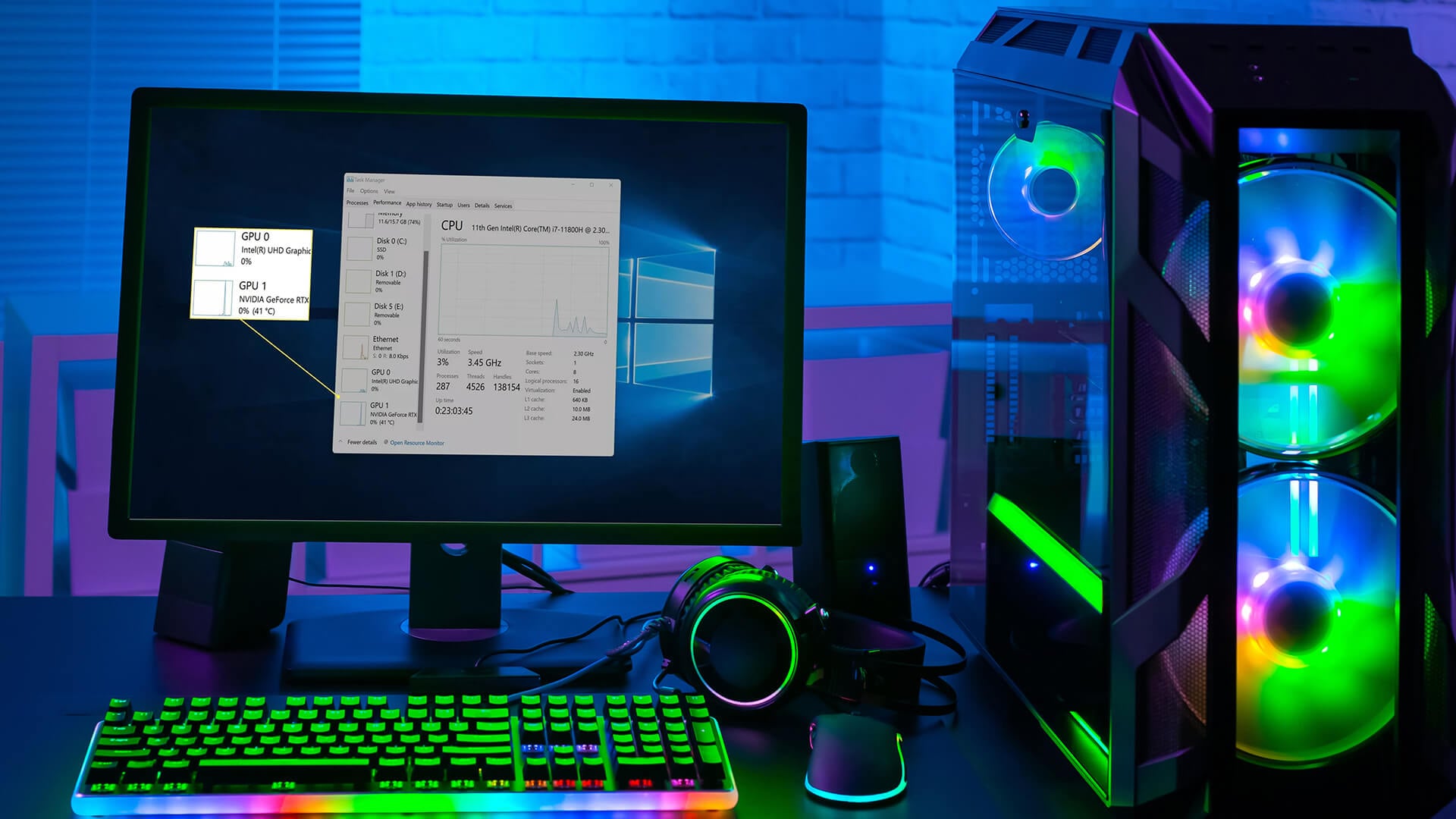
Press Ctrl + Shift + Esc to open Task Manager. If you see the compact view, select More details. Go to the Performance tab and select GPU from the left side.
You should see the GPU name in the top corner. You may also see dedicated GPU memory, shared GPU memory, driver version and real-time usage.
This method is useful because it shows more than just the name. It also shows whether the GPU is currently being used.
What If You See GPU 0 and GPU 1?
Some laptops and desktops have more than one graphics processor. For example, you may see GPU 0 as Intel, AMD Radeon integrated graphics or another low-power graphics chip, and GPU 1 as an NVIDIA or AMD dedicated graphics card.
This is normal. Many laptops use integrated graphics for light tasks and a dedicated graphics card for gaming or creative workloads. The dedicated GPU may show low usage when you are only browsing or typing.
Method 2: Check Graphics Card in Device Manager
Device Manager is another simple graphics card checker built into Windows. It is useful when you want to see which display adapters are installed.
How to Use Device Manager
Right-click the Start button and choose Device Manager. Expand Display adapters. Windows will show the installed graphics hardware.
You may see names such as Intel UHD Graphics, Intel Iris Xe Graphics, AMD Radeon Graphics, NVIDIA GeForce RTX, NVIDIA GeForce GTX or AMD Radeon RX.
Double-click the GPU name to see driver details, device status and other information.
When Device Manager Is Useful
Device Manager is helpful when you want to check whether Windows recognises your GPU. If your dedicated graphics card is missing, shows a warning icon or appears as Microsoft Basic Display Adapter, the driver may be missing or not installed correctly.
Device Manager can also help with driver updates, rollbacks and troubleshooting display issues.
Method 3: Use DirectX Diagnostic Tool
The DirectX Diagnostic Tool, also called dxdiag, is useful for checking video card info, DirectX details and display driver information. It is often used when checking game requirements or sending system details to support teams.
How to Open dxdiag
Press Windows key + R, type dxdiag, and press Enter. Wait for the tool to load, then open the Display tab.
Here you can check the graphics card name, manufacturer, display memory, driver version and DirectX feature support.
Why dxdiag Is Useful for Gamers
Games often rely on DirectX, so dxdiag is a practical tool for gaming troubleshooting. If a game asks for your GPU, VRAM or DirectX version, this tool can help you find the information quickly.
If you have more than one display adapter, dxdiag may show multiple display tabs. Check each one if your laptop has both integrated graphics and a dedicated graphics card.
Method 4: Check Graphics Card Through Windows Settings
Windows Settings can also show the graphics card linked to your display. This is useful if you want to know which GPU is driving your laptop screen or external monitor.
How to Check Advanced Display Settings
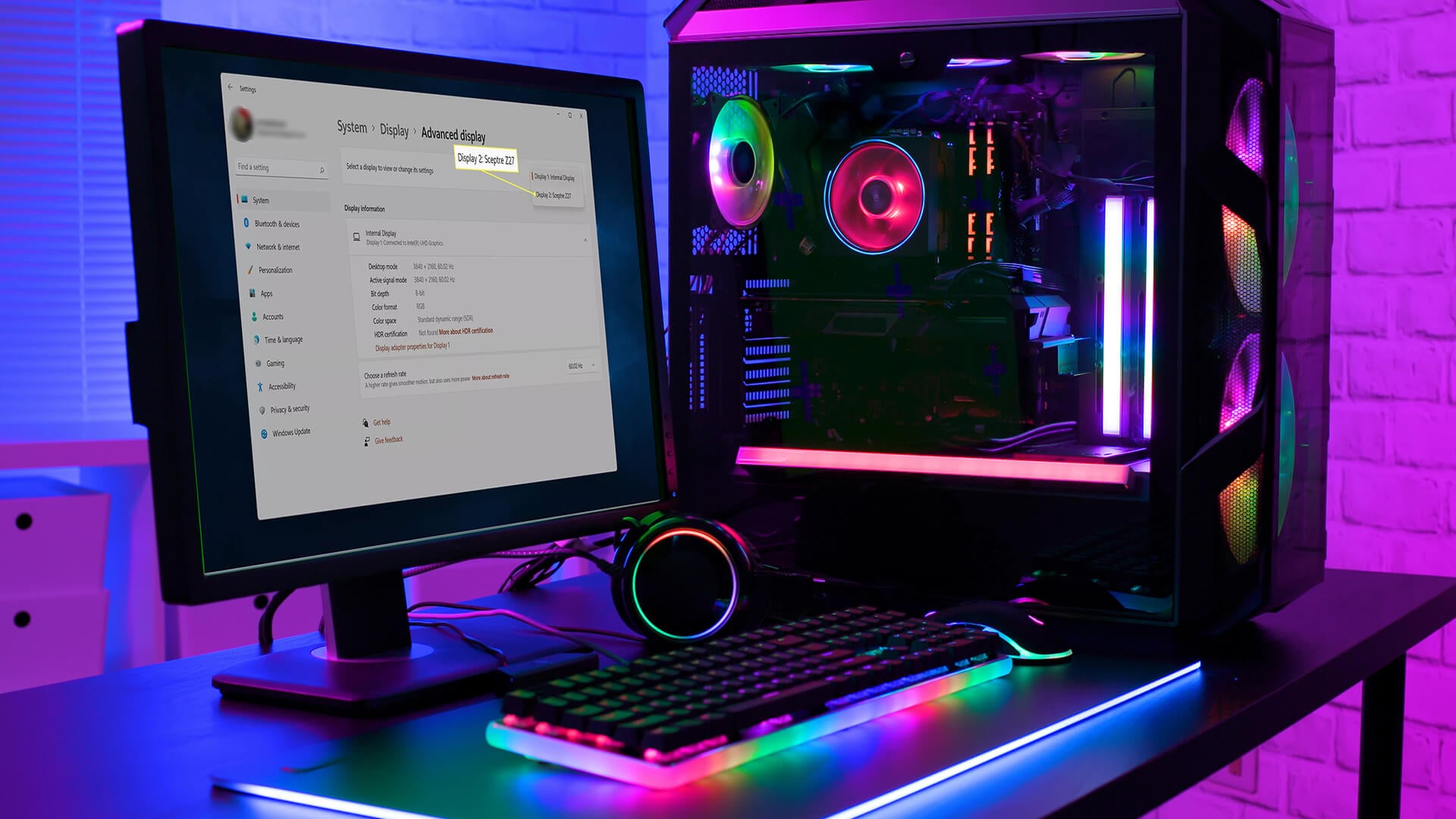
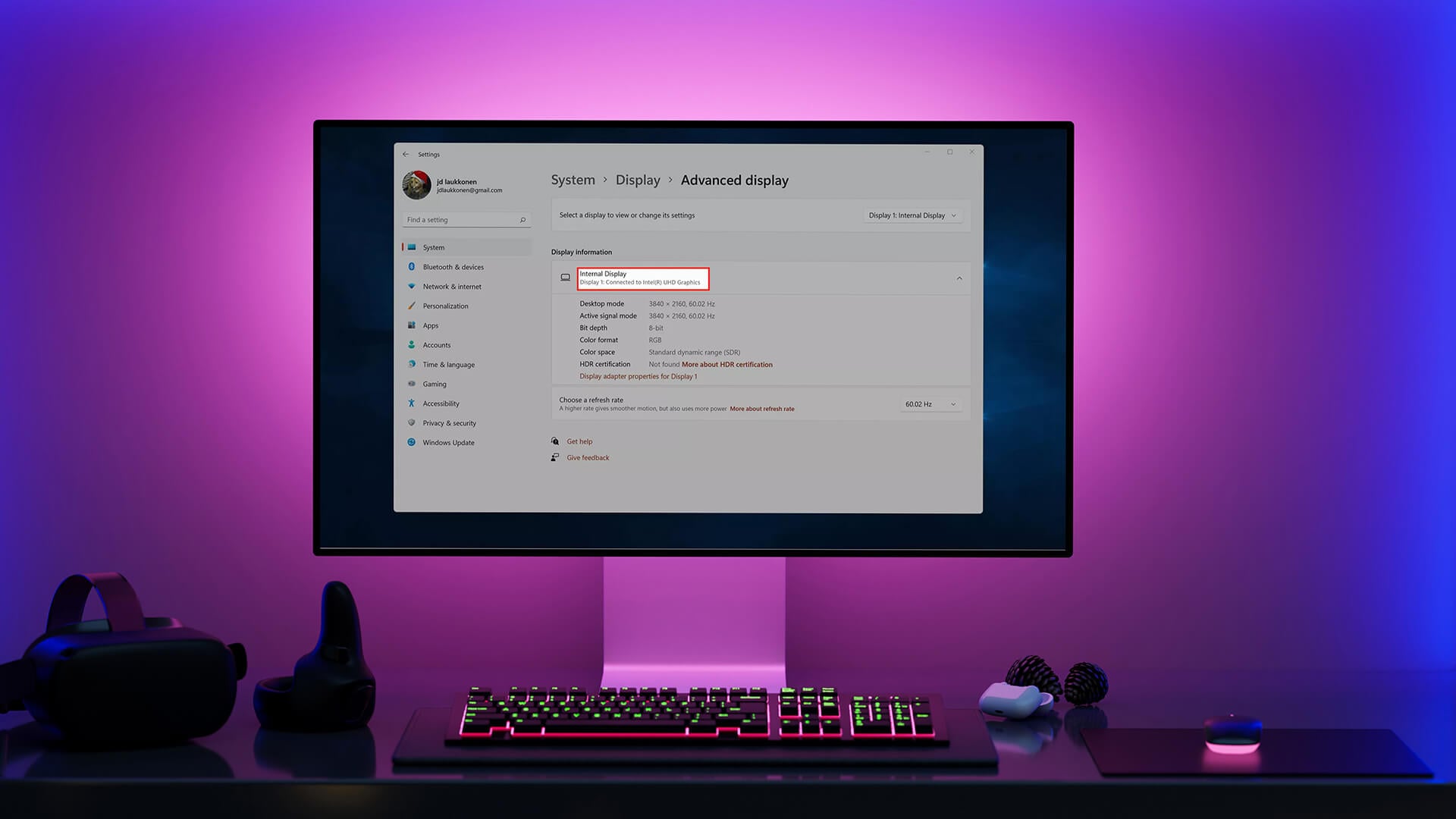
Open Settings, go to System, then choose Display. Scroll down and select Advanced display.
Under display information, Windows may show the display name, refresh rate and the graphics adapter connected to that screen.
This method is especially useful if you use more than one monitor or want to confirm which GPU is connected to a specific display.
Why This Helps With External Monitors
If you connect an external monitor to a laptop, the display may be controlled by the integrated GPU or the dedicated GPU depending on the laptop design and port routing. Advanced display settings can help you understand what Windows is using.
This is useful when troubleshooting performance, refresh rate or display output issues.
Method 5: Use System Information
System Information gives a deeper view of your computer’s hardware. It is a good option if you want more detailed gpu info alongside other PC specifications.
How to Open System Information
Press Windows key + R, type msinfo32, and press Enter. In the left menu, expand Components, then select Display.
You should see details such as adapter name, adapter type, driver version, resolution and memory information.
When System Information Is Better
System Information is useful when you need a more complete PC report. It is not as quick as Task Manager, but it gives more detail in one place.
This method is helpful if you are checking a second-hand PC, writing down specs before an upgrade or confirming hardware before installing demanding software.
For more detail on how parts work together, read our guide to understand internal PC components.
Method 6: Check Graphics Card With PowerShell
PowerShell is useful if you prefer commands or need quick hardware information without clicking through menus. It is a good option for advanced users, IT teams and anyone checking multiple systems.
PowerShell GPU Command
Right-click Start and open Terminal or Windows PowerShell. Then enter:
Get-CimInstance Win32_VideoController | Select-Object Name, AdapterRAM, DriverVersion
This command can show the GPU name, adapter memory and driver version.
When PowerShell Is Useful
PowerShell is helpful when you want a quick text-based answer. It can also be used when documenting PC specs or checking hardware remotely in managed environments.
However, memory values may not always display in a simple user-friendly format. For most home users, Task Manager, Device Manager or dxdiag are easier.
Method 7: Use Trusted GPU Checker Software
A gpu checker software tool can show more detailed information than Windows, including GPU temperature, clock speed, VRAM usage, driver version, fan speed and real-time load.
Trusted third-party tools can be useful for gamers, PC builders and performance testers. They can help you check whether your GPU is overheating, boosting correctly or being used during games.
What About GPU Checker Online Tools?
A gpu checker online tool may show limited graphics information through your browser, but it is not always as reliable as Windows tools or trusted software. Browser-based tools may detect a graphics renderer, but they may not show the full GPU model, VRAM or driver details accurately.
Use online GPU checkers only as a quick reference. For accurate information, use Windows tools or trusted desktop software.
NVIDIA GPU Checker and AMD Software
If you have an NVIDIA card, NVIDIA’s own software can show driver status, game optimisation options and GPU details. If you have an AMD card, AMD Software: Adrenalin Edition can show GPU information, driver details and performance settings.
These tools are especially useful if you want to update drivers or tune performance.
If you are checking an RTX 5060 system, you may also want to read how to optimise RTX 5060 performance.
How to Check Laptop Graphics Card
To check laptop graphics card details, use the same Windows methods: Task Manager, Device Manager, dxdiag, Settings or System Information. The main difference is that many laptops have both integrated graphics and a dedicated graphics card.
Integrated graphics are built into the processor and are usually used for lighter tasks to save battery. A dedicated graphics card is separate and more powerful, making it better for gaming, editing and 3D work.
How to Tell Which GPU Your Laptop Uses
Open Task Manager and check the Performance tab. If you see two GPUs, the laptop has more than one graphics processor. You can also open Windows graphics settings and choose which GPU individual apps use.
For example, a laptop may use integrated graphics for web browsing and switch to NVIDIA or AMD dedicated graphics when launching a game.
If your laptop only shows Intel UHD, Intel Iris Xe or AMD Radeon Graphics, it may not have a separate dedicated graphics card.
How to Check Graphics Card Memory in Windows 11
If you want to know how to check graphics card memory Windows 11, use Task Manager, dxdiag or Advanced display settings.
In Task Manager, open the Performance tab and select GPU. Look for dedicated GPU memory and shared GPU memory. Dedicated memory is usually the VRAM on the graphics card. Shared memory is system RAM that Windows can use for graphics tasks when needed.
In dxdiag, open the Display tab and look for display memory or VRAM information. In Advanced display settings, open display adapter properties to see adapter memory details.
VRAM matters for gaming, high-resolution textures, 1440p, 4K, video editing and creative workloads. If modern games warn that you are running out of video memory, your GPU may be outdated for your settings.
How to Check What Graphics Card I Have on Windows 11
To check how to check what graphics card I have Windows 11, use this simple route:
- Press Ctrl + Shift + Esc.
- Open the Performance tab.
- Select GPU.
- Read the GPU name at the top.
- Check dedicated GPU memory and driver details if needed.
For a second method, open Settings > System > Display > Advanced display and check the adapter linked to your screen.
Windows 11 also lets you assign graphics preference for apps. This is useful if your laptop has both integrated and dedicated graphics and you want a game to use the high-performance GPU.
How to Check What Graphics Card I Have on Windows 10
To check how to check what graphics card I have Windows 10, use Task Manager or Device Manager.
Press Ctrl + Shift + Esc, open Performance, then select GPU. If you prefer Device Manager, right-click Start, select Device Manager, expand Display adapters, and check the GPU name.
You can also use dxdiag by pressing Windows key + R, typing dxdiag, and opening the Display tab.
The steps are very similar to Windows 11, although menus may look slightly different.
Integrated Graphics vs Dedicated Graphics Card
When you check system graphics card details, you may see integrated graphics, dedicated graphics or both.
Integrated graphics are built into the CPU. They are useful for browsing, office work, video playback and battery efficiency. Dedicated graphics cards are separate GPUs designed for stronger graphics performance.
| Graphics Type | Best For | Common Names |
|---|---|---|
| Integrated graphics | Browsing, streaming, office work, light games | Intel UHD, Intel Iris Xe, AMD Radeon Graphics |
| Dedicated graphics card | Gaming, editing, 3D work, high refresh displays | NVIDIA GeForce RTX, NVIDIA GTX, AMD Radeon RX |
| Workstation GPU | CAD, rendering, professional workloads | NVIDIA RTX Ada, AMD Radeon Pro |
If you plan to play modern games, use 3D apps or run creative software, a dedicated GPU is usually better.
CPU GPU Checker: Why You Should Check Both
A cpu gpu checker is useful because the graphics card is only one part of performance. A powerful GPU can still be held back by an older CPU, limited RAM or slow storage.
If you are checking specs before buying a game, compare both CPU and GPU requirements. If you are planning an upgrade, check whether your processor is strong enough for the new graphics card.
A balanced PC gives better value than upgrading one part too far beyond the rest of the system.
How to Read Your GPU Model Number
GPU names can look confusing at first, but the model number usually tells you the performance class and generation.
For NVIDIA, RTX cards are newer gaming-focused models with ray tracing support. GTX cards are older or lower-feature models without the same RTX feature set.
For AMD, Radeon RX cards are common gaming GPUs. The model number helps identify the generation and performance tier.
A higher number does not always mean better performance across every generation, so check reviews, benchmarks and game requirements before upgrading.
When Should You Upgrade Your Graphics Card?
Once you know your GPU model, you can decide whether it still meets your needs. You may not need to upgrade if your games run smoothly, your monitor resolution is modest and your software performs well.
Consider upgrading if your graphics card struggles with modern games, has low VRAM, cannot support your monitor’s refresh rate, lacks driver support, runs too hot or cannot use features you want.
If you need a new desktop GPU, compare graphics card options, If your whole system is old, it may be better to shop gaming desktop PCs or view gaming laptop options.
Common Problems When Checking GPU Info
Sometimes GPU information is not as clear as expected. Here are a few common issues.
| Problem | What It May Mean | What to Try |
|---|---|---|
| Only integrated graphics appears | Dedicated GPU may be disabled, hidden or inactive | Check Device Manager and graphics settings |
| Microsoft Basic Display Adapter appears | Graphics driver may be missing | Install the correct NVIDIA, AMD or Intel driver |
| GPU name is vague | Windows may show a generic adapter name | Use dxdiag or manufacturer software |
| VRAM seems lower than expected | You may be viewing integrated/shared memory | Check dedicated GPU memory in Task Manager |
| GPU not used in games | App may be using power-saving graphics | Set the game to high performance in graphics settings |
| Laptop shows two GPUs | Normal for hybrid graphics laptops | Check which GPU the game uses |
If your GPU is missing after a driver update, use Device Manager to check the driver status and consider reinstalling the correct driver.
Final Verdict: Best Way to Check Graphics Card Details
The best way to check graphics card details is to start with Task Manager. It is quick, built into Windows and shows your GPU name, usage and memory. Device Manager is the next easiest option for checking installed display adapters, while dxdiag is useful for DirectX, driver and game support details.
Use Windows Settings if you want to know which GPU is linked to a display. Use System Information for a broader PC spec check. Use PowerShell if you prefer command-based results. Use trusted GPU checker software if you need temperatures, clock speeds and deeper performance monitoring.
Once you know your GPU, you can decide whether it still fits your gaming, work, or display needs. Explore NVIDIA GPU range, browse AMD graphics cards, or view gaming laptop options at Box.co.uk.
FAQs
How do I check my graphics card on Windows 11?
Press Ctrl + Shift + Esc, open Task Manager, go to the Performance tab and select GPU. You can also right-click Start, open Device Manager, expand Display adapters and check the graphics card name.
How do I tell what GPU I have without plugging it in?
If the GPU is not installed, check the label on the graphics card, the retail box, invoice, serial sticker or manufacturer markings on the cooler or backplate. You can also search the model number printed on the card. If it is a laptop, check the laptop specification sheet or product page.
Is my GPU NVIDIA or AMD?
Open Device Manager and expand Display adapters. If the name includes NVIDIA GeForce, GTX or RTX, it is an NVIDIA GPU. If it includes AMD Radeon or Radeon RX, it is an AMD GPU. Intel UHD, Iris Xe and Arc are Intel graphics.
How do I see my PC specs graphics card?
Use Task Manager, Device Manager, dxdiag or System Information. For quick graphics details, Task Manager is easiest. For a fuller PC spec view, use System Information by typing msinfo32 into the Run box.
How do I identify my GPU?
Look for the GPU model name in Task Manager, Device Manager, dxdiag or System Information. The model name will usually include the brand and series, such as NVIDIA GeForce RTX, NVIDIA GTX, AMD Radeon RX, Intel UHD, Intel Iris Xe or Intel Arc.
Is 3060 GTX or RTX?
The 3060 is an RTX card. Its full name is usually NVIDIA GeForce RTX 3060. GTX cards are older NVIDIA models, while RTX cards support newer ray tracing and AI-based features such as DLSS, depending on the exact generation.
What is better, RTX or AMD?
RTX and AMD are not exactly the same type of comparison. RTX refers to NVIDIA’s GeForce RTX graphics cards, while AMD makes Radeon graphics cards. NVIDIA RTX cards are often strong for ray tracing, DLSS and broad software support. AMD Radeon cards can offer strong gaming value and good performance for the price. The better choice depends on your budget, games, monitor resolution and the features you need.
You can pay with:
*PayPal Credit Representative Example: Assumed credit limit £1,200, Representative 23.9% APR (variable). Purchase rate 23.9% p.a (variable).Terms & Conditions apply.


PayPal Credit and PayPal Pay in 3 are trading names of PayPal UK Ltd, 5 Fleet Place, London, United Kingdom, EC4M 7RD. Terms and conditions apply. Credit subject to status, UK residents only, Five Tech LTD acts as a broker and offers finance from a restricted range of finance providers. PayPal Pay in 3 is not regulated by the Financial Conduct Authority. Pay in 3 eligibility is subject to status and approval. 18+. UK residents only. Pay in 3 is a form of credit. Check if affordable and how you will repay. May make other borrowing more difficult or expensive. See product terms for more details.
Copyright © 1996-2026 Fivetech LTD | Terms and Conditions
box.co.uk & Box are trading names of Five Tech Limited. Registered office: Box LTD, Unit 10 Woodford Trading Estate, Woodford Green IG8 8HF