


 Menu
MenuMenu


Get Sales Advice from Mon - Fri 9am - 5:00pm:
020 3337 8950LAST UPDATED: July 16, 2026
How to Get the Best Performance from an RTX 5060
Getting strong RTX 5060 performance is not only about installing the card and launching a game. Drivers, DLSS settings, ray tracing choices, Windows power mode, cooling, CPU pairing, and background apps all affect how smooth your games feel.
The RTX 5060 is built for modern 1080p and 1440p gaming, especially when you use NVIDIA features such as DLSS Super Resolution, Multi Frame Generation, and Reflex in supported titles. To get the best results, you need to balance image quality, frame rate, latency, and system stability.
This guide explains how to improve RTX 5060 performance with practical, safe changes. It covers RTX 5060 optimisation, best RTX 5060 settings, DLSS, ray tracing, drivers, bottlenecks, cooling, NVIDIA App optimisation, overclocking, stuttering fixes and performance monitoring.
At a glance: To increase RTX 5060 FPS, update your RTX 5060 drivers, use sensible in-game settings, enable DLSS where supported, reduce heavy ray tracing settings, check CPU and RAM bottlenecks, keep the GPU cool, use the correct Windows and NVIDIA power settings, and test one change at a time.
Start with the Latest NVIDIA Drivers
The first step for better RTX 5060 performance is simple: keep your drivers up to date. NVIDIA Game Ready Drivers are designed to improve game support, stability, and performance in new and popular titles.
Use the NVIDIA App or NVIDIA’s driver download page to install the latest Game Ready Driver. Restart your PC after installation, then test the game again before changing lots of other settings.
A driver update can help with:
- New game support
- Stability fixes
- RTX 5060 drivers compatibility
- DLSS support
- Ray tracing improvements
- Crashing issues
- Stuttering in some titles
- NVIDIA App optimisation profiles
If performance suddenly gets worse after a driver update, try a clean driver installation through the official installer. Do not immediately blame the RTX 5060. A bad update, interrupted install, or conflicting background software can cause issues.
If you are still shopping for an upgrade, compare GeForce RTX 5060 cards and check the cooler size, power connector and case clearance before buying.
Choose the Right In-Game Graphics Settings
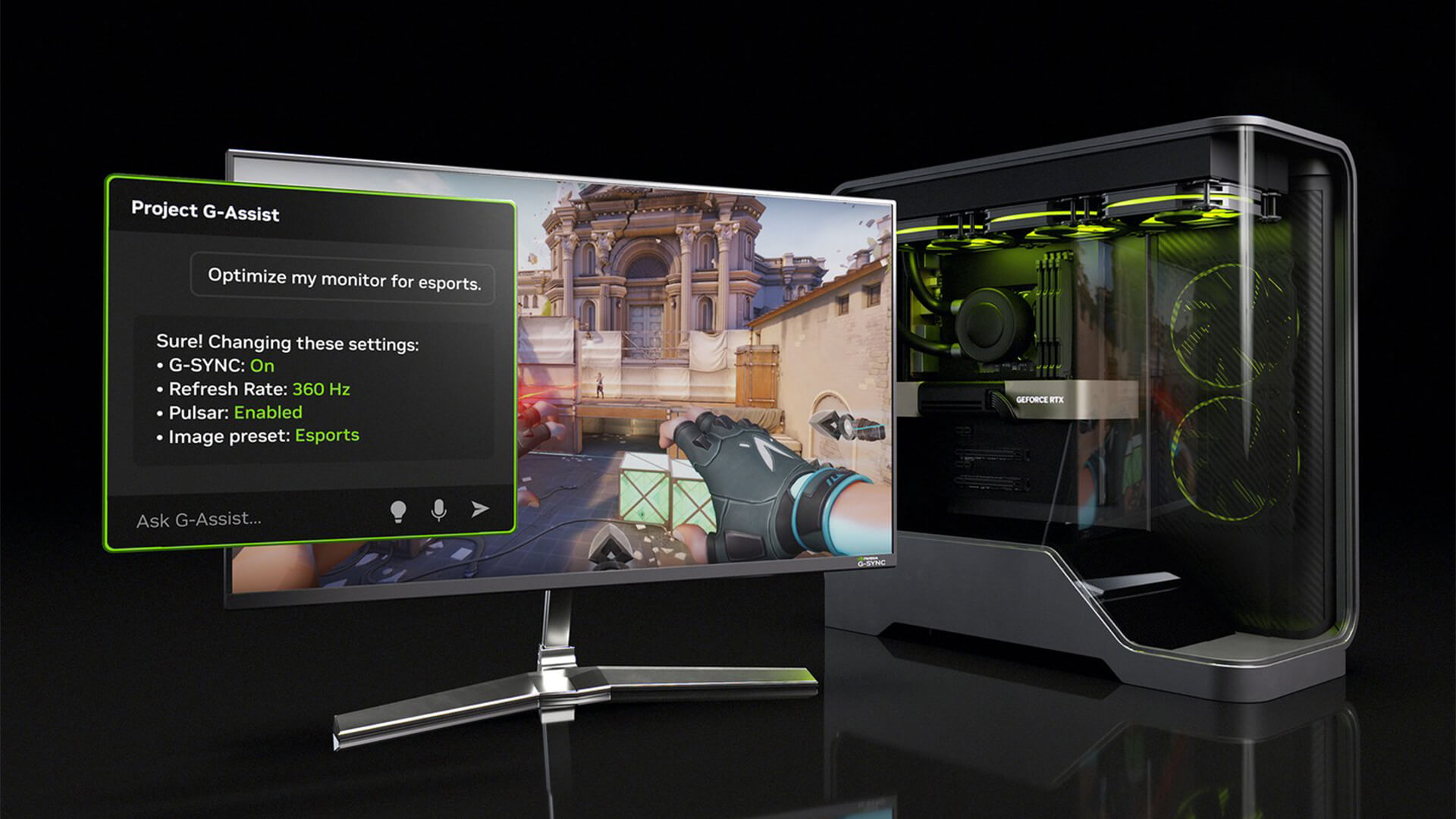
The best RTX 5060 settings depend on the game, monitor, and performance target. A competitive player chasing high FPS will use different settings from someone who wants cinematic visuals.
Prioritising the Settings That Affect FPS Most
Some graphics settings hit performance much harder than others. Start with these before dropping everything to Low.
Settings that often affect FPS most:
- Ray tracing
- Path tracing
- Shadows
- Volumetric lighting
- Reflections
- Ambient occlusion
- View distance
- Crowd density
- Texture quality, if VRAM is full
- Anti-aliasing
- Resolution scale
For better RTX 5060 performance, reduce the heaviest settings first. This usually keeps the game looking good while improving frame rate.
Balancing Textures, Shadows and Effects
Texture settings mainly depend on VRAM. The RTX 5060 has 8GB GDDR7, so it can handle many modern games well, but very high-resolution texture packs can still push the card hard.
A good starting point:
- Textures: High, unless VRAM is full
- Shadows: Medium or High
- Reflections: Medium
- Ambient occlusion: Medium
- Volumetric effects: Medium
- Motion blur: Off, unless preferred
- Film grain: Off, unless preferred
- Depth of field: Personal choice
- Ray tracing: Medium, Low or Off depending on game
This is a better approach than using Ultra everywhere. Ultra settings often cost a lot of FPS for small visual gains.
Choosing Settings for 1080p and 1440p
At 1080p, the RTX 5060 should usually focus on high frame rates and strong visual quality. Use High settings in many games, then adjust ray tracing and effects if needed.
At 1440p, you need to be more selective. Use DLSS Super Resolution where supported, lower heavy effects, and avoid maxing out ray tracing unless you are happy to use Frame Generation or Multi Frame Generation.
Suggested starting points:
| Resolution | Starting Settings |
|---|---|
| 1080p eSports | High FPS preset, low latency settings, Reflex On |
| 1080p single-player | High settings, DLSS Quality if needed |
| 1440p balanced | High or Medium-High, DLSS Quality or Balanced |
| Ray tracing games | DLSS On, RT set to Low or Medium first |
| Competitive gaming | Lower shadows, effects and post-processing |
Use DLSS Without Sacrificing Image Quality
DLSS is one of the best tools for improving RTX 5060 performance. It can increase frame rates by rendering at a lower internal resolution and using AI upscaling to rebuild a sharper image.
Useful DLSS settings include:
- DLSS Quality: Best image quality, smaller FPS boost
- DLSS Balanced: Good mix of quality and FPS
- DLSS Performance: Stronger FPS boost, softer image
- DLSS Super Resolution: The core upscaling feature
- DLSS Frame Generation / Multi Frame Generation: Boosts perceived smoothness in supported games
- NVIDIA Reflex: Helps reduce latency, especially important with frame generation
For most RTX 5060 gaming settings, start with DLSS Quality at 1080p or 1440p. If the frame rate is still too low, try Balanced. Use Performance mode mainly when the game is very demanding, or you are playing at a higher resolution.
For 5060 DLSS settings, avoid turning on every feature blindly. Frame Generation and Multi-Frame Generation can make motion look smoother, but they work best when your base FPS is already reasonable. If the game feels laggy, enable NVIDIA Reflex where available.
Adjust Ray Tracing for Smoother Gameplay
Ray tracing can look brilliant, but it is one of the heaviest settings in modern games. Good GeForce 5060 ray tracing settings depend on the title.
For smoother RTX 5060 performance, use this order:
- Enable DLSS Super Resolution.
- Turn on NVIDIA Reflex if available.
- Start ray tracing at Low or Medium.
- Test FPS and frame time.
- Increase ray tracing only if performance stays stable.
- Use Frame Generation or Multi Frame Generation if the game supports it and latency feels acceptable.
Ray-traced reflections, global illumination, and path tracing are usually the biggest performance hits. If FPS drops heavily, reduce those before lowering every other setting.
For fast multiplayer games, ray tracing is often not worth the performance cost. For cinematic single-player games, it can be worth using if DLSS keeps frame rates smooth.
Prevent CPU and System Bottlenecks
An RTX 5060 bottleneck happens when another part of the PC stops the graphics card from performing properly. The most common causes are CPU limits, low RAM, slow storage, poor cooling, and background applications.
Pairing the RTX 5060 with a Suitable Processor
A good CPU helps keep the RTX 5060 fed with data. If the processor is too old or too weak, GPU usage may stay low even when the frame rate is poor.
Signs of a CPU bottleneck:
- GPU usage is low in demanding areas
- One or two CPU cores are maxed out
- FPS drops in busy towns, raids, or open-world areas
- Lowering graphics settings does not improve FPS much
- Stutter appears when lots of NPCs or physics are on screen
For balanced RTX 5060 performance, pair the card with a modern Ryzen 5, Ryzen 7, Intel Core i5, or Intel Core i7. Browse compatible processors if you are building or upgrading the full PC.
Why RAM Capacity and Speed Matter
For gaming in 2026, 16GB RAM is the sensible minimum for many builds, while 32GB is better if you stream, edit, run mods, or keep many apps open.
Good RAM helps with:
- Smoother multitasking
- Fewer background slowdowns
- Less stutter in some games
- Better loading behaviour
- Improved performance in memory-heavy titles
For most RTX 5060 gaming PCs, choose dual-channel RAM where possible. If you are upgrading, compare gaming RAM and check motherboard compatibility before buying.
Closing Background Apps Before Gaming
Background apps can reduce performance, increase CPU usage, and cause 5060 stuttering.
Before gaming, close or limit:
- Browser tabs
- Launchers you are not using
- Screen recording apps
- RGB software if it causes issues
- Unnecessary overlays
- Cloud sync tools
- Large downloads
- Update installers
- Video calls
- Streaming apps
You do not need a perfectly clean Windows install. Just stop heavy background applications from competing with the game.
Keep the GPU Cool and Consistent
Thermal throttling can reduce RTX 5060 performance. If the card gets too hot, it may lower clocks to protect itself, which can cause lower FPS or inconsistent frame times.
Improve airflow by checking:
- Front intake fans
- Rear and top exhaust fans
- Cable management
- Dust filters
- GPU clearance
- Case ventilation
- Room temperature
- Fan curves
- Whether the card has enough space to breathe
If temperatures are high, clean dust, improve fan placement, or consider a better case. Browse airflow optimised cases if your current case traps heat around the GPU.
Do not ignore hot VRAM or hotspot readings if your monitoring software shows them. Stable temperatures usually mean more consistent boost clocks and smoother gameplay.
Optimise Windows and NVIDIA Settings
Windows and NVIDIA settings will not magically double your FPS, but they can help avoid wasted performance.
Choosing the Correct Power Mode
For desktop gaming, use a performance-focused power mode while plugged in.
Check:
- Open Settings.
- Go to System.
- Select Power or Power & battery.
- Choose Best performance where available.
For NVIDIA 5060 power settings, use the NVIDIA App to check game-specific or global GPU settings. A “prefer maximum performance” style setting can help in some games, but it may increase power use and heat. Use it for specific games that downclock too aggressively rather than applying it to everything without testing.
Also, make sure your power supply is suitable. NVIDIA’s reference guidance lists 550W required system power for the RTX 5060, but real requirements depend on the CPU, card model, drives, cooling, and other parts. Compare compatible power supplies if your current PSU is old, low-quality, or underpowered.
Setting the Right Refresh Rate
Many gamers forget to set their monitor to its highest refresh rate.
On Windows:
- Open Settings.
- Go to System.
- Select Display.
- Open Advanced display.
- Choose the correct refresh rate.
If you have a 144Hz, 165Hz, or 240Hz monitor but Windows is set to 60Hz, your RTX 5060 may be producing extra frames you cannot properly see.
Use DisplayPort or the correct HDMI standard where needed, especially for higher refresh rates.
Using the NVIDIA App’s Optimisation Tools
NVIDIA App Optimisation can help if you do not want to tune every game manually. It can suggest settings based on your GPU, CPU, and display.
Use it as a starting point, not a final answer.
A good process:
- Optimise the game in NVIDIA App.
- Launch the game.
- Test a repeatable area.
- Adjust heavy settings manually.
- Save your own profile if needed.
NVIDIA App can also help with drivers, performance overlays, and game capture. Just remember that recording, overlays, and filters can slightly affect performance, especially if several are active at once.
Should You Overclock or Undervolt an RTX 5060?
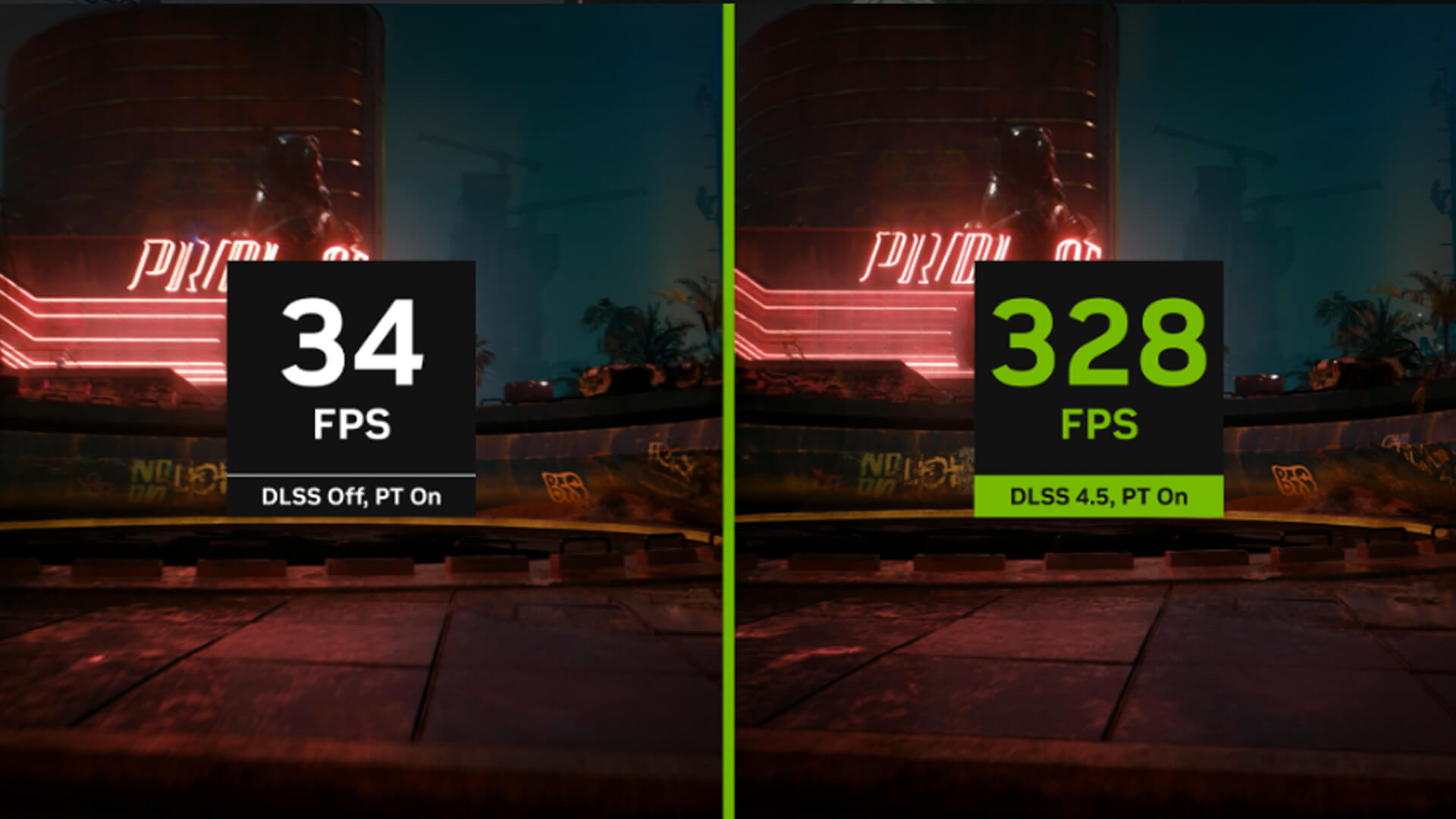
RTX 5060 overclocking can improve performance slightly in some cases, but results vary by graphics-card model, cooling, power limits, and silicon quality. Do not expect a fixed gain.
Overclocking may help if:
- Temperatures are low
- The card has a strong cooler
- The PSU is stable
- The game is GPU-limited
- You test carefully
It can also cause crashes, driver resets, higher temperatures, and more fan noise.
Undervolting can sometimes improve consistency by reducing heat and power draw while keeping similar performance. This is useful if your card runs hot or loud, but it still needs careful testing.
Safe advice:
- Change one setting at a time
- Avoid extreme voltage changes
- Monitor temperatures
- Run stability tests
- Test several games
- Keep a known stable profile
- Revert settings if crashes appear
For most users, better drivers, DLSS settings, cooling, and in-game tuning are more useful than overclocking.
Fix Common RTX 5060 Performance Problems
Low GPU Utilisation
Low GPU utilisation means the graphics card is not being fully used. This can happen because of CPU limits, frame caps, V-Sync, game engine limits, background apps, or low graphics settings.
Try:
- Raise graphics settings slightly if CPU-limited
- Check CPU usage
- Disable unnecessary frame caps
- Check V-Sync and G-SYNC settings
- Update drivers
- Test another game
- Close background apps
- Check power settings
- Enable Resizable BAR if supported and stable
If the GPU is at 60% usage but the CPU is maxed, upgrading the GPU will not fix the problem. You need to address the CPU bottleneck.
Stuttering and Inconsistent Frame Rates
5060 stuttering can be more annoying than low average FPS. A game can show 100 FPS and still feel rough if frame times are uneven.
Common causes:
- Shader compilation stutter
- Background downloads
- Full VRAM
- CPU bottleneck
- Thermal throttling
- Slow storage
- Unstable overclock
- Game engine issues
- Driver problems
- Too many overlays
Fixes to try:
- Let shaders compile before judging performance
- Lower texture quality if VRAM is full
- Cap FPS slightly below your average
- Close launchers and browsers
- Update the game and drivers
- Move the game to an SSD
- Remove unstable overclocking settings
- Reduce ray tracing
FPS matters, but frame time stability matters more for smooth gameplay.
Crashes, Driver Issues and Unstable Settings
If games crash after changing RTX 5060 settings, go back to basics.
Try:
- Remove overclocks.
- Restart the PC.
- Update the game.
- Update NVIDIA drivers.
- Verify game files.
- Disable unnecessary overlays.
- Check temperatures.
- Reduce ray tracing and texture settings.
- Try a clean driver install.
If one game crashes and others do not, it may be a game-specific issue. If every game crashes, check drivers, PSU, temperatures, and hardware stability.
Lower-Than-Expected Performance
If RTX 5060 performance feels lower than expected, check the obvious items first.
Look at:
- Monitor plugged into GPU, not motherboard
- Latest RTX 5060 drivers installed
- Correct Windows refresh rate
- PCIe slot used correctly
- Power cable fully connected
- CPU not overheating
- GPU not overheating
- RAM running in dual-channel
- XMP or EXPO enabled where stable
- Game installed on SSD
- Background apps closed
- DLSS configured correctly
Also, compare performance using the same resolution and settings as benchmarks. If a benchmark uses DLSS and you test native Ultra with ray tracing, your FPS will not match.
How to Monitor Performance Properly
You cannot optimise what you cannot measure. Use monitoring tools to check whether each change actually improves RTX 5060 performance.
FPS, Frame Time and 1% Lows
Average FPS is useful, but it does not show the full experience.
Track:
- Average FPS
- 1% lows
- Frame time
- Stutter spikes
- Latency feel
- Minimum FPS in busy scenes
A steady 90 FPS often feels better than 120 FPS with constant dips.
GPU Usage, Temperature and Power Draw
Monitor:
- GPU usage
- GPU temperature
- GPU hotspot
- VRAM usage
- Power draw
- Fan speed
- CPU usage
- RAM usage
- SSD activity
If GPU usage is high and temperatures are controlled, the card is probably working properly. If GPU usage is low, look for a CPU bottleneck, frame cap, or software limit.
Testing One Change at a Time
Do not change 15 settings at once. You will not know what helped.
Use this method:
- Pick one game.
- Choose one repeatable area.
- Record baseline FPS and frame time.
- Change one setting.
- Test again.
- Keep the change only if it helps.
- Move to the next setting.
This is the cleanest way to find the best RTX 5060 settings for your own PC.
Best Upgrade Paths for Better RTX 5060 Performance
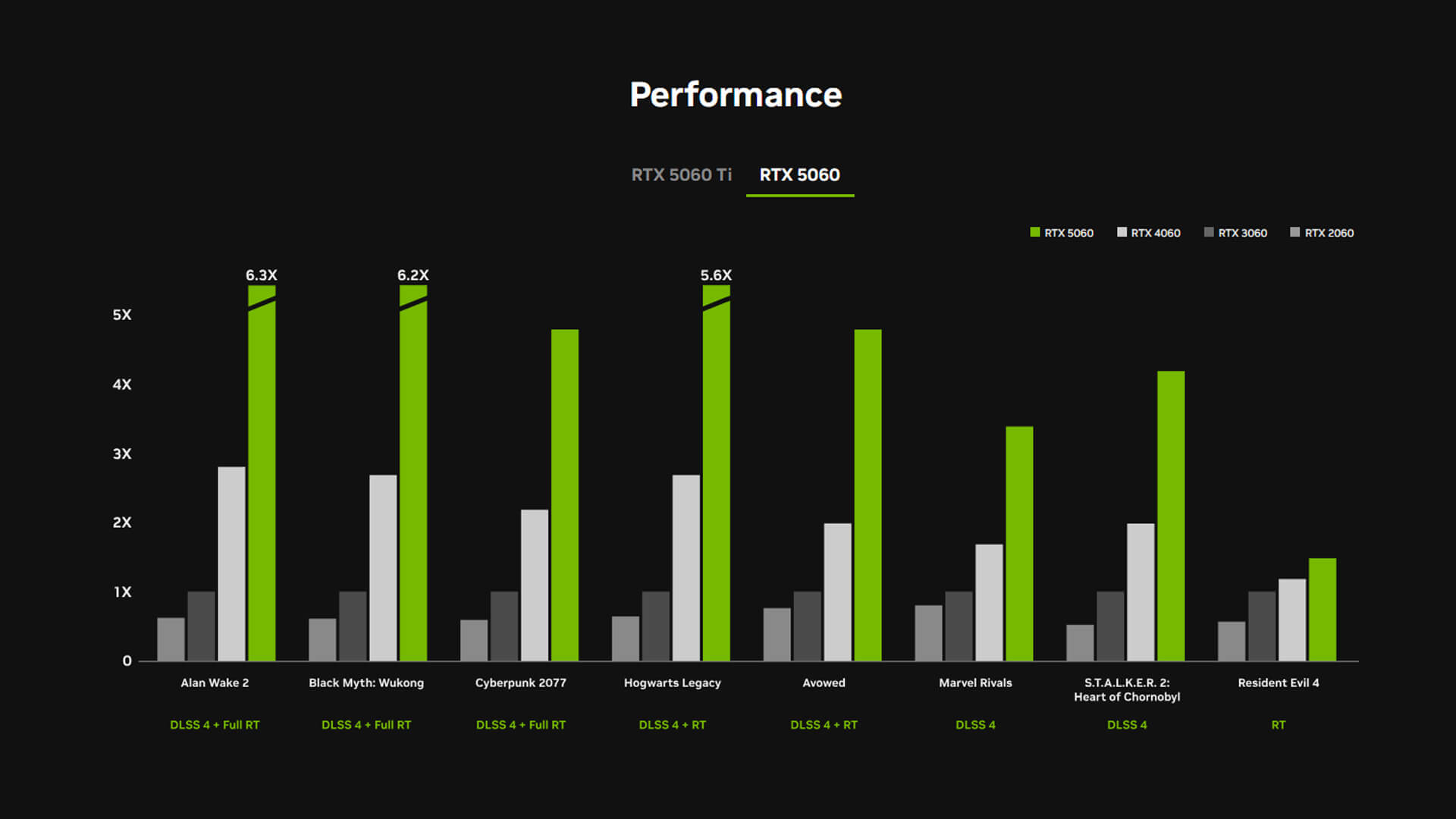
If settings are already optimised, hardware may be the limiting factor.
Consider upgrading:
- CPU, if GPU usage is low
- RAM, if memory is full or single-channel
- SSD, if games stutter during loading
- PSU, if stability is poor
- Case airflow, if temperatures are high
- Monitor, if you are stuck at 60Hz
You can also compare complete RTX gaming PCs if you would rather upgrade the whole setup than troubleshoot an older build piece by piece.
Wrapping Up
The best way to improve RTX 5060 performance is to tune the full system, not just the graphics card.
Start with the basics: update RTX 5060 drivers, set the correct monitor refresh rate, choose a Windows performance power mode, and use the NVIDIA App for driver and game optimisation. Then adjust in-game settings that matter most, especially ray tracing, shadows, reflections, and resolution scaling.
Use DLSS Super Resolution to improve FPS without giving up too much image quality. Use Frame Generation or Multi Frame Generation in supported games when your base frame rate is already solid, and enable NVIDIA Reflex where available to help with responsiveness.
If performance still feels poor, check for an RTX 5060 bottleneck. The issue may be CPU performance, low RAM, poor airflow, an underpowered PSU, background applications or a game-specific problem.
Simple checklist:
- Update Game Ready Drivers
- Use sensible graphics preset optimisation
- Enable DLSS where supported
- Reduce heavy ray tracing settings
- Check CPU and RAM usage
- Close background apps
- Keep GPU temperatures under control
- Set the correct refresh rate
- Use NVIDIA App optimisation as a starting point
- Test one change at a time
- Avoid risky overclocking unless you know what you are doing
With the right settings and a balanced PC, the RTX 5060 can deliver smooth, responsive gaming without needing every setting pushed to Ultra.
FAQs
-
Why is my GeForce RTX 5060 underperforming?
Your GeForce RTX 5060 may be underperforming because of outdated drivers, low power settings, thermal throttling, CPU bottleneck, full VRAM, background apps, incorrect refresh rate, unstable overclocking, or settings that are too heavy for the game. Start with drivers, temperatures, GPU usage, and in-game settings.
-
How to optimise RTX 5060 8GB?
To optimise RTX 5060 8GB, update NVIDIA drivers, use DLSS Quality or Balanced in supported games, keep textures within VRAM limits, reduce heavy ray tracing settings, close background apps, use the correct power mode, improve airflow, and monitor frame times instead of only average FPS.
-
Which version of RTX 5060 is best?
The best RTX 5060 version depends on cooling, noise, size, power connector, warranty, and price. A triple-fan model may run cooler and quieter, while a compact dual-fan card may suit smaller cases. Check card length, slot thickness, and PSU requirements before buying.
-
What is the perfect CPU for NVIDIA 5060?
There is no single perfect CPU for an NVIDIA 5060. A modern Intel Core i5, Intel Core i7, AMD Ryzen 5, or AMD Ryzen 7 is usually a good match. Choose based on the games you play, target FPS, budget, and whether you also stream or create content.
-
What is the minimum PSU for 5060?
NVIDIA’s reference guidance lists 550W required system power for the RTX 5060, but real requirements depend on the full PC, including CPU, drives, fans, card model and power supply quality. A good-quality 550W or higher PSU is the sensible starting point for many builds, but always check the specific card manufacturer’s guidance.
-
Should I overclock my RTX 5060?
Only overclock your RTX 5060 if you are comfortable testing stability, temperatures, and power draw. Gains vary by card model and cooling, and unstable overclocks can cause crashes or stuttering. Most users should optimise drivers, DLSS, cooling, and game settings first.
-
Why does my RTX 5060 stutter in games?
RTX 5060 stuttering can be caused by shader compilation, full VRAM, CPU bottlenecks, background apps, slow storage, thermal throttling, unstable overclocking, driver issues, or game engine problems. Monitor frame times, GPU usage, CPU usage, VRAM, and temperatures to find the cause.
You can pay with:
*PayPal Credit Representative Example: Assumed credit limit £1,200, Representative 23.9% APR (variable). Purchase rate 23.9% p.a (variable).Terms & Conditions apply.


PayPal Credit and PayPal Pay in 3 are trading names of PayPal UK Ltd, 5 Fleet Place, London, United Kingdom, EC4M 7RD. Terms and conditions apply. Credit subject to status, UK residents only, Five Tech LTD acts as a broker and offers finance from a restricted range of finance providers. PayPal Pay in 3 is not regulated by the Financial Conduct Authority. Pay in 3 eligibility is subject to status and approval. 18+. UK residents only. Pay in 3 is a form of credit. Check if affordable and how you will repay. May make other borrowing more difficult or expensive. See product terms for more details.
Copyright © 1996-2026 Fivetech LTD | Terms and Conditions
box.co.uk & Box are trading names of Five Tech Limited. Registered office: Box LTD, Unit 10 Woodford Trading Estate, Woodford Green IG8 8HF