


 Menu
MenuMenu


Get Sales Advice from Mon - Fri 9am - 5:00pm:
020 3337 8950LAST UPDATED: March 13, 2026
Case Fan Isn't Spinning: Step‑By‑Step Diagnostics & Fixes
If your case fans are not spinning, it can be worrying especially if you're gaming, editing, or running workloads that generate heat. Whether it's one case fan not spinning, your CPU fan not spinning, or even all your PC fans not spinning, cooling problems should never be ignored.
The good news? In most cases, PC fans not spinning doesn’t mean the fan is dead. The issue is usually related to power delivery, BIOS settings, fan curves, or control mode mismatches.
Before you assume the fan has failed, there are several simple checks and adjustments that can bring it back to life.
This guide walks you through why a case fan won't spin, how to diagnose the issue safely, and the exact steps to fix it, using a clear and beginner-friendly approach.
Why Are My PC Fans Not Spinning?
Before jumping into fixes, it helps to understand why PC fans stop working in the first place. The most common causes include:
- Loose or incorrect fan connections
- PWM and DC control mismatches
- Fan curve set too low
- Zero RPM mode enabled
- Faulty fan hubs or splitters
- Motherboard header failure
- Worn-out fan bearings
Sometimes the issue is isolated to one case fan not spinning. Other times, you may notice PC fans spin then stop repeatedly, or the case fan not spinning but light works, which usually indicates a power or header issue rather than total failure.
Now let’s go step by step through diagnosing and fixing it properly.
Step-by-Step Diagnosis and Fixing Case Fan Issues Quickly
Step 1. Safety First
Before inspecting any fan inside your PC, always power down your system completely and unplug it from the wall. Case fans connect directly to your motherboard or power supply, so even a small amount of residual power can cause shorts or accidental movement of components. After shutting down, press the PC's power button once to discharge any leftover electricity.
Only then remove the side panel and begin checking the fan; this ensures that the blades won't spin unexpectedly, and you can safely touch cables, headers and components without risking damage.
Step 2: Physical Inspection and Cleaning

1- Confirm the Fan Is Properly Connected
One of the most common reasons a case fan won't spin is simply because it isn't receiving consistent power. Even if the cable looks plugged in, it may not be fully seated or may be connected to the wrong header. Case fans must plug into specific motherboard connectors such as SYS_FAN, CHA_FAN, or PWR_FAN. If the connector is even slightly misaligned, the fan will either fail to spin or behave inconsistently.
If the fan connects directly to the power supply using Molex or SATA, those cables must also be firmly inserted. Molex cables in particular are known to loosen easily, and a poor connection can cause the fan to spin for a moment and stop or not turn on at all.
Another frequent issue is plugging a fan into an RGB header instead of a fan header. RGB headers only provide lighting signals not power for the motor, so the fan's LEDs may glow while the blades never move. This mistake is extremely common in cases with multiple cables.
If your fan setup uses splitters or a hub, check that the hub itself has power. Many hubs require a dedicated SATA connection to the PSU, and without it, none of the connected fans will spin. And if your motherboard simply doesn't offer enough fan headers, upgrading to newer motherboards with more dedicated chassis fan outputs can prevent repeat issues.
2- Check for Physical Obstructions
Even when a fan has power, physical blockage can stop it from spinning. Modern PC builds often pack tight cable runs; thick GPU power leads and large coolers into small spaces. It only takes a single loose cable brushing against the fan blades to stop them completely.
Open the case and visually inspect all sides of the fan. Look for PSU cables, GPU power leads, loose front-panel connectors, or RGB wires that may have shifted into the blade path.
Try gently spinning the fan with your finger. It should turn freely and smoothly. If it feels stiff, grinds, or stops abruptly, there may be dust buildup inside the motor, or the fan's bearings may be worn out. Excessive dust along the frame or motor hub can also slow down the blades enough that the fan cannot reach its minimum startup speed. A fan needs a certain amount of torque to begin spinning, and too much dust reduces that torque.
Cleaning the fan with compressed air or a soft brush often restores smooth operation.
Step 3: Verify Power and Control Issues
Case fans don't just rely on power; they rely on the correct type of power control. Modern motherboards manage fan speeds in different ways, and if the fan and header don't speak the same "language," the fan may refuse to spin entirely. These issues are extremely common, especially in new PC builds or after BIOS updates.
1- PWM vs DC Control Mismatch
Every fan and motherboard header operates using either PWM control or DC (voltage) control:
PWM (Pulse Width Modulation)
- Uses a 4-pin connector
- Receives a constant 12V supply
- Speed controlled through rapid electrical pulses
- Allows very precise speed adjustments
- Preferred for modern PC builds
DC / Voltage Mode
When the motherboard is configured incorrectly, such as forcing a 4-pin PWM fan to run in DC mode, the fan may never receive enough startup voltage to spin. This is one of the most common reasons for case fans not spinning in new builds. Instead, you may notice the fan twitching, or PC fans spin then stop repeatedly, a classic symptom of incorrect control mode.
On the other hand, a 3-pin DC fan connected to a PWM-only control mode may receive short electrical pulses instead of steady voltage. The fan doesn't know how to interpret the signal, so it may spin erratically, refuse to start, or stop when temperatures drop.
How to fix it:
Open your BIOS → go to Fan Control / Hardware Monitor / Q-Fan / Smart Fan → match each fan header to the correct mode:
- 4-pin fans → PWM
- 3-pin fans → DC / Voltage
Once the modes match, most non-spinning fans immediately spring back to life.
2- Minimum RPM and Fan Curve Settings
Even with the correct power mode, fans require a minimum torque (and therefore minimum RPM) to start spinning. Most case fans cannot physically run below 400–600 RPM. If your BIOS or fan software tells a fan to operate below that threshold, it simply won't move.
This commonly happens when users create ultra-quiet fan curves without realising most fans cannot spin below 30–40% power:
- Setting the fan curve to 0–20%
- Enabling Zero RPM Mode
- Using Silent or Eco profiles in motherboard utilities
- Allowing software and BIOS to fight over fan control
When the requested RPM is lower than what the motor can handle, the fan may:
- Spin for a moment, then stop
- Stay completely still until temperatures spike
- Pulse on/off as it struggles to maintain rotation
If your PC fans spin then stop repeatedly, increasing the minimum fan speed usually fixes the issue immediately.
Why fans behave this way:
A motor needs a certain amount of voltage and torque to overcome internal resistance and begin spinning. If the fan curve commands a lower speed than the motor can support, the fan is essentially starved of the power it needs.
How to fix it:
Increase the minimum value on your fan curve. In BIOS or software:
- Set the lowest point of the curve to 30–40% PWM
- Disable Zero RPM Mode while testing
- Run fan calibration or auto-tuning features
- Ensure the fan curve uses the correct temperature sensor (CPU, motherboard, VRM)
Once the fan has enough power to start consistently, it will maintain a stable low speed without constant stuttering.
Step 4: Check BIOS and Software Settings
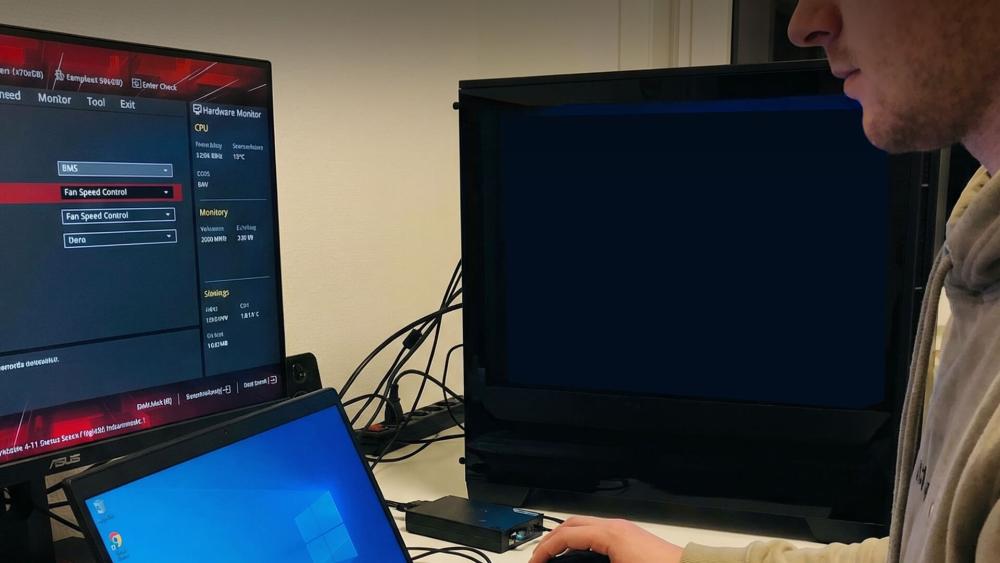
When a case fan won't spin despite being properly connected, the next place to look is your BIOS and software. Modern PCs use intelligent fan control to keep noise levels low, and while this is useful, it often creates confusion when fans appear "dead" even though nothing is wrong. The goal here is to ensure that your motherboard is intentionally running the fan, not silently keeping it off due to a setting you weren't aware of.
1- BIOS Fan Detection and Control Modes
The BIOS is the motherboard's control centre, and it dictates how each fan behaves before Windows even loads. When a fan isn't spinning, entering the BIOS lets you confirm whether the motherboard is correctly detecting the fan and supplying it with enough power.
Once inside the BIOS (usually by pressing DEL or F2 on startup), navigate to sections like:
- Hardware Monitor
- Fan Control / Smart Fan Mode
- Q-Fan Control
- Cooling or Monitoring
Inside this menu, you'll see RPM readings for each connected fan. If the fan shows 0 RPM, the motherboard may not be detecting it properly, or it's being held at a speed too low to start.
One common cause is Zero RPM Mode, a feature designed to keep fans off at low temperatures for silent operation. Many users mistake this for a hardware fault when, in reality, the BIOS is simply waiting for the system to warm up before spinning the fan. Zero RPM Mode is great for silence, but while troubleshooting, it's important to turn it off so you can confirm the fan does spin when commanded.
Another important setting is the fan's control mode. A mismatch between PWM and DC control can prevent a fan from starting. The BIOS must be told whether the connected fan is a 3-pin DC model or a 4-pin PWM model. If the mode is wrong, the fan may twitch, spin briefly, or stay off entirely. Switching the header to the correct mode immediately restores normal behaviour in most cases.
If your BIOS includes a Fan Calibration or Fan Tuning feature, run it. This allows the motherboard to test the fan's lowest stable RPM and adjust its curve automatically, ensuring it doesn't get stuck at a speed too low to start.
| Choosing the Right Case Fan: Learn how to pick the perfect airflow or static-pressure fan for your setup, including sizing, placement and compatibility tips. |
2- Software Conflicts and Overrides
Even when the BIOS is set correctly, fan control software in Windows can override those settings and create new problems. Many systems have multiple utilities installed sometimes from a motherboard manufacturer, sometimes bundled with RGB software, and sometimes installed automatically with hardware.
Programs like:
- Corsair iCUE
- ASUS Armoury Crate
- MSI Center
- NZXT CAM
- Argus Monitor
- FanControl (Community Tool)
These are all capable of taking full control of your chassis fans. If more than one of these is active, they can fight each other for control, causing fans to behave erratically spinning, stopping, pulsing or refusing to start at all.
For example, Armoury Crate may be instructing the fan to stay off until 50°C, while MSI Center may be telling it to run at 20% resulting in inconsistent and unstable behaviour. Similarly, some RGB controllers also include fan speed modules, which users may activate unknowingly.
To fix this, close all software except the one you intend to use for fan control. Disable fan modules within RGB apps if you don't need them. If the conflict continues, uninstall competing tools temporarily and see whether the fan behaves normally again.
Using one fan controller either BIOS or a single software app ensures stable and predictable operation.
Step 5: Advanced Troubleshooting

Not all fan issues come from the fans themselves often; the problem lies in how they are powered or distributed through your motherboard. Case fans rely on clean, stable voltage, and if the header, splitter or hub supplying them is struggling, your fan may stop spinning, spin inconsistently, or fail to start at all.
1- Overloaded Fan Headers
Every motherboard fan header has a limit to how much electrical current it can safely supply. Exceeding that limit is a common reason why PC fans are not spinning when connected via splitters. Most headers support around 1 amp, which is enough for one or two standard fans. When multiple fans especially high-RPM or RGB fans are connected to a single header through a splitter, you risk drawing more power than the header is designed to output.
When this happens, your fans may:
- Refuse to start because they're not getting enough voltage
- Spin up briefly and then stop
- Cause the header to shut down to protect itself
If you're running more than two fans from one header, the safest solution is to use a powered fan hub. A powered hub takes its energy directly from your PSU ensuring the fans receive full, stable power while the motherboard only sends the control signal. This prevents header overload, protects your motherboard, and keeps your fans running reliably.
2- Faulty Fan Hubs or Splitters
Fan hubs and splitters are convenient, but they are also a common point of failure. Many budget splitters are unpowered, meaning they divide a single header's voltage across multiple fans. If the connector degrades, has loose wiring, or simply isn't built well, the fans may receive inconsistent or insufficient power.
Symptoms of a faulty splitter or hub include:
- Multiple fans failing at the same time
- Fans spinning extremely slowly
- Fans showing 0 RPM in BIOS despite being connected
- RGB working but the motor not spinning
To confirm whether the hub or splitter is the problem, disconnect it and connect one fan directly to the motherboard. If the fan spins normally, the splitter or hub is at fault, not the fan or the header.
Investing in a quality hub and pairing it with stable power supplies significantly reduces these issues, especially in modern builds with several chassis fans.
| Fix Noisy or Unstable Fans: A step-by-step guide to diagnosing loud, rattling or inconsistent fans and restoring smooth, quiet cooling. |
3- Testing the Fan on Another Header or System
To confirm whether the problem is the fan or the motherboard header, unplug the fan and connect it to a different working header such as SYS_FAN or CHA_FAN. If it spins normally on the new header, the original header may be damaged or misconfigured.
If the fan still doesn't spin, test it in another PC if possible, or plug it into a different PSU cable if it uses Molex or SATA power. A fan that refuses to run in multiple systems is almost certainly faulty.
4- Signs of Fan Motor Failure
A failing fan motor shows clear symptoms, including:
- Grinding or rattling noises
- Blades wobbling or vibrating
- The fan spinning briefly, then stopping
- No movement even at 100% fan speed
If you notice any of these behaviours, the fan's internal bearings or motor are likely worn out. At this stage, replacing the fan is the safest and most reliable solution, ensuring your system maintains proper airflow and cooling.
Final Checklist Before Replacing the Fan
| Check | What to Look For | Why It Matters |
| Connection secure? | Fan firmly plugged into the correct motherboard header | Loose or incorrect headers prevent power delivery |
| Dust/obstructions removed? | No cables, dust clumps or debris blocking blades | Blocked blades can stop fans from starting |
| Correct PWM/DC mode? | 4-pin fans on PWM, 3-pin fans on DC | Wrong mode = fan won't receive proper power control |
| Minimum RPM increased? | Curve not set too low (below 30–40%) | Fans cannot spin reliably below their torque threshold |
| Tested on another header? | Fan works on SYS_FAN or CHA_FAN | Confirms whether the header or fan is faulty |
| Tried removing hubs/splitters? | Fan connected directly to motherboard | Splitters/hubs can starve fans of power |
| Working fan tested on same header? | Another fan spins fine | Rules out header failure |
| Software conflicts checked? | Only one control tool active (BIOS or app) | Conflicts cause fans to stop or behave erratically |
If the fan still won't spin after all checks, the motor or bearings are likely failing replacing the fan is the safest fix.
Final Thoughts!
A case fan that isn't spinning doesn't always mean expensive repairs. Most issues can be fixed with simple adjustments, checking your cables, correcting PWM/DC mode, cleaning dust, raising the minimum RPM, or resolving BIOS and software conflicts. With proper airflow in place, your PC stays cooler, quieter and far more reliable, whether you're gaming, working or multitasking.
If you're ready to upgrade your cooling setup, you can explore motherboards with stronger fan control, shop high-performance PC case fans (including some of the best case fans available), browse the latest PC cases, or stabilise your system using reliable power supplies all available at Box.co.uk. With the right components working together, your PC will run smoothly and stay healthy for years.
Frequently Asked Questions
Why does my case fan spin briefly and stop?
This usually means the fan isn't receiving enough startup power due to low fan curve settings, PWM/DC mismatch or a weak splitter/hub.
Can a fan stop spinning because of BIOS settings?
Yes. Zero RPM mode, Silent Mode or incorrect control mode can prevent a fan from spinning until temperatures rise.
Is it safe to run a PC if one case fan isn't spinning?
Only temporarily. Long-term use without proper cooling can increase temperatures and shorten component lifespan.
How do I know if a fan header is dead?
Test a working fan on that header. If it fails there but works elsewhere, the header is likely faulty.
Why are my PC fans not spinning but the lights work?
If your case fan is not spinning but the light works, it usually means the RGB cable is connected but the fan motor cable is not receiving power. Check that the fan is plugged into a proper fan header like SYS_FAN or CHA_FAN.
You can pay with:
*PayPal Credit Representative Example: Assumed credit limit £1,200, Representative 23.9% APR (variable). Purchase rate 23.9% p.a (variable).Terms & Conditions apply.


PayPal Credit and PayPal Pay in 3 are trading names of PayPal UK Ltd, 5 Fleet Place, London, United Kingdom, EC4M 7RD. Terms and conditions apply. Credit subject to status, UK residents only, Five Tech LTD acts as a broker and offers finance from a restricted range of finance providers. PayPal Pay in 3 is not regulated by the Financial Conduct Authority. Pay in 3 eligibility is subject to status and approval. 18+. UK residents only. Pay in 3 is a form of credit. Check if affordable and how you will repay. May make other borrowing more difficult or expensive. See product terms for more details.
Copyright © 1996-2026 Fivetech LTD | Terms and Conditions
box.co.uk & Box are trading names of Five Tech Limited. Registered office: Box LTD, Unit 10 Woodford Trading Estate, Woodford Green IG8 8HF